Trouble Shooting
- Question: I installed the Tool, but it doesn’t run.
Answer: Most likely, your .NET Framework is too old. You can upgrade to a latest version by installing from
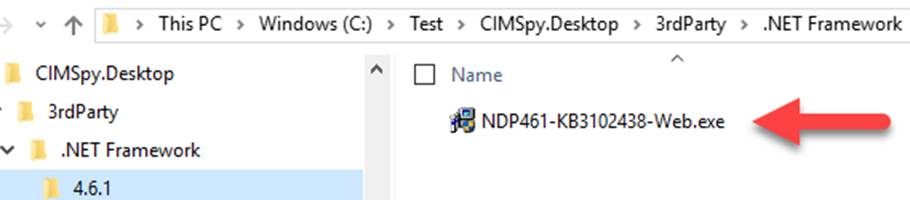
Web connection is required during the upgrade.
- Question: The Tool starts, but complains missing DLLs. What shall I do?
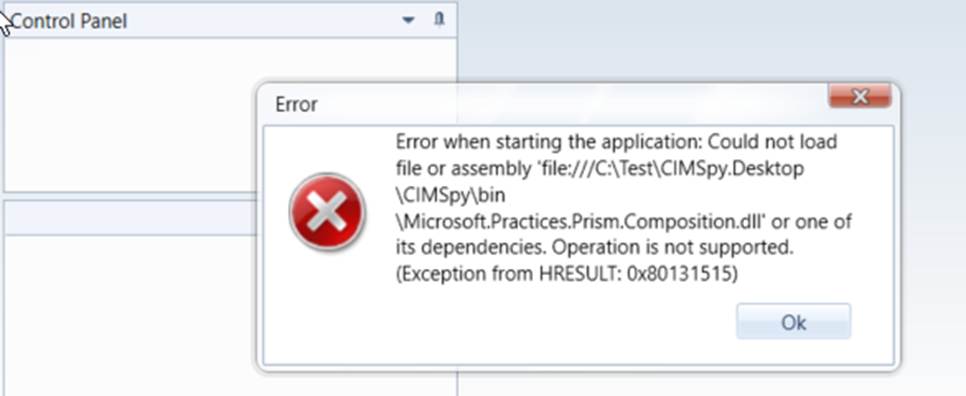
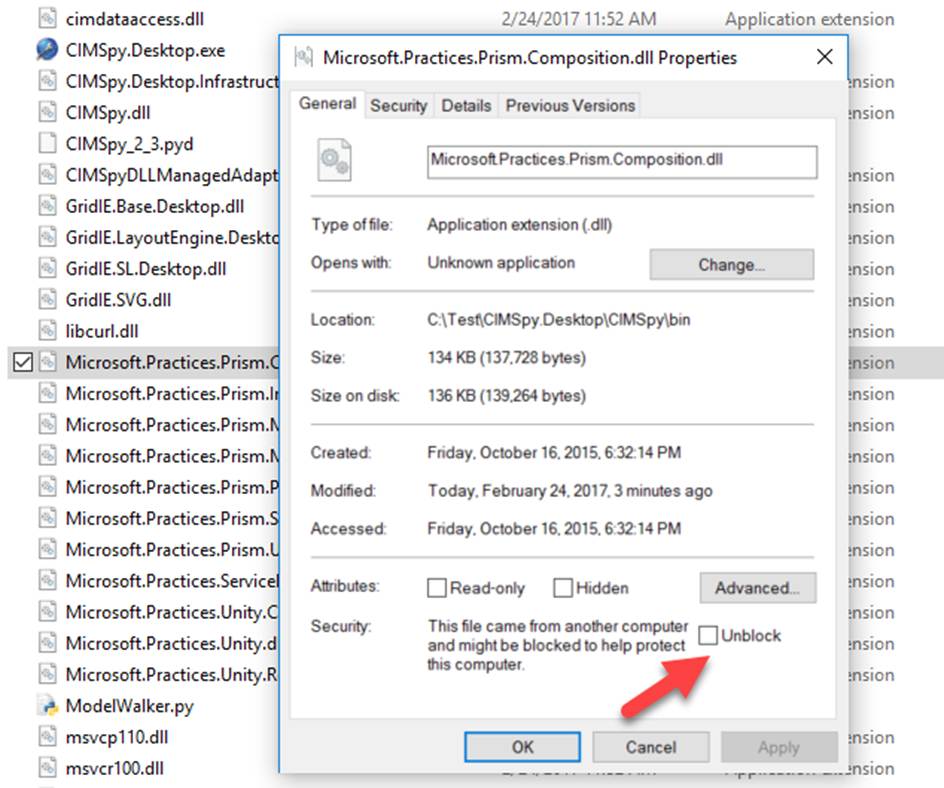
Answer: Most likely, you didn’t unblock the zip file and your installation is blocked by Windows or the installed antivirus software. While you can unblock exe and DLL file individually, as illustrated below, the best approach is to unblock the installation zip file and then unzip it again. When you unblock a zip file, all of the files in the package will be unblocked. See the Installation Guide for more details.
- Question: My computer blocks execution of the Tool.
Answer: Contact your IT staff and have them unblock this safe desktop application.
- Question: I download a CIM/XML file and save it in my desktop. But the tool doesn’t load this file.
Answer: Desktop is a user-specific folder in Windows. User-specific folders typically have limited roles, which may prohibit other applications from accessing the contained files. The easiest way to resolve this issue is to move the files to other none user specific folders, such as D:\Models, so that the tool can load them without restrictions.
- Question: I was running a heavy-duty task. After about some time, a message pops up complaining timeout. Can I change time-out parameter?
Answer: Yes. The default timeout parameter is defined at CIMSpyConfig.xml under folder \CIMSpy\config\ui. While you can always change the default parameter directly, it is recommended that you define your custom timeout parameter in AddonConfig.xml under the same folder to overwrite the default timeout parameter. Note the timeout parameter is in millisecond.

- Question: Unable to load model files from local machines to the Tool installed in a shared server via the network. In some cases, the Tool crashed. How can this problem be resolved?
Answer: This issue is most likely caused by user role restrictions. Users may not have the necessary permissions to load model files. There are several potential solutions:
- Contact your IT department to request elevated permissions that allow you to load model files from your local machine.
- Log into the shared server remotely and run the Tool directly on the server.
- If you can load a sample model file as a data source, consider creating a data source and loading the model file through it.
- Question: After the Tool is started, the follow error message pops up. How to solve the problem?
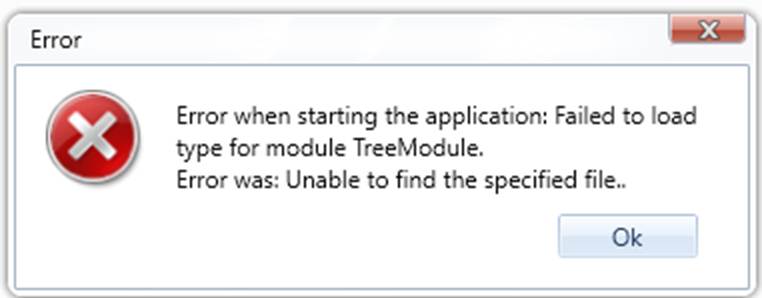
Answer: This is a known issue of a 3rd-party component. It happens when there are some valid special symbols in file path like #. To solve the problem, rename the related folder to remove special symbols in the file path to the bin folder.
- Question: The changed UI configurations are not applied. Why?
Answer: Some UI configurations are used to initialize persistent UI settings.. At runtime, these saved settings will override the configurations. To resolve this, users should modify the settings directly in the UI rather than changing the configurations, or reset the UI settings after modifying the configurations. The former is recommended.
- Question: The Tool fails to start due to corrupted configuration. How to solve the problem?
Answer: The Tool save some user-specific configurations, such as UI Settings, Bookmarks, and Diagram Preference in the Windows Data Roaming directory. This approach ensures that each user’s preferences are maintained separately, supporting shared installations while preserving per-user configurations. It also ensures that user-specific settings are retained after upgrading to a new version of the tool. If the saved data are corrupted for whatever reasons, the Tool may fail to start or render the diagram. The following shows the saved diagram configuration is corrupted.
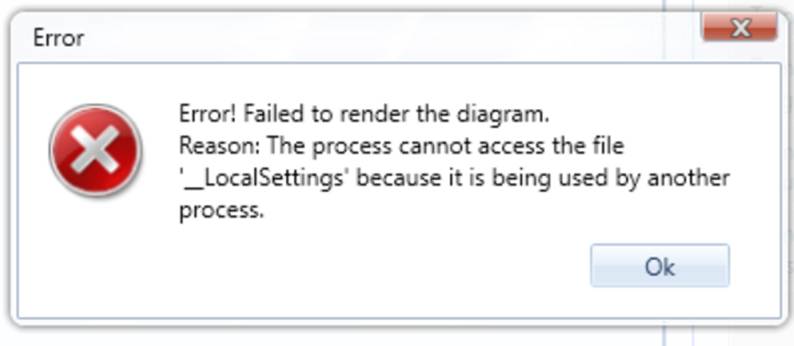
To solve this problem, user can delete the corresponding file in directory under C:\Users\XXXXX\AppData\Roaming\PowerInfo\CIMSpy or the entire directory.