Application Customization
Users can also customize the model applications, such as object searching and model comparison. The default configuration parameters of these applications are defined in StandardConfig.xml. Users, however, can overwrite these parameters by defining their own configuration parameters in the CustomConfig.xml.
Indexing Properties for Improved Performance
Property indexing is designed to accelerate data lookups and enhance overall application performance. When enabled through configuration as illustrated below, frequently accessed properties are indexed internally, significantly reducing search and retrieval times for large models. This optimization improves responsiveness across key operations—including querying, validation, and diagram generation—particularly when working with models containing a large number of objects.

By default, property indexing is disabled because it has a significant impact on internal data structures and overall system behavior. Additional validation and performance testing are required before enabling it broadly.
For users who wish to maximize performance — particularly in large-scale models with frequent property lookups — this feature can be enabled after careful evaluation in their specific deployment environment.
Changing the maximum number of model differences
The model comparison function enables user to compare two models based on the MRID concept. The result of the comparison is a list of model differences. Too many modeling differences, however, will consume a lot of memory and impacts the performance of the tool. By default, the Tool identifies the first 10000 modeling differences and stops further comparison. Normally, it means these two models are not comparable. Users, however, can change this default model comparison limit by changing the configuration parameter in the server configuration, as highlighted in the following screenshot.

Changing the maximum number of searched objects
The Tool provides a query-based searching function. It enables users to create ad hoc queries for searching objects of interest. In some cases, however, there may be thousands of objects meeting the searching criteria. This may impact the performance of the tool. Therefore, the tool imposes a limit on the number of the returned objects. Only the first 500 objects will be displayed. Users, however, can change this default maximum number of searched objects by modifying the corresponding configuration number, as highlighted in the following screenshot.

Forcing execution of validation
When users run model validation, the Tool determines whether to execute a model validation process. If the model hasn’t been changes since last validation, the Tool will not execute the model validation by default. It will simply retrieve the model validation results generated from the last validation for display. If users want to change this default behavior and always run the validation regardless of model changes, flag alwaysValidate shall be set to ‘true’ as shown in the following screenshot.

Add the prefix to the object copy
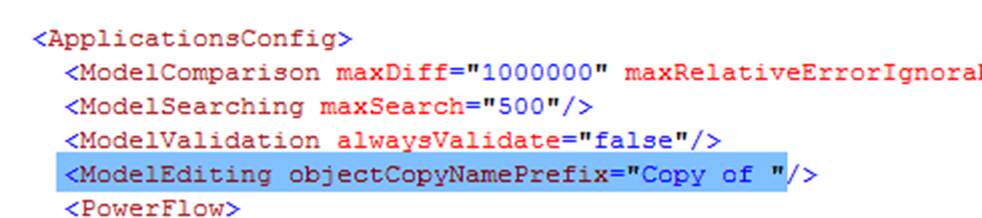
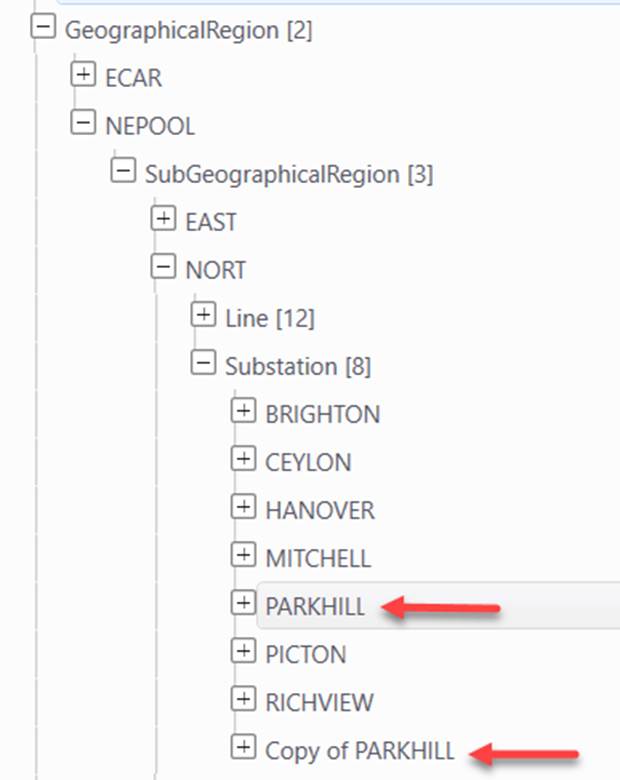
When a new object is created through object copying in the same model, the Tool allows users to specify whether a prefix shall be added to the name of the new object. The following example specifies that string “Copy of “shall be added to name of the new object created through object copying.
Note:
- If users want to retain the exact name of the copied object, set the prefix to the blank string, i.e.
objectCopyNamePrefix="". - This setting applies to the root object for object deep copying. The exact names are retained for all of the copied child objects.