Visual Information Searching
One of the major information searching mechanism supported in the Tool is visual information searching. It helps user find the useful information through visualization. In response to user’s request, the Tool auto-generates the diagram, zooms the generated diagram to a proper size, centers the identified object, and highlights it in different color.
The Tool enables users to navigate to the corresponding graphical diagram via hyperlinks in the Form Display or context menu from the Navigation Tree. Additionally, it provides various visual search wizards to help users find the information of interest.
Navigating to a Substation Diagram
The Tool provides an Auto-Suggest Searching Wizard to facilitate navigation to a Substation Diagram from any diagrams. Users can invoke this wizard by
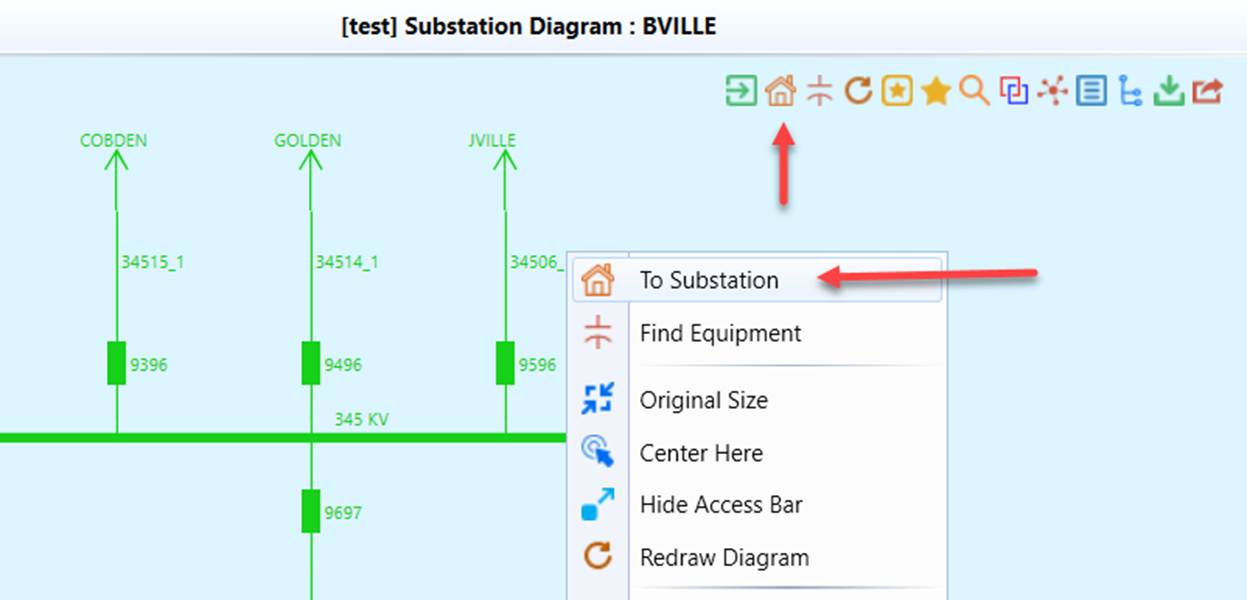
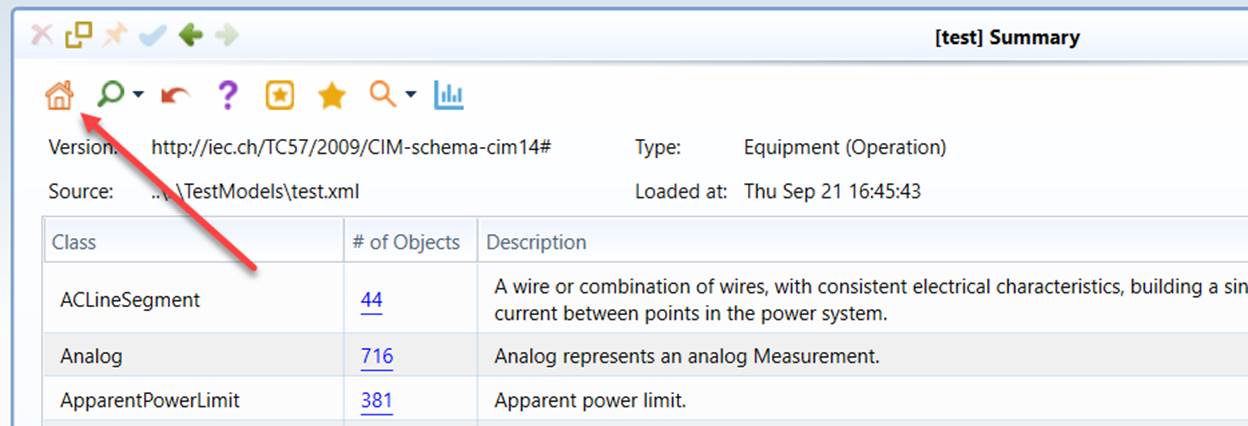
- Right-mouse-clicking any blank spots and selecting the “To Substation” context menu item or via the icon in the Quick Access Toolbar.
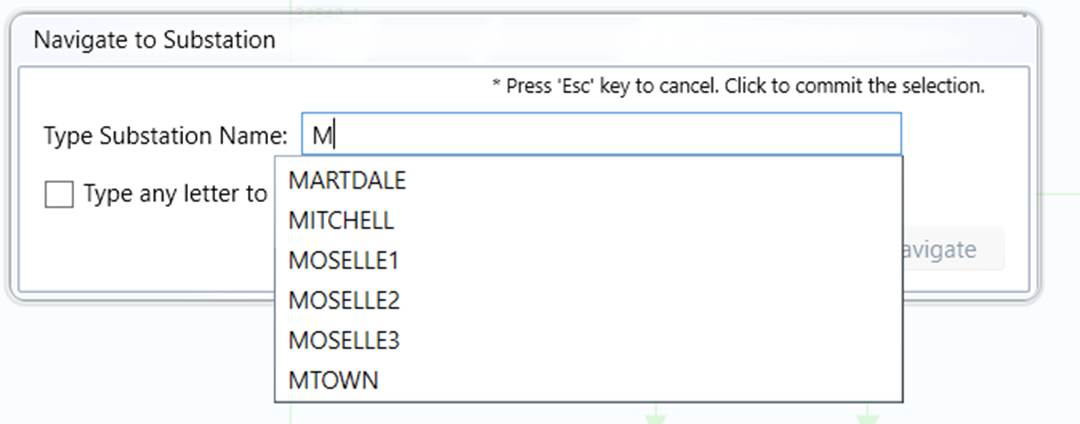
- The Substation navigation wizard will appear, prompting users to enter the substation names. While users type the names of substation, the Tool will search for any substations whose names partially match the typed string and list them as hints for users to select. Typically, after users enter 2 or 3 characters, they can find the target substation from the hint list. Once the substation from the hint list is selected, it will automatically navigate to the station. No button click is required. If users want to cancel the wizard, just hit the “Esc” key in the keyboard.
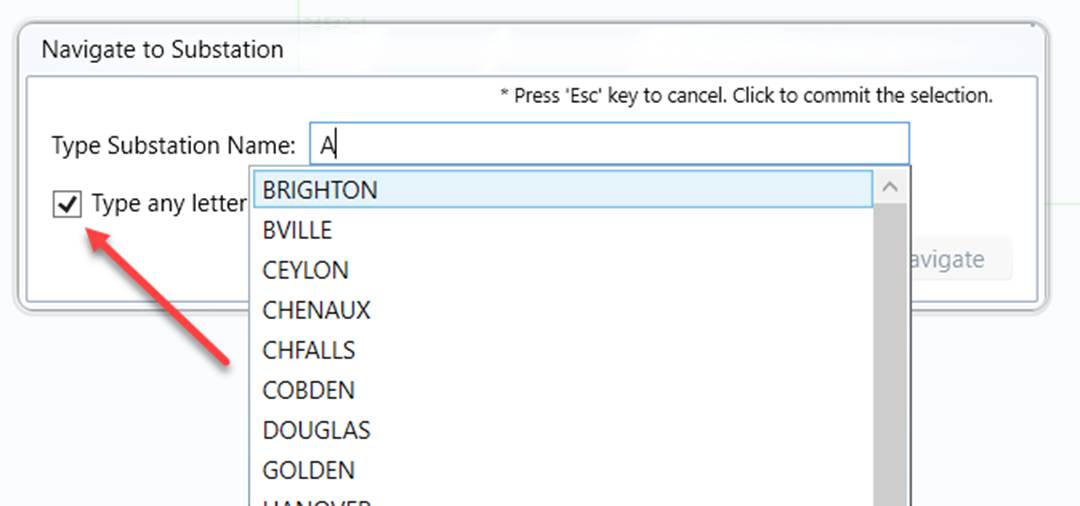
Users can also fill the dropdown list with all of the Substation names by selecting the corresponding checkbox and type any letters in edit box, as illustrated below. This search mode typically applies to the case where users have no clue of the name of the substation to be found. It will allow users to select a Substation from the fully populated Substation name list. Note: for a large model, it may take a while to populate the full name list.
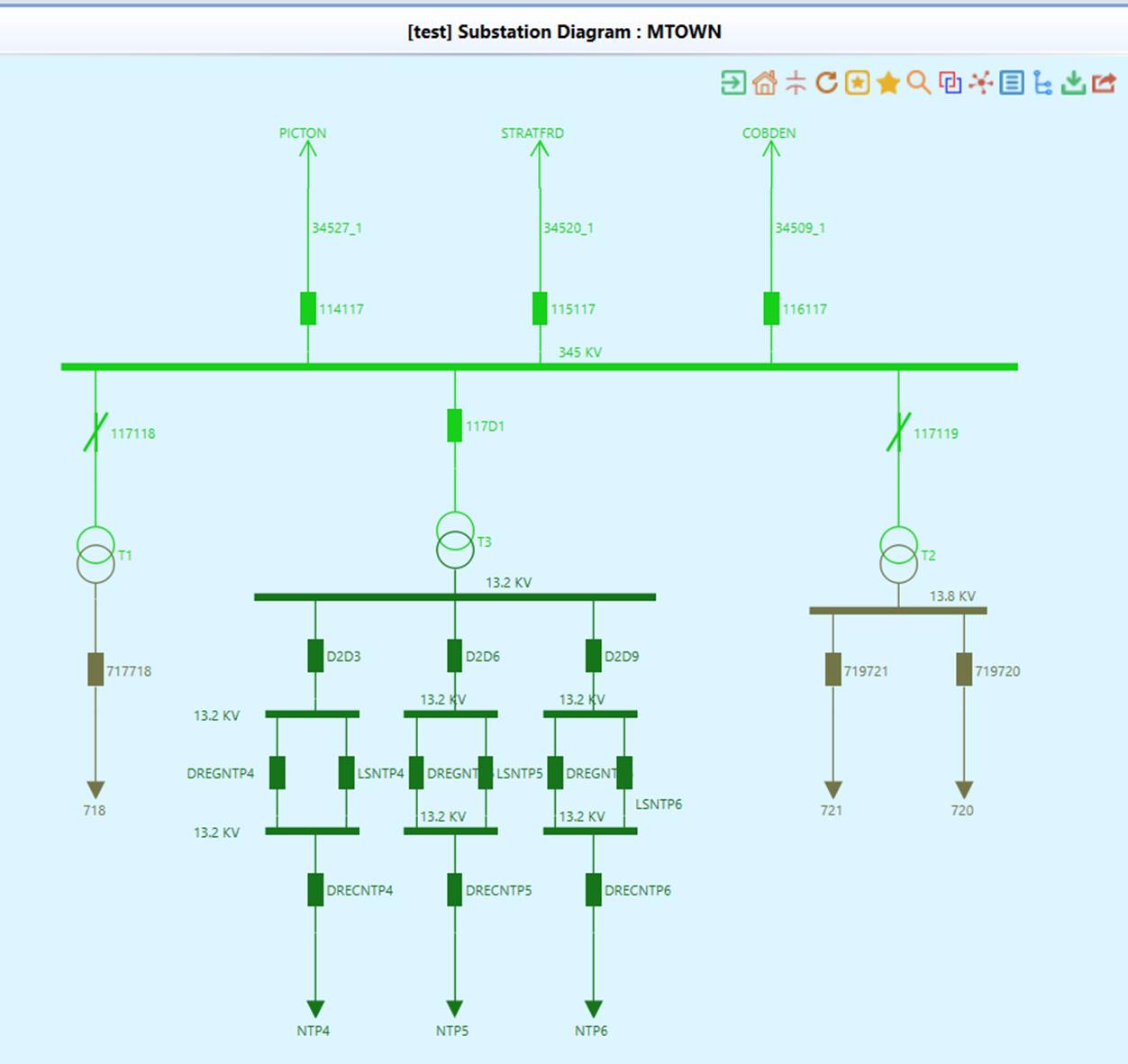
- When users select a Substation from the hint list, the corresponding Substation Diagram will be called, as shown below.
Locating a Graphical Component in Diagram
The tool provides a generic search wizard to help users quickly locate graphical components within a diagram, such as equipment in a Substation Diagram or a Substation/Line in a Geographical Diagram. This feature offers an intuitive and convenient way to visually identify equipment within large diagrams.
- Provides a hint in the search wizard by allowing users to type the name of a graphical component. Typically, after entering a few characters, users can identify the component from the suggested hint list.
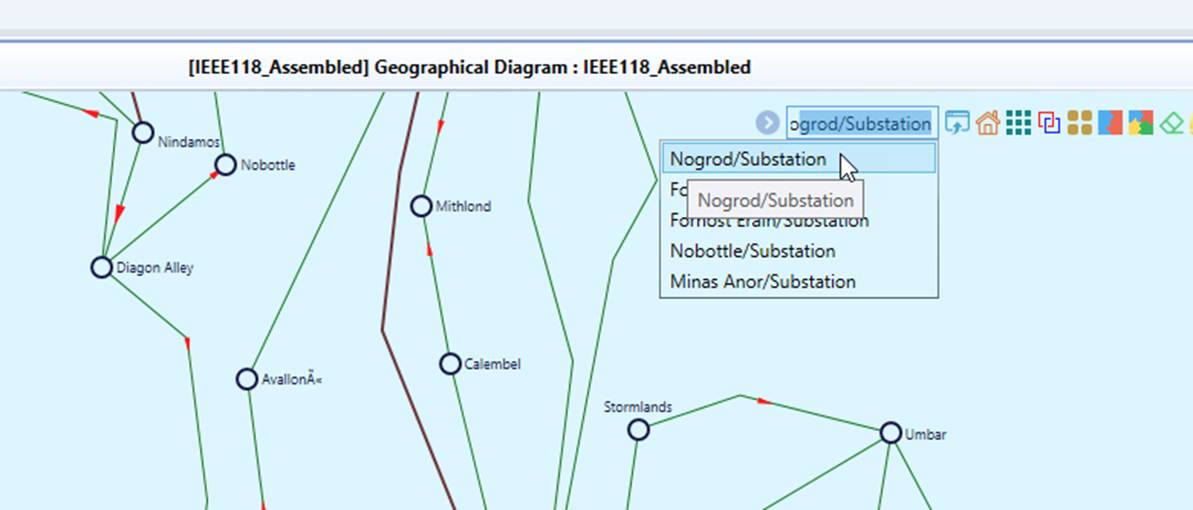
- Once identified, the diagram will be auto zoomed and panned to show the identified component and highlight it graphically.
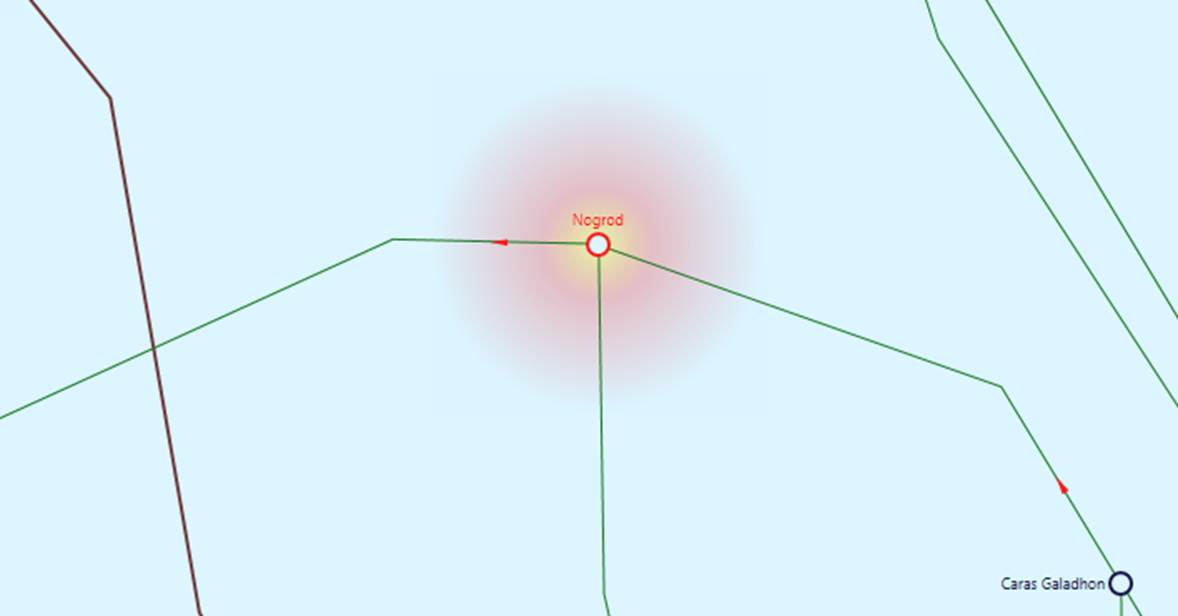
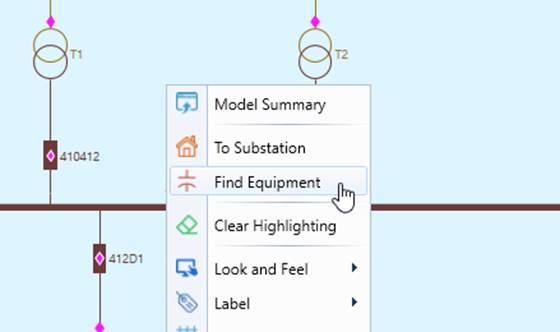
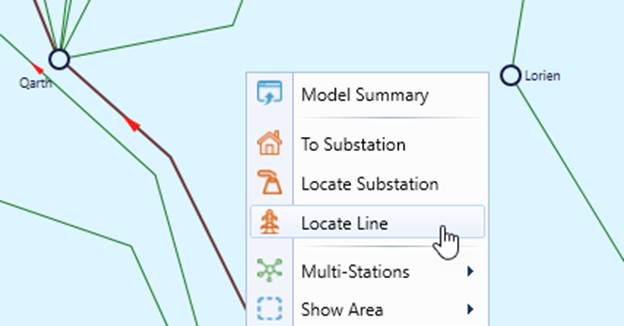
Similar search mechanisms are also available through the context menu for specific component types, such as Equipment in a Substation Diagram or a Line in a Geographical Diagram.