Filtering Tabular Displays
Tabular Display provides a mechanism to present the multiple objects of the same type/class in a tabular format. In many cases, users would like to filter a tabular display to show only the objects of interest, for example displaying only the ACLineSegments equal to or below 138 kV. The Tool provides a powerful model filtering capability to help users find the information of interest. It provides some built-in model filtering features to facilitate information discovery and enables users to formulate an ad-hoc query for model filtering. Users can also create the custom displays using the pre-defined queries based on Model Query Language (MQL). Any filtered tabular displays can also be exported as a CSV file.
Displaying Child/Descendants Objects
The Tool also provides a set of built-in filtered tabular displays to facilitate model exploration. These built-in custom displays are associated with the related objects and can be invoked via the context menu associated with these related objects in the navigation trees. More specifically, the following built-in tabular displays are supported:
Display of Child Objects
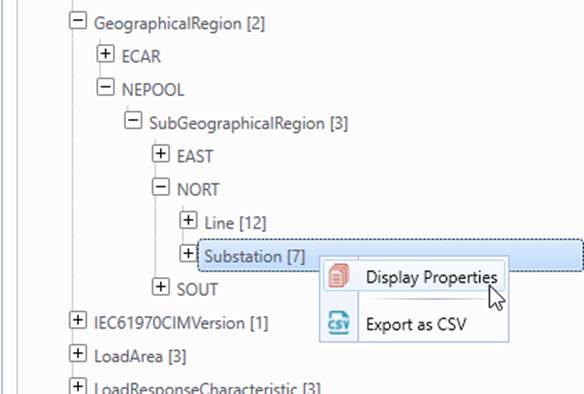
Model navigation trees organize the loaded model into different model hierarchies. Child object tree items are placed under the parent object tree items. The child objects of any objects can be displayed in a tabular form via a content menu associated with the child object category tree item. For example, the following context menu can be invoked to display child Substation objects under a SubGeographicalRegion object.
Display of Descendant Objects
In many cases, users want to find descendant objects, such as SynchronousMachines belonging to a GeographicalRegion. In addition to direct children, descendants also include grandchildren, and grand-grand children, etc. For example, ConnectivityNodes under a VoltageLevel are descendant objects of the Substation which contains the VoltageLevel. Basically, any objects in the subtree of a selected object are descendants of the object, as illustrated below.
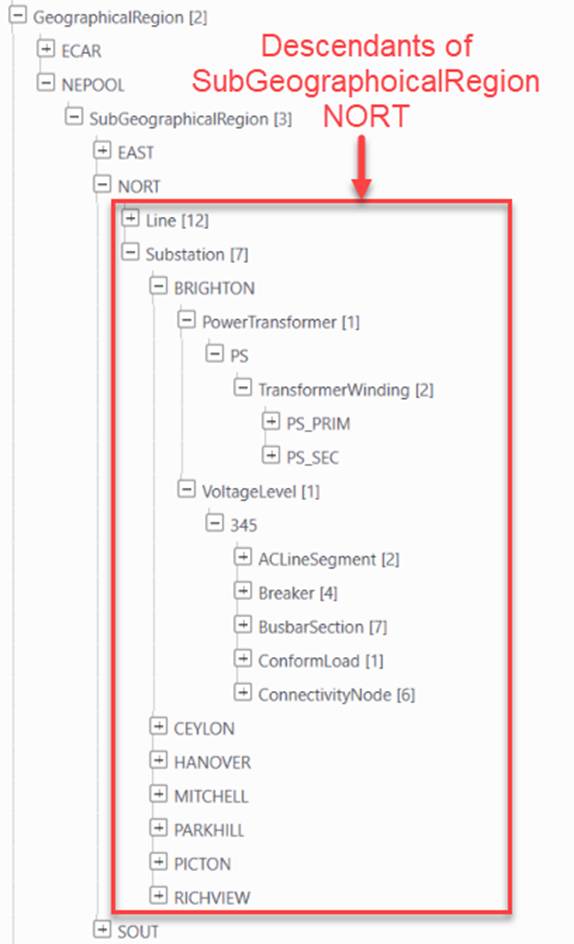
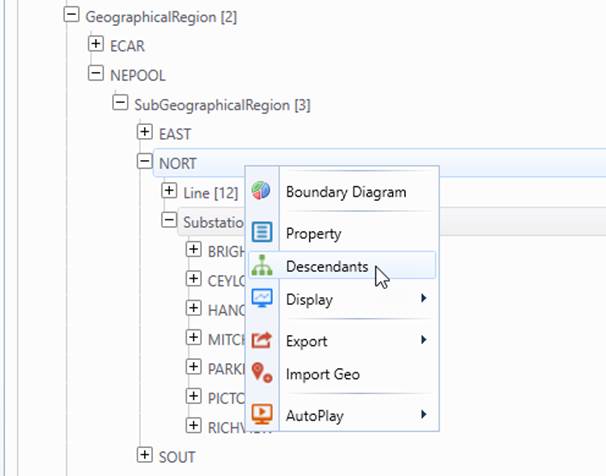
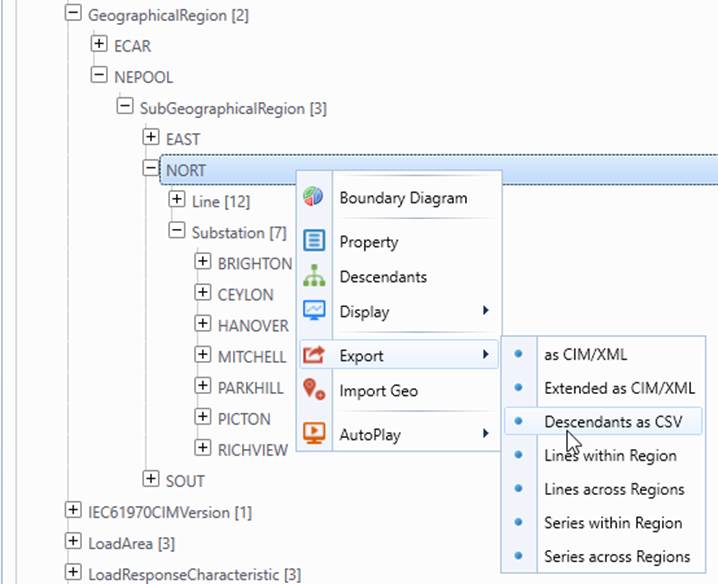
The Tool provides a generic mechanism to help users find the descendants for any objects. The descendant displays can be invoked via the context menu associated with the selected container object. For Geographical and SubgeographicalReion objects, users can also call the built-in displays to show ALCLineSerments/SeriesCompensators within or across region.
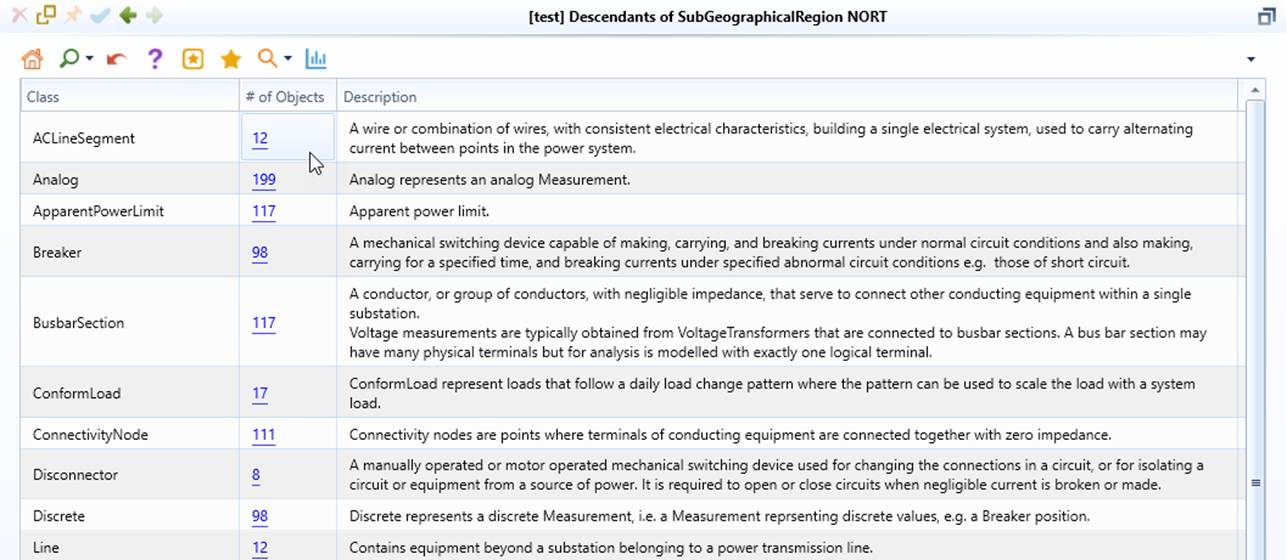
Once invoked, a summary page will be shown to display all of the descendant objects under the selected object, as illustrated below.
Users can also export all of the descendants of a selected object as a CIM/XML file or a collection of CSV files, as shown below. Note: the exported Extended CIM/XML contains not only the descendant objects but also the objects associated with the descendant objects. Check Exporting a Partial Model for more details.
Filtering by Constructing a Query
This model filtering function enables users to perform an ad-hoc query for model filtering. The tool will display only those meeting the filtering criteria users specified. The following steps illustrate the process.
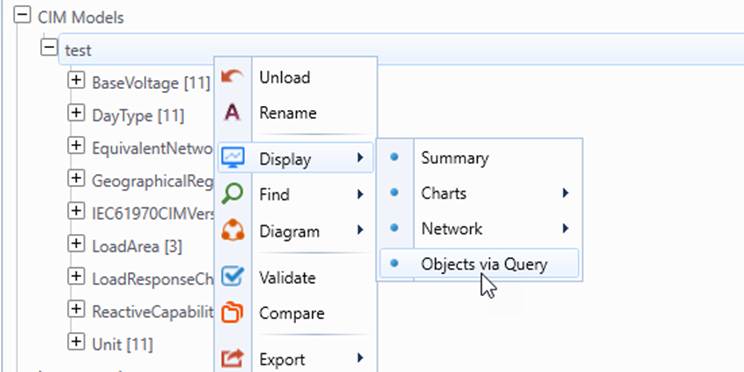
- Users can invoke the function through the context menu associated with the selected model, i.e. via context menu Display→Objects via Query as illustrated below.
- Once the function is invoked, users will be prompted to enter the MQL query string. The following query string is constructed to display the ACLineSegments equal to or below 138 kV
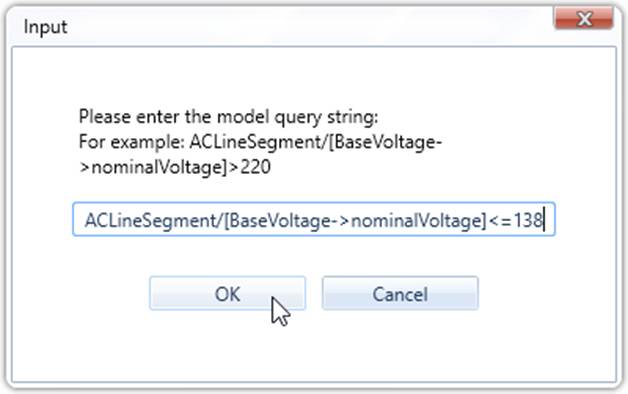
- Click the OK button, the tool will display the objects that meet the above filtering criteria in a tabular form. In this example, only 2 ACLineSegments are displayed, both associated with 138-kV BaseVoltage.

Note
The class name must be provided in the MQL query string. Wild card cannot be used to replace the class name in the query string for this particular use. This is because the tabular displays are designed to show the objects of the same type/class. Wild card, however, can be used to represent any classes when the query is used to find the objects of interest.
Filtering by Calling a Predefined Custom Display
If users want to frequently call a filtered tabular display, then it may be necessary to create a custom display based on MQL and plug it into the tool. The Tool provides a customization feature enabling users to predefine a filtered tabular display and then call the predefined display via the context menu. For the detailed information about how to predefine custom tabular displays, please refer to Building Custom Displays.