Importing CIM/CSV Files
Users can load a CIM model from a directory/folder containing a collection of CSV files. Objects of same class are stored in one CSV file named in class name. These CSV files are exported from the Tool. They can be imported into tools like Microsoft Excel for bulk data manipulation. Additionally, because these files are flat in structure, it makes it easier for external applications to consume. For example, these CSV files can be readily loaded into a CIM-compliant relational database. The modified CSV files can be further imported into the Tool for validation and creation of a new CIM/XML file.
The following steps should be followed to load a CIM model from a directory/folder containing a collection of CSV files:
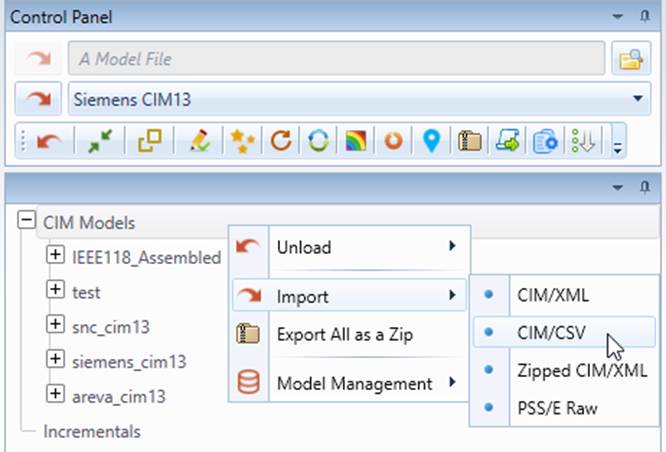
- Right-mouse click the CIM Models tree item in the Model Explorer navigation tree. Then select Import and CIM/CSV in the context menu.
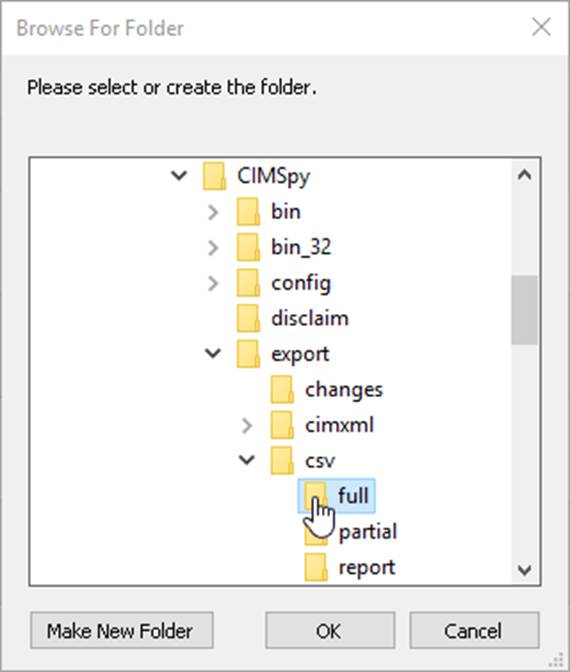
- A browser will appear and prompt the use to select the directory where the CIM/CSV files are stored.
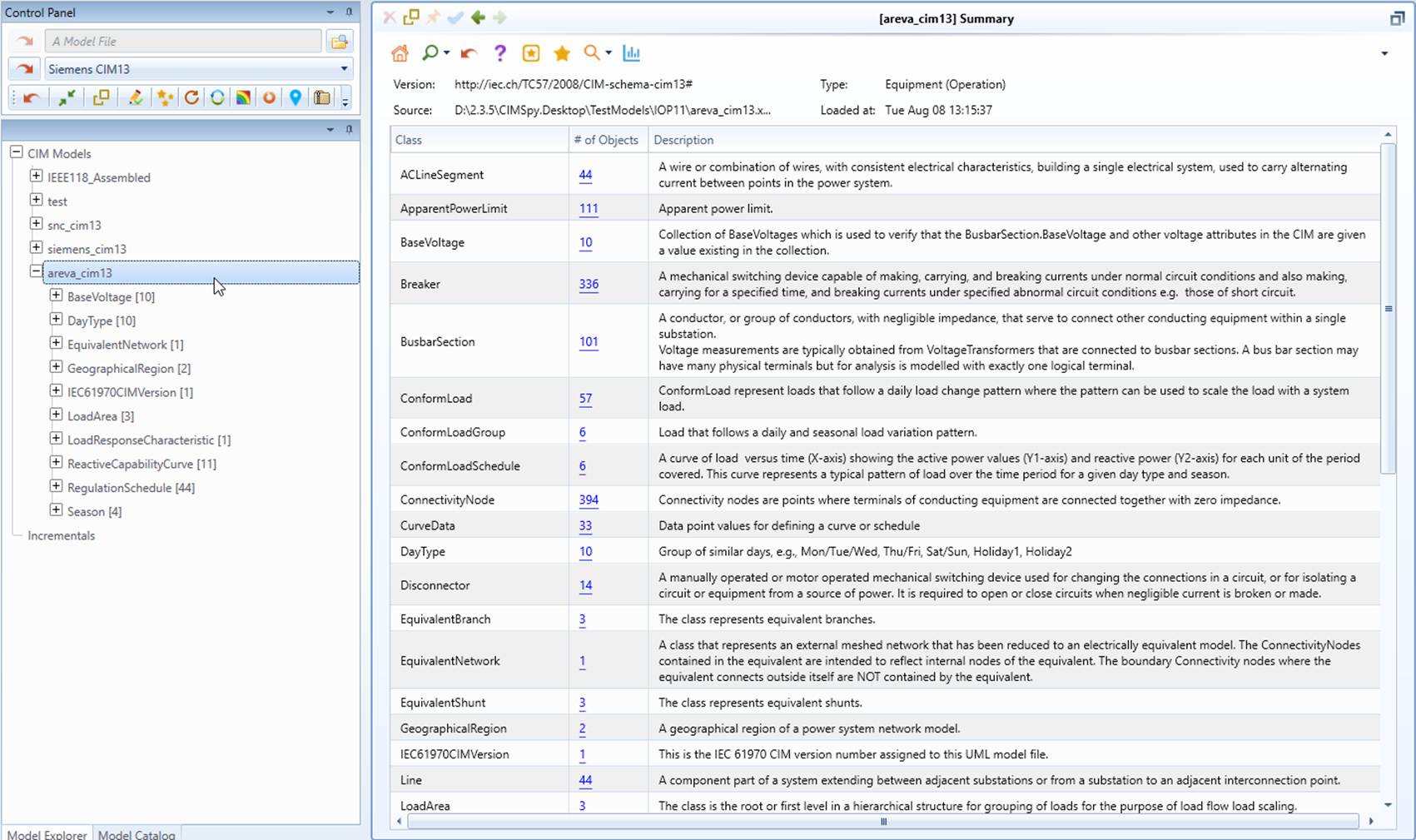
- While the loading process starts, the UI will be locked from any other activities. Once the loading is completed, a summary page will be displayed, listing all of the classes and the corresponding object counts and the description of the CIM classes defined in CIM/UML. A new model tree item will be added under the CIM Models root tree item.
Note:
- If the model to be imported contains CIM extensions, the related files and columns shall be properly named, following the established rules/conventions.
- Microsoft Excel has a very annoying feature. When opening a CSV file, it auto-formats some fields based on its internal rules. For example, it changes “true/false” to “TRUE/FALSE”. While there is no way to disable this annoying feature, there is a workaround. Basically, the csv file should be opened as a text file using a file import wizard. During the import process, users can specify the related columns or all columns shall be imported as ‘text’ rather than ‘general’. For more detailed information about the workaround, please check Exporting as CIM/CSV Files. The other workaround is to open the CSV file with a text editor and use its Find/Replace to restore the auto-formatted fields.