Managing a Version in a Modelspace
All versions’ name and description can be updated. All versions except Base version can be deleted. Version update and version deletion can be performed from Model Admin Page.
Update a Version
Version update is used to change a version’s name and description. One common use case is the update of auto-generated draft version name to a more user-friendly one. A labeled version including Base version can also be renamed or have the description reworded.
Follow the steps to update a version:
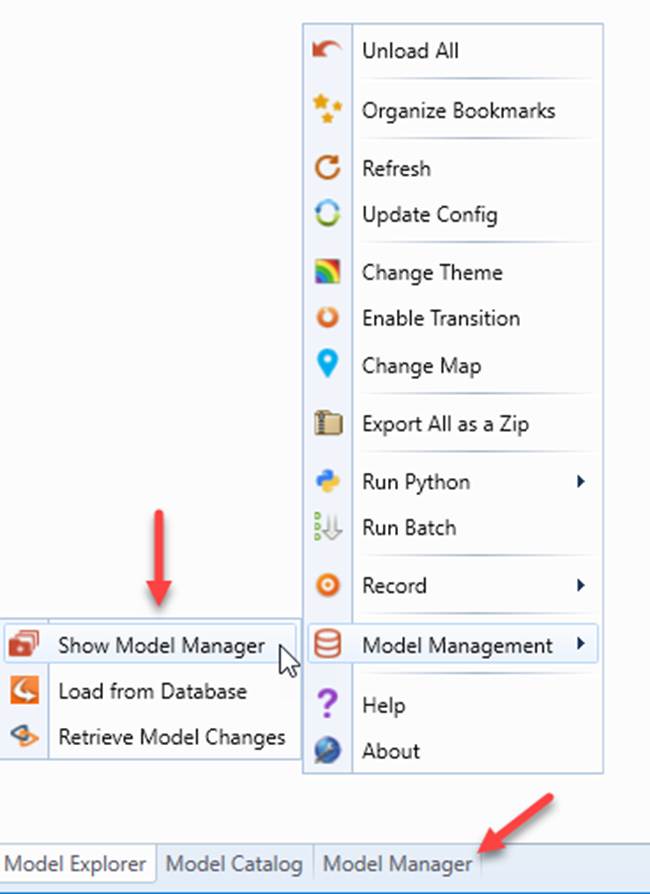
- Navigate to Model Admin Page.
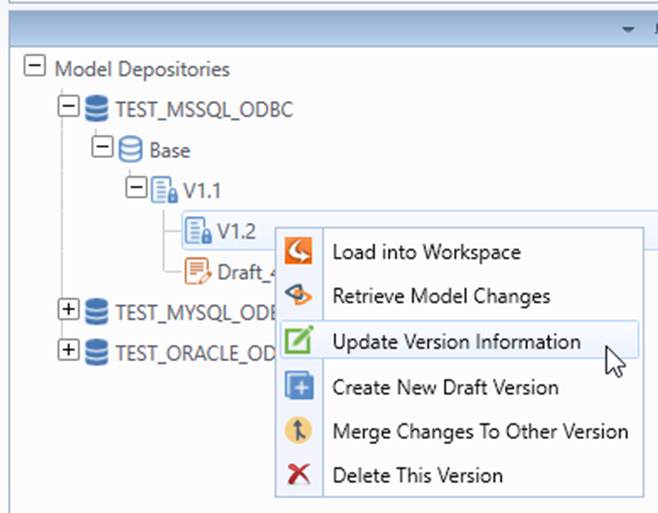
- Right click the version to be updated. Select Update Version Information from the context menu.
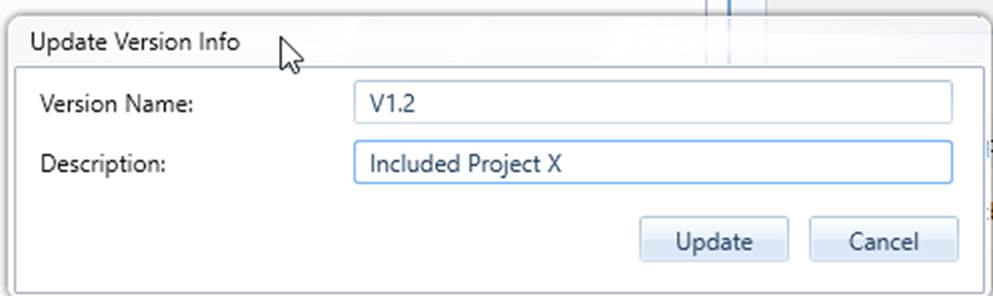
- Enter new version name and description into the dialog box. Select Update to update. Or Cancel to cancel the action.
Delete a Version
Delete version removes a version and its dependent versions permanently from Modelspace. All submitted changes and pending changes associated with these versions are deleted at the same time. A good use case is to a remove a whole model branch in a few mouse clicks. Delete version is so powerful and irreversible, users should be cautious when using it.
Base version cannot be deleted.
Follow the steps to delete a version:
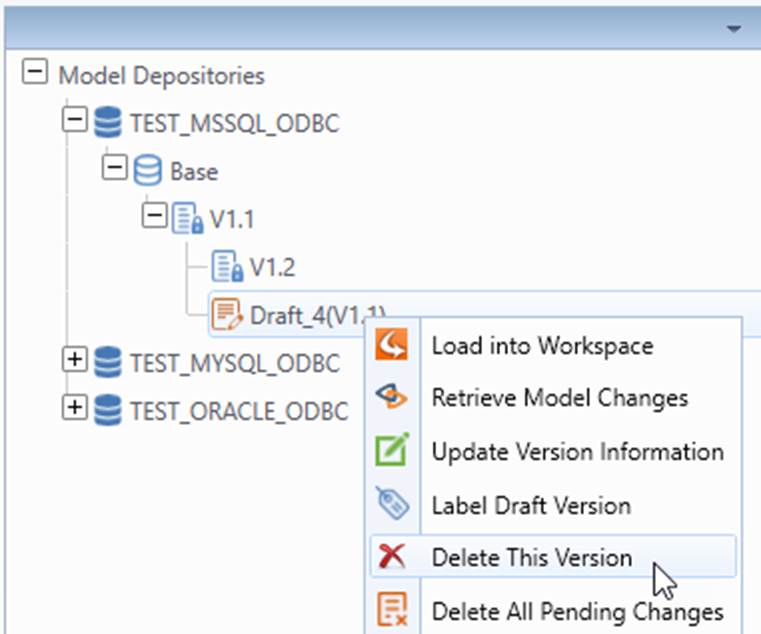
- Right click the version to be deleted. Select Delete This Version from the context menu.
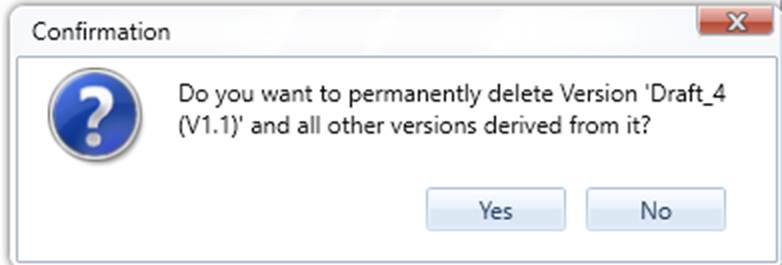
- A popup message is displayed for confirmation. .
Next Step
The Tool supports advanced version managing functions including assembling a version of model, extracting model changes between versions, importing model changes, and branch and merging versions.