Searching for Objects of Interest
Searching for Objects in Full Model
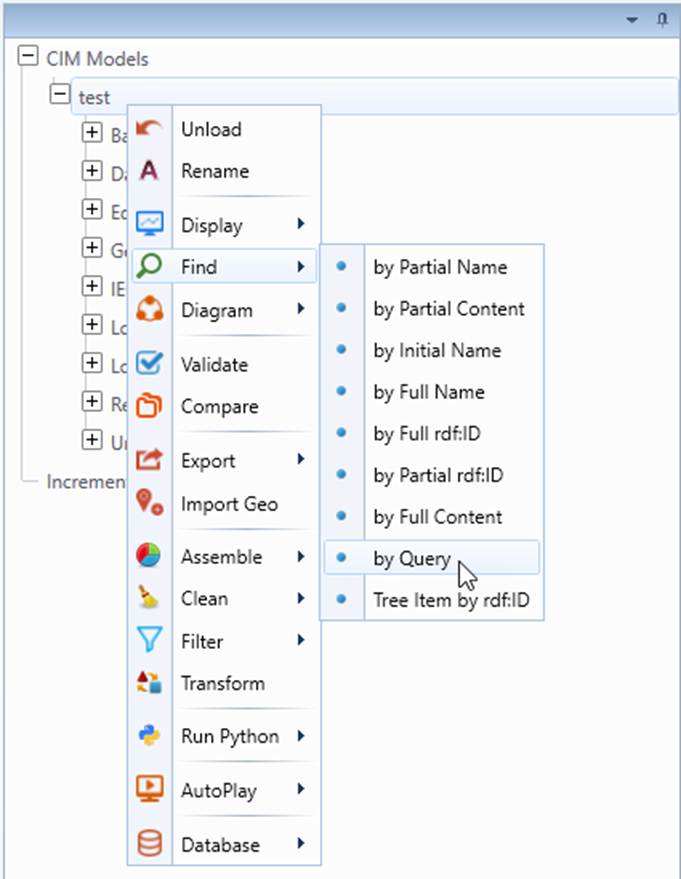
The Tool provides a variety of searching capability in support of the exploratory data analysis. Users can invoke a search function via the model context menu associated with the selected model or via some of the icons in the Quick Access Toolbar, as illustrated below.
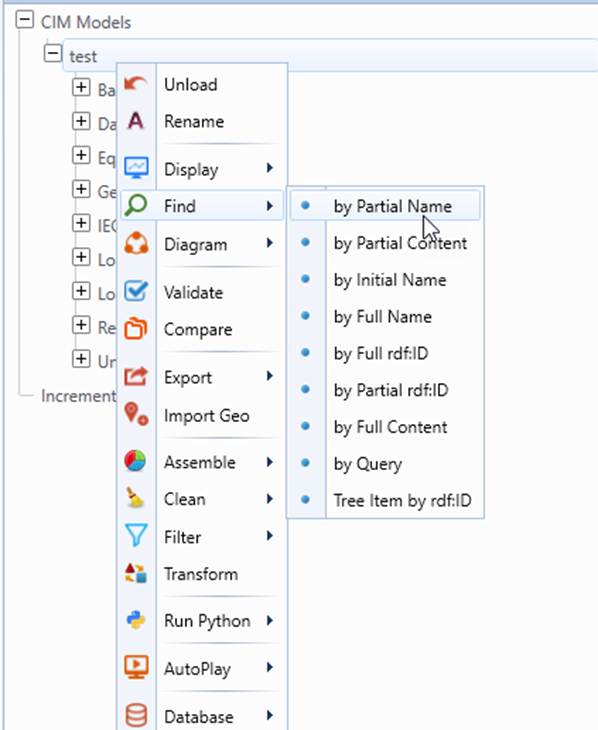
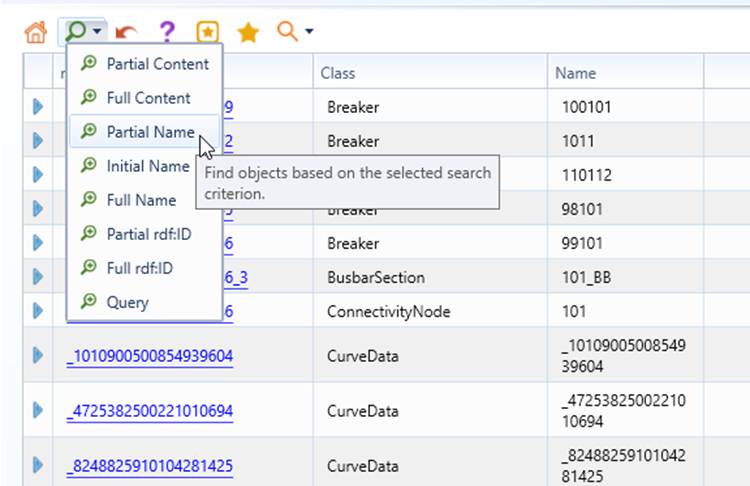
| Searching Type | Description | Case Sensitive | Examples |
|---|---|---|---|
| by Full Name | Finding objects by exactly matching the full name of the objects, i.e. attribute IdentifiedObject.name. This is more accurate way to find the object. | yes | “EQ1234” for “EQ1234” |
| by Partial Name | Finding objects by matching part of the object name, i.e. attribute IdentifiedObject.name. The partial name is a sub-string of the full name. It does not have to be the initial part of the full name. | no | “123” for “EQ1234” |
| By Initial Name | Finding objects by matching the initial part of the object names. This is a quick way to find the object. It is a special type of searching “by Partial Name”. | no | “eq12” for “EQ1234” |
| by Full rdf:ID | Finding objects by exactly matching the full rdf:ID of the objects. This is the most accurate way to find the object. | yes | “_EQ1234” for “_EQ1234” |
| by Partial rdf:ID | Finding objects by matching part of the object rdf:ID. The partial rdf:ID is a sub-string of the full rdf:ID. It does not have to be the initial part of the full rdf:ID. | no | “123” for “_EQ1234” |
| by Full Content | Finding objects by exactly matching any attribute of the objects. This attribute doesn’t have to be name. The attribute is treated as string for comparison. | yes | “Description of EQ1234” for “Description of EQ1234” |
| by Partial Content | Finding objects by partially matching any attribute of the objects. This attribute doesn’t have to be name. The attribute is treated as string for comparison. | no | “description of eq” for “Description of EQ1234” |
| by Query | Finding objects by formulating a MQL query string. MQL is a simple but powerful query language that can be used to retrieve the information about an object in the CIM data model. For more information about MQL, please refer to Introduction to MQL. | no | BaseVoltage/[nominalVoltage]>110 |
| Tree Item by rdf:ID | Finding the location of the object in Model Explorer navigation tree. | yes | “_EQ1234” |
Note:
- Users can find objects by matching IdentifiedObject.name, rdf:ID, or any attributes. The matching could be full string match or partial string match.
- Full (name/ID/content) matching relies on the exact and case-sensitive string matching, while partial (name/ID/content) matching is based on partial string match and is case insensitive.
- The query-based searching is an advanced searching strategy. This searching strategy goes beyond traditional name/ID/content matching. It enables users to create ad-hoc queries to find the objects of interest. For more information about the query-based searching, please refer to Learning MQL by Examples.
- The searching may find more than one objects. The tool limits the maximum number of objects to be found to 500. That typically means that the searching strategy is not very effective. Users shall refine their searching types or strings to narrow down the results. The maximum number of the returned objects, however, is configurable. Users can change this limit by modifying the configurations.
The following steps illustrate how to search for a CIM object based on initial name matching:
- Select the searching strategy from the context menu associated with selected model. In this example, we will find the object based on initial name matching, thus selecting Find→by Initial Name.
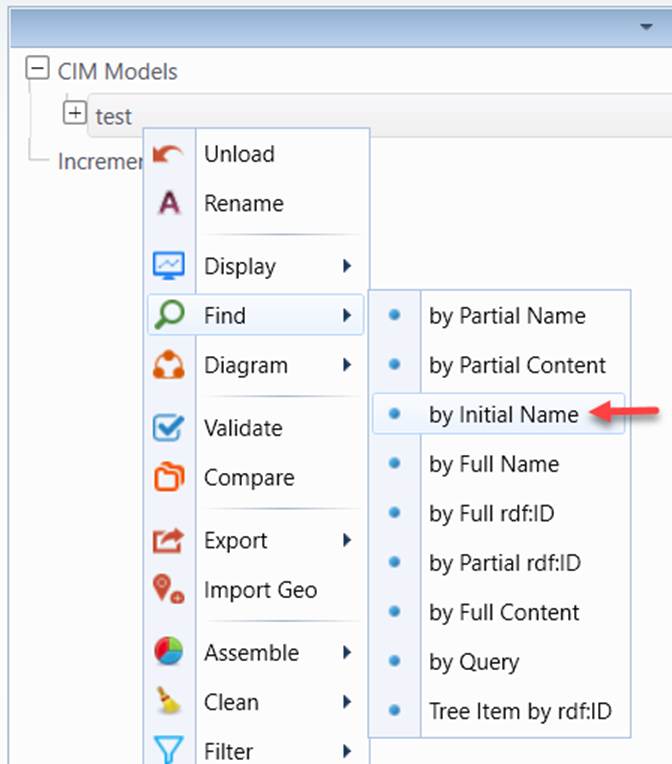
- Enter the text string in the prompt (text string 101 in this example). The entered test string shall match the initial part of the object name.
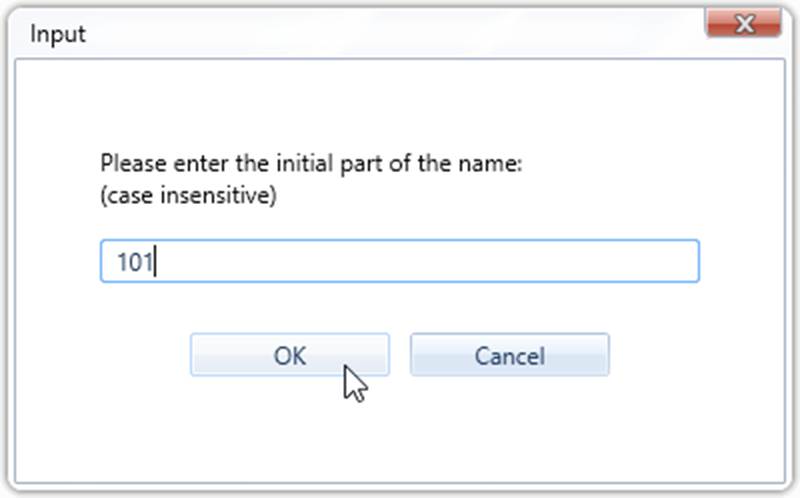
- The tool will search the entire model for any objects whose names match the entered text clue, partially or exactly depending on the selected searching strategy. If only one instance is identified, the corresponding object form will be displayed. In the case multiple objects/instances are found, a special type of Report Display, referred to Search Results, will list all of the matching objects with class information and the links to the detailed information. In this example, multiple instances are discovered, partially matching the entered text string 101.
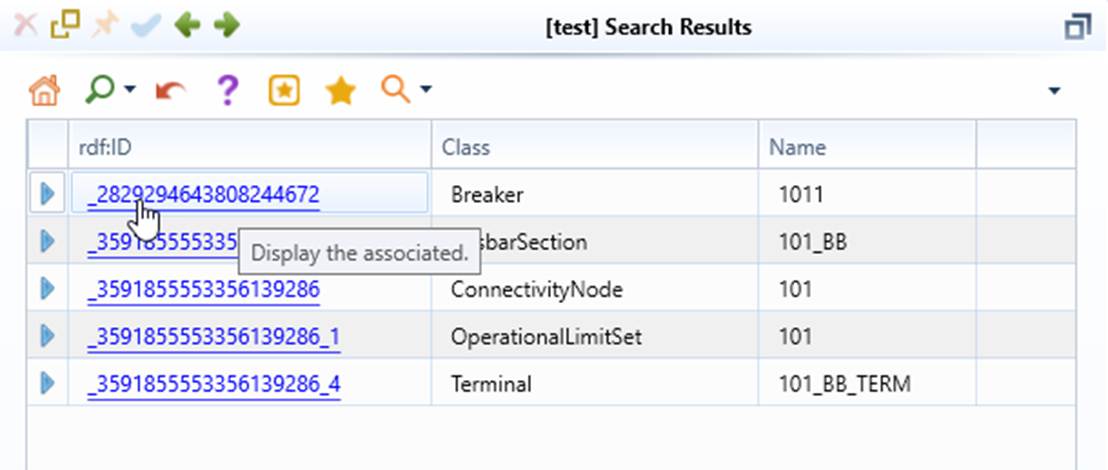
- Click the link of the identified object to find more detailed information.
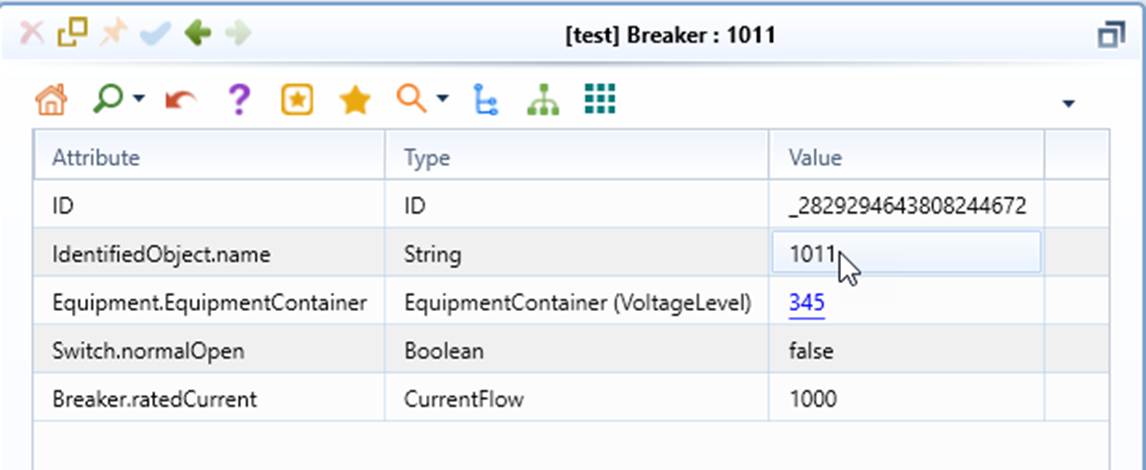
- Navigate from the hyperlinks in the display to find more information related to the searched object. If you want to find the context information about the identified object, you may click hyperlink Locate this Object in CIM Tree. See Finding the Context Information for more detail.
The following steps illustrate how to find all of the Equipments in a Substation via a query (Example 6 in the MQL Tutorial):
- Select the searching strategy from the context menu associated with selected model. In this example, we will find the object by query, thus selecting Find→by Query.
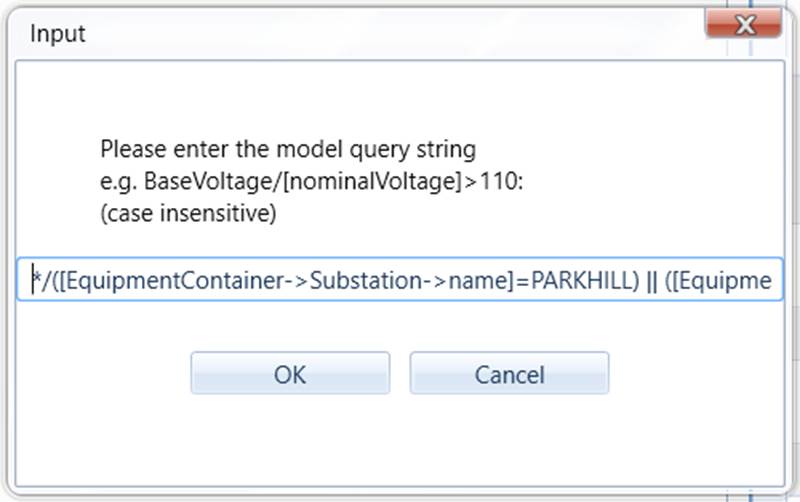
- Enter the query string, for example the MQL query string from Example 6 in the MQL Tutorial.
- The tool will search the entire model for any objects that meet the filtering criteria specified by the entered query. In this case, various kinds of the Equipment objects contained in Substation PARKHILL are returned.
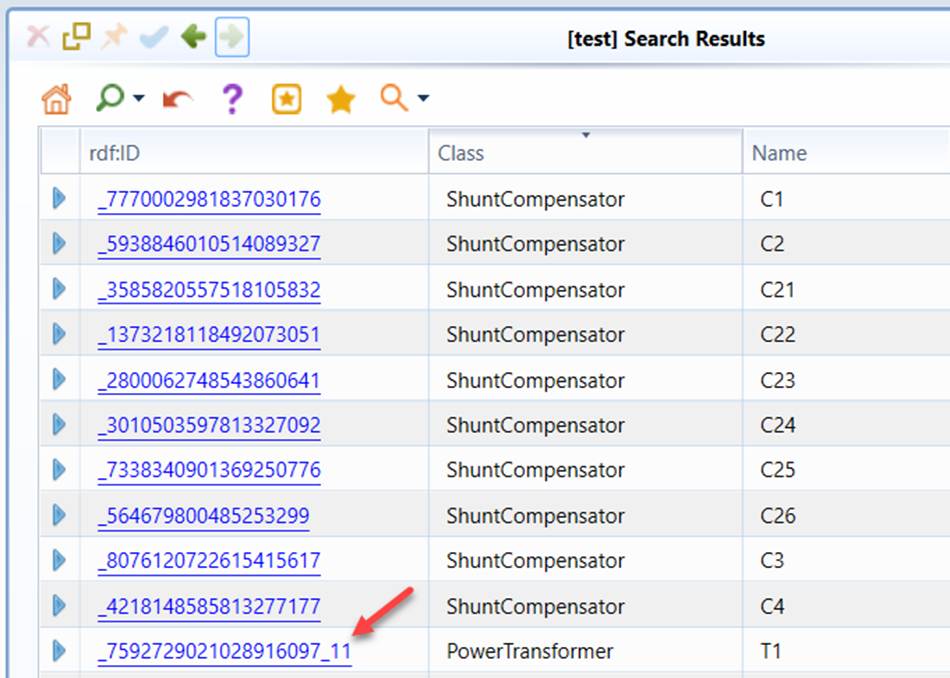
- Click the link of the identified object to find more detailed information.
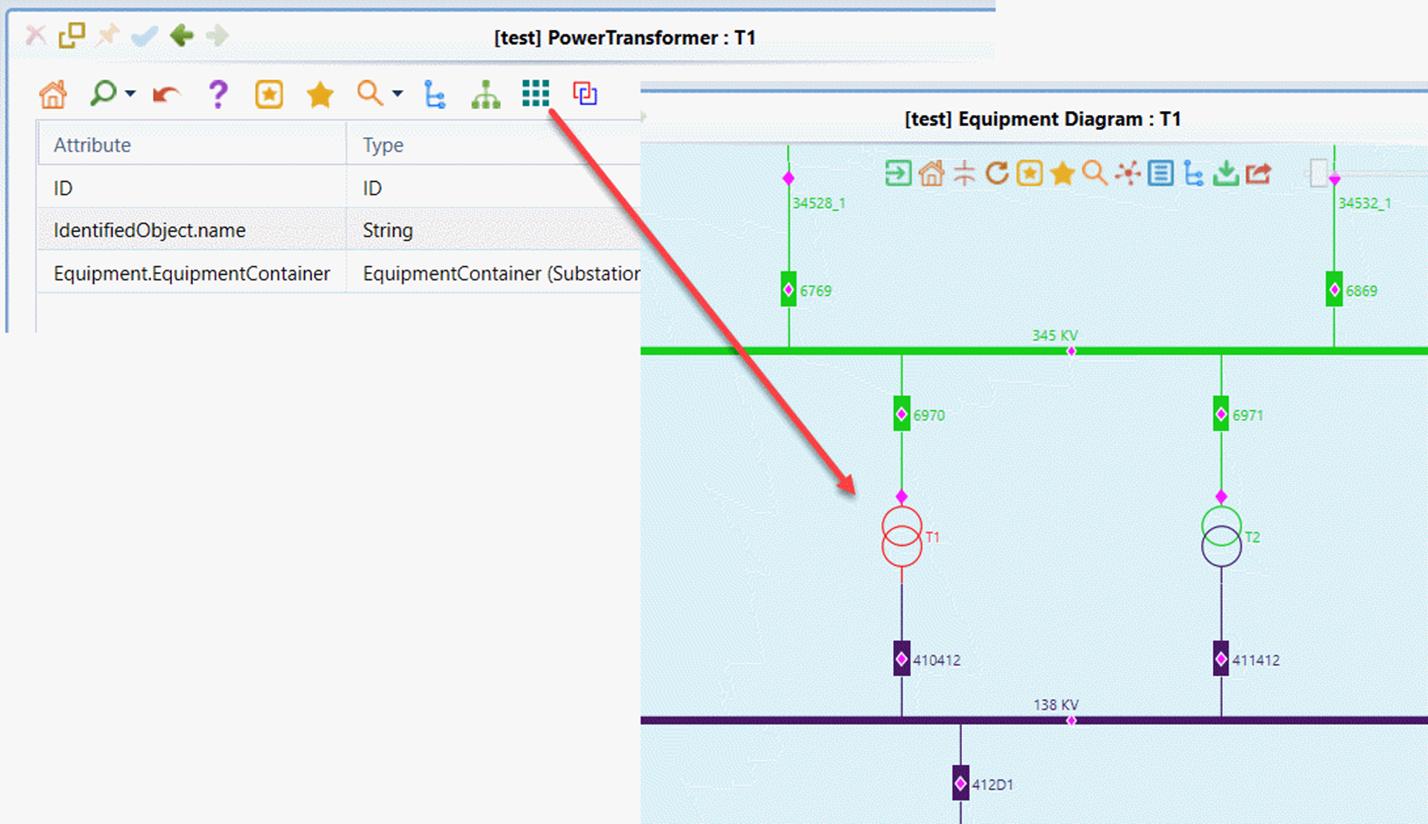
- Navigate from the hyperlinks in the display to find more information related to the searched object. If you want to find the context information about the identified object, you may click hyperlink Locate this Object in CIM Tree. See Finding the Context Information for more detail.
Note
the custom search covered in this article is relatively simple. The filtered displays show the data as it is. To build more complicated custom reports, please refer to Building Custom Reports.
Searching for Change Items in Incremental Model
The same mechanism can also be used to search for change items in an incremental model, as illustrated below.
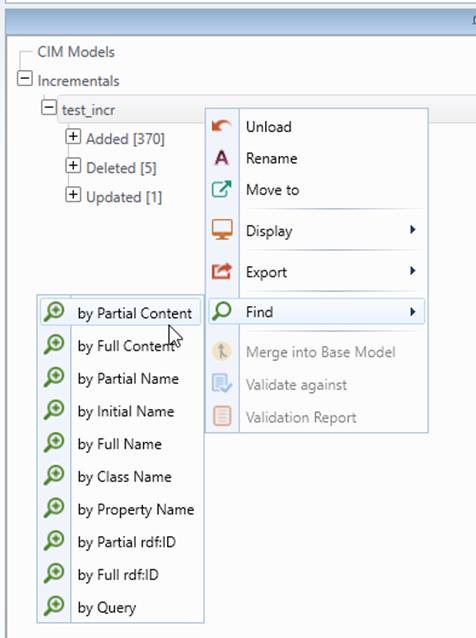
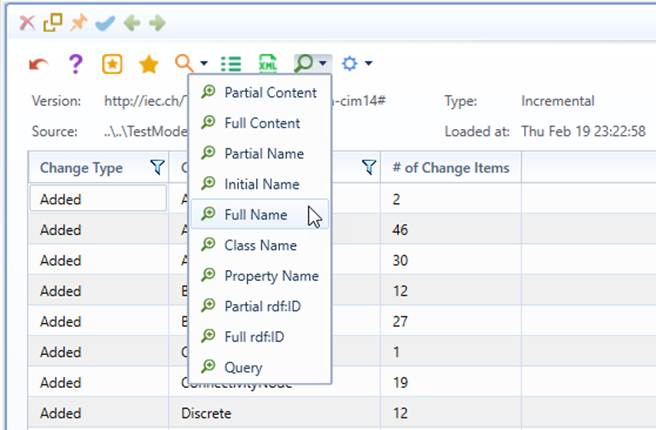
The search criteria are similar to those used for a full model, with the exception of the following differences.
| Searching Type | Description | Case Sensitive | Examples |
|---|---|---|---|
| by Class Name | Finding change items by exactly matching the class name. | no | ACLineSegment or aclinesegment |
| by Property Name | Finding change items by matching full or short property name. | no | IdentifiedObject.name or name |
| by Query | Finding change items by formulating a C-style logical query string. The expression evaluator supports a limited set of C-style logical expressions for rule filtering. It allows && (AND), || (OR), and single-level parentheses (e.g., (a || b) && (c || d)). Conditions must use key/value comparisons with == for exact matches or = for partial matches. The following keys are supported: id, name, class, property, and operation. | no | Operation=Added && Class=Substation |