Quick Access to Context-Sensitive Functions
While almost all of the functions can be invoked from the context menus associated with the Navigation Tree, the Tool provides a Quick Access Toolbar that enables users to invoke some frequently-used context-sensitive functions quickly with one icon-clicking. This quick access bar is available in all of the Displays.
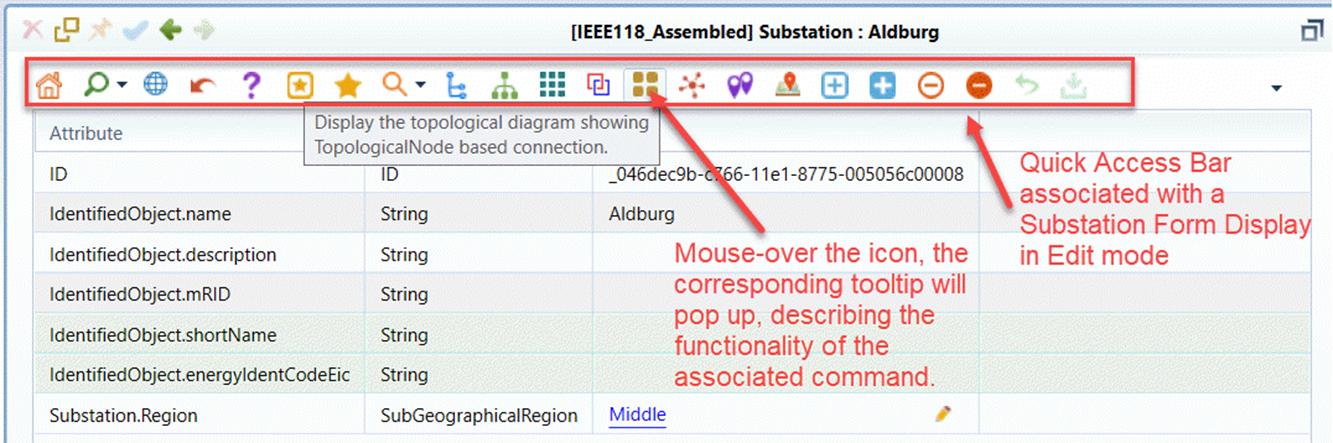
The Quick Access Toolbar in the Displays is typically context -sensitive. It contains a collection of command icons designed to allow users to invoke some frequently commands related to the current display with one-mouse clicking. Most of these related commands can be invoked via context menu though. To find out what functionality a command icon represents, simply move the cursor over the selected command icon, a tooltip will popup, briefly describing the functionality the corresponding command icon represents.
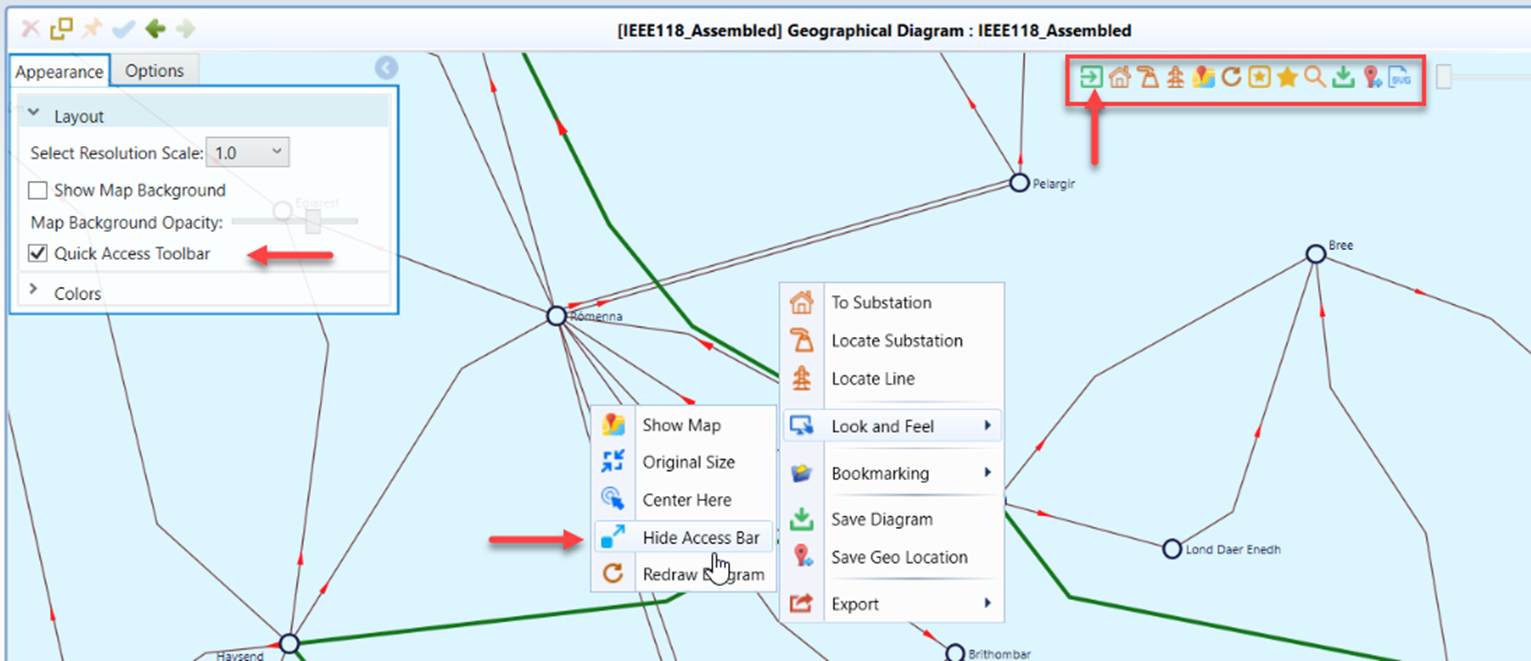
The Quick Access Toolbar in a diagram display provides the same function access as the context menu. The function access in the toolbar is context sensitive. It depends on the type of the diagram. Users can also enable/disable the Quick Access Toolbar in the diagram display, as illustrated below.
Note the Quick Access Toolbar is context sensitive. Some of the icons may not be available or disabled for a display. That typically means the represented functions are not available for the associated display. For example, if the model doesn’t contain the geographical information, then the icon used to navigate to the geographical diagram will not be available.