Branching and Merging Versions
Model evolution is more than a linear process. Quite often, various revisions of the model are needed to support different use cases. This is particularly true for planning modeling where numerous what-if study cases must be constructed. In an operational environment, the future Projects must also be allowed for in the models and sufficiently tested in a QA environment before the Projects actually go alive. The Tool is designed to support these use case, enabling users to model the grid concurrently and for different purposes.
The concurrent modeling is accomplished through Version Branching and Merging. Model administrators can create unlimited numbers of Draft Versions from a Labeled Version. The resulting is a version tree, with each branch representing an independent model evolution path. The branched Version can also be merged by transplanting the Submitted Model Changes from one Labeled Version to the other Labeled Version.
The following diagram illustrates a typical use case where concurrent modeling is supported through Branching and Merging. The main trunk, i.e. from Base to Version 2.0 represents the model evolution of as-is operational EMS model. An on-going transmission project involves a lot of model changes. In order not to impact the model maintenance of the as-is operational model, a new Version branch, i.e. 1.1->1.A->1.B is derived to model the changes related to the on-going project. Assuming the on-going project now goes alive; the tested and validated model changes can be merged from the branched version to the main trunk, as illustrated below. During the model merging process, modeling conflicts, if any, will be detected and prompted to users for resolutions.
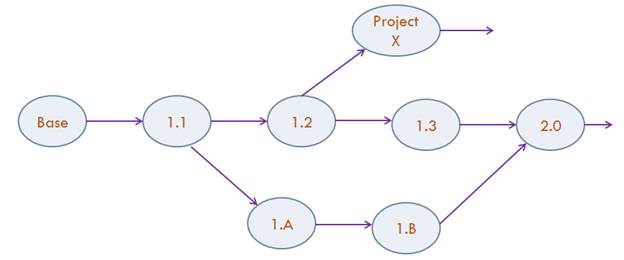
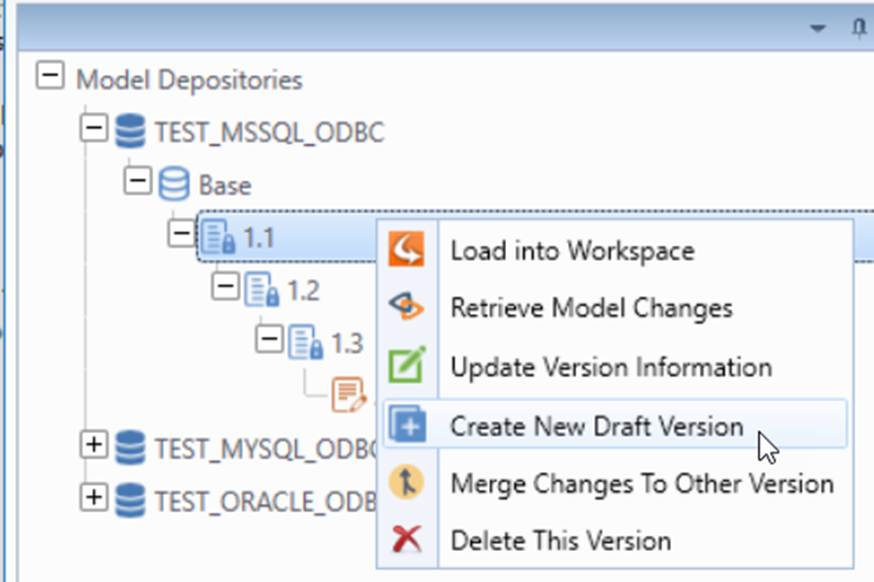
In this article, users will be demonstrated how Branch and Merge work in order to achieve the Version tree shown above. First step is to branch “1.2” and “1.A” from Version “1.1”, as shown next.
Branching Versions
Both Branching and Merging are performed in Model Admin Page. Branching is simply creating a Draft Version from a Labeled Version. Both Draft Versions will be managed independently.
Source and Target Versions for Merging
Merging Versions is, in fact, “transplanting” the Submitted Changes from the Source Version to the Target Version (the Version which the Changes will be applied into). Both Versions will remain as separate entities. Users will be prompted with a chance to delete the Source Version when Merging is successfully completed.
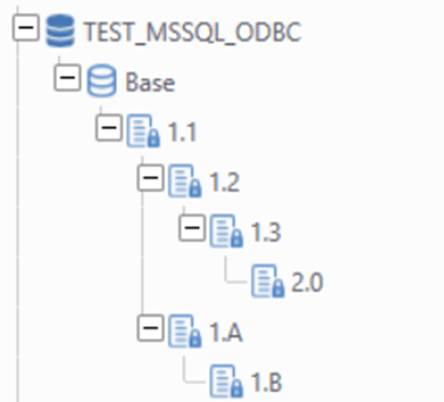
Looking at the diagram below, the Version “1.B” needs to be merged back to the main branch “2.0”. The total Submitted Changes need to be merged is decided by the common dependent Version for both Source and Target Version. In this case, the common ancestor is Version “1.1”. Therefore, the set of Submitted Changes from Version “1.1” to Version “1.B” will be appended to the Submitted Changes of Version “2.0”.
Note:
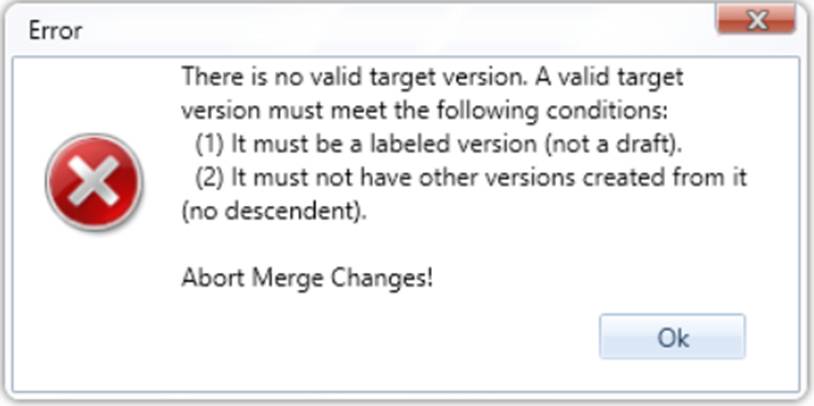
- Both Source and Target Versions must be Labeled Versions. This is to avoid the ambiguous Pending Change in a Draft Version.
- For Target Versions, they must be the leaf entities of the Version Tree, without any other Versions created from them. Versions “2.0” and “1.B” are both valid Target Versions.
Merging Versions
When proper Source and Target Versions are identified, it is ready to do the Merging.
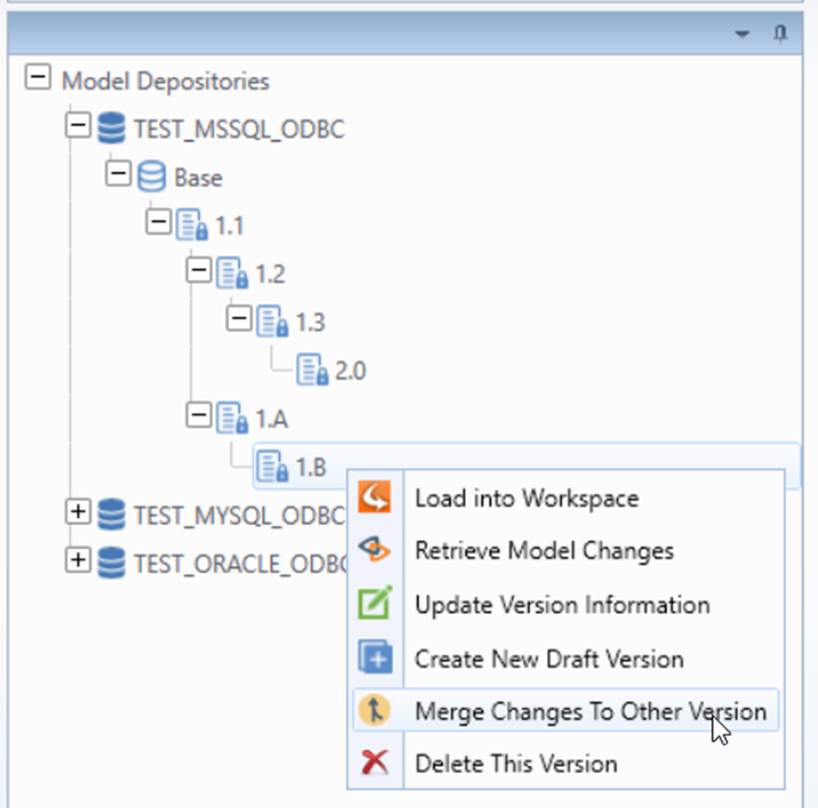
- Select the Source Version. From its context menu, click Merge Changes To Other Version.
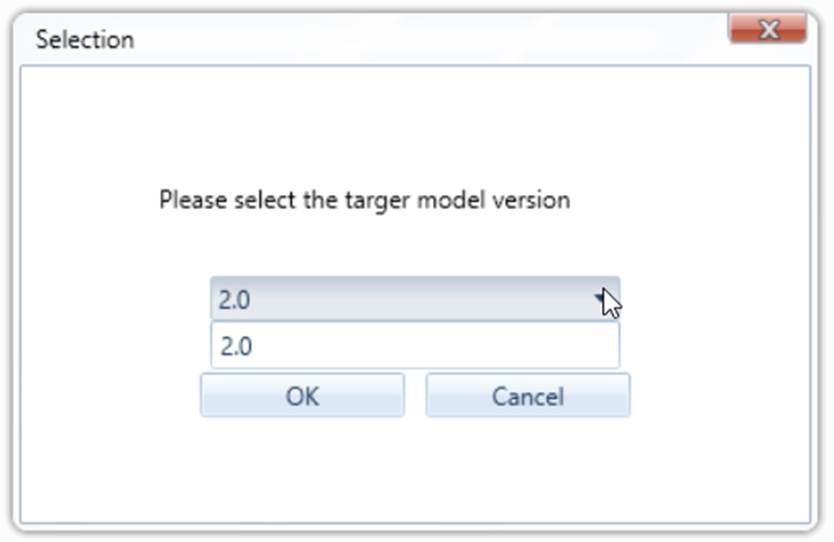
- Next, users will be prompted with a dropdown list of all applicable Target Versions for selection.
- However, if there is no applicable Target Version available, users will see this error message.
Validation
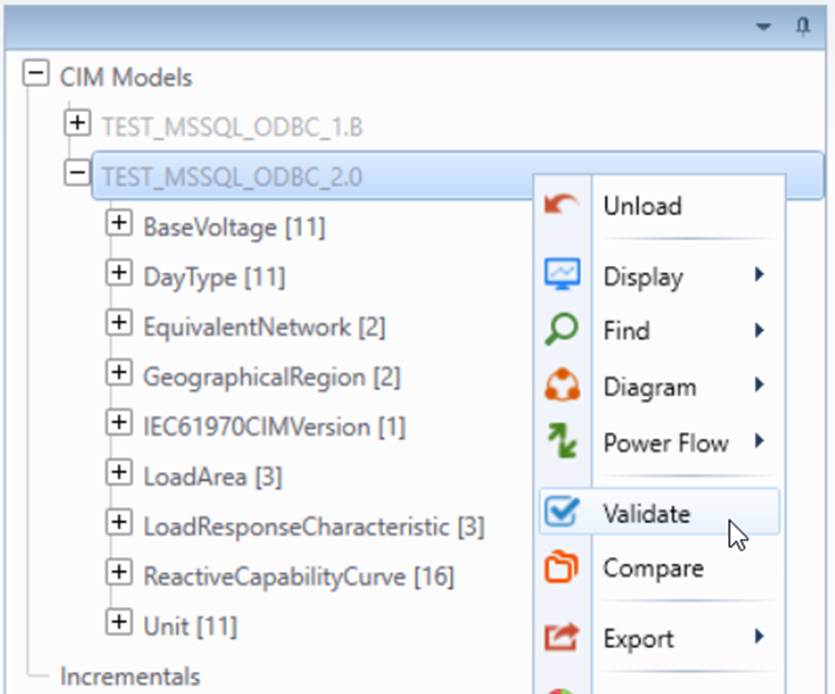
The merged Version Model “2.0” can be loaded into the Tool, and the normal validation can be applied to ensure the model is free of errors.