Fundamental of Scripting Support
In this article, users will lean the basic concepts of Python-based scripting support through an example.
Hands-on
Assuming Python has been successfully installed, users are now ready to run their first script.
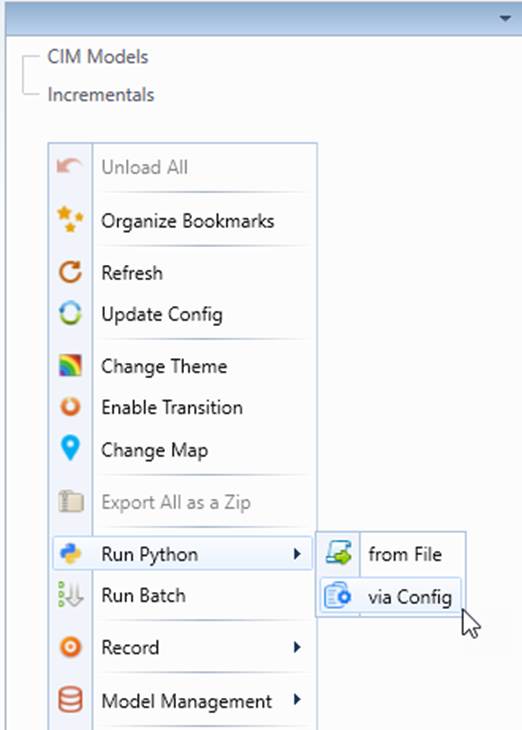
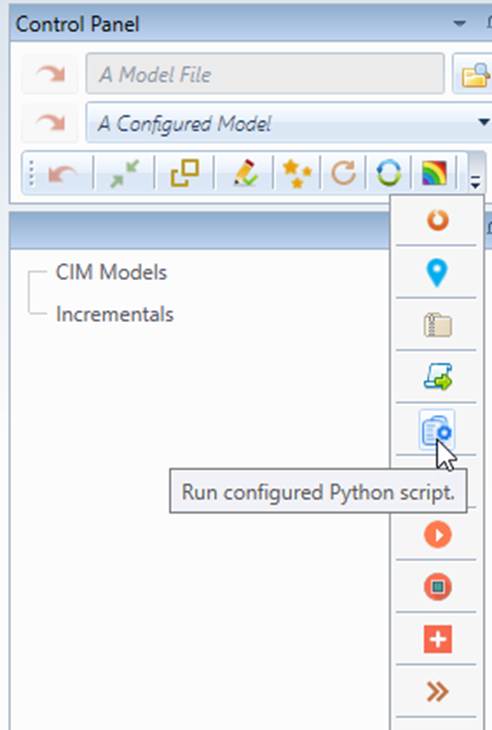
- Right-mouse-click the blank spot in the tree panel to invoke the Global Context Menu. Select ‘Run Python→ via Config’, or click the corresponding Command Icon form the toolbar in the Control Panel, as illustrated below.
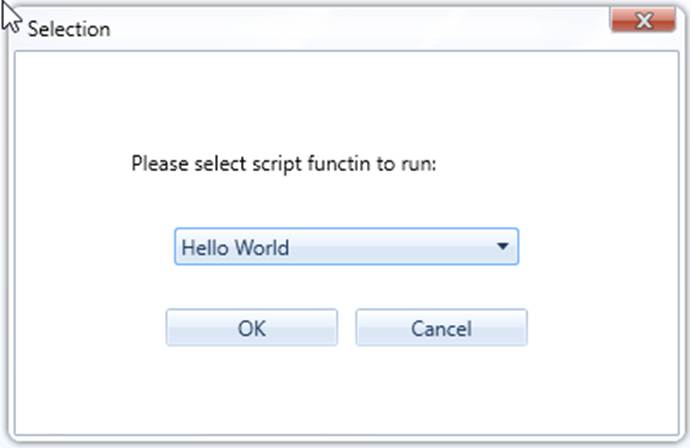
- Select Hello World from the dropdown list in the popup dialog.
- If execution of the script is successful, user shall get the messages sent from the executed script as shown below,
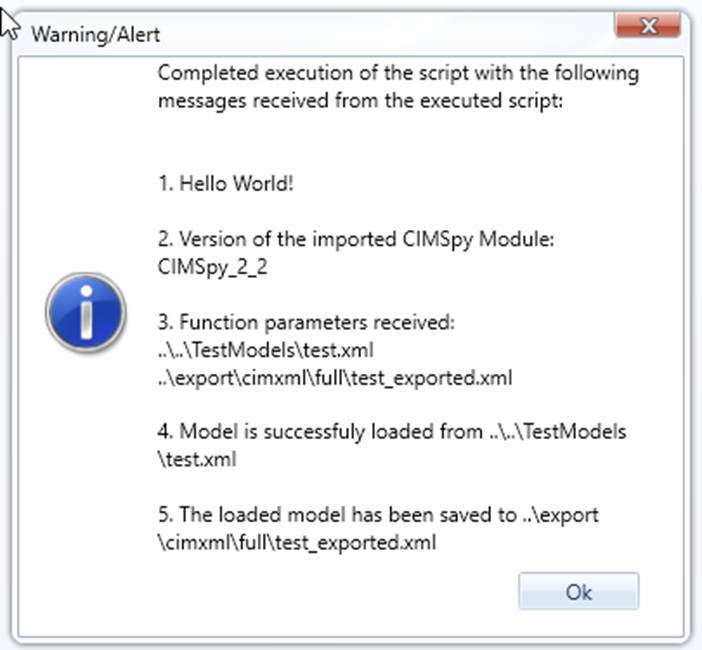
and a test model should be loaded into the Tool
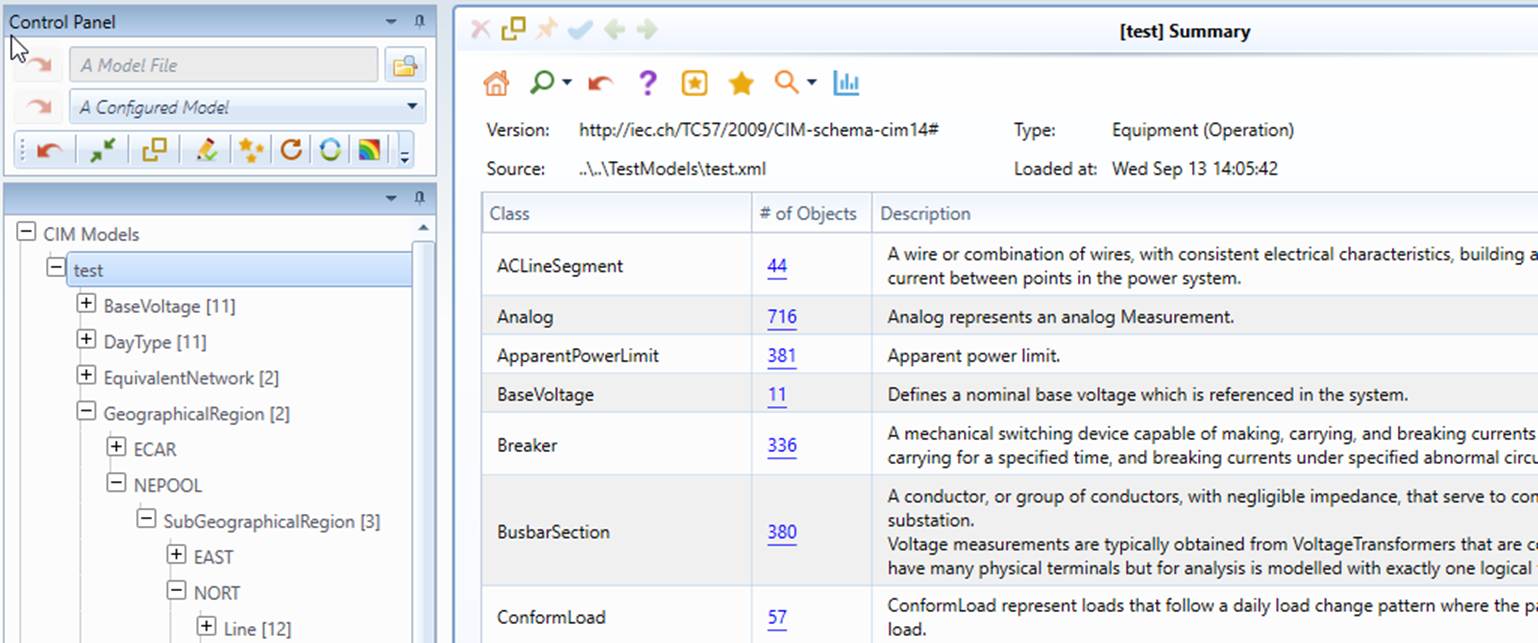
Now let’s take a first look at the script used to create this simple model.
How Does It Work?
The sample script, named as “Hello World” is defined as follows in the CustomConfig.xml under folder \CIMSpy\config:

When users execute this script, the server will load the Python module from file HelloWorld.py from the default scripting folder, i.e. \CIMSpy \scripting, and execute the script function called HelloWorld with two parameters passed into the script.
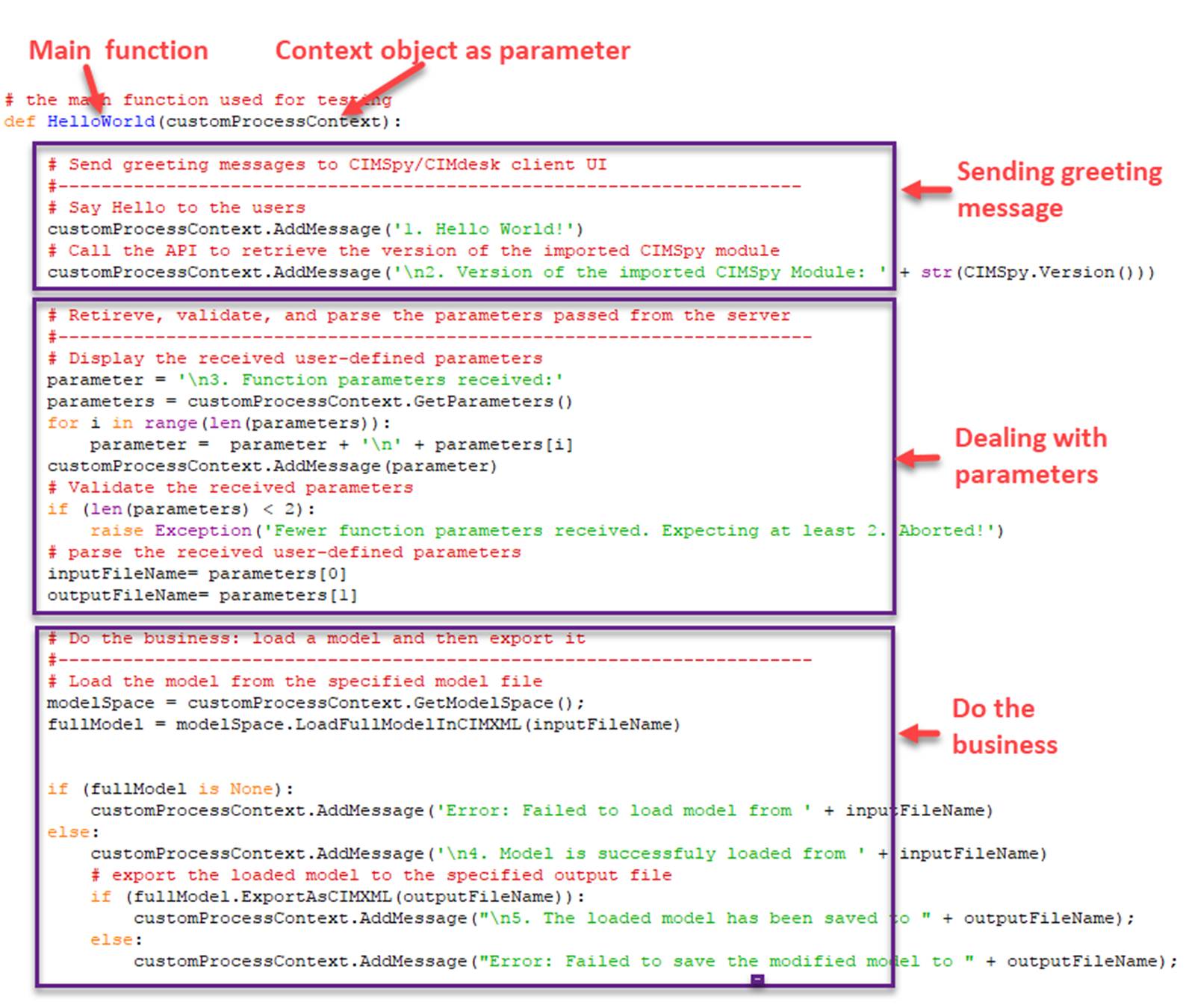
The HelloWorld.py is shown and described below:
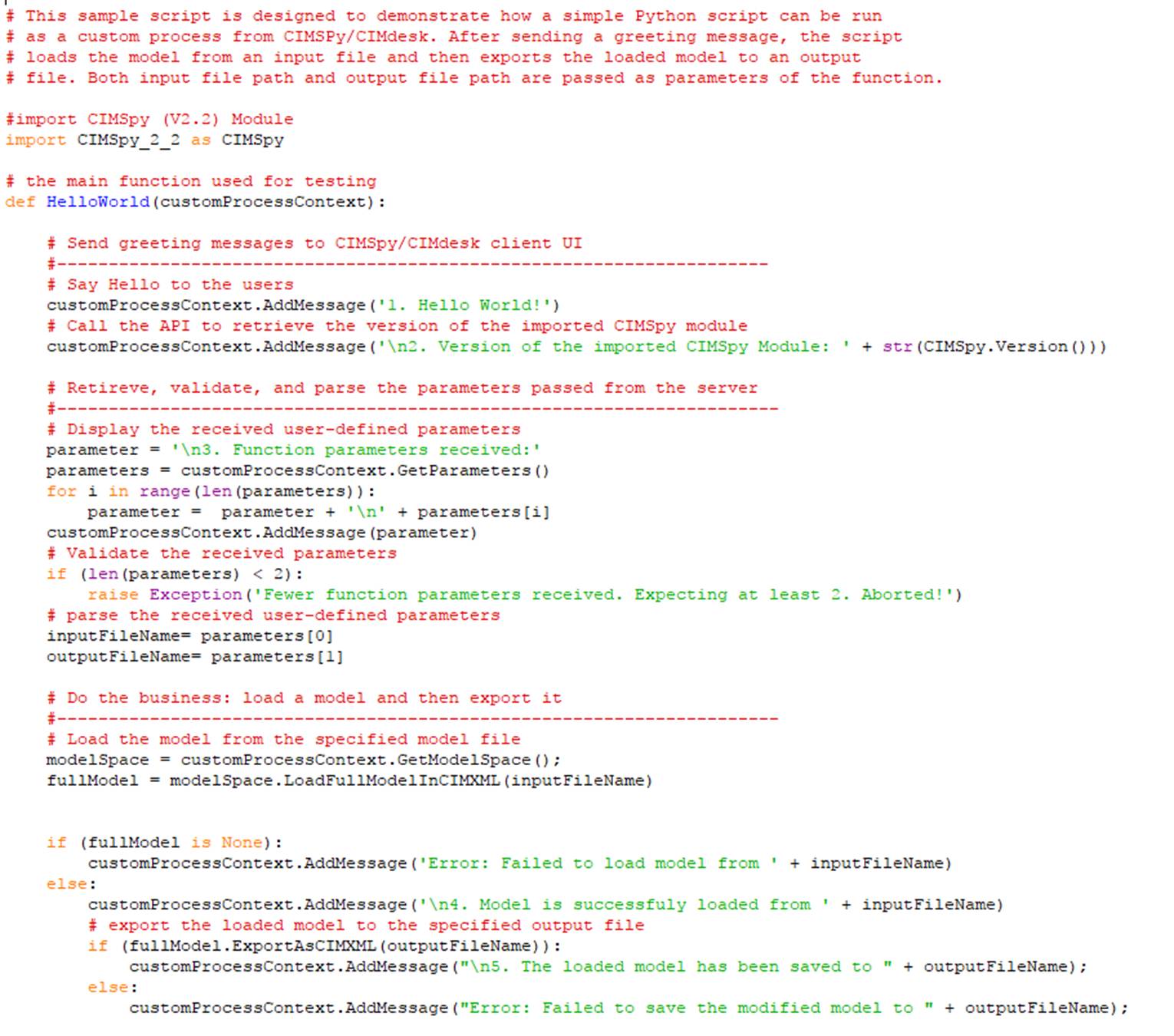
Now let’s take a closer look at inside.
Module
The very first thing to do before any scripting is importing CIMSpy Python module which exposes a subset of the server core APIs in Python. Users must explicitly declare the module importing at the beginning of the script, as illustrated below:
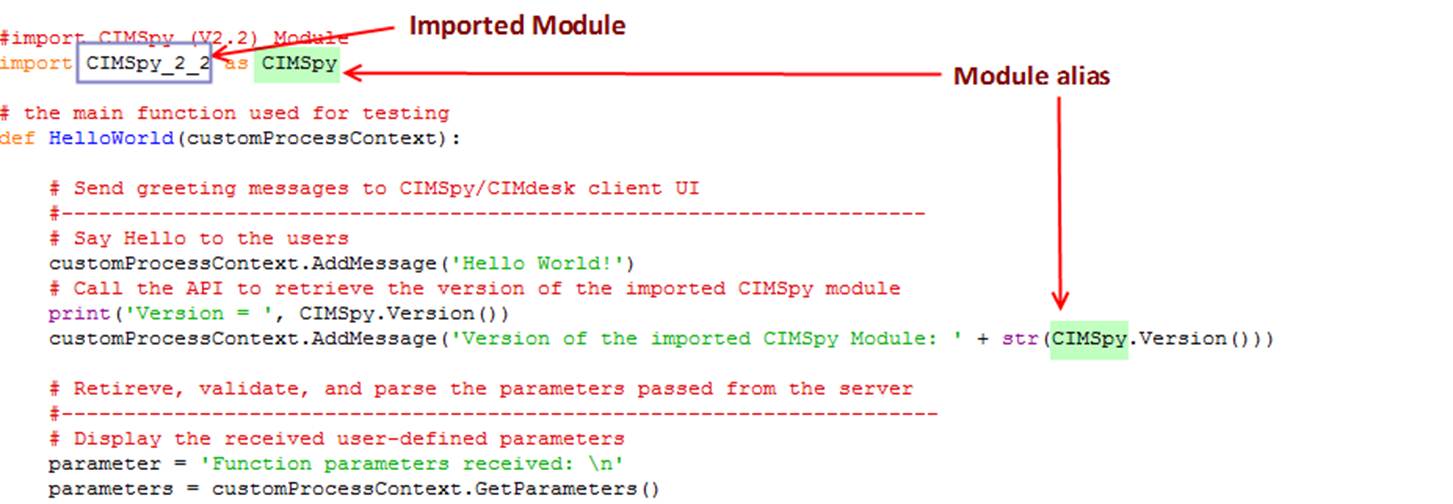
Module is an important concept in Python. It is a package consisting of a collection of declared data structures and functions. The Tool exposes its model query and manipulation APIs as a built-in Python module, named as CIMSpy_x_y, where x represents major version number and y represents the minor version number. This module is not explicitly exposed as a file, like typical Python modules. Instead it is a built-in module only recognizable in the Tool environment. There is also a standalone CIMSpy module available, which requires separate license. The standalone CIMSpy module enables users to build independent Python applications outside of the Tool.
When declaring a module importing statement, users are strongly recommended to assign an alias, for example, ‘CIMSpy’ in the above example, to the imported module. That will avoid coding the module name in the script. Later on, assuming the new published CIMSpy module is backward compatible, users can simply change the import statement to upgrade the script. For example, assuming a new version of CIMSpy module, i.e. Version 2.3, is now available, users can choose to upgrade the script so that it can be run in the new version of the published module. The upgrading can be simply accomplished by changing the import statement as below, assuming module CIMSpy_2_3 is backward compatible.
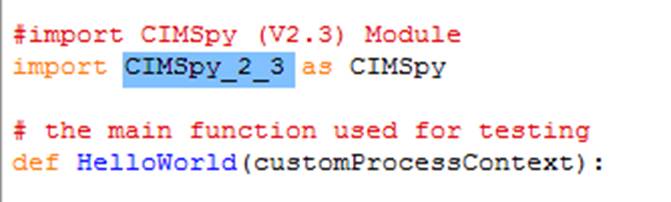
Once the CIMSpy Python module is imported, the APIs published in the imported module are readily to be used.
Function
Function is another important Python concept. It is defined in the module and targeted at accomplishing a task. For example, the HelloWorld function in the example is defined to demonstrate how a simple Python script can be run as a standalone custom process from the Tool. After sending a greeting message, the script loads the model from an input file and then exports the loaded model to an output file. Both input file path and output file path are passed as parameters of the function. In the above example, the Main function takes one parameter, i.e. customProcessContext, which serves as the interface between the server application and the user-authored scripts.
The scripting support is mainly achieved through calling the user-defined Python functions in the following sequence:
- The server application creates a context objects and stores the context information and function parameters in the context objects.
- The server application invokes the specified Python function.
- The invoked script performs the defined tasks using the published APIs.
- Optionally, the script may set the context object with some results which will be carried back to the server application.
Context
The functions that can be called by the server application must take a pre-defined parameter, called context object, defined to
- Carry-in the input information from the server to the script;
- Carry-out the output information from script to the server.
A variety of context objects are defined to support scripting for various purposes. They are typically defined to include such information:
- The context information, such as model space, model, object, from which the script function is invoked or targeted at;
- User-defined parameters;
- The results of the function execution.
As an example, the context object passed to the custom process scrip function is defined as below:
Class
CustomProcessContext
Description
Class CustomProcessContext defines a context object used to exchange information between the C++ based server application and model-independent custom processes scripted in Python. A model-independent custom process is not associated with any models. It is typically invoked from the global context menu in the UI.
Function
Details
Description
GetParameters
Syntax
GetParameters()
The function returns a sequence of user-defined parameters.
Returns
StringVector
The returned string vector includes all of the user-defined function parameters in the exactly same sequence.
Parameters
none
AddMessage
Syntax
AddMessage(msg)
The function stores a new message, which will be prompted to users in the UI in the same sequence as it is stored.
Returns
none
Parameters
msg: string
String message to be presented to users
GetModelSpace
Syntax
GetModelSpace()
The function returns a reference to the ModelSpace object in the server.
Returns
ModelSpace
The ModelSpace object is a container object hosting all of the FullModel objects in the server.
Parameters
none
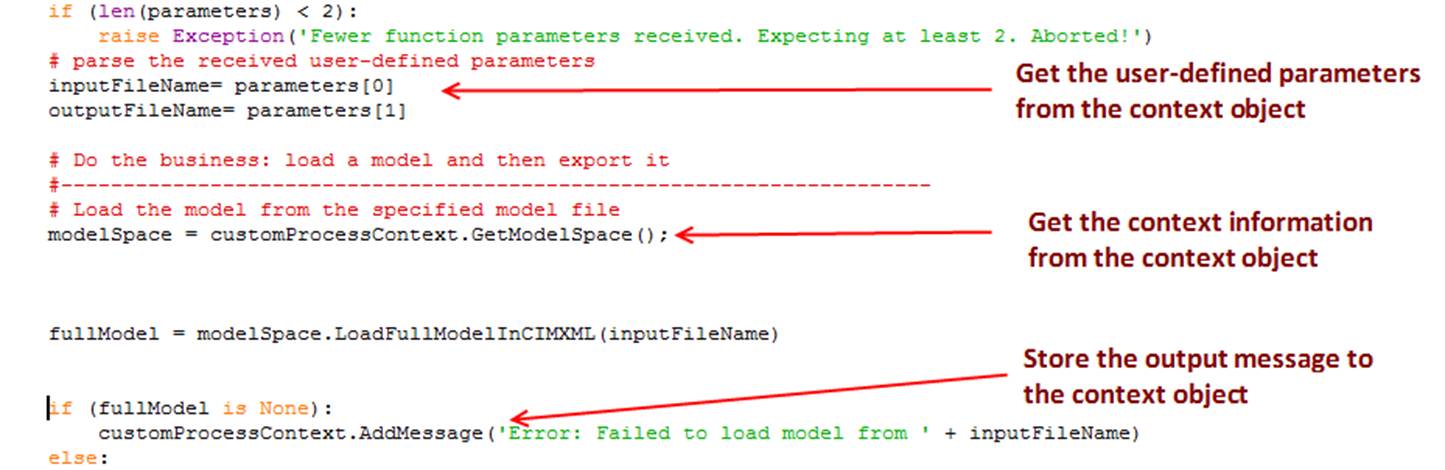
The following sample code illustrates how the context object is used in the script.
Calling a Script Function
User-defined script function can be invoked from the Tool by specifying
- Module: including name of the module file and optionally its path
- Function: including name of the function and optionally its user-declared parameters
There are two options to specify the script function:
- Specify module and function separately, for example

- Module is specified as part of the function, i.e. function = Create::Main, where module name and function name are separated by the separator represented using string ‘::’.

The following conventions are used to facilitate calling of a script function:
- Option 1 is only applicable if the script function is executed as a standalone custom process, while option 2 applies for both cases, i.e. executed as a standalone custom process or executed as a plug-in function.
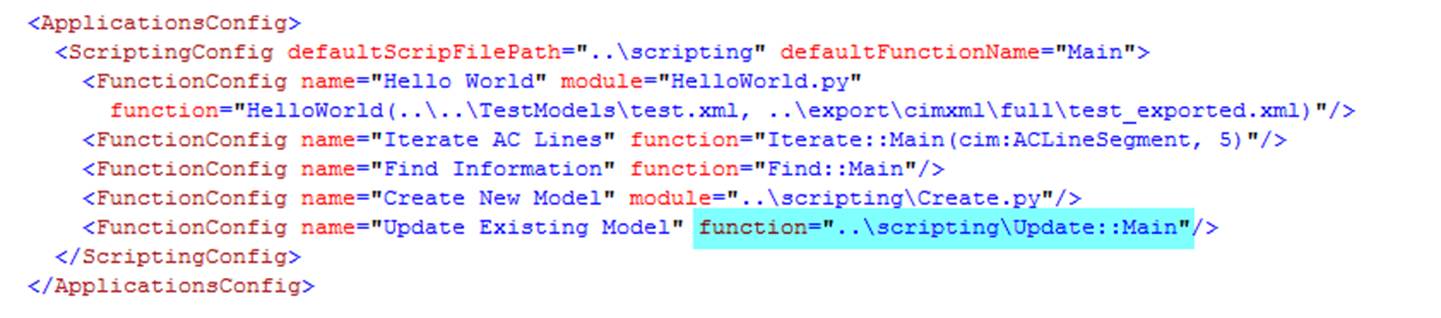
- The module name is basically the name of the script file. The file extension, i.e. ‘.py’, can be omitted. If specified, the Tool will ignore it. The file location, if not specified, will be assumed in the default scripting folder, which is declared in the configuration file. The file location or path, if different from the default scripting path, must be specified before the file name, such as
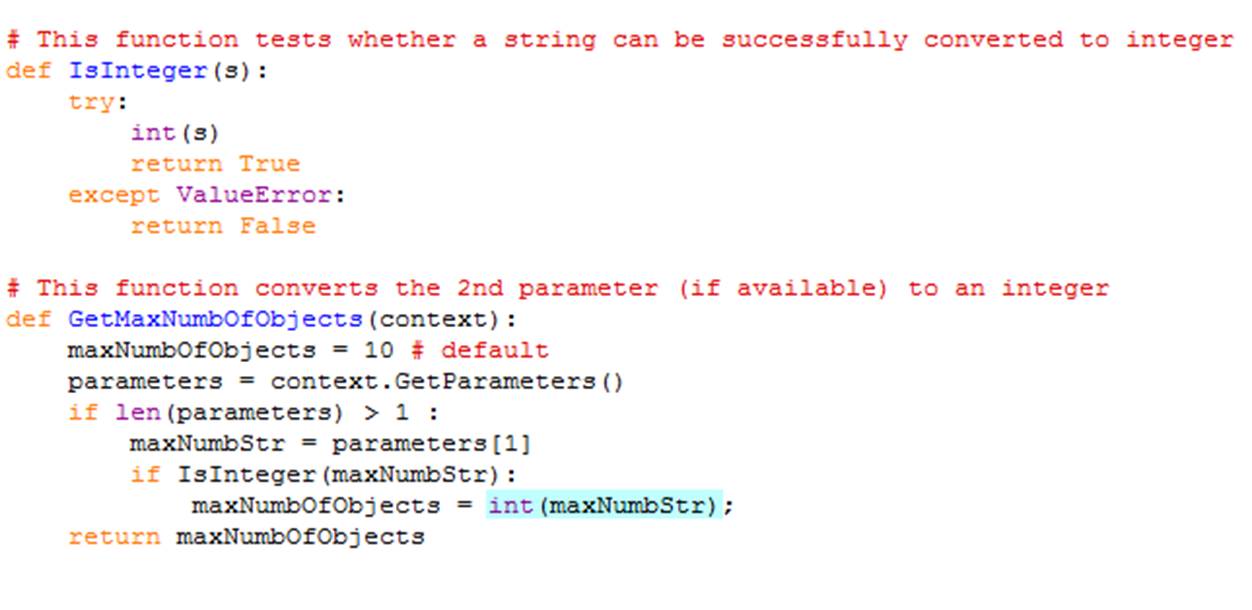
- The function name shall be the same as the name of the function defined in the module. The function names are case-sensitive. Optionally, the declared functions can carry unlimited number of user-defined parameters specified in the following format: function = function_name (param1, param2, param3…) The parameters are separated by comma, i.e. ‘,’, and any trailing blank spaces will be trunked. The user defined parameters will be carried over to the script function through the context objects. Note: user-defined parameters are retrieved as strings. Users may explicitly convert them to other types of data as needed inside the script function. For example,
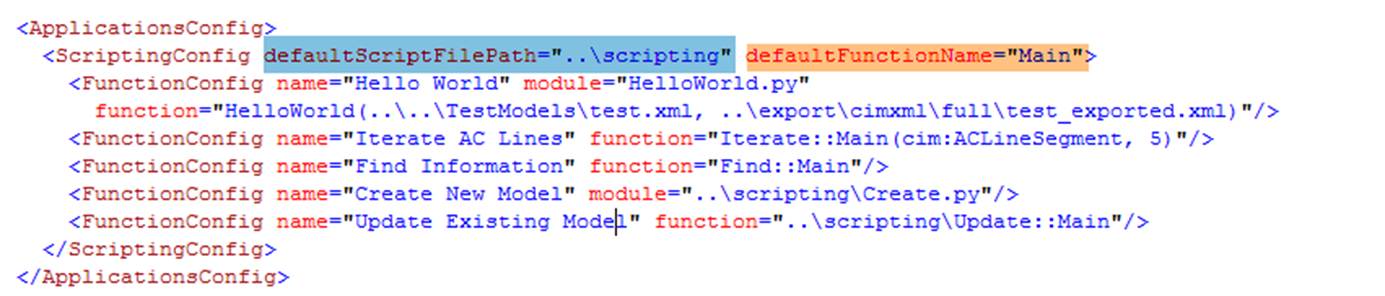
- When constructing a string to call the script function, only the module name is required. If the function name is not provided, the default function name will be used. Similarly, if the module file path is not provided, the default script file path will be used. Both default function name and default script file path are defined in the configuration file as shown below.
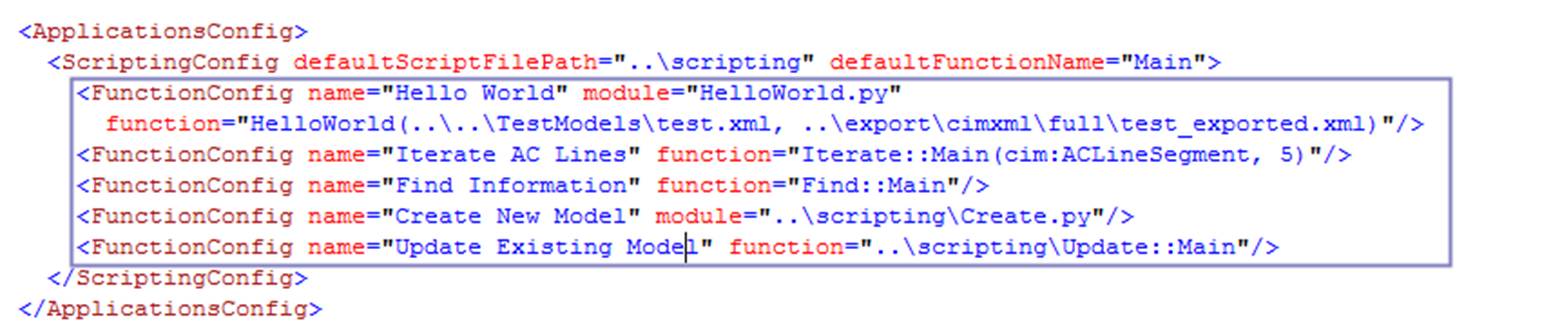
According to the above conventions, all of the following script function calls are valid.
Messaging & Logging
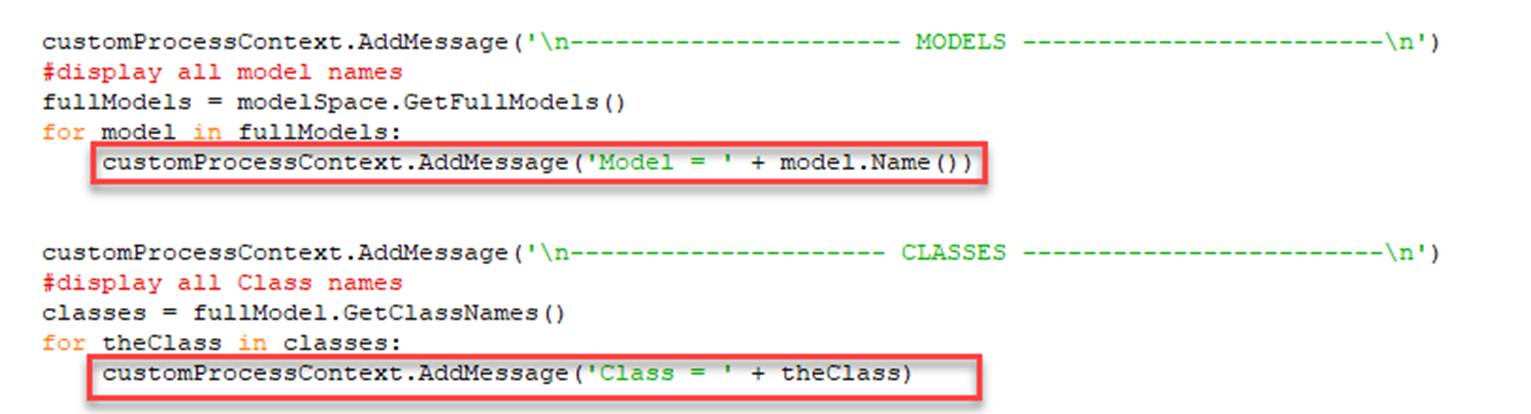
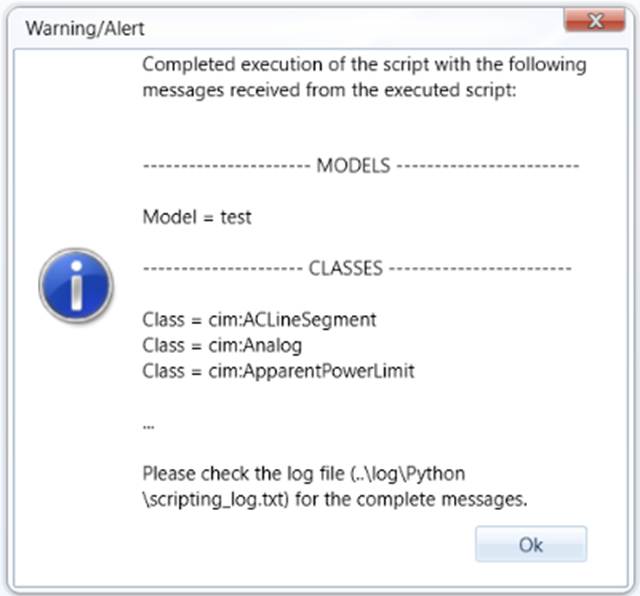
The Tool enables users to log messages from the script. The Logged messages will be stored in a text file under folder CIMSpy\log\Python. The first 6 logged messages will also be prompted to users in the UI, as illustrated below.
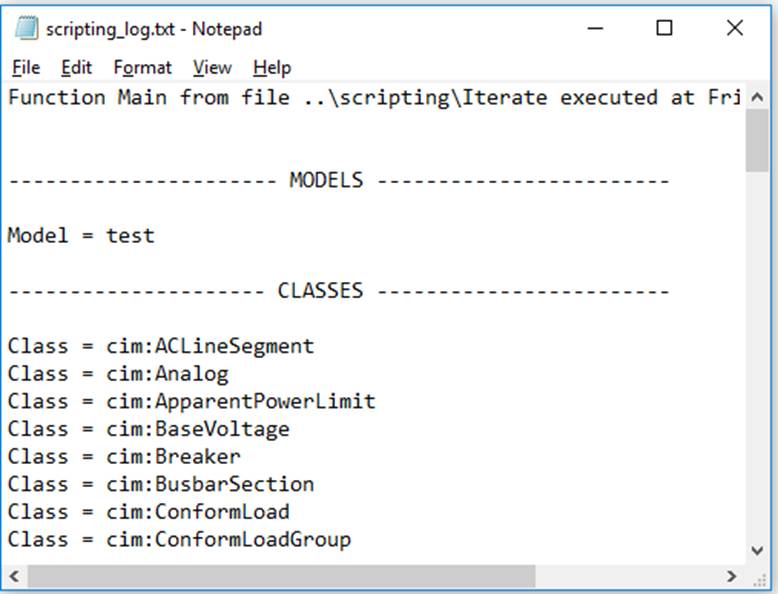
User can turn on/off the logging or set the log file via configuration, as illustrated below

Where
- loggingEnabled: a flag indicating whether the logging shall ne enabled;
- loggingFile: file path of the log file.
Importing External Library
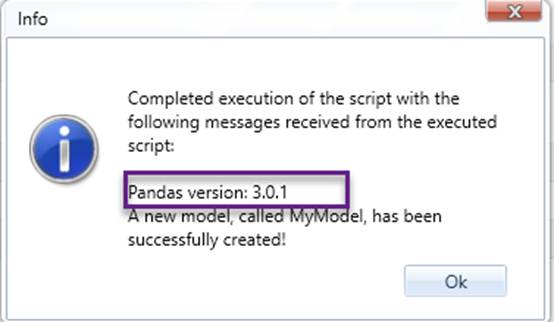
If your script requires external libraries, it is strongly recommended that they be installed using pip, as the tool automatically discovers libraries installed through this method. For libraries installed by other means, the corresponding path must be manually configured. The specified path must be the parent directory in which the external libraries (modules) are located. Assuming external library pandas is located in directory C:\temp\MyPythonLib\pandas, then the libPath shall be specified as C:\temp\MyPythonLib, as illustrated below. If multiple paths are specified, they must be separated by a semicolon (;).

Debugging and Error Handling
The Tool provides automatic ways to detect any syntax and run-time errors when executing user-defined script functions. Once the errors are detected, the Tool will display the error messages one way or the other. These error messages are crucial for debugging your scripts.
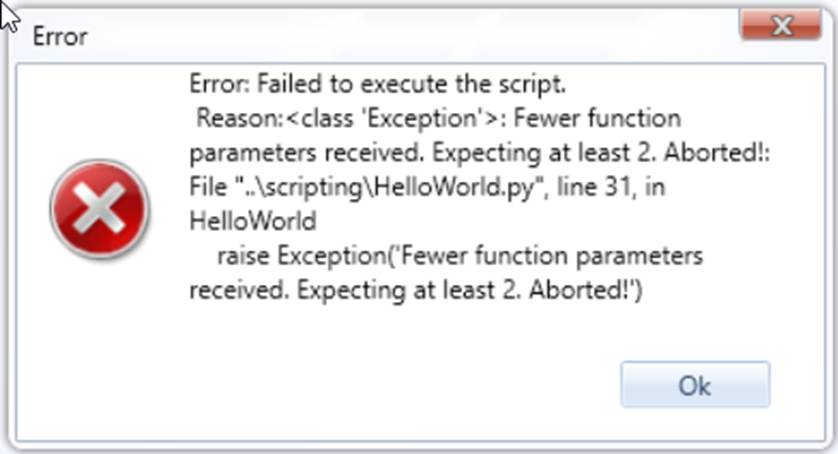
Users can also generate error messages by raising an exception as shown in the following example. The user-raised messages will be treated like the error messages detected by the Tool, and presented in the same way to users. However, when an error message is raised as an exception, the rest of the function which haven’t been executed will be ignored. In other words, execution of the function is aborted. If this is not the desired behavior, users can generate the error messages by adding the message in the context object. These messages will be presented in the same way as other errors, but execution of the scripts will not be interrupted unless the script explicitly aborts the execution.
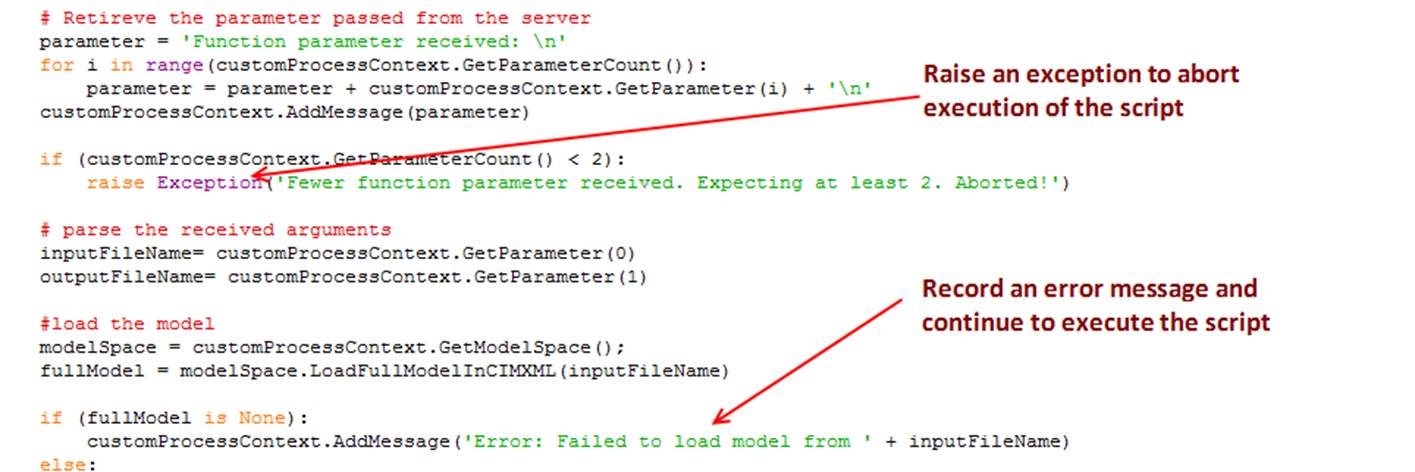
The UI responses to the above error handling is shown below:
In general,
- If the error is fatal, raise an exception and abort the execution of the remaining script.
- If the error is tolerable, log the error message in the context object and continue the execution of the script.