Generating Model Comparison Reports
NOTE: While this function is still supported for backward compatibility, it is depreciated. Users shall refer to Model Change Reporting for a similar but enhanced functionality.
The result of model comparison is a CIM incremental model that describes the model changes in detail. CIM incremental describes the model change at the object level. It is not suitable for the reporting purpose. The Tool provides some enhanced capabilities to enable users subscribe the model changes they are interested in and then generate custom tabular reports summarizing the detected model changes.
The model comparison report is a special type of custom tabular display. You must know how to design a custom tabular display first before working on a model comparison report. To support model comparison reporting, the following enhancements are added. These enhancements are only applied for the model comparison reports.
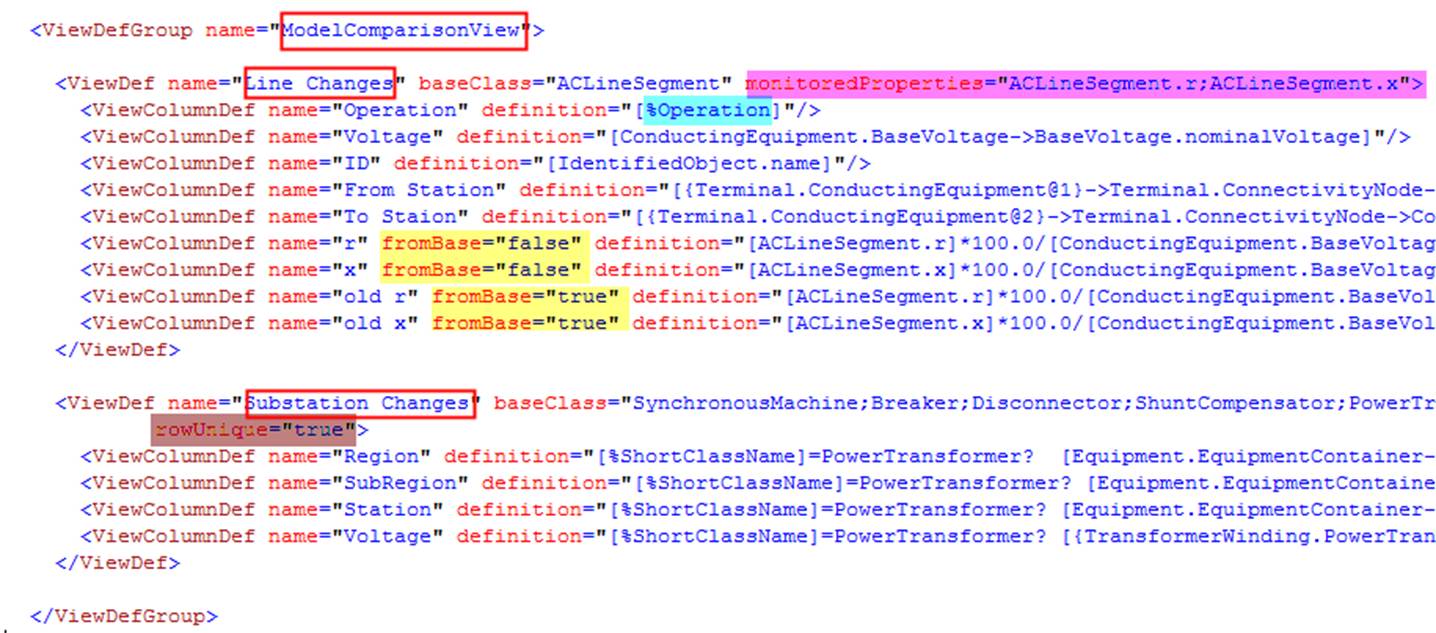
- monitoredProperties in the ViewDef element: this optional attribute lists all of the monitored properties, each separated by a “;”. When not specified, it is assumed that all of the properties in the base class are monitored. This attribute is used for additional filtering. Only changes of the monitored properties will be reported.
- Special MQL Function ‘Operation’: This function is used to enumerate the type of the changes, i.e. ADDED, DELETED, or UPDATED.
- Optional attribute fromBase in the ViewColumnDef element: Model comparison report can be defined just like the regular custom tabular display. However, users must keep in mind that the data shown in the report may come from two distinct models: base model and the updated model. Typically, it is unnecessary to indicate which model the column value shall be generated from for the added and deleted objects. For an added object, the column value is always from the updated model. For a deleted object, the column value is always generated from the base model. However, for an updated object, it may be necessary to indicate which model the column shall come from. If attribute fromBase is set to ‘true’, then the column value shall be generated from the base model, and vice versa. If not specified, it is assumed that the column value will be generated from the updated model.
- Optional attribute rowUnique in the ViewDef element: when set to ‘true’, the rows with the identical column values will be displayed as a single row. This is used to remove the duplicated the rows in the generated model comparison report.
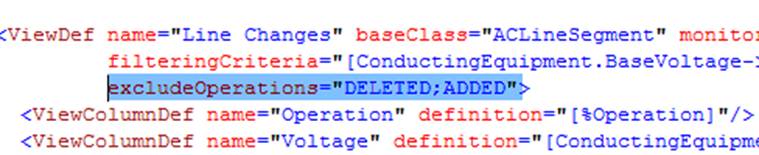
- Operational attribute excludeOperations in the ViewDef element: this optional attribute lists all of the Operations that will be filtered out, each separated by a “;”. The valid operations are “ADDED”, “DELETED”, and “UPDATED”. The enumerated values are case-insensitive. For example, the follow view definition filters out the ADDED and DELETED lines. Only the updated lines are included in the generated report. This optional attribute is an enhancement of the filteringCriteria. It allows users to filter by %Operation.
The following example illustrated how a model comparison report is defined to monitor the line parameter changes using the enhanced features.
Unlike regular view groups which can be associated with a specific data source, the view group defined for model comparison reporting can only be associated with the ModelConfig element as defaultIncrementalModelViewGroup. It applies to any of the CIM incremental model resulted from model comparison.

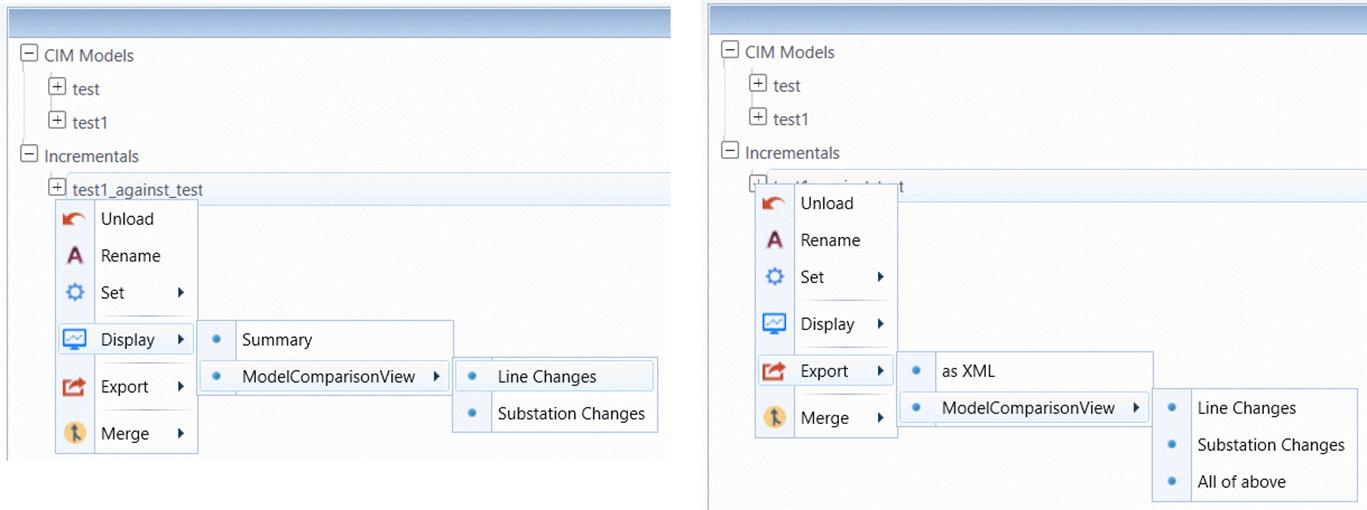
Once specified, the attached view groups can be seen from the context menu associated with the CIM incremental model resulted from model comparison. Users can display or export the defined model comparison reports through these context menus, as illustrated below.
The following screenshot shows a sample model comparison report that summarizes the line parameter changes. Like regular custom tabular display, the model comparison report is navigable. By double-clicking the selected row, users can view the associated object in the incremental model, which may provide further navigation to the base or updated model, etc.

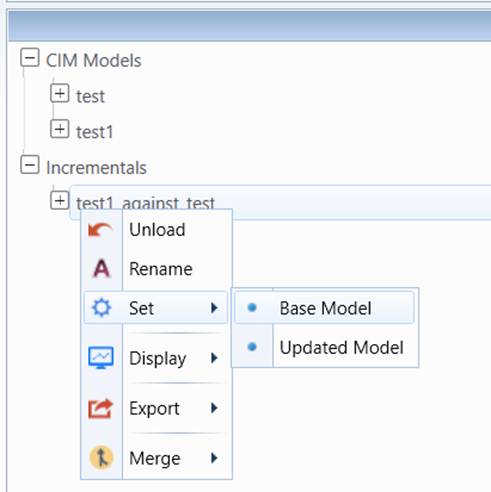
Note the model comparison report is automatically available for the incremental model generated through model comparison in the Tool. For any incremental models imported into the Tool, users must explicitly specify the base model and updated model through UI, as illustrated below. In other words, the incremental file used to generate the model comparison must be associated with the base and updated full models to enable the model comparison reporting function.