Searching with Auto-Suggest Wizard
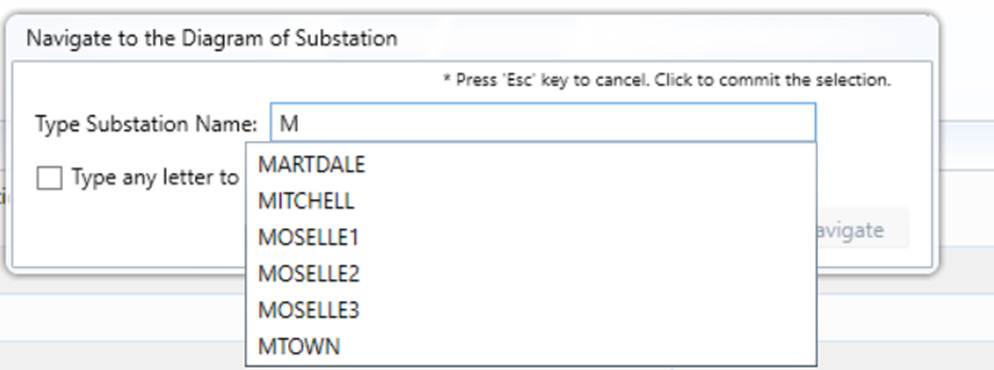
Auto-Suggest Searching Wizard is a facility widely used in the Tool for assisting users to quickly search for an object/diagram based on name matching. It provides a list of suggestions for a user to select from as they type. Typically, after users enter two or three characters, the candidates will be narrowed down to a small number. Users can simply click the selected item from suggested matching items and navigate to the corresponding display.
Searching for an Object
The most-frequently use case of Auto-Suggest Searching Wizard is to search for an object. The function can be invoked from the Quick Access Toolbar, as illustrated below.
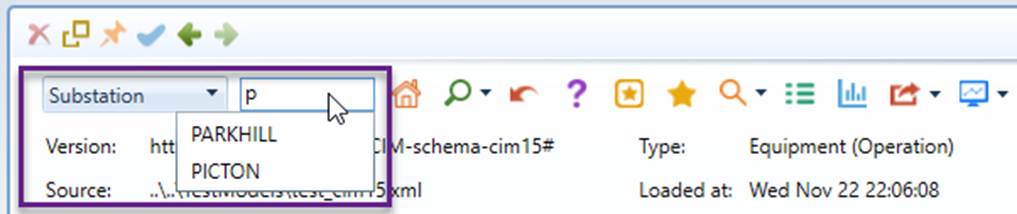
The object search wizard consists of two parts:
- A dropdown for selecting the class of the object: the dropdown contains all of the classes of all searchable objects. A searchable object is an object with a name (i.e. IdentifiedObject.name). Additionally, it also contains abstract classes, such as IdentifiedObject, Equipment.
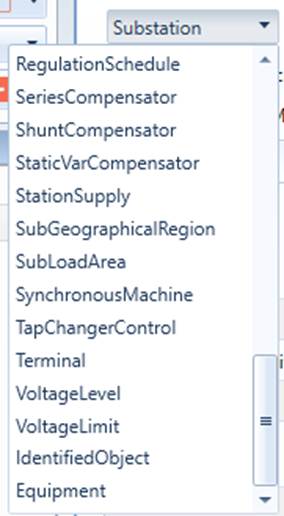
The classes are listed in the following sequences:
- Frequently-searched: Substation and ACLinesegment by default, but configurable
- Others: All of other classes derived from IdentifiedObject/Naming and with at least one object, sorted in alphabetical order
- Abstract: IdentifiedObject, Equipment
- An edit box that supports auto-suggestion. The control auto-pops up a hint list based on partial name matching. Users can then select a suggested item from the hint list.
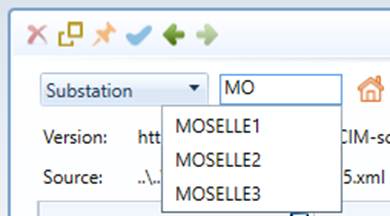
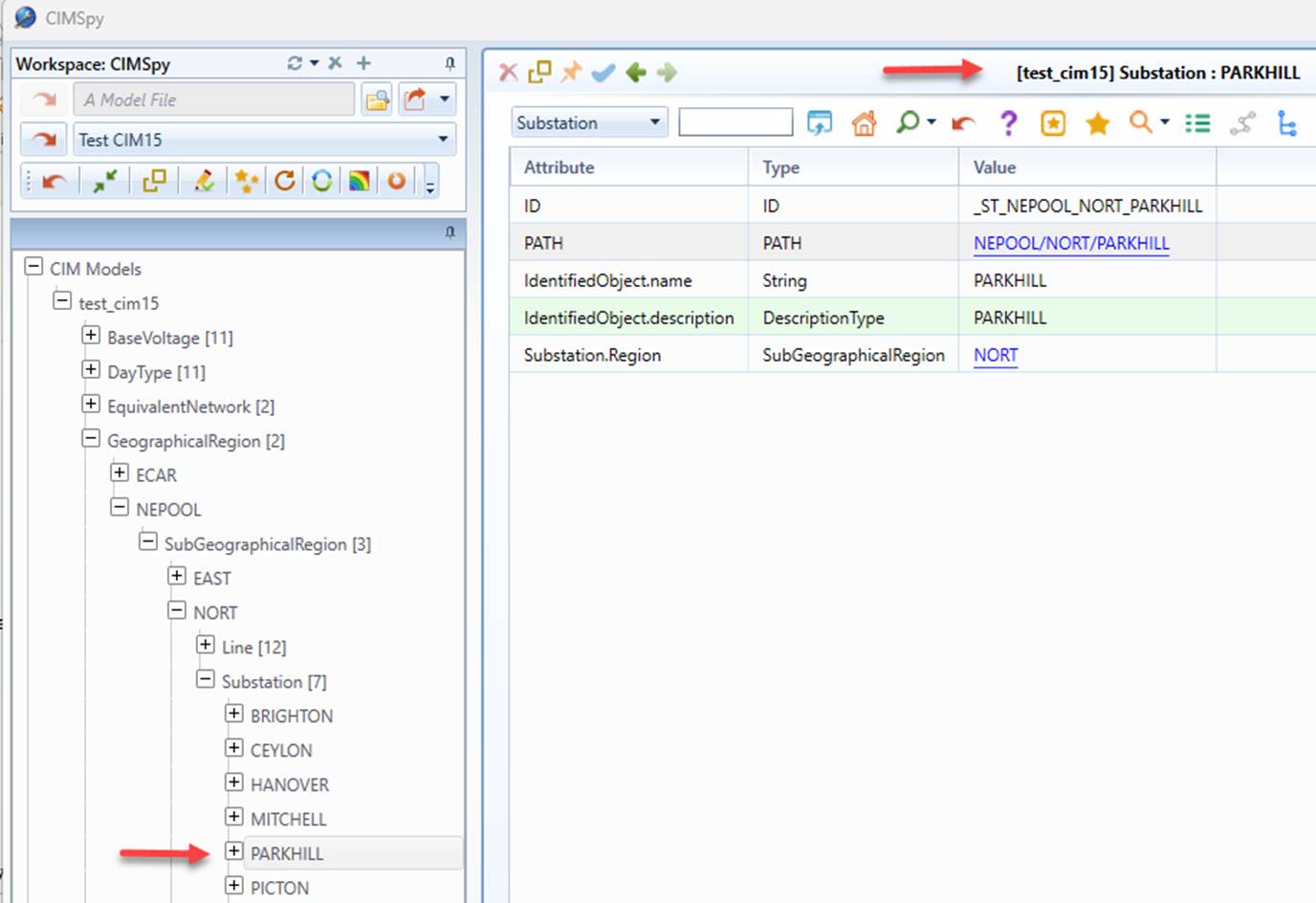
Once a suggested item is selected, the Navigation Tree will be auto-expanded to find the object in the model hierarchy and a Form Display will be created to display the discovered object in details, as illustrated below:
Note:
- Both class dropdown and the hint list are dynamically populated. So latency (or delay) is expected for popular classes (Terminal, Analog, etc.) of large models.
- If an abstract class is selected, all of the objects derived from the abstract class will be searched. For example, Equipment covers all of the concrete classes derived from Equipment, including ACLineSegment, Breaker…..
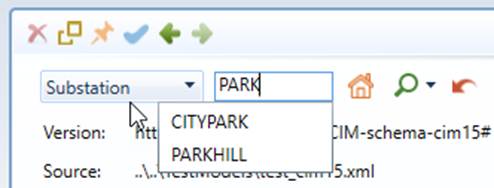
- Auto-suggestion is based on partial name matching. As an example, if user enters ‘PARK’ to search for a Substation, all of the Substations whose names contain a substring of ‘PARK’ will be listed in the hint list, such as “PARKHILL“, “CITYPARK”, etc.
Navigation to a Diagram
Another use case of Auto-Suggest Searching Wizard is to navigate to a Substation Diagram. The function can be invoked from the Quick Access Toolbar, as illustrated below.

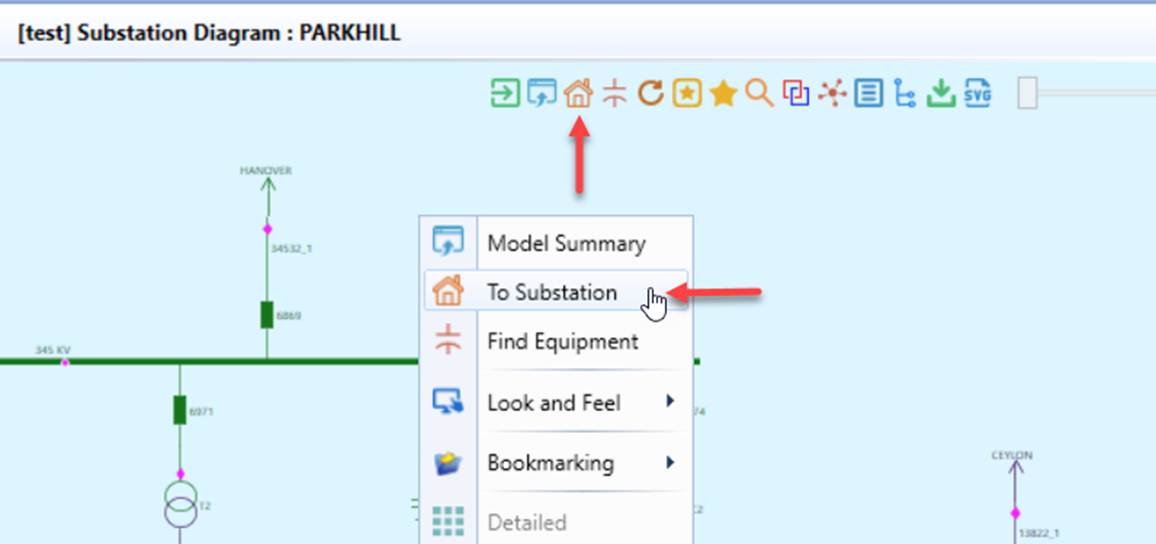
The Substation Navigation Wizard can also be invoked from any Diagram Displays, as illustrated below.
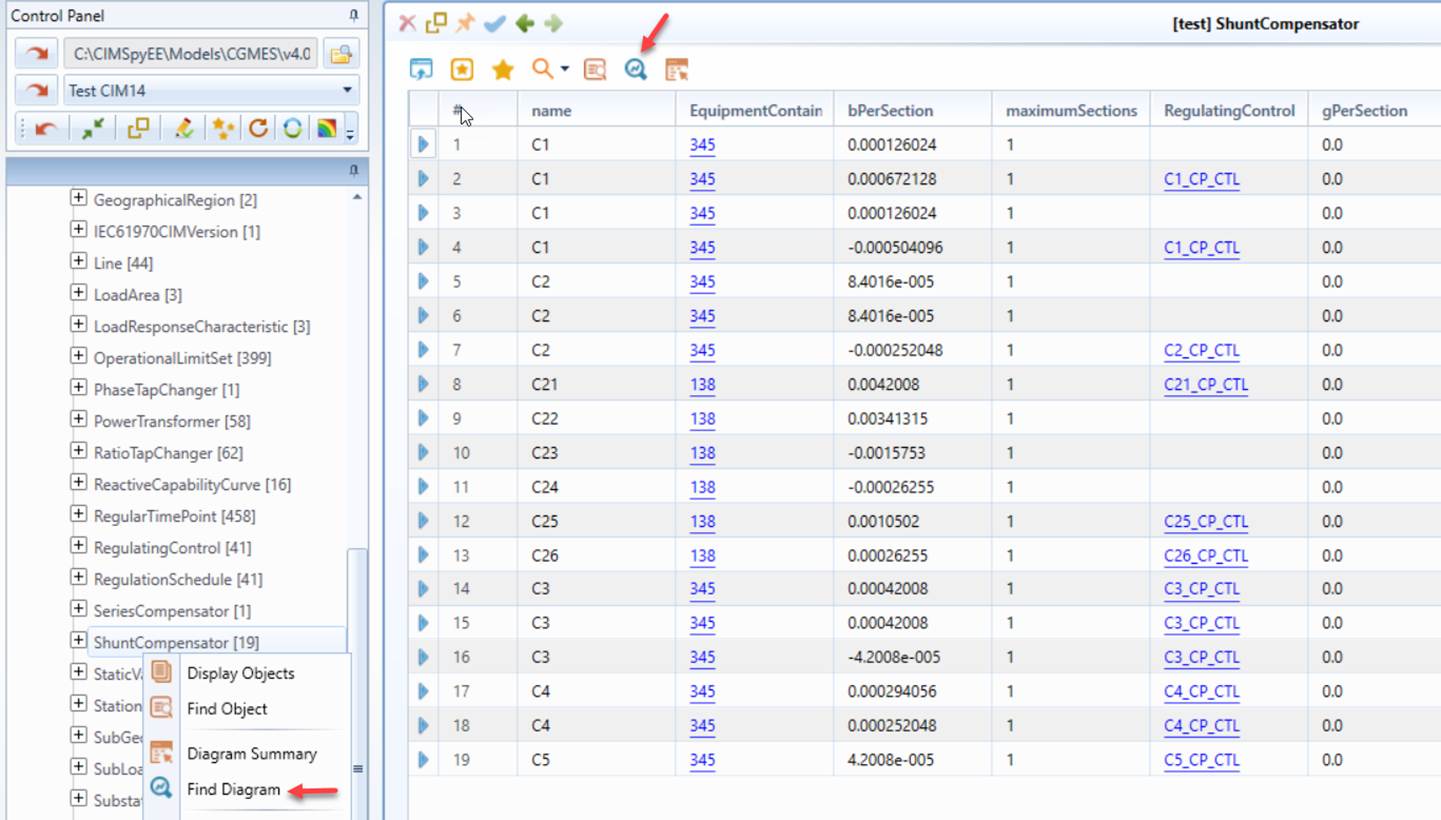
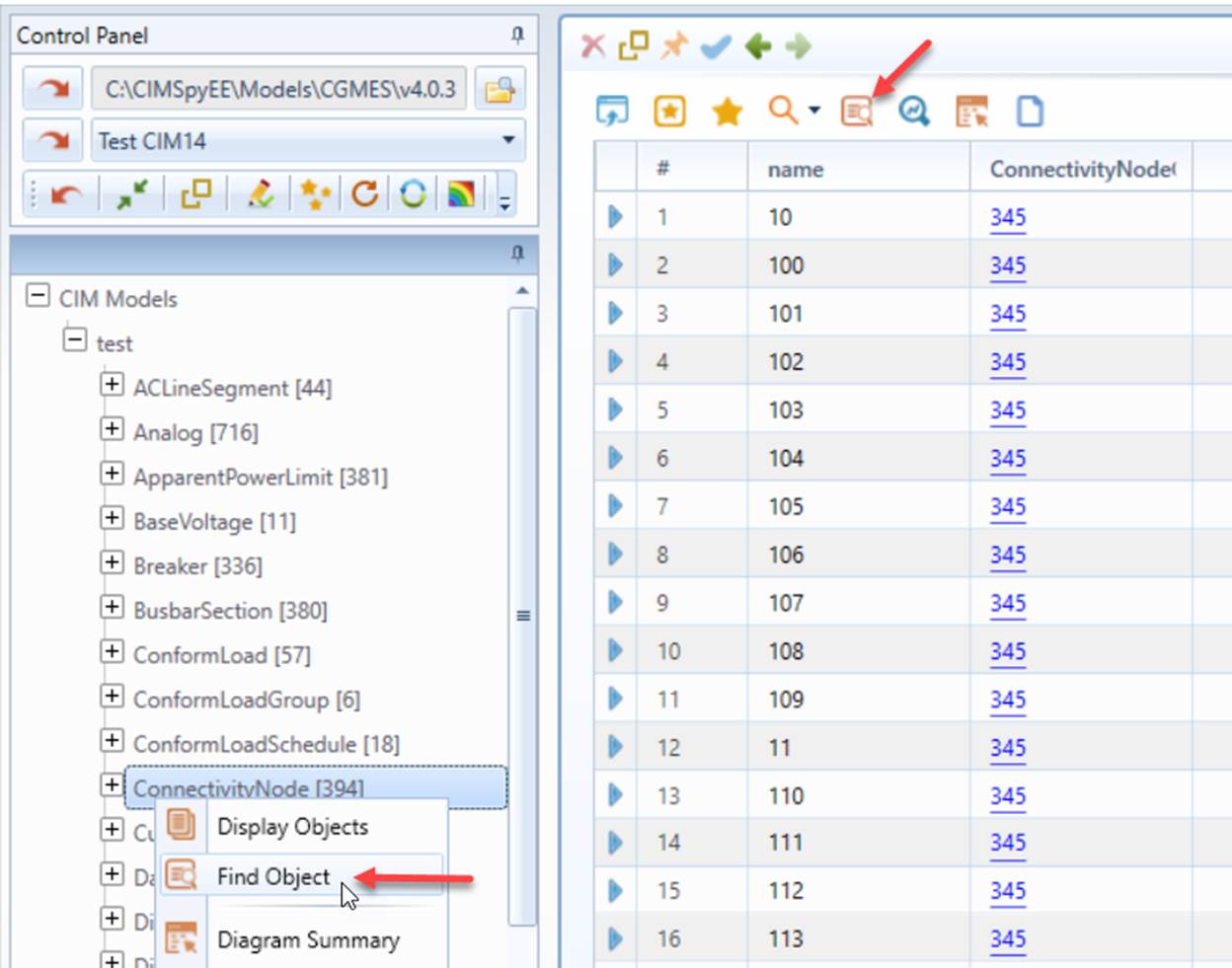
In general, any diagrams can be searched with the Auto-Suggest Searching Wizard. This function can be invoked from the Quick Access Toolbar in a Tabular Display showing all of the objects, or via context menu in the Catalog Tree, as illustrated below.
Searching in a Diagram
Auto-Suggest Searching Wizard is widely used to search in a Diagram Display, such as searching for equipment in a Substation Diagram, searching for a Substation/ACLineSegment in a Neighborhood Diagram or a Geographical Diagram.
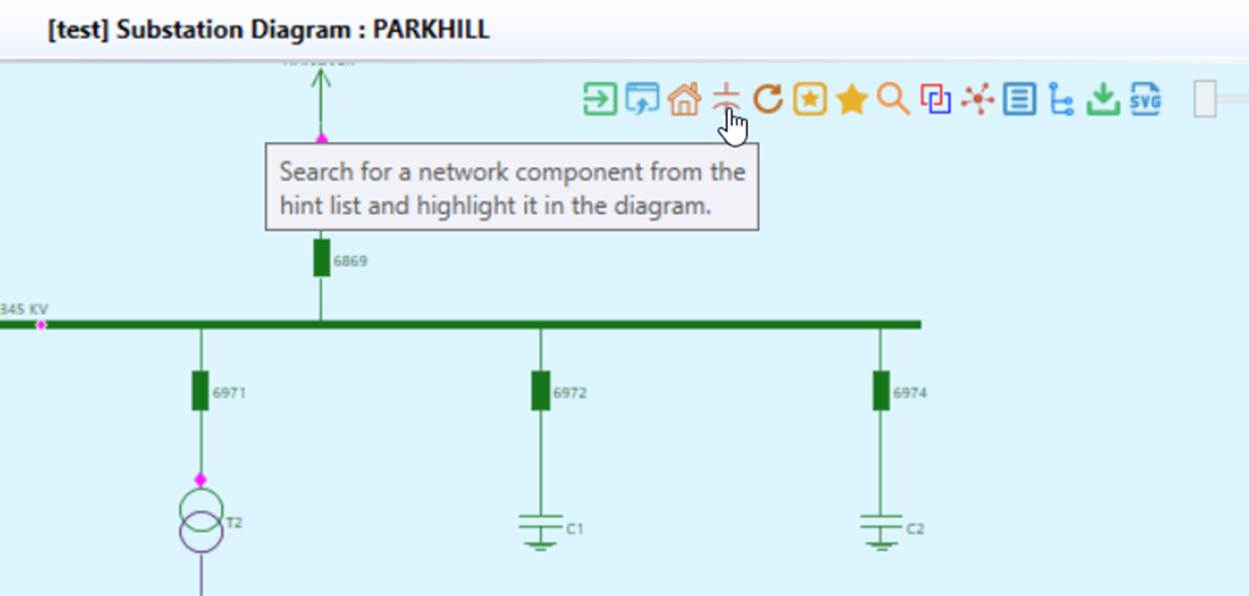
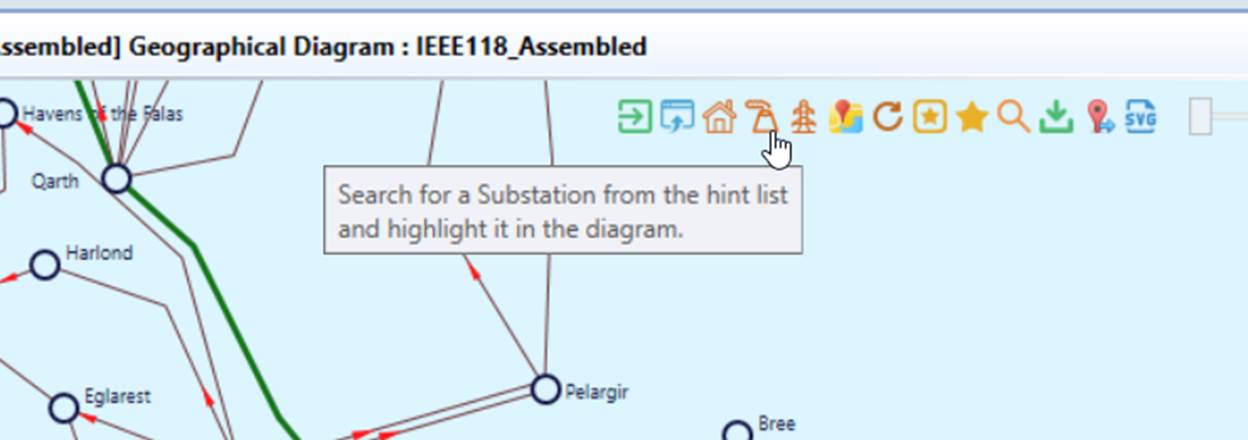
Navigation to an Object
Auto-Suggest Searching Wizard is also used to search for an object and navigate to the corresponding Form Display. In general, any named objects can be searched with the Auto-Suggest Searching Wizard. This function can be invoked from the Quick Access Toolbar in a Tabular Display showing all of the objects, or via context menu in the Catalog Tree, as illustrated below.
Tips
- Once users start typing, the Cancel button will disappear. Users can abort the function by pressing Escape (ESC or esc) key.
- Matching is not restricted to initial characters. The suggested matching items are sorted with the first matching best.
- If the match is not found in the suggest list, users can toggle check box to pull out all of the items.
- The Auto-Suggest Searching Wizard is optimized to handle large number of items. It is an instant effort to prompt suggestion from a list of 10,000 items. If the number of items is really large, users will see the delay, which is mainly caused by retrieving of data.
.