Building Standalone Scripting Applications
Python scripting support is intended primarily for users to build custom processes or plug-in extensions within the Tool environments. These scripts must be run from the UI of the Tool. The Python APIs that can be used are also limited to support the intended purposes.
If users would like to build standalone scripting applications by leveraging the functionalities of the Tool, they can create a standalone scripting application outside of the Tool. The standalone scripting support is aimed at providing users with a proven starting point, from which to rapidly build the standalone applications. The standalone scripting support, however, is currently released under an evaluation license. This is because this functionality is beyond the Tool boundary and requires additional support.
This tutorial demonstrates how a standalone script can be built and executed in the Python environment outside of the Tool.
Hands-on
In this hands-on lab, we will run a sample standalone script from the server bin folder (rather than from the Tool UI). This sample script is designed to walk through the input model and display the first specified number of objects for each class.
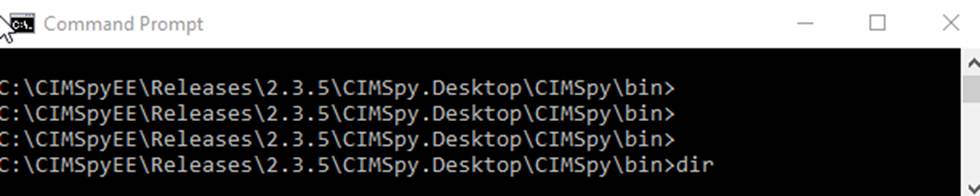
- Start a command line session and change the directory (CD) to the corresponding server bin folder of the Tool. Note if you install 32-bit Python, you shall go to \CIMSpy\bin32. If you install the 64-bit Python, you should go to folder \CIMSpy\bin. Type command ‘dir.’
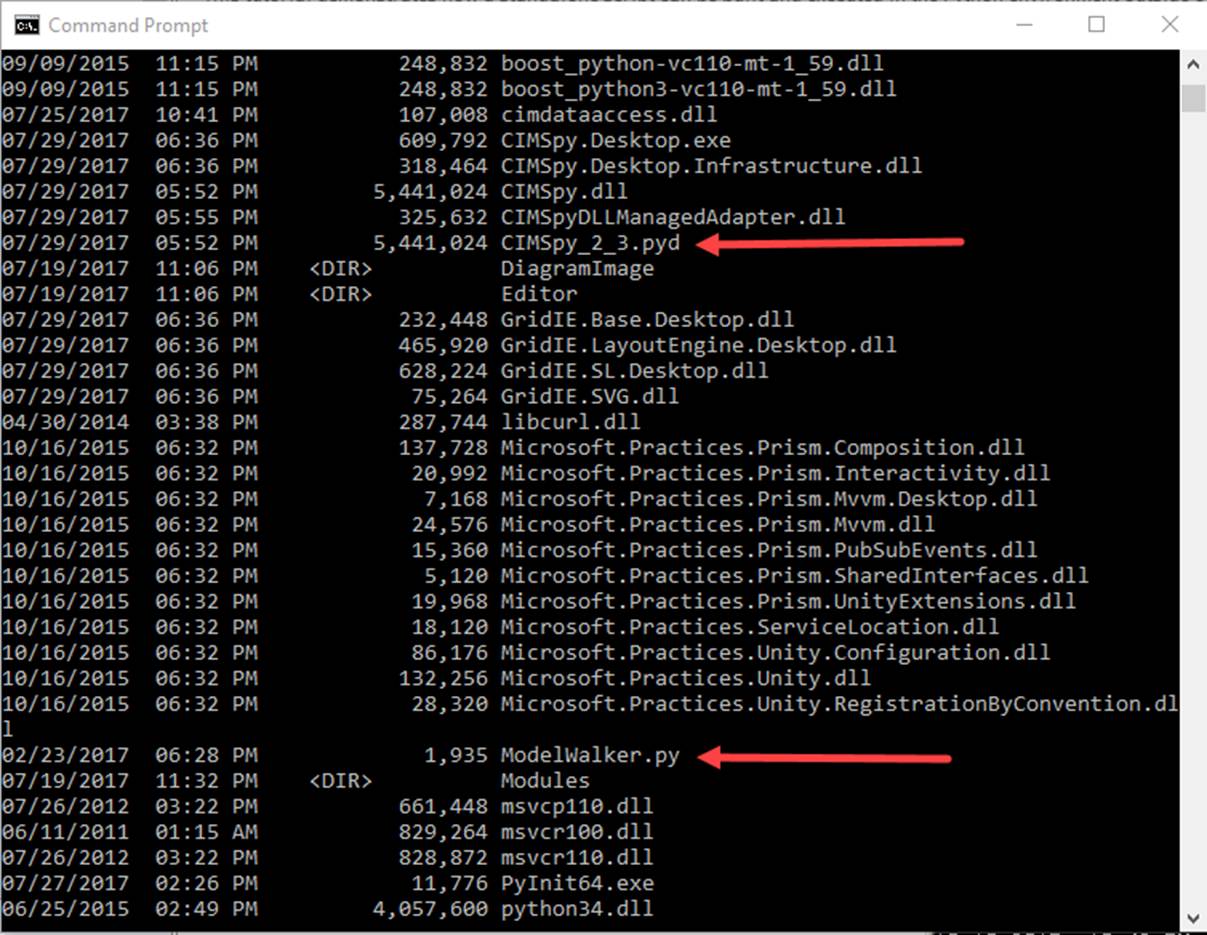
- Make sure the DLL-based CIMSpy module and the sample script file, as highlighted, are in the bin folder.
- Type command ‘Python ModelWalker.py, as shown below

- You shall see some model contents displayed
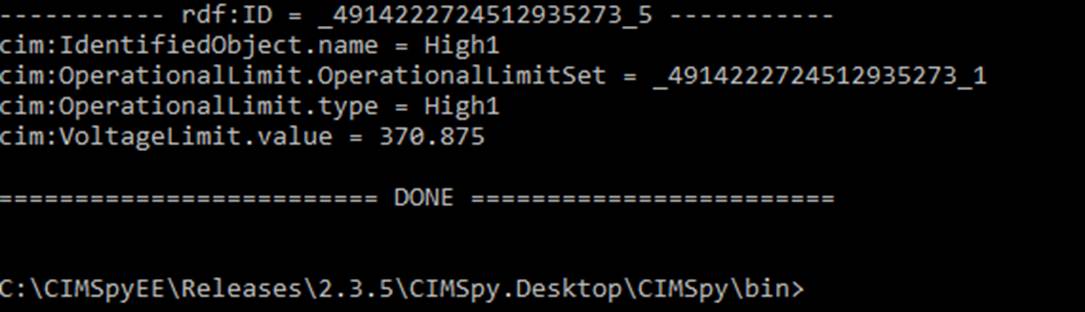
By default, the script is designed to load the default model. User can also run the above script for any models by calling the script function directly from the Python environment in 3 steps, as illustrated below.
- Enter the Python environment by entering command: Python

- Import the sample script modeuls

- Run the script function ModelWalker.Go and provide two parameters: full path of the model file and the maximub number of the objects to be displayed for each calss.

Code Analysis
The sample standalone script, i.e. ModelWalker.py, is located at corresponding server bin folder of the Tool. It can also be placed under other folders. However, running a script file under different folders requires some additional steps.
The sample script is designed to demonstrate how to build and run a standalone script outside of the Tool environment. It loads a specified CIM/XML file and then displays a specified number of objects for each class. The main function takes two optional parameters:
- modelFile: full path of the model file
- maxNumbOfObjects: max number of objects to be displayed for each class
The following explains the script code in more details.
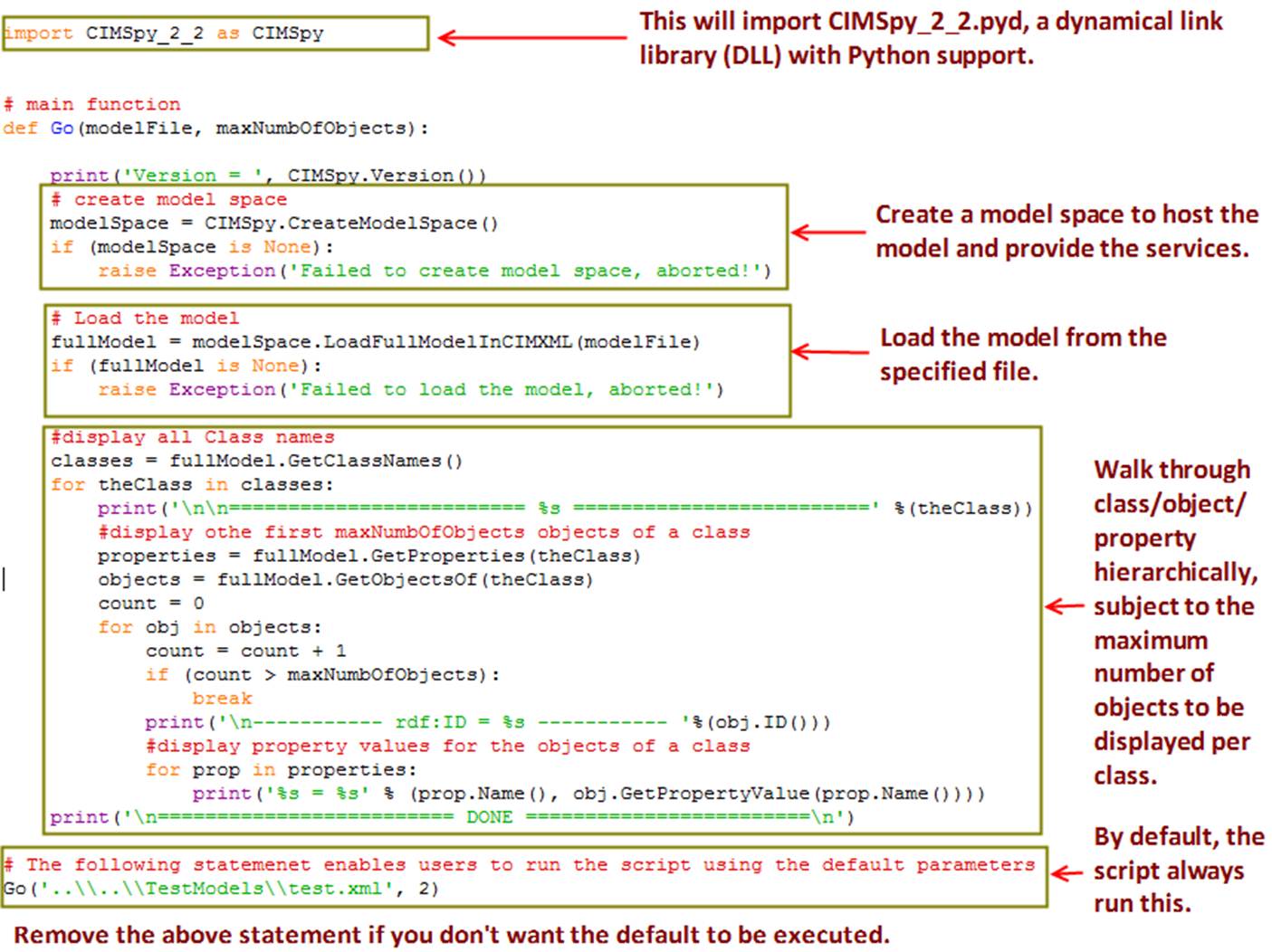
The standalone scripting support is provided through a dynamically-linked library (DLL) with Python support. This DLL (with extension of pyd) can be treated just like regular Python module and can be imported to any Python script to provide all of the functionalities of the Tool . It supports Model APIs as well as additional APIs that enables users to execute all of the functionalities of the Tool.
Note
the released DLL is intended solely for the evaluation purpose. It enforces some restrictions on the size of the loaded models.