Importing CIM/XML Files
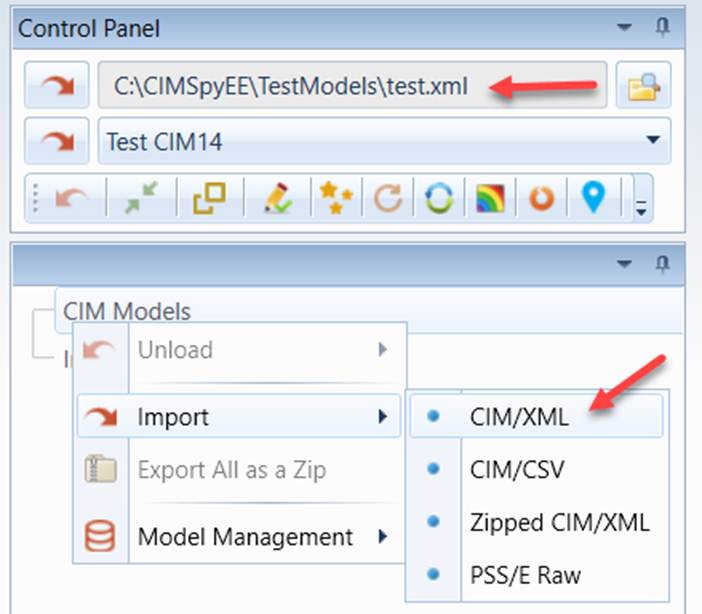
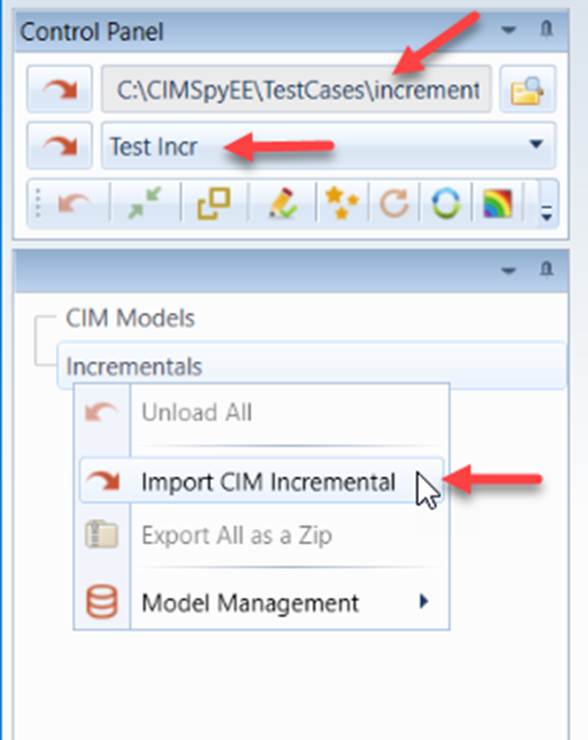
- Right-mouse click the CIM Models tree item in the Model Explorer navigation tree. Then Select Import CIM/XML in the context menu. .Alternatively, users can load the CIM/XML files using the shortcut in the control panel. Simply click the Browse.. button to select the CIM/XML file, and then click the Load button to complete the process. Note the model loading function in the control panel works for both raw CIM/XML files and zipped CIM/XML files, full model or incremental. It relies on naming convention to determine the type of the file to be loaded. If the extension name of the input file is “zip” (case insensitive), for example “model.zip”, the input file will be treated as zipped file. Otherwise it will be treated as raw CIM/XML file. If your input files don’t follow this naming convention, you should use the corresponding menu items to load the model files. If treated as XML file, the model will be initially loaded as full model. If the loaded modeled is discovered as incremental, the Tool will then try to load the selected file as incremental model.
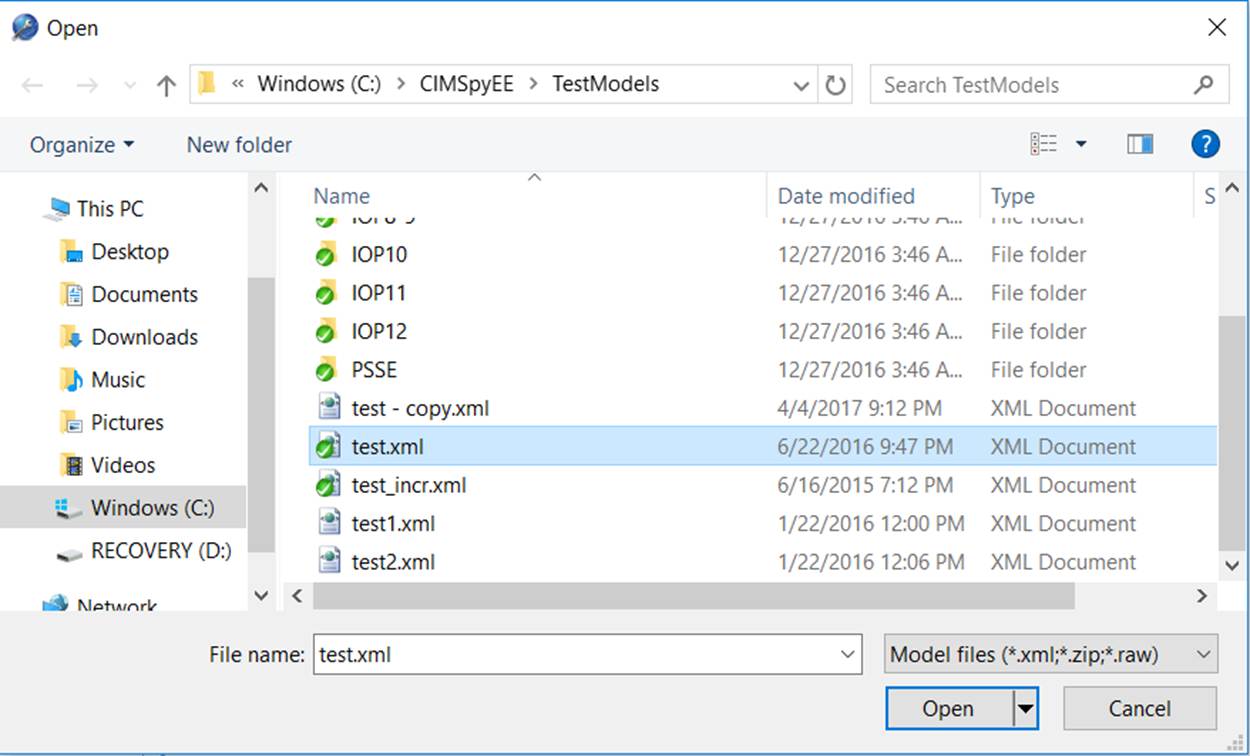
- A dialog will pop up for file selection. Browse to the directory to select the CIM/XML file.
Note:
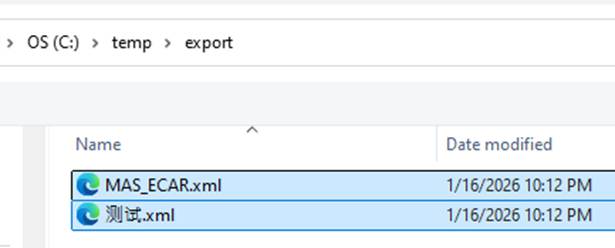
- The application supports non-ASCII (Unicode) file names.
- Users can import multiple files in a single operation by holding the Ctrl key while selecting files in the file browser.
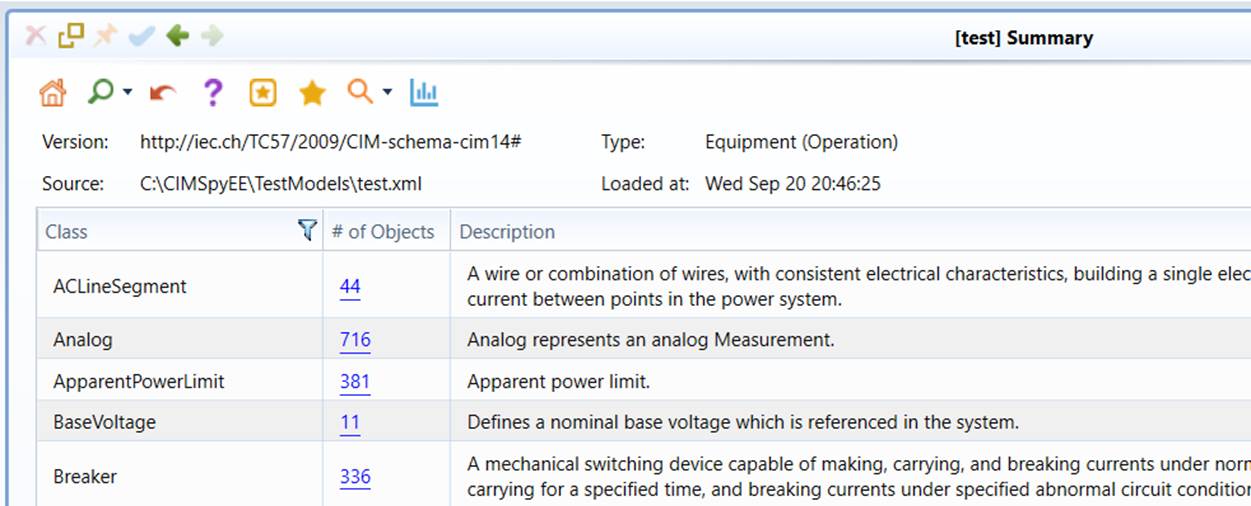
- While the loading process starts, the UI will be locked from any other activities. Once the loading is completed, a summary page will be displayed, listing all of the classes and the corresponding object counts and the description of the CIM classes defined in CIM/UML. A new model tree item will be added under the CIM Models root tree item. Most of the model-level activities can be performed via a Model Context Menu which can be invoked by right-mouse clicking the mode tree item as illustrated.
If fatal issues, such as duplicate rdf:IDs, are detected during model loading, the tool will notify users with a warning dialog after the loading process completes, as illustrated below. This ensures that critical data integrity issues are clearly highlighted, allowing users to review and correct the model before proceeding with further analysis or processing.
.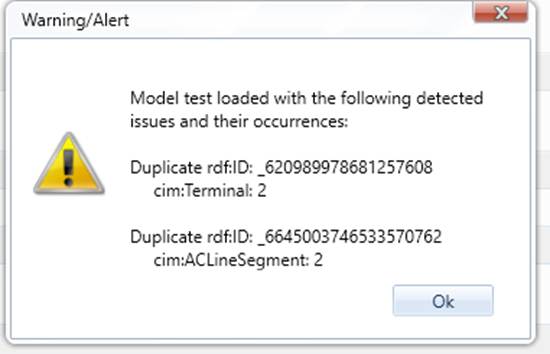
To view detailed information about the reported issues, users should run model validation.

- Similarly users can load CIM incremental model using the same process, as illustrated below. Note: when loading a CIM/XML file from the file browser, it will be loaded as full model initially. During the loading process, if the model is identified as an incremental CIM/XML model file, the Tool will then try to load the model as incremental CIM/XML model file.
Note: When loading large size of models, you may receive timeout errors. In this case, user should change to the timeout parameter in the configuration.