Report Display
Report Displays are generated for various purposes, including
- Displaying the summary of the loaded model, such as object counts, etc.;
- Displaying ad-hoc search results;
- Reporting incidents detected during model validation, model assembling, etc.;
- Reporting logged events during auto-play, database initialization, etc.
A list of command icons are typically displayed at the top of Report Display. For example, Model Summary Report contains a list of command icons, from which frequently-used mode-level functions can be invoked.
Calling Report Displays
Report Displays can be called from the related context menus or command icons. Model Summary report, for example, can be called
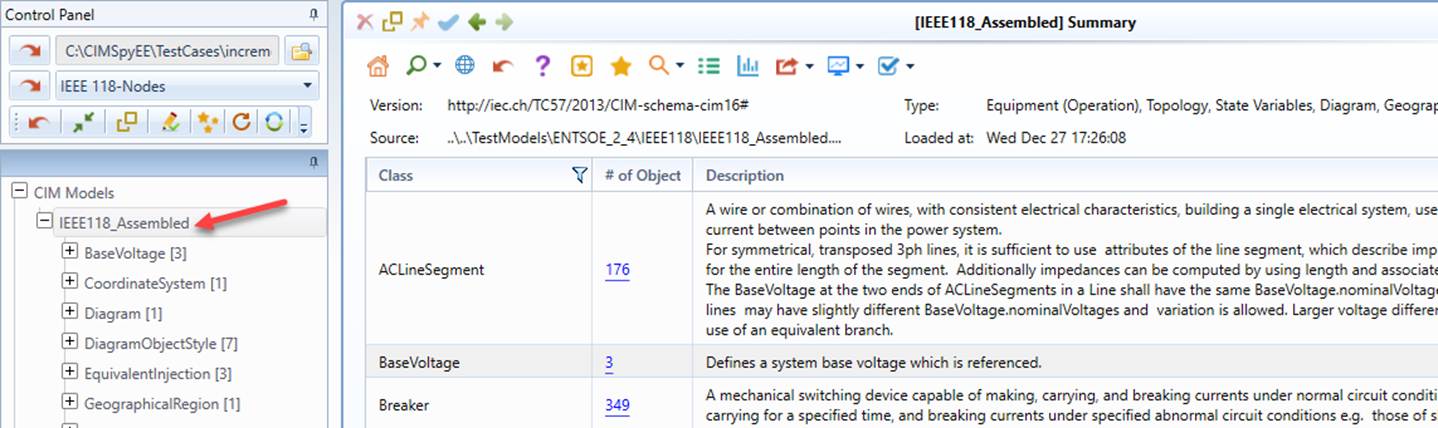
- By clicking the tree node that represents the model
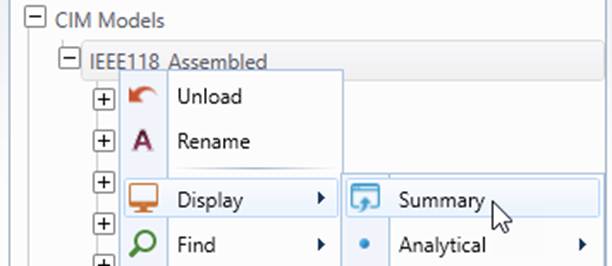
- From the context menu associated with the model tree node
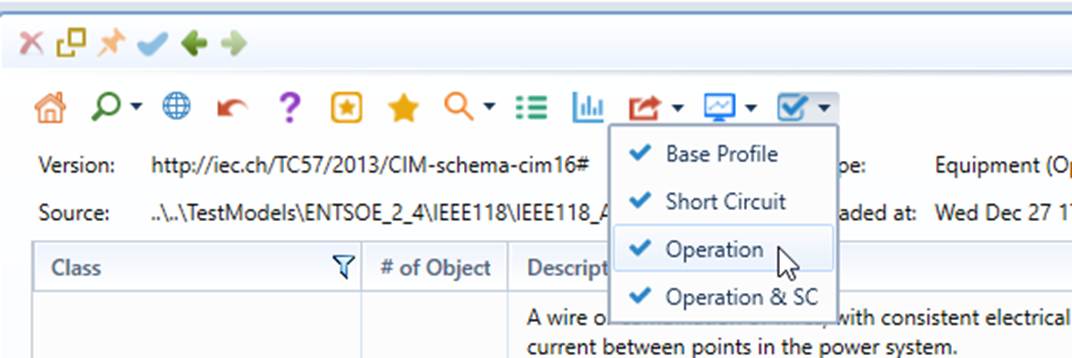
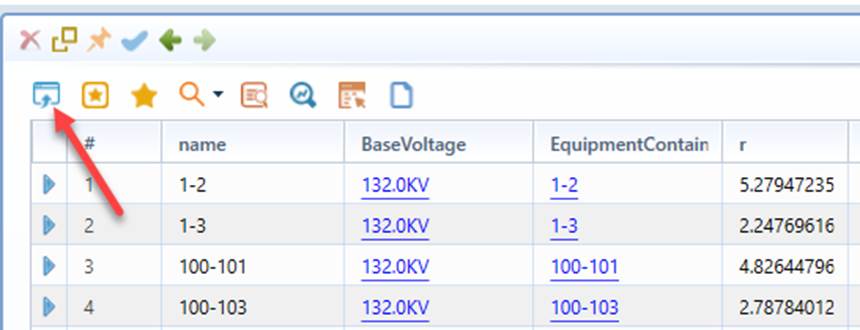
- By clicking the command icon of other displays of the model,
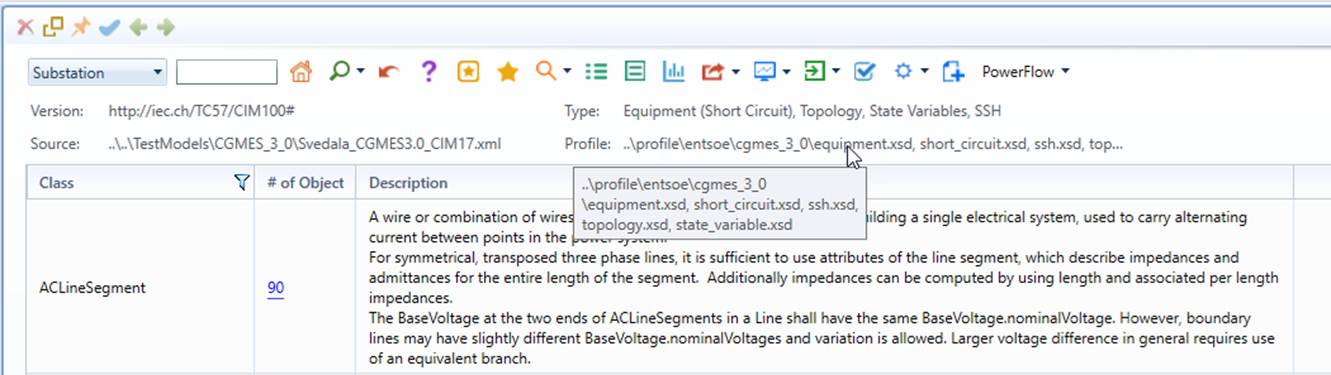
- If the information displayed in the report is too long, it may be truncated. In such cases, users can hover the cursor over the truncated field to display a tooltip showing the complete information. The example below illustrates how to view the full profiles and extensions governing the loaded model.
Generation and Persistence of Reports
Some of the Reports, such as Model Summary, ad-hoc Search Results, are dynamically generated. These reports are not stored in the workspace with the model. When called again, a new Report will be dynamically generated.
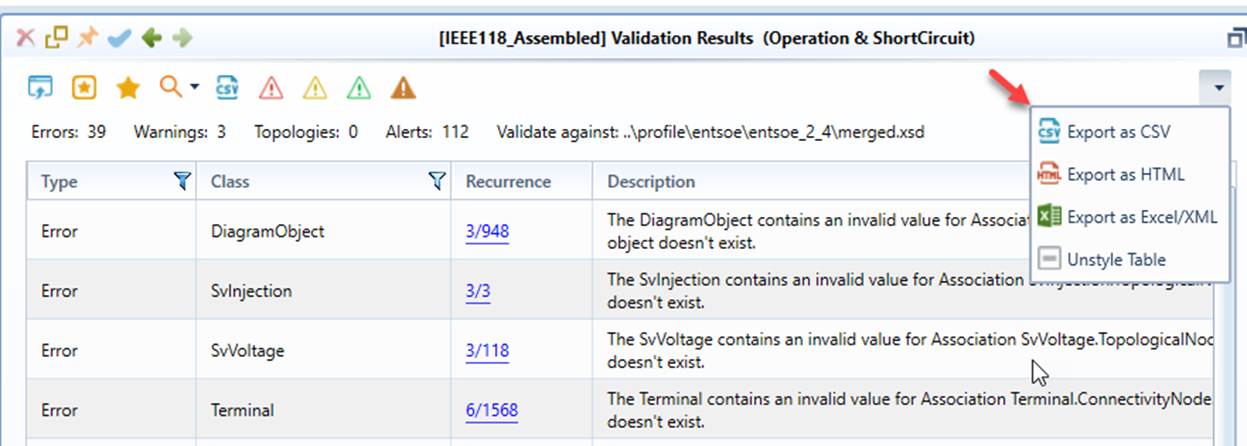
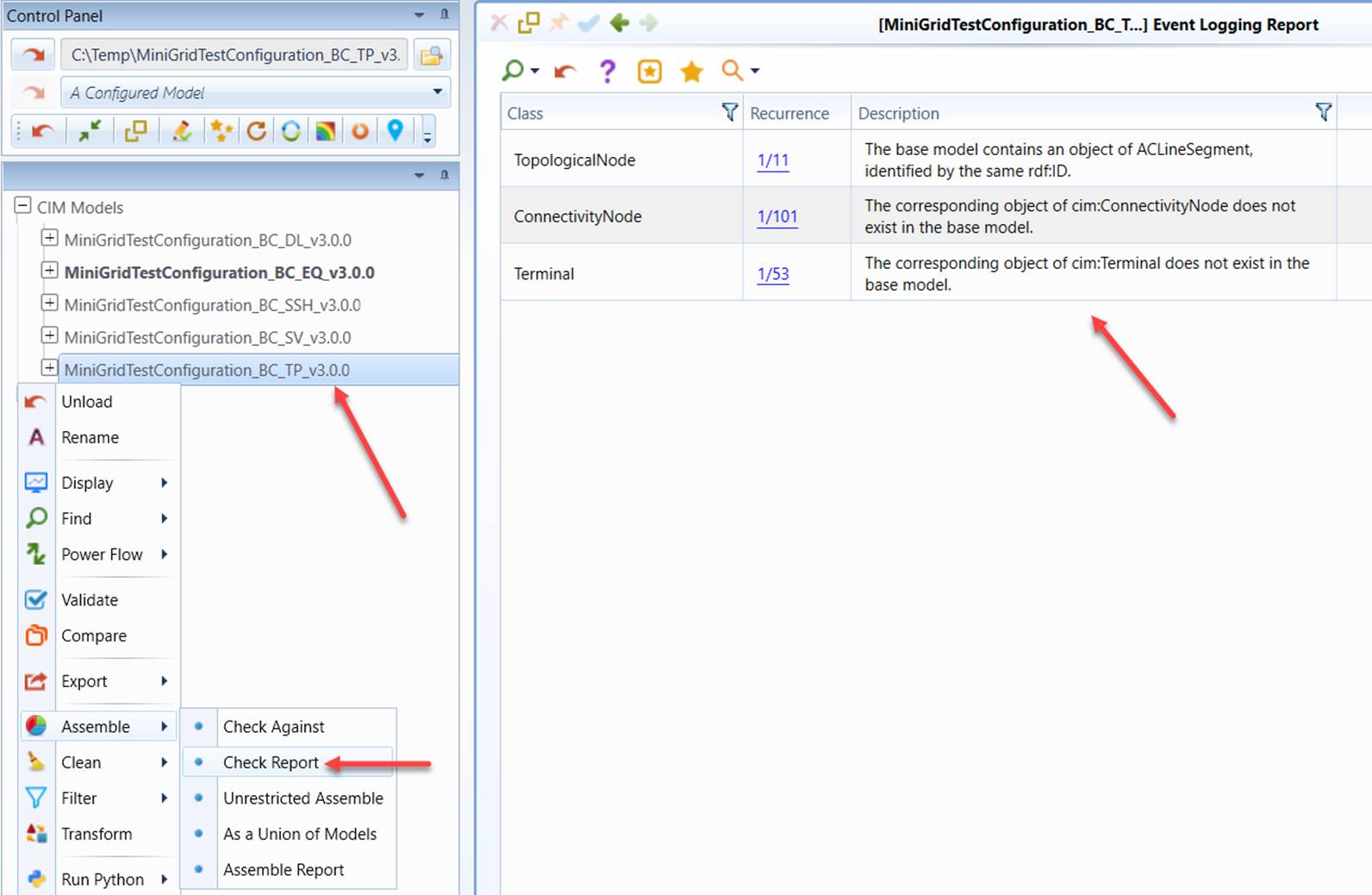
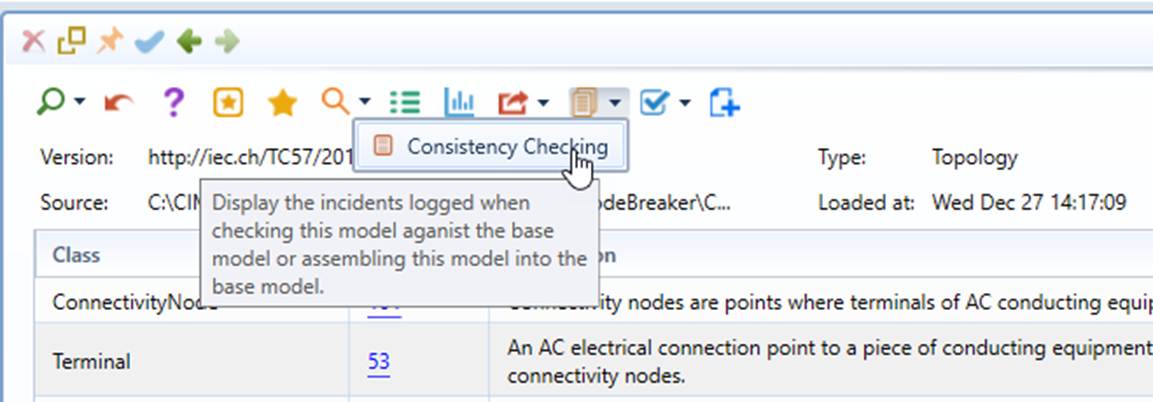
Most of the Reports generated by running model-related functions, such as model validation, model assembling, auto-play, and database initialization, etc., are stored with the model in the workspace. These Reports can be re-called via context menu or command icons, as illustrated below,
Note
Reports that are stored with the model in the workspace are not persisted once the application is shut down. Users must explicitly export these reports if they want to save them permanently. This can be accomplished by using built-in report export functions (Model Summary, Model Validation, for example) or by leveraging the generic support of UI display export, as illustrated below