Recording & Replaying
This advanced feature is designed to support two use cases:
- Audit Trail: enabling users to monitor the modeling activities, i.e. what operations have been performed in the workspace of the Tool during a given period of time? Audit trails are useful both for maintaining security and for recovering lost transactions.
- Automation: enabling users to record a sequence of modeling activities and then repeat the recorded processes to facilitate the future work. In other words, it makes the process repeatable. Users can execute the established process again and again without repeating the manual steps.
For building a sophisticated and highly controllable repeatable process, please refer to Batch Processing. The batch framework enables users to define structured, multi-step workflows that can incorporate variables, conditional logic, modular scripts, and detailed logging. It is well suited for complex model-processing pipelines, large-scale data transformations, and enterprise-level automation scenarios where precision, traceability, and repeatability are critical.
Hands-on
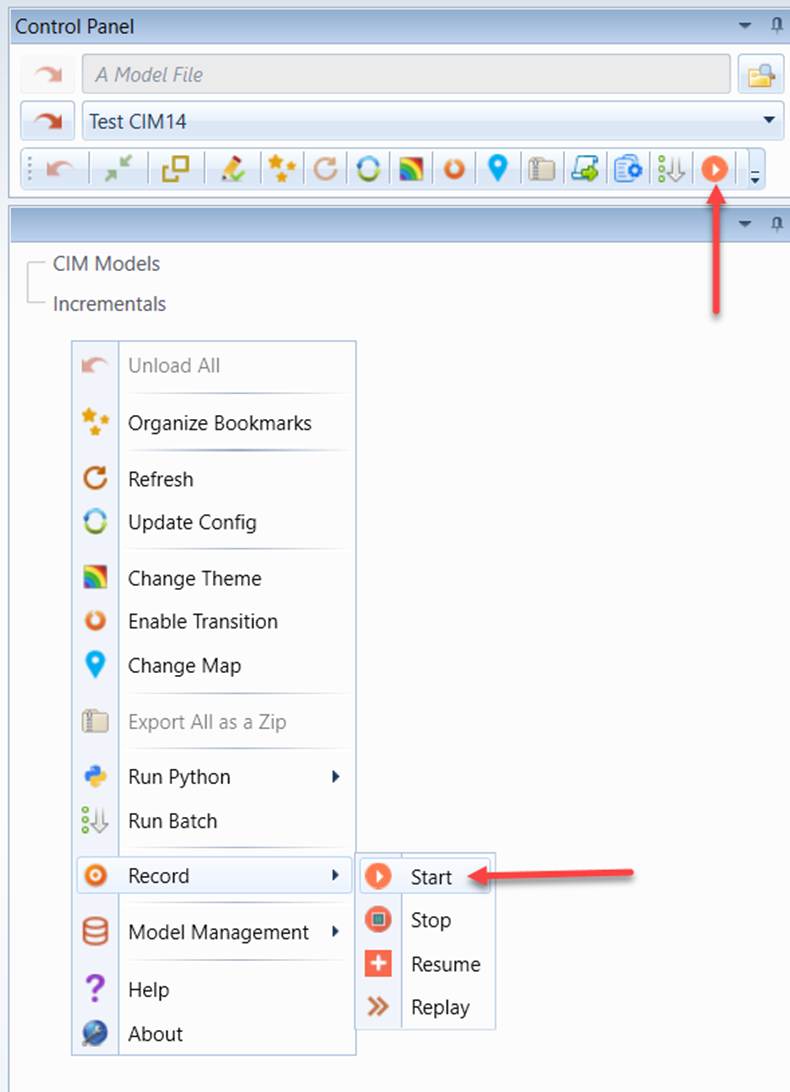
- Start the Tool and enable the recording via the global context menu which can be invoked by right-mouse clicking a blank spot in the tree panel.
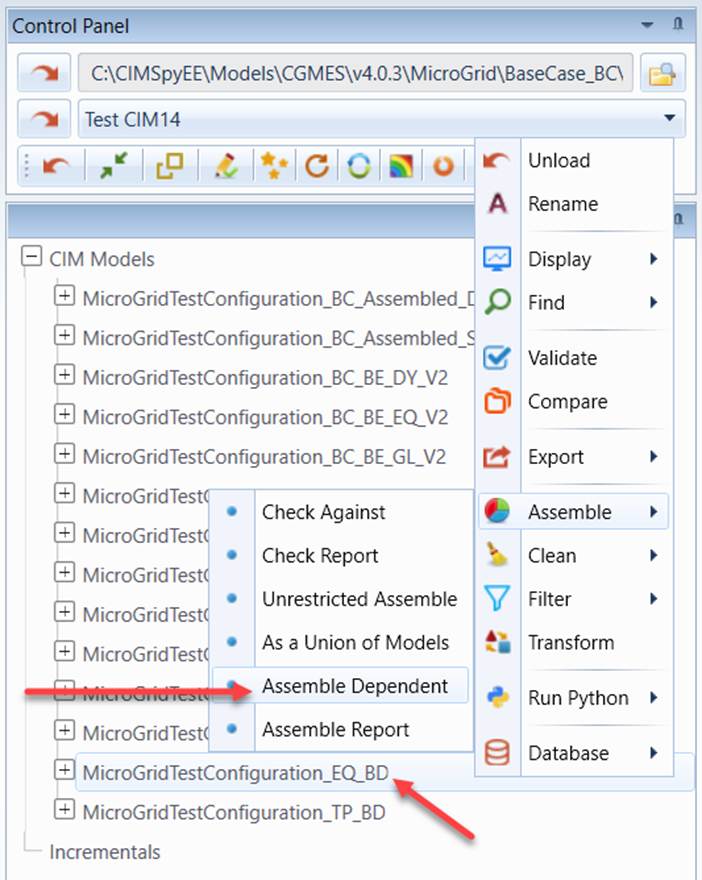
- Load a zip file that contains a collection of related model files, and then assemble them from the base model, such as a boundary EQ model.
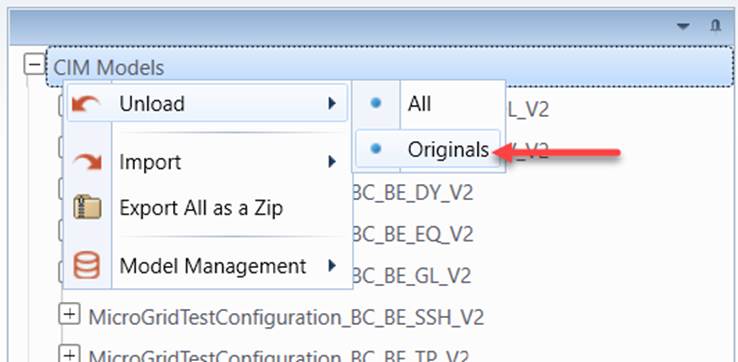
- Unload all of the original models. Only the assembled model is left.
- Stop the recording.
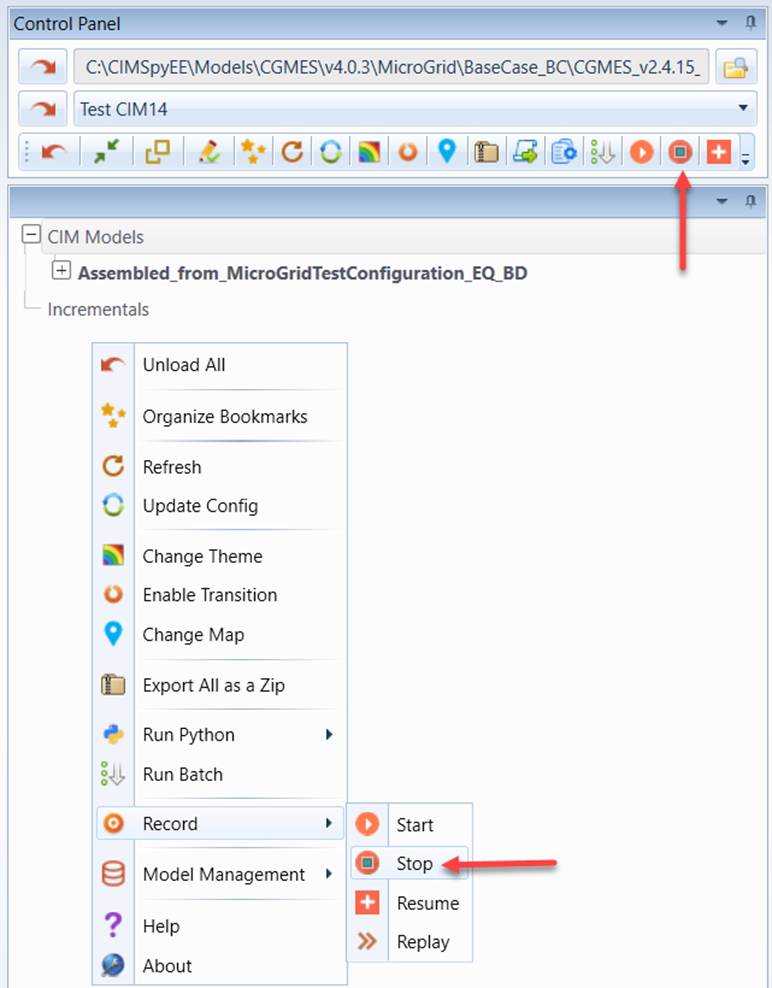
- Shutdown the Tool and restart it. Replay the recorded procedure.
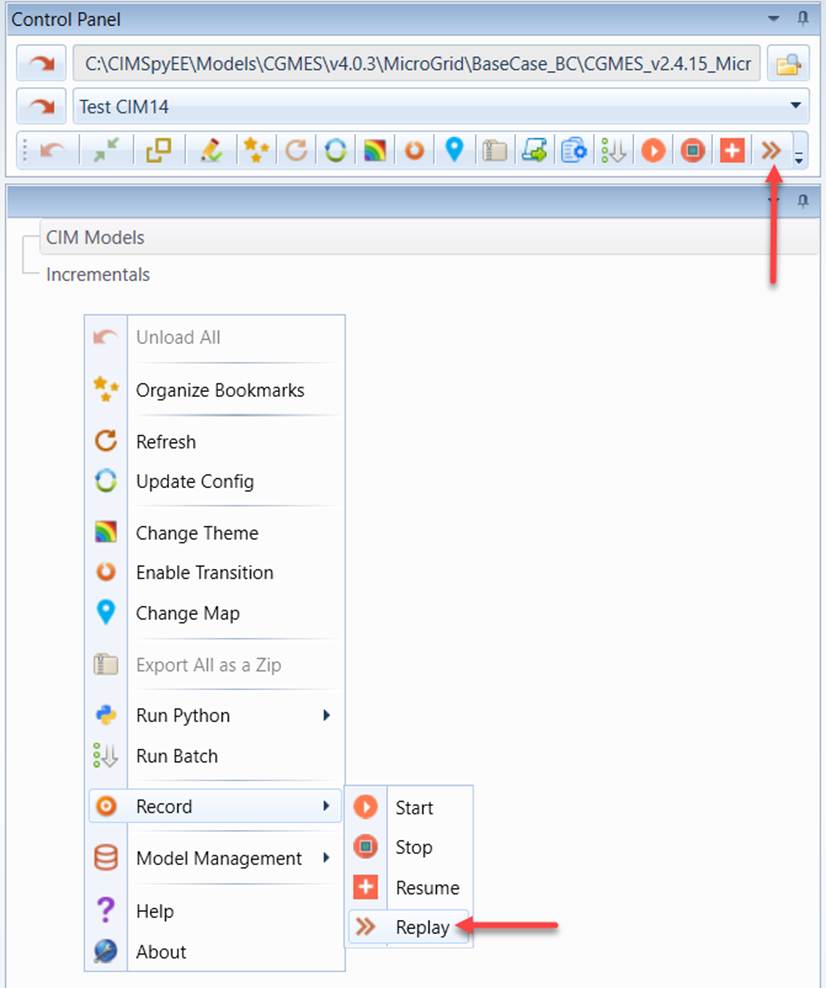
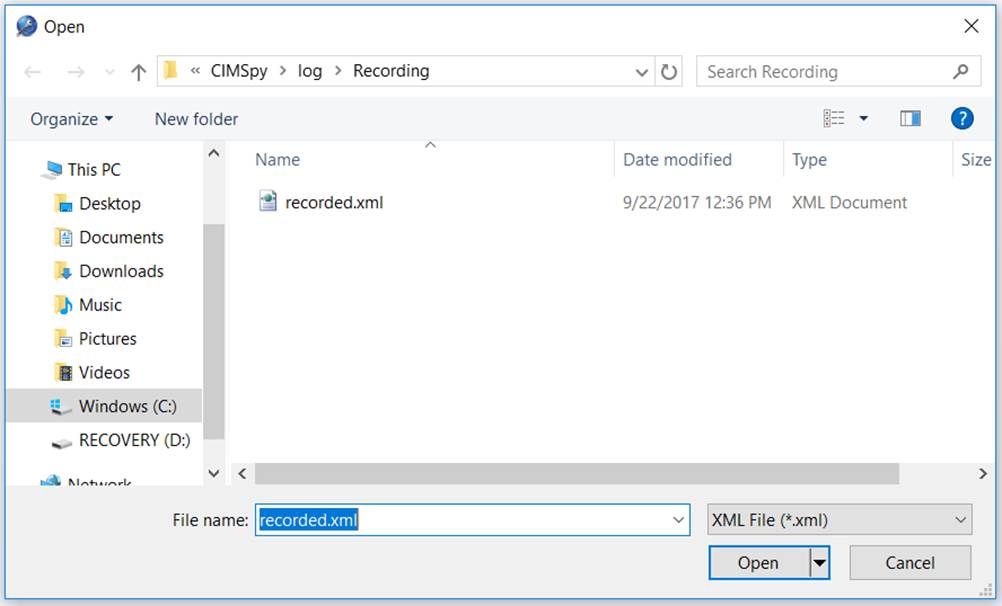
- Select recorded.xml from folder \CIMSpy\log\Recording as shown below
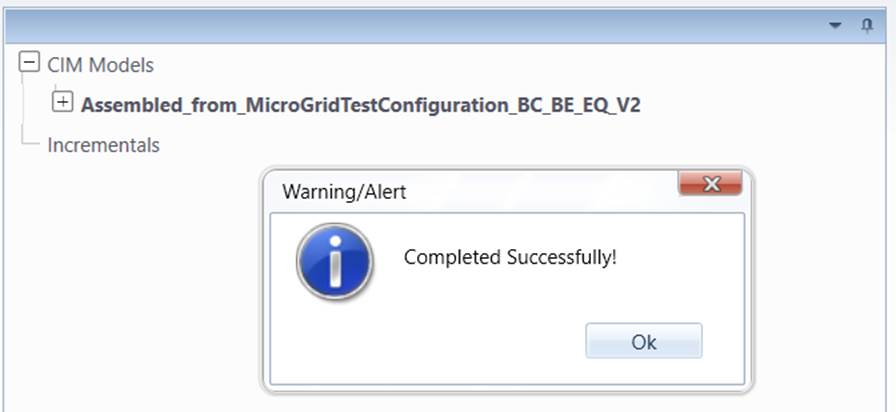
- When the replaying process is completed, an assembled will be found in the Tool, as shown below
Recording Modeling Activities
The recording function is designed to log any modeling activity API calls in an XML format. Note a modeling activity is an operation that results in changes in the workspace, including the server disk. For example, deleting a modeling entity is a modeling activity. Exporting a loaded model to a CIM/XML file is also a modeling activity. But not all of the operations users perform in the UI are modeling activities. For example, displaying the summary of a loaded model is not a modeling activity, and auto—generation of a substation diagram is not a modeling activity. In general, by replaying the recorded modeling activities in sequence, the Tool shall be restored to the same status.
Once the recording is initiated, modeling activities will be logged in an XML file, declared in the StandardConfig.xml, as shown below

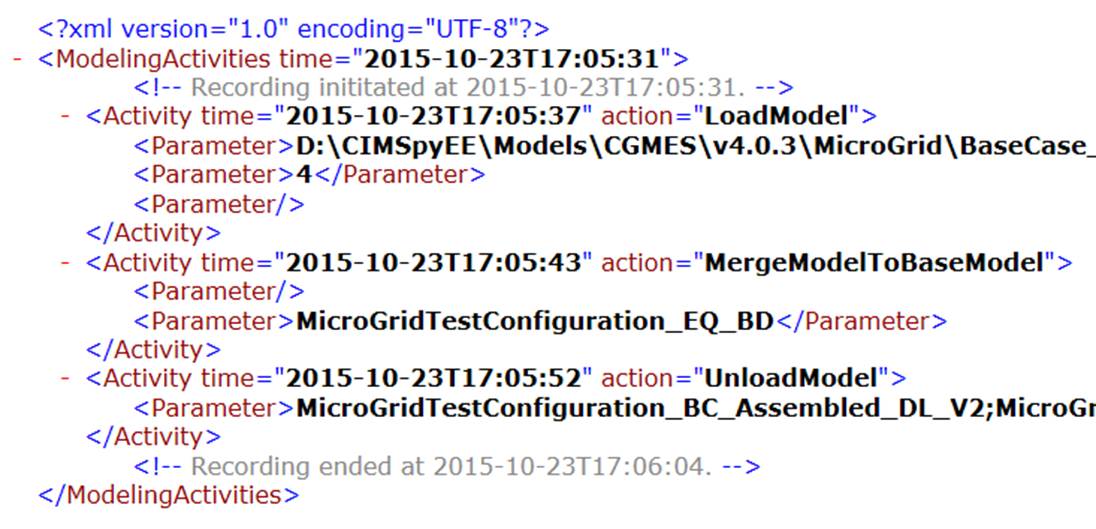
The logged modeling activities are stored in the specified XML file as shown below. It contains all of the information needed to repeat the procedure, as well as the chronological order.
Users can control the recording process from the global context menu which can be invoked by right-mouse clicking a blank spot in the tree panel or via command icons in the control panel, as illustrated below.
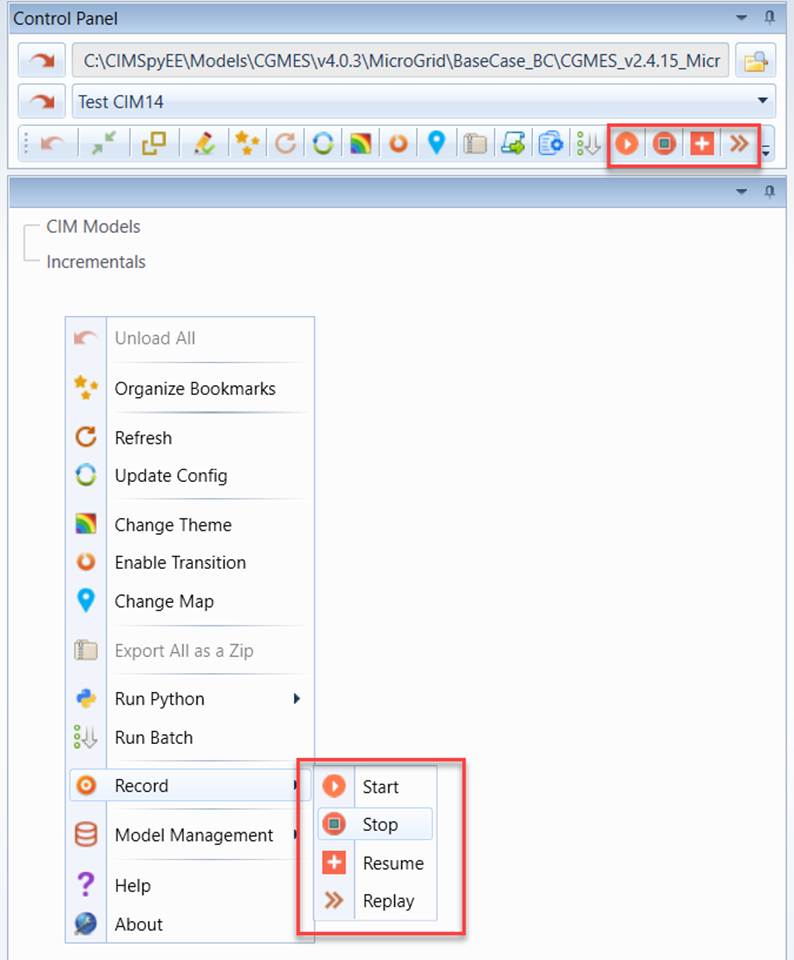
There are 3 options:
- Start Recording – A new recording session will be started. All of the modeling activities previously logged will be removed from the file.
- Stop Recording – When a recording session is stopped, any modeling activities will not be logged in the file.
- Resume Recording – When a recording session is resumed, all of the modeling activities previously logged will be retained and the new modeling activities will be added sequentially to the end of the log file.
Note:
- The recorded XML file is always valid. Even the server is accidently stopped, the logged file shall still be useful, and the recording can be resumed.
- Once the recoding is completed, users shall ALWALYS rename the log file or copy the log file to a different folder. Otherwise, the logged modeling activities could be lost when a new recording session is started.
- When the Tool is started, by default, the recording function is always disabled. Users need explicitly start the recording process. If users want to automatically enable recording whenever application is started, an optional attribute, called initiallyEnabled, shall be added and set to ‘true’ in the recording configuration setting, as illustrated below. It is very important to note that the file used to store the saved records will be overwritten whenever the application is restarted in this mode. So users shall ALWAYS copy/rename the recording file when recording is completed. This configuration setting is mainly to facilitate audit trail.

Replaying Modeling Activities
Replaying is a process to re-perform the recorded modeling activities from the same starting point. This function is typically used to make a process repeatable. For example, if users need perform certain modeling tasks repeatedly, the process can be recorded and then repeated with one shut, thus automating the process.
It is important to note that replaying may not be successful. There are two major reasons:
- Replaying is NOT initiated from the same starting point as that of recording. It is recommended, whenever possible, the starting points of recording and replaying shall be an empty workspace where no models are loaded.
- Some of the recorded modeling activities are NOT repeatable. For example, if a new ACLineSegment is added, the Tool will generate a unique ID (guid or uuid) and assign it to the newly-added object. This modeling activity is not repeatable, since the new ID generated will always be different from the one previously generated. If the next modeling activity is to edit the newly-added ACLineSegment, replaying of this modeling activity will result in an error. Because of the limitation, replaying is not recommended for model editing, unless no modeling entities will be added.
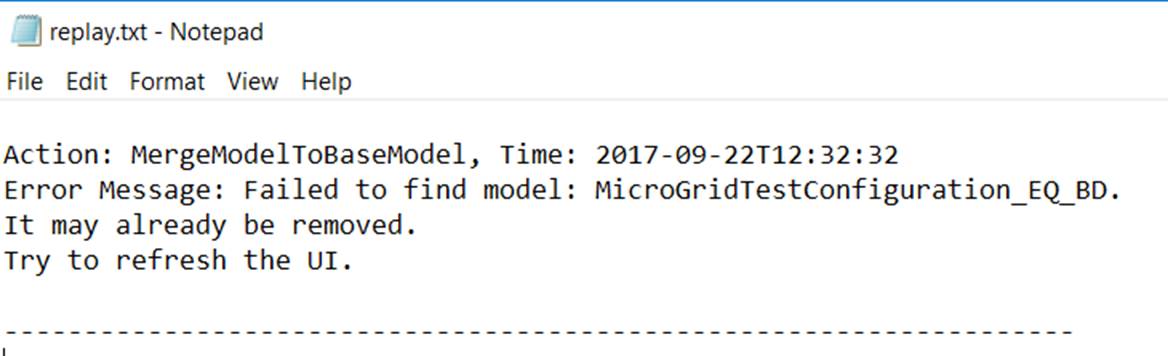
Because replaying could potentially fail, a log file is used to store any error messages caught during replaying to assist debugging. This log file is declared in the StandardConfig.xml, as shown below

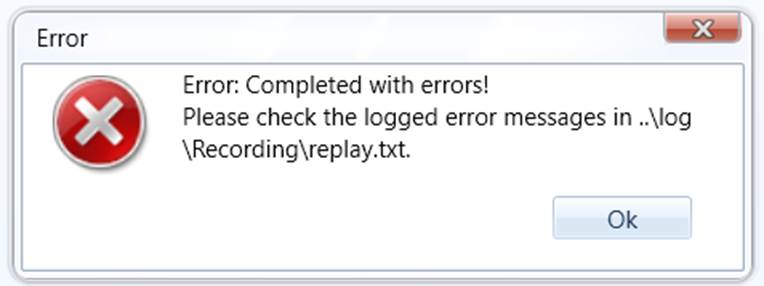
When the errors are detected during the replaying process, users will be prompted to check the log file for the error messages :
The logged error messages include the action, its timestamp, and the detected error message, as shown below.