Data Entry Validation
While the full Model Validation function provides a comprehensive check for modeling issues, it is neither interactive nor intuitive. It typically runs as a batch process, identifying inconsistencies and errors but requiring users to manually locate and resolve them. This approach can be time-consuming and less user-friendly, as it does not provide immediate feedback during data entry or modification.
Data entry validation ensures that user input is accurate, consistent, and compliant with predefined rules before being saved to the model. This feature helps prevent errors, maintain data integrity, and improve the overall reliability of the Tool. Key benefits of Data Entry Validation include:
- Immediate Error Detection – Errors such as missing values, incorrect data types, or out-of-range values are detected as soon as data is entered.
- Visual Feedback – Invalid fields are highlighted, and error messages provide guidance on how to correct issues.
- Rule-Based Validation – Input is validated against predefined constraints, such as numerical limits, mandatory fields, or allowed value lists.
By implementing data entry validation, the Tool enhances usability, reduces errors, and ensures that only high-quality data is stored.
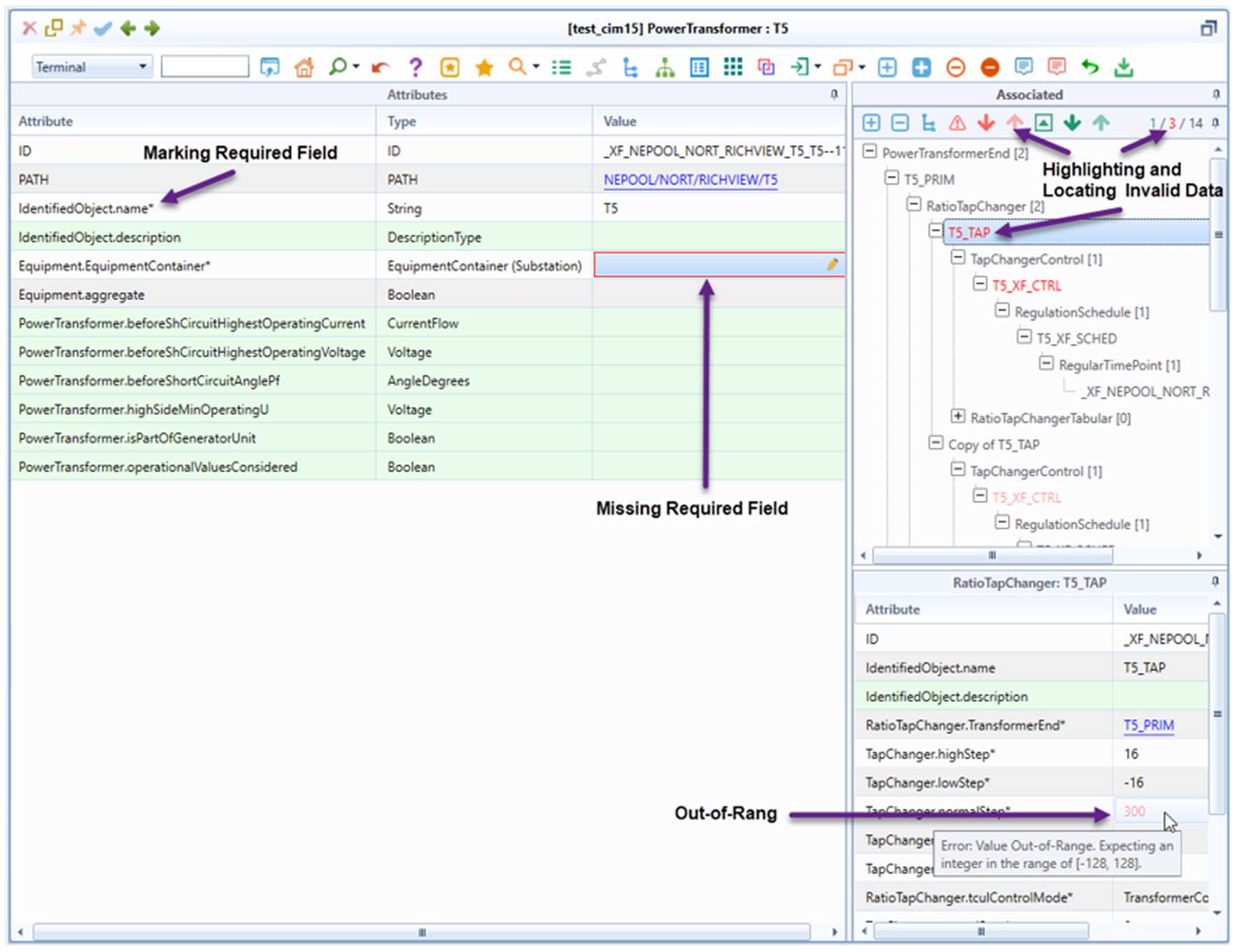
Validation Categories 
After users enter the data, the Data Entry Validation is immediately invoked to check the input against predefined rules. This ensures that only valid and consistent data is saved to the model. The key data validation categories include:
- Missing Required Value: Ensures that mandatory fields are not left empty.
- Data Type Mismatch: Checks if the entered value matches the expected data type, such as text, number, or date.
- Value Out-of-Range: Ensures that values fall within acceptable limits based on predefined constraints.
- Size Limit Breach: Validates whether an input exceeds the allowed character or data size limit.
- Non-Enumerable: Checks if the entered value belongs to a predefined list of valid options.
- Data Format Mismatch: Ensures that data follows a specific format or pattern.
- Association Class Mismatch: Verifies that an object is associated only with compatible objects based on model constraints.
- Dangling Reference: Detects references to objects that do not exist or have been deleted.
Note:
- The data-entry validation provides instant but not complete checking. For a comprehensive assessment, users should run full Model Validation, which performs an in-depth analysis to detect all potential modeling issues. Data Entry Validation is not intended to replace the full Model Validation.
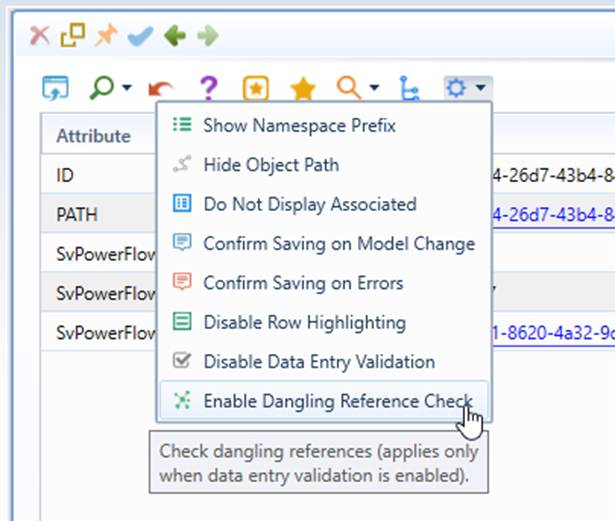
- By default, dangling references are not checked. This is because dangling references are allowed if one model part depends on another. However, users can enable dangling references. If enabled, data entry validation will report dangling references as errors.
Validation Feedback
Once a data entry error is detected, validation feedback will be provided to users, helping them identify and correct issues before saving changes to the model. The feedbacks provided include:
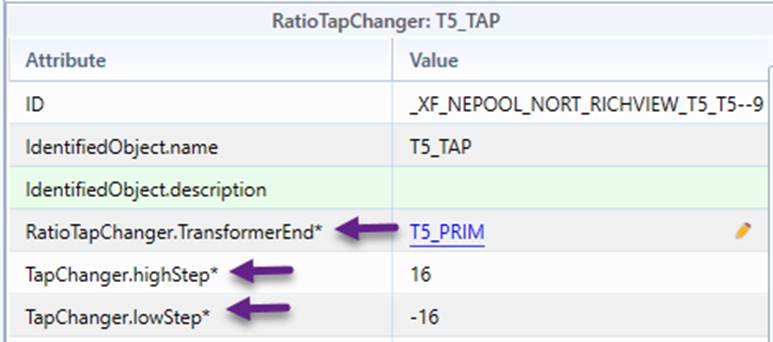
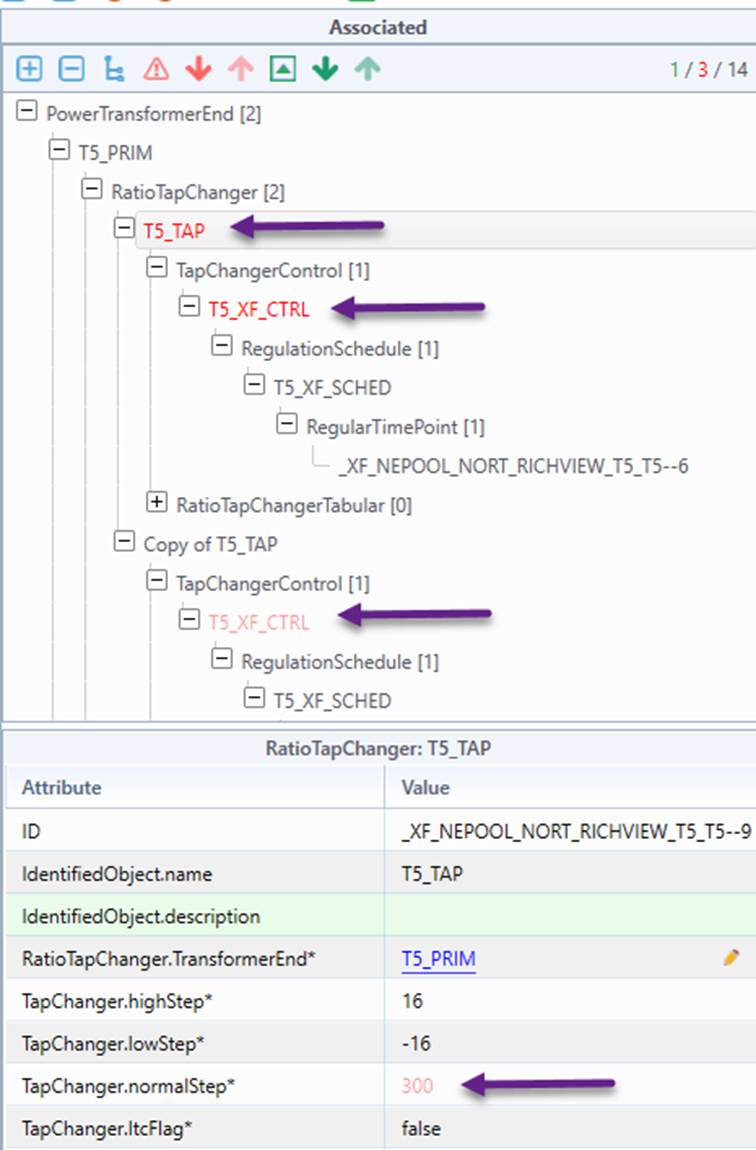
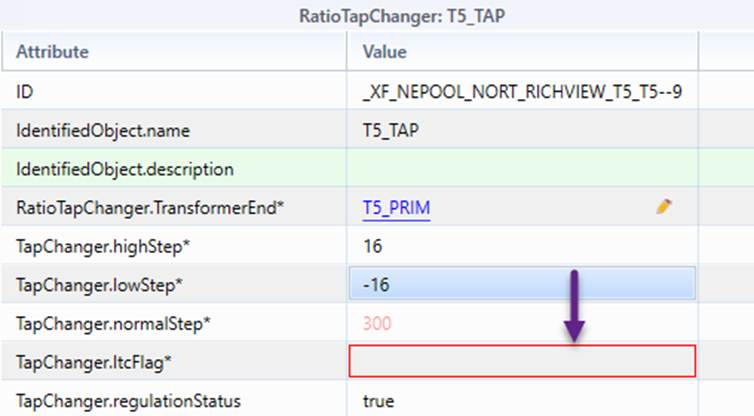
- Visual Indicators – Various visual mechanisms are used to highlight the detected data issues and draw attention to errors, including:
- Required properties are indicated by appending character * at the end of the property name.
- Invalid fields are highlighted in red.
- Missing required fields are marked with red rectangles.
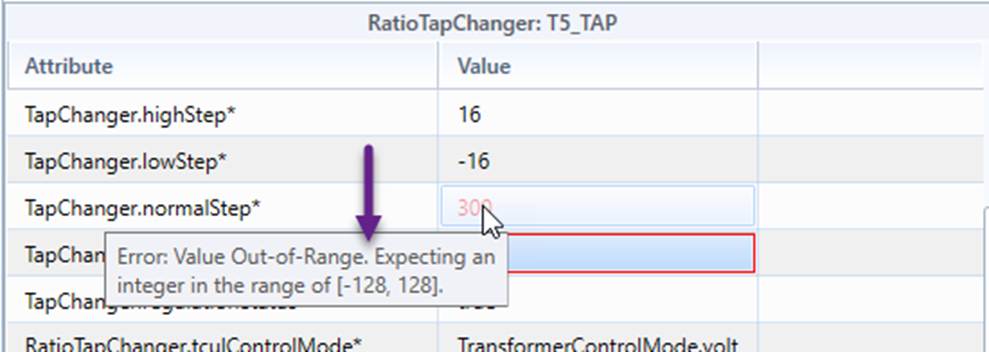
- Contextual Messages – Contextual messages provide explanations and guidance on how to correct detected issues.
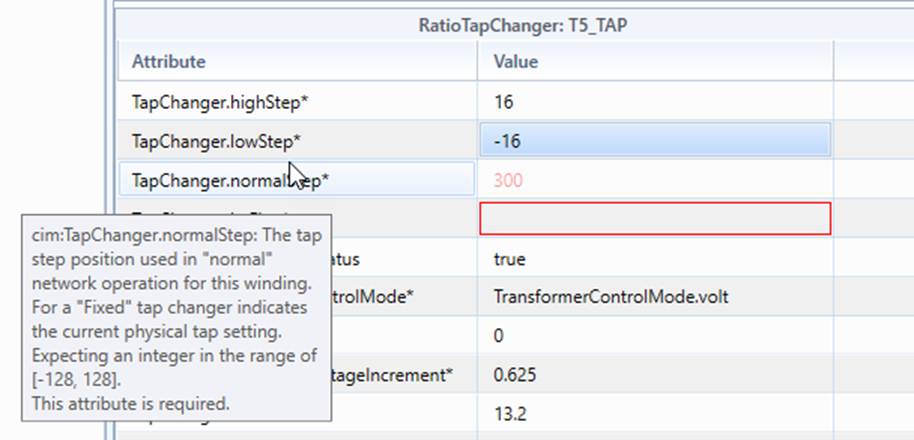
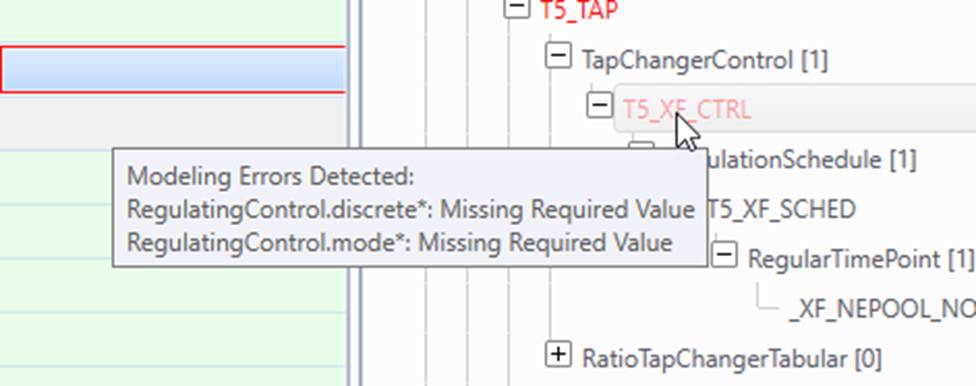
- Tooltip Support – A tooltip appears when hovering over a flagged tree node or field, displaying details about detected errors to help users understand and correct the issue.
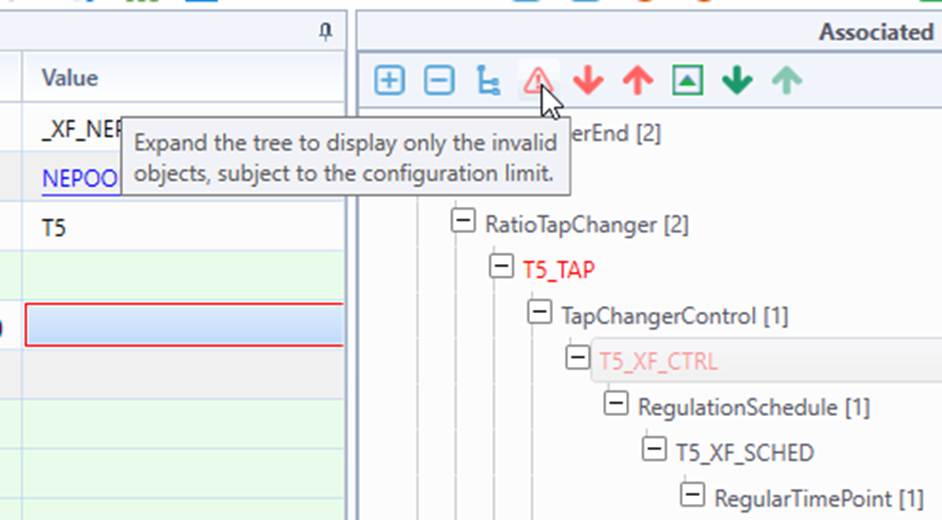
- Search Support – Command icons are provided to help users quickly identify invalid data within the complex data sets.
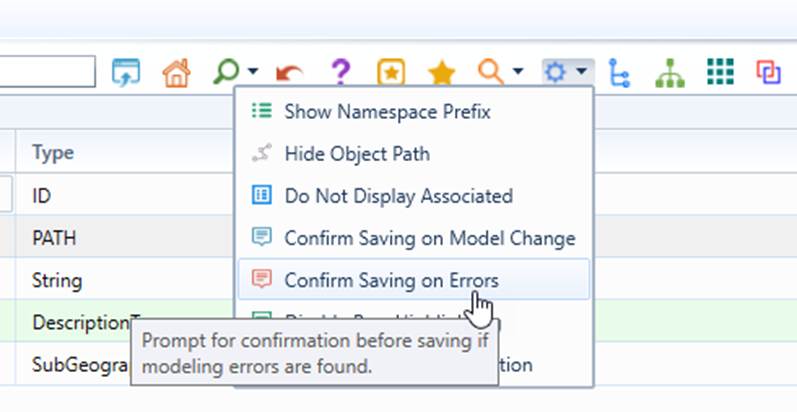
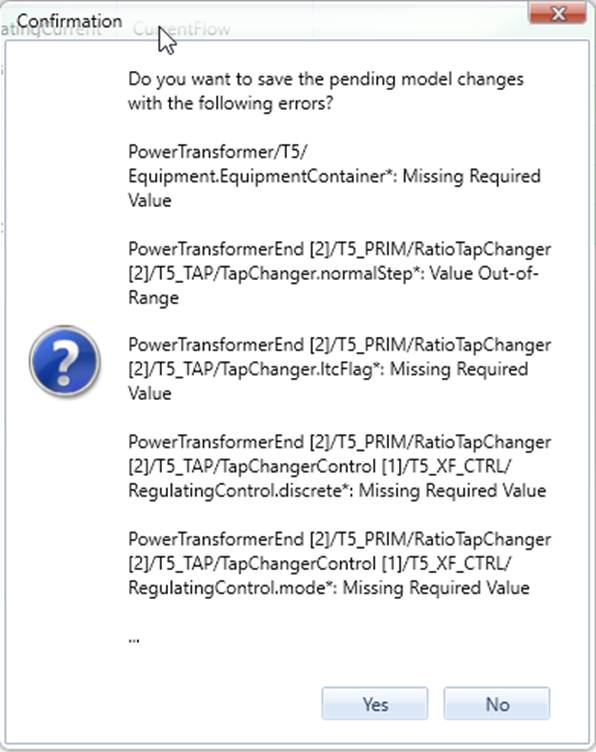
- Alert Support – If users attempt to save model changes with detected validation errors, they will be alerted about the issues. However, the auto-alert mechanism can be disabled as illustrated below. Note: This setting is persistent, and by default, the auto-alert mechanism is disabled.
Disabling Data Entry Validation
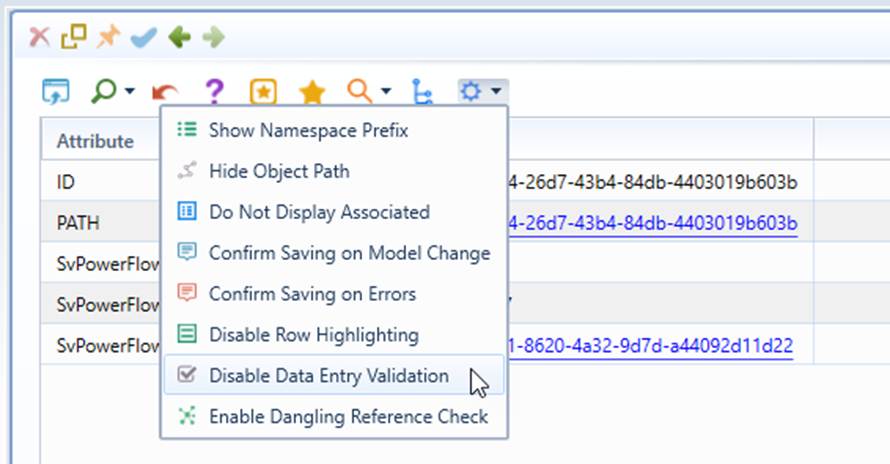
- By default, data entry validation is enabled. However, since this is a local check, it may sometimes generate false alarms. Users, however, can choose to disable data entry validation, as shown below. Note: This setting is persistent.
- By default, dangling references are not checked. This is because dangling references are allowed if one model part depends on another. However, users can enable dangling references, as illustrated below. If enabled, data entry validation will report dangling references as errors. This setting is also persistent.
Full or Partial Data Entry Validation
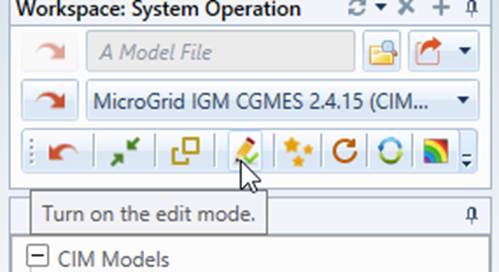
Data entry validation is primarily designed to guide object editing. In read-only mode, only entered data is displayed; therefore, validation may be incomplete. For full data entry validation, edit mode must be enabled, as illustrated below.
Customization of Validation Rules
By default, the same validation rules are used for Data Entry Validation as in full Model Validation, ensuring consistency in error detection. Therefore, validation customization can only be performed by changing the governing profiles. However, if a ViewModel is declared for model presentation, custom validation rules can be constructed or configured to support specialized Data Entry Validation, allowing for more flexible and context-specific validation requirements.
As an example, the following declaration in ViewModel restricts the enumerated values for the property Measurement.unitSymbol. Therefore, if the value is not in the enumerated value list, it will be identified as a Non-Enumerable error, even if the value is considered valid in the governing profile. This ensures stricter data validation specific to the ViewModel configuration, allowing customized constraints beyond the default model validation rules.
