Adding Objects
The Tool enables users to add an object based on the corresponding class definition in the profile during Edit Mode. There are two steps involved in the process:
- Users add a new empty object. A rdf:ID will be automatically assigned to the newly created object.
- Users edit the newly created object and save the changes.
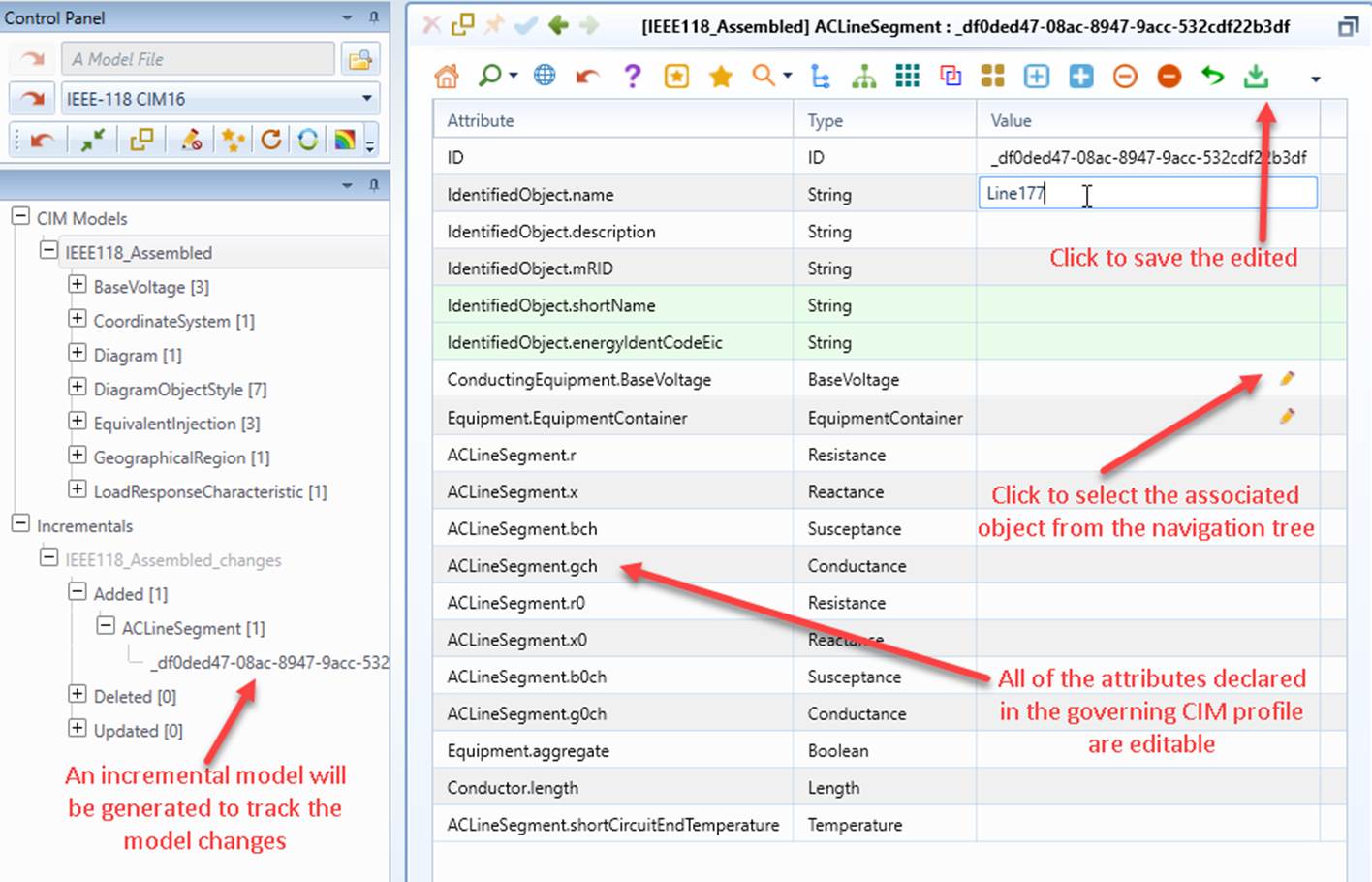
Once a new object is created, the navigation tree will be automatically updated and an incremental model will be auto-generated to track the model changes.
There are three ways to add a new object from the model navigation tree.
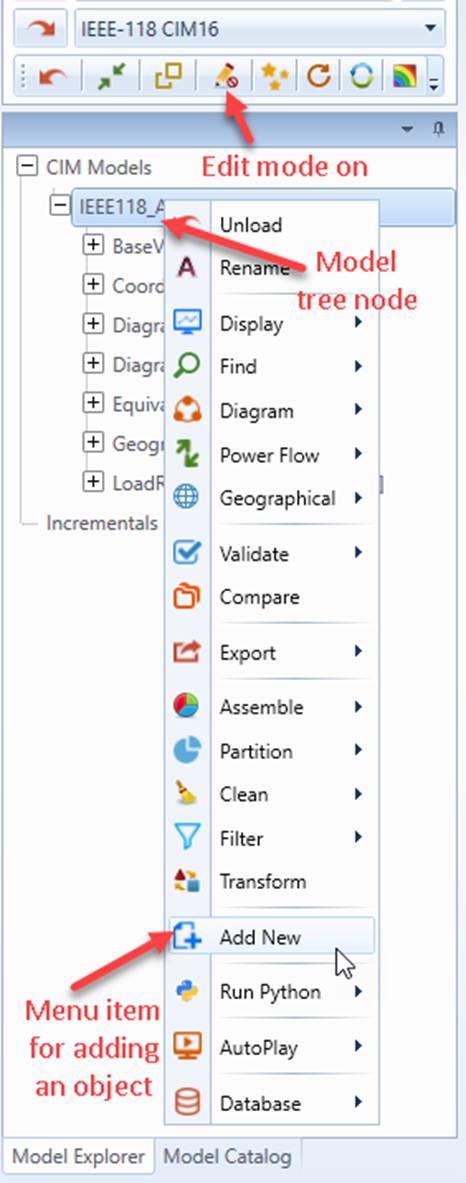
- Users can add a new object without any pre-settings from the context menu associated with the selected model tree node, or the Quick Access Toolbar in the Summary Display of the model as illustrated below.

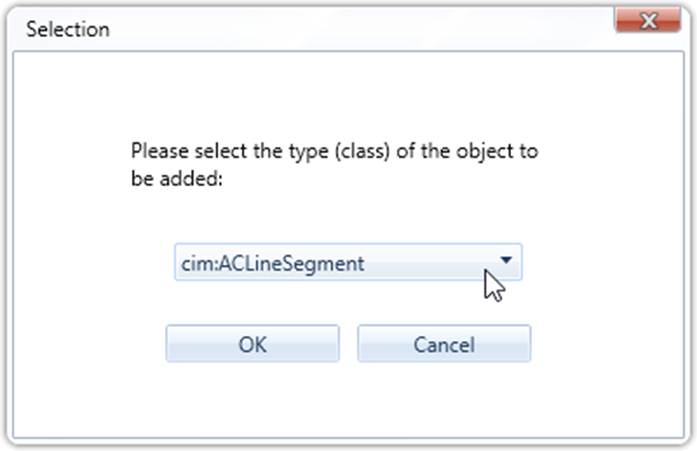
A dropdown list will pop up, prompting user to select the type (class) of the object to be added.
An empty object form will appear in the model view for data entry. After completing the data entry for the new object, you need to save it explicitly by clicking the save icon.
- The second way to add a new object is from the Quick Access Toolbar in the Tabular Display of a class, as illustrated below. In this case, users will not be prompted to select a class. The same type of object will be instantly added as those in the current Tabular Display.

- The third way to add a new object is from a context menu associated with a category tree node.
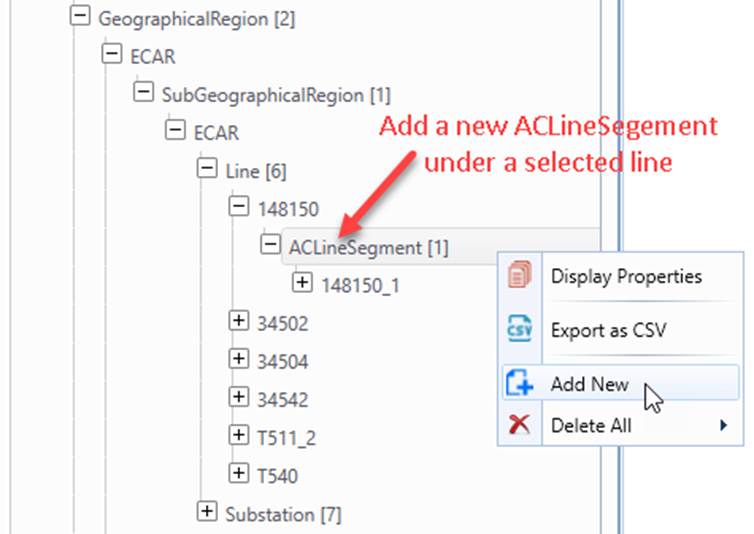
The new object added will be inserted under the specified model hierarchy with the related association pre-set.
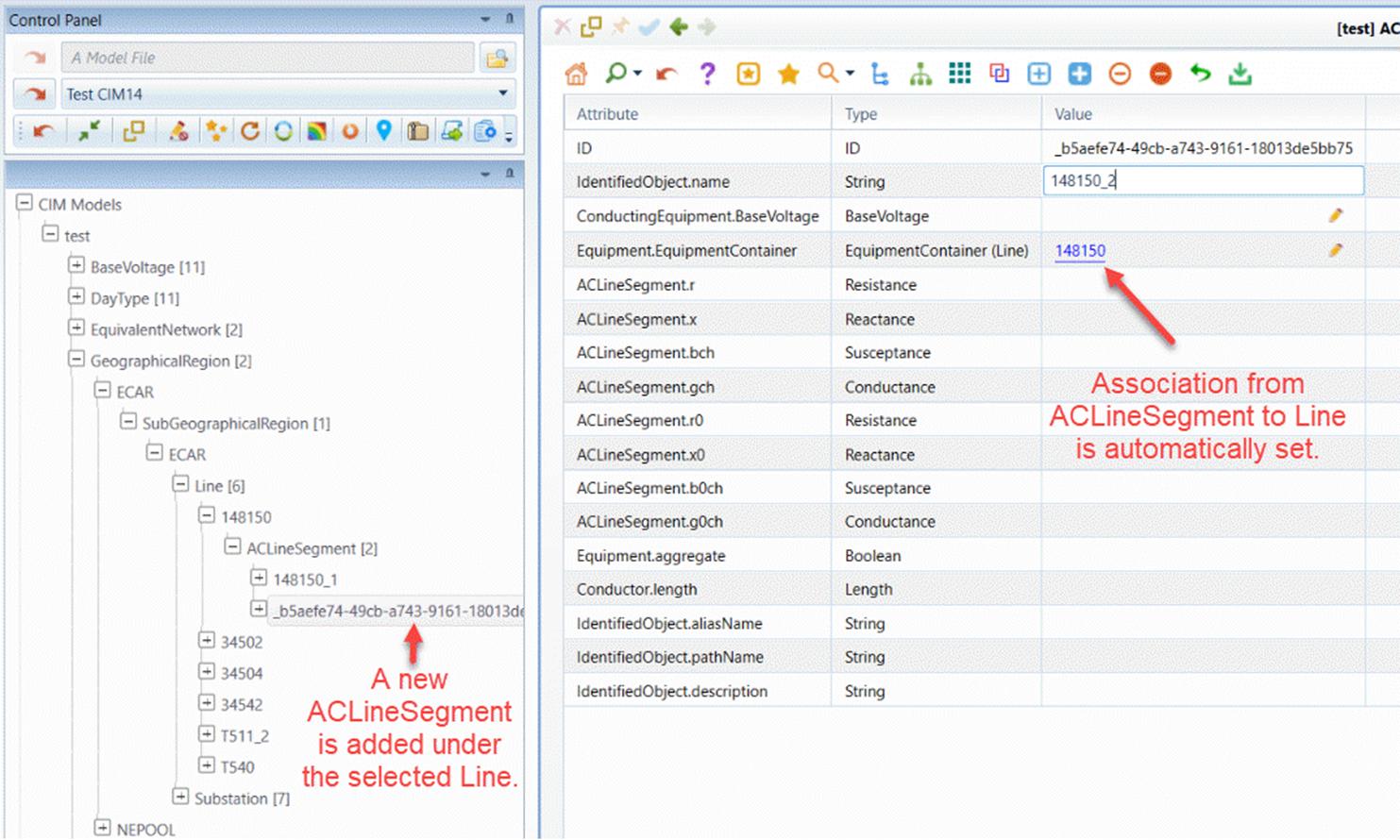
A convenient way to add a new object is through the association tree in the Composite Form. Users can right-click on a parent object and add valid child objects directly from the context menu, as illustrated below.
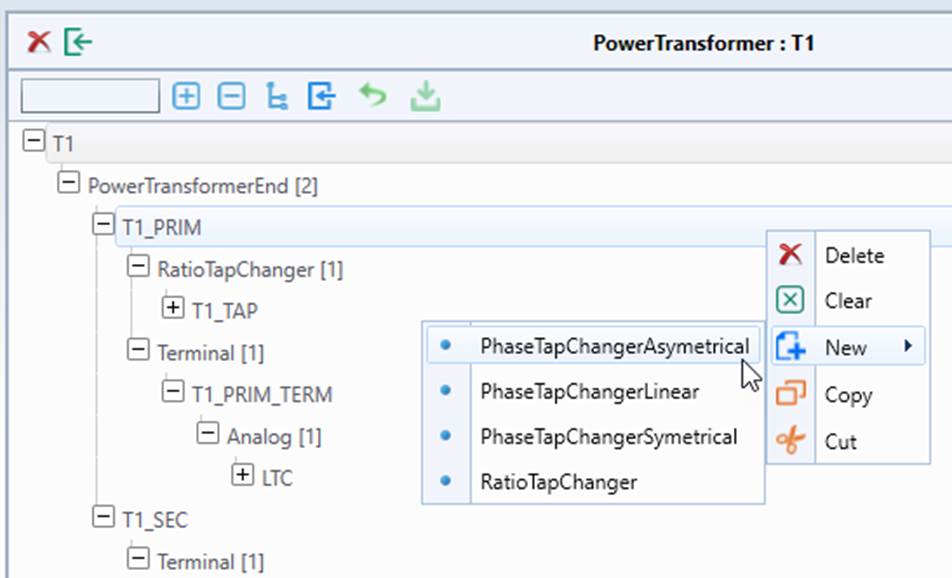
This capability is enabled by leveraging containment information inferred from the model and defined in the model hierarchy metadata (e.g., ..\config\constraint\DefaultConstraint.xml). Based on these containment rules, the system dynamically determines which child object types are permitted and presents only valid options in the context menu, ensuring consistency with the model structure. Once a child object is added, its associations are automatically assigned, facilitating data entry.