Copying Objects
While the Tool provides users a capability to add a new object, it can be time-consuming to add a reality-based modeling entity in the Tool because Tool models power systems at fine granularity. For example, to add a new ACLineSegment, users must also add two Terminals. To improve user’s experience, the Tool offers a copying function. It enables users to use the existing modeling entities as templates to add objects quickly to the model. Typically this involves three steps:
- Select an object as template
- Deep copy the object
- Make the corresponding changes in the copied object and save them
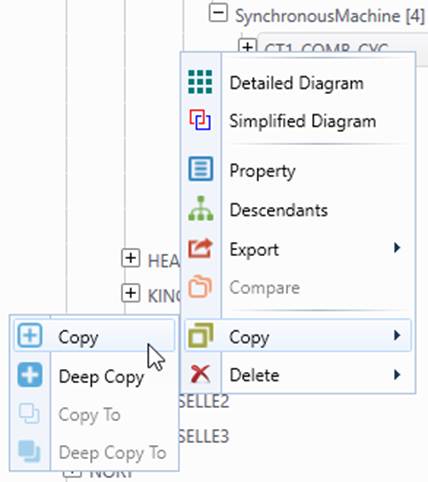
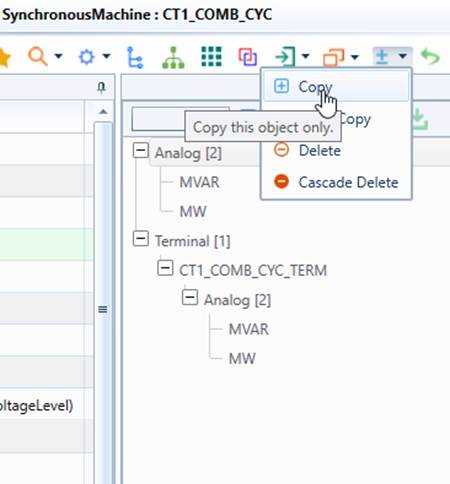
The object copying function can be invoked either from the Navigation Tree or the Form Display as illustrated below. Additionally, the Tool must be in Edit Mode to enable the object copying function.
Shallow Copying
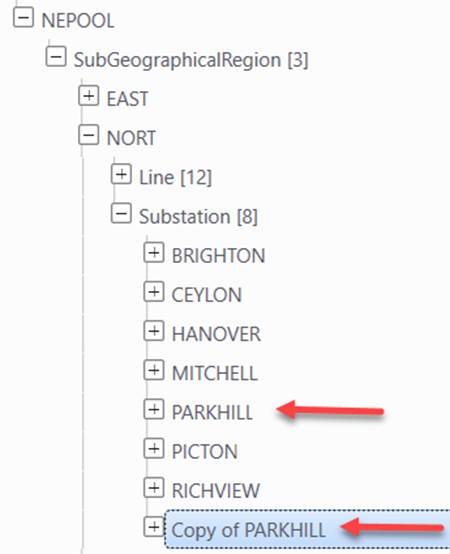
Shallow copying is the basic copying function. It only copies the selected object. With the exception of the object’s name, all of the attributes/associations will be copied but none of the associated objects will be copied. The new object will be renamed as “Copy of [Object]”.
Deep Copying
Deep copying is a more powerful function. It copies the selected object as well as its child objects. For example, when users deep-copy a Substation all of its contained voltage levels, equipments, measurements, etc., will be copied along with the selected Substation object, as illustrated below.
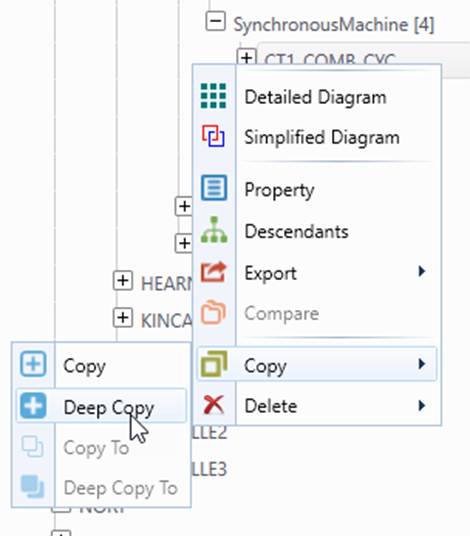
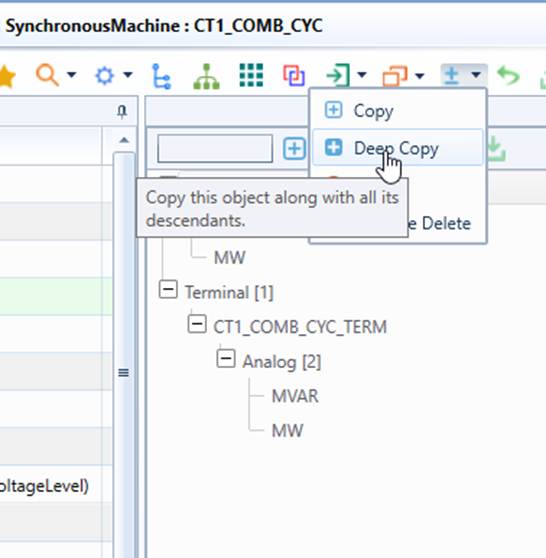
It enables users to instantiate a high-level fully-contained object by using the existing object as a template. By leveraging this feature, users can quickly create new Equipment/Substation/GeographicalRegion objects. However, this function should be used with caution. By default, the Tool will deep-copy every descendant objects (i.e. the objects directly/indirectly under the model hierarchies). The deep-copying function is generic and non-selective by default. Some undesirable objects may be copied as a result. For instance, deep-copying a Substation will add some Terminals to the connected ACLineSegments, since these Terminals are also under the model hierarchy of the Substation. This may result in an invalid model. To help prevent these scenarios, users can control the deep-copying function as well as cascading deletion function by defining the modeling restriction in the configuration file, as described in the Restricting Modeling section. By specifying the modeling restrictions, users can inform the Tool not to copy the Terminal objects if their host Equipments are not in the list of the copied objects.
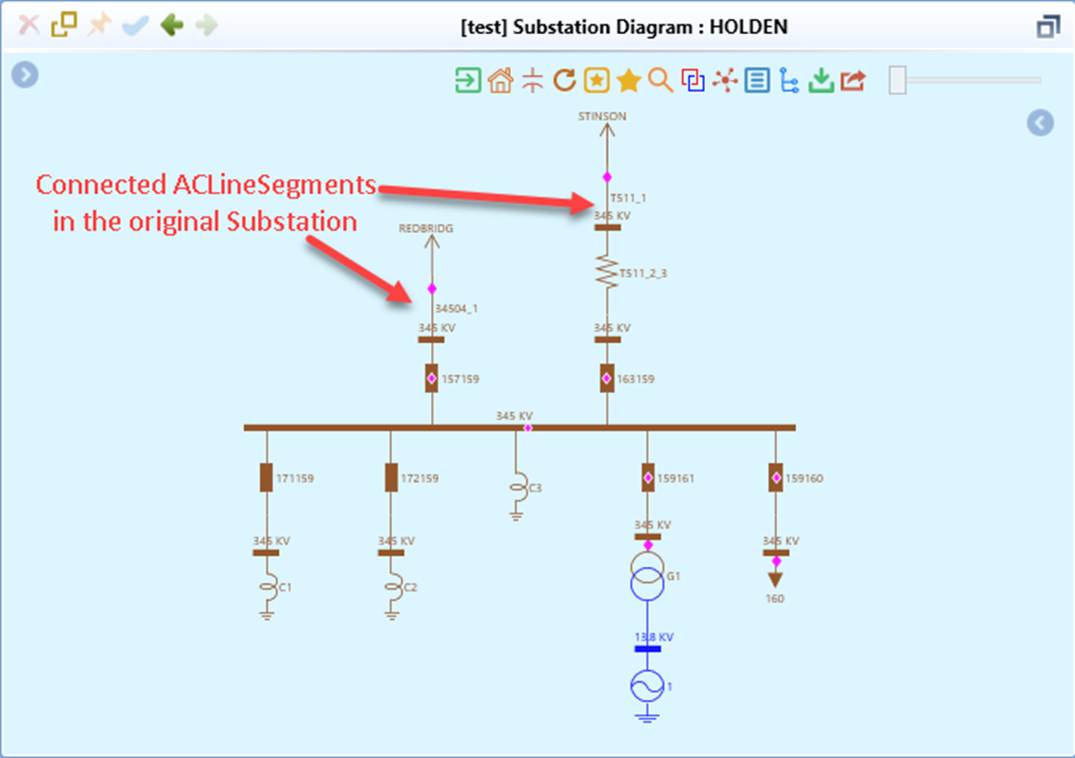
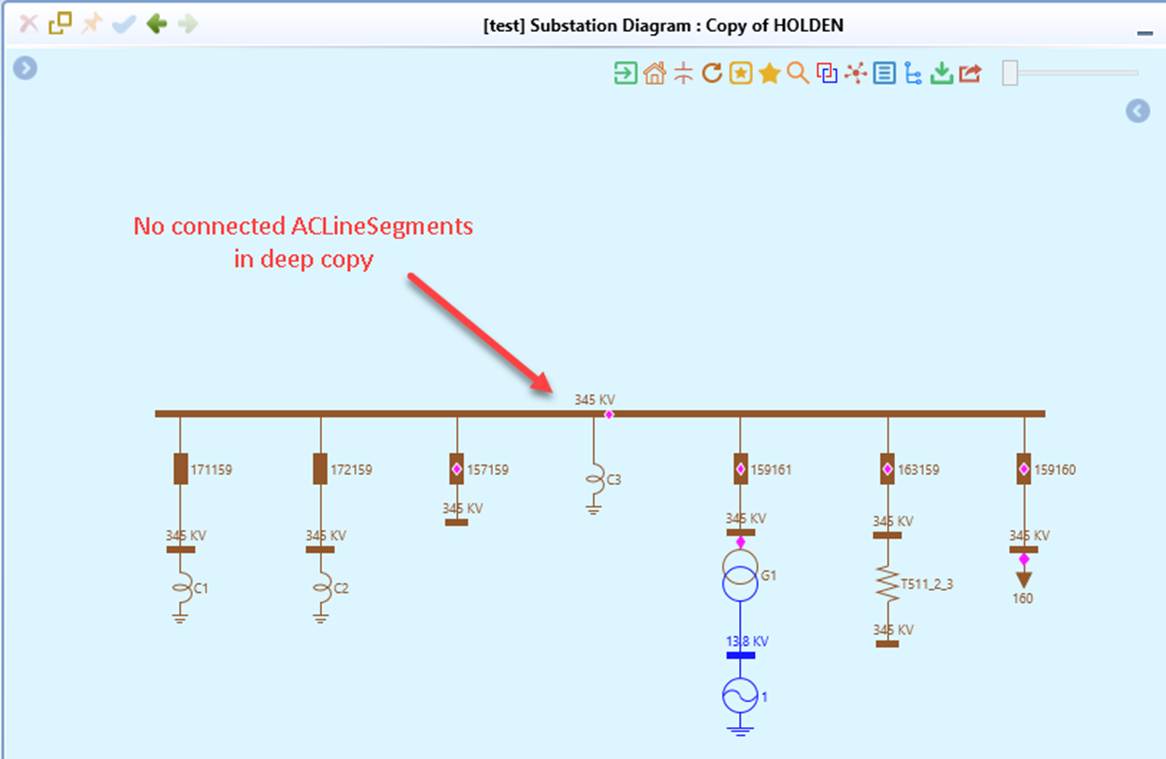
The functions of deep-copying, cascading-deletion, and partial model export are based on the CIM equipment containership hierarchy. However this could result in loss of the equipment in some case. For example, a SeriesCompensator is contained in a Line, but be connected within a Substation. If the Substation is deep-copied, the SeriesCompensator within the Substation could be lost. This is not a desirable behavior. The Tool will detect such equipments and include them during deep-copying, cascading-deletion, and partial model export. Basically if the equipment is not contained in the selected equipment container (as enumerated in the indrectEquipmentContainer, i.e. Substation, SubGeographicalRegion, or GeographicalRegion), but all of its Terminals are connected to the ConnectivityNodes which belong to the selected equipment container. The Tool will include copy/export such equipment during deep-copying, cascading-deletion, or partial model export. Users however can disable such default behavior by changing includeAllInternalEquipment to “false” the DeepCopyCustomization element, as shown below.

The above restriction basically means: if includeAllInternalEquipment is true, then all of the ConductingEquipments that are connected to the ConnectivityNodes belonging to the equipment containers specified in indirectEquipmentContainers will be included in the copied EquipmentContainers. In other words, the equipment containership is inferred based on network connectivity rather than the direct composition or ownership association.
This configuration enables users to configure the behavior of deep-copying, cascading-deletion, and partial model export to maintain the integrity of the copied equipment container regardless of containership modeling. For example, if ACLineSegment is missing containership, users can still include them in the copied GeographicalRegion based on their connectivity.
Cross-Model Copying
As an extended feature of object copying, users can also shallow-copy/deep-copy the objects across the models. Basically they can shallow-copy/deep-copy the objects from one model to another. This is accomplished through “Copy->Shallow To/Deep To” context menu. When users trigger the operation from this menu items, they will be asked to select a target model to which the selected object will be copied.
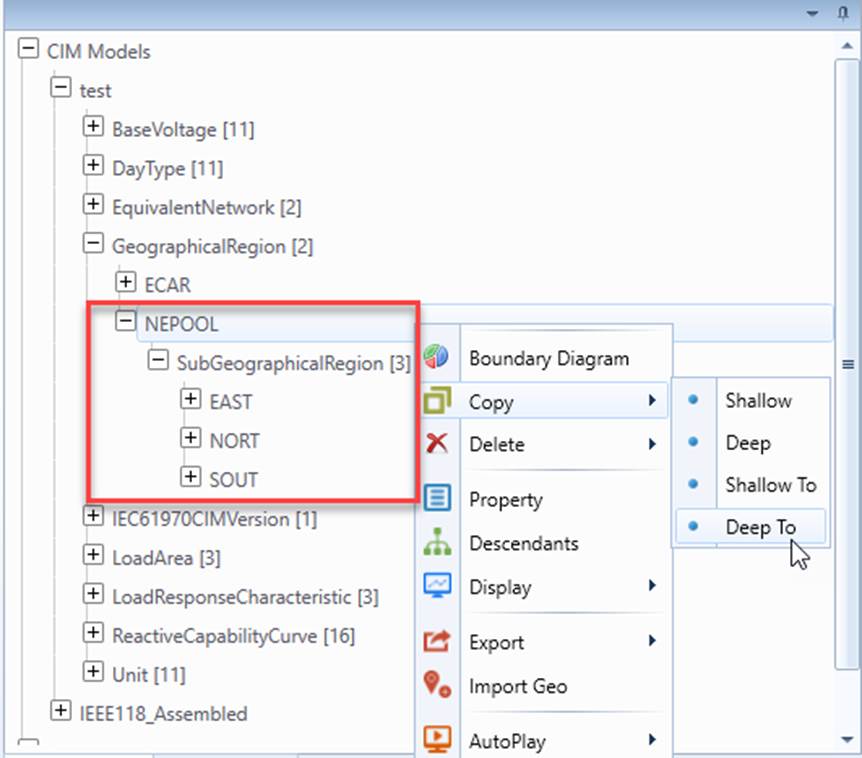
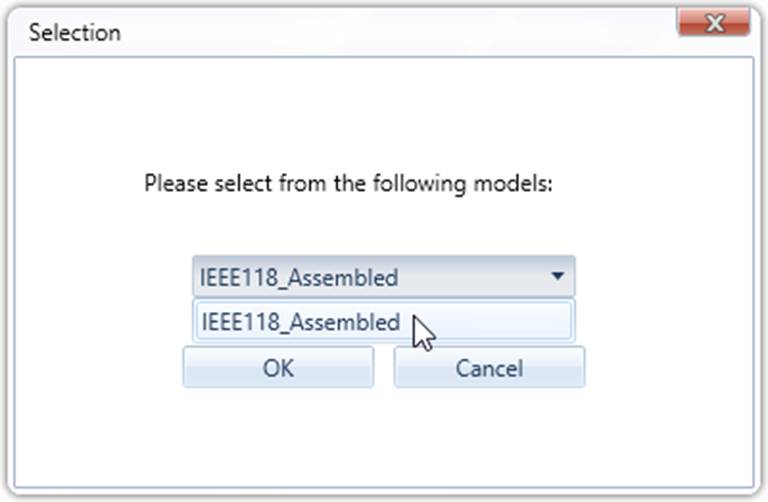
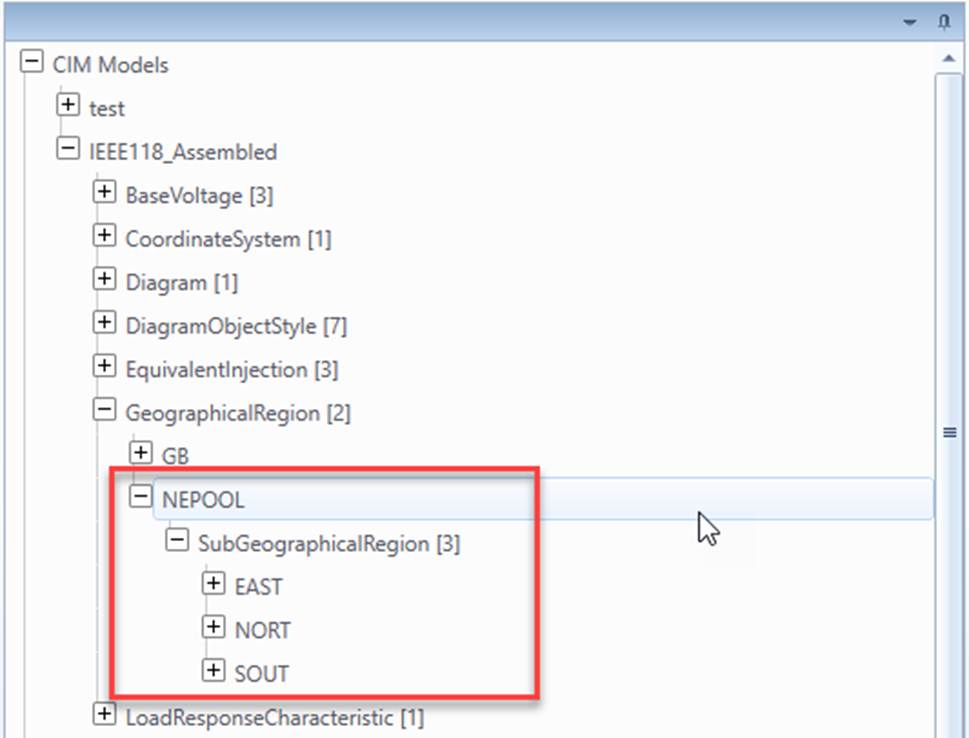
The cross-mode copying function enables user to move a selected hierarchy of objects to the other model, as highlighted above. There are some important things that users must keep in mind:
- The target model shall conform to the same version of CIM, though the Tool doesn’t enforce this restriction.
- Dangling references may be resulted due to the cross links between various model hierarchies. Users should rely on the Model Assembling function for more robust processes.
Note
Cross-model copying could result in an invalid model if two models are not compatible. Caution should be enforced.
Identification and Naming Rules of Object Copying
The following identification and naming rules are enforced during object copying:
- If a new object is created through object (shallow or deep) copying WITHIN a model, a new unique rdf:ID will be assigned to the newly-created object. The new object will be renamed as “Copy of …“, where … represents the original name of the copied object. The prefix, i.e. “Copy of” can be changed to anything else or simply removed through configuration.
- If an object is copied from another model (i.e. through cross-model copying), the original rdf:ID and name will be retained.
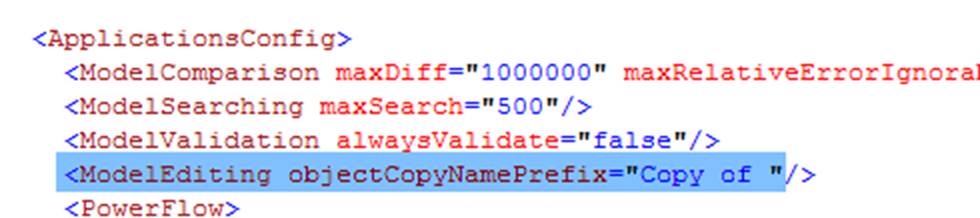
When a new object is created through object copying in the same model, the Tool allows users to specify whether a prefix shall be added to the name of the new object. The following example specifies that string “Copy of “shall be added to name of the new object created through object copying.
Note:
- If users want to retain the exact name of the copied object, set the prefix to the blank string, i.e.
objectCopyNamePrefix="". - This setting applies to the root object for object deep copying. The exact names are retained for all of the copied child objects.