Workspace Management
The concept of workspace is introduced mainly to support multi-user, multi-tasking, and multi-environment. It enables users to perform multiple modeling tasks collaboratively and independent of each other. A workspace is an independent modeling environment containing:
- In-memory data repository: storing the modeling information that users are currently working on.
- Associated modeling applications: modeling applications, (such as model validation, model assembling, etc.,) that users can invoke to perform the corresponding modeling tasks in the workspace.
- Configuration: special configurations applicable to the workspace, mainly to customize the modeling environment.
Additionally,
- Each workspace is governing by its own configuration.
- A workspace can be private, public, or shared by a group.
- Unlimited number of workspaces can be created.
- Users can add, delete workspaces and switch between them.
- Workspace can be assigned roles to enforce function restrictions.
- Models can be moved from one workspace to another.
Workspace Type
There are three types of workspaces:
- Public: A public workspace is accessible by all of users.
- Public workspaces are primarily for model sharing, for example, between a grid coordinating organization and its members.
- Public workspaces are normally administrated by users of administrator role.
- Authorization restrictions are normally applied for public workspaces. For example, models loaded into workspaces are read-only.
- A built-in workspace is always hosted. It is a public workspace and can’t be deleted.
- Private: A private workspace can only be accessible by the user who creates it (referred to as workspace owner).
- A private workspace is an isolated working environment of an individual user.
- Private workspaces are administrated by workspace owners.
- Shared: A shared workspace is accessible by a group of users.
- Shared workspaces are for users to work collaboratively.
- A shared workspace starts as a private workspace. It is then shared with others by its owner.
- A shared workspace is administrated by its owner. The ownership of a shared workspace is transferable.
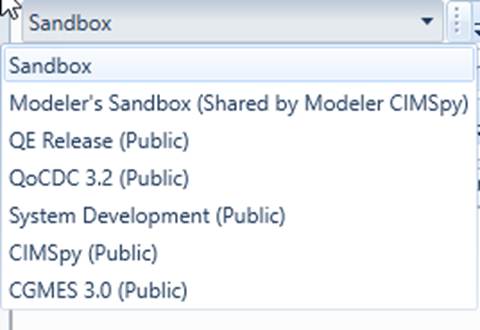
Public workspaces and shared workspaces are explicitly marked, as illustrated below:
Workspace Administration
Workspaces can be only administrated by authorized users. By default,
- Public workspaces are administrated by users of administrator roles
- Private and shared workspaces are administrated by workspace owners.
However, configurations can be changed to customize the administration rules.
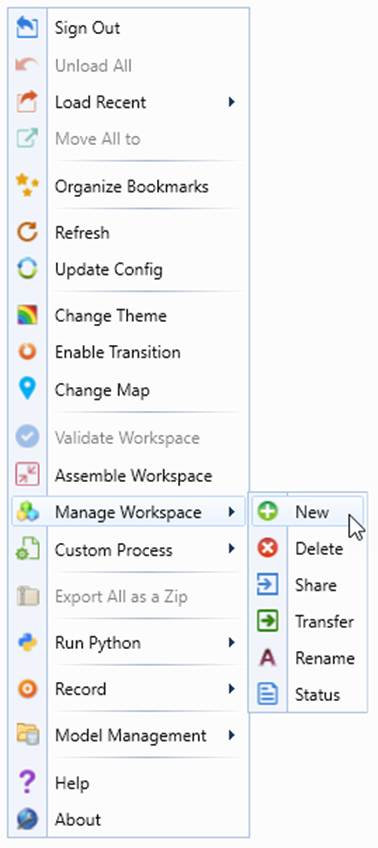
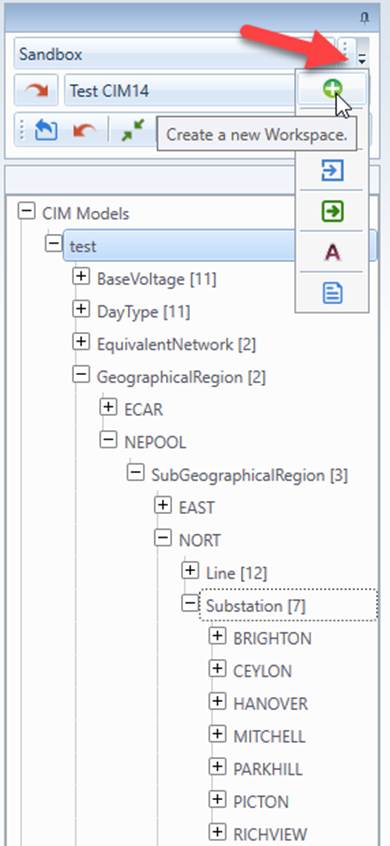
Workspaces can be administrated either via context menu or command icons, as illustrated below
If authorized, users can perform the following workspace administration tasks:
- · Creating a new workspace
- Users will be prompted to choose the type of workspace and select a configuration for the new workspace.
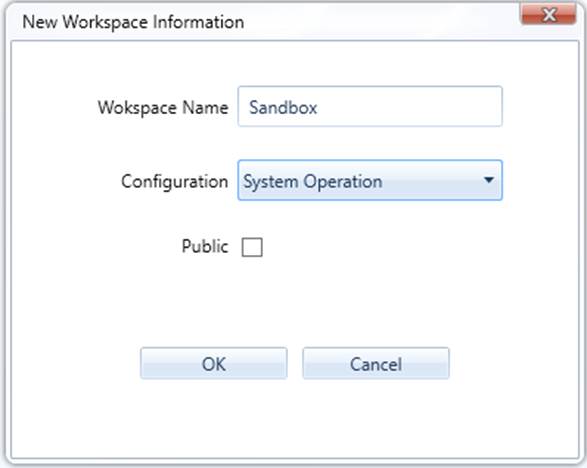
- The new workspace name must be unique.
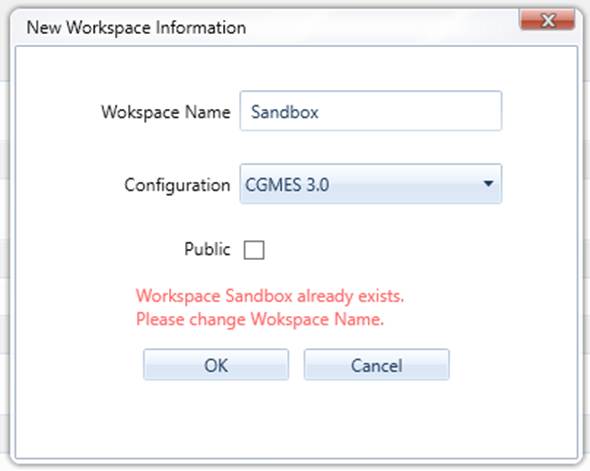
- The user who creates a private/shared workspace becomes the owner of the workspace.
- A workspace, once created, will be persisted till it is explicitly deleted. When the server is restarted, all of the previously-created workspaces will be auto-created.
- · Deleting an existing workspace
- · Renaming an existing workspace
- · Switching between workspaces
- The is achieved via the Workspace dropdown in the control panel
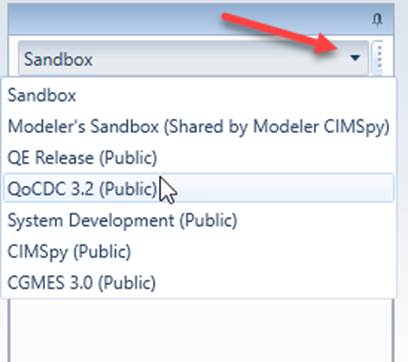
- Only one workspace is active at any time.
- UI will be refreshed after switching to a new workspace.
- The current (active) workspace will be restored when users log in next time.
- · Sharing a workspace
- Once a private workspace is shared to others by its owner, it becomes a shared workspace.
- A shared workspace is only administrable by its owner.
- Only workspace owner can share workspaces.
- · Changing workspace ownership
- The owner of a shared workspace can transfer the ownership to others.
- · Moving models between workspaces
- Models can only be moved into workspaces accessible by users.
- Restrictions may be applied when moving models to public workspaces. For example, only users of administrator role can move models into the public workspaces.
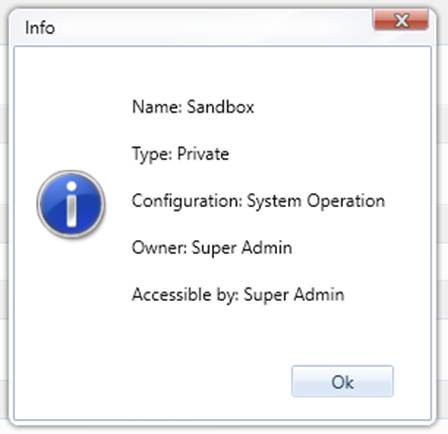
- · Discovering status of a workspace
- The workspace information can be found from the status popup, as illustrated below
Models in Workspaces
Models can be loaded or imported into workspaces in different ways:
- Loaded from Pre-defined Data Sources: The model files defined in the data sources are normally located at server.
- Uploaded from Client Machines: The model files are uploaded from the client to server and loaded into the workspace.
- Loaded from Connected Model Depository: These models are populated from the databases.
Models loaded into workspaces are classified into two categories:
- Disconnected: Models loaded into the workspace, but not connected to any databases. These models are standalone. Disconnected models are not shared among workspaces, but can be transferred from one workspace to another. A disconnected model normally serves as a local instance in a private workspace or a published model in public workspace.
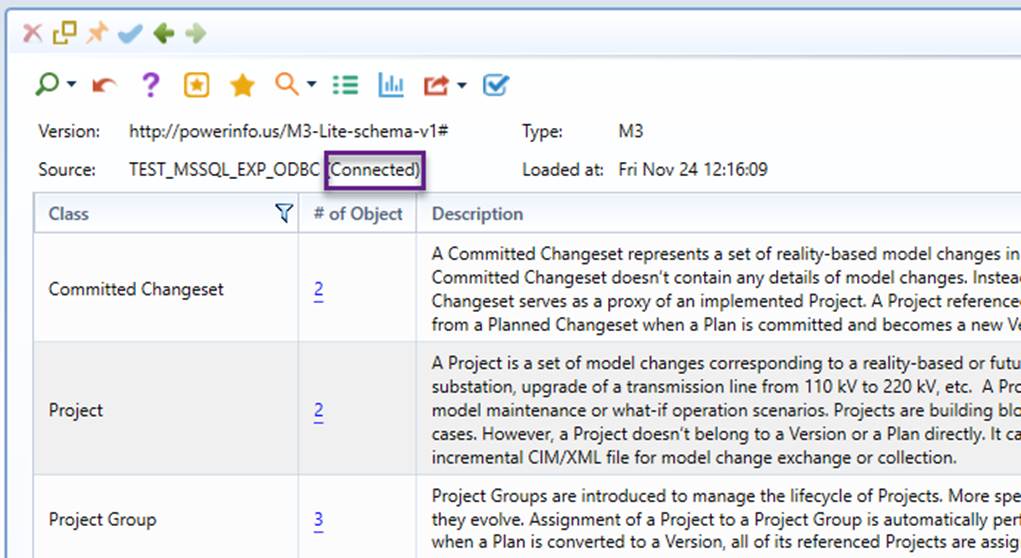
- Connected: Models loaded into the workspace are connected to a database. Any changes in the loaded models will be propagated into the connected databases. The connected models are shared system-wide. In other words, only one instance is maintained in the server even it is loaded into multiple workspaces. The connected model is normally used for model administration or collaborative modeling. A connected model is explicitly marked in its summary display, as illustrated below.
A model loaded into a workspace belongs to one of the following two types:
- Instance: An instance model could be a connected model loaded into workspace for project construction or a disconnected model loaded into a workspace for various purposes.
- Admin: A meta model used for model administration. It is normally a connected model shared by all of the users.
Additionally,
- Models loaded into the workspace can also be exported as local files, if authorized. In this case, the exported files are downloaded from the server to the specified location at the client machines.
- Models loaded in one workspace can be moved to other workspaces. This allows same models to be validated against different business rules. More specifically,
- Users can move a specified full model in one workspace to another workspace.
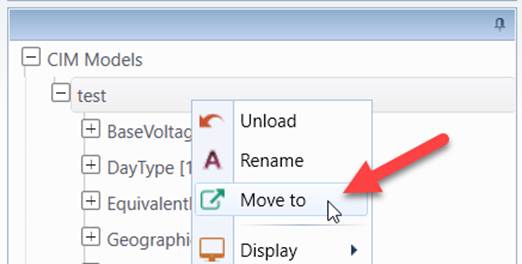
- Users can move all of the full models in one workspace to another workspace.
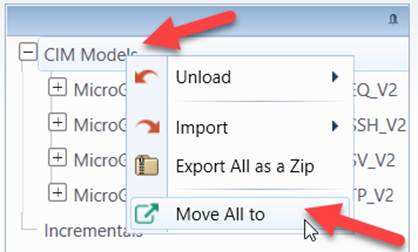
Note:
- When models are moved to a different workspace, they will adopt to the new modeling environment by applying all of the model-specific workspace configurations. The behavior is equivalent to loading the same models to the target workspace. The model configurations from the data source may or may not be carried over depending on whether the same data source is defined in the new workspace.
- When a model being edited is moved to a different workspace, the difference model auto-created to track model change will also be moved to the same workspace.
- When models are moved to a different workspace, this target workspace will be become active. In other words, the Tool automatically switch to the target workspace.
Function Authorization
Function authorization defines what can be performed by a user of specific roles. It is defined in the Admin UI. Function authorization is typically declared for a certain category/type of model. This is because models in the workspace are for different purposes. For example, a connected model is normally for project construction, thus requiring a modeler role. On the other hand, editing of a disconnected model in your private workspace shouldn’t require such a role. Thus, when declaring a function restriction rule, the applicable model category/type must be specified. As an example, the following model editing restrictions are applicable only for Connected Instance models. If a function is not for a loaded model, then its restriction rules should be declared for the entire Application.
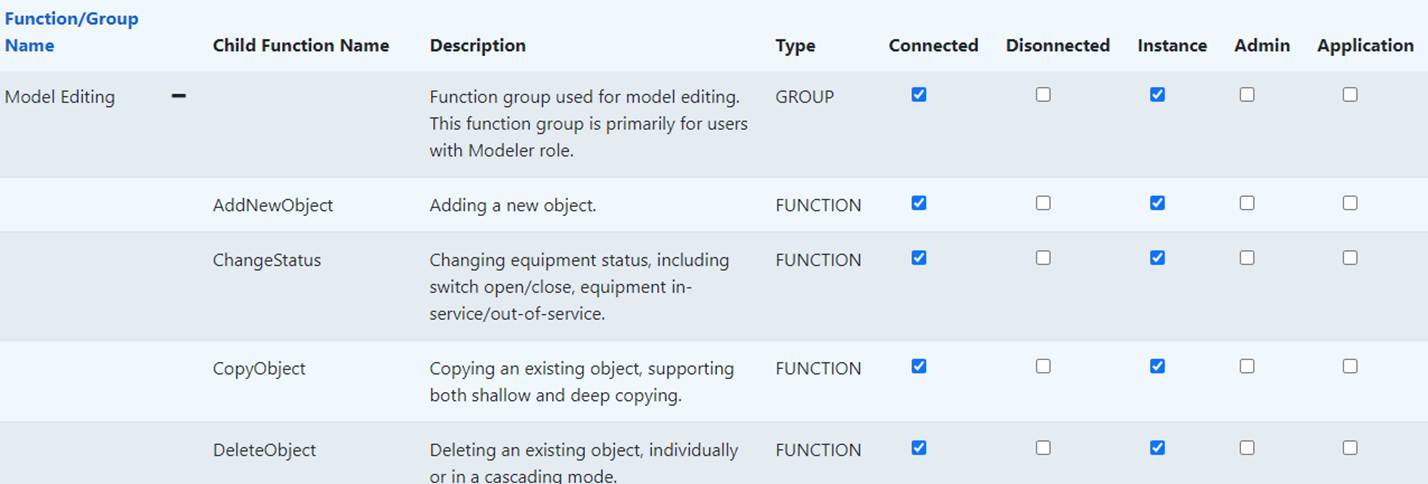
Function authorization can also be enforced for a workspace. One or more roles can be assigned to workspaces using a script-based rule in Admin UI. Additionally, the rule also specifies how to resolve the case where user roles and workspace roles conflict. As an example, the following specifies: in a public workspace and for any users who don’t have the role of UserAdmin, their user roles will be replaced with (or overwritten by) the role of Audience. In other words: the role of Audience is enforced to any non-administrator users in public workspaces. By enforcing this rule, only users of UserAdmin roles can load model into a public workspace and the loaded model is read-only for others.

For more information about authorization, please refer to Authorization.
Configuration
Workspaces are highly configurable. This is achieved at various levels:
Workspace Administration Configuration
This set of configuration defines behavior of workspace administration. It is defined in appsettings.json, an json file located in Admin service. Workspace Administration Configurations are summarized in the following table:
| Configuration | Default Value | Description |
|---|---|---|
| EnforceWorkspaceOwnership | true | If 'true', a user is assigned to each workspace and will be responsible for administration of the workspace. |
| WorkspaceOwnershipTransferable | true | If 'true', workspace can be transferred to others by its owner. |
| WorkspaceShareable | True | If 'true', workspace can be shared to others by its owner. |
| PublicWorkspaceByUserAdminOnly | True | If 'true', a public workspace can only be administrated (add or deleted) by users of UserAdmin role. |
| PrivateWorkspaceByUserAdminOnly | False | If 'true', a private workspace can only be administrated (add or deleted) by users of UserAdmin role. |
| ExcludeFromWorkspaceAfterTransfer | True | If 'true', exclude user from access to the workspace after ownership transfer. |
Pre-configuration of Workspaces
Workspaces can be pre-configured in configuration file \config\WorkspaceConfig.xml of server. This file pre-defines the workspaces to be created once the Server is started.
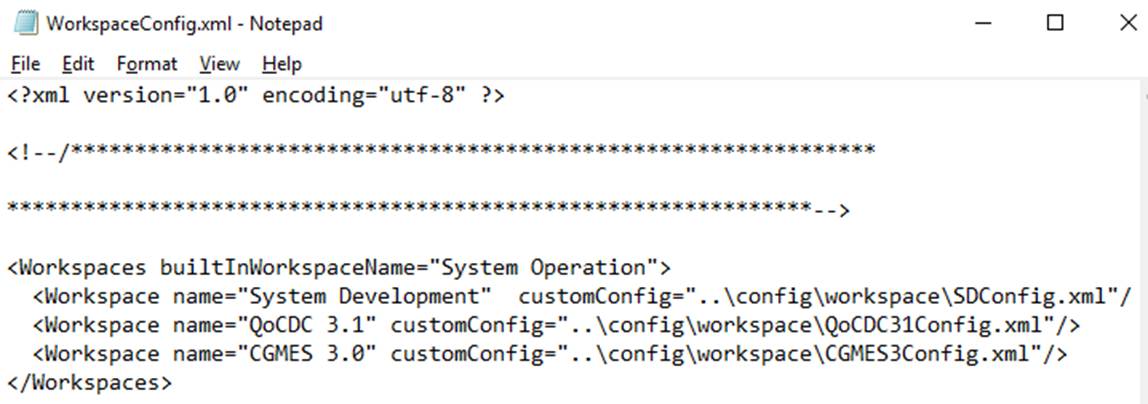
For each workspace element in the Workspaces configuration segment
- name: name of the workspace to be created
- customConfig: full path of the file used to configure the workspace.
Note
the built-in workspace is always started and shouldn’t be declared as a pre-configured workspace. The build-in workspace is governed by CustomConfig.xml. It can be renamed with attribute builtInWorkspaceName. Like CustomConfig.xml of the built-in workspace, the workspace configuration file is overwrites StandardConfig.xml, which serves as shared base configuration.
Workspace Configuration
Each workspace is govern by a set of configuration files, which defines its working environment. Many of the functions, for example Model Validation, are business-process-dependent. In Europe, CGMES is designed to support ENTSO-E multiple business processes, including System Operation, System Development (TYNDP), coordinated security analysis, etc. While sharing common CGMES framework, each business process has freedom of defining its own business-driven restrictions, conventions, etc. There is a need to configure the Model Validation function in support of multiple business processes. This is achieved by leveraging workspace and validation configuration.
The concept of workspace was introduced to support multi-tasking. A workspace is an independent modeling environment with its own configuration. The concept of workspace enables multiple “customized” versions of the Tools to be hosted within a single instance. This makes it possible to dedicate a workspace for each business process. The dedicated workspace is configured to support a specific business process, including validation, reporting... Users can switch between the business process specific workspaces.
Personalization of loaded models normally requires definition of a data source for each loaded model. This is inconvenient. A template data source is defined to facilitate personalization of models loaded into a specifically defined workspace. This is achieved by defining a default data source.
- A default data source is just like regular data source, except:
- A default data source is normally declared as a template. The template data source is not a real data source, thus not shown in the data source dropdown of the UI.
- type and location are not required to be specified for a template data source. If specified, they will be ignored.
- An example of a template data source is illustrated as follow:

Once a template data source is defined, it can be declared as a default data source for the workspace, as illustrated below:

All of the personalization definitions, such as presentation, report, profile, extension, etc. declared in the default data source will be then applied to any models loaded into the workspace, except those loaded via pre-defined data sources. At run-time, if a model is loaded into the workspace not as a pre-defined data source, a data source will be derived from the default data source to represent the loaded model. This allows any models loaded into the workspace to personalized without requiring definition of a data source.