Side Panel and Popup
While users can navigate between displays during model browsing, doing so may result in a loss of context. The side panel and popup are designed to allow users to open a diagram or property display from the current view without navigating away. This can be achieved through one of the following methods:
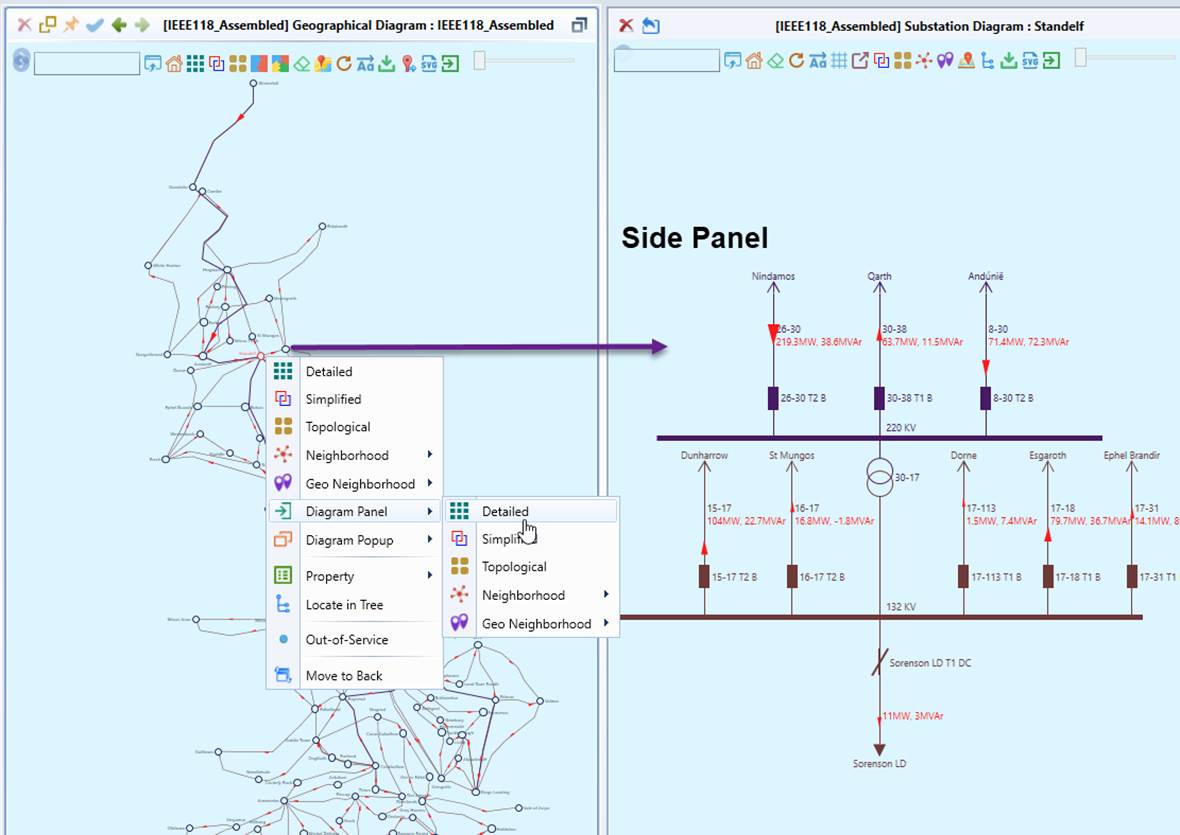
- Side Panel – A collapsible and resizable child Model View that appears on the right side of the main Model View.
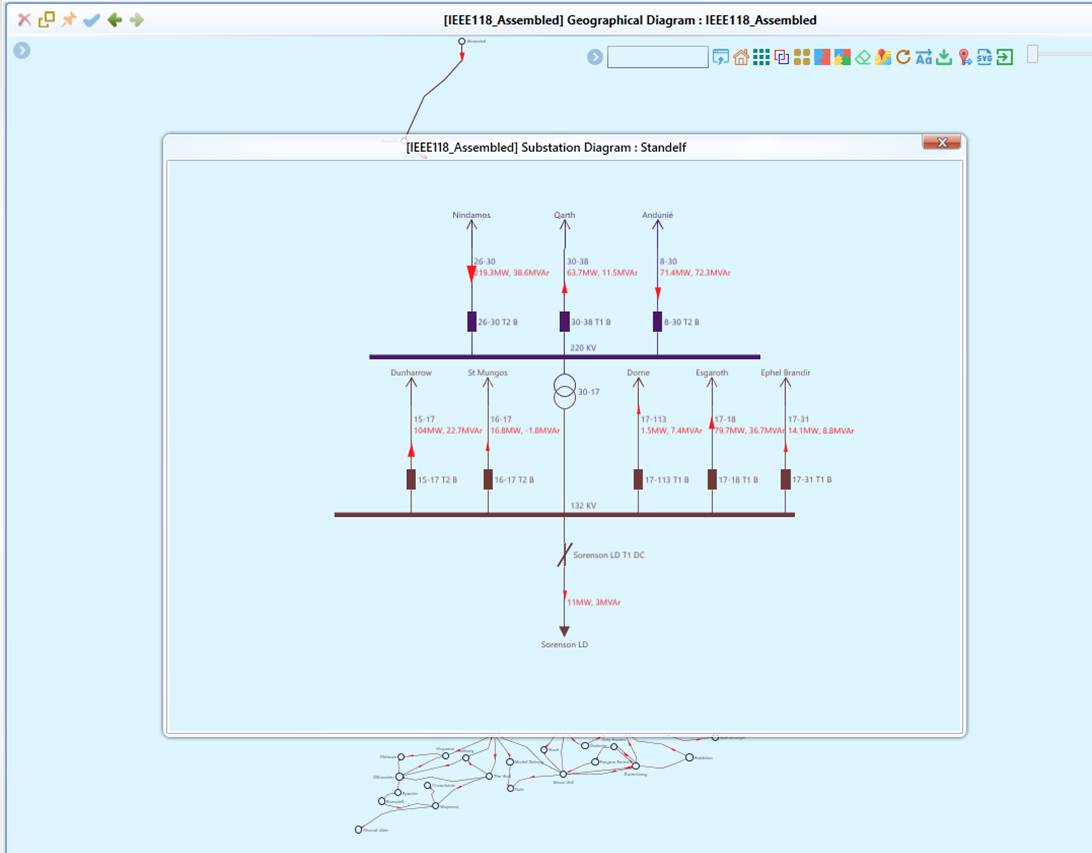
- Popup - A child Model View laying on the top of the main Model View.
Both mechanisms allow users to retain the existing display while viewing or editing relevant details of the current display. This feature is particularly useful for a large geographical display or a large schematic display.
Note:
- Like the main Model View, Side Panel and Popup can be used to host any Displays.
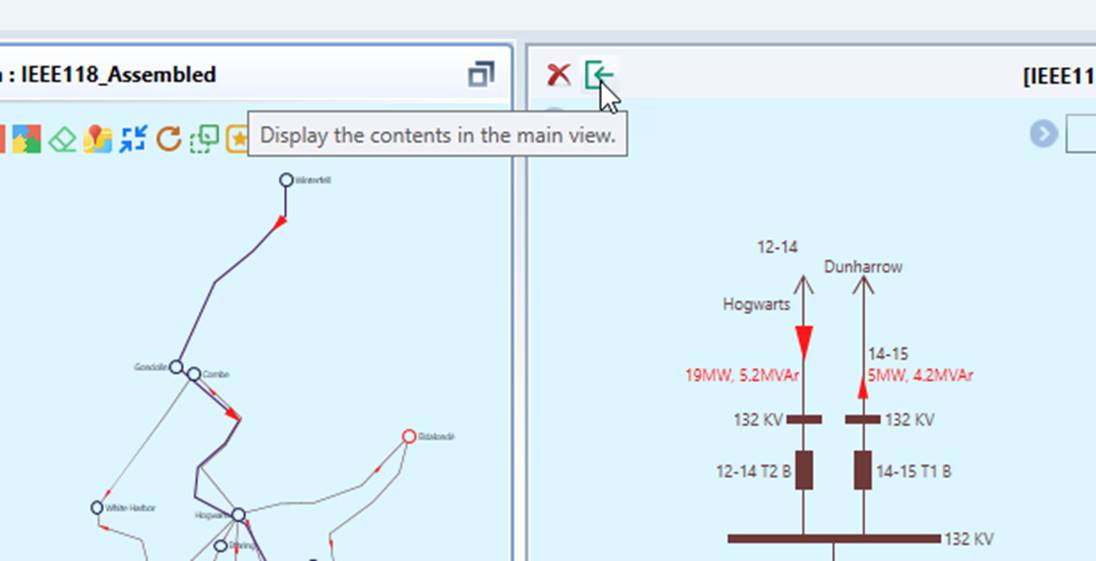
- Side Panel and Popup are not independent Model View. They are invoked from the main Model View to provide supplementary information. The Side Panel, however, can be converted to the main Model View, as illustrated below.
- Both can be resized and closed. The Popup, however, must be closed in order to do anything in the existing display.
- Both inherit all of the display options/settings of the main displays.
- Graphical editing is not supported in a diagram popup.
- Neither Side Panel nor Popup diagrams can be bookmarked.
- Diagram navigation is not supported in a diagram Popup; however, users can open a diagram Popup from within another. These Popups are layered on top of each other, as illustrated below.
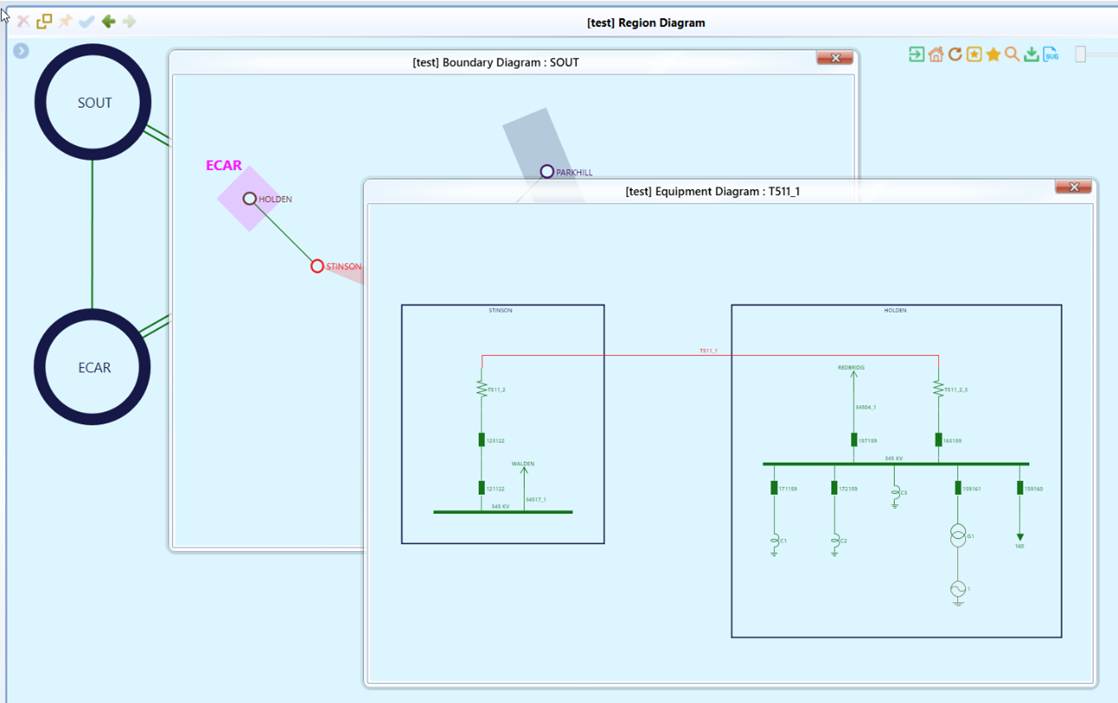
How to Invoke Side Panel or Popup?
Side Panel and Popup can be invoked from the main Model View using one of the following methods, providing supplementary information without navigating away.
- Command Icons: Invoked from the Command Icons in the main Model View.
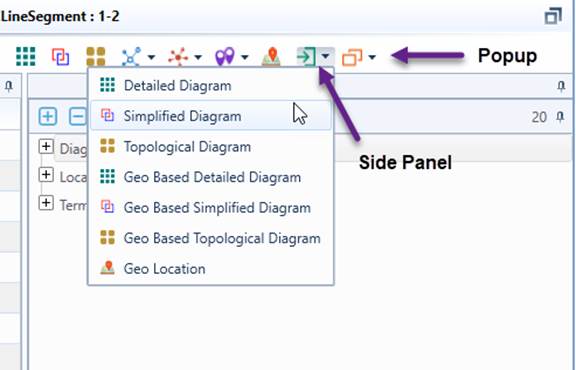
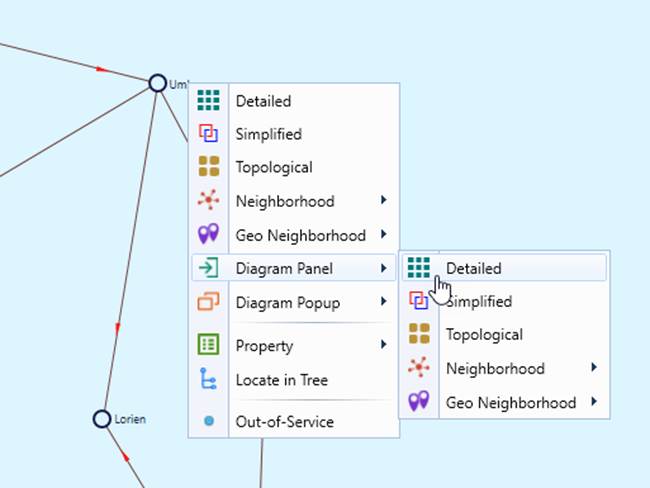
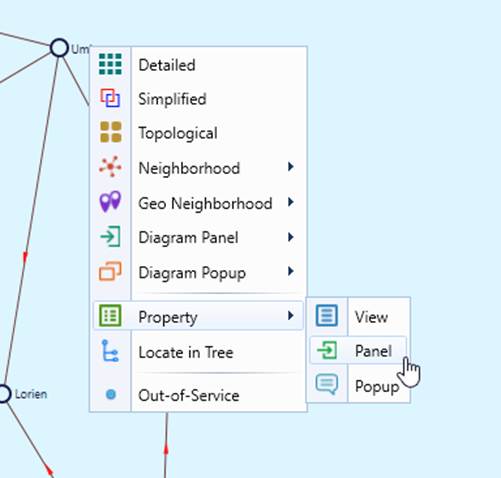
- Context Menu: Invoked from the Context Menu associated with the selected graphical symbol or label in the diagram. Note: Diagram and Property Side Panel/Popup are called from the different Context Menu.
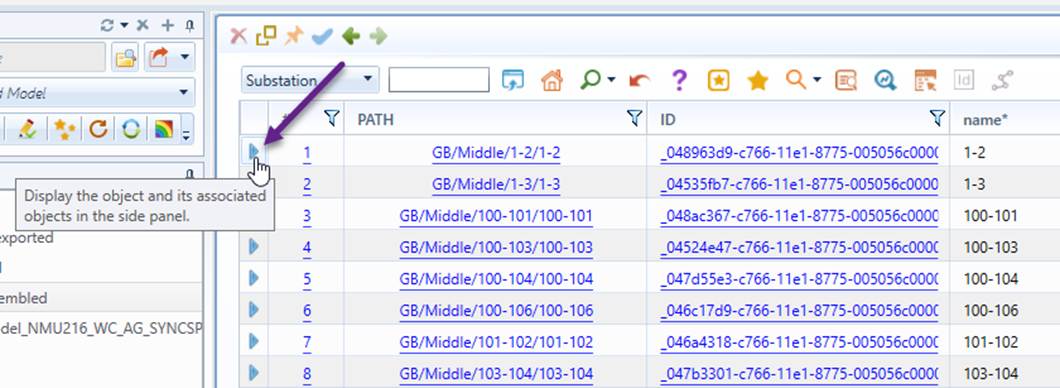
- Navigation Icon: The Side Panel can be invoked by clicking the navigation icon in a Tabular Display.
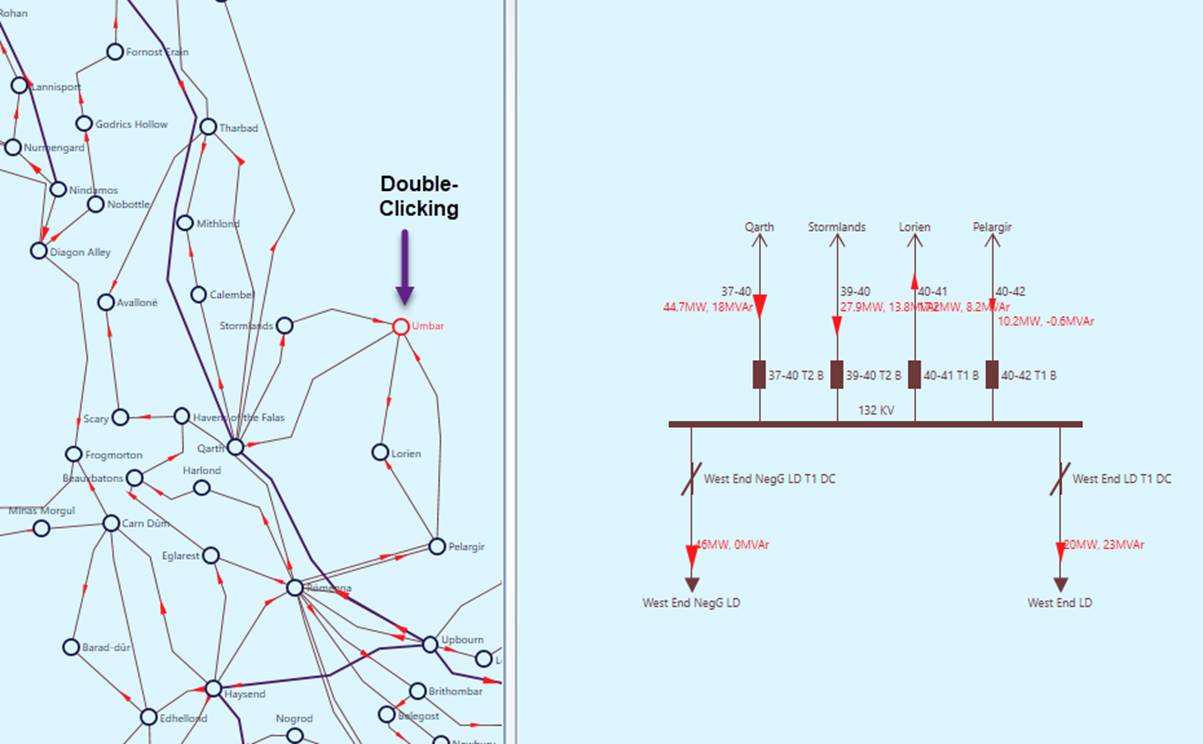
- Double-Clicking: The Side Panel or Popup can be invoked by double-clicking the selected graphical symbol or label in the diagram. This serves as a shortcut, with only one form being invoked based on the configuration. To open a specific form, use the context menu.
Side Panel or Popup?
Side Panel and Popup serves as the same purpose: providing supplementary information within the same context. Each has its own advantages and is suited for different scenarios. In general, Side Panel is preferred, as it provides a non-intrusive way to view related details alongside the main Model View. Popup, however, allows users to quickly inspect a single component without modifying the layout. Popup can also be stacked, allowing multiple overlapping views when needed.
In general, the Tool allows users to choose which form to use. Therefore, mechanisms are provided to invoke ether form, side by side. However, double-clicking supports only one form at a time. By default, the Side Panel is invoked when double-clicking, but users can modify the configuration to invoke the Popup instead.
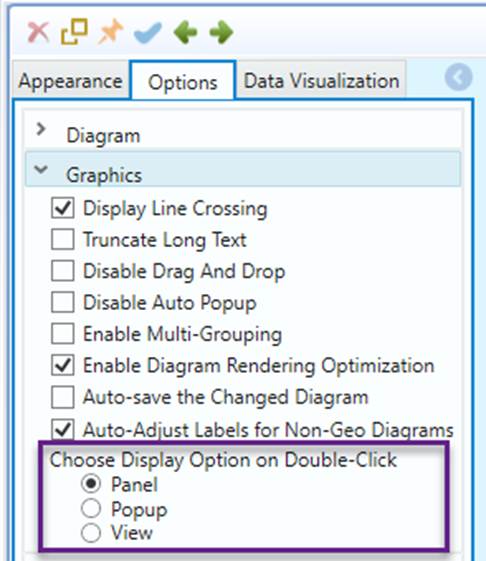
Since V 2.11, the default behavior of double-clicking is set as Side Panel. The following provides a more detailed description of usage with the Popup. Most, if not all, also applies to the Side Panel. Some of the information might be obsolete.
In-Context Diagram Popup
The following provides a more detailed description of Diagram Popup. Most, if not all, also applies to the Side Panel.
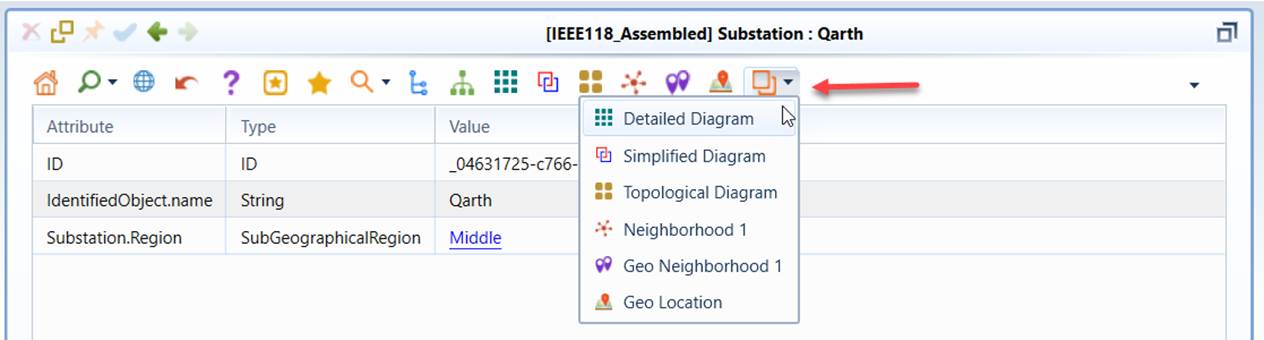
The in-context diagram popups are available for any substations and lines in virtually any diagrams. They can be triggered either by double-clicking the symbols/labels of the selected substations/lines or through a context menu associated with the selected substations/lines or, as illustrated below. The diagram popup sub context menu contains basically the same items as the context menu for diagram navigation.
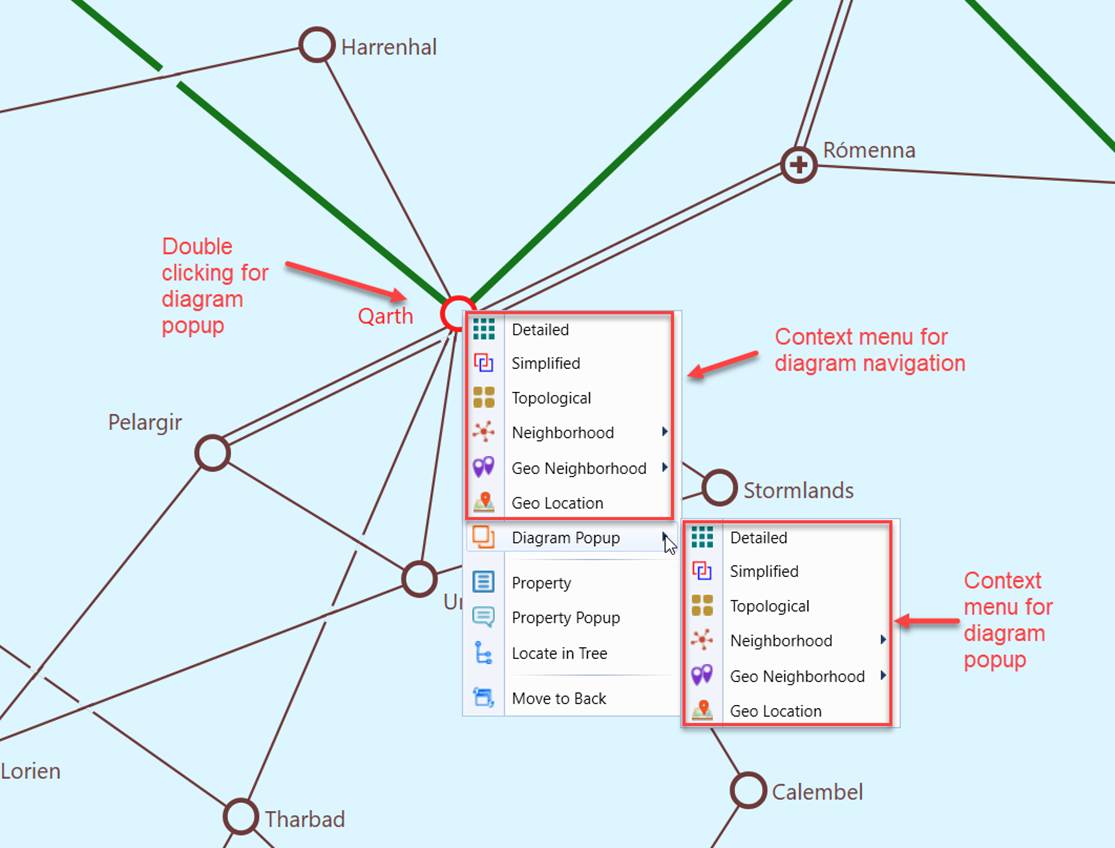
Diagram popup can also be invoked from the related Form Display, as illustrated below.
Once triggered, a child window will pop up, displaying the selected diagram, as illustrated below.
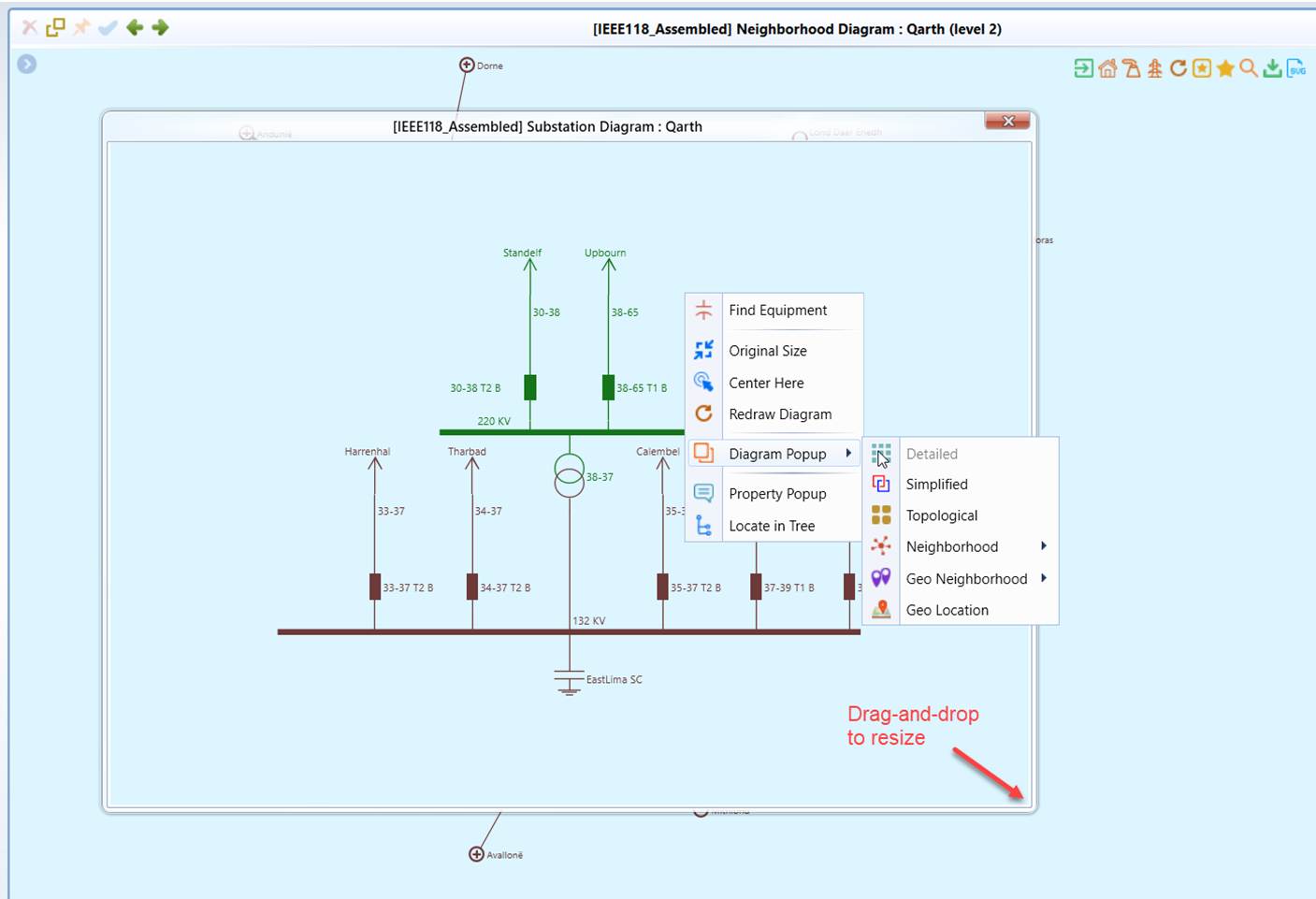
An in-context diagram popup is just like the same diagram hosted in the model view. It is mainly to enable users to drill down to the details without losing the context. There are some functionalities, such as diagram navigation, graphical editing, that are not supported by the diagram popup. Users must navigate to corresponding diagram to perform the unsupported functionalities.
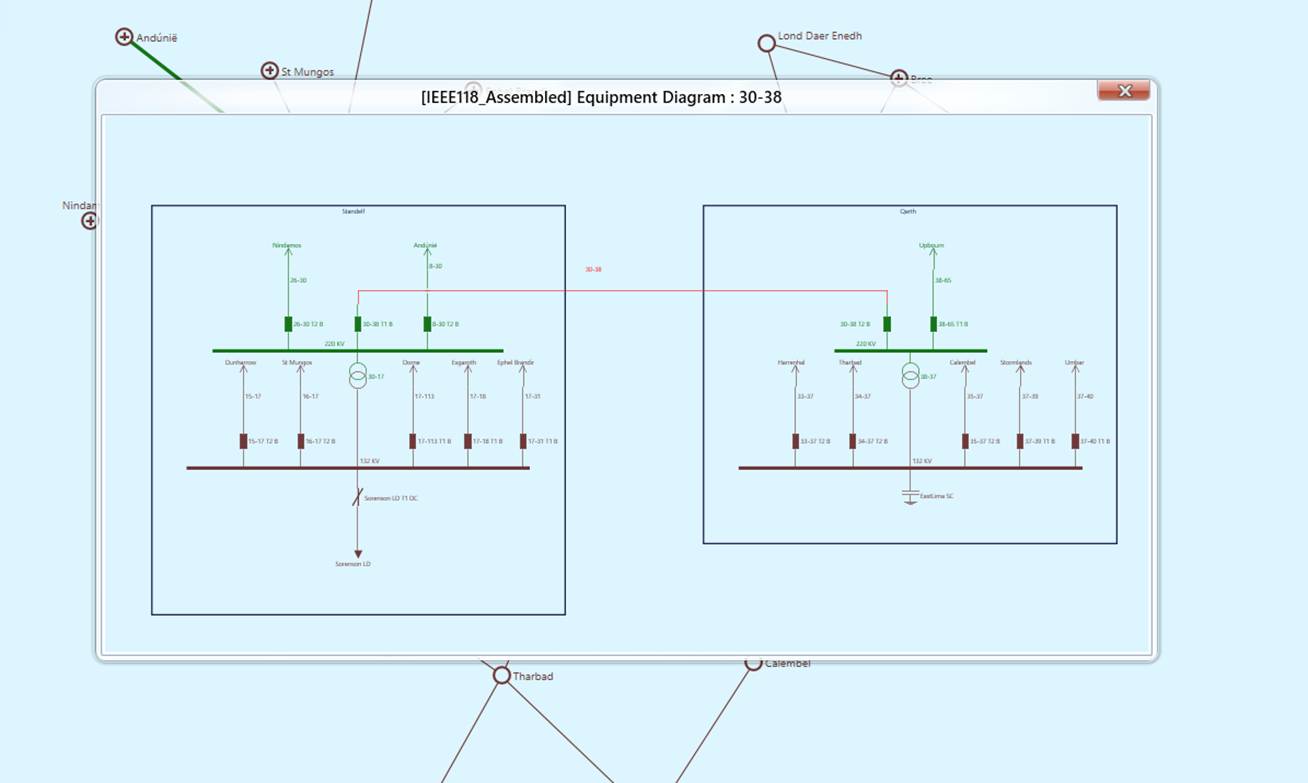
The following screenshot shows a line popup diagram called from a Neighborhood Diagram.
In-Context Property Popup
The following provides a more detailed description of Property Popup. Most, if not all, also applies to the Side Panel.
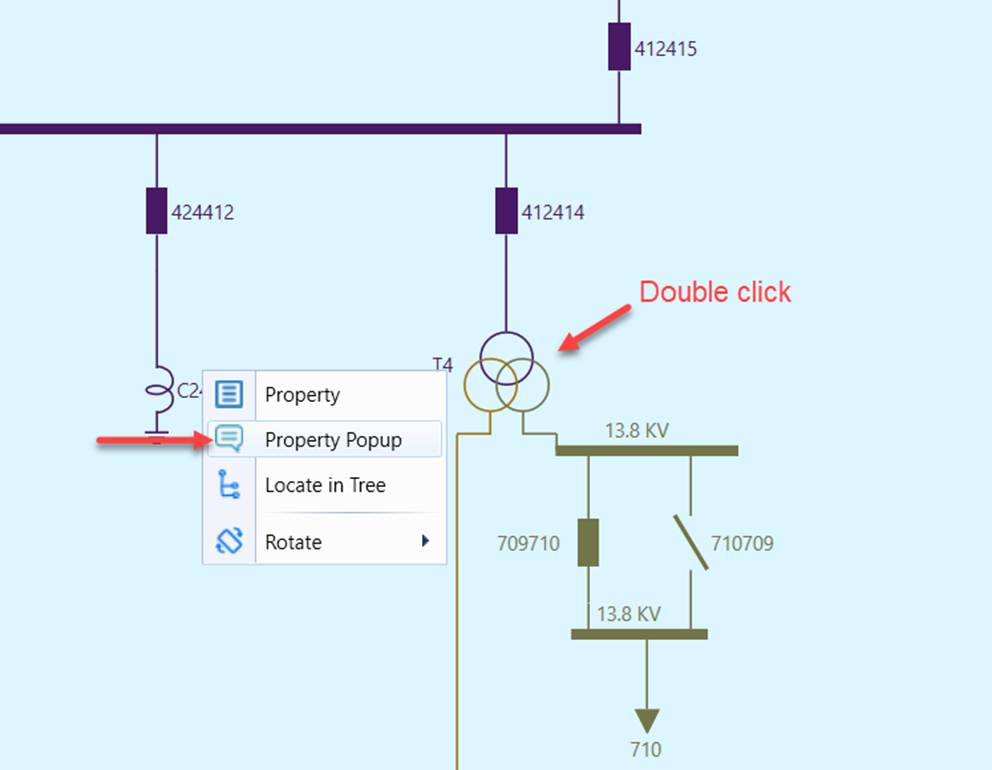
In-context property popup display the Form Display in Substation Diagram and Schematic Display. It is mainly used to view the properties of the selected network components and edit the properties of the selected network components in a substation-based as graphical model editor. Like an in-context diagram popup, an in-context property popup can be triggered either by double-clicking the symbols/labels of the selected network component or through a context menu associated with the selected network component or, as illustrated below. The context menu associated with the selected network component can be triggered by right-mouse-clicking the symbols/labels of the selected network component.
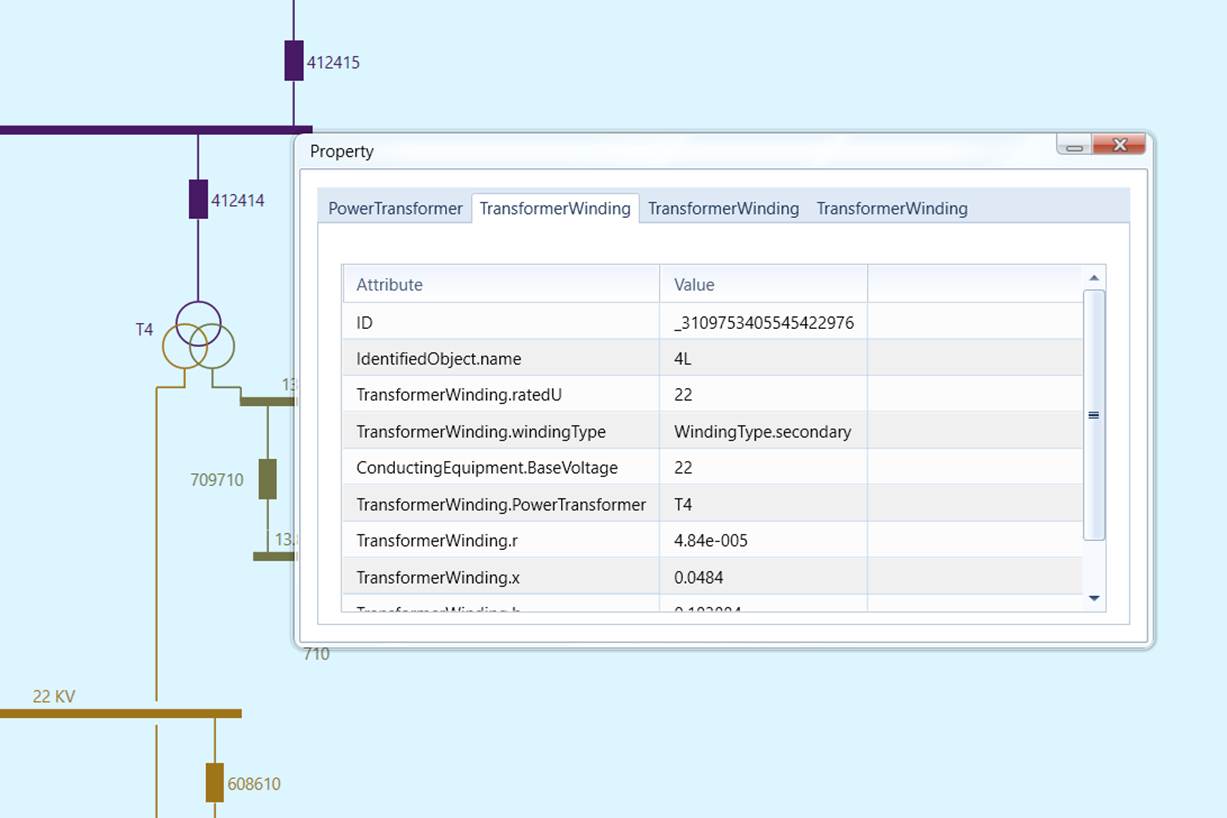
Once triggered, an in-context property popup will display a simplified Form Display without any hyper-links, as illustrated below. One of the nice features of the in-context property popup is grouping multiple related objects and showing them in a tabbed Form Display for some network components. In the following example, the transformer property popup groups a PowerTransformer object and two child TransformerWinding objects and shows them in a single tabbed Form Display.
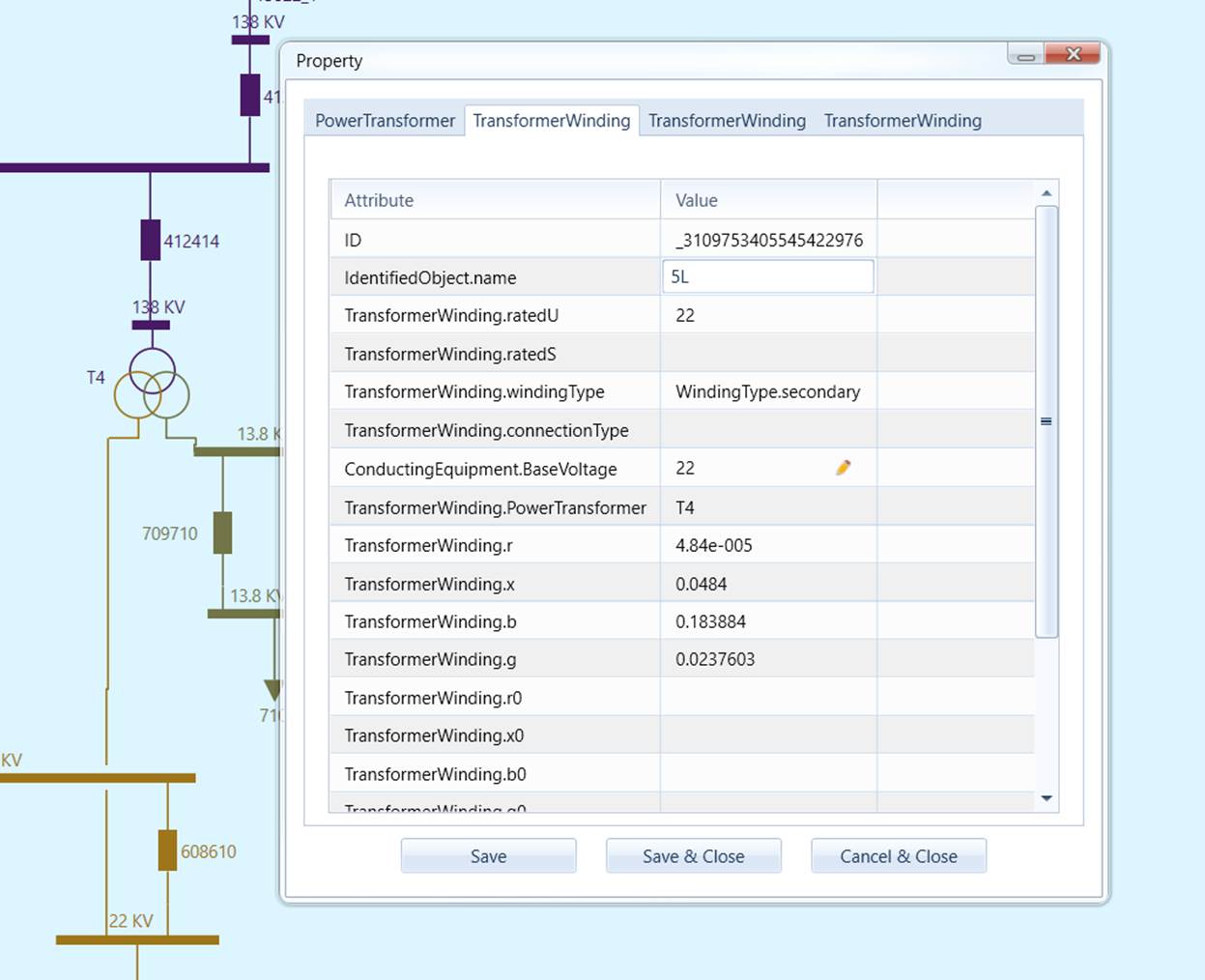
In-context property popups are fully editable if the Tool is in an Edit Mode. An editable in-context property popup is just like an editable Form Display, as illustrated below. The only difference is an editable in-context property popup allows multiple related objects to be edited in single tabbed form. Users must explicitly click the Save button to store the edited properties. Once the Save button is clicked, the modified properties will be stored. The existing base display and navigation tree will be updated.
Note
some of the associations are not editable in In-context property popups, these associations, typically hierarchal and topological, are supposed to be edited using the graphical model editor. This is mainly to facilitate the modeling and enforce the modeling constraints.
Configuration
The sizes of the Side Panel and Popup can be adjusted by modifying the UI or Client Configurations located in the \config\ui folder. This can be done in either CIMSpyConfig.xml or, preferably, AddonConfig.xml, which contains user-defined configurations.

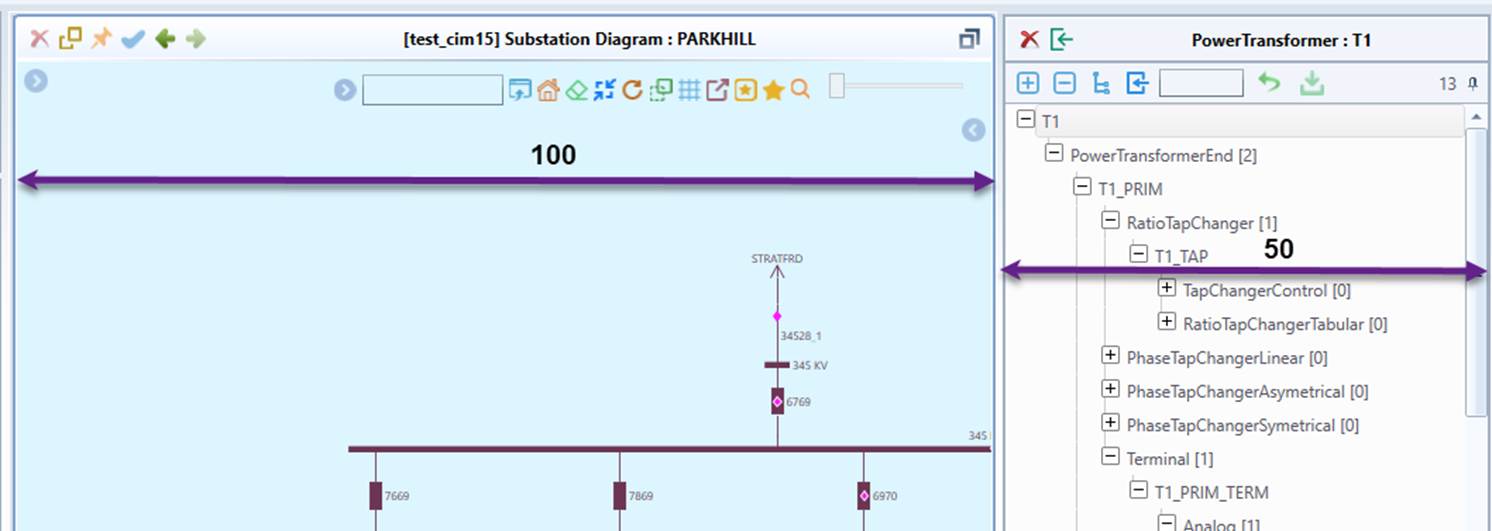
- propertyPanelRelativeWidth: The relative size of the property panel, based on a scale of 100. (See the illustration below)
- diagramPanelRelativeWidth: The relative size of the diagram panel, based on a scale of 100.
- popupWidth: The default popup width in pixel.
- popupHeight: The default popup height in pixel.
Note
If the popup is a Form Display, its size is determined by the Form Display configuration.