Editing Project
Loading Model for Project Editing
Projects can only be edited in the context of Plan. To edit a Project:
- From the Planned Changeset that represents the Project to be edited, select Edit Project from the context menu or click the corresponding command icon in the Form display of the Changeset.
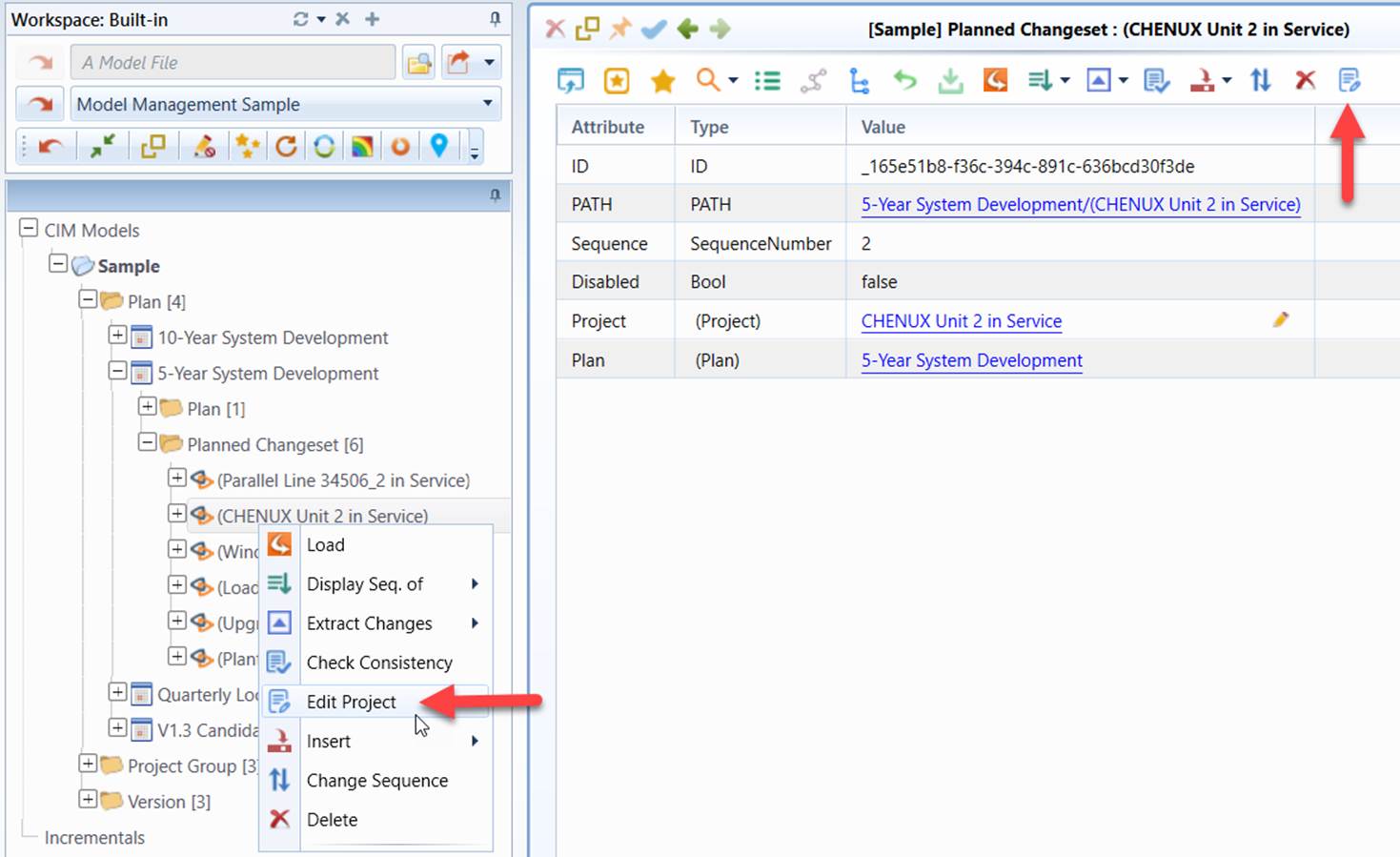
- A connected model is loaded into the workspace, with the edited Project (if any) applied on the top of it. The edit mode is automatically enabled. Any model changes made to a connected model will be instantly saved into the connected Model Depository. The name of the connected model is highlighted in the tree panel.
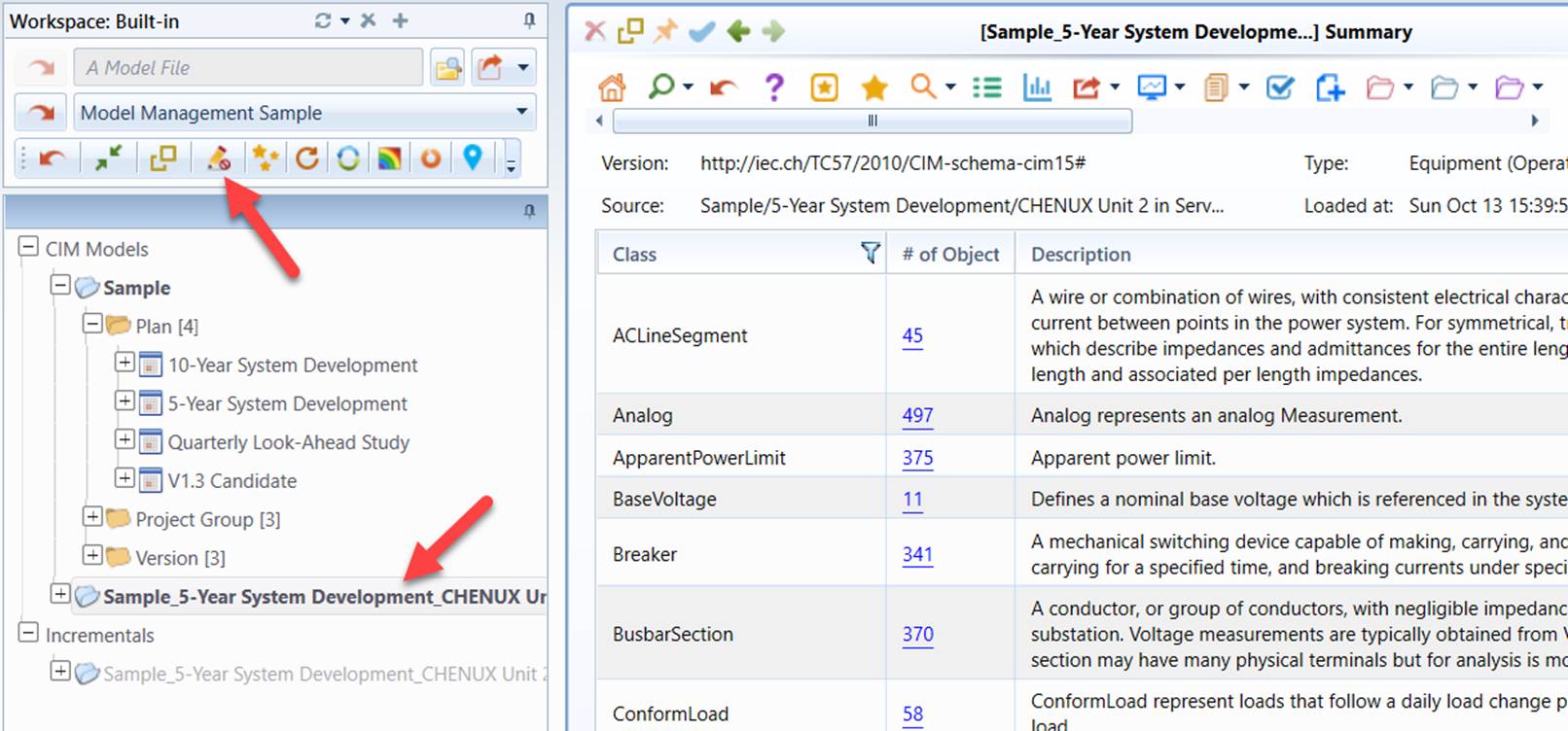
Making Model Changes
Once the connected model is loaded in the workspace, the Project is ready to be edited.
The Tool provides users with two powerful model editors: object-based data editor and graphical model editor.
- Object-based data editor provides full support for editing model at object level. Users can make arbitrary model changes in object Form display and Tabular display. Users can also add objects, delete objects, and edit object associations. Users can also use the advanced features such as deep-copy or cascading-deletion to speed-up the model maintenance.
- Graphical model editor is an advanced modeling application designed to assist users to build and maintain the CIM-based power system models. Based on reality, the graphical application enables users to interactively and intuitively perform complicated modeling tasks in a What-You-See-Is-What-You-Get (WYSIWYG) style. Additionally, it provides some advanced features, enabling users to rapidly perform the model maintenance work by using the existing models as templates.
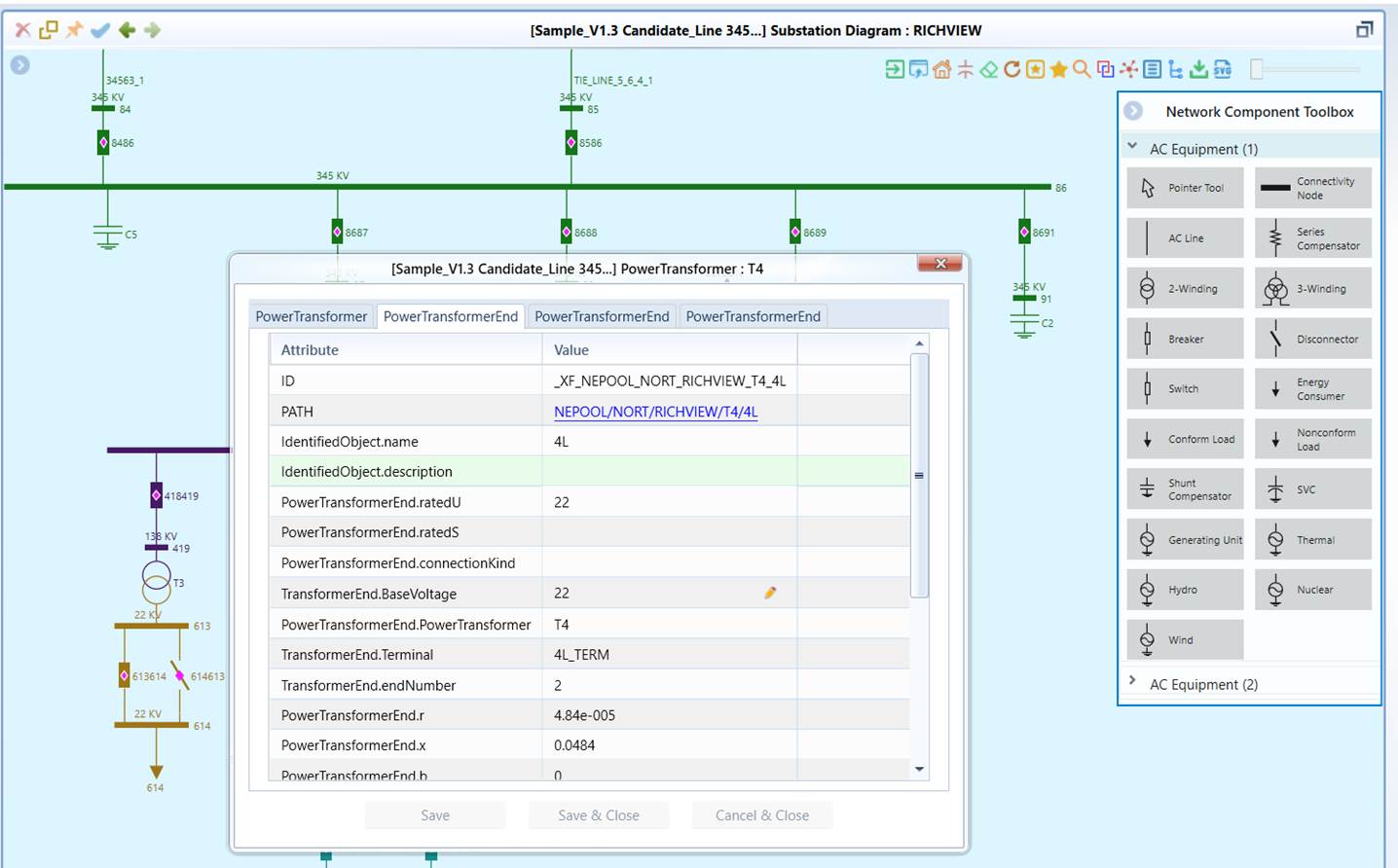
While users make model changes, all of the changes will be instantly saved into the Model Depository as Project.