Modelspace Configuration
After a database is successfully setup, users should configure the Tool so that it can connect to the database via ODBC connector. To do it, a Modelspace configuration must be added in the Tool’s server configuration. Although the primary goal to configure Modelspace is the setup of Database connection, Modelspace configuration also includes the setup of Model Management activity log and the modification of default parameters for Modelspace per user’s preference.
There are two server configuration files: one is the standard configuration which users are not supposed to change; the other is custom configuration designed for users to customize. Modelspace configuration resides in the custom configuration file.
DBConfig and DBConnection in custom configuration file are used to set up Modelspace configuration. They are nested under XMLServerConfig->ModelConfig -> IOConfig.
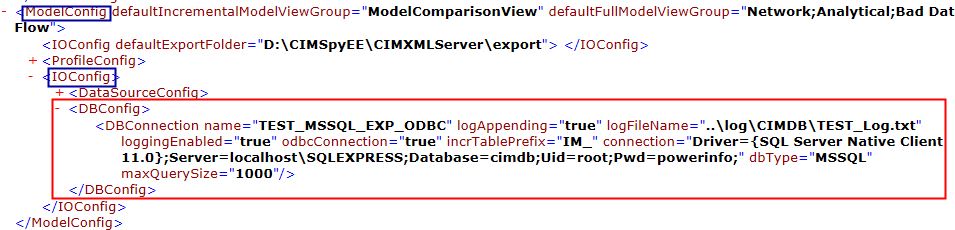
One DBConnection corresponds to one Modelspace. Different Modelspace is uniquely identified by the name attribute of DBConnection. The Tool allows multiple DBConnection defined under one DBConfig or multiple DBConfig with one or more DBConnection. By doing that, users can select different Modelspace to work with.
It is highly recommended that DBConnection’s name be intuitive by containing database name and seed model name.
Setup Model Database Connections
Modelspace resides in a relational database and is connected through ODBC connector. The following parameters should be set to configure the connection:
- odbcConnection -- must be true; database is connected through ODBC connector.
- dbType -- type of database; the Tool supports virtually any relational database. The official supported RDBMS are MSSQL, MYSQL, and ORACLE.
- maxQuerySize-- the maximum number of queries that database could handle as a batch. Default value of 1000 is used if not explicitly configured. If the Tool is running with a 64-bit server, the maxQuerySize could be significantly larger than 1000.
- Connection -- ODBC connection string that is required by the database you are connected to. A valid connection string should have the following attributes. The attributes are separated by “;”.
- Driver: the name of the ODBC connector, which is set up when ODBC connector is installed.
- Server: the name of database server instance. The value must be either the name of the server on the network or an IP address.
- Database: the name of the default database for the connection, it must be existing database created. Details of database creation can be found under the sections of configure database server for Modelspace. For Oracle, as the database and user is one-to-one mapped, there is no need to define Database attribute.
- Uid and Pwd: a valid database server login account and password. They should be set up when database is created
The following table summarizes the attributes that are used for the sample connection strings of MS SQL Express, MySQL, and Oracle. Users should follow company’s security policies on setting up database credentials in production environment.
| MS SQL Express | MySQL | Oracle | |
| Driver | {SQL Server Native Client 11.0} | {MySQL ODBC 5.3 Unicode Driver} | {Oracle in XE} |
| Server | localhost | localhost | localhost |
| Database | cimdb | cimdb | n/a |
| Uid | root | root | root |
| Pwd | powerinfo | powerinfo | powerinfo |
- MS SQL Express
Connection ="Driver={SQL Server Native Client 11.0};Server=localhost\SQLEXPRESS;Database=cimdb;Uid=root;Pwd=powerinfo;"
- MySQL
Connection="Driver={MySQL ODBC 5.3 Unicode Driver};Server=localhost; Database=cimdb; Uid=root;Pwd=powerinfo;”
- Oracle
Connection ="Driver={Oracle in XE};Server=localhost; Uid=root;Pwd=powerinfo;"
After database installation, users need to customize the database connection in the custom configuration file, usually “CustomConfig.xml” in the Tool’s config folder on server computer. Open the configuration file in a text editor and follow these steps to update the database connection string.
- Find out the Driver name based on the database installed. Replace everything after “Driver=”.

If MySQL is the Model database, although MySQL has two drivers, it is recommended to use “MySQL ODBC 5.3 Unicode Driver” as Unicode supports more characters.
- Find out the name of the database server on the network or the IP address. Replace everything after “Server=”.

- Find out the Modelspace database name. Replace everything after “Database=”. This is not applicable for Oracle.

- Find out the database server authentication, i.e. username and password. Replace the strings after “Uid=” and “Pwd=”.

Setup Modelspace Activity Log
Model build life cycle in Modelspace is a very complicated and time consuming process. Proper logging of the activities provides a mechanism to keep track of activity histories, including time, type, status, and any errors or warnings identified.
- loggingEnabled: if true, logging of Modelspace activity is enabled.
- logFileName: the location and log file name if logging is enabled.
- logAppending: by setting to “true”, new log item is always appended to the log file. Log file’s size will continuously grow. By setting to “false”, logging is per activity, i.e. new Modelspace activity log will overwrite previous logs. Log file’s size is more manageable in that case.
Modify Default Parameters
One key feature of the Tool is that database schema is auto-generated from the governing model profile. There are four families of database tables for Modelspace: Base model table, Incremental model table, Pending change table, and Model management table. To differentiate tables in different family, prefixes are added to table names. Users can overwrite default prefixes by setting one or more of the following optional parameters:
- fullModelTablePrefix: prefix for full model tables;
- incrTablePrefix: prefix for incremental tables;
- pendingTablePrefix: prefix for pending change tables;
- modelmanageTablePrefix: prefix for model management tables.
Define a Data Source from Modelspace
Data source is defined to enable users to easily load frequently used models with one-button-clicking. A data source from Modelspace can be pre-defined in configuration file.
The following attributes need to be specified as illustrated by the following example.
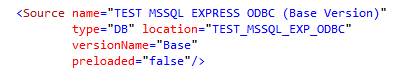
- Name – data source name, has to be uniquely identifiable.
- Type – must be “DB”, which indicates the data source is a Modelspace database
- Location – must be a DBConnection name that is defined.
- VersionName – must be the name of a known version existing in Modelspace
Trouble Shooting in Modelspace Configuration
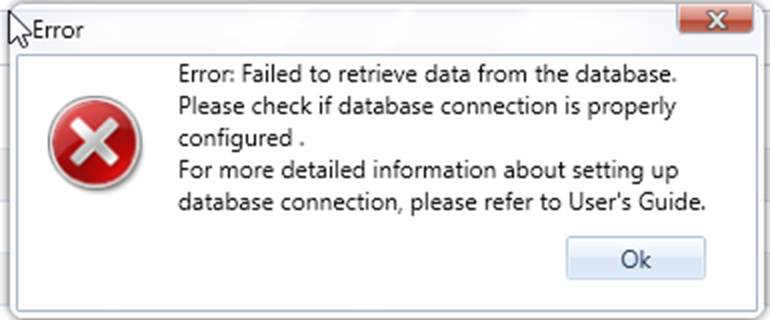
- Database connection error:
Connection string has five attributes: driver, server, database, user id, and password. If any of them goes wrong, you will most likely get a message like below. To fix it, carefully check the database setup again and copy the correct string(s) into connection string.
- Modelspace activity log file is getting too big.
You can simply delete/rename the log file. Or set the logAppending to false.
- Tables with old prefix are still in Modelspace after initialization, although new prefix is set up in configuration file.
Tables in Modelspace are auto-generated during Modelspace initialization. However, initialization will not remove tables with unknown prefixes coming from previous initialization. You have to remove them in the database management portal.