File-Based Model Depository
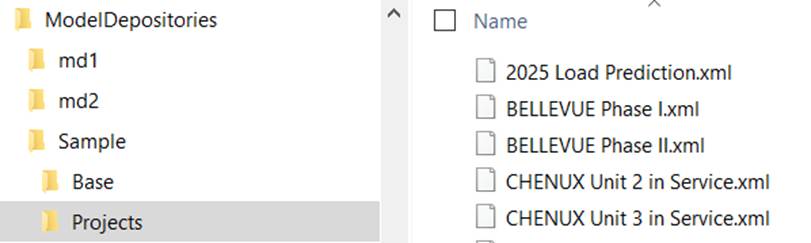
A file-based Model Depository organizes all of the information about a managed model in a dedicated directory or folder under the specified root directory for all of the file-based Model Depositories. Assuming the name of the Model Depository is ‘md1’, A file-based model depository contains the following files
- Model Administration Meta-Model File: ModelDepositories\md1\md1.xml ;
- Base Full CIM Model : ModelDepositories\md1\Base\md1_Base.xml;
- Projects: ModelDepositories\md1\Projects\ProjectName.xml
For samples, check the sample Model Depository under ModelDepositories\Sample.
Note
Users should NOT change/manipulate any things in Model Depository directory. It is managed by the Tool.
Creating and Initializing a Model Depository
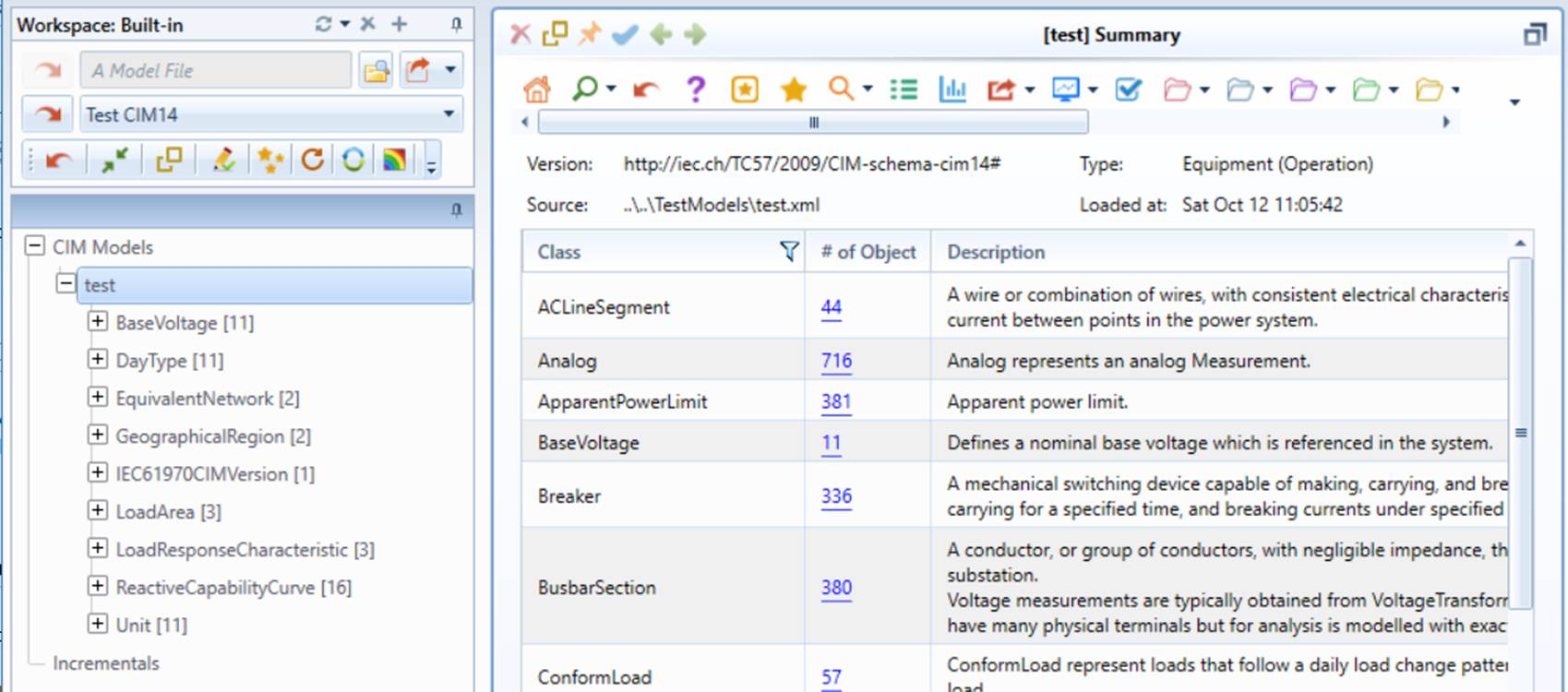
Model Depository is typically initialized from a loaded and validated CIM/XML file.
- Load the full CIM model to be used for initialization of Model Depository.
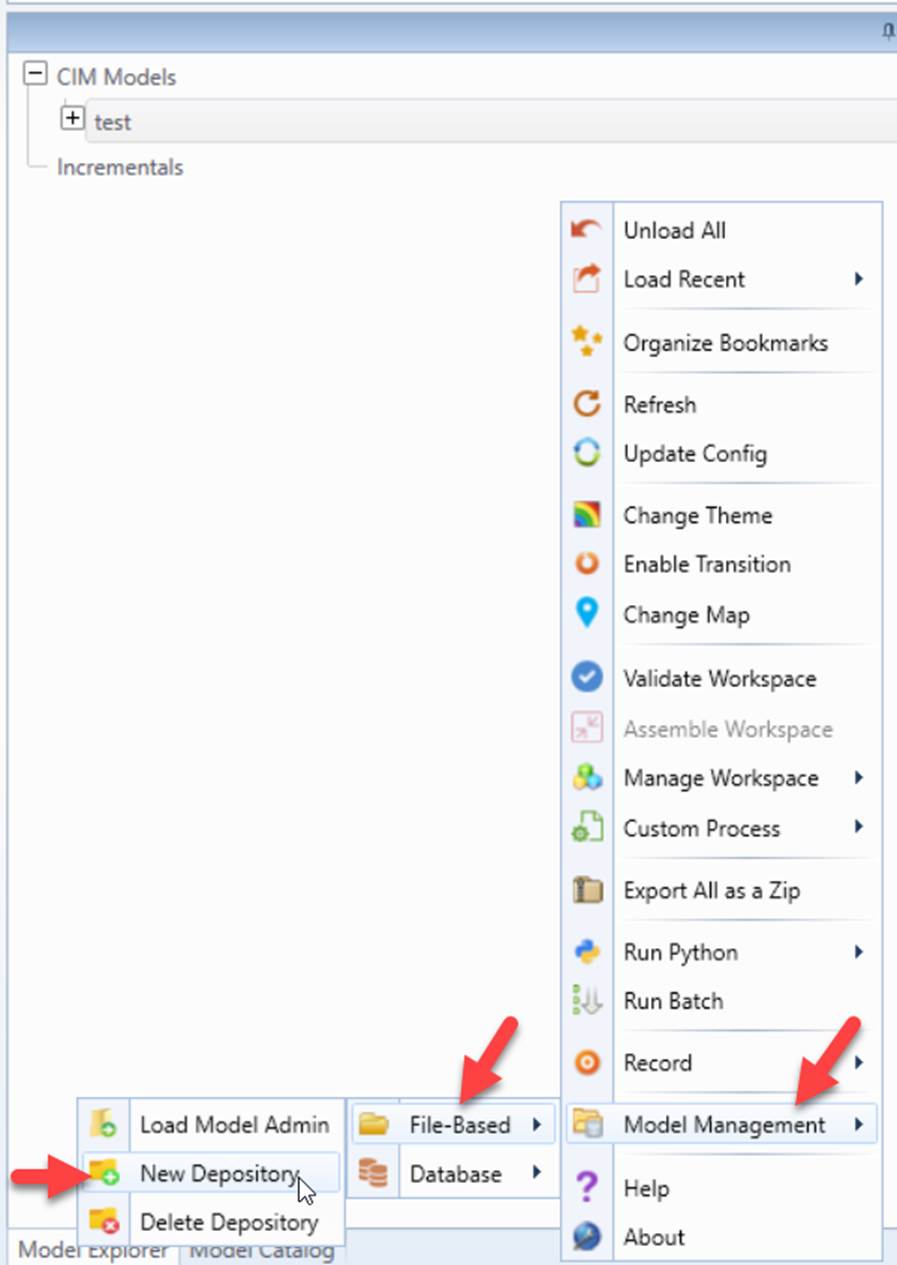
- Right-mouse-click a blank spot in the tree panel to invoke the global context menu. Select Model Management->File-Based->New Depository from the global context menu.
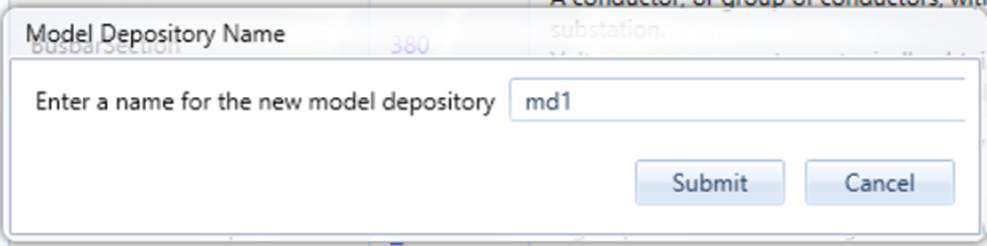
- Enter the Model Depository name in the popup. Note the Model Depository name must be unique and a valid file name.
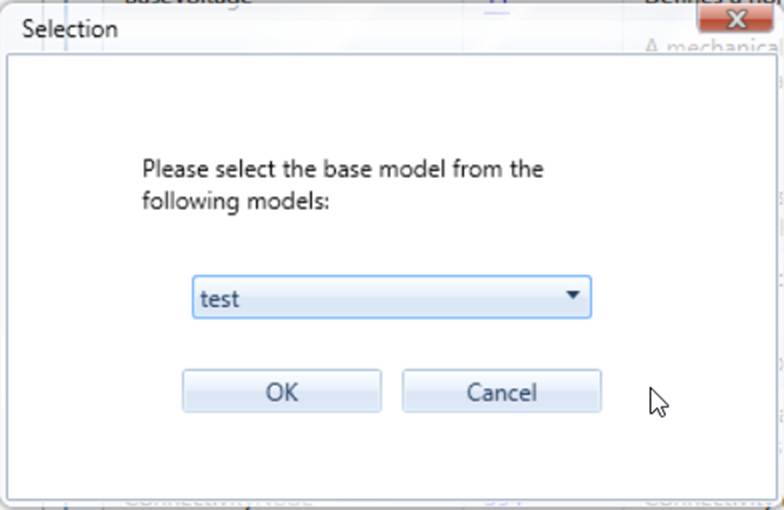
- Select the base model from a drop down menu to select the database that will be initialized.
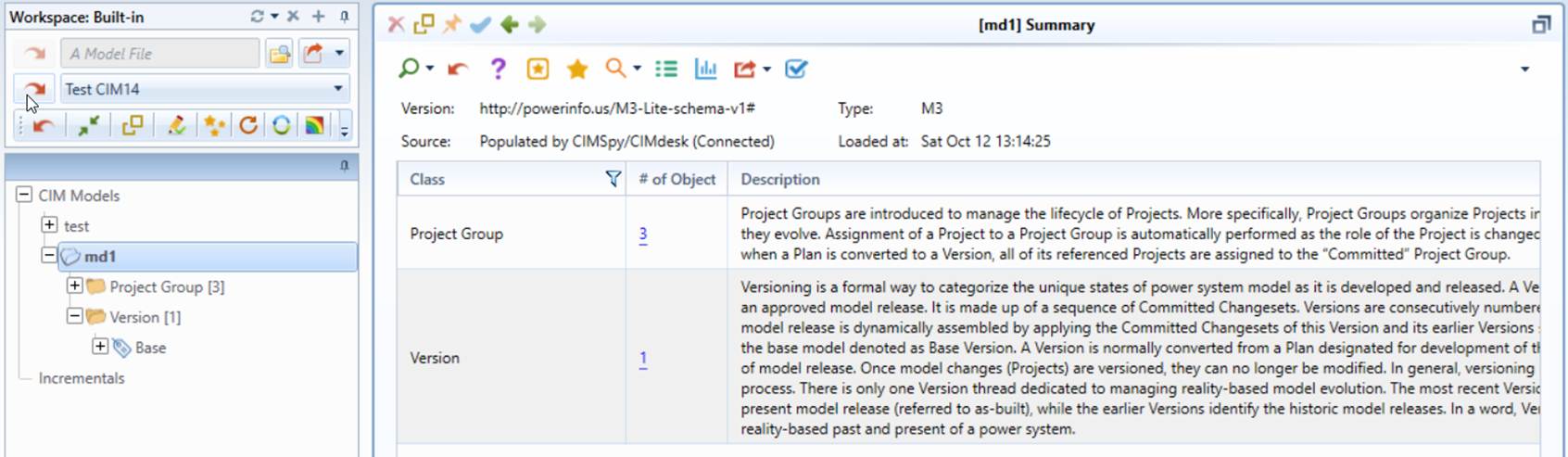
- If initialization is successful, the Model Administration Meta-Model will be loaded.
Validating the Initialized Model Depository
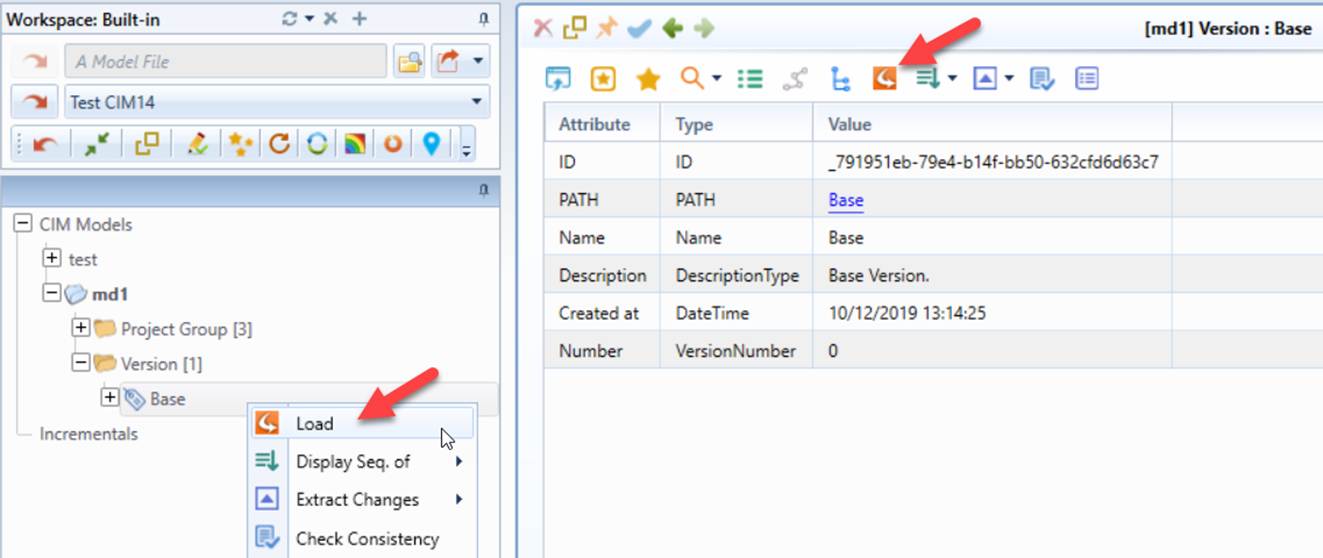
After the database is initialized, users can load the Base version of model into workspace, as illustrated below.
The base Version of the model saved in Model Depository after initialization should be identical to the “seed” model. This can be verified by running a model comparison between them.
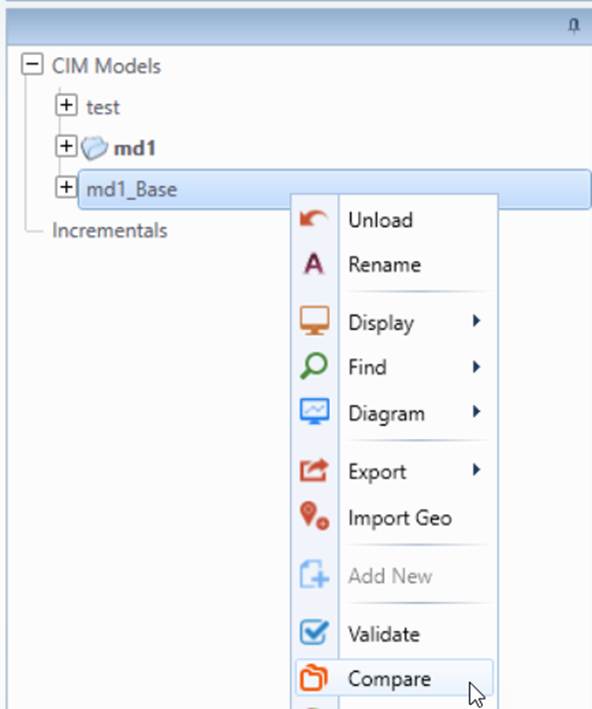
If the model is successfully saved into the database, comparison between the model loaded from the Model Depository and the seed model shouldn’t report any difference.
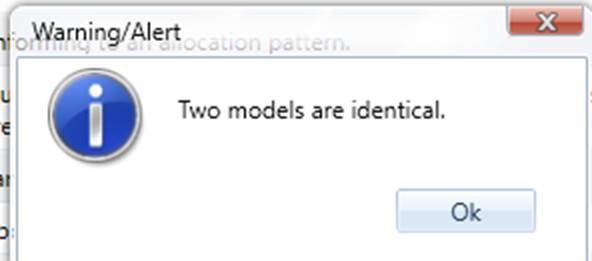
To avoid confusion, it is recommended to unload the “seed” model from the tree view after Model Depository initialization.
Loading Model Administration Meta-Model
Model Administration Meta-Model is used for model administration. It is normally the first step to load the Model Administration Meta-Model into the workspace prior to any model administration work. To load the Model Administration Meta-Model,
- Right-mouse-click a blank spot in the tree panel to invoke the global context menu. Select Model Management->File-Based->Load Model Admin from the global context menu.
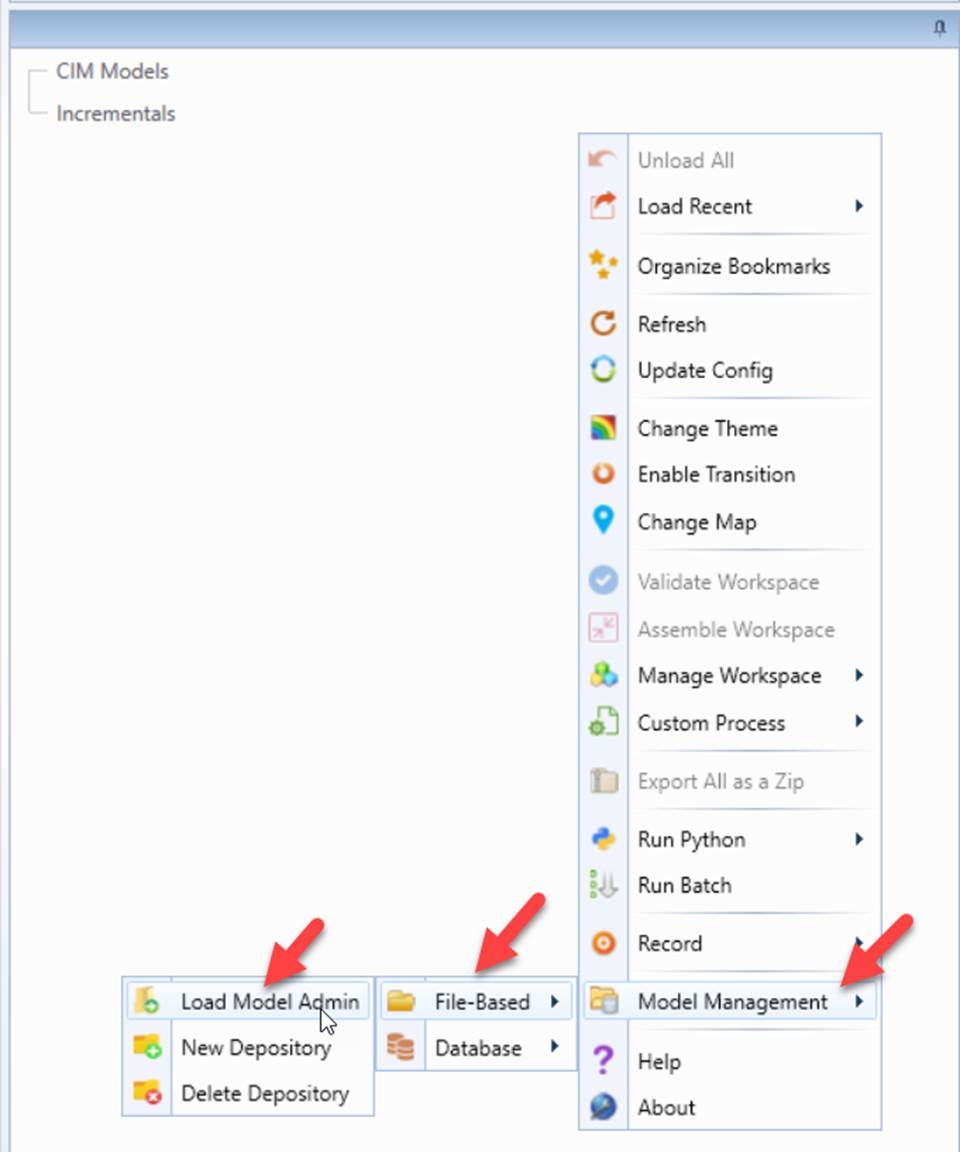
\ \
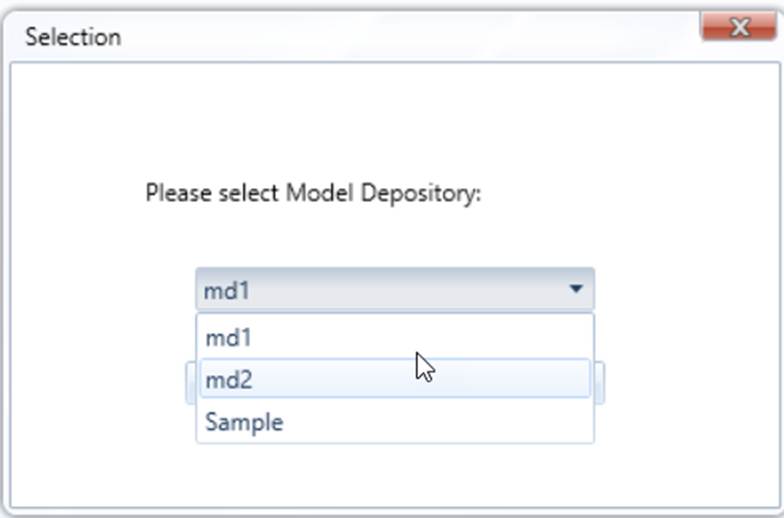
- Select the Model Depository from dropdown listing all of the existing Model Depositories.
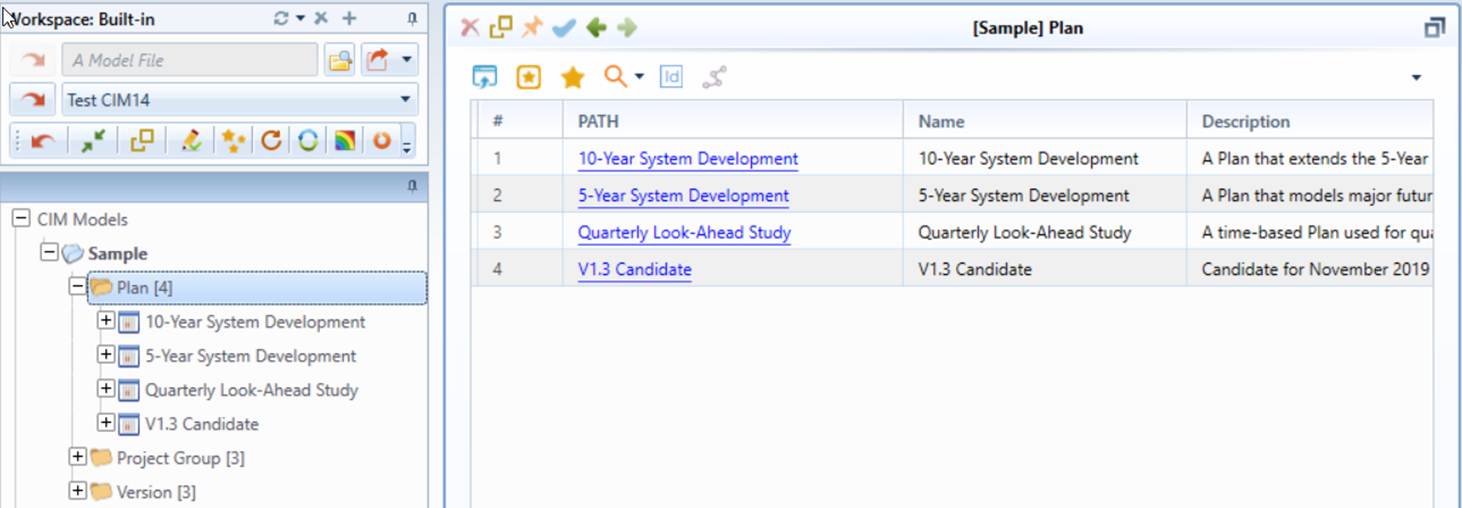
- The selected Model Administration Meta-Model will be loaded into the workspace.
To facilitate loading of Model Administration Meta-Model, a Data Source can be defined in \config\CustomConfig.xml, as illustrated below.

- name: Data Source name to be displayed in UI.
- type: M3_FILE means file-based Model Administration Meta-Model.
- location: Model Depository name.
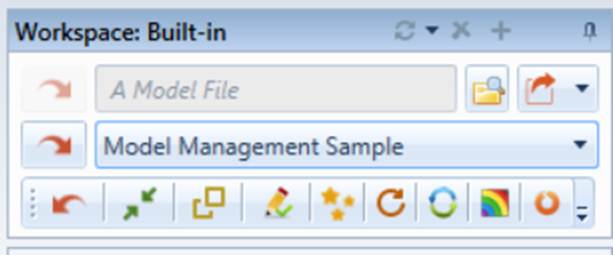
Once the above Data Source is defined, users can load the Model Administration Meta-Model from the Data Source dropdown list in the UI, as shown below.
Deleting a Model Depository
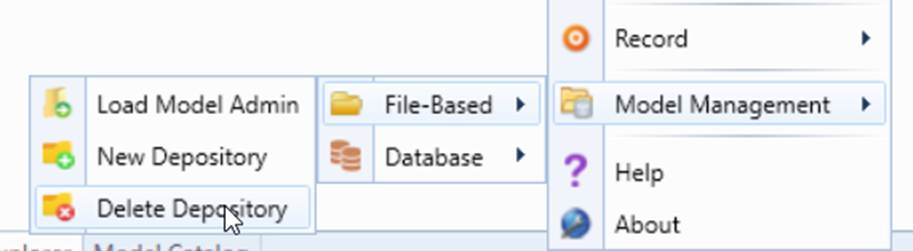
Unused Model Depository can be deleted as illustrated below.
Model Depository Configurations
The default Model Depository configurations are defined in the standard configuration file, i.e. config\StandardConfig.xml.
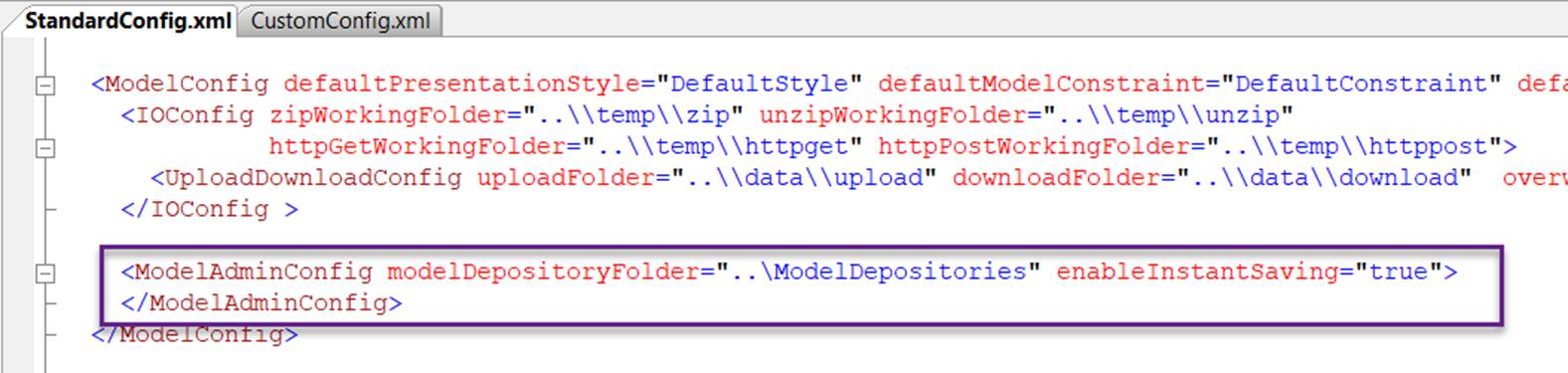
- modelDepositoryFolder: the root directory (folder) of all Model Depositories. This configuration enables users to move Model Depositories to a shared driver so that it can be shared by multiple users.
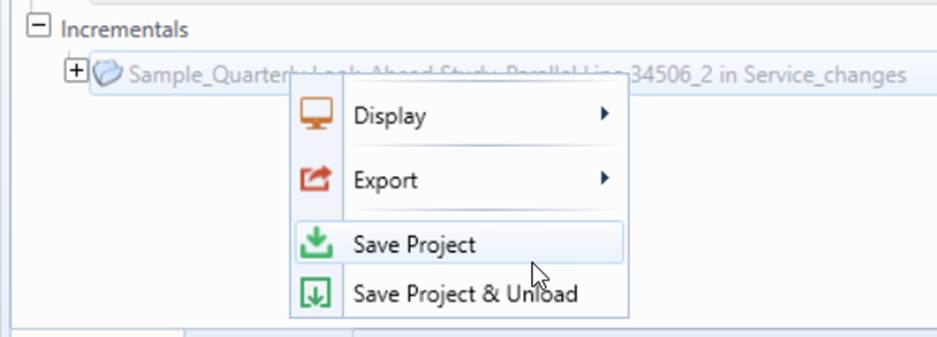
- enableInstantSaving: if true, model changes of connected models will be instantly saved to its Model Depository. If false, users must explicit save model Projects during Project editing.
Users can change these configurations by overwriting these configuration parameters in config\CustomConfig.xml.