Dynamical Interaction & Navigation
Built as a data-driven application, the Tool is aimed to provide an interactive environment to support the exploratory data analysis. Based on the data characteristics, various navigation and interaction mechanisms are dynamically created to facilitate the information seeking and interpretation. Two of the major techniques are described as follows:
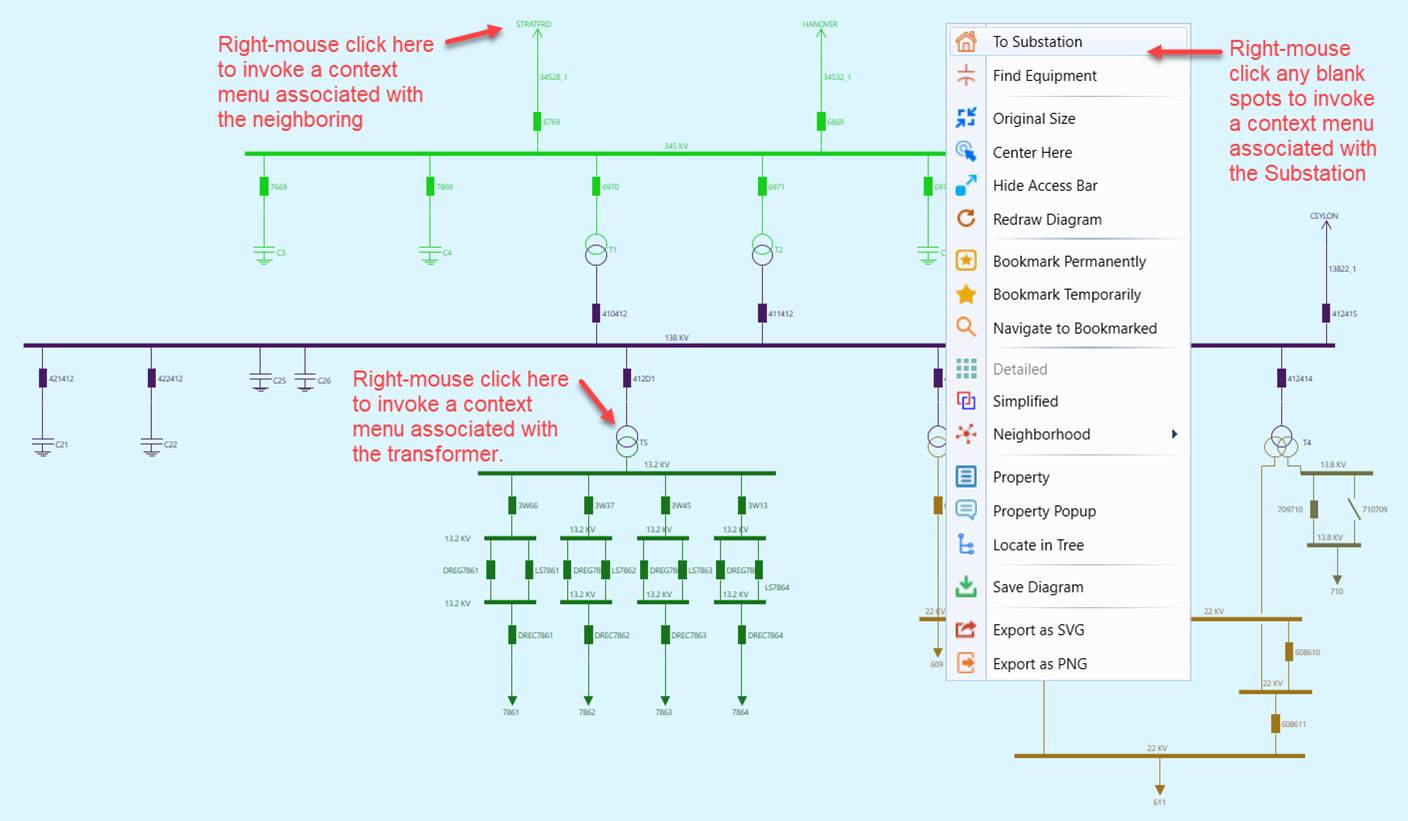
- Context Menu – Widely used to invoke a command associated with a diagram display or a graphical symbol. For example, the following screenshot illustrates the context menu associated with a Substation Diagram and the action items grouped in the menu.
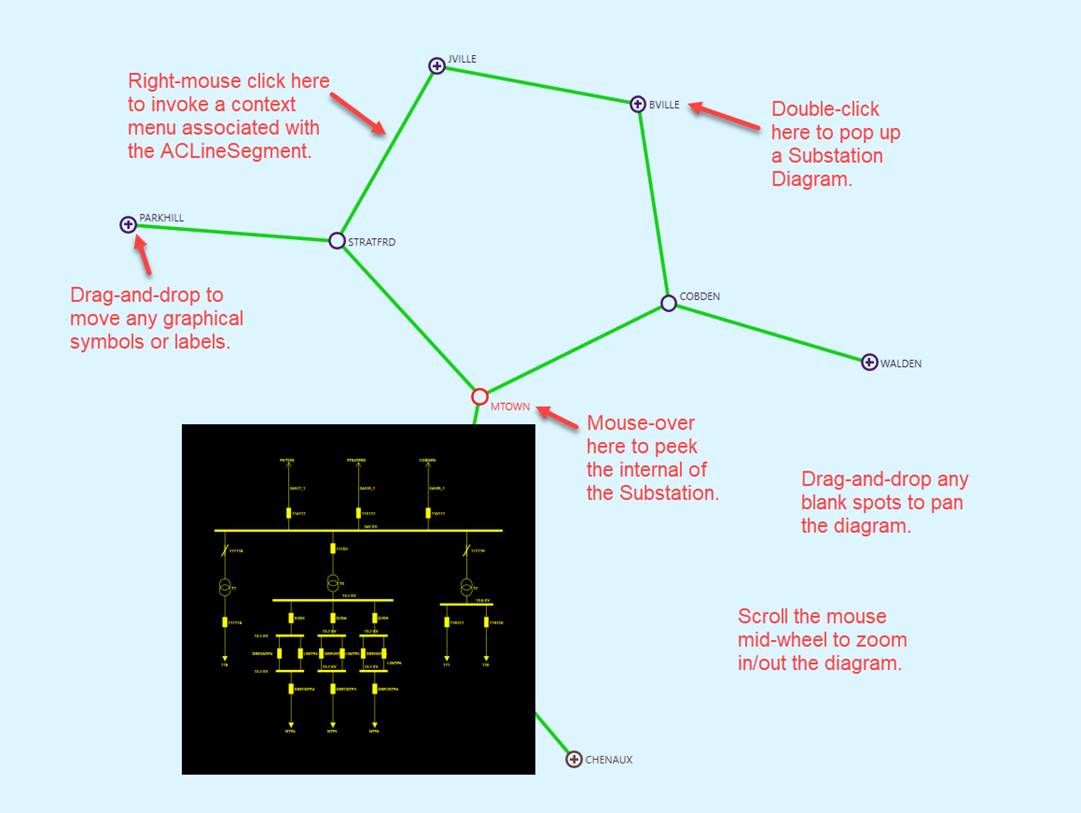
- Mouse Activity – Various types of mouse activities, such as left/right mouse clicking, mid-wheel scrolling, double-clicking, mouse-over, dragging-and-dropping, are used to facilitate navigation and interaction. In a Neighborhood Diagram, for example, users can quickly peek the neighboring substation diagram by moving the mouse over (mouse-over) the graphical symbol representing the neighboring substation. An animated popup will display the neighboring station diagram. Users can also navigate to the neighboring station diagram by simply double-clicking the graphical symbol representing the neighboring substation or invoking a context menu via right-mouse clicking on the selected neighboring substation symbol. The following screenshot illustrates some of the mouse activities supported in a Neighborhood Diagram.
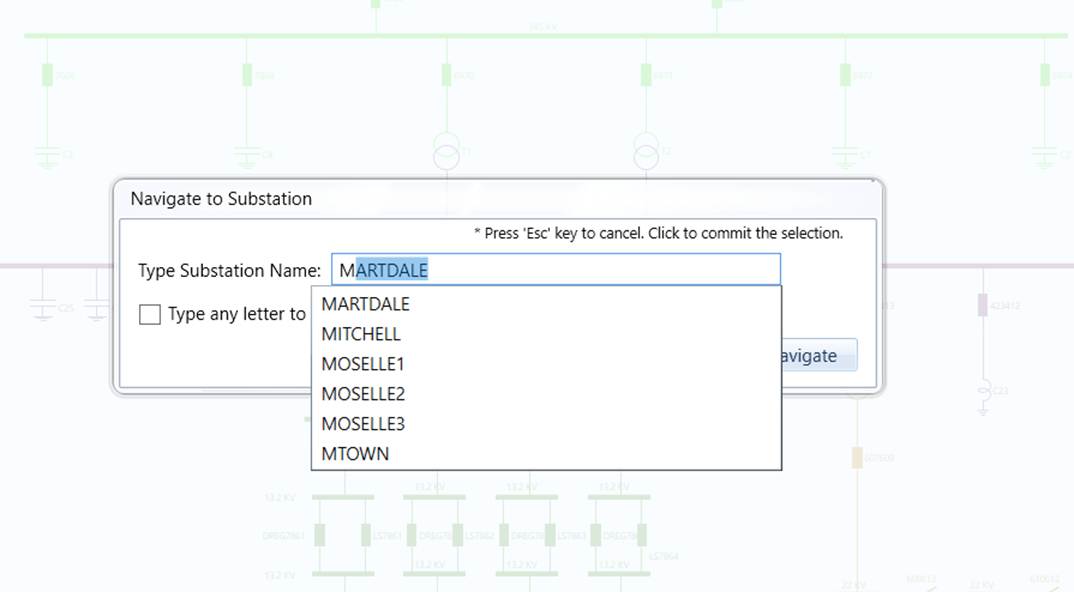
- Navigation Wizard – The Tool provides a wizard to facilitate navigation to a Substation Diagram. Users can invoke this wizard by right-mouse-clicking any blank spots and selecting the “To Substation” context menu item. An edit box will appear, prompting users to enter the substation names. While users type the names of substation, the tool will search for any substations whose names partially match the typed string and list them as hints for users to select. Typically, after users enter 2 or 3 characters, they can find the target substation from the hint list. Once finding the substation from the hint list, users can quickly navigate to the selected substation by clicking the “Navigate” button. If the entered string doesn’t match any of the substation names, the “Navigate” button will not be enabled.