Deleting a Modeling Entity
Users can delete model entities via the context menu associated with graphical symbols/labels
Deleting an Equipment
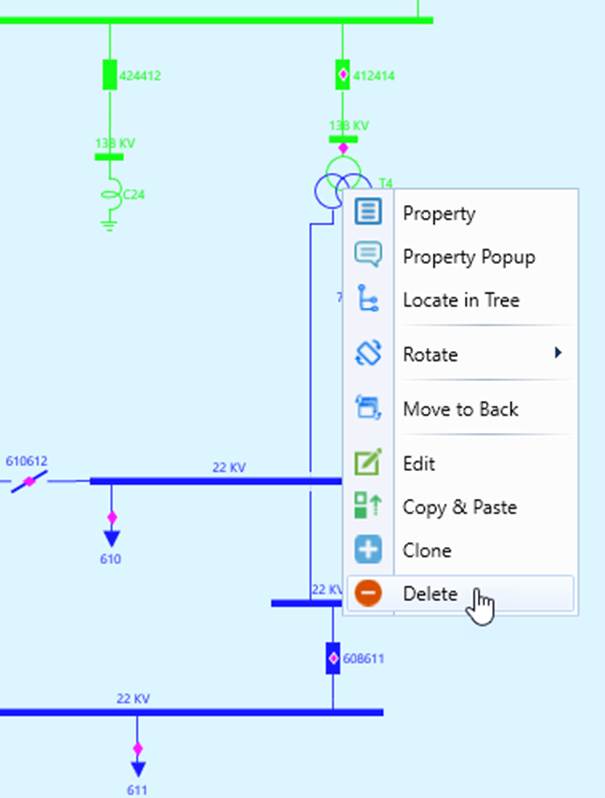
- In a graphical modeling environment, where typically a detailed Substation Diagram is displayed in Edit model, right-mouse-click the graphical symbol/label representing the modeling entity to be deleted. Click “Delete” in the menu as demonstrated below.
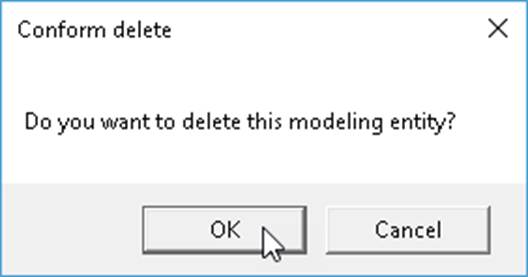
- Confirm the deletion.
- Once deleted, the selected Equipment modeling entity shall disappear from the diagram and the corresponding CIM objects shall be purged from the underlying data model. It is important to note that the Equipment deletion is a cascading-deletion. When an Equipment object is deleted, all of its child objects will be deleted from the model as well.
Deleting a ConnectivityNode
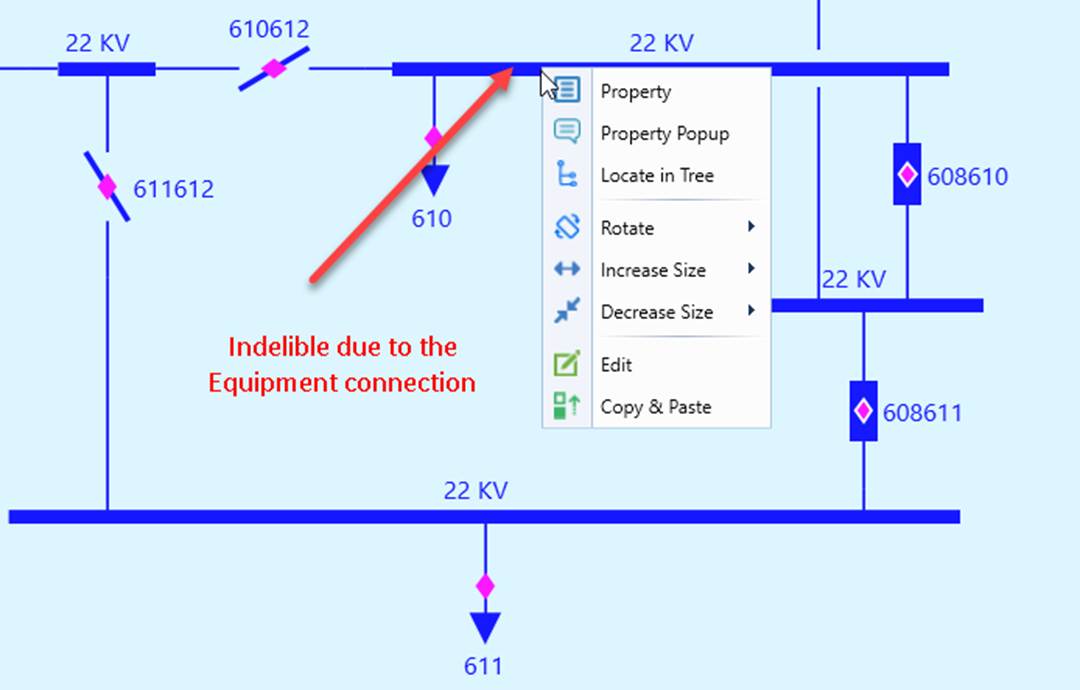
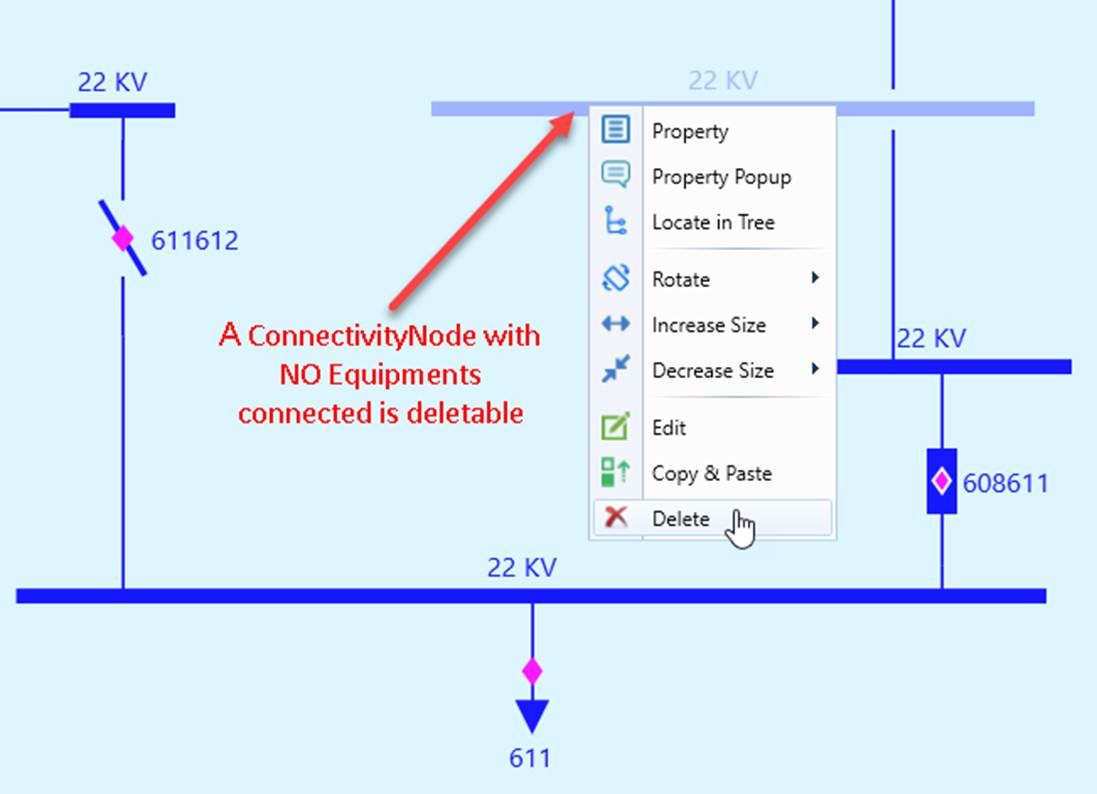
Deleting a ConnectivityNode is just like deleting Equipment, except that the ConnectivityNode can only be deleted if NO Equipment is connected to it, as illustrated below.
Deleting a Substation
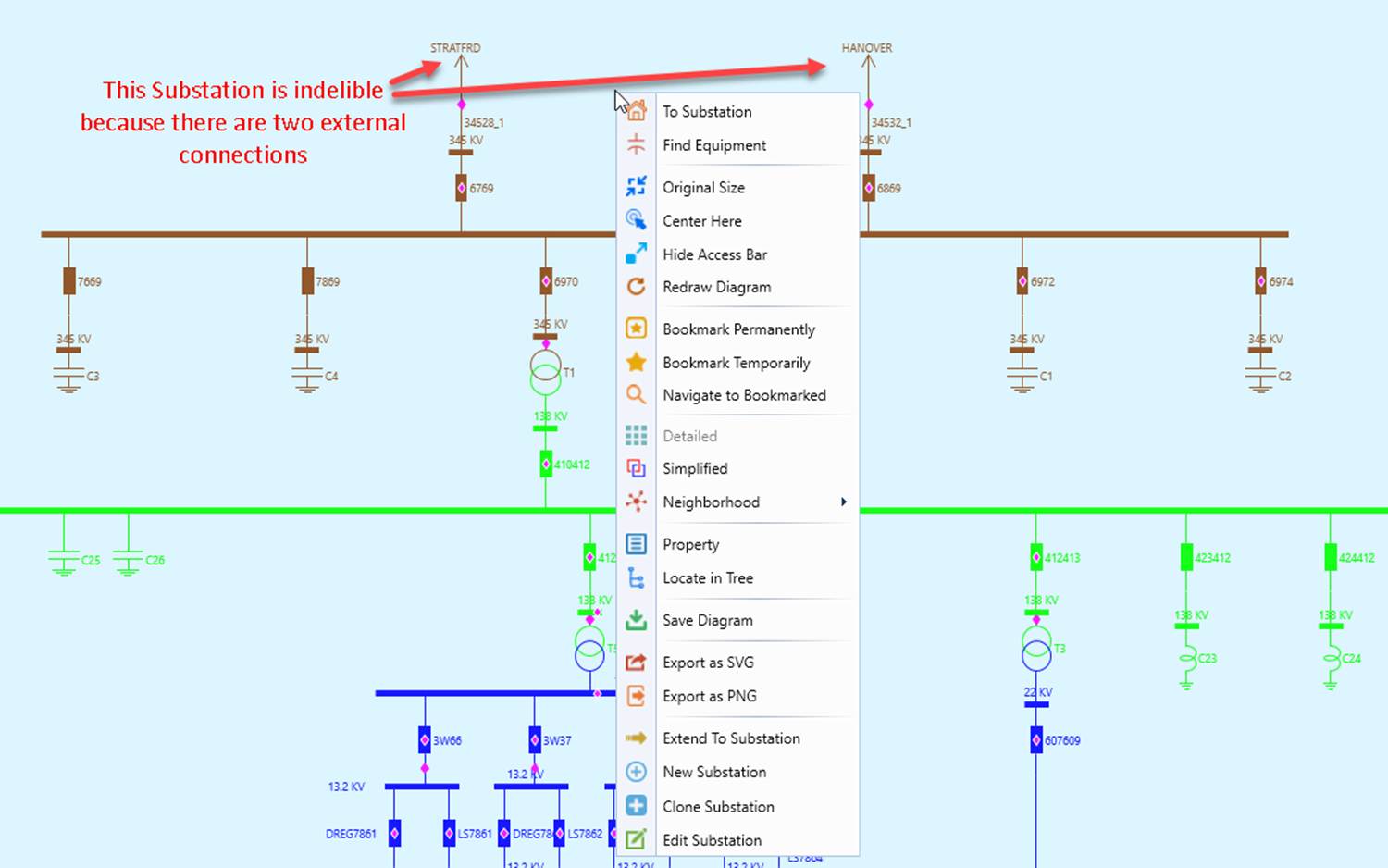
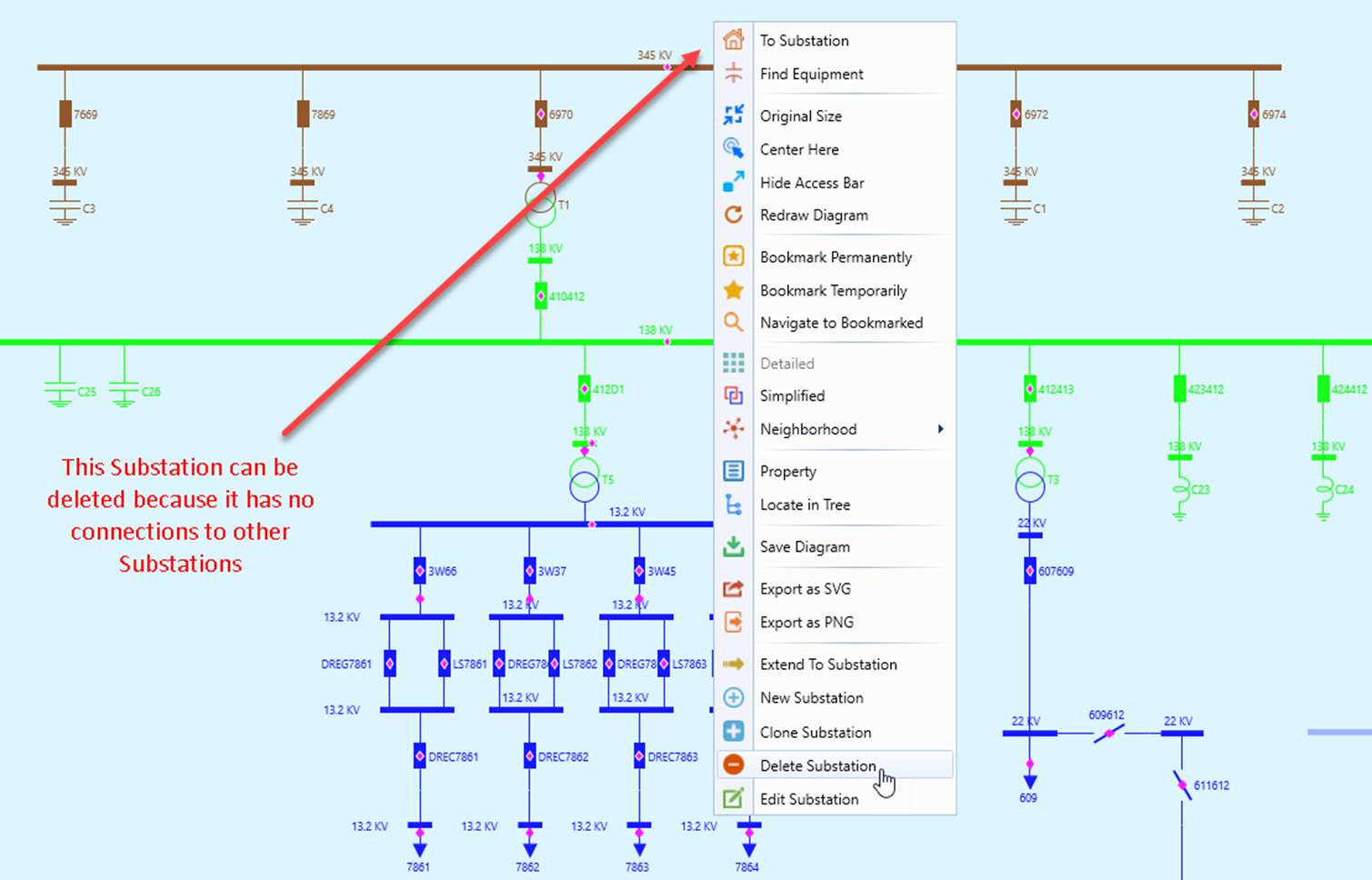
In graphical modeling environment, a Substation is typically indelible unless it has no connection to other Substations. Substation deletion prompts cascading deletion. When a Substation is deleted, all of its contained Equipment, Measurements, OperatingLimits, etc., will be deleted as well.
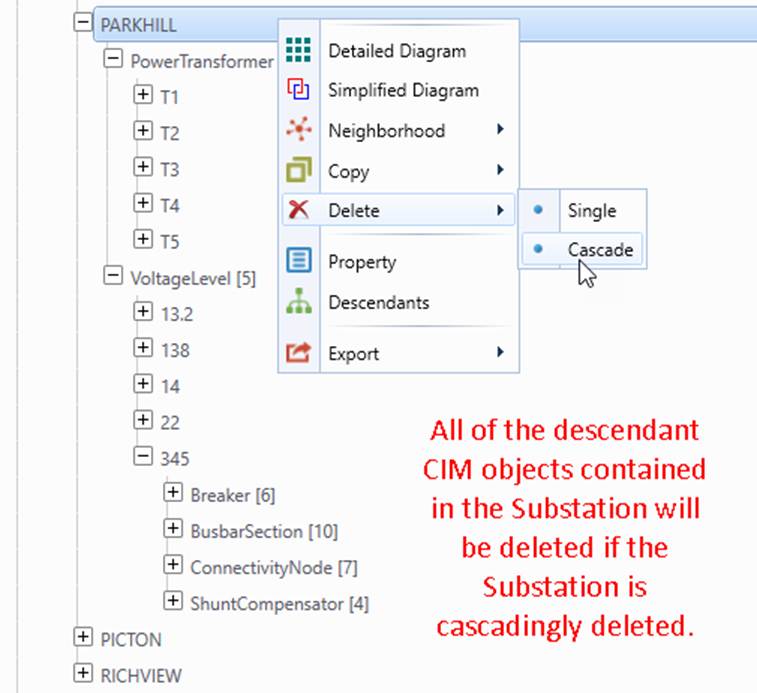
Substation can also be deleted from the navigation tree or the object form as illustrated. Note: both single deletion and cascading deletion are supported. In the latter case, any descendant CIM objects(i.e. VoltageLevels, Equipments, Measurements, and OperatingLimits) contained in a Substation will be deleted when the host Substation is deleted.
Deleting a Group
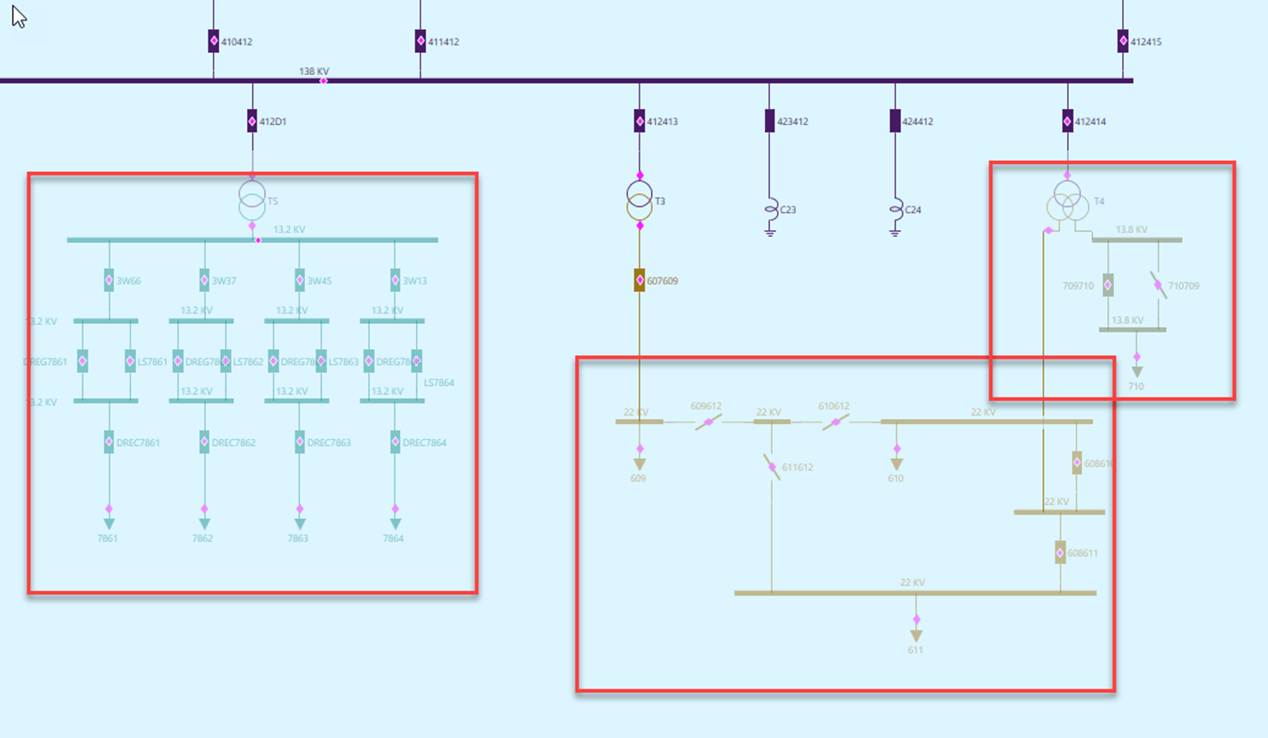
Interconnected network components can be grouped and deleted as a whole. To do so, users must first group the interconnected network components by using the right-mouse button to drag a group.
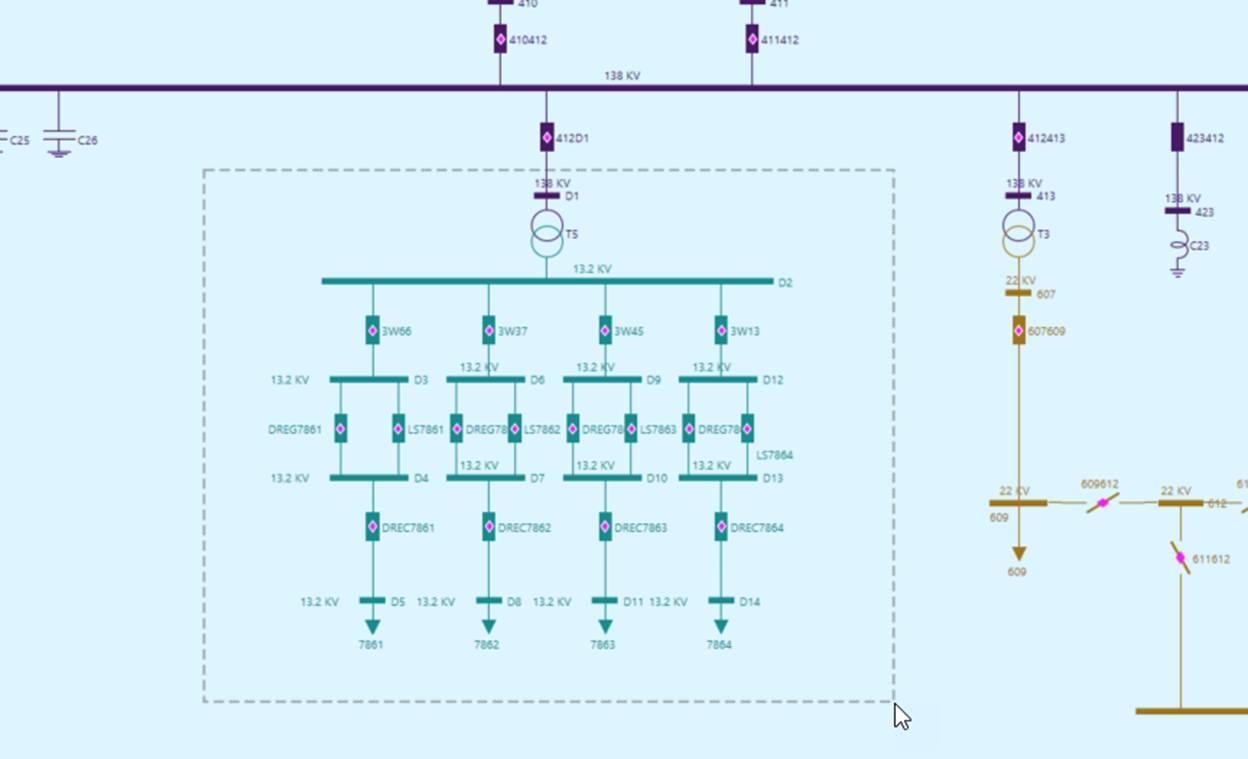
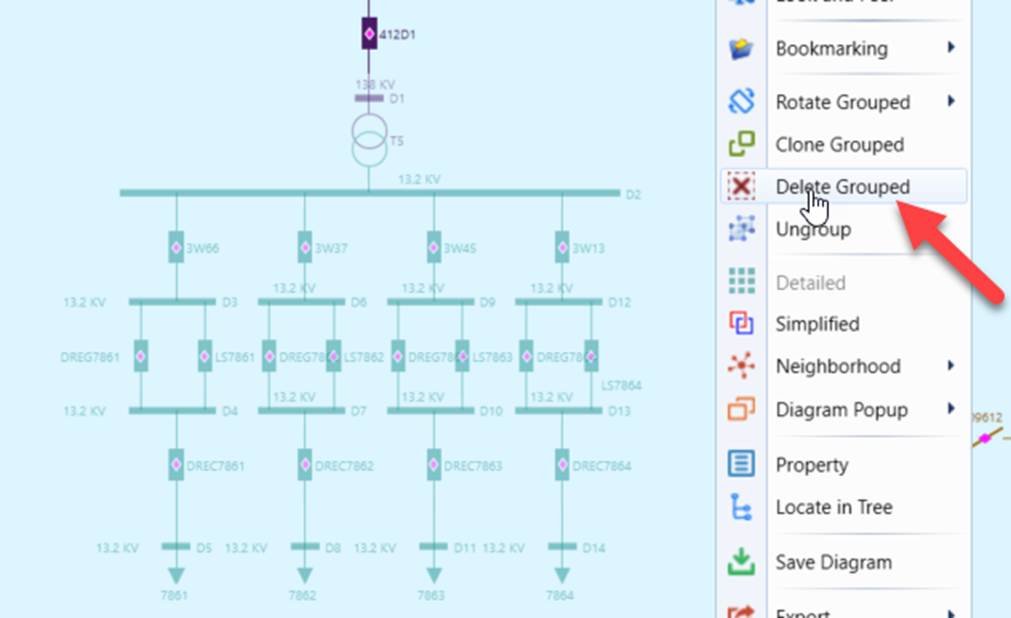
Once the right-mouse button is released, the grouped network components will become grayed. Then click a blank point to invoke the context menu and select “Delete Grouped”.
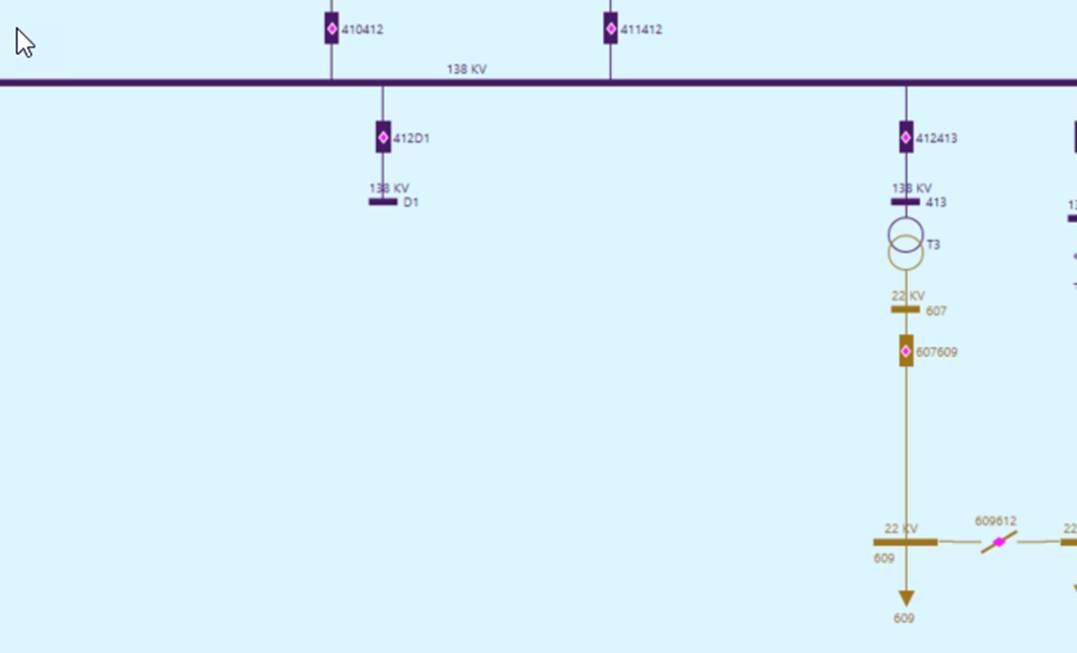
The network components will be deleted. Note: if a network component in the group is connected to ungrouped network components, it will not be deleted. For instance ConnectivityNode D1 is retained, because it is connected to Breaker 412D1 which is not included in the group.
By default, users can select one group for moving/rotation/deletion/cloning. To enable multi-grouping, users must explicitly enable it as one-time effort, as illustrated below.
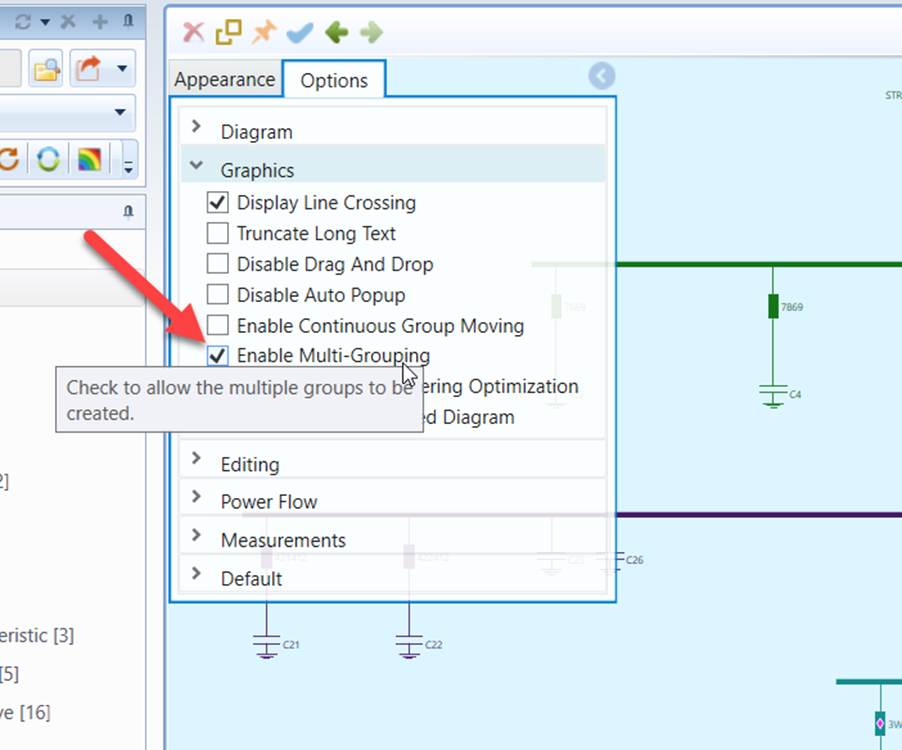
Once enabled, users can select multiple groups (using right mouse) for moving/rotation/deletion/cloning.