Power Flow Environment Setup
This article guide users to set up the environment required to run power flow.
Install Java
The power flow engine, i.e. BowSybl, is a Java application. It requires Java 17 or a later version to be installed. You machine may alreay have Java 17 or a later version installed. This can be found out by executing “java –version” command line from a Windows console, as illustrated below.

If Java 17 or a later version is not installed in your machine, you need install it. You can get the installation package from Java official site. For your convenience, the Tool comes also with an installation executable for Java SE Development Kit 17.0.9 (64-bit). It can be found at folder \3rdParty\Java\Version 17, as illustrated below.
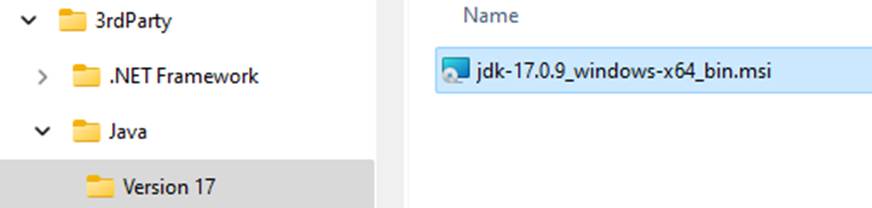
Java installation is straightforward. Simply follow the instructions to complete the installation process. Once the installation is completed, test the java environment again and confirm the Java version installed.
If Java is successfully installed, but not accessible from all of the folders/directories, it is most likely that the Path environment variable doesn’t contain the java path. The issue can be fixed by adding the java path to the Path environment variable, as illustrated below.
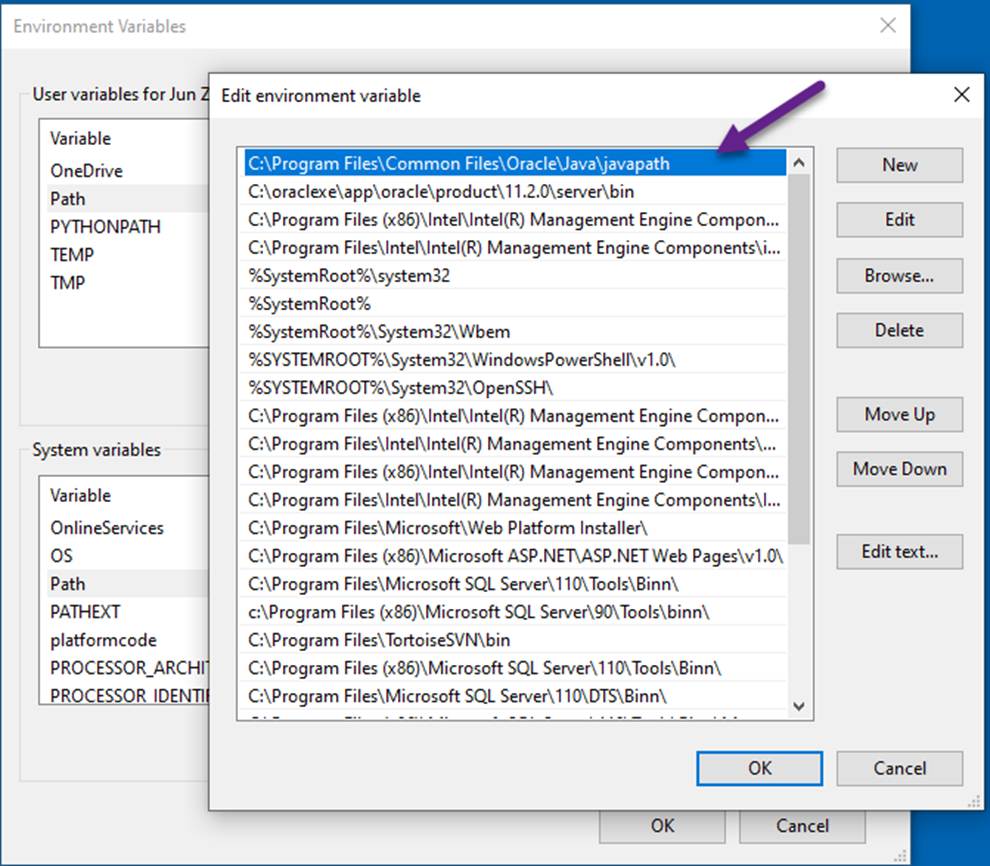
Test PowSybl
Once the Java environment is ready, test PowSyBl by executing “Run test” from folder \powerflow in a Windows console, as illustrated below.

If successful, the following shall be displayed.
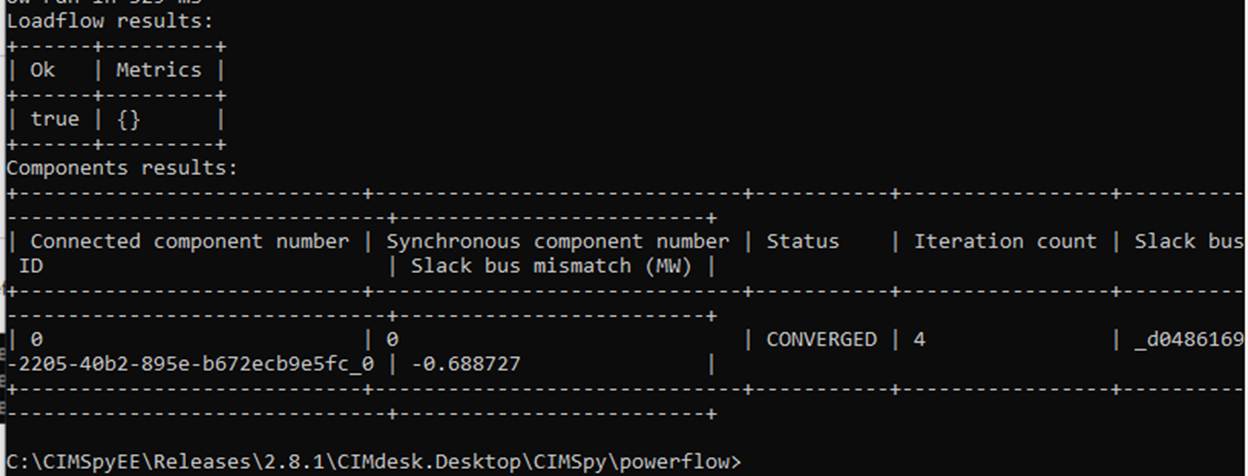
Also a new file called output.xiidm shall be generated in folder \powerflow\cases\test, as illustrated below,

Test the Power Flow Function in the Tool
- Start the Tool, and then load model SmallGrid CGMES 2.4.15 (CIM16) from the data source dropdown, as illustrated below.
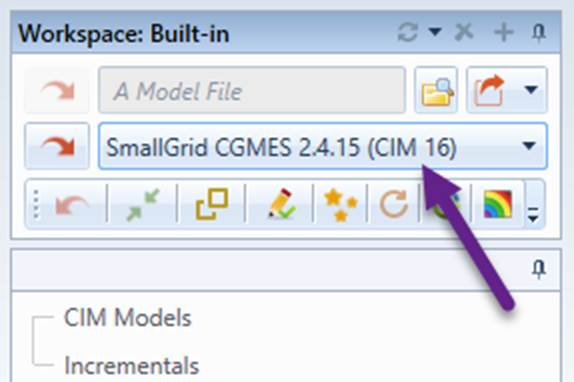
- Once the model is loaded, a geographical diagram is displayed. Execute the power flow by clicking the power flow command icon, as illustrated below. Note: if the Tool was started before Java was installed, you need restart it.
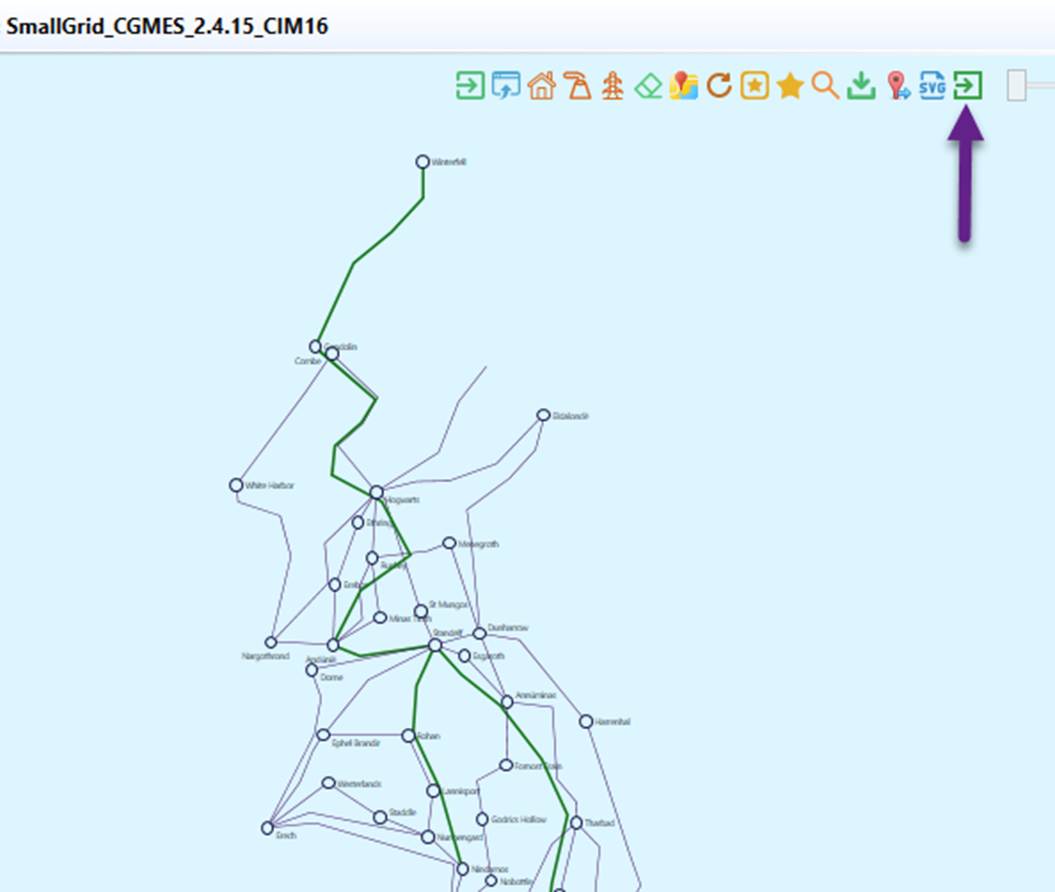
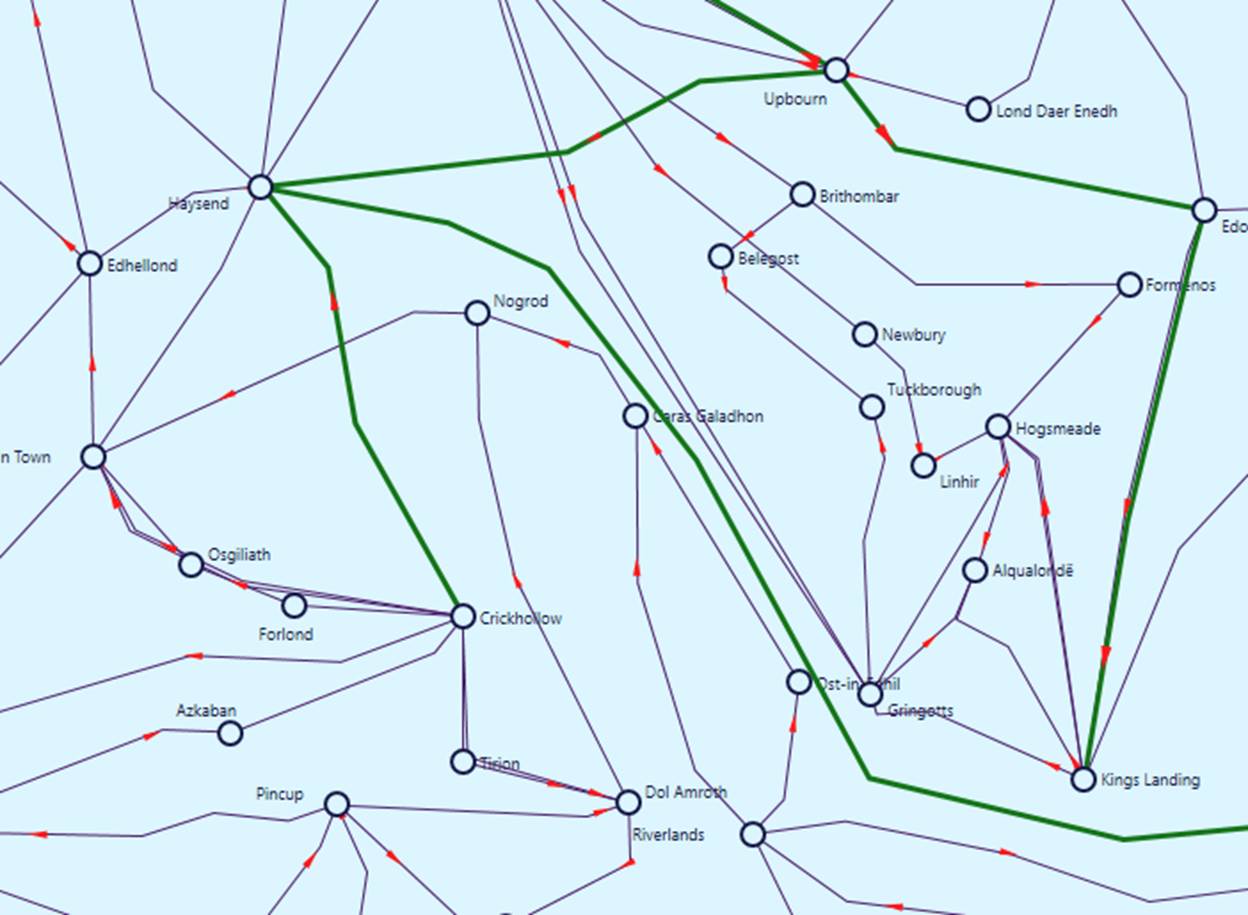
- If execution successful, you shall see the power flow animations in the geographical diagram. When you see red arrows are moving, congratulations! The power flow environment is successfully set up.
- Next Step: Hands-on by following Power Flow Tutorial.