Importing Self-Defined Models in CSV
The Tool enables users to import a self-defined model in CSV format. A comma-separated values (CSV) file is a delimited text file that uses a comma to separate values. Each line of the file is a data record. Each record consists of one or more fields, separated by commas. A CSV file typically stores tabular data (numbers and text) in plain text.
The self-defined models can be contained in:
- Multi CSV: where each type of records is stored in a CSV file. All of the CSV files are stored in the same folder.
- Single CSV: where all types of records are contained in a single CSV file.
Once the self-defined model is loaded into the workspace, it is converted to a RDF-compliant internal data model. Most of the supported functions, including model browsing, editing, validation, comparison, reporting, transformation, etc., are enabled.
A test model, referred to as Distribution Network Object Model (DNOM), is used as a sample throughout this article. This test model is derived from 342-Node Low Voltage Network Test System, an IEEE PES Test Feeder (https://cmte.ieee.org/pes-testfeeders/resources/). Only primary circuit of the test model is retained. The DNOM files, in both single CSV and multi CSV formats, can be found in folder \TestCases\csv.
Hands-On
- Initiate Multi CSV import via context menu CIM Models→Import→Multi CSV.
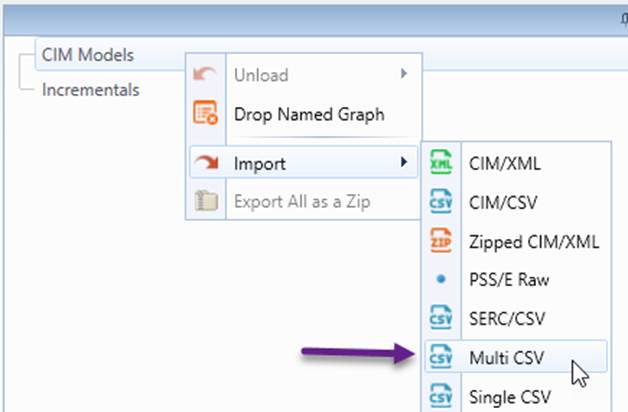
- Select folder ..\TestCases\csv\DNOM.
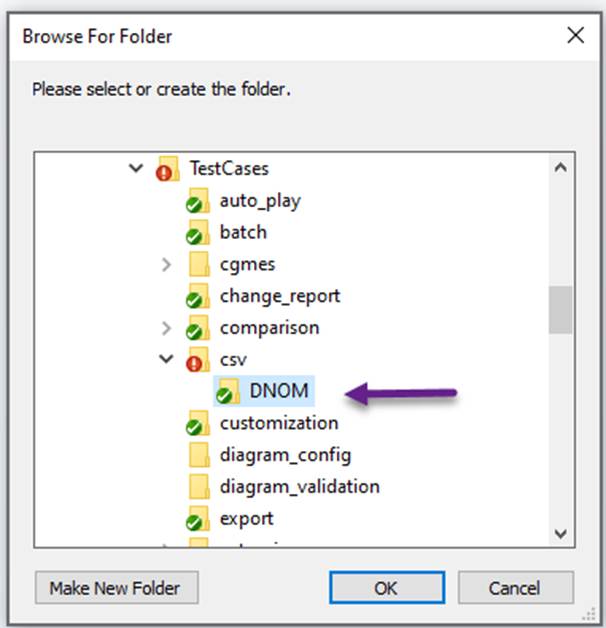
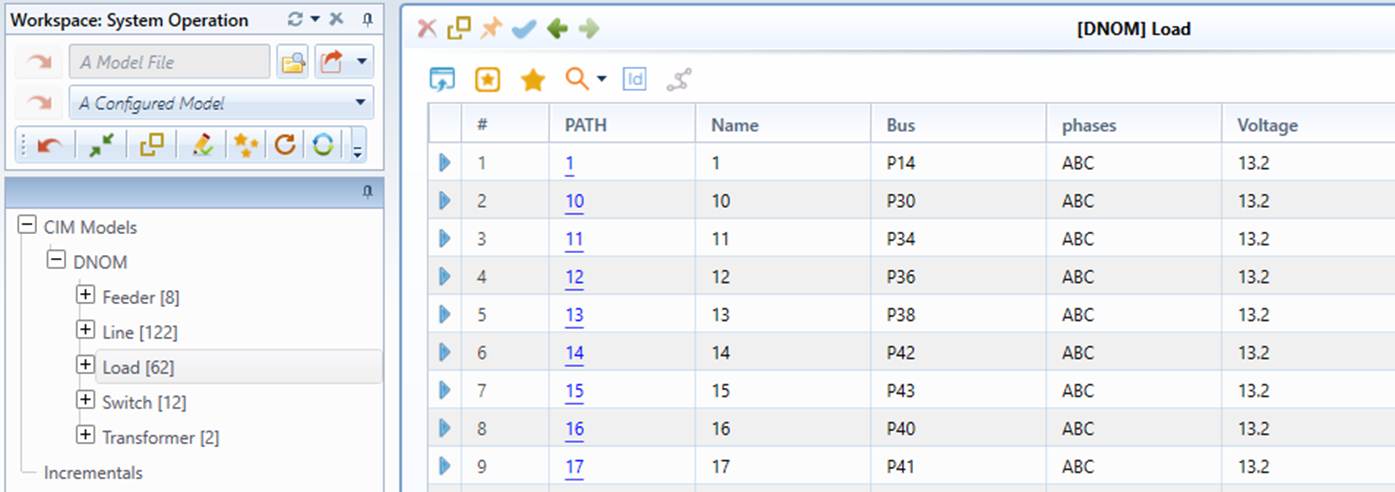
- Browse the loaded model.
- Initiate Single CSV import via context menu CIM Models→Import→Single CSV.
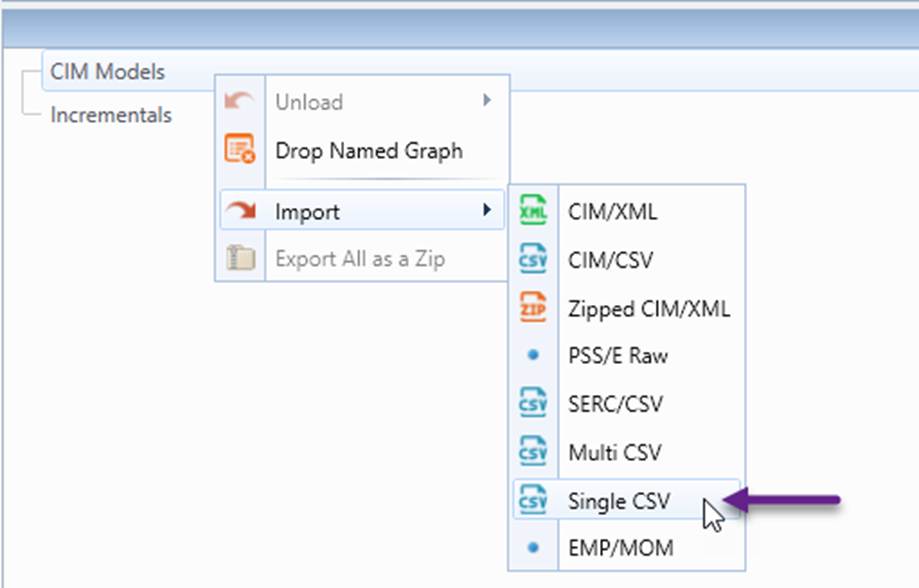
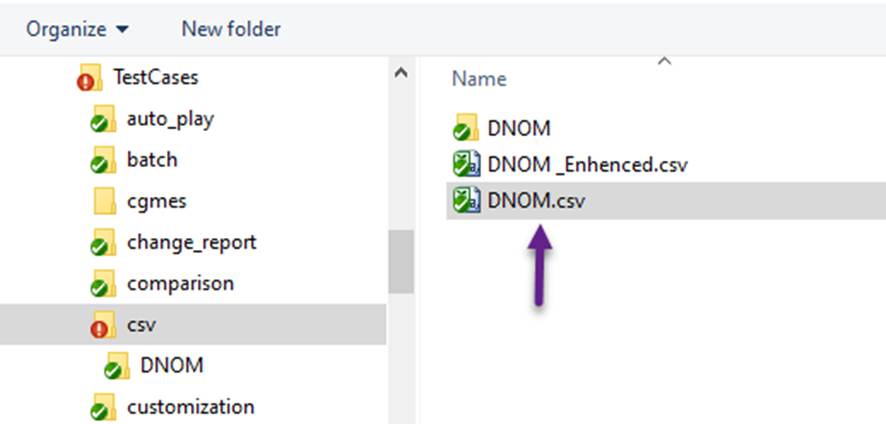
- Select file ..\TestCases\csv\DNOM.csv
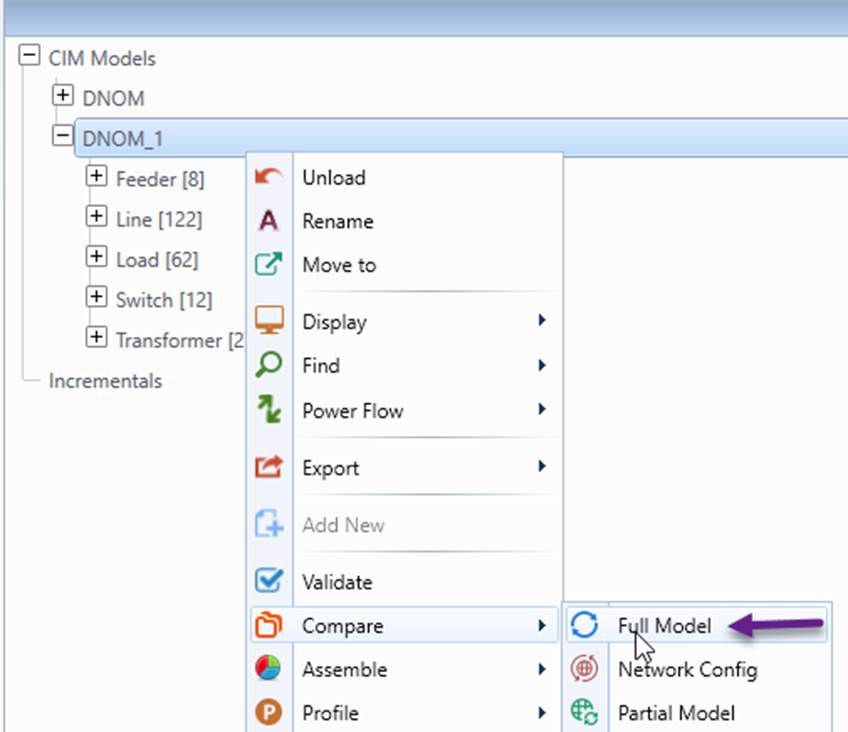
- Compare the loaded model with the one previously loaded in Step 3.
Model Profile Definition
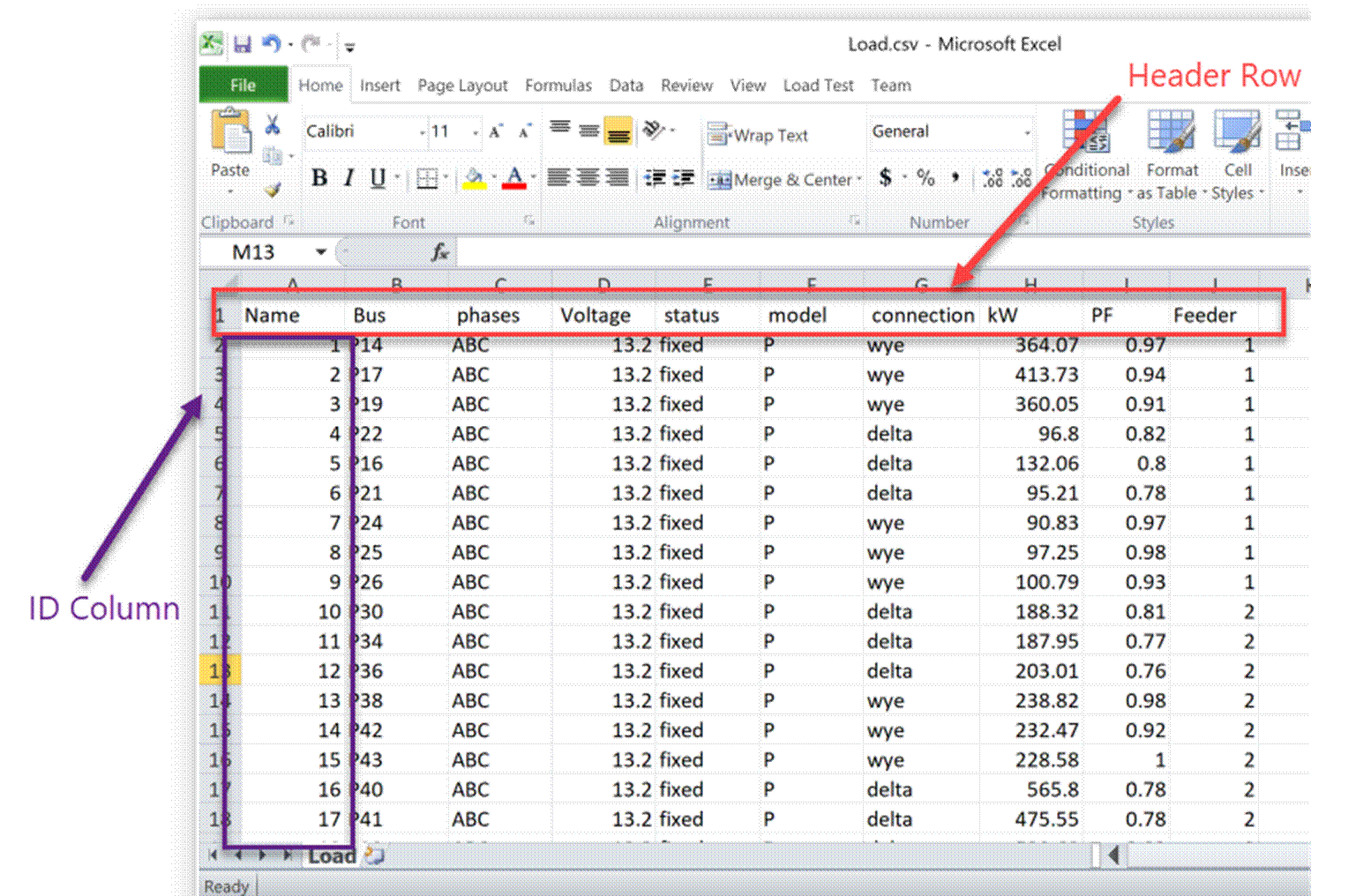
In a self-defined CSV model file, the header row is used to define the fields of a record,.
For a single-CSV model file, the following rules shall be followed:
- The file name is record type. For example, the record type of Load,.csv is Load.
- The first row (i.e. header row) defines fields.
- Each record type name and field name shall be a valid XML name, i.e. a single word not starting with numeric or containing special characters, such as %, ?, !, etc.
- Record type and field names can’t be duplicate.
- Any column without a field name defined will be ignored.
- By default, the first column is used as ID Column. The ID values shall be unique among all of records of the same type. If this requirement can’t be satisfied. Users shall customize profile definition as described in the next section.
The sample of a single-CSV model can be found under folder \TestCases\csv\DNOM.
For a multi-CSV model file, the following rules shall be followed:
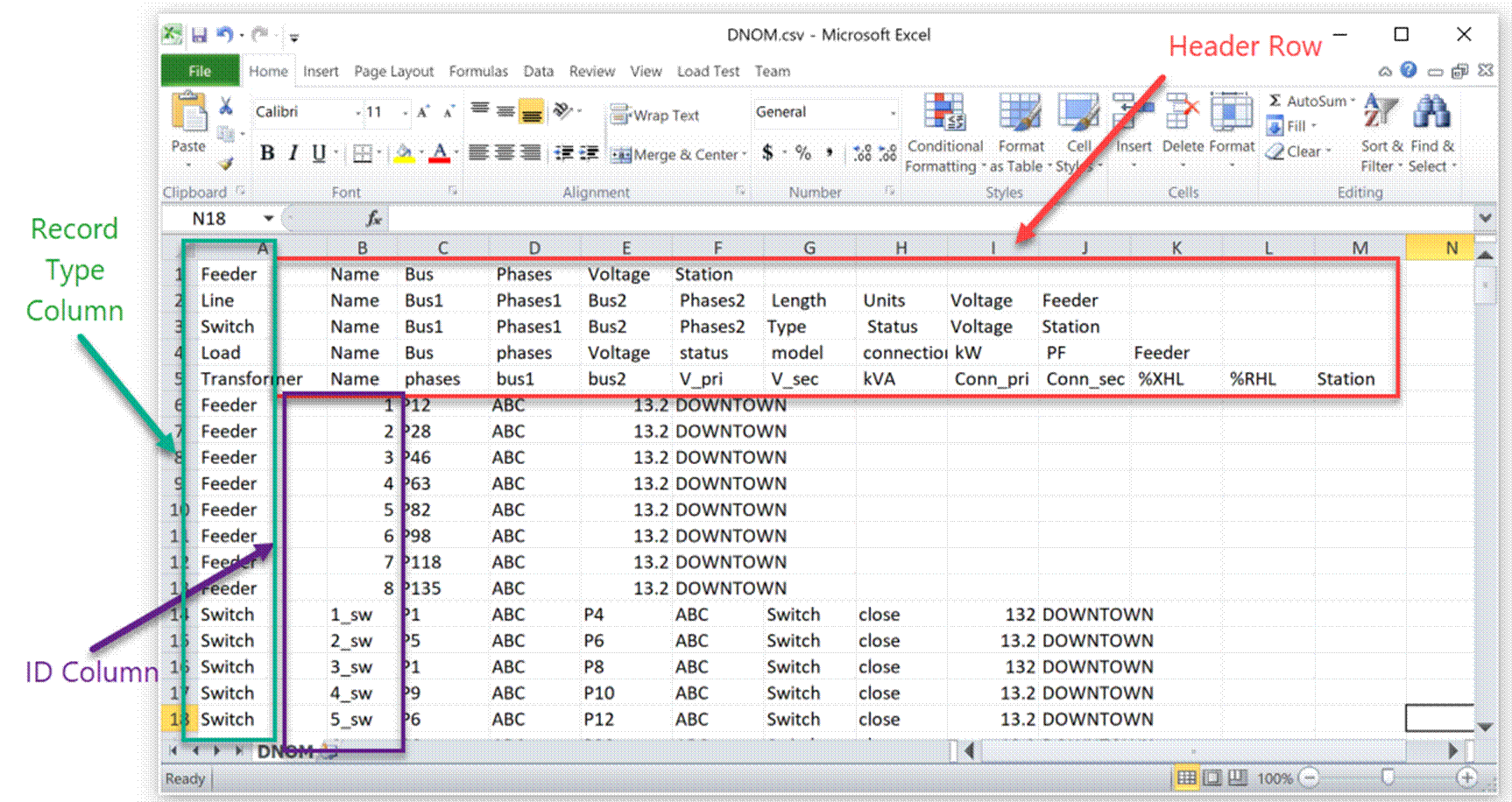
- The first column is reserved for record type. Each row must have a record type.
- The first row with a different record type serves as header row for the type of record.
- Each record type name and field name shall be a valid XML name, i.e. a single word not starting with numeric or containing special characters, such as %, ?, !, etc.
- Record type names and field names can’t be duplicate.
- Any column without a field name defined will be ignored.
- By default, the second column or none-header row is used as ID Column. The ID values shall be unique among all of records of the same type. If this requirement can’t be satisfied. Users shall customize profile definition as described in the next section.
The sample of multi-CSV model files can be found under folder \TestCases\csv\DNOM.
Extension of Model Profile with XSD Declarations
Once a self-defined CSV model is loaded into the workspace, it will be converted to a RDF-compliant model where record type is converted to a class and fields are converted to properties. The Tool infers a governing profile for the loaded model. However there are some limitations:
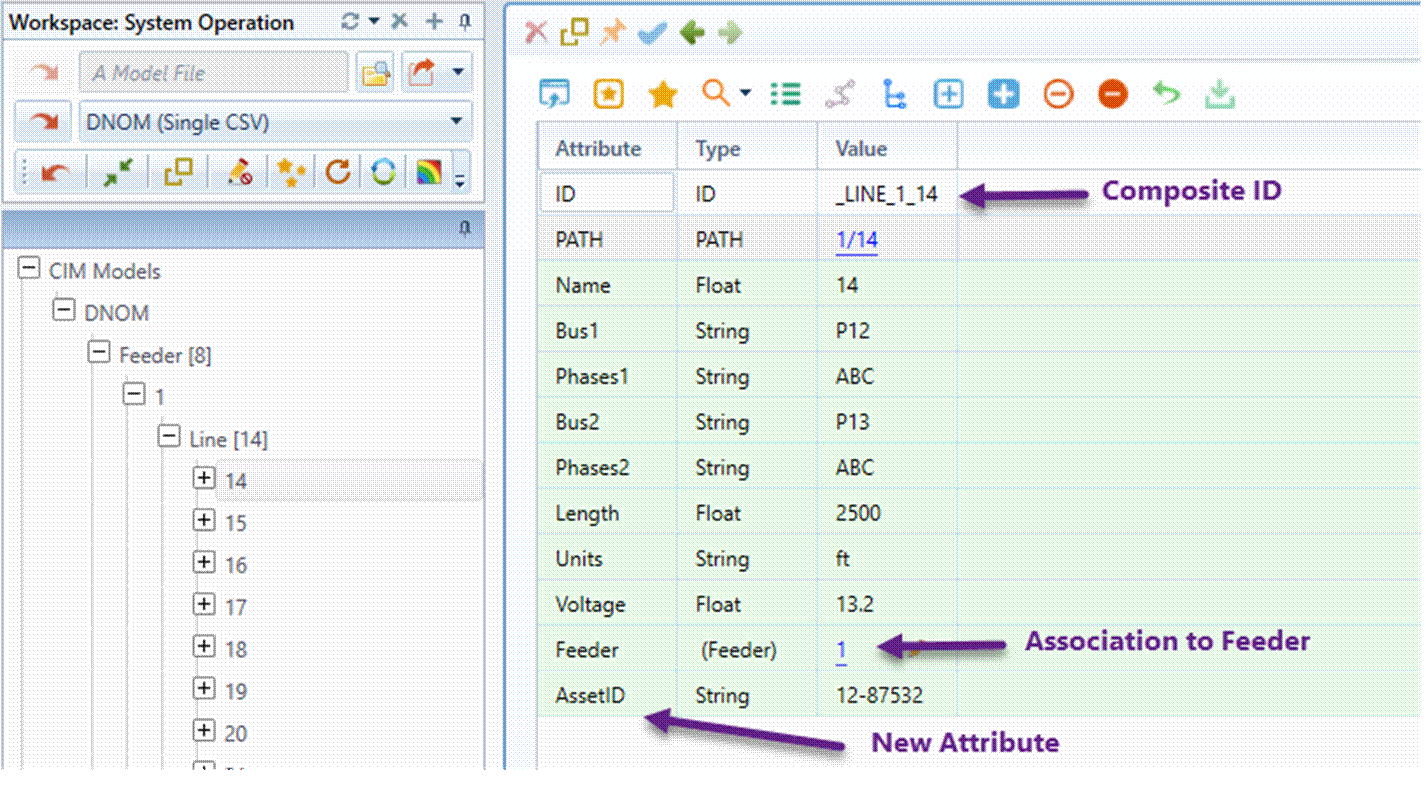
- An ID column may not exist. In many cases, the ID of a record can be only constructed with more than one field of a record. Such an ID is called composite ID.
- All of the fields are attributes. There are no ways to define cross-record references, referred to as association fields.
- The inferred data types may not be accurate.
- Modeling restrictions and validation rules can’t be declared.
- …
To overcome these limitations, users can extend/overwrite the inferred model profile with an XSD-based model extension definition. The following illustrates how the Line record definition is augmented with XSD extensions.
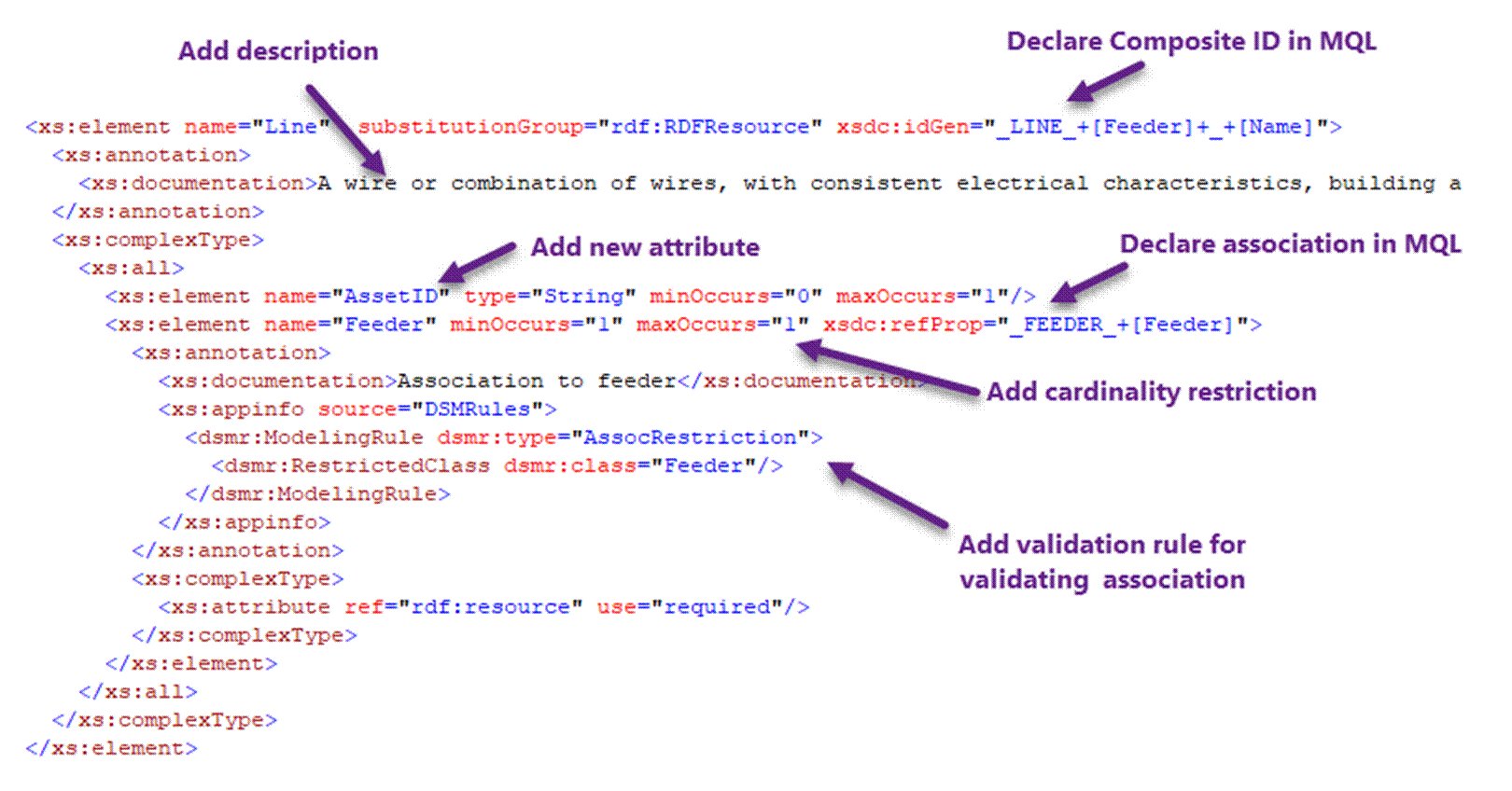
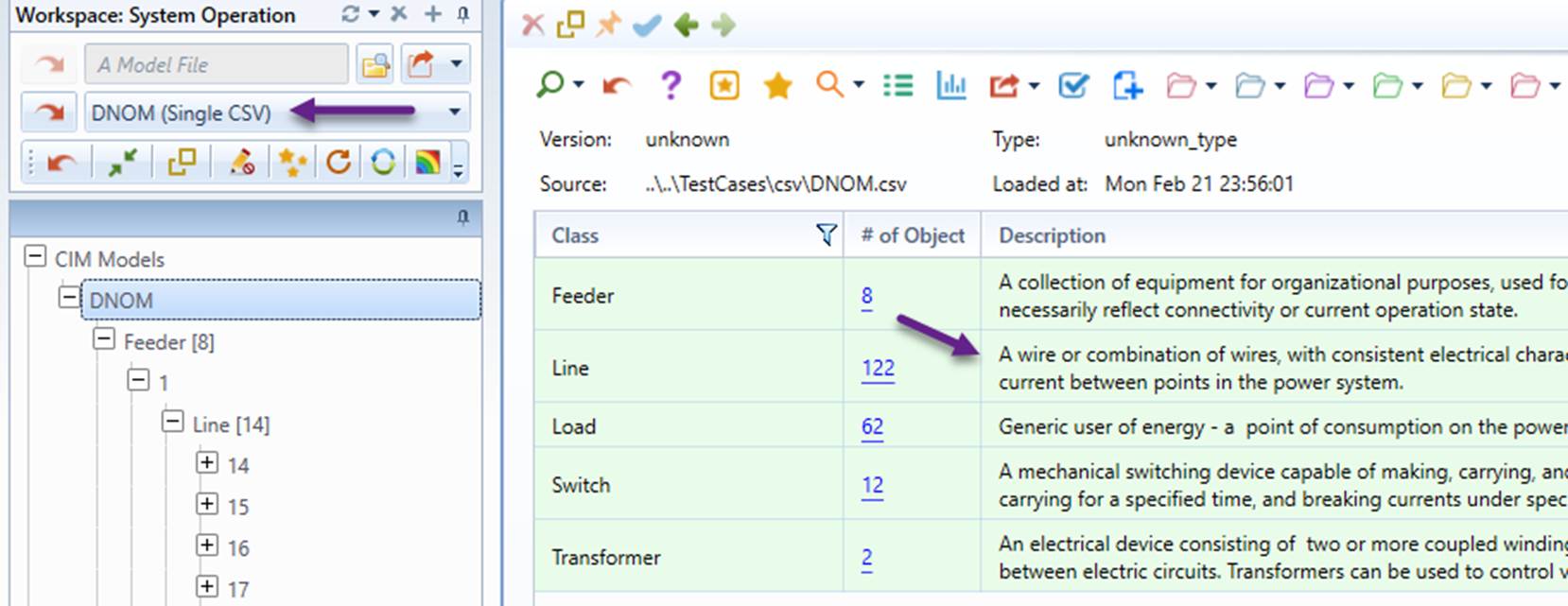
A sample of such an extension profile can be found at \TestCases\csv\DNOM.xsd. To apply the extended profile to the loaded model, a data source must be defined, as illustrated below.

Once the data source is defined, the self-defined CSV model can be loaded from the data source dropdown, with extension profile enforced, as demonstrated below.
Extension of Model Profile with Enhanced Header Definition
Among different kinds of extensions, the most important are composite ID and association specifications. Such extensions can be easily declared with enhanced header definition where
- ID Column is enhanced with a MQL string defining how a composite ID shall be created. The name of ID column and the MQL string are separated by ‘|’.
- Field Columns can be enhanced with a MQL string defining how to convert the attribute to an association. The field column and the MQL string are separated by ‘|’.
A sample of enhanced header definition can be found at \TestCases\csv\DNOM _Enhenced.csv and illustrated below.

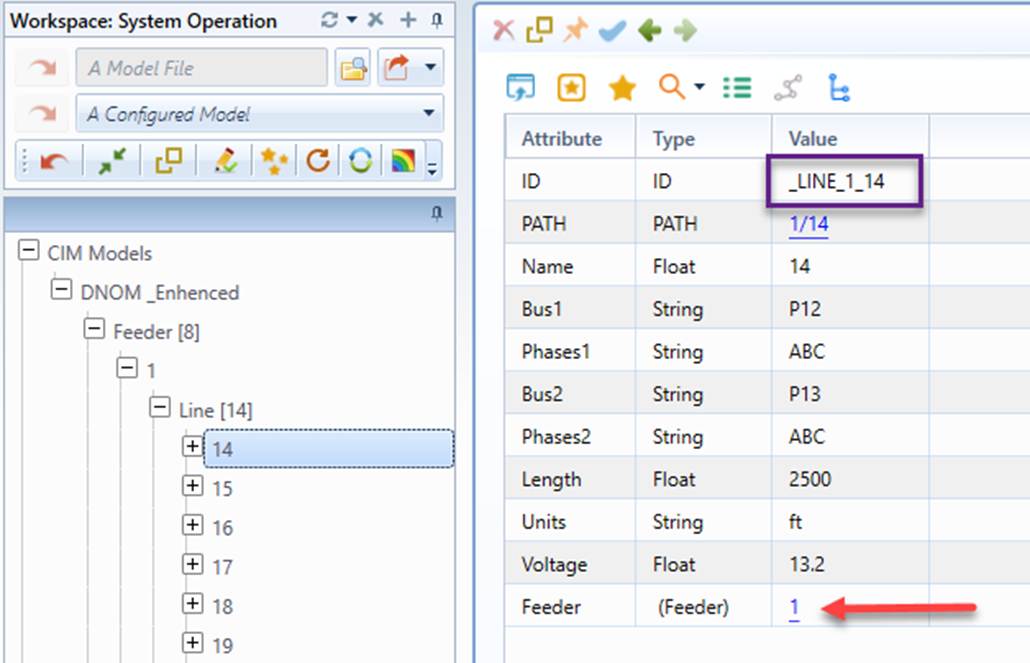
A self-defined CSV model with enhanced header definition can be loaded into workspace without requiring declaring a data source. When importing such a model into workspace, rdf:ID and associations are dynamically constructed based on the specified MQL strings, as demonstrated below.
In summary, this feature is introduced to simplify enhancement of model profile self-definition.
Conversion from Self-Defined to CIM
Most of the functionalities of the Tool are applicable for a self-defined model. One of the major supported use cases is Model Transformation. Users can load a self-defined model in CSV into workspace and convert it to a CIM-based model. A case study is conducted to demonstrate how MTF can be utilized to convert DNOM to a CIM-based distribution model conforming to GMDM profile.
.