Adding a Substation
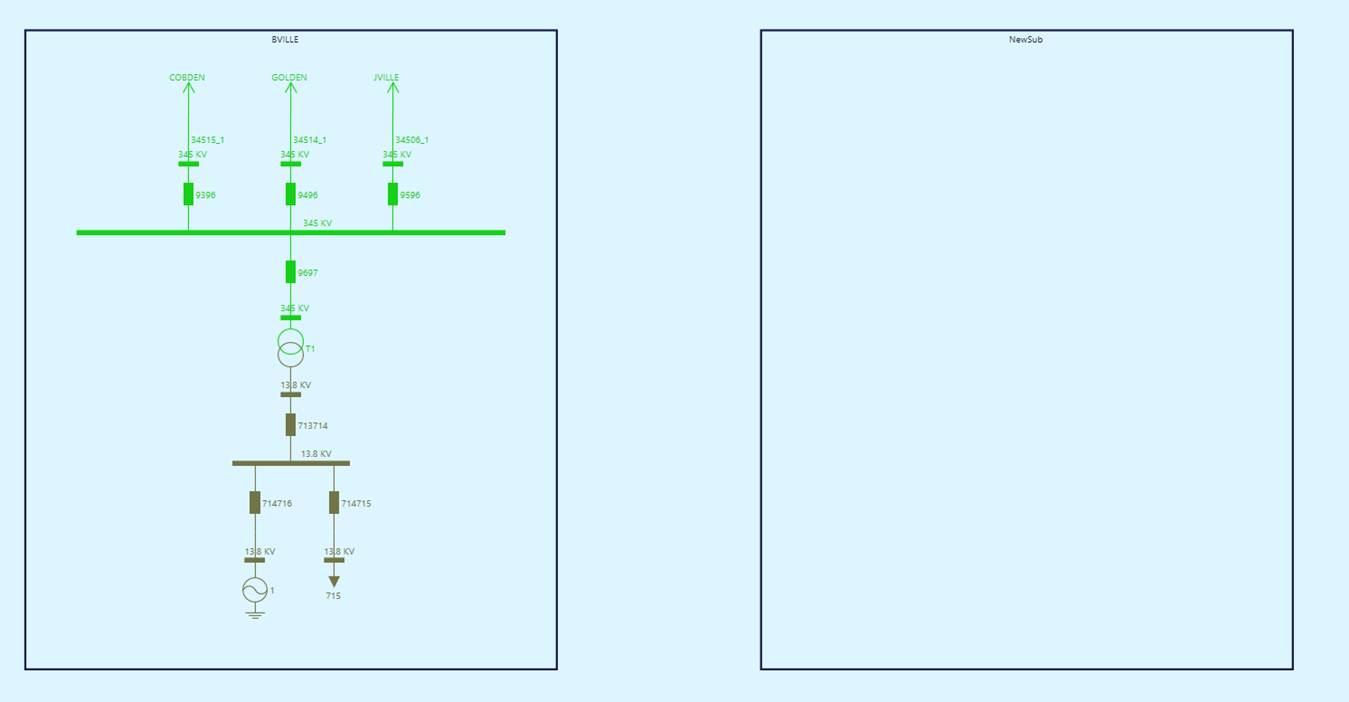
A Substation is a special type of graphical modeling entity. A Substation Diagram is where the graphical modeling activities are performed. In a dual-substation mode, a substation is bounded in a rectangular boundary.
One of the most common model maintenance use cases involves adding a new Substation and subsequently adding ConnectivityNode and Equipment to the newly added Substation. Users can create a new empty Substation either using object editor or graphically. Additionally users can also create a new Substation by cloning from an existing Substation using object editor or graphically.
Adding an Empty Substation
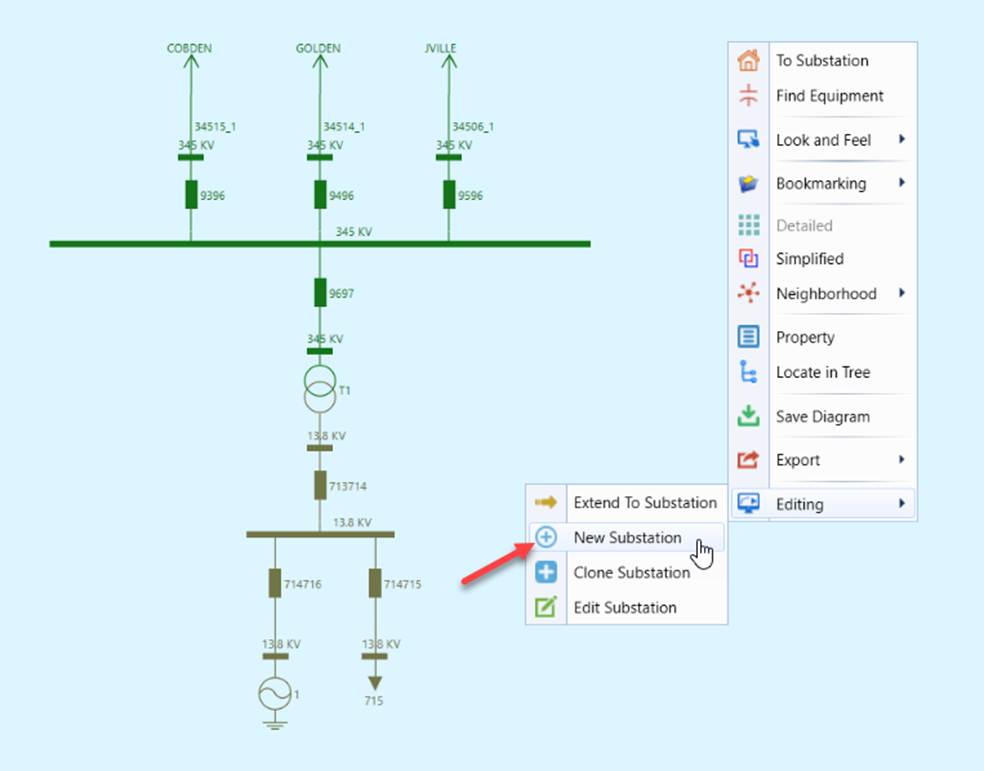
- To create an empty Substation graphically, users must start with a graphical modeling environment, where typically a detailed Substation Diagram is displayed in the Edit model. Through a context menu, users can create a new empty Substation as illustrated.
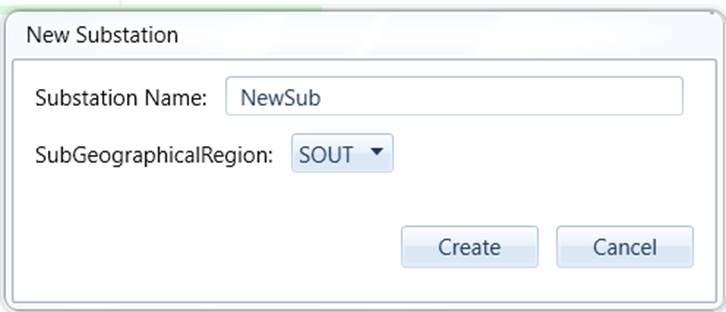
- Users will be prompted to provide a name for the new Substation and select a SubGeographicalRegion that the new Substation belongs to. By default, the new Substation belongs to the same SubGeographicalRegion that the current Substation belongs to. Such initial information is mainly used to create the containership hierarchy required for CIM model.
- Once the required information is entered, the new Substation will be created on the right side in a dual-substation layout.
- Start the modeling activities in the newly-added Substation.
Cloning from an Existing Substation
Users can also create a new Substation by cloning from an existing Substation. This is the quickest way to create and initialize the new Substation. A cloned Substation carries all of the information from the template Substation. (Cloning is a deep-copy modeling activity.) It provides users a good starting point for model maintenance if the new Substation to be created is a typical configuration.
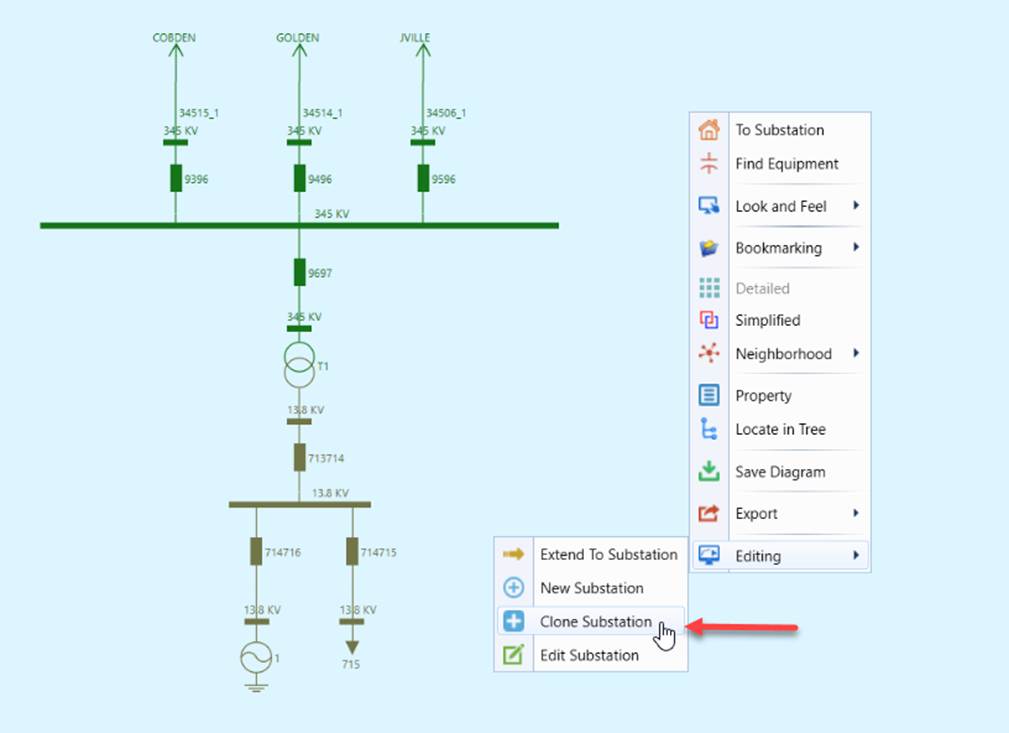
- To create a new Substation by using an existing Substation as a template, users must start with a graphical modeling environment, where typically a detailed Substation Diagram is displayed in the Edit model. Through a context menu, users can invoke the function as illustrated. .
- Search for a Substation that is intended to be used as a template. In this case, we assume the template Substation is the same as the host Substation.
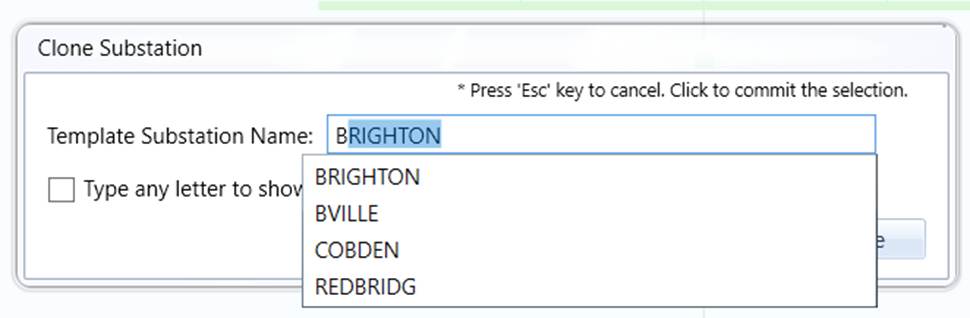
- The cloned Substation will be displayed on the right side in a dual-substation display, as shown below. Note: users may notice that the cloned substation doesn’t look exactly like the template Substation. This is expected. The cloned Substation is an island. It is not connected to any other Substation via lines. Transmission lines are not contained in Substation in CIM.
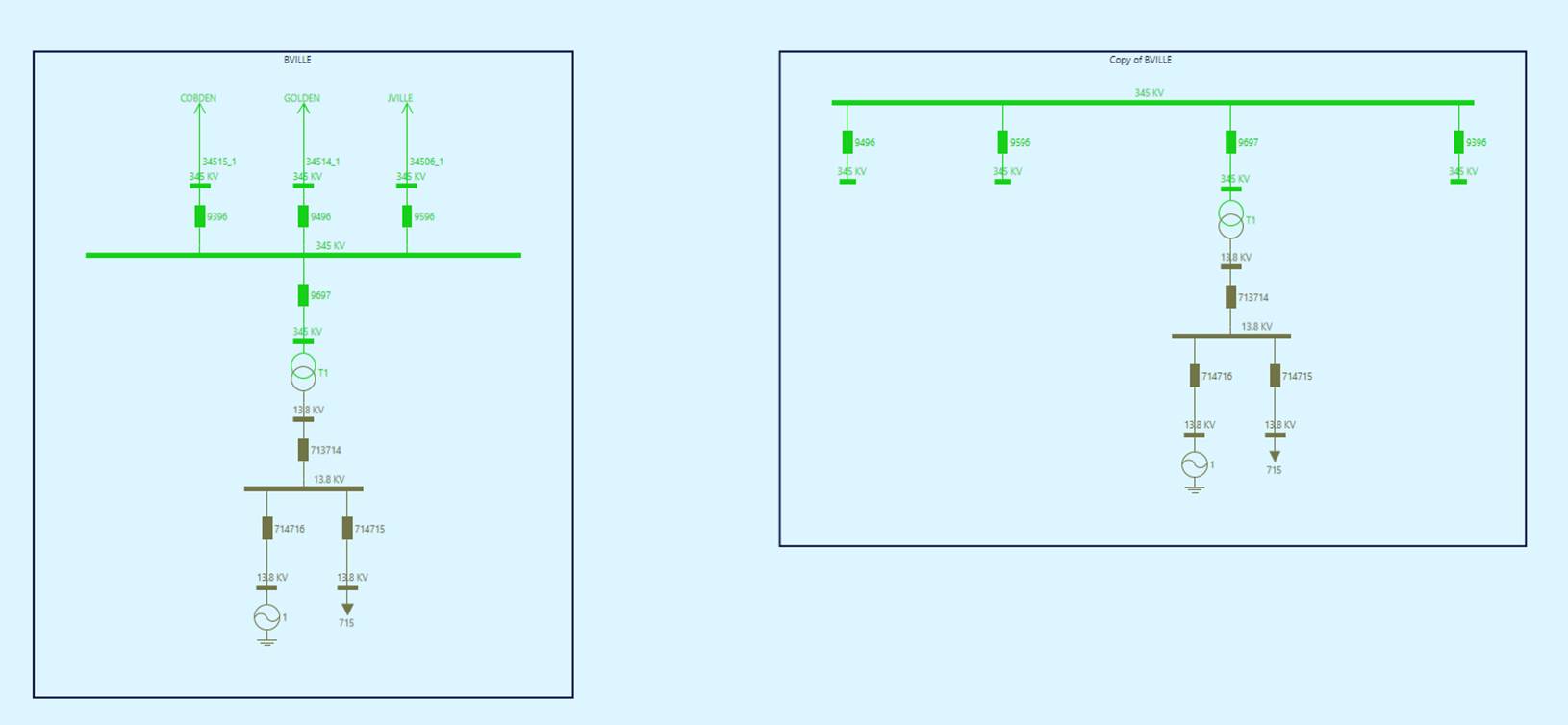
- Start the modeling activities in the newly-added Substation.