Running Batch Process
In complex modeling and data-processing workflows, many tasks are repetitive, time-consuming, and error-prone when executed manually. Examples include loading models, running validations, transforming datasets, generating reports, and exporting results.
Batch processing addresses these challenges by enabling:
- Automation of repetitive tasks
- Consistent execution of multi-step workflows
- Reduced human error
- Improved productivity
- Support for large-scale or overnight processing
The batch processing framework provides a structured automation layer on top of internal services. With support for variables, conditional logic, script modularization, and robust logging, it enables users to create repeatable and reusable workflows for large-scale model processing tasks.
For building a repeatable process without writing code, please refer to Recording & Replaying. This feature allows users to capture a sequence of interactive modeling actions and replay them later as a standardized workflow. It is ideal for automating routine procedures, ensuring consistency across repeated tasks, and reducing manual effort — all without requiring scripting or programming knowledge.
Hands-on
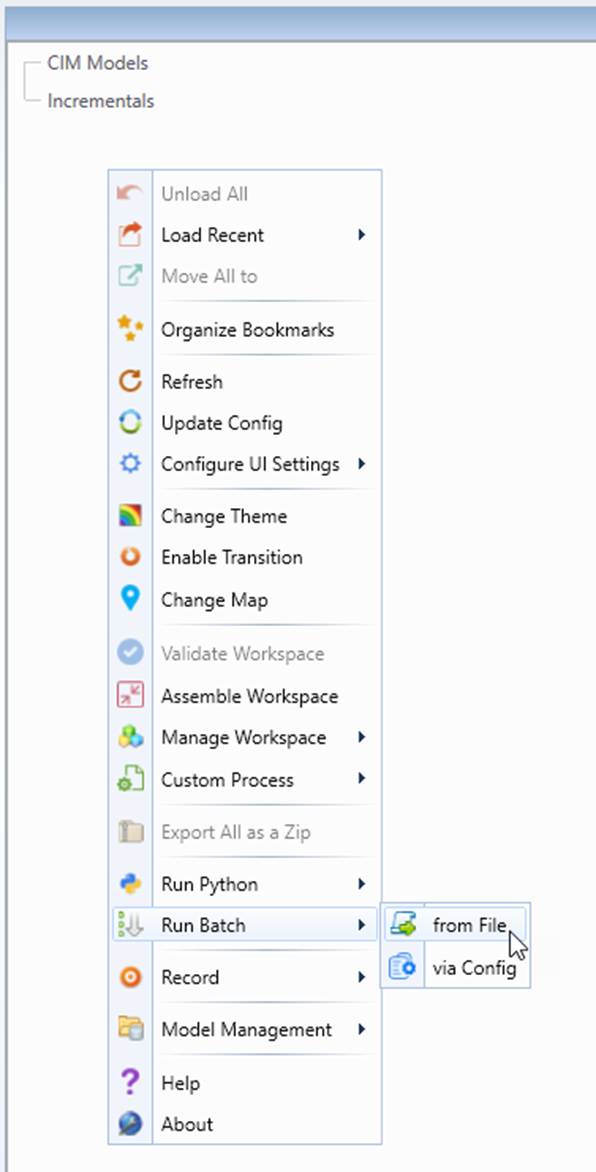
- Right-click a blank area in the tree panel to open the global context menu, then select Run Batch → From File.
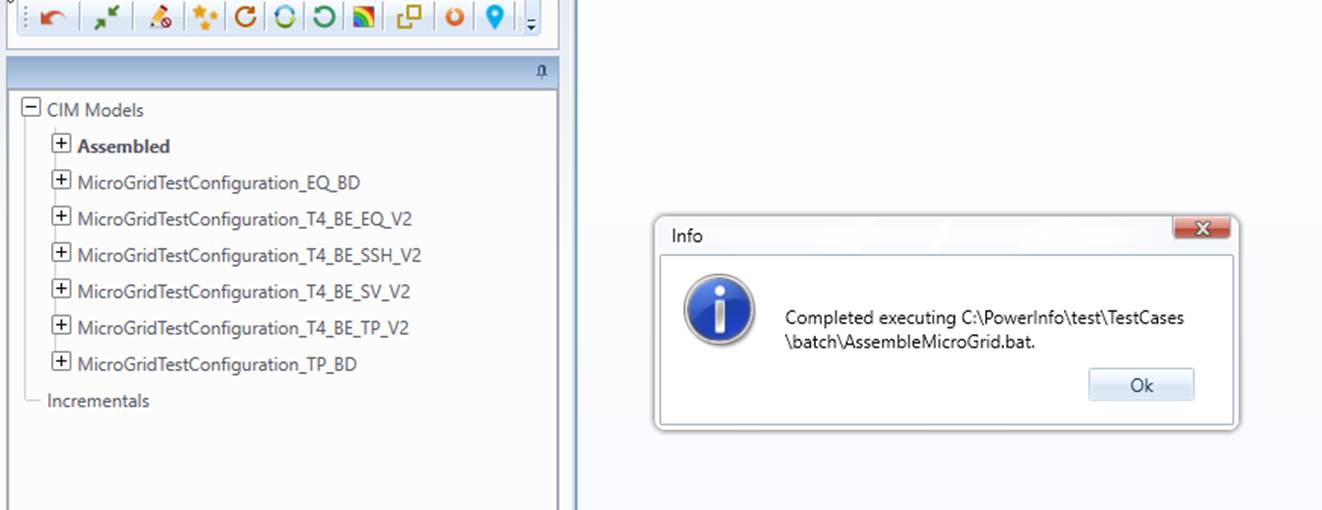
- Select batch file AssembleMicroGrid.bat from directory \TestCases\batch.
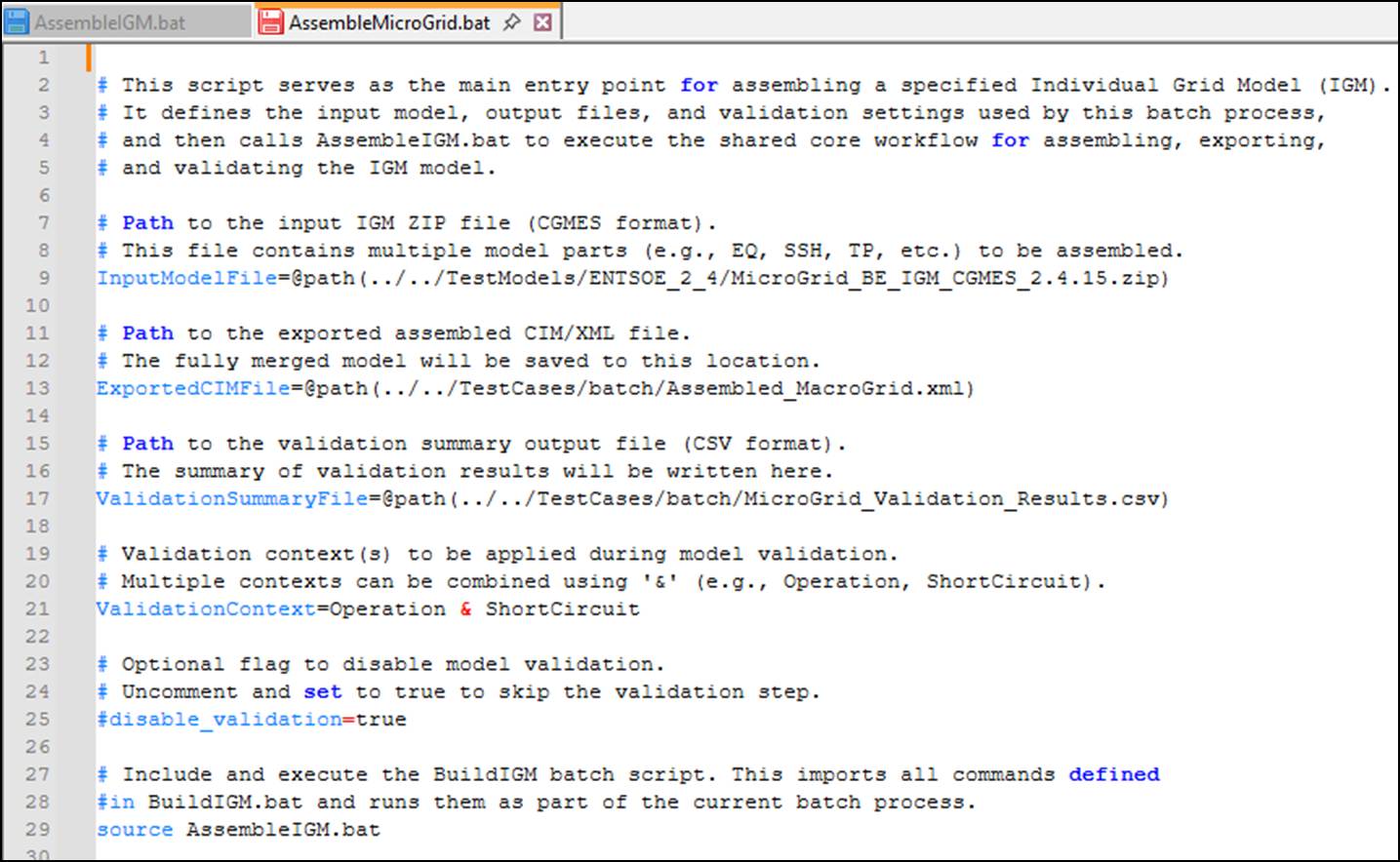
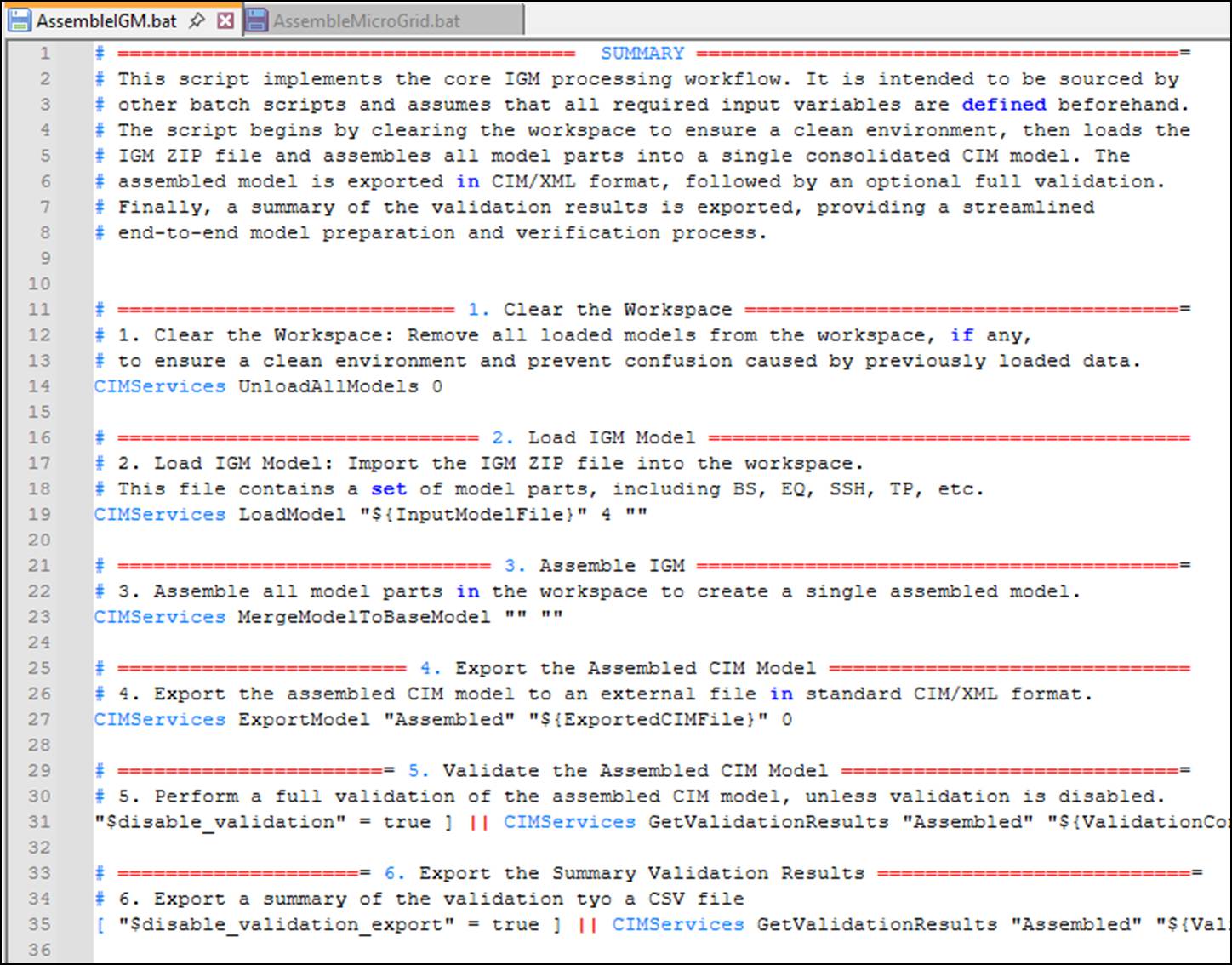
Code Review: The main script, e.g., AssembleMicroGrid, acts as an entry point, defining input parameters (model path, output files, validation context) and invoking the shared workflow script, e.g., AssembleIGM.bat. The core workflow script encapsulates the common model processing steps, including workspace cleanup, model loading, assembly, export, and optional validation. The two scripts are structured to separate configuration from execution logic. This modular design improves reusability, maintainability, and clarity. By isolating variable definitions from the processing logic, the scripts allow users to reuse the same workflow with different models or settings without modifying the core implementation.
Design Philosophy
The batch framework is designed to be:
- Lightweight (not a full scripting language)
- User-friendly
- PowerShell-inspired but domain-focused
- Focused on reusability and controllability
Core Capabilities
The batch process is established through scripting. Users create a batch script file using a standard text editor (e.g., Notepad) and save it as a plain text file. The script contains a sequence of commands that invoke internal services provided by the tool. The batch engine supports structured automation through:
- Sequential command execution
- Invocation of internal services (commands prefixed with CIMServices)
- Variable assignment and substitution
- Conditional execution
- Script modularization (source support)
- Configurable verbosity levels
- Execution time tracking
- Fault-tolerant processing
- Structured error, warning, and alert handling
- Comprehensive logging
This enables automated, structured execution of multi-step workflows through scripting.
Script Structure
A batch script supports:
Comments
# This is a comment
REM This is also a comment
Variable Assignment
MODEL_PATH=C:\Models\Case1.xml
ENABLE_VALIDATION=true
Variables:
- Follow standard shell-style syntax (VAR=value)
- Are stored internally in a variable map
- Are resolved before command execution
This enables reusable and parameterized scripts.
One important consideration is the use of relative paths. Relative file paths should be specified using the @path(...) wrapper. For example:
Model_PATH=@path(../Cases/Case.xml)
Using @path(...) allows the scripting engine to correctly resolve the actual file location, particularly in environments where application binaries and data directories are separated. This ensures that the script remains portable and functions correctly regardless of the installation structure. For absolute paths, the @path(...) wrapper is not required.
Service Invocation
Core execution syntax:
CIMServices <FunctionName> <Arguments>
Example:
CIMServices LoadModel $MODEL_PATH 1
Internally:
- The command is parsed
- Arguments are tokenized
- Relative paths shall be wrapped
- The service function is dynamically dispatched
- Execution result is returned as structured output (XML or JSON)
Conditional Execution
Example:
[ "$ENABLE_VALIDATION" = true ] && CIMServices ValidateModel $MODEL_PATH
Supported logic:
- Equality (=)
- Inequality (!=)
- Logical AND (&&)
- Logical OR (||)
Conditions control:
- Whether a service is executed
- Whether execution exits early (exit). When the
exitcommand is executed, the batch process stops immediately and no further commands are processed..
This allows decision-based automation within a script.
Script Modularization
Script modularization allows users to break complex batch workflows into smaller, reusable script components. Instead of placing all commands in a single large file, users can organize related steps into separate script files and include them using the source directive.
For example:
source initialization.bat
source validation.bat
source export.bat
When the parser encounters a source statement, it recursively loads and parses the referenced script file. The commands from the sourced file are merged into the current execution sequence, and all variables remain available within the shared context. This allows multiple script files to operate as a unified workflow.
Key benefits include:
- Improved Maintainability: Large automation workflows can be divided into logical sections (e.g., initialization, processing, validation, reporting), making scripts easier to read, maintain, and debug.
- Reusability: Common tasks can be defined once and reused across multiple batch processes. For example, a standard model-loading script can be shared across different automation scenarios.
- Consistency Across Projects: Organizations can establish standardized automation templates that ensure consistent execution procedures across teams or environments.
- Simplified Updates: If a commonly used procedure needs to change, only the shared script file needs to be updated, rather than modifying multiple batch scripts.
Through modularization, the batch framework supports scalable, maintainable, and enterprise-ready automation workflows rather than single, monolithic command files.
Batch Script Building
To build a batch script, users need to understand the corresponding service APIs and their parameters. At present, a formal API reference is not available. However, a convenient shortcut exists: users can record a manual process and use the recorded output as a reference for scripting.
When a manual operation is performed in the Tool, all invoked APIs are logged in file \CIMSpy\log\Recording\recorded.xml. This recording captures the API names, execution sequence, and parameters used during the manual process. It provides sufficient detail to reconstruct the same workflow in a batch script. The example below illustrates a recorded session used to build the Hands-on sample described earlier.
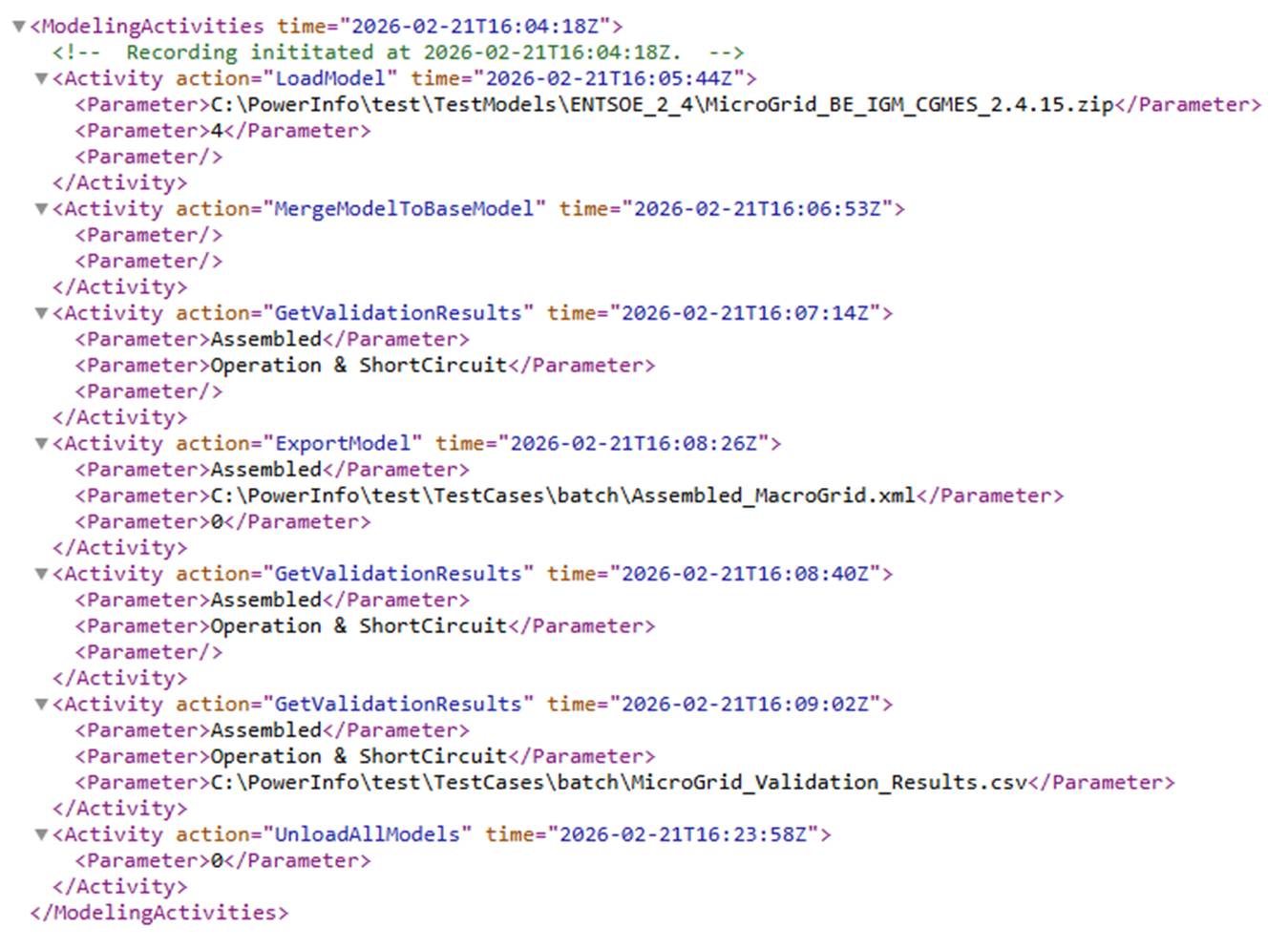
When building a batch script based on a recorded process, the following best practices are recommended:
- Define variables for parameters that may change (e.g., file paths, model names, validation contexts).
- Create sub-batch scripts for reusable logic to promote modularity and maintainability.
- Introduce control flags to enable or disable specific steps (e.g., validation, export) as needed.
By following this approach, users can efficiently convert manual workflows into structured, reusable automation scripts.
Configuration
Batch processes are configured in the application configuration file using the <BatchProcess> section. This section defines global logging behavior and registers one or more batch scripts that can be executed from the Tool.
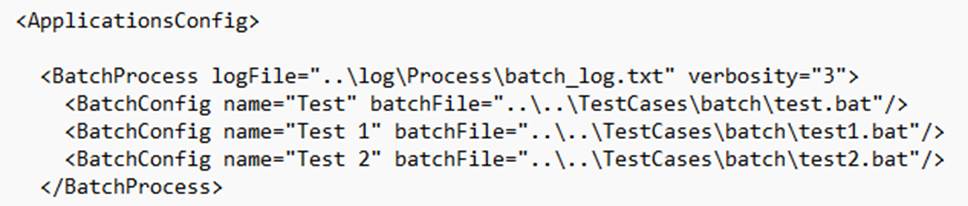
The <BatchProcess> element defines global settings applied to all registered batch scripts.
Attributes
- logfile:Specifies the default log file used to record batch execution details.\ The path can be relative and will be resolved automatically.
- Verbosity:Controls the level of logging detail.\ This is a bitmask value that determines which messages are recorded:
Value
Meaning
1
Log errors
2
Log warnings
4
Log alerts
8
Log full responses in XML or JSON
For example:
verbosity="3"logs errors and warnings (1 + 2).verbosity="15"logs all messages.
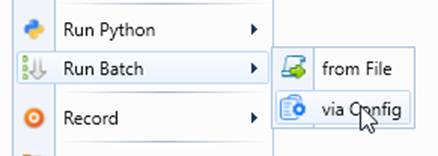
Users can define their own customized batch processes by registering them in the configuration file. Once registered, these batch processes become available directly from the UI and can be executed just like built-in workflows.
This allows users to automate recurring tasks, standardize processing procedures, and create organization-specific workflows tailored to their needs. After registration, the custom batch process appears in the UI menu, where it can be invoked with a single click, as illustrated below.
Each defined batch process can have the following attributes:
- name (required): Descriptive and unique name of the batch configuration. This name is displayed in the UI when users select a batch process.
- batchFile (required): Path to the batch script file (.bat) that contains the automation logic. The path may be relative or absolute and is resolved at runtime.
- logFile (optional): Path to the log file where execution details (errors, warnings, messages, timing) are recorded. If not specified, the global batch log setting is used.
- verbosity (optional): Controls the level of logging detail during batch execution. If not specified, the global batch verbosity setting is used. The default value is 3 (error = 1 + warning = 2).
- detectRelativePath (optional): If set to true, automatically detects and resolves relative paths used in batch command parameters. In this case, the
@path(...)wrapper is not required. The default value is false.
When a user selects a batch process:
- The system looks up the corresponding
<BatchConfig>by name. - The batch file path is resolved.
- Logging is initialized using either global or overridden settings.
- The batch script is parsed and executed sequentially.
- Execution details are written to the configured log file.
Logging and Error Handling
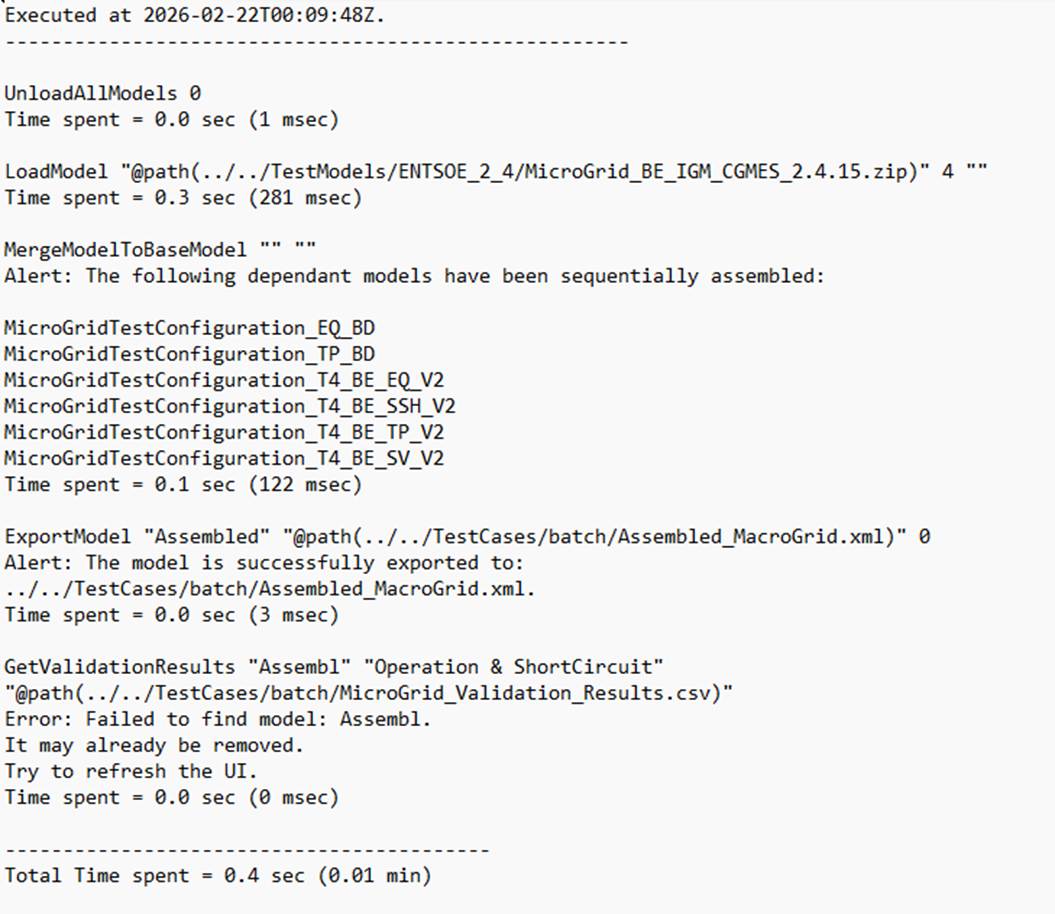
This Tool supports auditing and traceability of batch execution through logging. Each batch run generates the following loggings:
- Execution timestamp
- Per-command log
- Execution duration per command
- Total execution time
- Error/warning/alert summaries
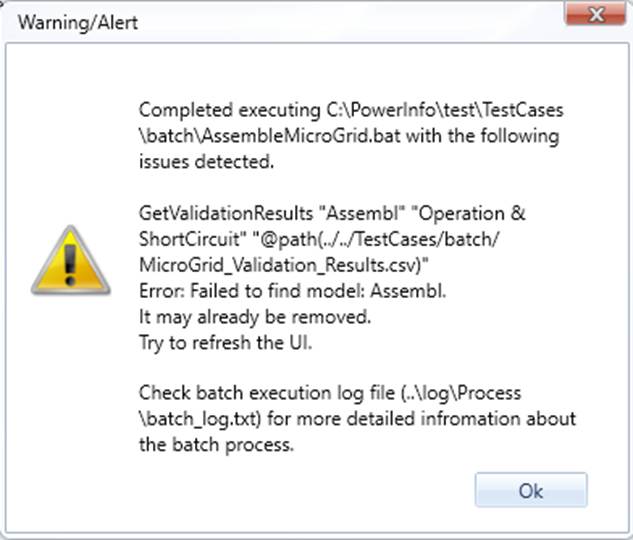
If incidents occur:
- Messages are compressed
- Summary returned to UI to alert users
- Log file referenced for full details