User Management
User management is primary about adding/deleting user/user group and provide them access permissions. Admin UI provides a centralized place for user administrator to manage the users.
User Types
There are three types of users.
- Local users. These are the users defined in the Admin database. They can be self-registered or created by UserAdmin in Admin UI.
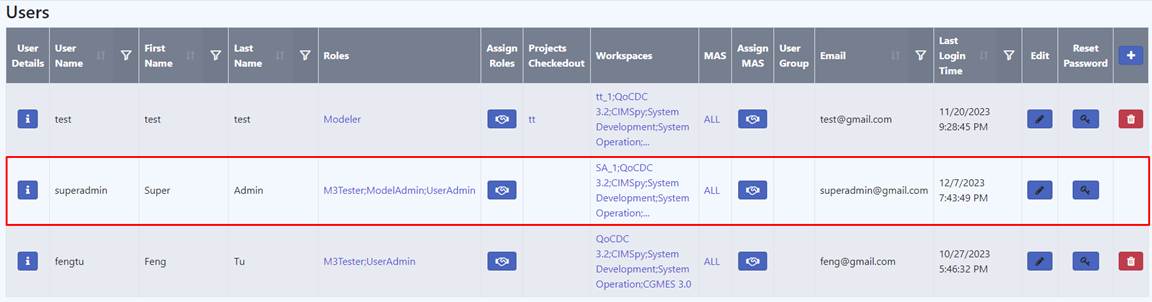
“superadmin” is a built-in local user, which has the “UserAdmin” role assigned. This local user is mainly used for initial administrative tasks and emergency backup. It cannot be deleted. It has the default password as “Cimspy#1” and it is recommended to update the password after initial login.
- Machine users. These are the users defined in the windows machine hosting the Admin service. They are created by the server administrator.
- Domain users. These are the users defined in the Active Directory (AD). They are usually created by the AD administrator and organized by User Groups in the Tool. This is the preferred way if customer likes to utilize the existing AD group to organize the users.
User Group
A User Group is a group of users, which usually share the same roles and responsibilities in an organization. It provides a convenient way of setting up user authorizations if all the users in one user group shares the same authorization settings. The Tool provides the capability of creating user group from the AD Group.
Add a User
A user can be self-registered or added by any user who has the “UserAdmin” role.
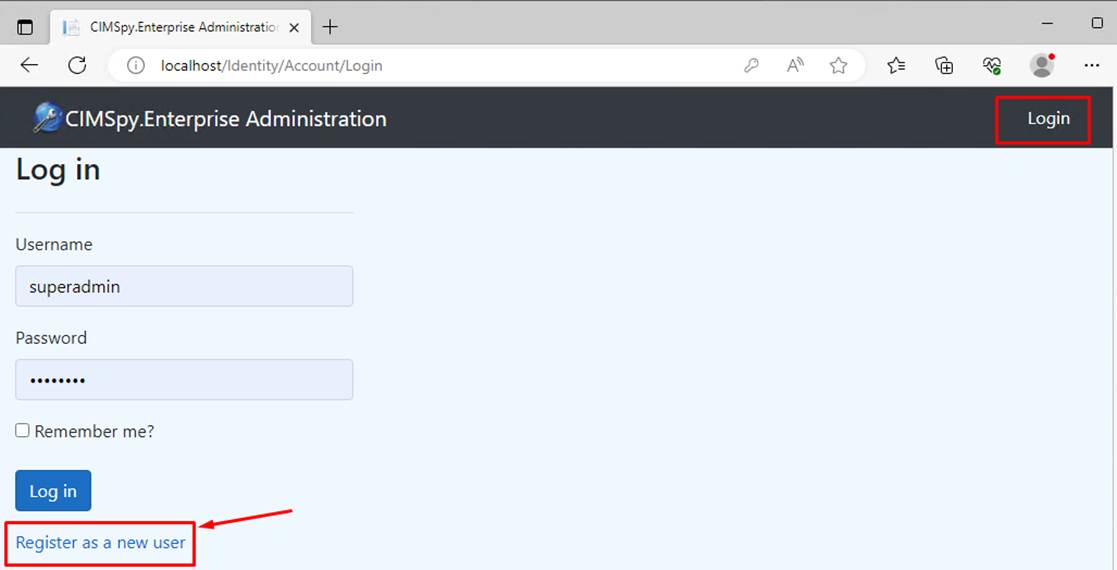
Or
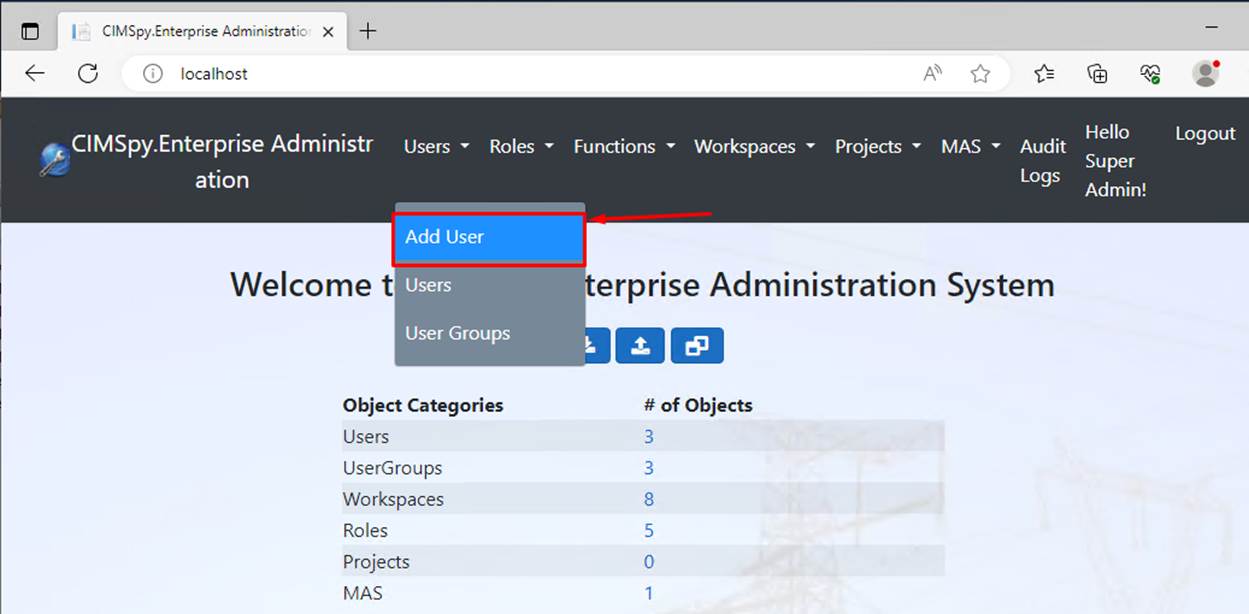
Or
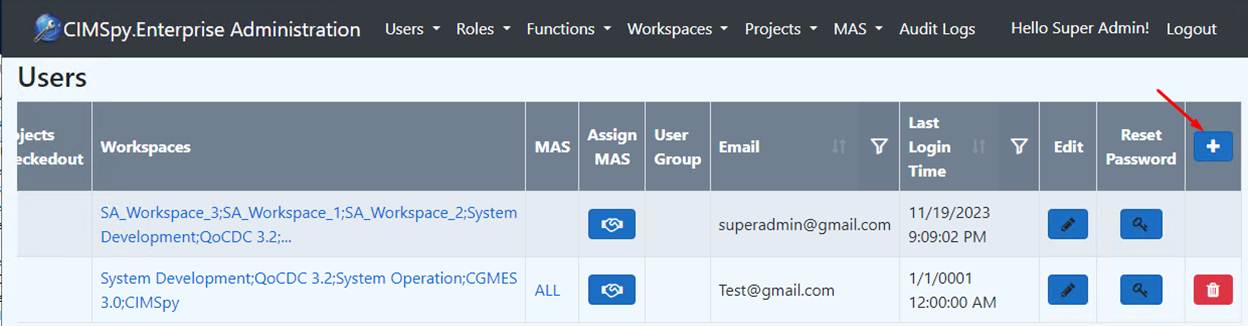
Assign User Roles
After user is added, at least one role needs to be assigned to the user. Please see the Role Assignment to assign the roles to the user.
Assign User MAS
When there is a MAS defined in the system, it is necessary to assign one or more MAS to each user. Please see the MAS Authorization Settings to assign the MAS to the user.
Add a User Group
Only an AD group can be added as a user group in the Tool. This can be achieved via the following steps:
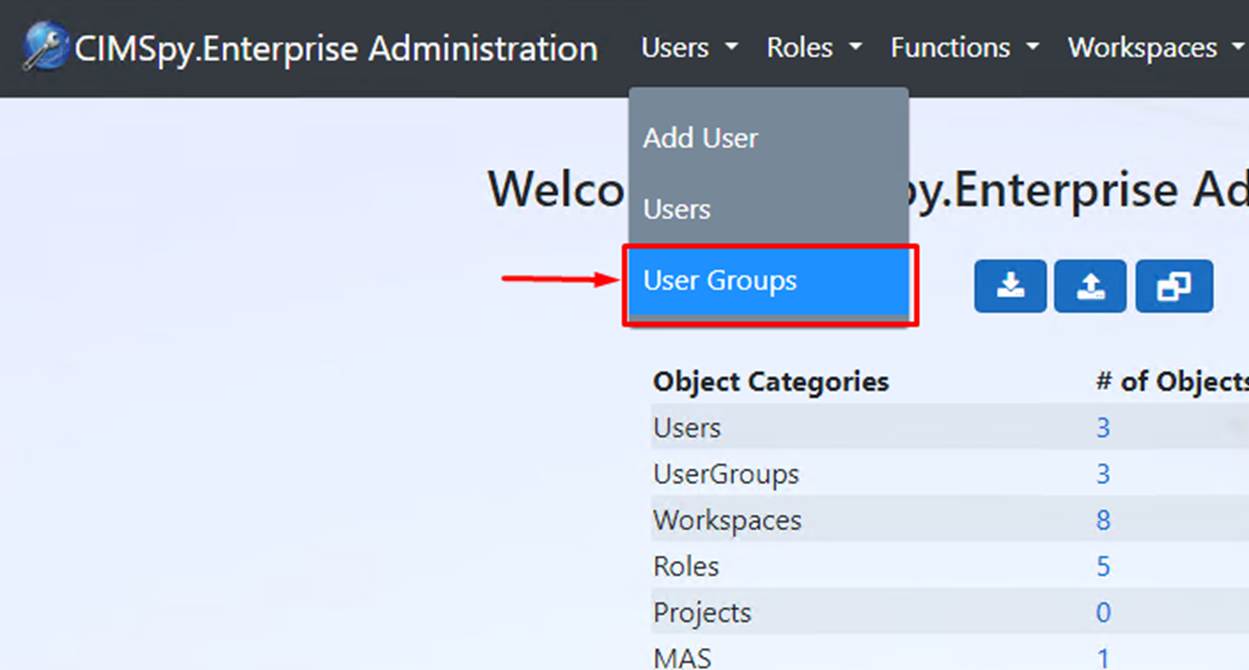
- Bring up the “User Groups” display
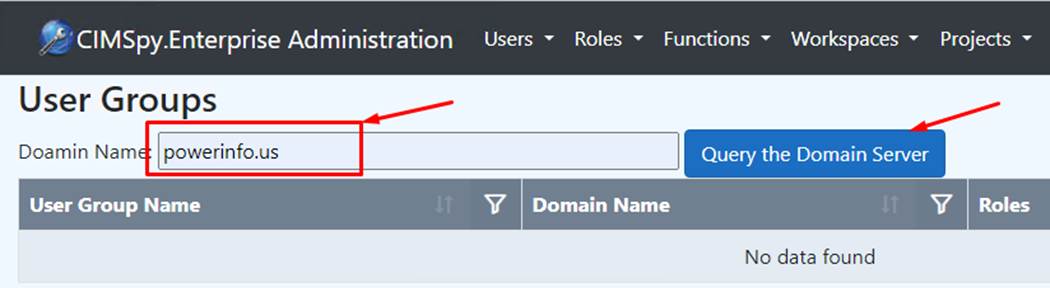
- Query the domain server by entering the domain name
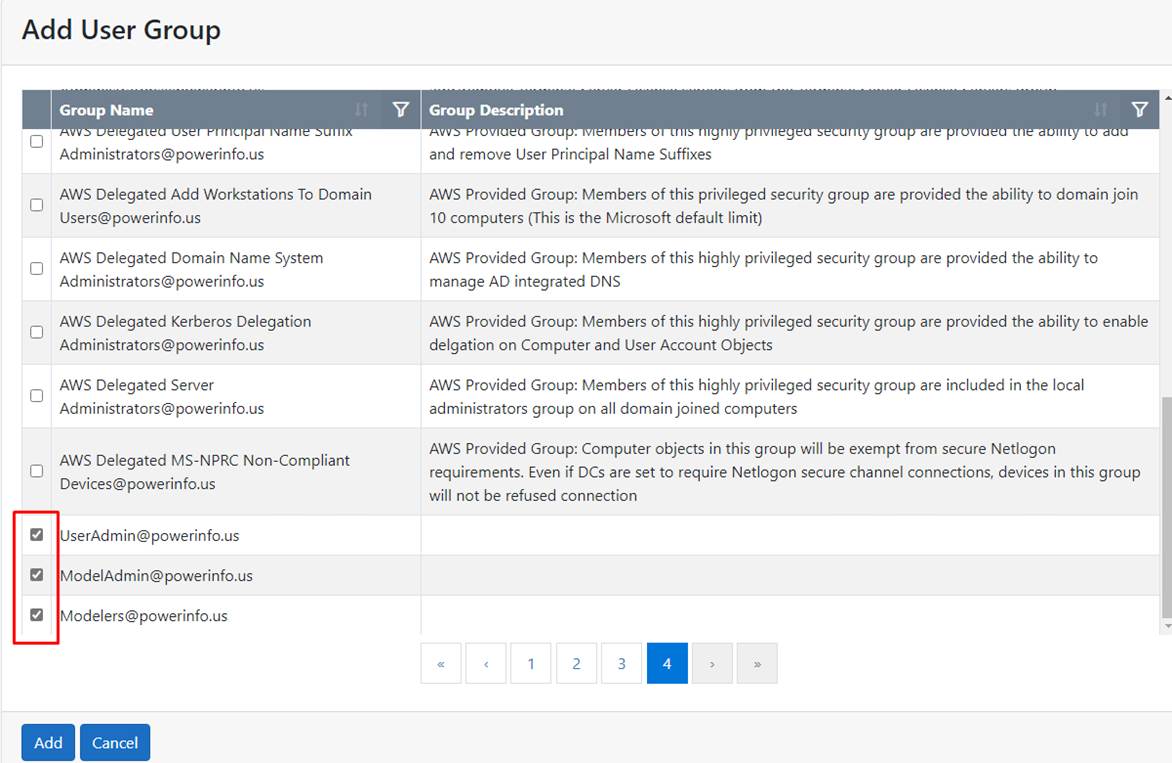
- Select the AD groups to be added
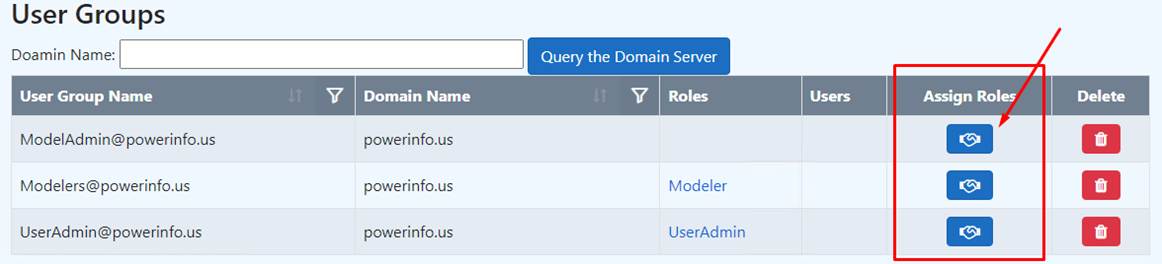
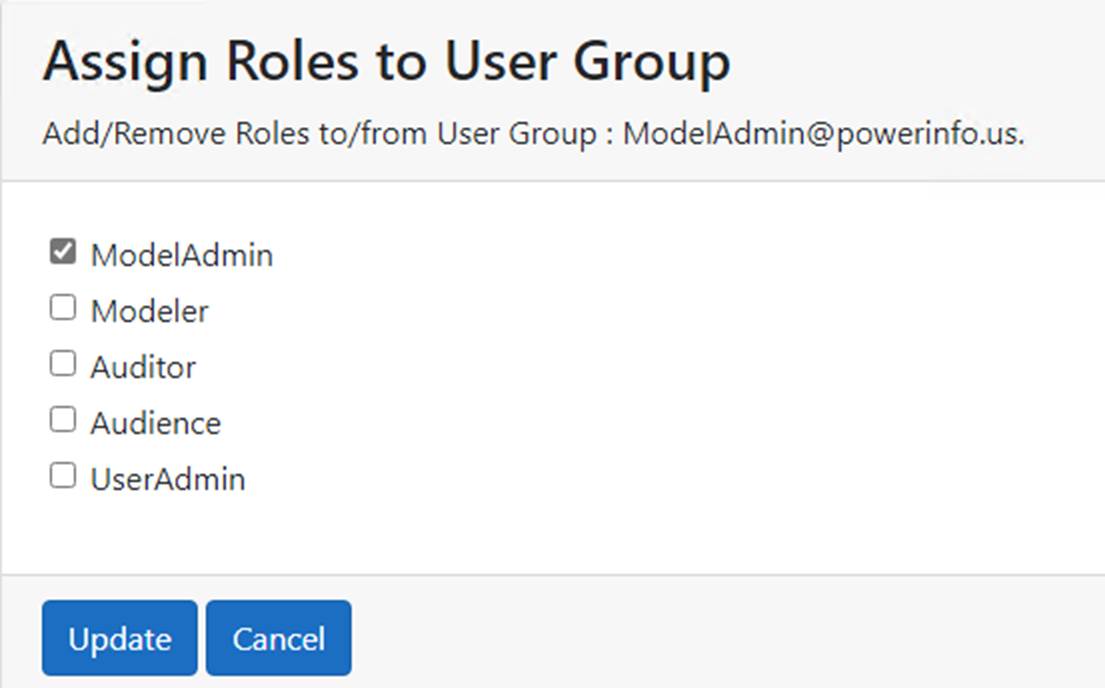
- Assign roles to the user group
Delete User/User Group
Note:
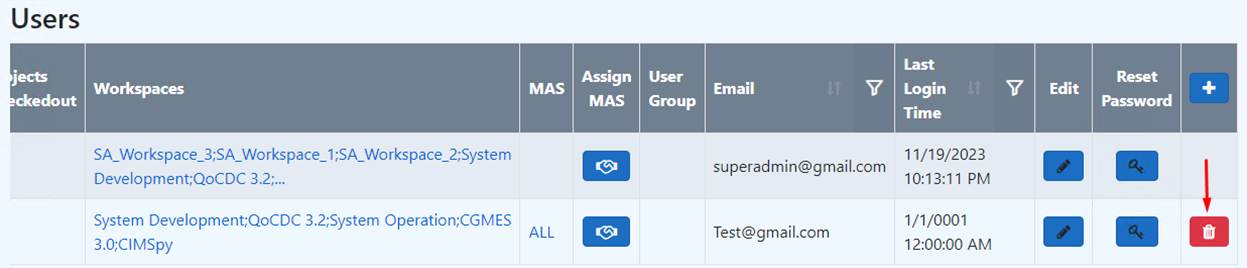
- The built-in user “superadmin” cannot be deleted.
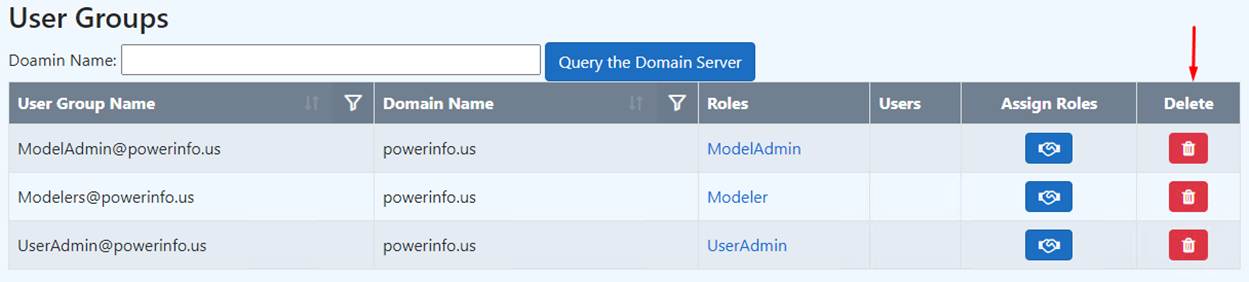
- When deleting the user group, all the users under the user group will be deleted as well if the user doesn’t belong to any other existing user groups.
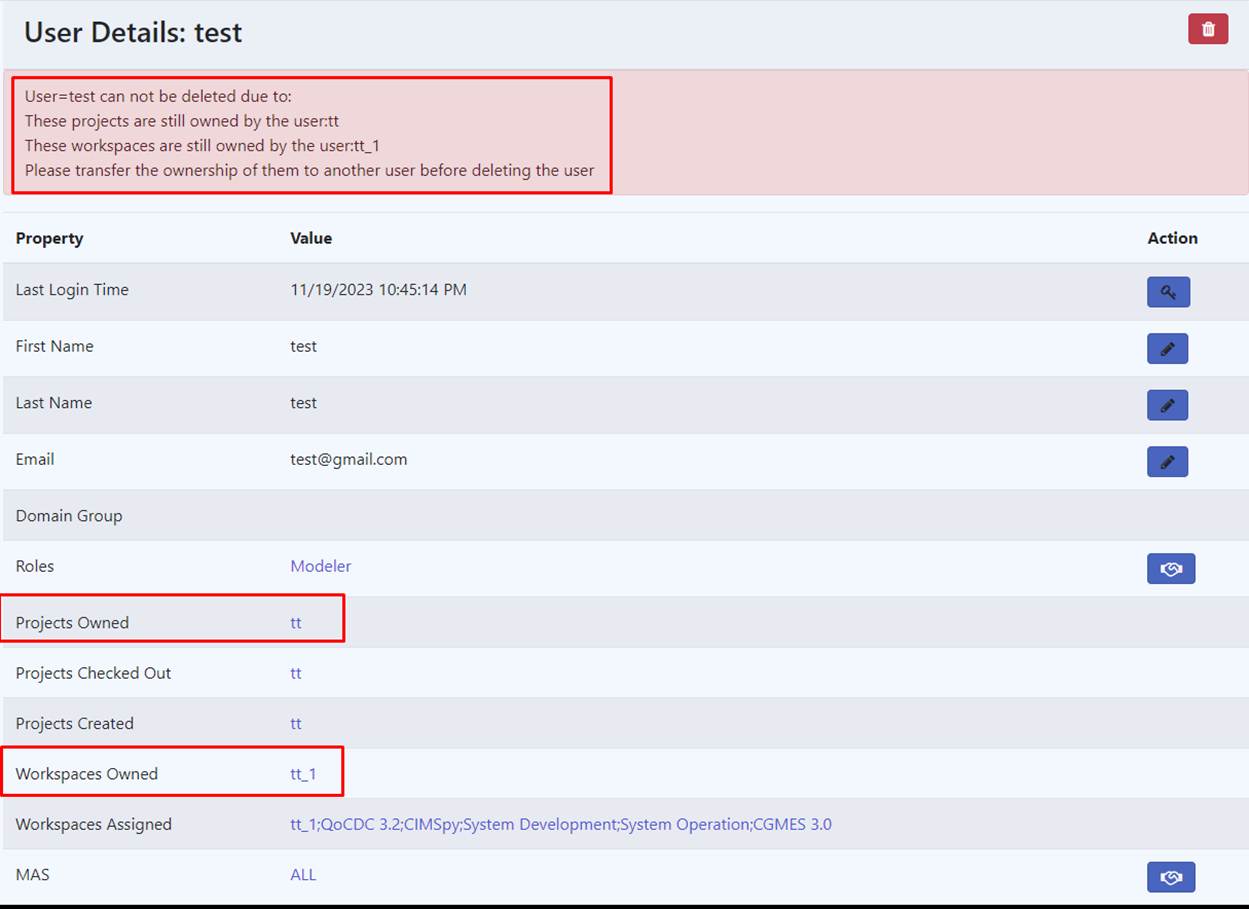
- The user can not be deleted if there is a project or a workspace owned by the user. The project/workspace ownership needs to be transferred to another user before this user can be deleted.
User Login
Like the User Types, the Tool supports three authentication sources (local, machine, domain) during the user login process. Administrator can customize the authentication sources by including them in the configuration item “AuthenticationSource” from appsettings.json file as shown below:
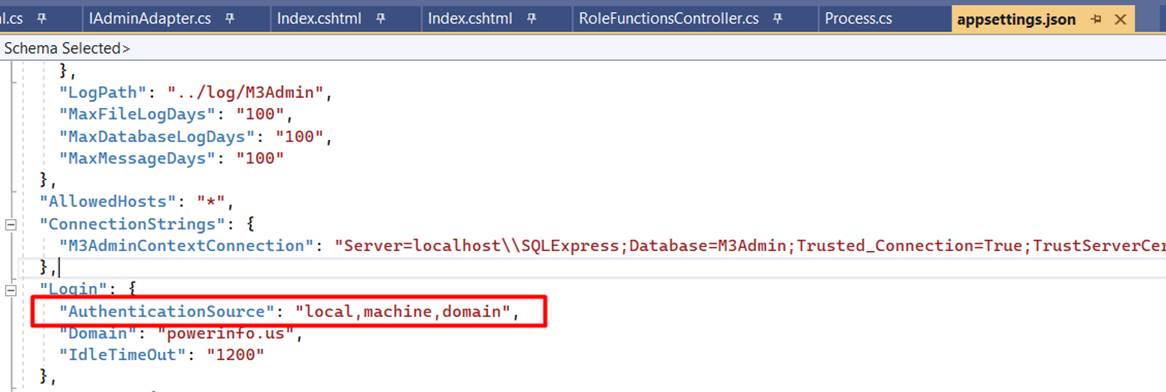
The authentication follows the sequence of checking local->machine->domain for each user. In other words, it checks if the user can be authenticated as a local user first. If not, it checks if the user can be authenticated as a machine user. If not again, it checks if the user can be authenticated as a domain user. If the user doesn’t belong to any AD group, it uses the default domain name, which is defined in the configuration item “Domain” in the appsettings.json file.