Persisting UI Settings
Persisting UI Settings
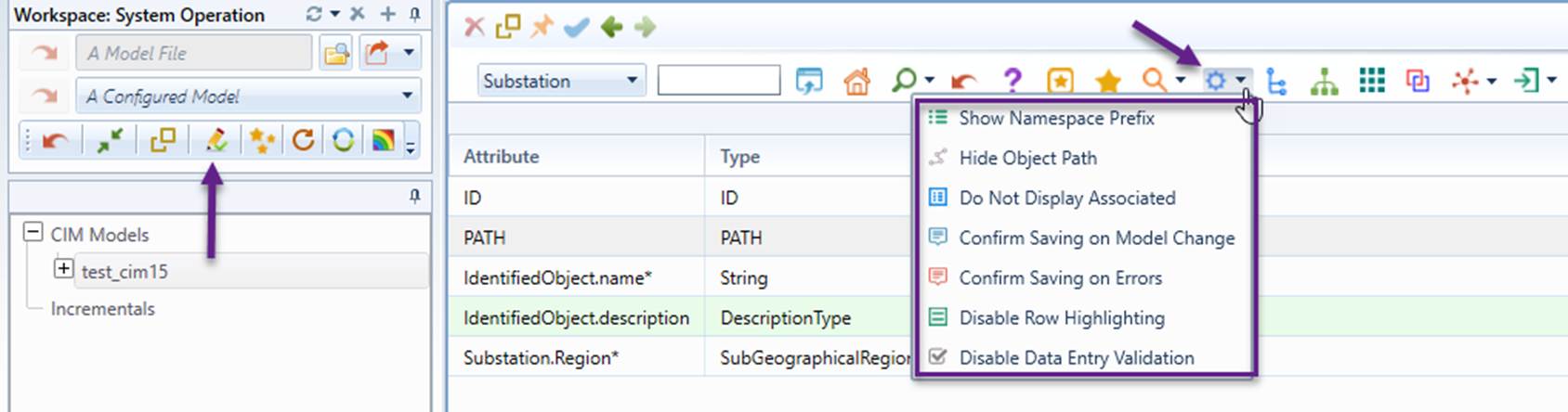
UI Settings refer to configurable options that allow users to customize the appearance, behavior, and functionality from User Interface (UI). These settings enhance user experience by adapting the application to individual preferences and workflows. The following illustrates some of the UI Settings in a Form Display.
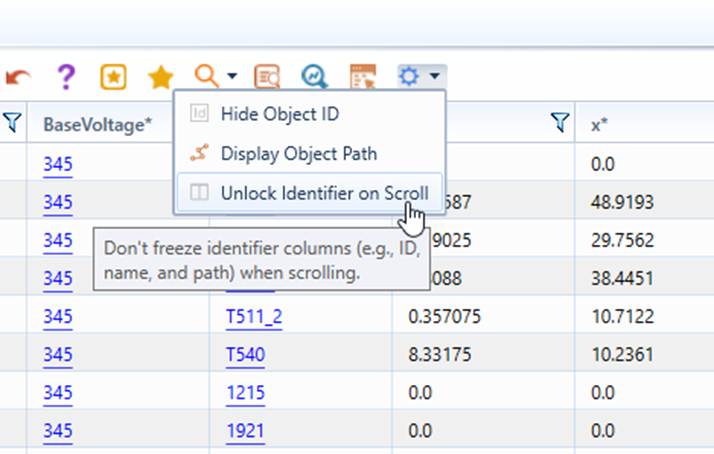
Similarly, Tabular Display settings can also be changed in the same way.
UI settings are persistent, meaning they remain valid until changed. When the application is shut down, these settings, along with bookmarks and file paths of the recently loaded models, are automatically saved. They are restored upon the next application startup.
By default, UI settings are stored as an XML file in the Windows Data Roaming directory. This approach ensures that each user’s preferences are maintained separately, supporting shared installations while preserving per-user configurations. It also ensures that user-specific settings are retained after upgrading to a new version of the tool.
When consistent UI settings (e.g., color themes) need to be enforced across all users of a shared installation, the user profile may be explicitly configured to be saved as an XML file in a designated directory. This requires modifying the configuration file (\config\ui\AddonConfig.xml) to specify the storage location of the UI settings file, as shown below.

Note:
- Color Theme and Map selections are persistent only when set as the default.
- For the Enterprise Edition, UI settings are individual and not shared. They affect only the individual user interface and do not impact the shared server.
- If the tool fails to start due to a corrupted saved UI setting file, users can manually delete the corrupted file located at C:\Users\XXXXX\AppData\Roaming\PowerInfo\CIMSpy or the configured directory.
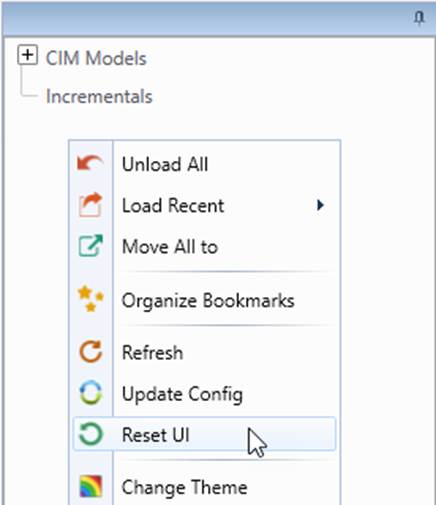
- The initial or default UI settings can be restored by selecting Resetting UI from the context menu, as illustrated below.
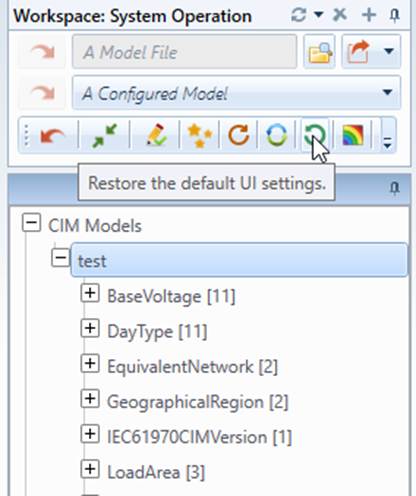
- Some UI configurations are used to initialize persistent UI settings. At runtime, these saved settings will override the configurations. Users may find that changed UI configurations are not applied. To resolve this, users should modify the settings directly in the UI rather than changing the configurations, or reset the UI settings after modifying the configurations. The former is recommended.
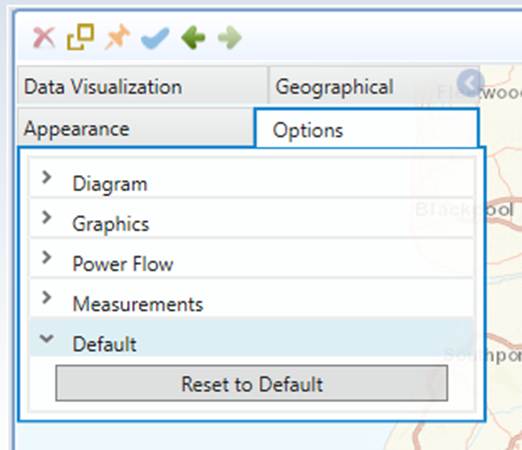
- In general, persisted UI settings do not apply to Diagram Displays. Diagram-related settings are stored in isolated storage and can be reset as shown below. However, there are two exceptions: the Diagram Color Theme and Map selection. These two diagram-related settings are reset when "Reset UI" is executed.
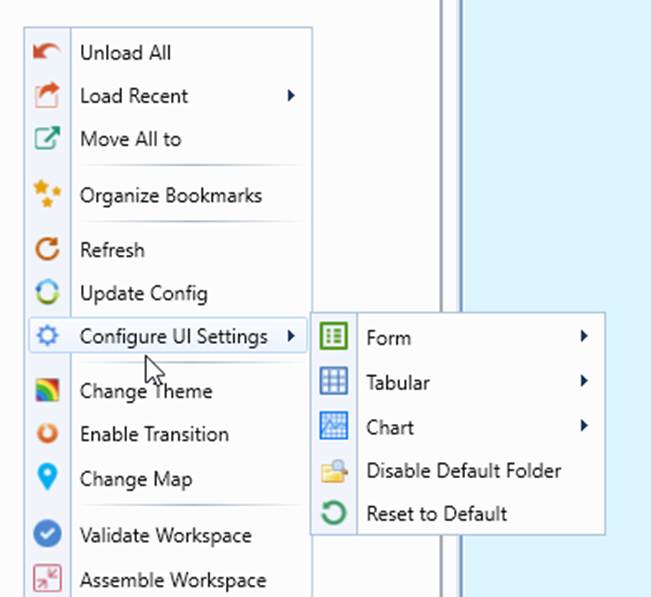
Centralized UI Settings
UI Settings can also be accessed from the global context menu, as illustrated below. By right-clicking a blank area within the tree panel, users can quickly open and configure UI-related options. This provides a convenient and centralized way to adjust display preferences and other interface settings without navigating the related displays.