Multi-view Presentation
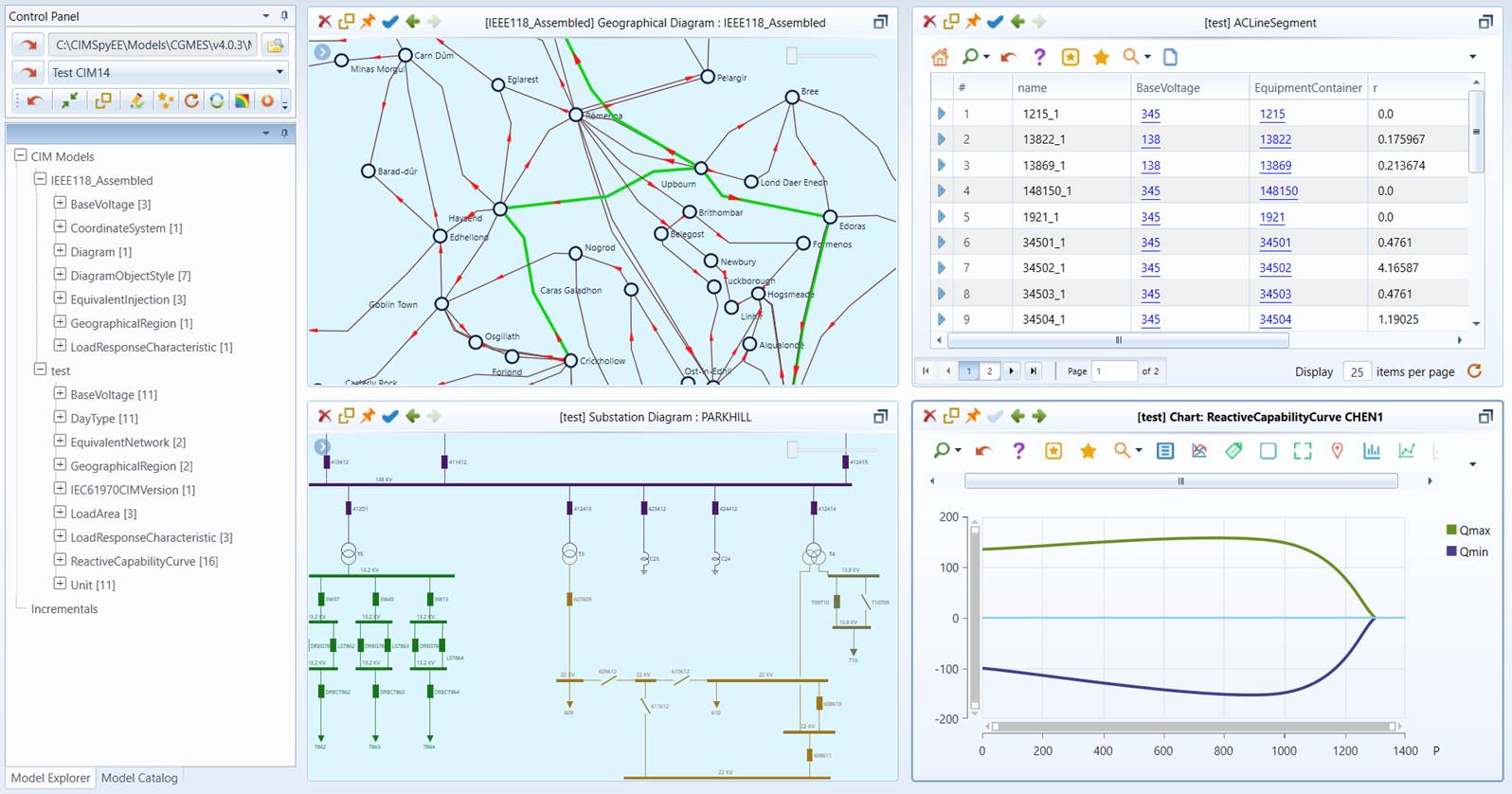
While the Model Navigation Trees in the left panel present an overview of the selected model hierarchically, the detailed model data are presented in Model Views in the right panel. The Tool supports multiple Model Views, each independent of another. This allows users to browse the models in parallel. Each Model View keeps track its navigation history, enabling users to navigate backward/forward throughout the each model exploration path.
Users can create unlimited number of Model Views, but only one of them is active for model browsing at any time. Typically when users select a tree item or invoke a command through a context menu associated with a tree item in the navigation tree, the corresponding contents will be displayed in the active view. Model Views are not limited to displaying the detailed contents of the browsed objects in the navigation trees. There are many other browsing and navigation mechanisms supported, such as view-to-view navigations and forward/backward navigations, etc.
The Model Views can be controlled and managed using the command icon buttons in the Quick Access Bar. These icon buttons are context-sensitive. They may be disabled (or grayed) if the represented actions don’t apply to the current scenarios.
Model Views host Displays, showing the contents of the browsed CIM objects or task reports such as validation reports. These could be typical HTML pages or hosted graphical applications. There are three types of Displays that can be hosted in Model Views.
- Form Display: displaying the detailed information about an object
- Tabular Display: displaying multiple objects of the same class or a task report in a multi-paged table
- Diagram Display: displaying the graphical diagram related to the selected object
- Chart Display: displaying curve, schedule, or user-defined view using graphical charts
- Report Display: displaying ad hoc reports generated for various purposes