Messaging and Logging
During the process of model maintenance and management, users may encounter many events that require users’ attention, such as errors, warnings, alerts, or actions to be taken. The Tool notifies users immediately with message dialogs. Some dialogs may require users to take action by clicking a button. Others will inform users to look for more details in event or activity logs.
View Events in Database Transaction Event Log
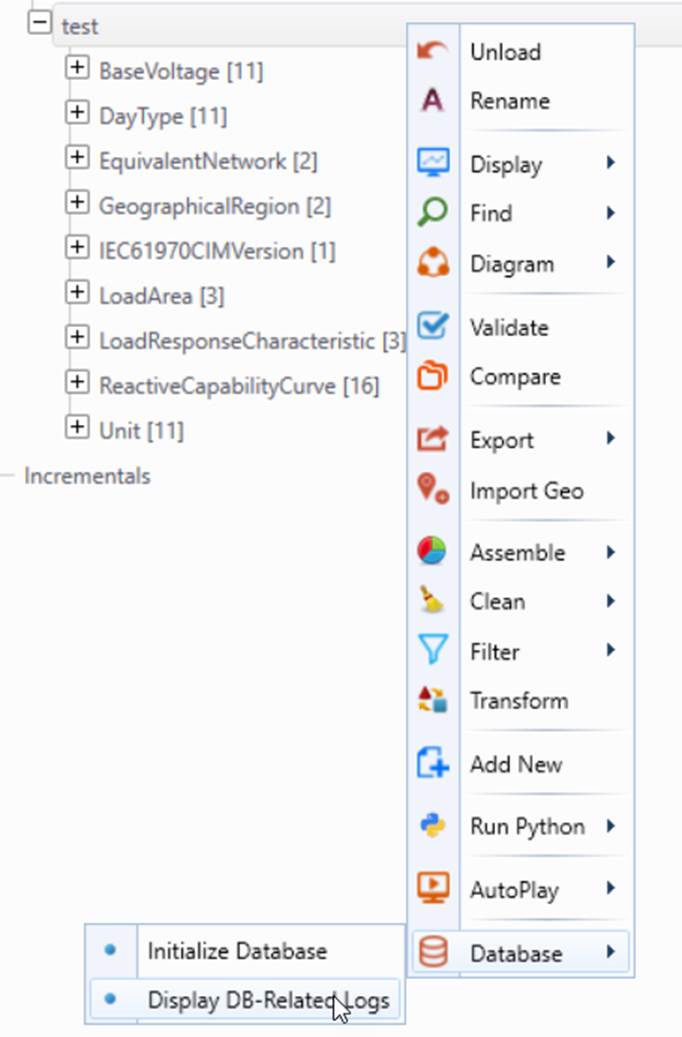
- To check database transaction events during Modelspace initialization, right click the seed model and select Database->Display DB-Related Event.
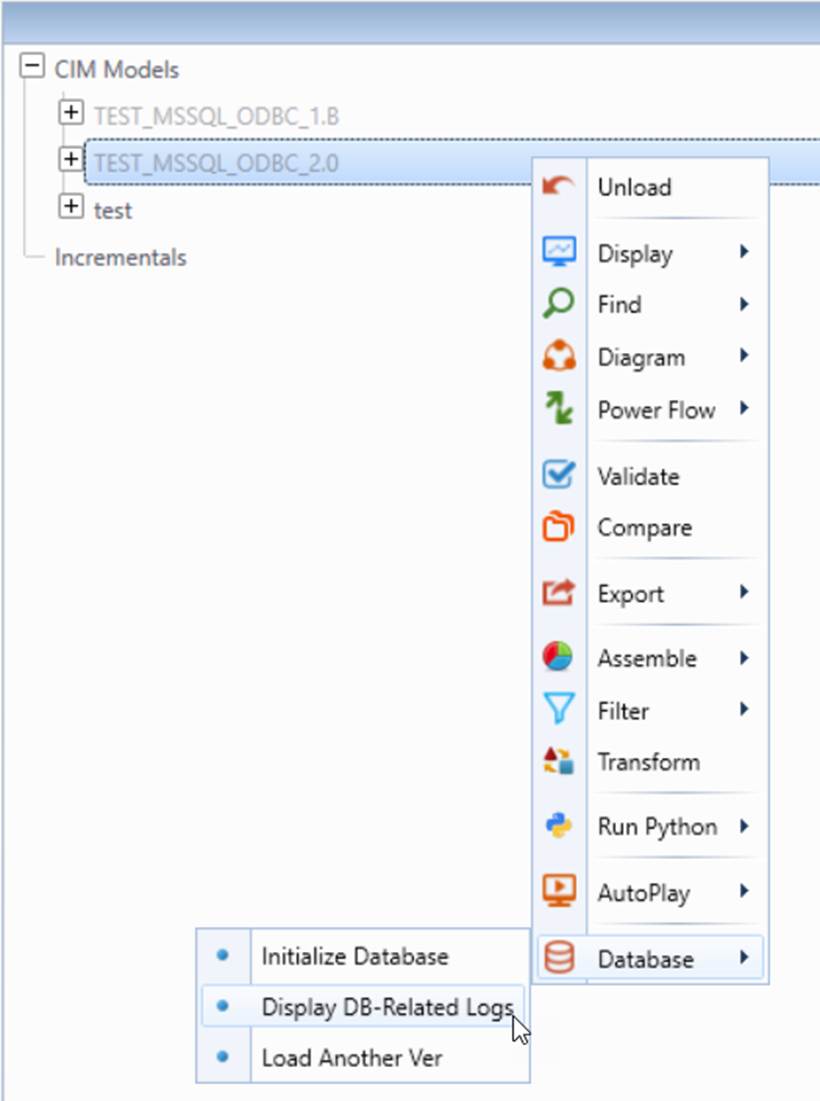
- To check events in other database transactions (excluding initialization), right click a loaded version from Navigation Tree and select Database->Display DB-Related Events. The display shows the events that were detected during the model’s previous database database transaction.
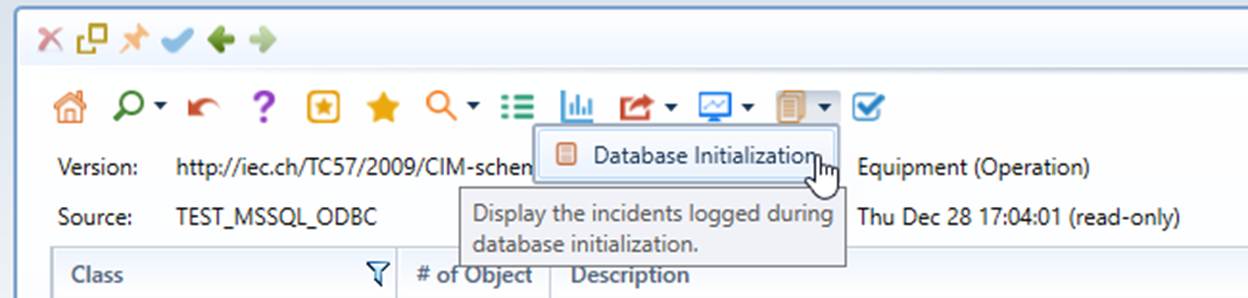
The event logging reports of the above cases can also be called from the access toolbar in the summary page of the loaded version, as illustrated below:
View Details in Modelspace Activity Log
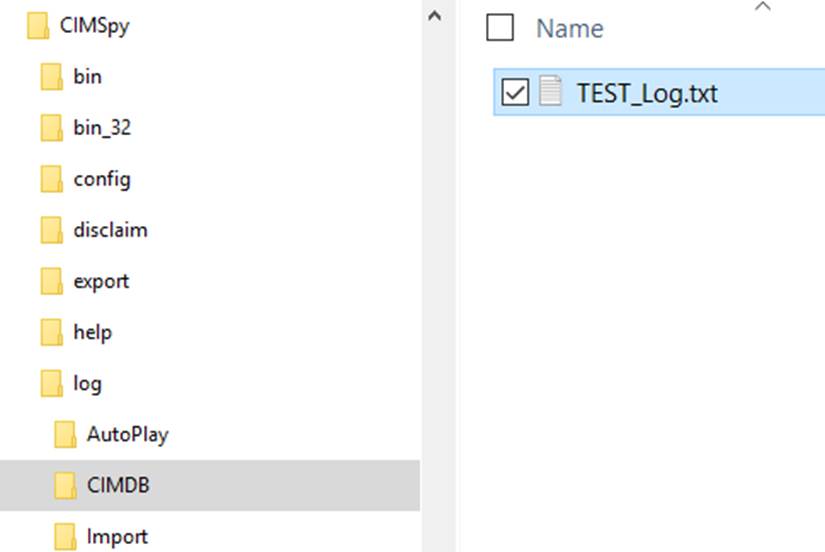
Activities that do not involve a loaded model are unable to be logged in Database Transaction Event log. In that case, Modelspace Activity Log is the only source to check events. Modelspace Activity Log is a server log. It not only records database transaction events, but keeps track of activity histories, including time, type, and status. Users must have the access to the server in order to view it.
To view details in activity log,
- Open server configuration file in the server machine. Locate DBConnection associated with the Modelspace and find the path and file name of Modelspace Activity Log.

- Find and open the log file in file system.