Form Display
Form Display is used to show all of the information related to an object. It is also the place where users perform tasks related to the displayed object, such as navigation to other related objects, editing, creating diagrams, etc.
Calling Form Display
There are many ways to call a Form Display:
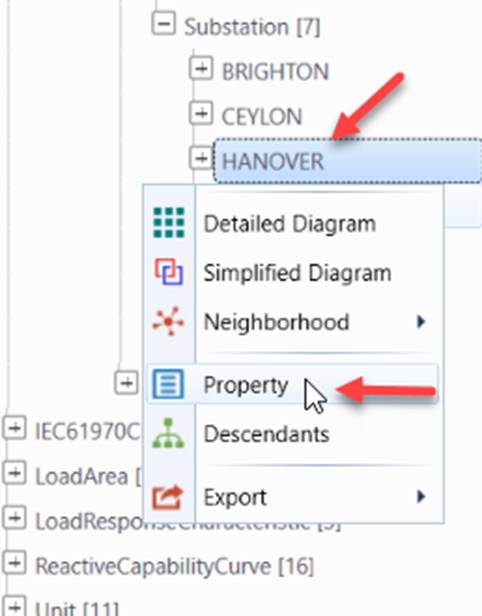
- By clicking a tree item or invoking the ‘Property’ menu item associated with the tree node
- By searching for an object;
- By navigating from a Tabular Display, a Diagram Display, or an associated Form Display;
- By navigating from a task report, such as Validation Report;
- By navigating from a Bookmark.
Understanding Form Display
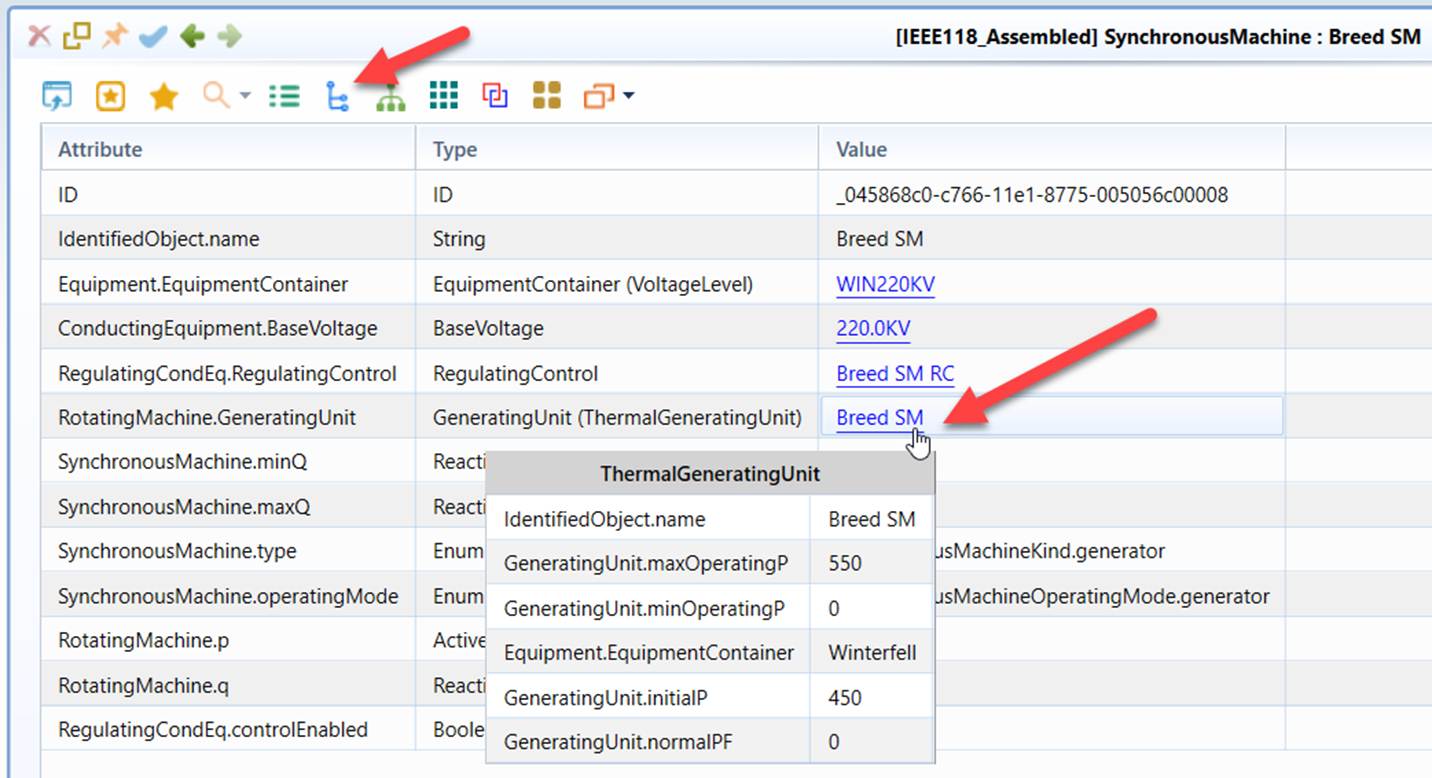
Once a Form Display is called, the Active Model View will display the corresponding object attributes and references in a tabular format. Links are also provided for navigation to the referenced objects. Whenever possible, object names (instead of rdf:ID) are displayed as navigation links. The following screenshot illustrates some of the features of a Form Display.
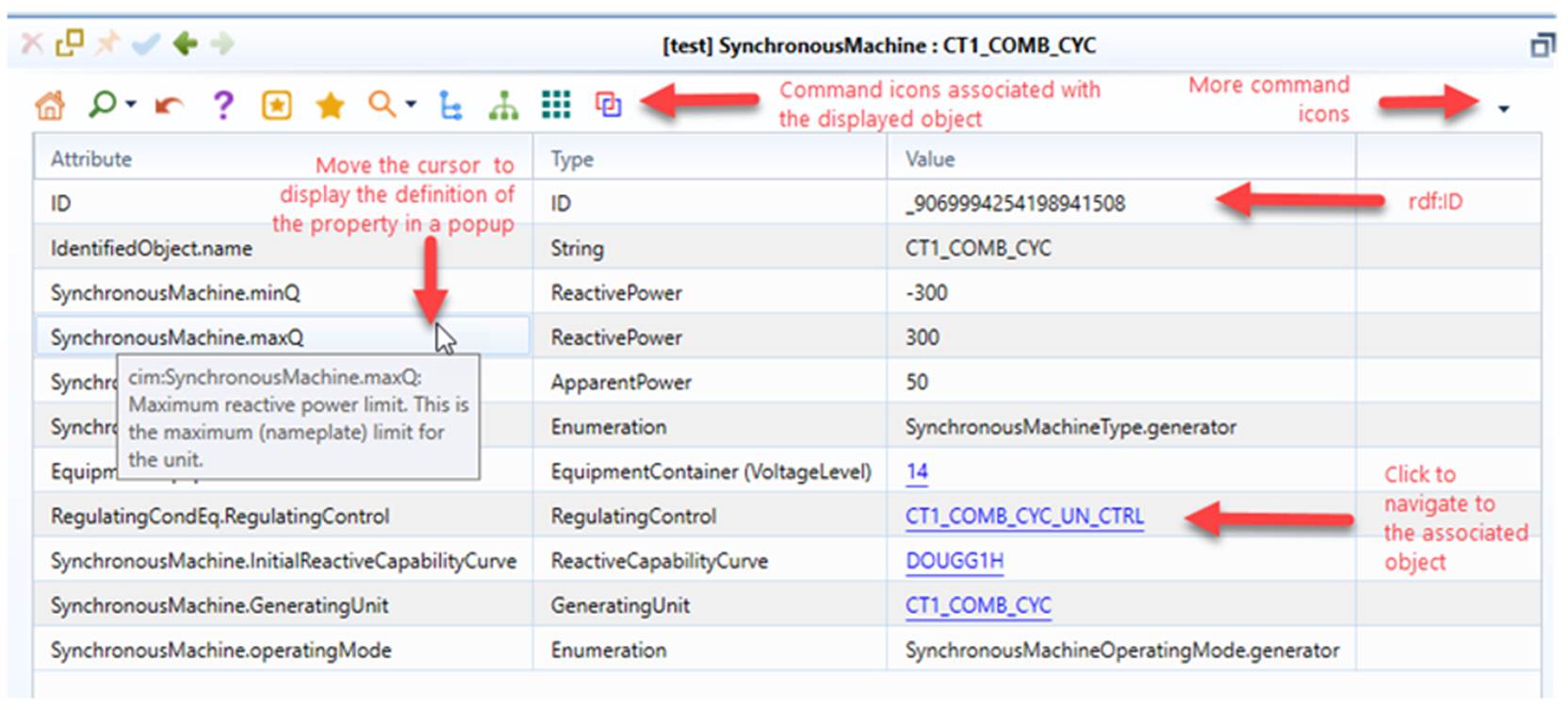
There are two interactive features that enable users to find the context information in the Form Display:
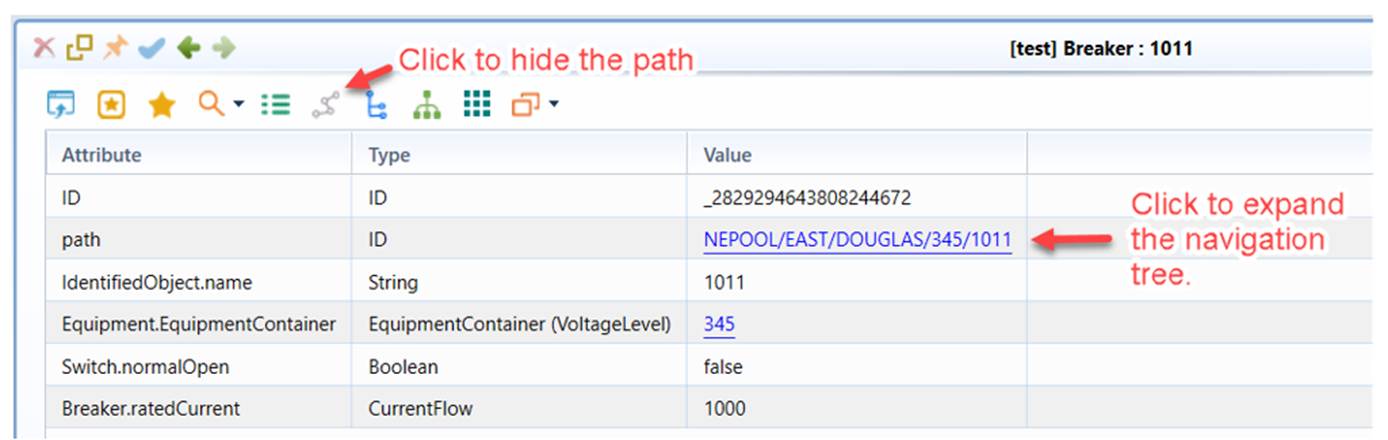
- In a Form display showing a raw model object, a hierarchical ‘path’ column is displayed by default. This attribute, dynamically generated based on the pre-defined object containership, displays the object hierarchal path using object names. When users click the path hyperlink, the Model Explorer navigation tree will be automatically expanded, showing the hierarchical location of the related object. Users can also Auto-expand the tree to find the other hierarchical paths associated with the current object
- Mouse-over the associated object in the Form to popup a data grid displaying the detailed information about the associated object, as illustrated below:
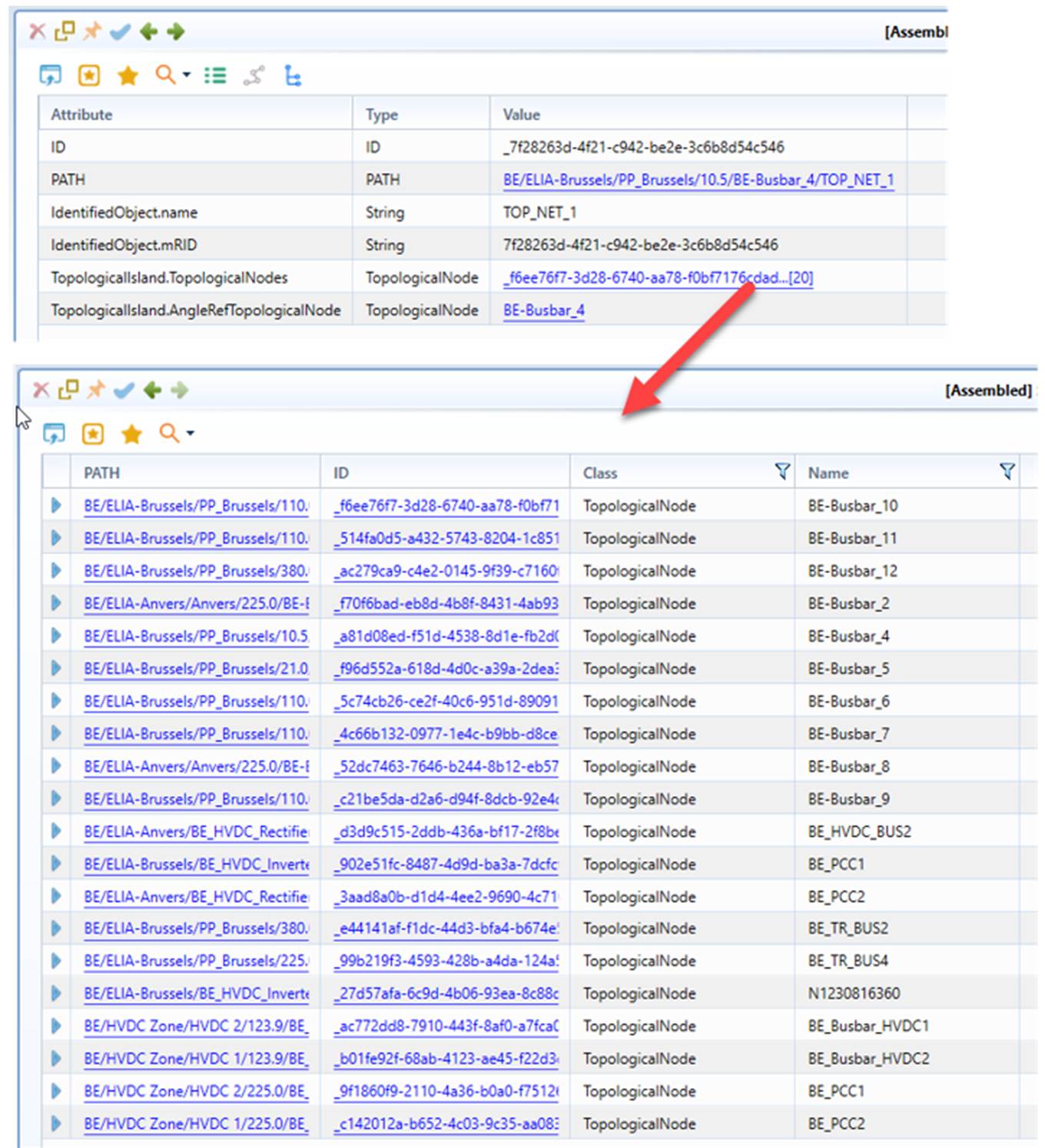
For 1-to-many association, only the first associated object (name or ID) is displayed in a Form display. Clicking the link, all of the associated objects will be displayed, as illustrated below.
The Form Display enables users to enter the data when in the editing mode.
Composite Form
Form Display is designed to present a single object at a time. While it allows navigation to other objects, it can be inconvenient for users to browse the model, as the context is lost during navigation. The Composite Form addresses this limitation by providing an integrated view of related or associated objects, enhancing usability for both model browsing and editing.
About Composite Form
A Composite Form is a structured form designed to present and edit complex, interrelated objects in a single, integrated view. It combines hierarchical, tabular, and form-based representations of data, allowing users to interact with multiple related objects seamlessly. The Composite Form Display is built on the Model-View-ViewModel (MVVM) architectural pattern. This approach enhances usability by providing a comprehensive and context-aware interface for model browsing and editing.
The following shows a sample of a Composite Form with key components highlighted.
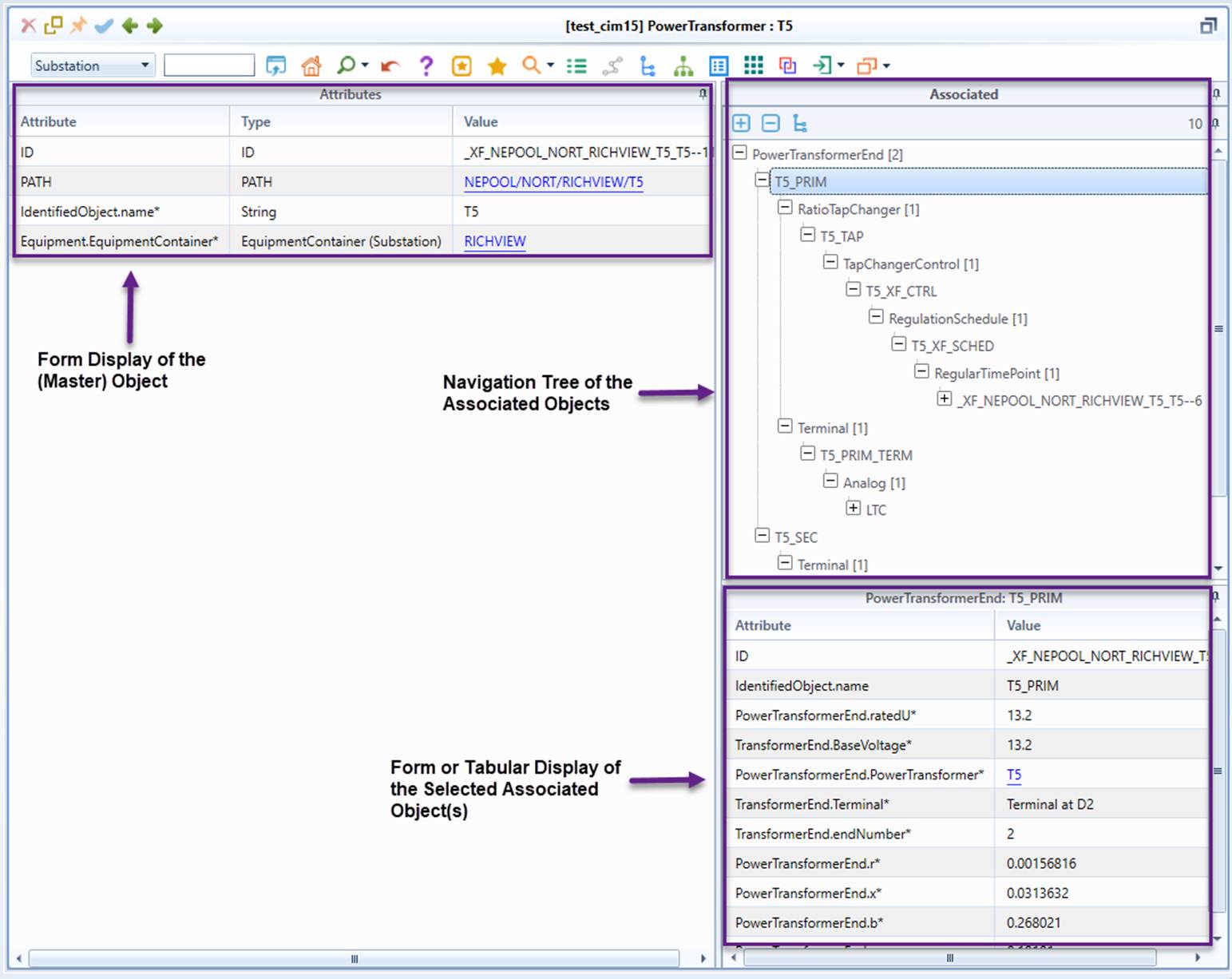
As illustrated above, a Composite Form consists of three major components:
- Form Display of the (Master) Object – Displays the selected or browsed object in a structured form, allowing users to view and edit its properties.
- Navigation Tree of the Associated Objects – Organizes related or associated objects in a hierarchical navigation tree, enabling seamless exploration of related data.
- Form or Tabular Display of the Selected Associated Object – Presents the associated object(s) selected from the navigation tree:
- If an object tree node is selected, it is displayed in a Form for detailed inspection and editing.
- If a category or class tree node is selected, the associated objects are displayed in a Tabular view for better data organization and comparison.
This structured layout enhances usability by integrating hierarchical navigation, detailed object forms, and tabular representations, making it easier to interact with complex model data.
Note:
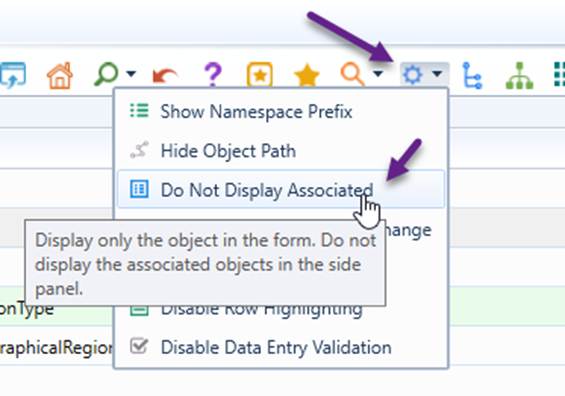
- The Composite Form can be enabled or disabled by clicking the command icon, as illustrated below. This is a persistent setting, meaning the Tool retains the setting until it is manually changed.
- Calling a Composite Form is more time-consuming compared to a standard Form Display due to the complexity of rendering multiple associated objects. For performance reasons, the Composite Form is disabled for certain classes, such as GeographicalRegion and BaseVoltage. This is achieved by adding these classes to the exception list in the default ViewModel definition, preventing unnecessary performance overhead when working with large models. Additionally, if the number of discovered associated objects for the browsed object exceeds a configurable limit, the Tool will automatically disable the Master Form for this object.
- If the object contains too many associated object tree nodes, the associated objects are not displayed for the performance reasons. Users can change this behavior by modifying the configuration as described in Model-View-ViewModel (MVVM).
- The master object can also be included as the root of the navigation tree. In this case, the Form Display of the Master Object is not needed. This special type of Composite Form is referred to as a Compact Composite Form, where all interactions occur within the navigation tree and associated object panels. This approach streamlines the display, making it more compact and focused on hierarchical object relationships. An example of this is shown later.
Model Editing in Composite Form
Refer to Object Editing in a Composite Form for detailed instructions on how to edit models within a Composite Form.
Exploration of Associated Objects
To help users explore or locate the associated objects, a set of command icons are provided at the top of the navigation tree as shown and described below.
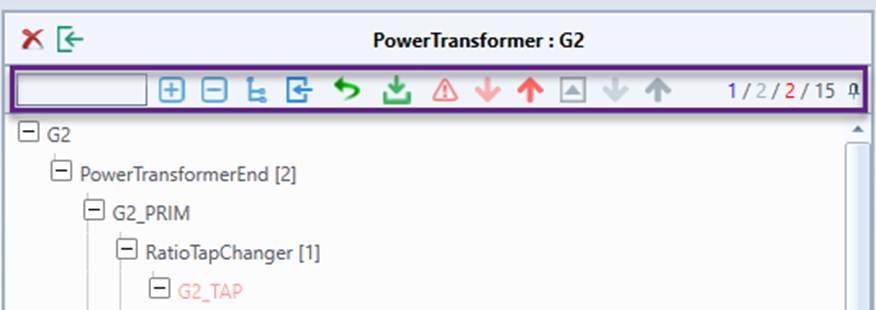
Control
Description

Provide a hint (partial name) to initiate the search for an associated object. Once the item is identified, select the item to expand the tree for the identified object and bring it into tree view.

Expand the entire tree.

Collapse the entire tree.

Expand the tree to find the currently-selected tree node.

Display the selected object in the main view. This option is enabled only when an associated object is currently selected within the navigation tree.

Cancel or undo the pending model changes. This option is available only in edit mode and enabled only when model changes are detected.

Save the pending model changes to the model. This option is available only in edit mode and enabled only when model changes are detected.

Expand the tree to locate all invalid objects. This option is available only when invalid objects are detected within the navigation tree.

Expand the tree to locate the next invalid object from the current selection. This option is available only when the next invalid object is detected within the navigation tree, and enabled only when there is a next invalid object from the current selection.

Expand the tree to locate the previous invalid object from the current selection. This option is available only when the previous invalid object is detected within the navigation tree, and enabled only when there is a previous invalid object from the current selection.

Expand the tree to locate all changed objects. This option is available only when changed objects are detected within the navigation tree.

Expand the tree to locate the next changed object from the current selection. This option is available only when the next changed object is detected within the navigation tree, and enabled only when there is a next changed object from the current selection.

Expand the tree to locate the previous changed object from the current selection. This option is available only when the previous changed object is detected within the navigation tree, and enabled only when there is a previous changed object from the current selection.
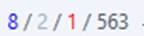
Displays the object counts in the format deleted / changed / invalid / total, providing users with a quick overview of the status of the associated objects.
- Deleted – The number of deleted objects that have been saved (in blue).
- Changed – The number of objects that have been added or modified but not yet saved (in gray).
- Invalid – The number of objects that contain errors or inconsistencies requiring attention (in red).
- Total – The total number of the associated objects (in black or white). Note that the total number of object tree nodes in the navigation tree may be greater than this count, as the same object can appear multiple times under different categories
Rendering of Composite Form
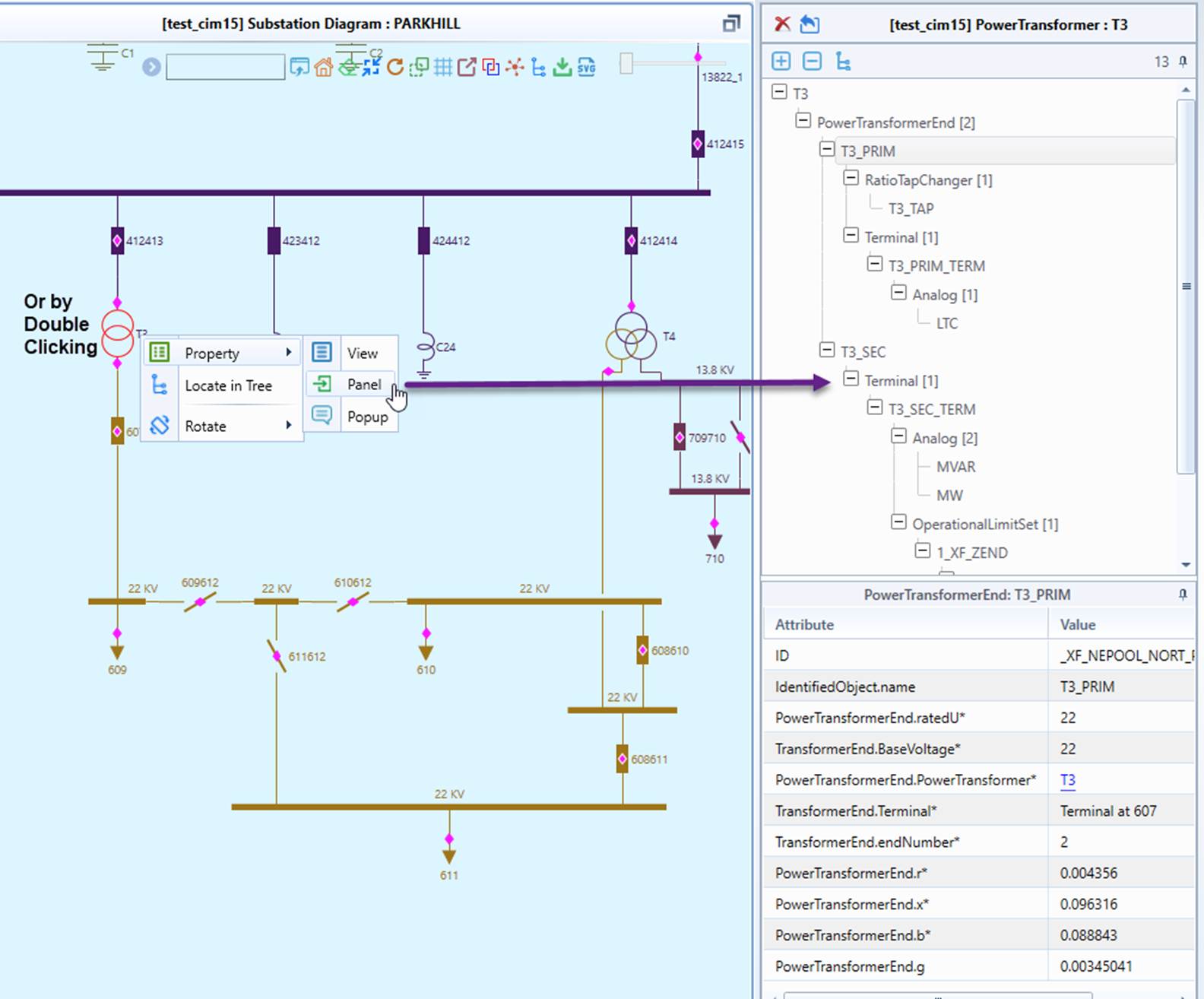
In addition to rendering Composite Form as independent View, Composite Form Display can also be rendered in a Side Panel or Popup, allowing users to view supplementary information without navigating away from the main display. The following illustrates how a Compact Composite Form can be invoked from a diagram context menu or by double-clicking an object in the diagram. When triggered, the Composite Form is hosted in a Side Panel, allowing users to view and edit related object details without leaving the main diagram view.
Customization of Composite Form
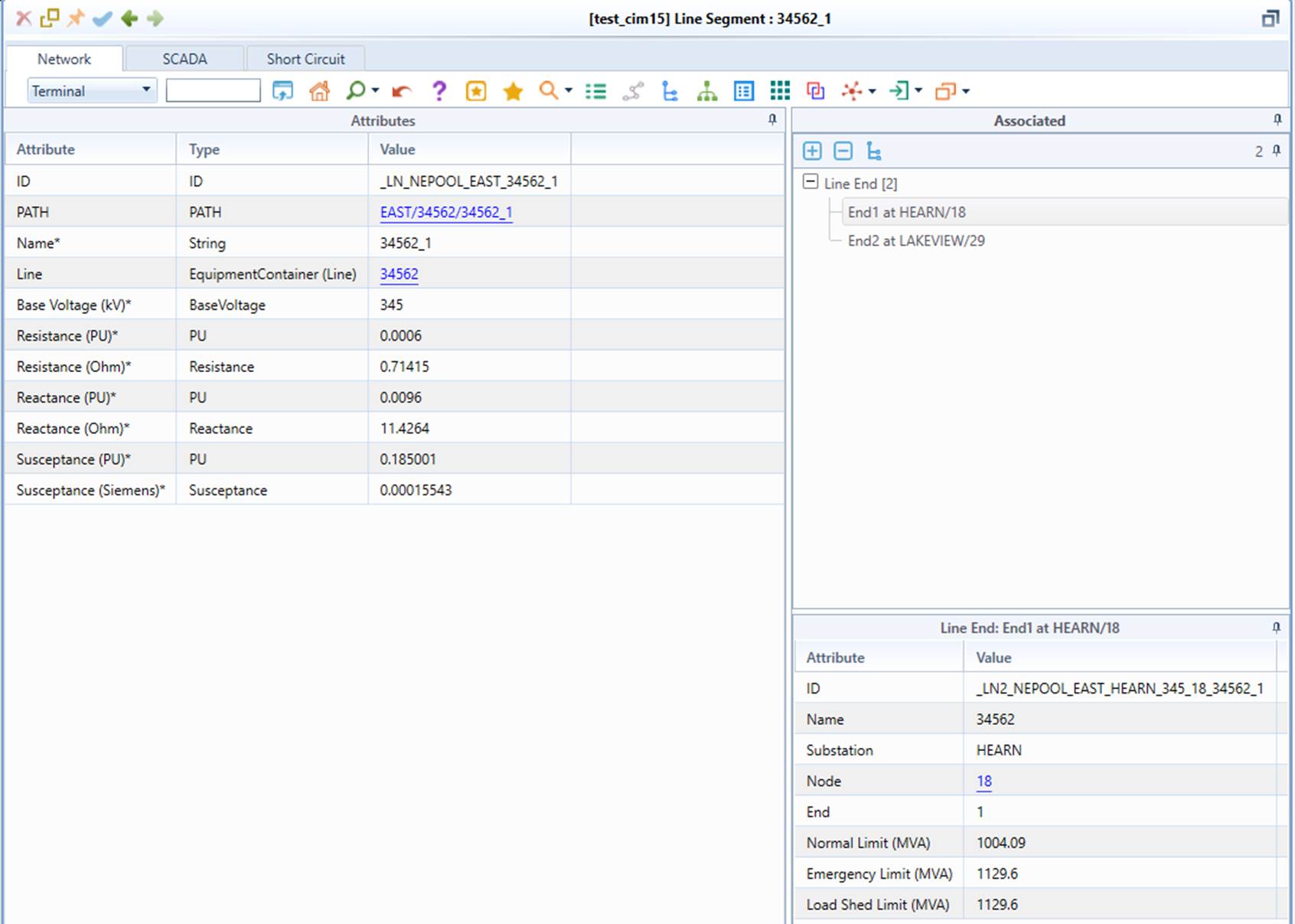
The Composite Form Display is highly customizable, as illustrated below. Users can configure its layout, data presentation, and interaction to align with specific modeling requirements. For further details on customization, refer to MVVM Support.
Lazy Loading of “Heavy” Objects
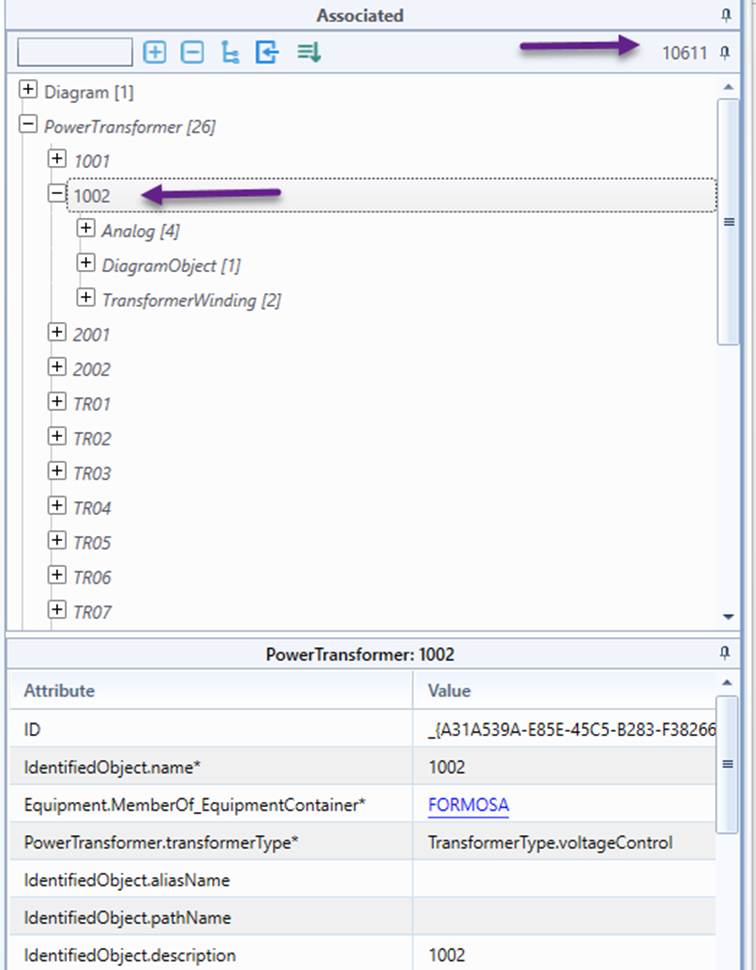
Previously, when a “heavy” object (i.e., one with many associated descendant objects) was loaded, the tool attempted to build and display the entire association tree at once. This could result in noticeable delays and high memory usage, particularly for models containing tens of thousands of associated objects as highlighted in the example above.
With lazy loading enabled, only a skeleton structure of the associated descendant objects is initially loaded. Detailed information is retrieved and displayed dynamically when a user selects or expands specific objects. This on-demand loading approach reduces loading time, improves UI responsiveness, and allows users to browse large models more smoothly.
For end users, this means faster model loading, quicker tree expansion, and a more responsive experience when exploring complex networks with deeply nested associations.
Delayed-loaded objects are shown in italics in the association tree. When a user selects an object, its content is loaded dynamically and the name changes to normal text, as illustrated below.
Note
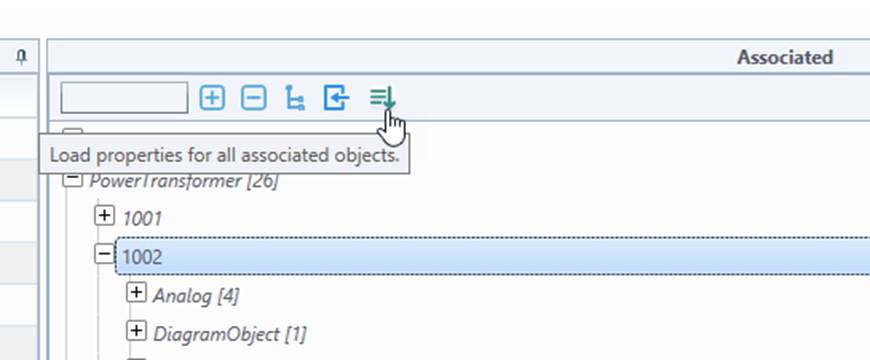
Lazy loading is applied only when the tool determines that an object is “heavy,” i.e., when the number of associated descendant objects exceeds a threshold, predefined in the ViewModel.

Users can load the full properties by clicking the corresponding command icon, as illustrated below.
Data Entry Validation
The Tool provides Data Entry Validation, ensuring that user input is accurate, consistent, and compliant with predefined rules before being saved to the model. Refer to Data Entry Validation for more details.
Settings
Form related settings can be managed by clicking the command icon, as illustrated below. These are persistent settings, meaning the Tool retains the setting until they are manually changed.
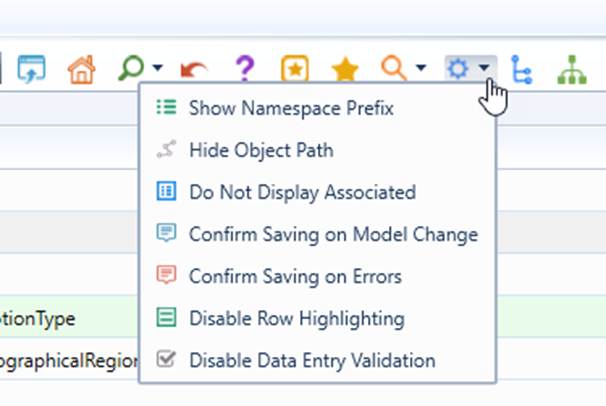
- Show/Hide Namespace Prefix: Display/hide namespace prefix for properties.
- Show/Hide Object Path: Display/hide object path.
- Display or Do Not Display Associated: Display associated objects in the side panel or only the object in the form.
- Confirm/Auto Saving on Model Change: If enabled, prompt for confirmation before leaving the display if there are any unsaved changes. Applicable only in editing mode.
- Confirm/Auto Saving on Errors: If enabled, prompt for confirmation before saving if modeling errors are found. Applicable only in editing mode.
- Enable/Disable Row Highlighting: If enabled, highlight rows for non-standard properties, such as undeclared or extended ones.
- Enable/Disable Data Entry Validation: Enable/disable Data Entry Validation.
Activities Performed from Form Display
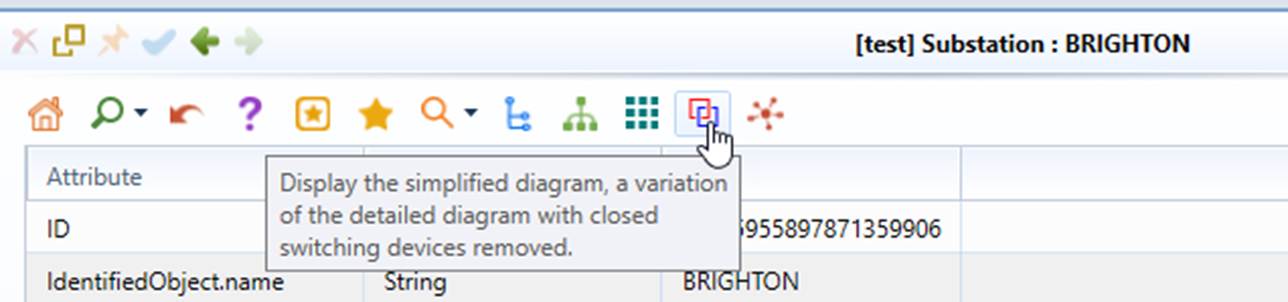
Users typically call Form Display to perform a certain task related to the displayed object, such as editing, visualization, navigation to related objects, etc. These tasks are typically invoked by clicking the command icons at the top of the Form Display. To find more information about each related command icon, simply move the curse over the icon. A tool tip will popup, prompting what activity can be performed by clicking the corresponding icon.
Configuration
Form Displays can be adjusted by modifying the UI or Client Configurations located in the \config\ui folder. This can be done in either CIMSpyConfig.xml or, preferably, AddonConfig.xml, which contains user-defined configurations.
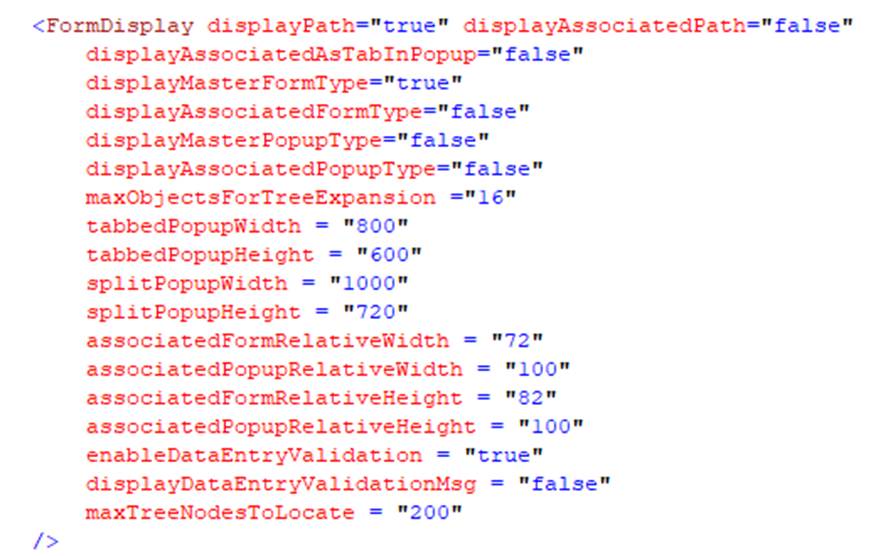
The following table summarizes the configurable parameters
Attribute
Default
Description
maxObjectsForTreeExpansion
16
If the number of object tree nodes is below this value, the entire associated tree will expand during the initial rendering.
maxTreeNodesToLocate
200
During auto-tree expansion for invalid or changed associated objects, if the number of located tree nodes reaches this value, the expansion will stop.
splitPopupWidth
1000
Popup Width for Composite Form Display
splitPopupHeight
720
Popup Height for Composite Form Display
associatedFormRelativeWidth
72
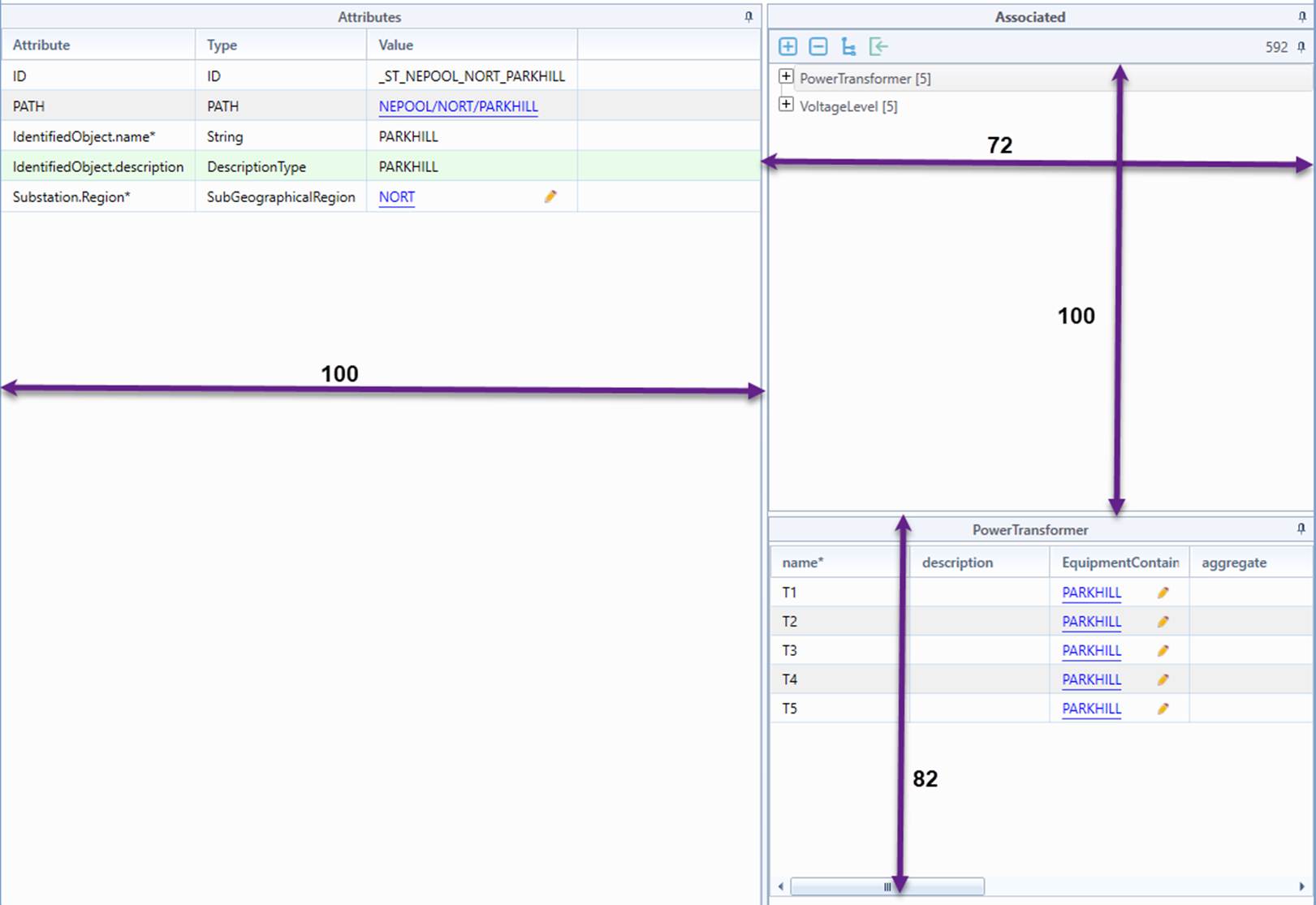
Horizontal Relative Size for Associated Panel (Master Form Width = 100). See the sample below.
associatedFormRelativeHeight
82
Vertical Relative Size for associated object form (Height of the Navigation Tree of the Associated Objects = 100). See the sample below.
associatedPopupRelativeWidth
100
Horizontal Relative Size for Associated Panel within a Popup (Master Form Width = 100). This applies to Form Display in a Popup.
associatedPopupRelativeHeight
100
Vertical Relative Size for associated object form within a Popup (Height of the Navigation Tree of the Associated Objects = 100). This applies to Form Display in a Popup.
displayPath
true
If true, the object path will be displayed in the master form.
displayMasterFormType
true
If true, the property type will be displayed in the master form.
displayAssociatedFormType
false
If true, the property type will be displayed in the property sheet of the associated object.
displayMasterPopupType
false
If true, the property type will be displayed in the master form within a popup. This applies to Form Display in a Popup.
displayAssociatedPopupType
false
If true, the property type will be displayed in the property sheet of the associated object within a popup. This applies to Form Display in a Popup.
enableDataEntryValidation
true
If true, invalid objects will be highlighted in red in the navigation tree of the associated object
displayDataEntryValidationMsg
false
If true, the data entry validation message will be displayed in a separate column.