Model Administration UI
Users performs various Model Maintenance and Management tasks in the life cycle of model build, ranging from drafting, submittal, versioning, branching, and model merging etc. To support users for doing these tasks, the Tool provides functions in two places: the Navigation Tree Panel and the Model Admin UI. In general, the model maintenance activities are mainly performed in the navigation tree of modeler UI, while most model administration functions are performed in Model Admin UI.
What is Model Admin UI?
Model Admin Page is the centralized model management administration portal. It displays the Version Tree, detailed Version information, and provides a comprehensive set of functions through context menu. Model Admin Page is mainly used for Model Admin.
Navigate to Model Admin UI
Model Admin Page can be launched in two wys:
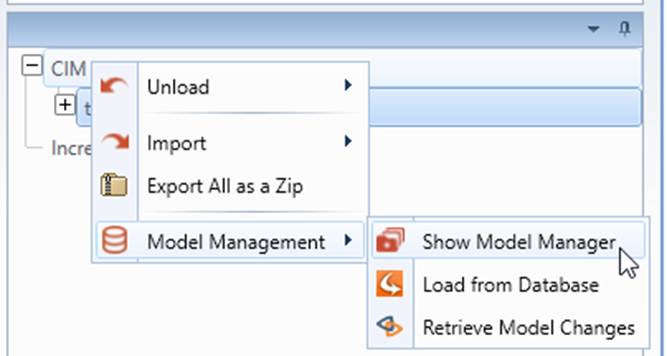
- From Model Explorer, right mouse click top tree node CIM Models and select Manage Models in Database in context menu.
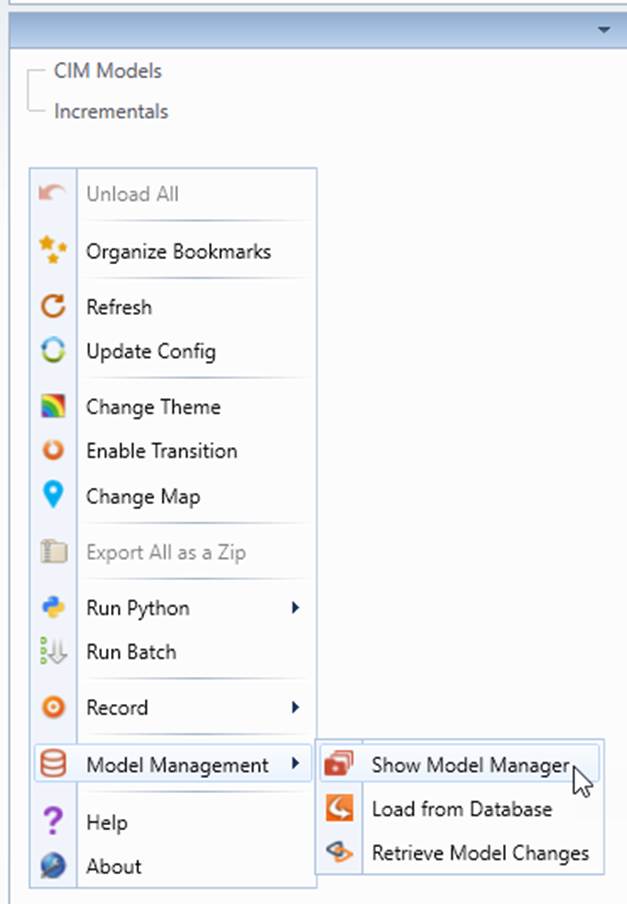
- Right-mouse-click a blank spot in the navigation tree panel to invoke a context menu, select Manage Models in Database.
Manage Model in Model Admin UI
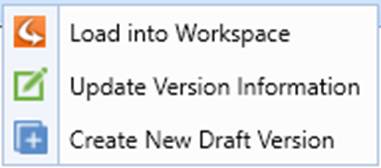
Model Admin Page provides different functions in context menu for Base version, Labeled Version, and Draft Version.
Version Type
Context menu
Base Version
Labeled Version
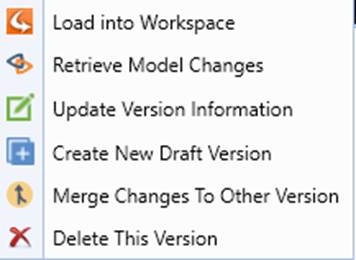
Draft Version
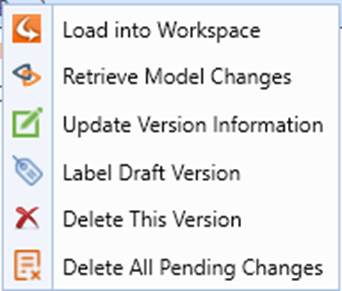
In summary, the following functions are supported from Model Admin Page:
- Load Model – load full model of the selected version from Modelspace.
- Update version Information – change the name and description of the selected version.
- Create New Draft Version – create a draft version from the selected version.
- Retrieve Version Changes – create a difference model between the selected version and another version.
- Merge Changes to Other Version – merge changes from the selected version to other applicable version.
- Delete This version – deleted the selected version and all its dependent versions
- Label Draft Version – label the selected version with name and description. After labeling, the version is read-only.
- Delete Pending Changes – delete all pending changes from the selected version.
Perform Other Tasks in Navigation Tree Panel
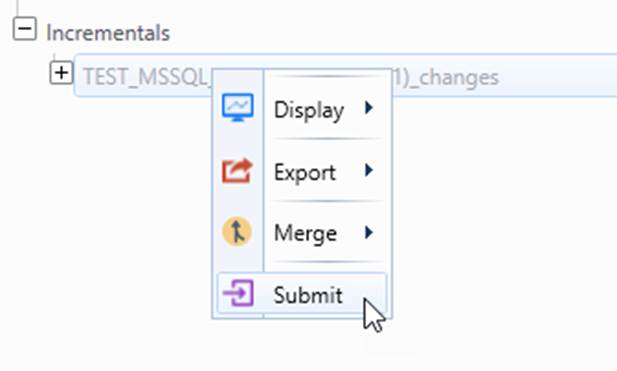
Although most model management functions are accomplished in Model Admin Page, a few other model related functions have to be done from the Navigation Tree Panel through context menu of the loaded model, such as Submit changes . These functions are typically for Model Maintenance.
View Version Tree and Version Details
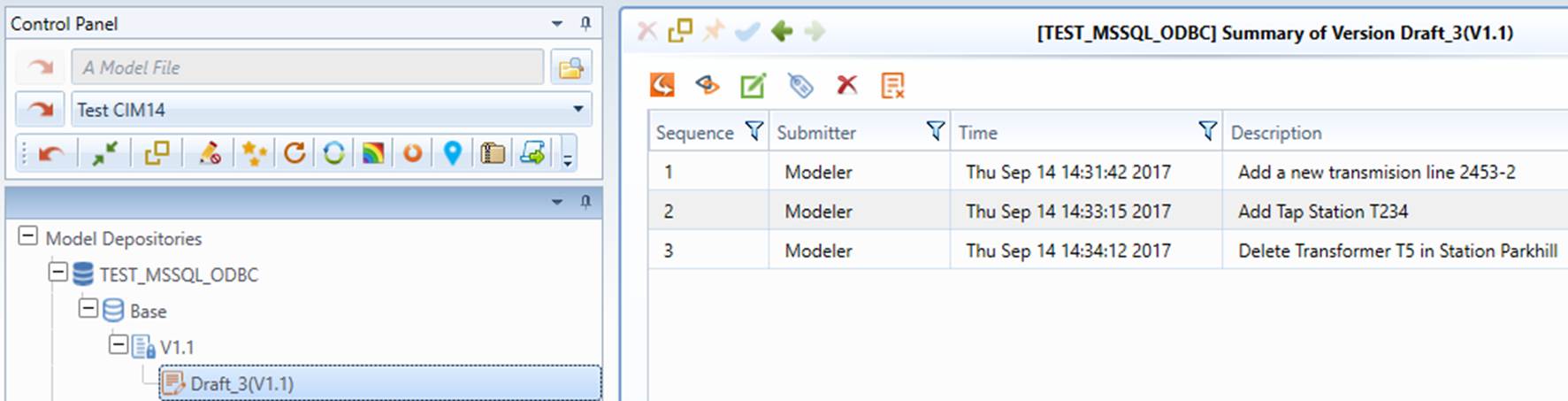
Model Admin Page has two panels: the Version Tree View on the left and the Version Detail View to the right. Each panel can be individually resized by dragging the resize splitter by clicking and holding left mouse button.
- Version Tree view
Version tree view contains the version tree which can be expanded and collapsed. The root tree node is the base model. All other tree nodes are descendent nodes created from Base. Each tree node represents a Model Version. Each tree branch represents an independent model evolution. Draft versions are usually tree leaves.
- Version Detail view
Version detail view displays detailed information of the selected Version in the tree. It contains a list of all submitted changes associated with the version in a tabular display. Each column is sortable and resizable. The table contains the following columns:
- Sequence – the order number of each submitted changes in time sequence with the most recent submission on top.
- Submitter – the user who submitted the change.
- Time – the time when the change is submitted.
- Description – the description about the change given by the user when the change is submitted.