Selecting Preferred Color
- Color plays a very important role in model visualization. Different and distinctive colors are used to show background, symbols, names, voltage levels, power flows, and last but not least popup displays. Therefore, it is crucial to make careful selection of colors to enhance the clarity of each display. Color is also individualistic and sometimes personal. Each person or each organization may have different standards. Hence, color needs to be customizable.
- The Tool provides three built-in themes and, at the same time, provides users the ability to control the third custom theme. A color theme is a package of colors used for all display components. Since clarity is important, the two built-in themes named “Black Sea” and “Mediterranean” consist colors distinctive and optimized for visual contrast. Black Sea theme is based on a black background. Mediterranean theme has a light blue background. The third color theme, i.e. Dark Expression, is a variation of the Black Sea color theme. It sets the background color to match the Dark Expression application color theme and inherits the other colors from the Black Sea color theme. User could easily toggle among the three themes by clicking on each of them.
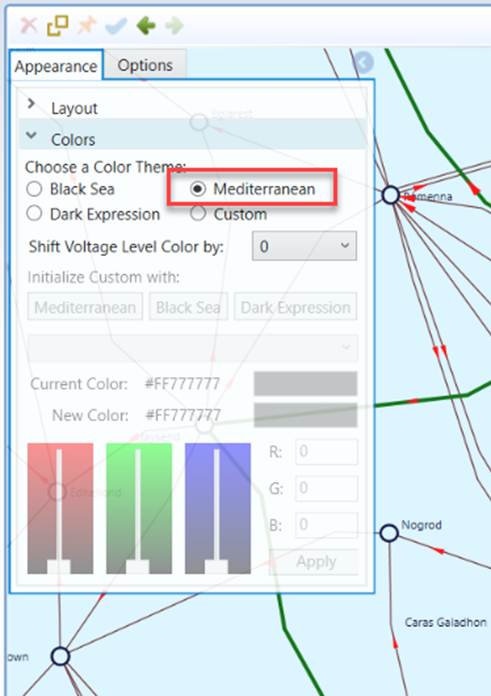
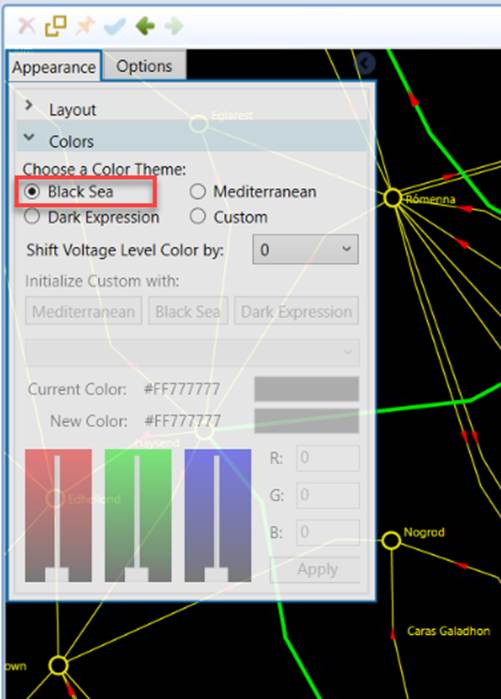
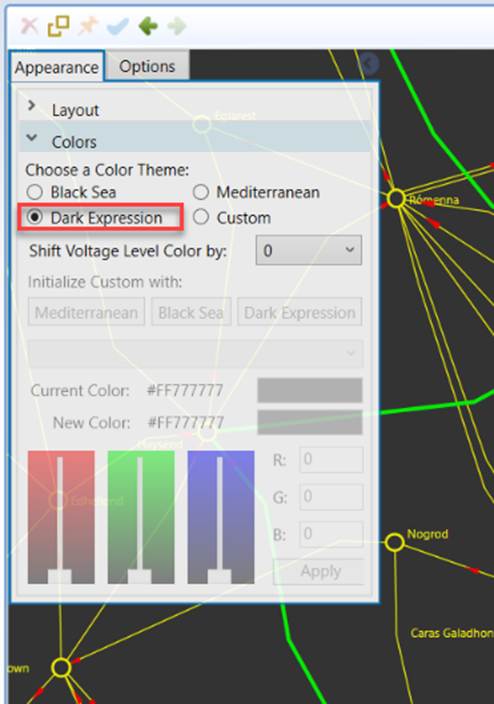
- However, if both dark and light themes are not adequate, user could select the Custom theme. In this Custom theme, user could customize a display component to any color of choice, as illustrated below.
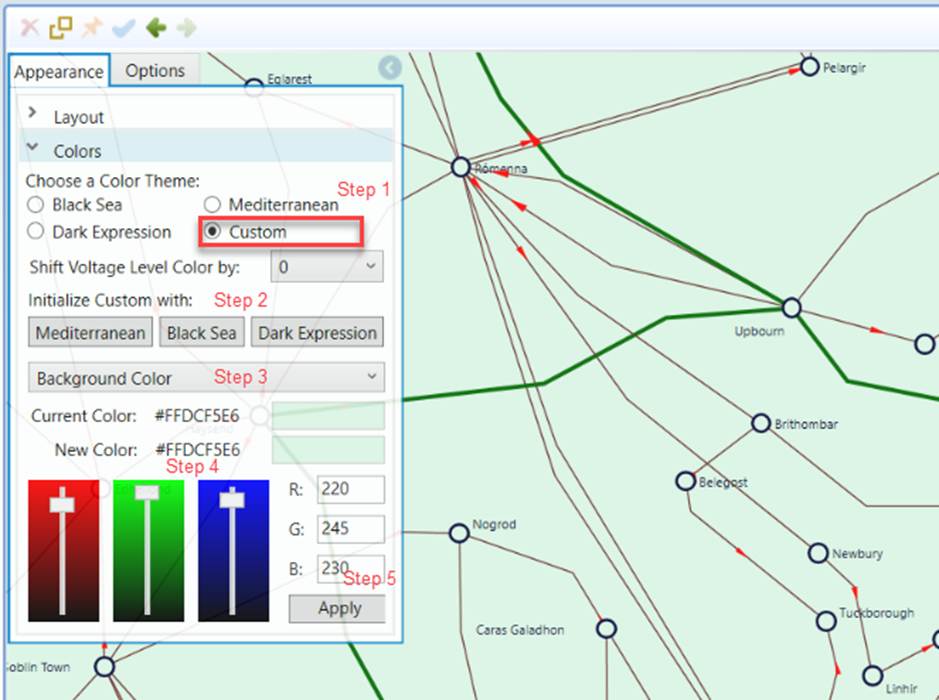
- To build a custom color theme:
- Step1: Select the ‘Custom’ color theme.
- Step 2: Select either of the standard themes as the base for customization using the “Initialize Custom With” button. This provides a starting point for color customization and enables user to reset the Custom theme at any time if they mess up the Custom theme.
- Step 3: Select what color to customize. The following table lists the colors that can be customizable in the Tool.
Display Component
Purpose
Background Color
The background color of the drawing space
Default Symbol Color
The color of all symbols, lines and names
Highlight Symbol Color
The color of selected symbol
PowerFlow Color
The color of power flow data and visual
Popup Background Color
Popup diagram background color
Popup Symbol Color
Popup symbols, lines and names color
Voltage Level Color: Default
Color of voltage level not assigned, if display voltage level color option is on
Voltage Level Color: Level 1-20
Color of each voltage level from 1 to 20, if display voltage level color option is on
- Step 4: Adjust the RGB color bars to make a custom color.
- Step 5: Click the ‘Apply’ button to set the color.
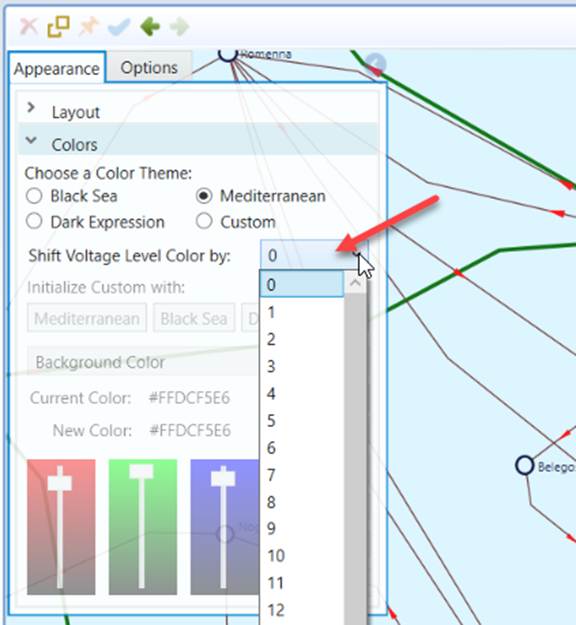
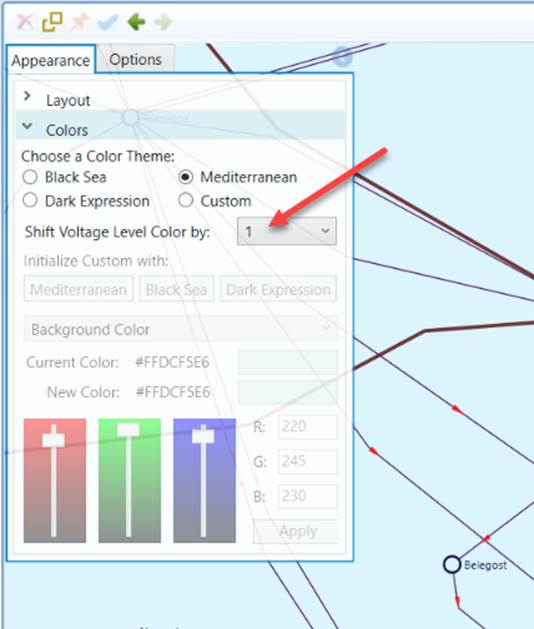
Each color theme provides 20 different colors to represent voltage levels. These colors are elaborately selected to match the background of the color theme. In general, dark colors are used for Mediterranean theme (with light background), and light colors are used for the Black Sea and Dark Expression theme (with dark background). The same colors are used for the Black Sea and Dark Expression theme. The 20 selected colors are named from 1 – 20, each assigned to a voltage level. Color 1 is assigned to the highest voltage level, Color 2 is assigned to the second highest voltage level, and so on. If more than 20 voltage levels are found in the model, the colors will be reused, i.e. Color 1 will be assigned to the 21st highest voltage color, etc. Users can change the designed voltage color profile by shifting the assignment, as illustrated below. In the example, Color 2 is assigned to the highest voltage level after shifting the assignment by 1. Note: this color profile adjustment will be persisted and applied to all of the loaded models.
Note:
- The color themes are applied to all of the models loaded into the Tool. In order to apply a customized color code to a particular model, users must define the model-specific color code in the configuration file. If properly specified, the customized color code will overwrite the colors defined in the Custom color theme. As an example, the color specified in the following configuration will overwrite the background and voltage custom settings. Additionally, the customized color code applied to a model will NOT respond to the voltage profile shift, as described above.

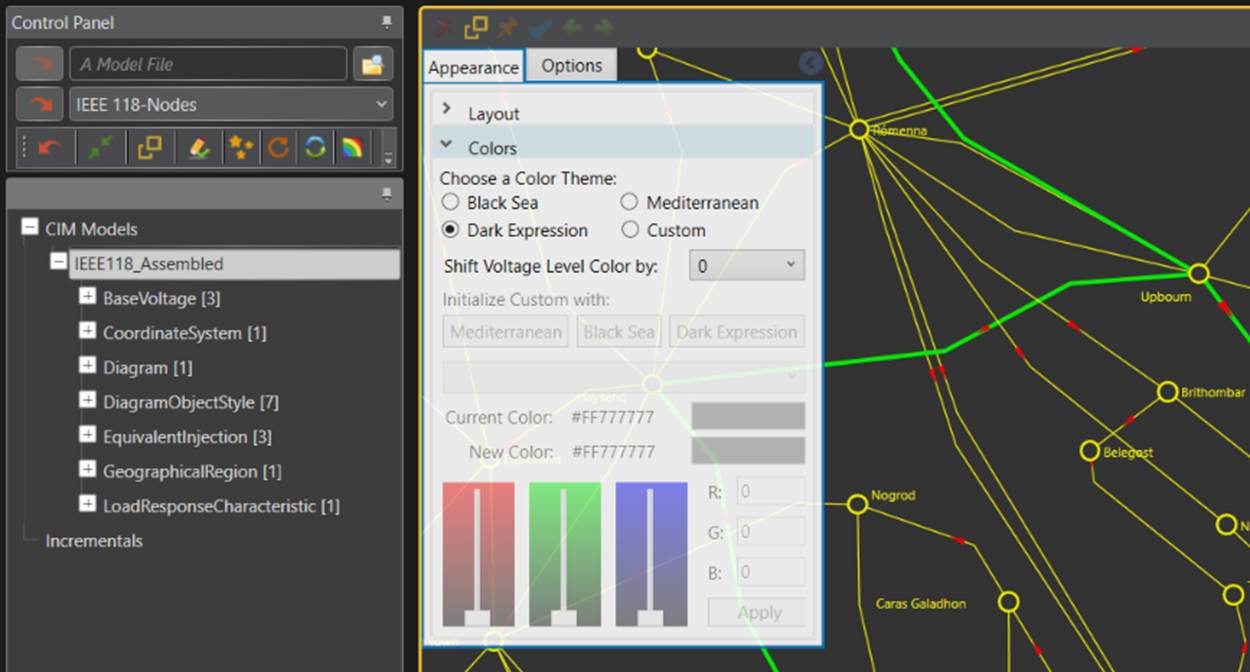
- The diagram color theme described in this article is independent of the application color theme. This is because the diagram display is an independent software component called grid-IE. However, diagram color theme and the application color theme can be coordinated. Users shall choose the matching color themes. For example, if Dark Expression color theme is chosen for the application, then the Dark Expression color theme shall be chosen for the diagram, as illustrated below.