Bookmarking
While the Tool provides various mechanisms to facilitate model browsing, it may take quite a few steps for users to navigate to the target displays. Bookmarking support is targeted at facilitating navigation. It allows users to build and maintain a list of frequently-visited displays and enable users to re-visit these displays with one-button clicking. This user-centered feature is very similar to those provided by Web browsers.
The Tool supports two kinds of bookmarks:
- Temporary Bookmarks(identified with icon
 ): These bookmarks are only valid for the current session. They are temporarily used to support quick navigation for a specific model. After the Tool is closed or shut down, the temporary bookmarks will NOT be saved. Temporary bookmarks only work for the model where they are created.
- Permanent Bookmarks(identified with icon
 ): These bookmarks are typically used to allow uses to quickly navigate to the frequently-visited display. There are different from the Temporary Bookmarks in
- Before the Tool is closed or shutdown, all of the Permanent Bookmarks will be saved as a user profile.
- After the Tool is started, all of the Permanent Bookmarks previously saved will be automatically loaded.
- Permanent Bookmarks can be used for any models that maintain the same rdf:IDs as the model where the bookmarks are created. In other words, Permanent Bookmarks also work for the future versions of models.
In summary, Temporary Bookmarks are normally used within a session for quick access to a display associated with a model, while Permanent Bookmarks persist among sessions and enable users to get access to frequently-visited displays of a model and its derived versions.
- Temporary Bookmarks are quick to add and easy to use.
- Permanent Bookmarks last forever and apply to the future versions of the models. But they require maintenance.
- Temporary Bookmarks and Permanent Bookmarks are inter-changeable, as described in section “Organize Bookmarks”.
Add a Bookmark
Bookmarks, temporary or permanent, can only be added from Model Views. This is because model views that host displays contain all of the information needed for creating a bookmark, thus requiring minimal data entry for adding a bookmark.
In order to support bookmarking, each type of model display contains icons needed for bookmarking in their quick access bars.
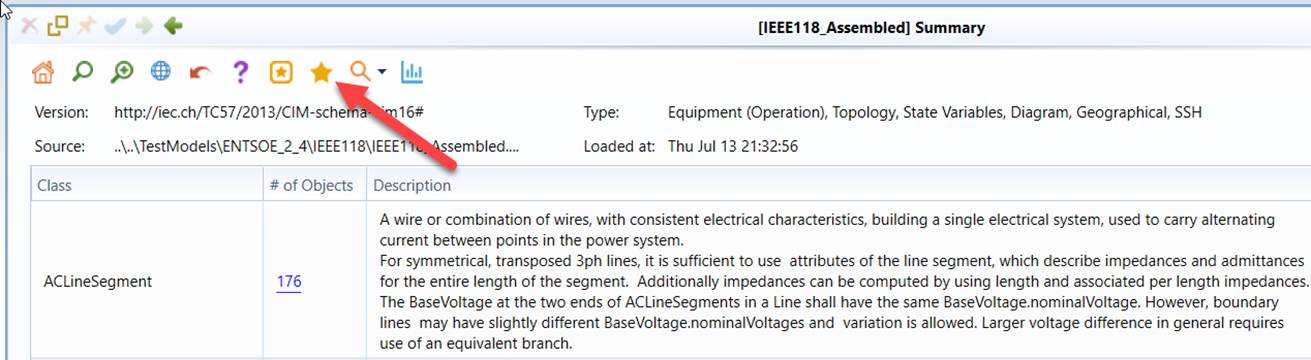
- To add a Temporary Bookmark, user simply clicks icon , as illustrated below. A Temporary Bookmark doesn’t require data entry. It uses the display Title to name the added bookmark. Note a Temporary Bookmark is associated with a model. So the model name is always added as part of the title.
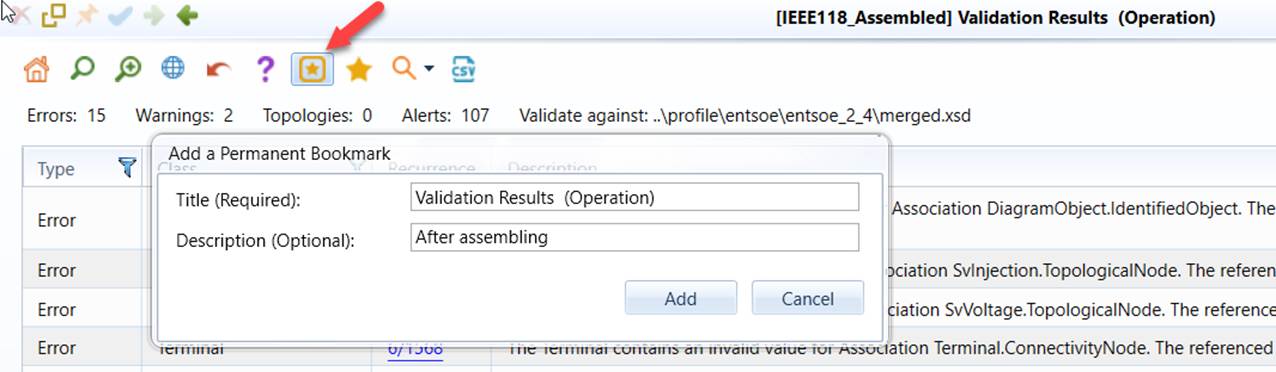
- To add a Permanent Bookmark, user simply clicks icon ):, as illustrated below. A Permanent Bookmark requires minimal data entry. It uses the display Title to name the added bookmark by default. But user can change the Title in the popup data entry wizard. Users can also enter the Description information that will further help them to identify the added book mark. Note a Permanent Bookmark is NOT associated with a specific model. So the model name is removed from the default Title.
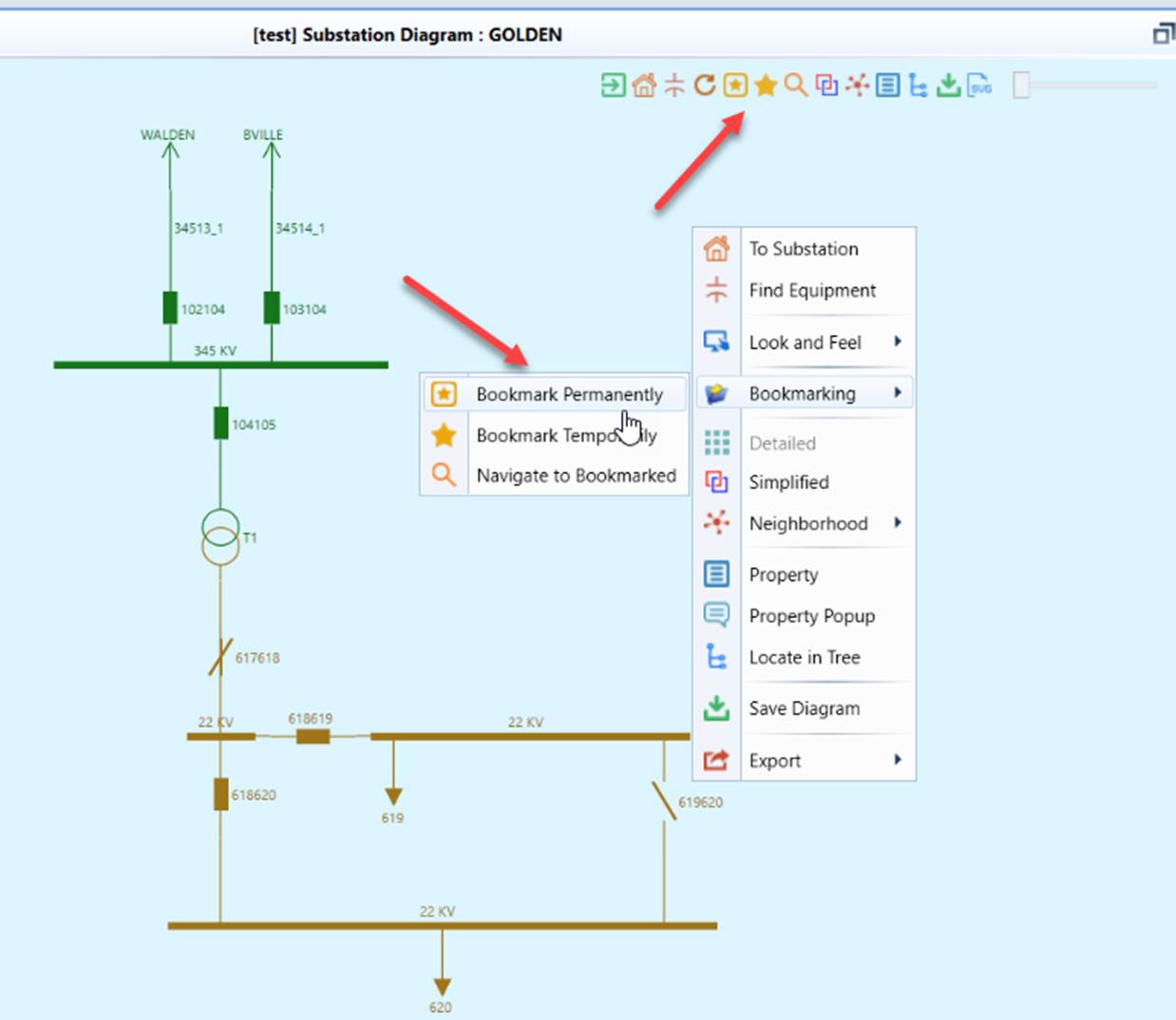
- For Diagram Display, bookmarks can also be added through display context menu, as shown below.
Call a Bookmarked Display
Bookmarked displays can be called from Model Views or the Bookmark Organizer.
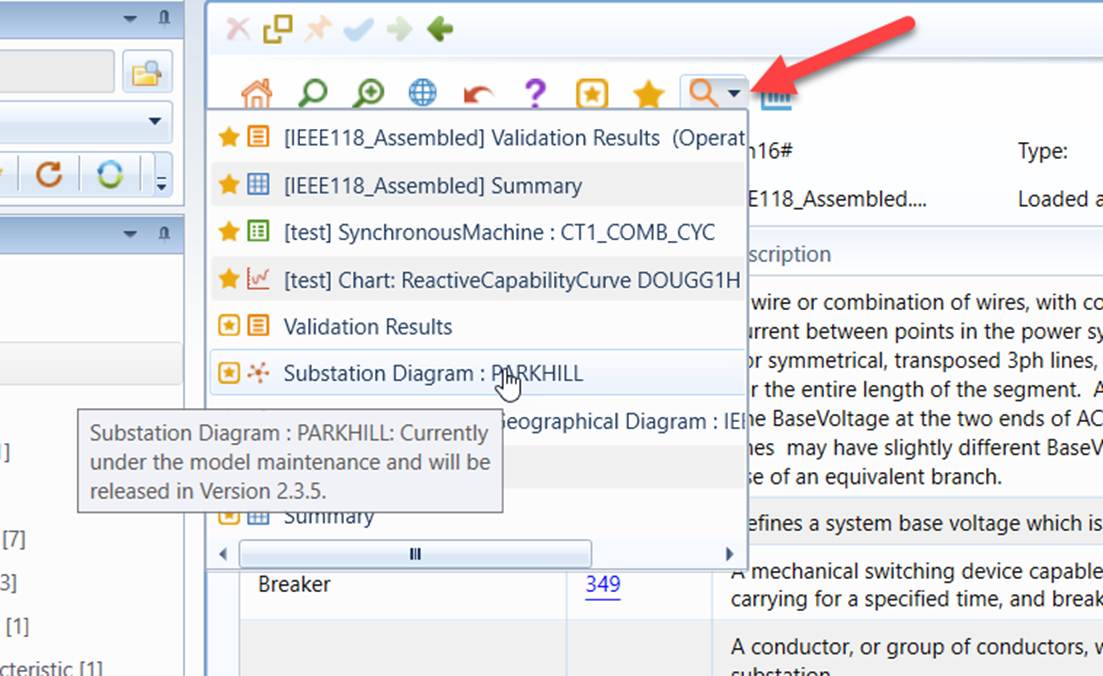
Except Diagram Display, all other types of displays contain a dropdown icon that allows users to select a bookmark from the invoked dropdown bookmark list. Since a Temporary Bookmark is always associated with a model, calling a Temporary Bookmark doesn’t use any information from the displays where it is called. However, this is not the case for calling a Permanent Bookmark. When calling a Permanent Bookmark, the model ID from the current display is inherited. This is because a Permanent Bookmark is not associated with a model. Thus it uses the model ID from the current context to facilitate bookmark-enabled navigation.
The Diagram Display contains a similar icon, but it is not a dropdown icon. Instead it pop-ups the Bookmark Organizer once invoked and allows users to call the bookmarked display from the Bookmark Organizer. The same rule is applied regarding model ID inheritance.
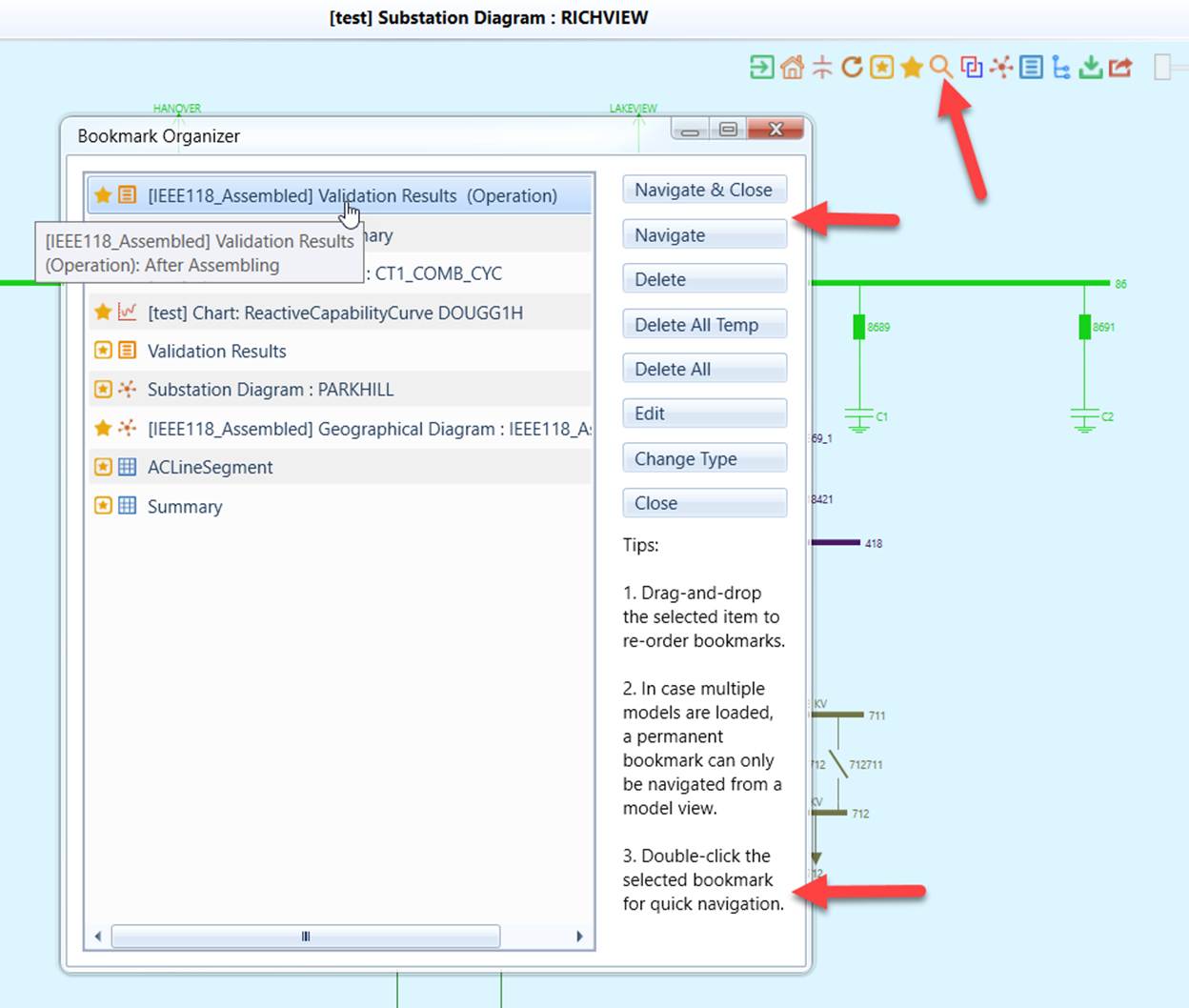
A bookmark can also be called from the standalone Bookmark Organizer, which is unrelated to any existing displays and typically invoked from control panel or global context menu. But there are special rules applied: In case that multiple models are loaded, a Permanent Bookmark cannot be called from be standalone Bookmark Organizer. This is because a Permanent Bookmark has to be targeted at a specified model.
Note
calling a bookmarked display may fail due to the follow reasons:
- The model where a Temporary Bookmark is created has been unloaded. A Temporary Bookmark is always associated with a model.
- The Permanent Bookmark is called against a wrong model.
- The previously bookmarked display becomes invalid. If a Substation has been deleted, the bookmarked Substation Diagram will become invalid.
When calling a bookmarked display fails, the host Model View will blanked with Title marked as “Invalid”, as shown below.

Organize Bookmarks
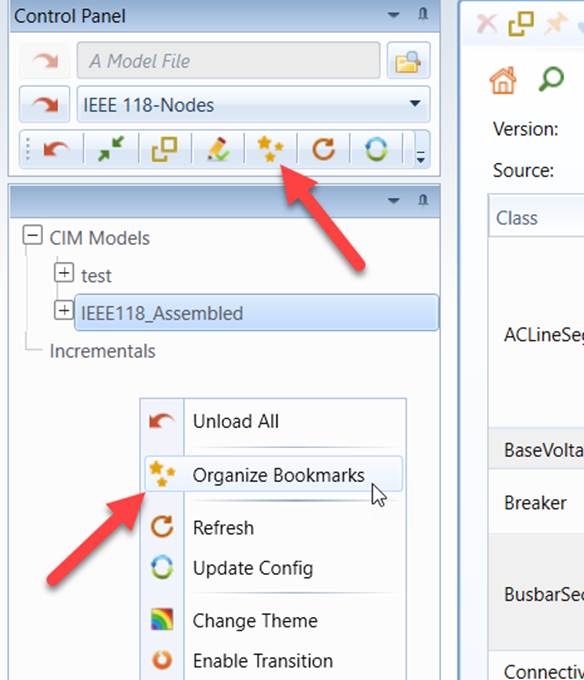
Bookmarks, especially Permanent Bookmarks, require some maintenance. This is achieved through the Bookmark Organizer, which can be invoked from the control panel or global context menu, as shown below.
The Bookmark Organizer is made of a list of added Bookmarks and a collection of context-sensitive buttons used to organize Bookmarks. When users move the cursor over a bookmark, a corresponding ToolTip will popup, displaying the Title and Description of the bookmark. The Description is typically used to help users further identify the bookmarks. It is not required, though. Normally users need select a bookmark for certain activities, which can be invoked with the enabled buttons.
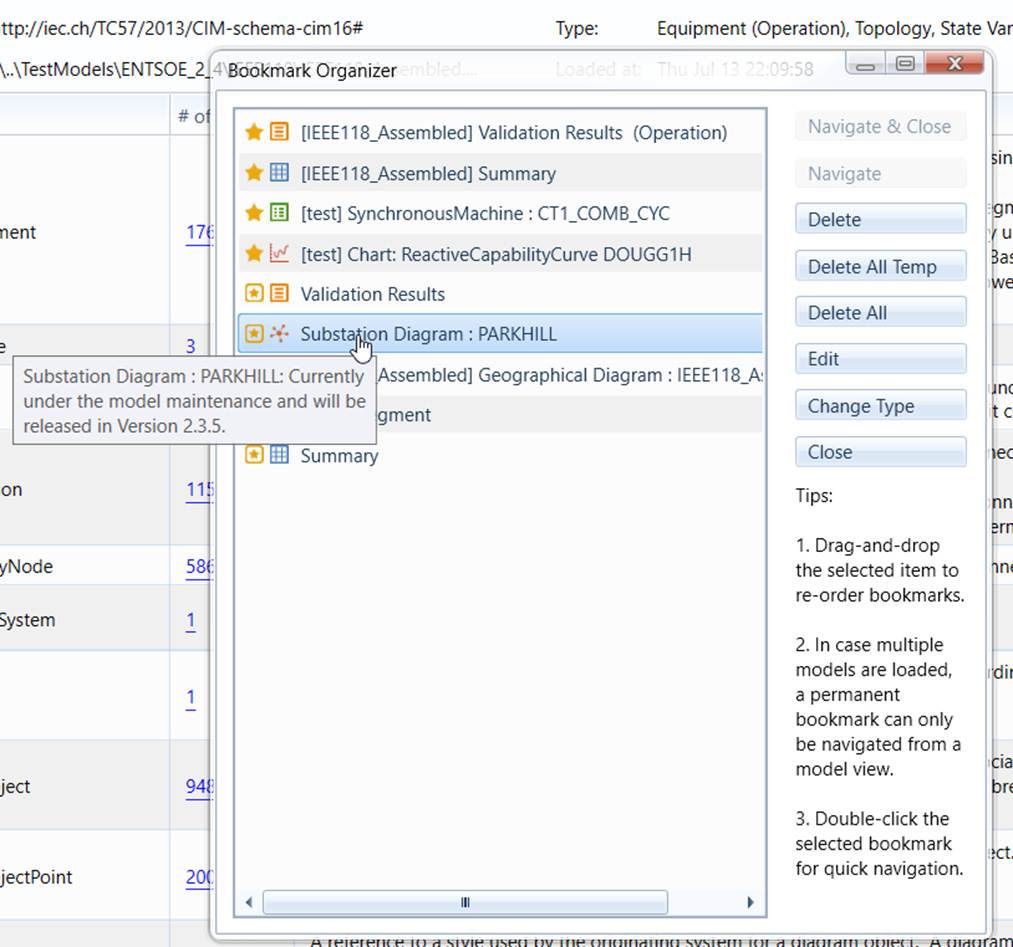
The following button-enabled actions are supported
- Navigate & Close: Navigate to the selected bookmark and then close the Bookmark Organizer. Enabled only when the selected bookmark is navigable.
- Navigate: Navigate to the selected bookmark. Enabled only when the selected bookmark is navigable.
- Delete: Delete the selected bookmark. Enabled only when a bookmark is selected.
- Delete All Temp: Delete all of the temporary bookmarks. Enabled only when there are Temporary Bookmarks in the list.
- Delete All: Delete all of the temporary and permanent bookmarks. Enabled when there is at least one bookmark (temporary or permanent) available in the list.
- Edit: Edit the selected bookmark. Enabled only when a bookmark is selected.
- Change Type: Click to change the type of the selected bookmark, for example, from temporary to permanent. Enabled only when a bookmark is selected.
- Close: Close the Bookmark Organizer. Always enabled.
A bookmark is navigable if
- The bookmark is called from Model Views.
- The bookmark is called from a standalone Bookmark Organizer and it is a Temporary Bookmark.
- The bookmark is called from a standalone Bookmark Organizer, it is a Permanent Bookmark, and there is only one model loaded.
Tips:
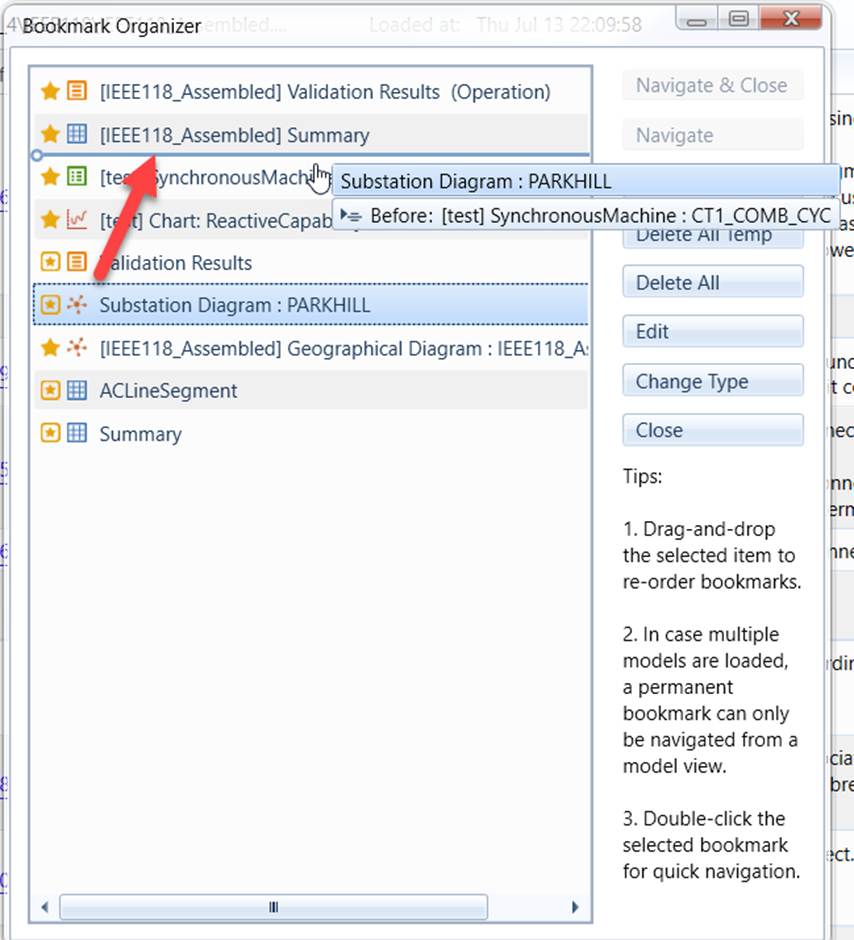
- User can re-order the bookmarks via drag-and-drop, as illustrated below.
- In case multiple models are loaded, a permanent bookmark can only be navigated from a model view.
- Double-click the selected bookmark for quick navigation if the selected bookmark is navigable. Otherwise, the Edit function will be invoked.
Bookmark Persistence
Permanent bookmarks are persistent, meaning they remain valid until changed. When the application is shut down, the permanent bookmarks, along with UI Settings, are automatically saved. They are restored upon the next application startup.
By default, Permanent bookmarks are stored as an XML file in the Windows Data Roaming directory. This approach ensures that each user’s permanent bookmarks are maintained separately, supporting shared installations while preserving per-user configurations. It also ensures that user-specific settings are retained after upgrading to a new version of the tool.
When permanent bookmarks need to be enforced across all users of a shared installation, the user profile may be explicitly configured to be saved as an XML file in a designated directory. This requires modifying the configuration file (\config\ui\AddonConfig.xml) to specify the storage location of the permanent bookmarks file, as shown below.

Notes
- The saved Permanent Bookmarks may not be portable between different release versions of the Tool. This is because the bookmarking support heavily depends on internal implementation.
- If the tool fails to start due to a corrupted saved bookmark file, users can manually delete the bookmark file located at C:\Users\XXXXX\AppData\Roaming\PowerInfo\CIMSpy or the configured directory.
- Model Administration UI doesn’t support bookmarking. This is because it is intended to be separated from the Tool as a standalone application in the future.