Bulk Model Editing
The Tool provides various ways to allow users to edit models in bulk.
Bulk Model Deletion
The Tool provides various built-in model processes to process loaded models in a bulk mode. One of these processes enables users to clean the loaded models based on the predefined rules. This function provides a quick way to remove unneeded information from the model, such as external portion of the network.
Hands-on
- Load Test CIM15 from the data source dropdown
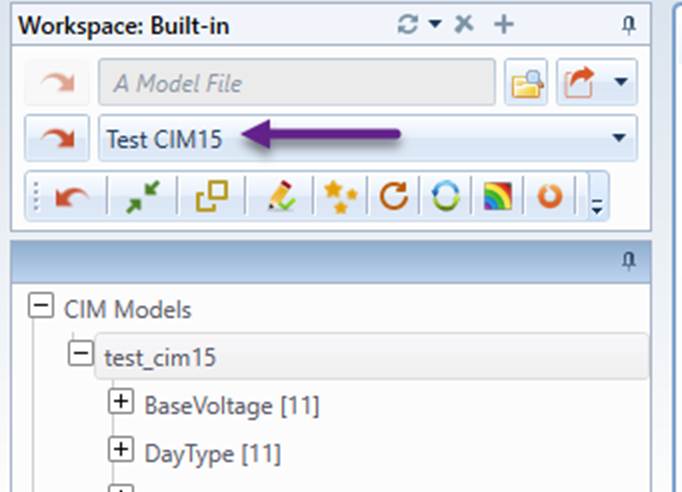
- Invoke Process→Delete Objects in Bulk from the context menu associated with the model.
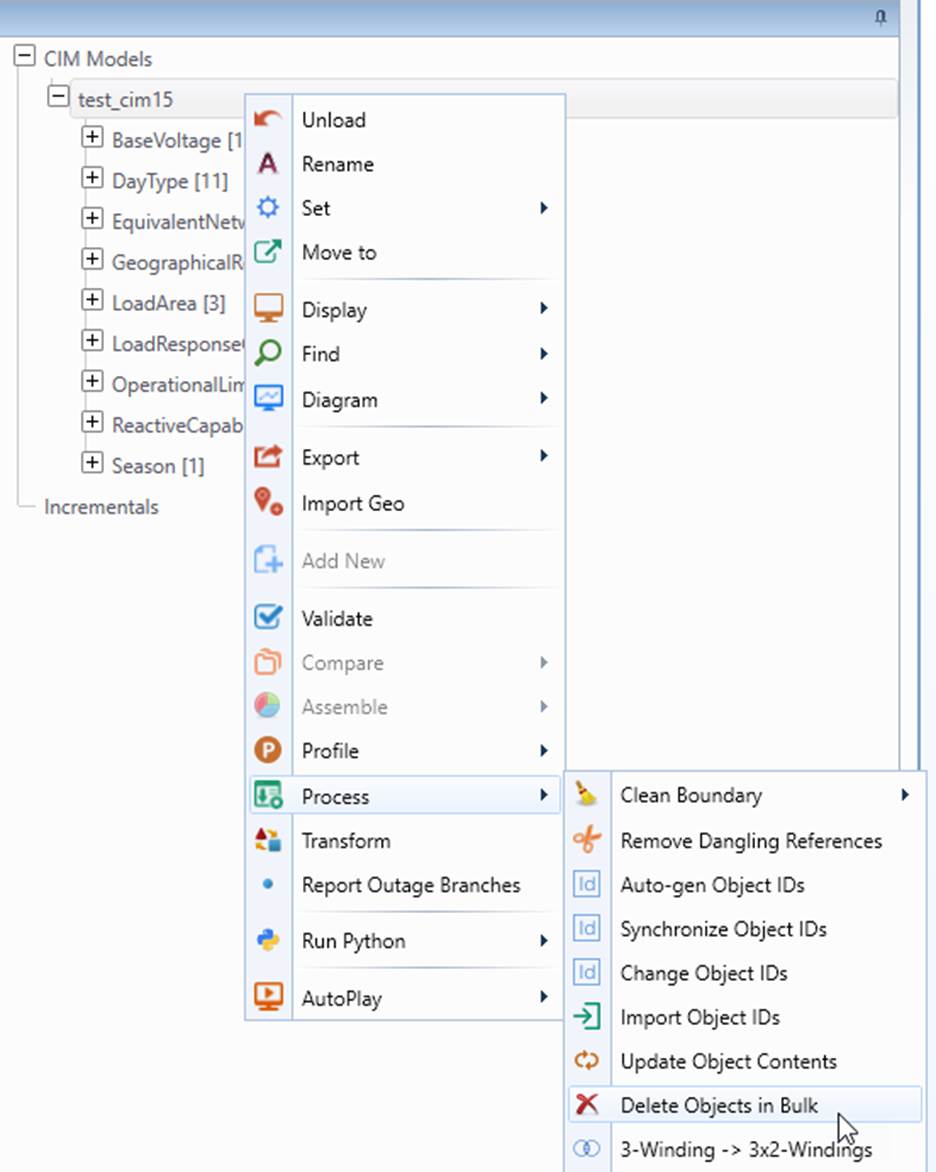
- Select \TestCases\custom_deletion\RemoveExternalConfig.xml as the input configuration.
Custom Deletion Configuration
Bulk model deletion requires users to define the portion of the models to be deleted in an XML based configuration file, as illustrated below.
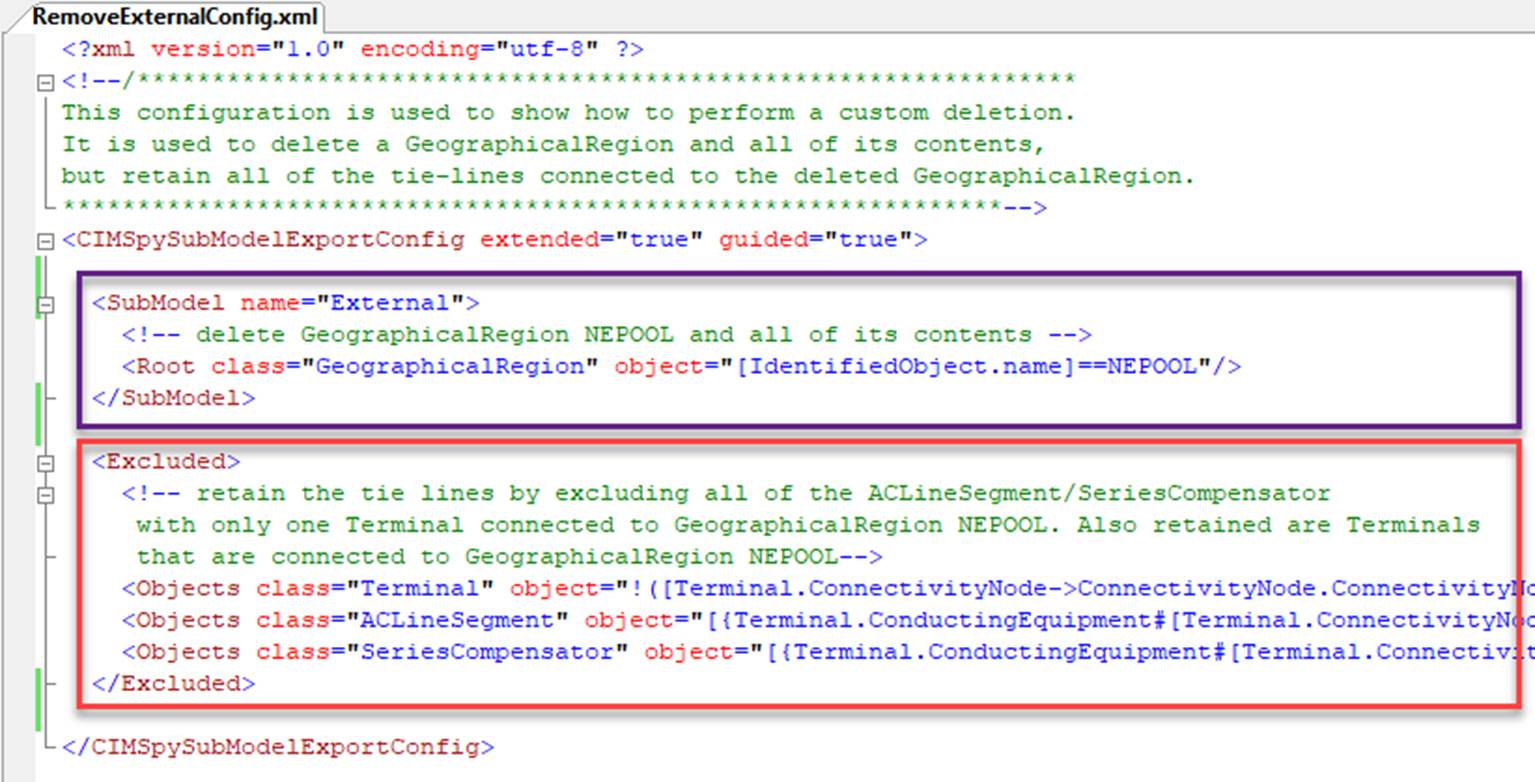
The configuration contains two parts:
- SubModel: defines what objects to be deleted. These are normally root objects. All of its descendants will be also be deleted. In the example above, the SubModel part specifies the GeographicalRegion NEPOOL and its contents shall be deleted.
- Excluded: defines the objects that shall be excluded for deletion. . Exclusions are declared at object level. Only qualified objects are excluded, with no impact on descendants. In the example above, this part specifies that all of the tie-lines connected to GeographicalRegion NEPOOL shall be retained or excluded for deletion.
Each part contains a collection of object selection rules defined as:
- class: the class of the related objects
- object: object selection rule as MQL Logical Property Expressions.
At run-time, the Tool evaluates each object of the specified class with the specified MQL. If evaluation returns ‘true’, the object is selected for deletion or exclusion.
Furthermore, users can specify:
- extended: if true, the referenced objects (such as BaseVoltage) will be deleted if these objects are solely referenced by the deleted objects. The suggested option is ‘true’.
- guided: if true, use the defined model hierarchies to determine descendants of an object. The suggested option is ‘true’.
Model Editing with External Tools/Applications
More sophisticated model manipulation can be performed by declaring Model Transformation or injecting Python scripts. Bulk model editing can also be performed with external tools, such as Microsoft Excel or developed model patching applications. These external tools/application can perform arbitrary model changes as long as rules/conventions are followed. The general steps include:
- Export the full model as a collection of CSV files.
- Load the CSV files to external tools/application for bulk model editing/patching.
- Import the edited model CSV files to the Tool for browsing, validation, ….
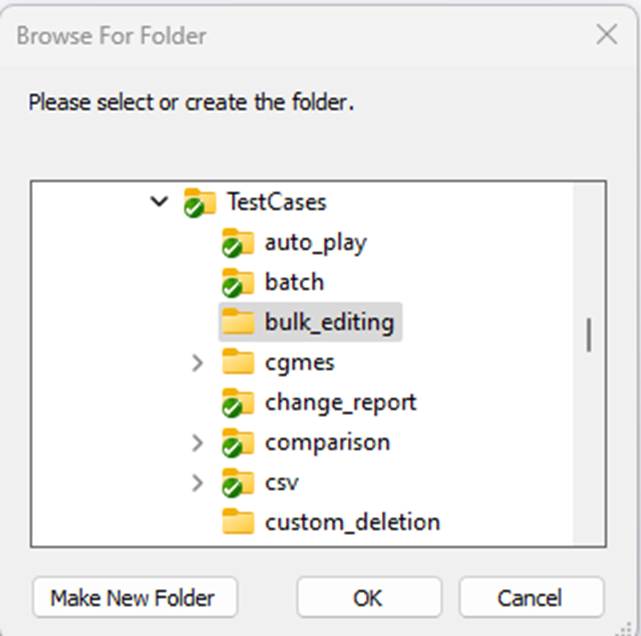
A sample of edited model can be found at folder TestCases\bulk_editing. This sample was derived from sample model Test CIM15.
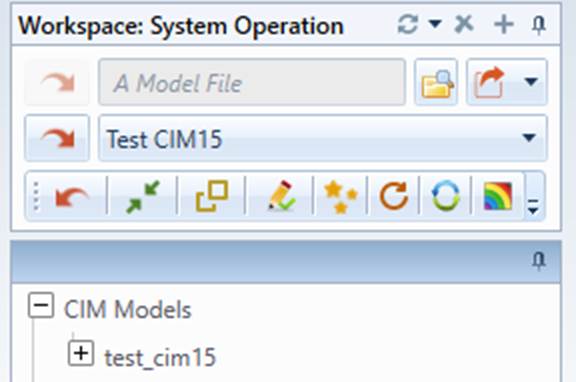
If CIM extensions, i.e. information not part of CIM standards, are intended to be added to the edited model, the following rules/conventions shall be followed. The above sample is used for illustration of these rules/conventions.
- CIM extension namespace shall be added to FullModel.csv, which contains the meta-data of the edited model. The namespace definition contains an alias and a URI.
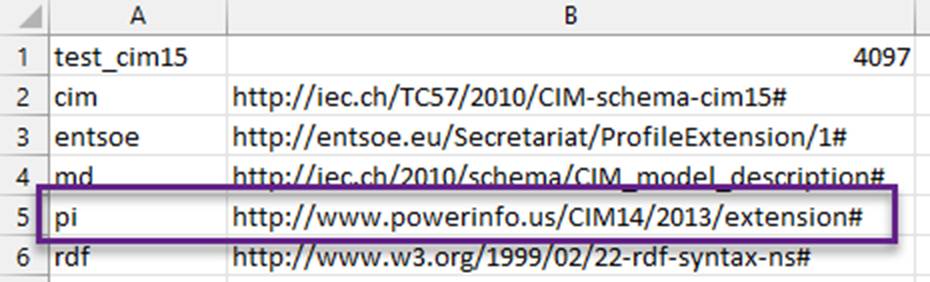
- File names are the same as class names be default. If the class is an CIM extension, the file name shall contain namespace alias and class name, separated by ‘..’.
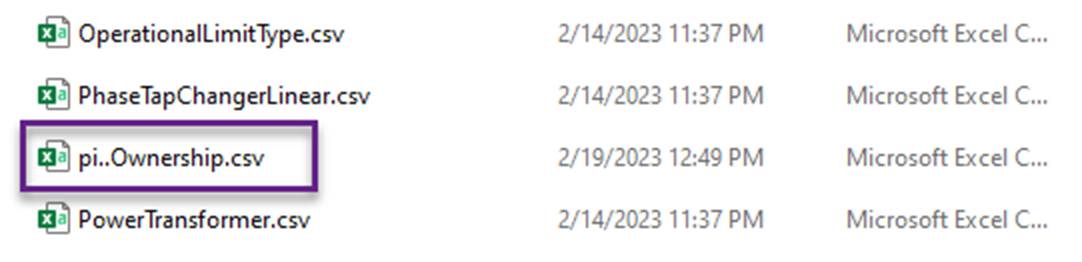
- Column names are the same as property names. All of the column names shall be prefixed by the aliases of the corresponding namespaces.

- If the extended property is a non-Boolean attribute, the property name shall be as it is.
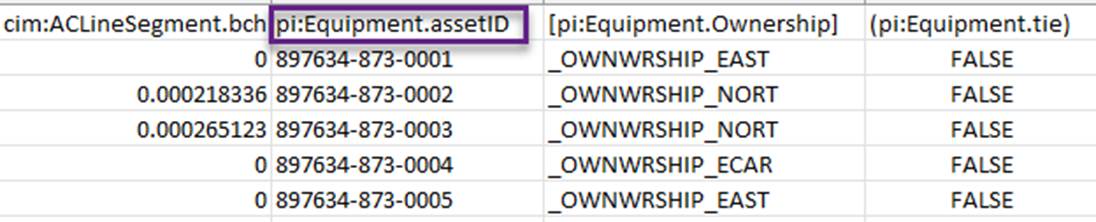
- If the extended property is a Boolean attribute, i.e. true/false, the property name shall be enclosed by curve brackets, i.e. (). This convention is introduced as a walkaround for an issue related to Excel auto-formatting, as explained later. Once the attribute is marked as a Boolean attribute, the Tool will translate “TRUE/FALSE” to “true/false”.
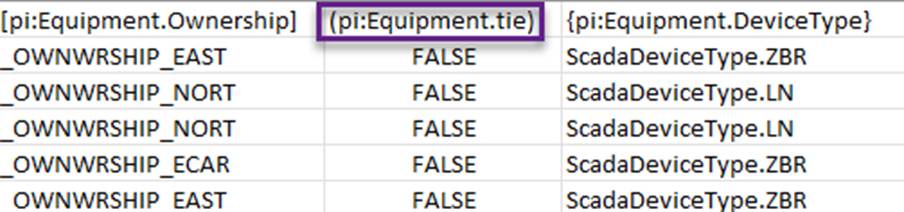
- If the extended property is an association, the property name shall be enclosed by square brackets, i.e. [].

- If the extended property is an enumeration, the property name shall be enclosed by curve brackets, i.e. {}.

- If the property is 1-to-n or 0-to-n association, the multiple values shall be concatenated and separated with special string ‘--#--‘.
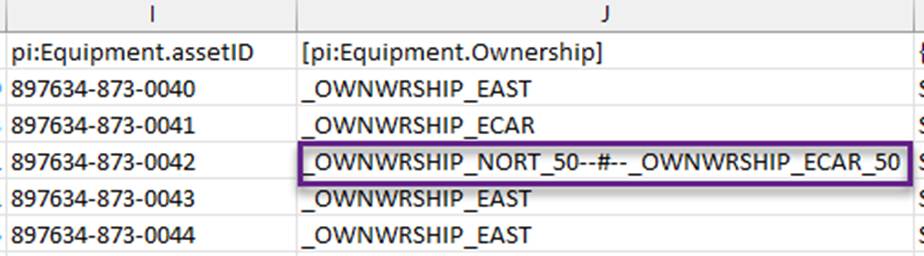
To test the edited model,
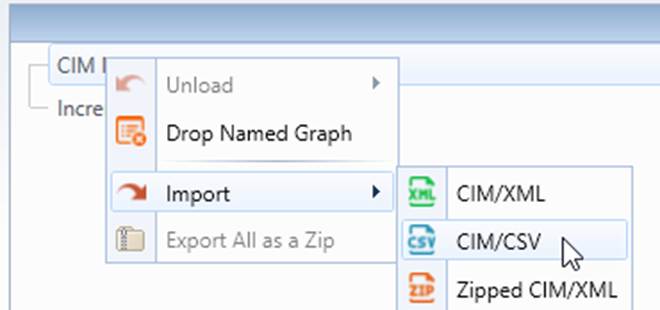
- Invoke CIM/CSV import via context menu
- Select folder TestCases\bulk_editing as input.
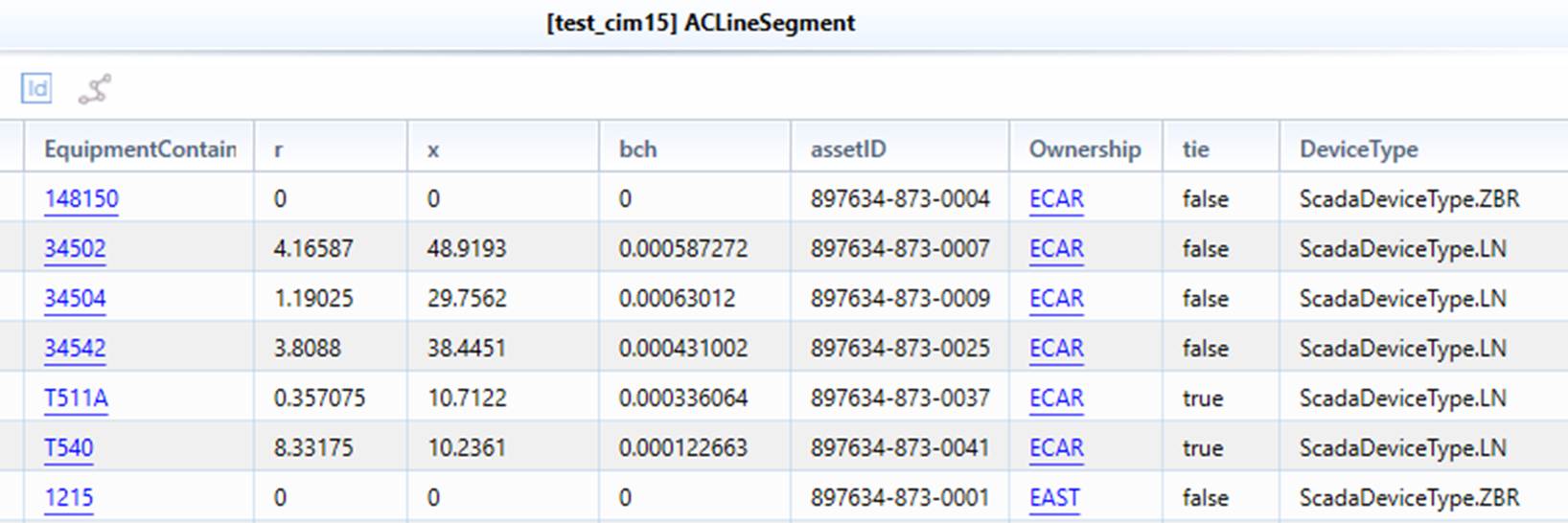
- Review the loaded model
Note:
- The above rules/conventions are designed to enable users to add CIM extensions using the external tools/applications. They are not applicable for those defined in the standard CIM profiles or recognized CIM extensions including those inferred. In these cases, the governing CIM profile or extended profile contains all of the information required, thus no need to use rules/conventions to provide additional information.
- Microsoft Excel has a very annoying feature. When opening a CSV file, it auto-formats some fields based on its internal rules. For example, it changes “true/false” to “TRUE/FALSE”. While there is no way to disable this annoying feature, there is a workaround. Basically, the csv file should be opened as a text file using a file import wizard. During the import process, users can specify the related columns or all columns shall be imported as ‘text’ rather than ‘general’. For more detailed information about the workaround, please check Exporting as CIM/CSV Files. The other workaround is to open the CSV file with a text editor and use its Find/Replace to restore the auto-formatted fields.