Working with Workspaces
The concept of workspace is introduced mainly to support multi-tasking in the Tool. It enables users to perform multiple modeling tasks concurrently and independent of each other. A workspace is an independent modeling environment containing:
- In-memory data repository: storing the modeling information that users are currently working on.
- Associated modeling applications: modeling applications, (such as model validation, model assembling, etc.,) that users can invoke to perform the corresponding modeling tasks in the workspace.
- Configuration: special configurations applicable to the workspace, mainly to customize the modeling environment.
Workspaces are independent of each other. Each workspace is typically dedicated to a specific modeling task. For example, one workspace is used for internal network model and the other workspace is used for neighboring utility network model. The two models may require different configurations. Running multiple workspaces is similar to running multiple instances of the Tool, except that
- Workspaces are hosted in the same instance of the Tool, thus easy to manage;
- Different configurations can be applied to workspaces, thus supporting multiple modeling environments;
- Models hosted in different workspaces could be interoperable, thus fostering collaboration.
Built-in Workspace
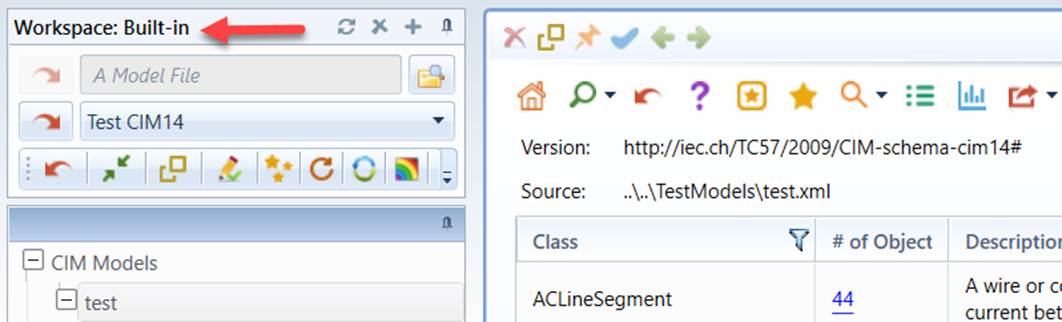
By default, the Tool hosts a built-in workspace. This workspace is initialized with the configuration of the Tool and not removable. The built-in workspace is the default modeling environment. In most cases, users work in the built-in workspace.
Creating a New Workspace
A new workspace can be created from either the command icon in the control panel or the global context menu, as illustrated below.
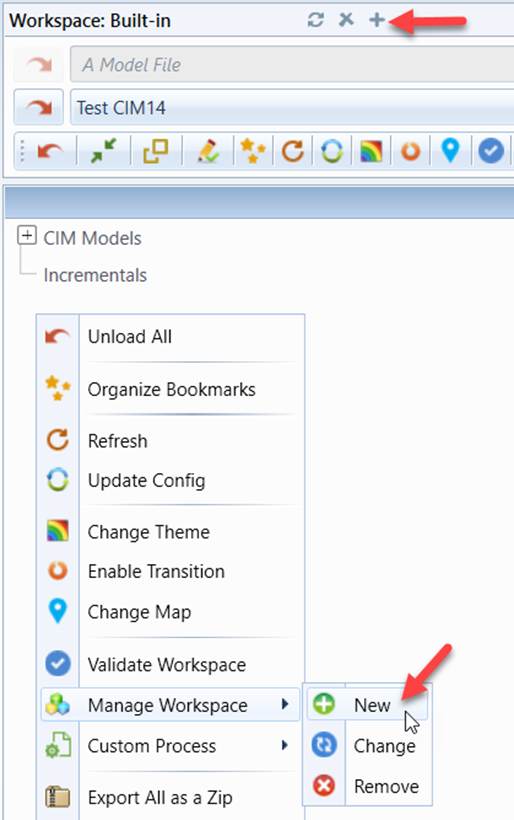
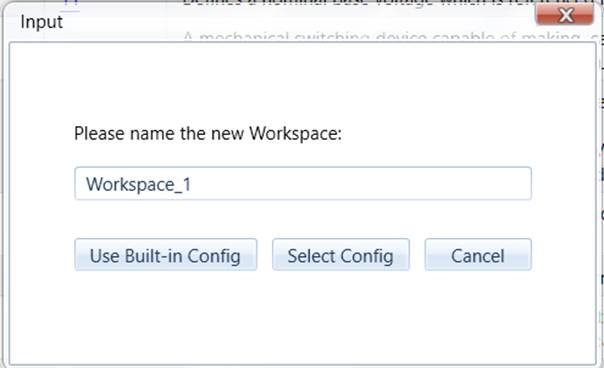
Once the command is invoked, users will be prompted to enter a name for the new workspace to be created, as illustrated below. There are two options available for creating a new workspace:
- Use Built-in Config: The new workspace will be created using the same configuration of the built-in workspace, i.e. the configuration of the Tool. The newly created workspace will share the same configuration of the built-in workspace. This is the most common use case.
- Select Config: This option enables users to create a new workspace using a customized configuration file. Once this option is selected, users will be prompted to select a configuration file as input.
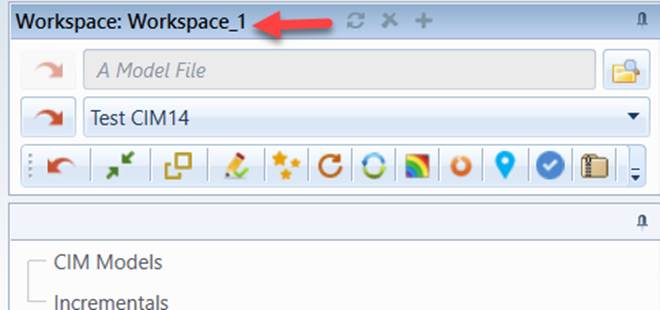
Once the new workspace is successfully created, the Tool will automatically switch to the new workspace, as illustrated below. Now users can start working in the new workspace.
Changing Active Workspace
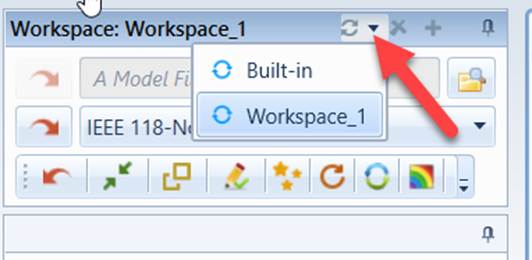
While multiple workspaces can be created in the Tool, users can work in only one workspace at a time. It is called active workspace. The active workspace can be changed from either the command icon in the control panel or the global context menu, as illustrated below.
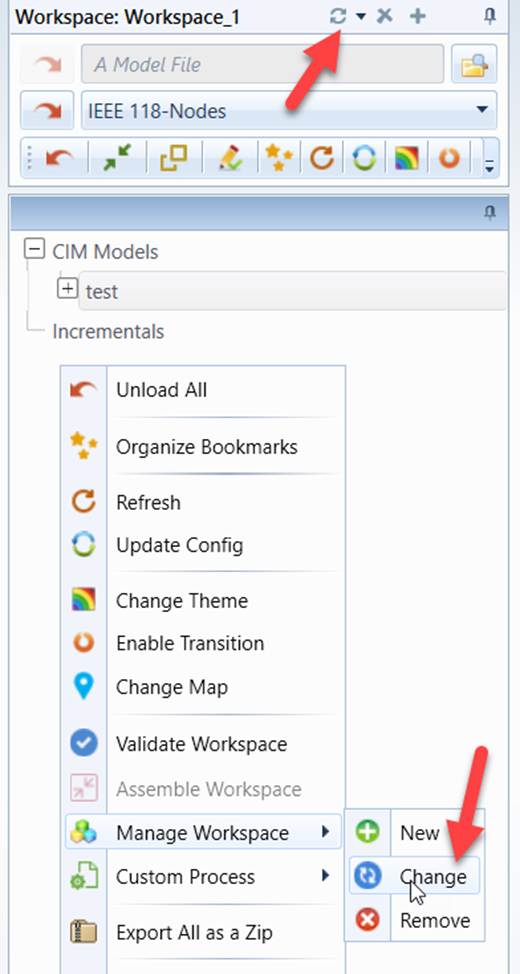
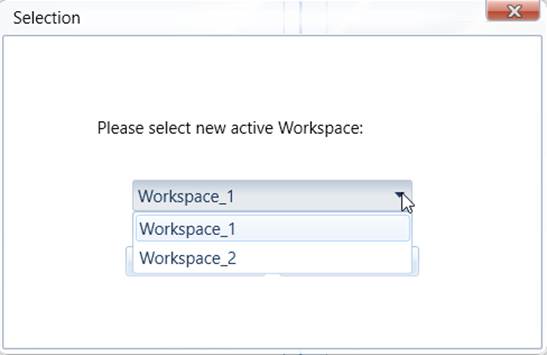
Once the command invoked, users will be prompted to select the new active workspace from a dropdown list that shows all of the inactive workspaces, as illustrated below.
Deleting Workspace
Except the Built-in workspace, all of the created workspaces can be deleted. This can be achieve from either the command icon in the control panel or the global context menu, as illustrated below.
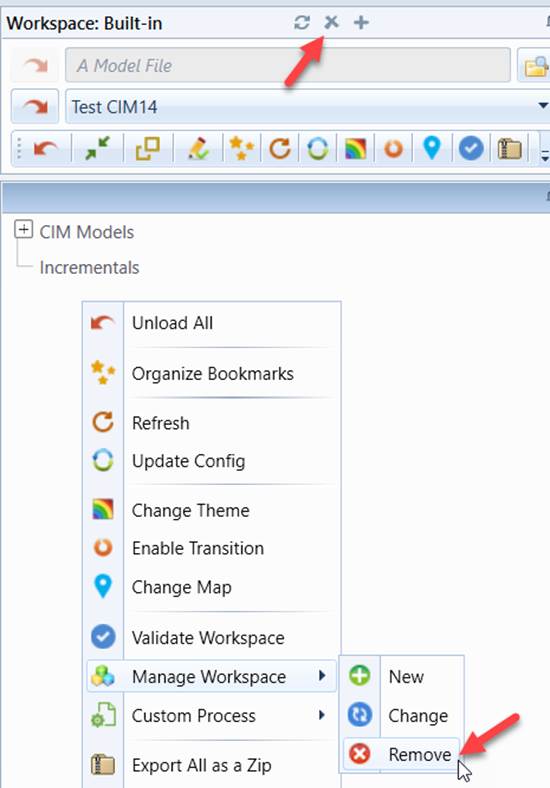
Once the command invoked, users will be prompted to select the workspace to be deleted from a dropdown list that shows all of the workspaces, active or inactive, except the built-in workspace, as illustrated below:
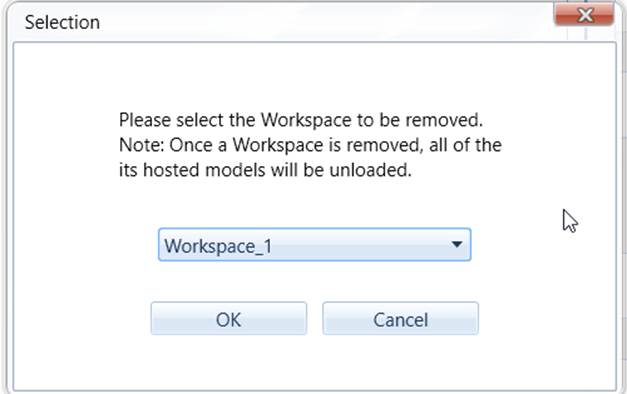
Note
if the active workspace is deleted, the Tool will automatically switch to the built-in workspace.
Pre-configuration of Workspaces
Workspaces can be pre-configured in configuration file \config\WorkspaceConfig.xml. This file pre-defines the workspaces to be created once the Tool is started.
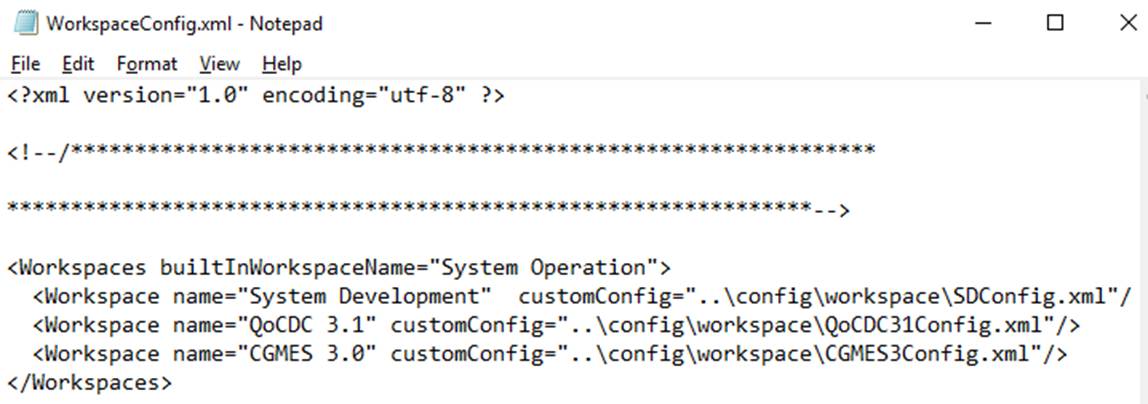
For each workspace element in the Workspaces configuration segment
- name: name of the workspace to be created
- customConfig: full path of the file used to configure the workspace.
Note
the built-in workspace is always started and shouldn’t be declared as a pre-configured workspace. The build-in workspace is governed by CustomConfig.xml. It can be renamed with attribute builtInWorkspaceName. Like CustomConfig.xml of the built-in workspace, the workspace configuration file is overwrites StandardConfig.xml, which serves as shared base configuration.
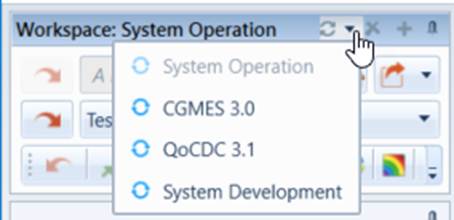
With the above workspace pre-configuration definition, the Tool will start 4 pre-configured workspaces. Users can switch between them. When shut down, the Tool will memorize the existing active workspace, which will become active when the Tool is later re-started.
Configuration of Workspaces in Support of Business Processes
Many of the functions, for example Model Validation, are business-process-dependent. In Europe, CGMES is designed to support ENTSO-E multiple business processes, including System Operation, System Development (TYNDP), coordinated security analysis, etc. While sharing common CGMES framework, each business process has freedom of defining its own business-driven restrictions, conventions, etc. There is a need to configure the Model Validation function in support of multiple business processes. This is achieved by leveraging workspace and validation configuration.
The concept of workspace was introduced to support multi-tasking. A workspace is an independent modeling environment with its own configuration. The concept of workspace enables multiple “customized” versions of the Tools to be hosted within a single instance. This makes it possible to dedicate a workspace for each business process. The dedicated workspace is configured to support a specific business process, including validation, reporting... Users can switch between the business process specific workspaces.
Moving Models between Workspaces
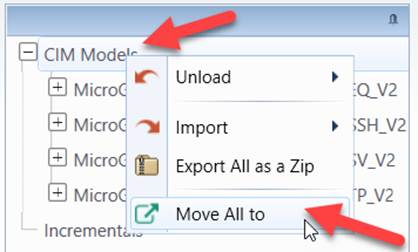
Models loaded in one workspace can be moved to other workspaces. This allows same models to be validated against different business rules. More specifically,
- Users can move a specified full model in one workspace to another workspace.
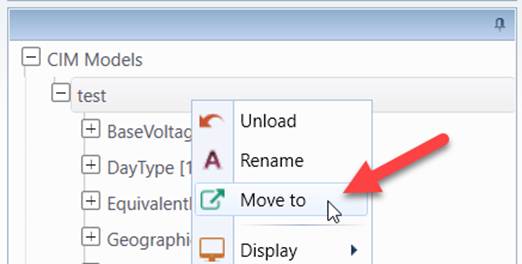
- Users can move all of the full models in one workspace to another workspace.
Note:
- When models are moved to a different workspace, they will adopt to the new modeling environment by applying all of the model-specific workspace configurations. The behavior is equivalent to loading the same models to the target workspace. The model configurations from the data source may or may not be carried over depending on whether the same data source is defined in the new workspace.
- When a model being edited is moved to a different workspace, the difference model auto-created to track model change will also be moved to the same workspace.
- When models are moved to a different workspace, this target workspace will be become active. In other words, the Tool automatically switch to the target workspace.
Default Data Source
Personalization of loaded models normally requires definition of a data source for each loaded model. This is inconvenient. A template data source is defined to facilitate personalization of models loaded into a specifically defined workspace. This is achieved by defining a default data source.
A default data source is just like regular data source, except:
- A default data source is normally declared as a template. The template data source is not a real data source, thus not shown in the data source dropdown of the UI.
- type and location are not required to be specified for a template data source. If specified, they will be ignored.
An example of a template data source is illustrated as follow:

Once a template data source is defined, it can be declared as a default data source for the workspace, as illustrated below:

All of the personalization definitions, such as presentation, report, profile, extension, etc. declared in the default data source will be then applied to any models loaded into the workspace, except those loaded via pre-defined data sources. At run-time, if a model is loaded into the workspace not as a pre-defined data source, a data source will be derived from the default data source to represent the loaded model. This allows any models loaded into the workspace to personalized without requiring definition of a data source.