Role-Based Authorization
Role-Based Authorization is essential for collaborative modeling. It allows user administrators to determine which Functions or Function Groups should be enabled/disabled for each user or for a workspace.
- A role defines a particular type of restrictions for a certain type of users. For example, a role can be defined for users who are not permitted to make model changes.
- A role is defined with a collection of un-authorization rules, each defining a restricted or unauthorized Function . In other words, only restricted or unauthorized Functions are declared for a role. It is important to note that the each defined un-authorization rule may apply to different scenarios. For example, the rule may only apply only to the connected model.
- Role-based authorizations are enforced at both Modeler UI and Admin Service. In general, if a Function is unauthorized, the corresponding menu item or command icon is disabled in Modeler UI. But this may not always be the case. Admin Service, however, enforces strict role-based authorization. Role-based Authorization is highly configurable and customizable. This is normally achieved by deriving new roles from the built-in roles. Customizations, however, must be persisted to be reusable.
Role
Role defines a set of restrictions for a type of users or workspaces. It contains a set of Authorization Rules.
- Each user must be assigned at least one role. Multiple roles can be assigned to a user. In this case, a Function will be enabled if it is authorized by one of the assigned roles.
- Optionally, a workspace, especially a public workspace, can also be assigned a role. A workspace role can overwrite/upgrade/downgrade roles of users who work in the workspace.
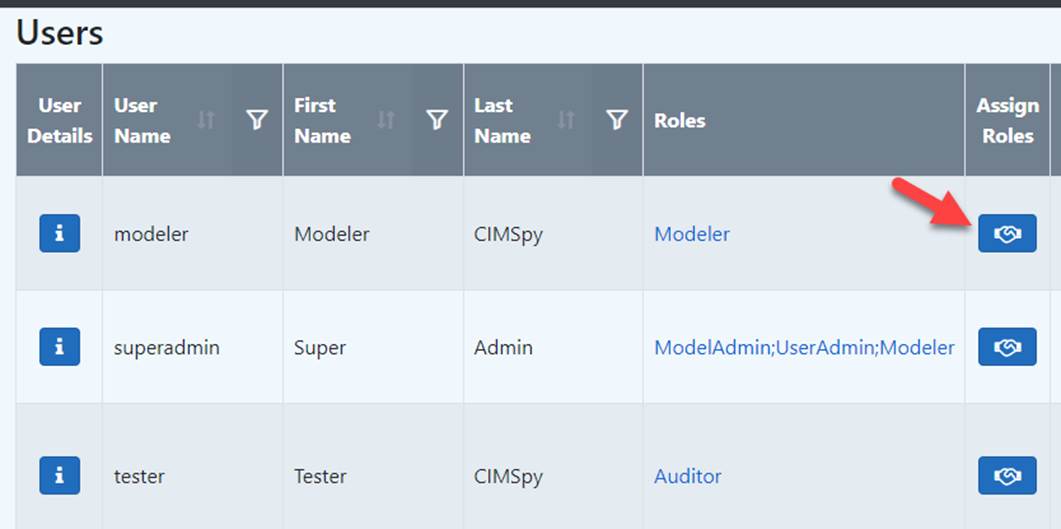
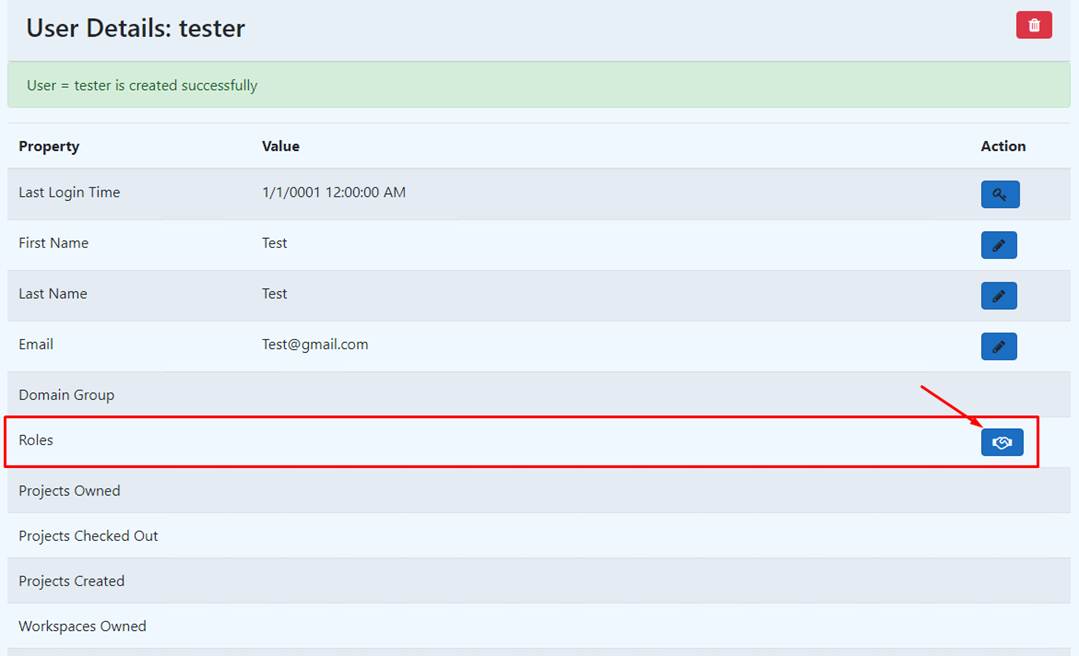
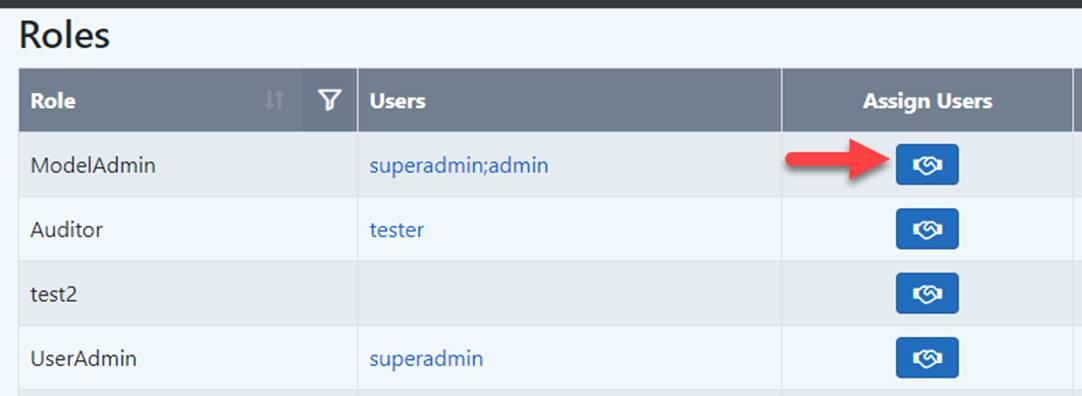
Roles can be assigned to users either from Users, User Details, or Roles display, as illustrated below:
There are 5 built-in roles defined as part of the standard delivery. The role name is editable from the Admin UI.
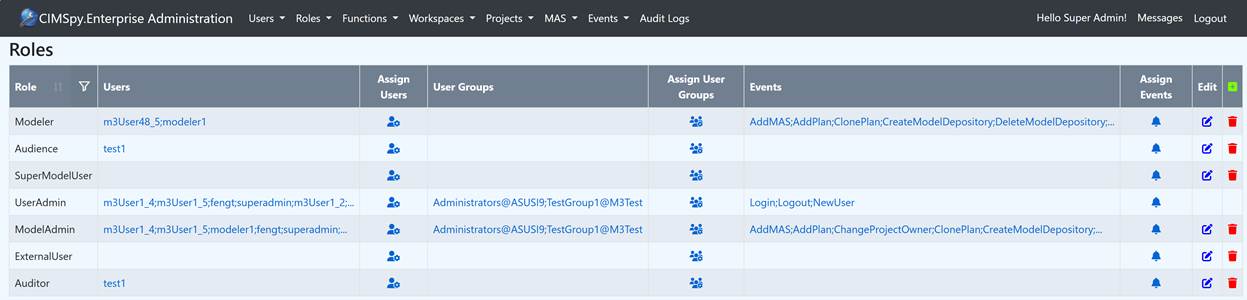
- Audience: This role allows non-administrator users to browse loaded models only. It is normally used for workspace role definition.
- Auditor: This role is mainly for QA engineers. It restricts users from modifying a shared connected model.
- ExternalUser: This is a restricted-access role. It is intended for users who need limited participation in the system without the broader permissions given to internal administrative or modeling roles.
- ModelAdmin: This role is mainly used to administer the model, such as administrating versions and plans. It is primarily for modeling lead.
- Modeler: This role is mainly used for the daily maintenance of the models in the model depository.
- SuperModelUser: This role is an elevated model-access role. It is used for users who need broader model privileges than general users, especially in cases where workspace rules would otherwise reduce access. In the workspace role logic, SuperModelUser is treated as an exception alongside UserAdmin, which means it can avoid some of the audience-style restrictions applied in public workspaces.
- UserAdmin: This role is mainly used to administer the user’s registration, authorization, and other non-model related tasks.
A user or a user group can be assigned with multiple roles. For example, Role ModelAdmin, Modeler, and UserAdmin are assigned to the default user “superadmin” in the sample above.
Built-in roles serve for two purposes:
- Directly used if these roles exactly fit users’ needs;
- Serving as templates for users to derive their own custom roles.
Function and Function Group
Role-based authorization rule is defined at levels of Function/Function Group:
- Functions are the finest elements of a modeling task. They are normally invoked from a context menu or command icon at UI. At server, these are API calls. Thus, Function-based authorizations are declared using API or Function names. Based on the authorization definition, Admin service determines if a function is authorized for the role, and eventually users to whom the role is assigned.
- Function Groups are introduced to facilitate role definition. A Function Group is group of Functions used to perform a certain type modeling task. For example, a Model Editing Function Group contains all the APIs used to edit models, such as adding a new modeling entity, deleting or modifying an existing modeling entity. Each function should belong to one but only one Function Group and user can re-assign Functions to Function Group. Functions belonging to the same Function Group normally share the same authorization definitions. Thus it makes sense to define authorizations for Function Groups, rather than individual Functions. This significantly simplifies Role Definition.
Functions and Function Groups are listed together in the same Grid view and the “Type” column indicates if the item is a function or a function group.
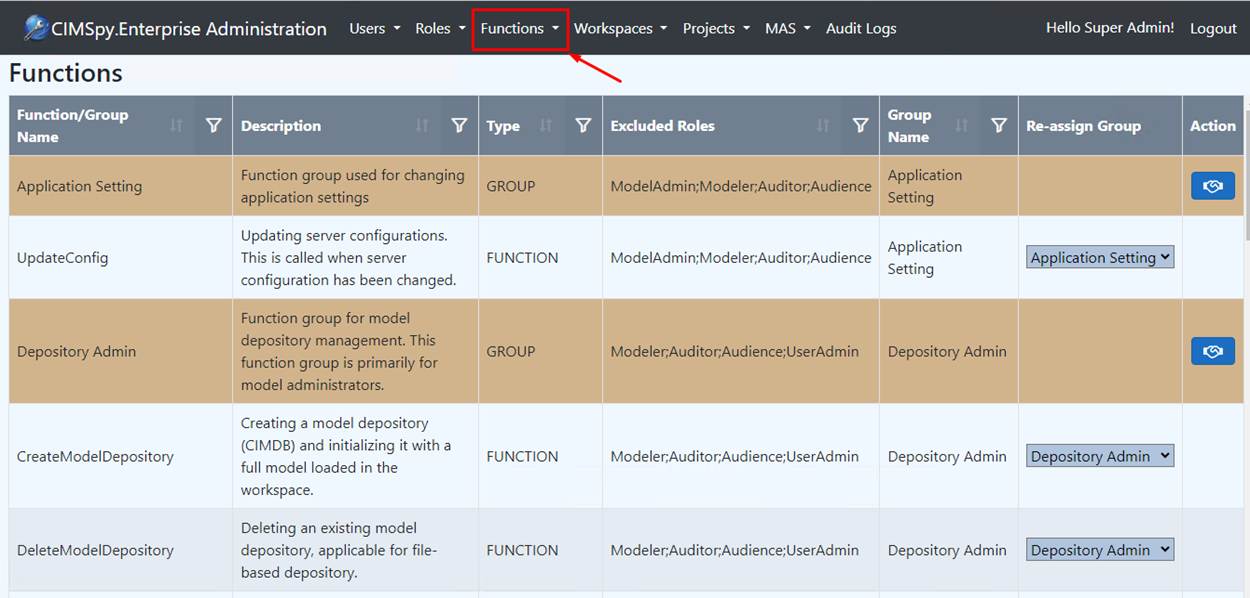
As a general rule,
- Authorizations are declared at level of Function Groups. By default, the defined authorization rules apply to all of the member Functions.
- Customizations are performed at level of Functions. This is where exceptional authorization roles, if any, can be specified for each individual Function.
The next section explains this general rule in more details.
Role Definition
A role is defined with a collection of authorization rules, each defining an unauthorized Function or Function Group. In other words, only unauthorized Functions or Function Groups are declared for a role. If the Function/Function Group is not declared for a role, it is authorized. From this point of view, an authorization rule is actually an un-authorization rule.
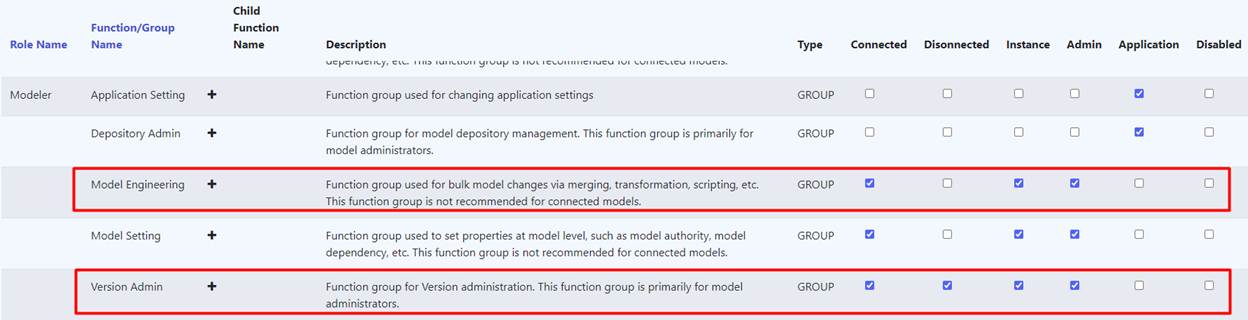
In the sample above, Function Group “Version Admin” is unauthorized for role “Modeler”, which means the “Modeler” role will not be able to call any member functions of Function Group “Version Admin”.
Models loaded into the workspace are used for different purposes. Consequently, authorization rules must be specified for each type of models. More specifically, Models loaded into workspaces are classified into two categories:
- Disconnected: Models loaded into the workspace, but not connected to any databases. These models are standalone. Disconnected models are not shared among workspaces, but can be transferred from one workspace to another. A disconnected model normally serves as a local instance in a private workspace or a published model in public workspace.
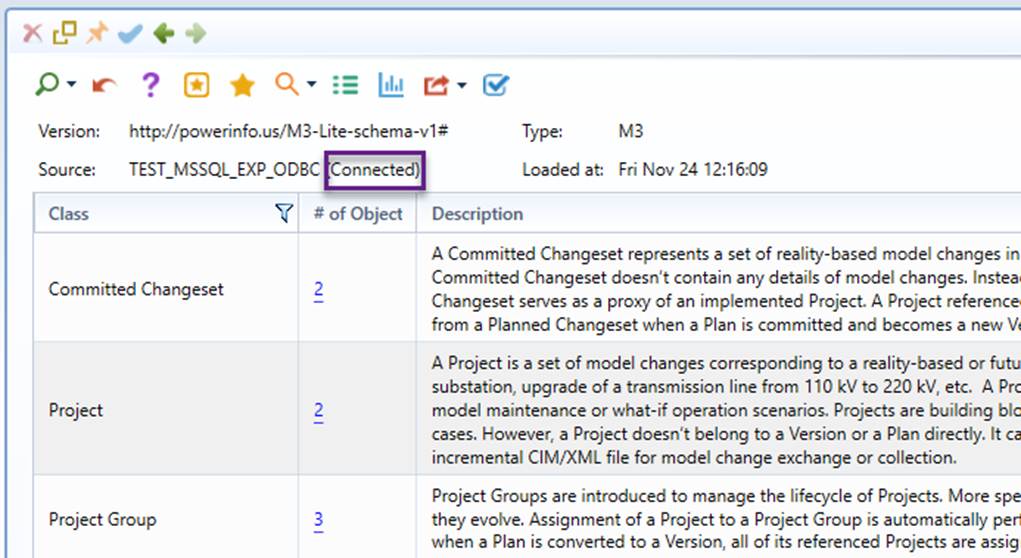
- Connected: Models loaded into the workspace are connected to a database. Any changes in the loaded models will be propagated into the connected databases. The connected models are shared system-wide. In other words, only one instance is maintained in the server even it is loaded into multiple workspaces. The connected model is normally used for model administration or collaborative modeling. A connected model is explicitly marked in its summary display, as illustrated below.
A model loaded into a workspace belongs to one of the following two types:
- Instance: An instance model could be a connected model loaded into workspace for project construction or a disconnected model loaded into a workspace for various purposes.
- Admin: A meta model used for model administration. It is normally a connected model shared by all of the users.
Additionally, some Functions/Function Groups are not for models. Instead, they are for the entire Application. For example, Function UpdateConfig is called to update the configuration for the entire application.
Function authorization is typically declared for a certain category/type of model. This is because models in the workspace are for different purposes. For example, a Connected model is normally for project construction, thus requiring a Modeler role. On the other hand, editing of a Disconnected model in your private workspace shouldn’t require such a role. Thus, when declaring a function restriction rule, the applicable model category/type must be specified. For the same sample above, Function Group “Model Engineering” is unauthorized for Connected Instance or Admin Models. Thus, Disconnected Models are not subject to such restrictions.
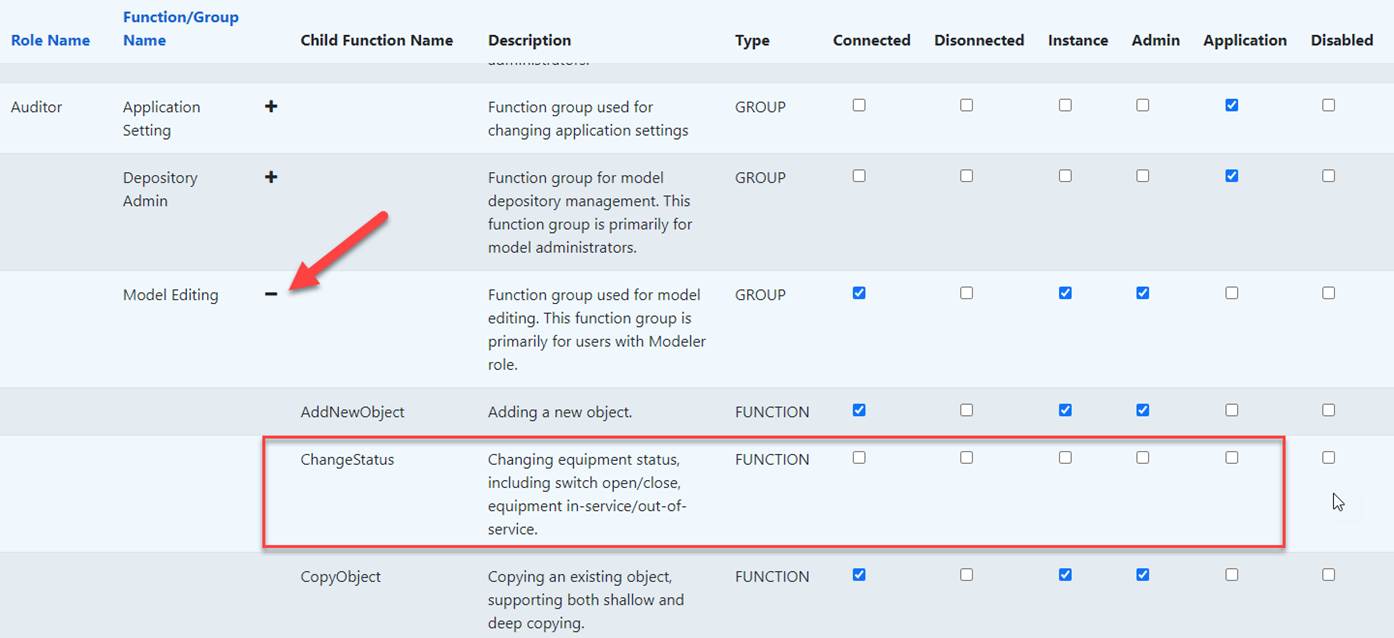
Authorization rules are normally declared for Function Groups. By default, all of the member (or child) Functions belonging to a Function Group share the same authorization settings. Exceptional cases, if any, can be declared for member Functions. In the sample below, all Model Editing Functions, except Function ChangeStatus, are unauthorized for Connected models.
Note:
- Any selection in Function Group level will update all the selections under its children Function. This provides a convenient way to update the settings for all the child Functions under the Function Group.
- Any selection in the child Function level will not impact the selection of its Function Group. In other words, the child function under the same function group may have different authorization settings.
- It is the selection at the Function level that eventually become part of the role definition. The selection in the Function Group simply provides a default or convenient way of setting at the Function level.
- Authorization rules can be disabled by checking “Disabled”. If disabled, the rule is equivalent to being removed. This feature enables an authorization rule to be turned on/off.
There are two ways to add or delete an unauthorized Function Group for a Role:
- In the Authorization Settings, assign the Function Group to the selected Role, as illustrated below.
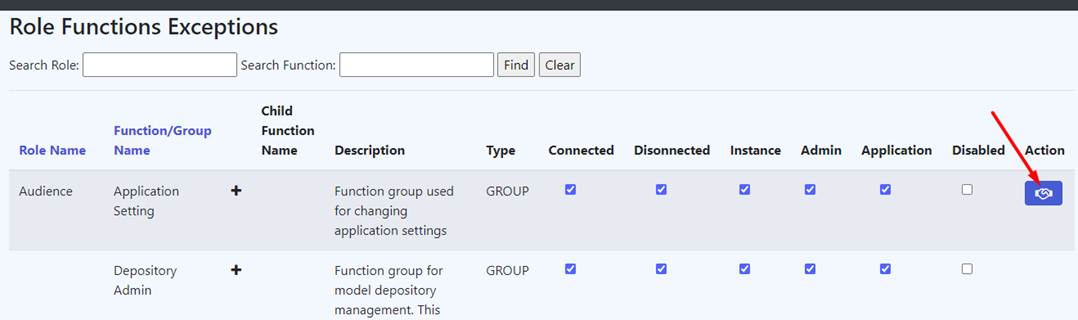
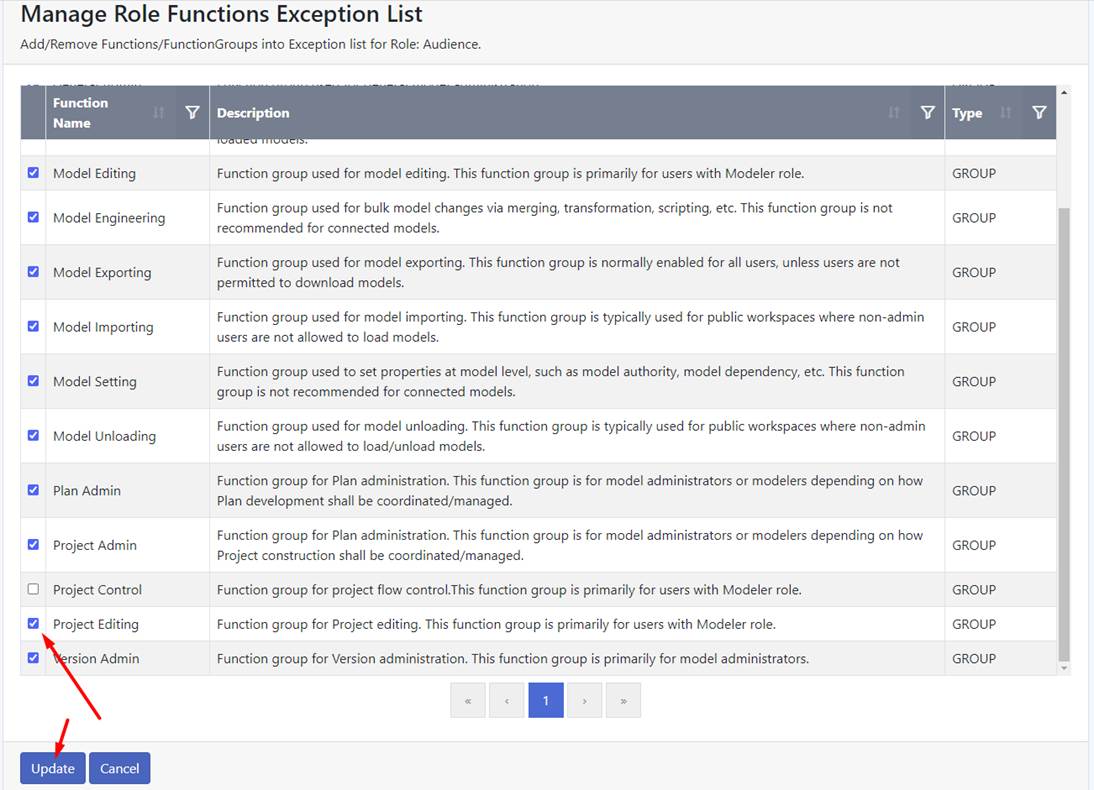
- Or in the Functions display, assign the Roles to the selected Function Group, as illustrated below.
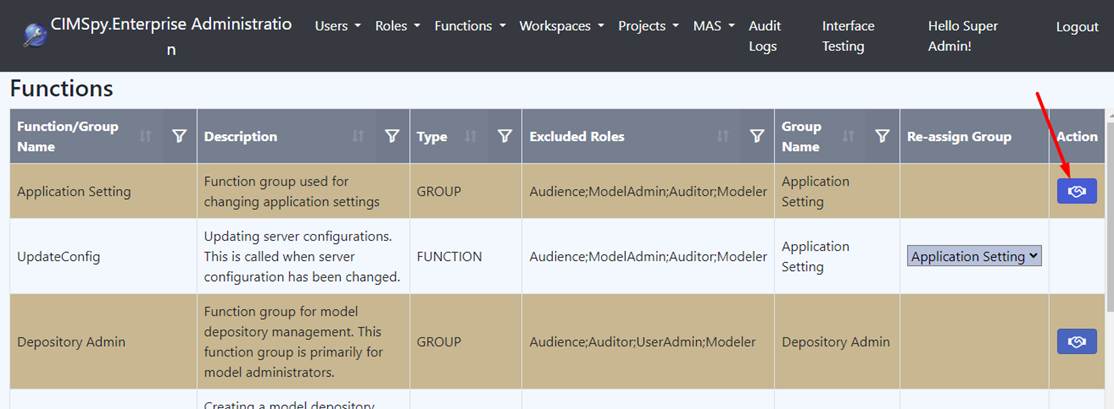
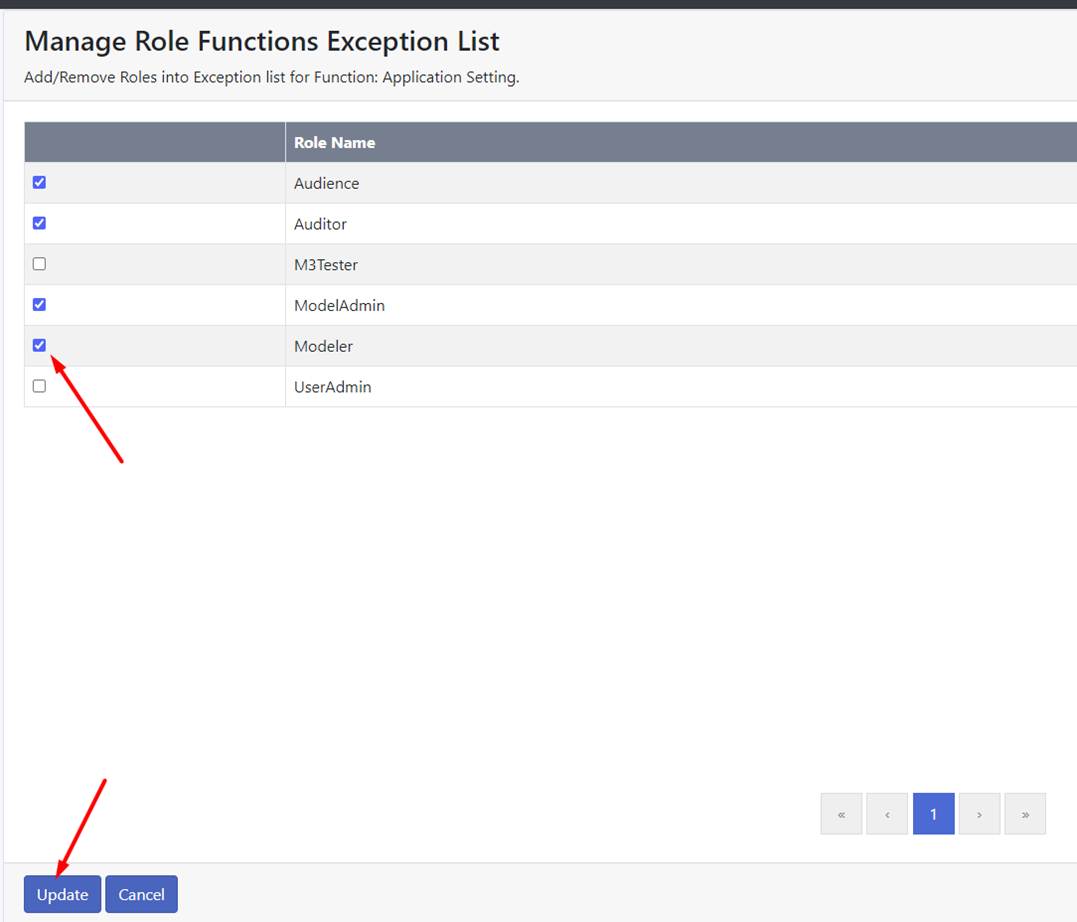
Workspace Role 
Function authorization can also be enforced for a workspace. One or more roles can be assigned to workspaces using a script-based rule in Admin UI. Additionally, the rule also specifies how to resolve the case where user roles and workspace roles conflict. As an example, the following specifies: in a public workspace and for any users who don’t have the role of UserAdmin or SuperModelUser, their user roles will be replaced with (or overwritten by) the role of Audience. In other words: the role of Audience is enforced to any non-administrator users in public workspaces. By enforcing this rule, only users of UserAdmin or SuperModelUser roles can load model into a public workspace and the loaded model is read-only for others.

Any customization on the workspace roles is described in the next section.
Authorization Customization
Role-based Authorization is highly configurable and customizable. If the built-in authorization settings don’t exactly fit the needs, users can declare their own authorization settings. This process is called Authorization Customization.
The standard delivery comes with pre-defined Roles, called Built-in Roles. It is NOT recommended to modify the Built-in Roles to fit your needs. The proper way is to derive a new custom Role from the corresponding Built-in Role. This can be achieved by adding a new Role, as illustrated below.
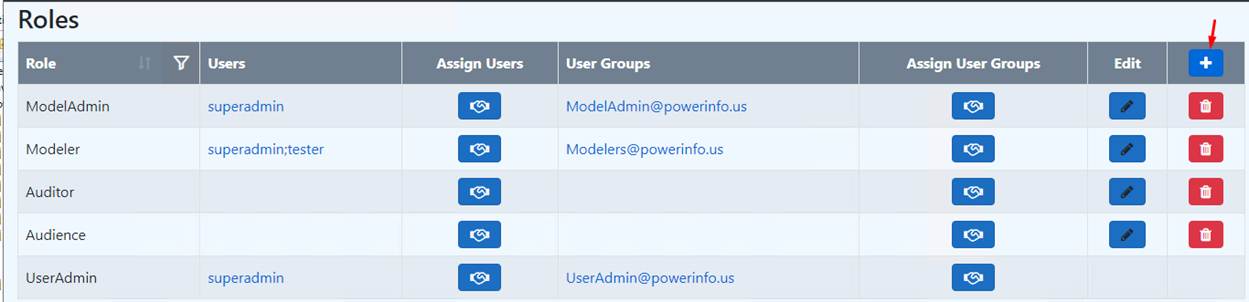
Any existing role must be used as a template when adding a new role to start with.
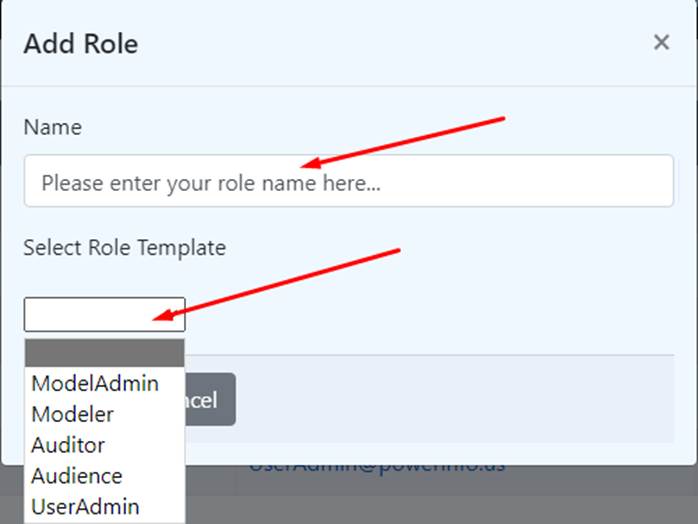
Once a new Role is added, it can be customized and assigned to users as described above. It is important to note that any authorization must be persistent to be reusable. The tool provides the CSV export/import capability, enabling customized authorization settings to be stored in a CSV file, and later imported to restore the customized settings.
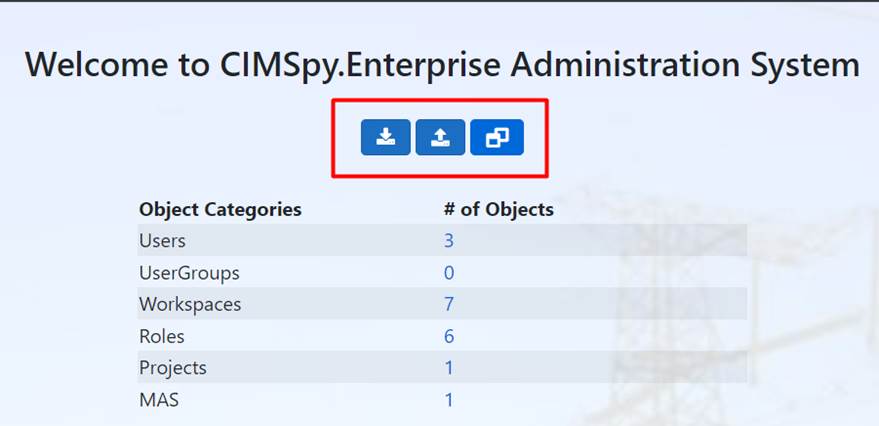
The following three functions are provided in the Admin UI home page:
- Import User Settings: Importing user defined authorization settings from a set of CSV files
- Export User Settings: Exporting the current authorization settings to a set of CSV files
- Reset to default User Settings: Resetting the current authorization settings from the built-in settings
The import and export folders and CSV files share the same path and names. The import/export directory is defined in the appsettings.json file as shown below with the configuration setting “ExportPath”.
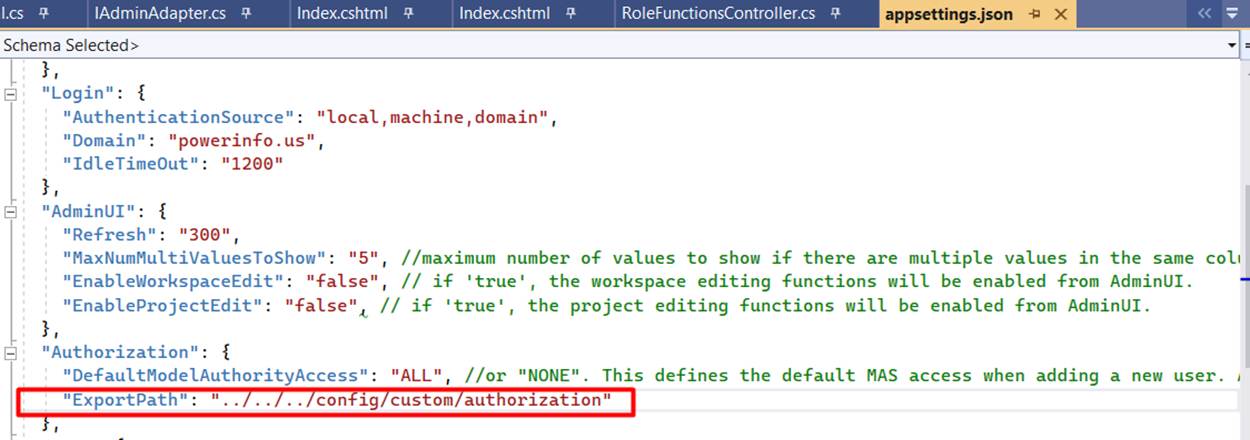
This gives users capability to customize the role-based authorization settings in CSV file and import it back to Admin service. It is recommended to export the default settings first and use it as a template for the customization.
There are three CSV files as part of the user setting customization:
- Function.csv
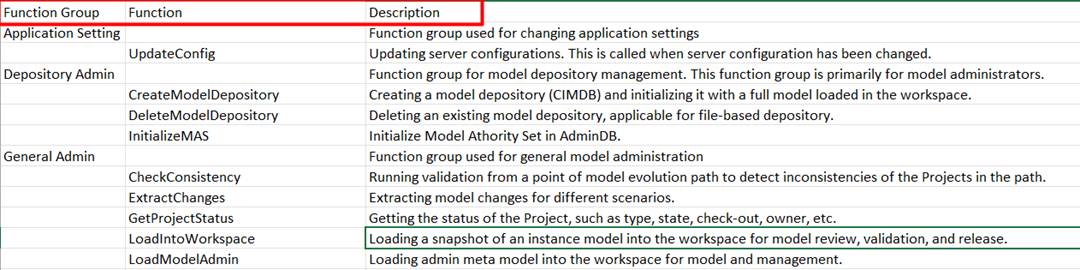
A few notes for any customizations on this file:
- Any Function name should not be modified since they are the internal interface and/or API name.
- Any Function should not be deleted unless user wants to have this Function to be authorized to every role, which is not recommended.
- Function Group name can be modified.
- Function Group can be added/removed as long as each Function belongs to one and only one Function Group.
- Rolefunctions.csv
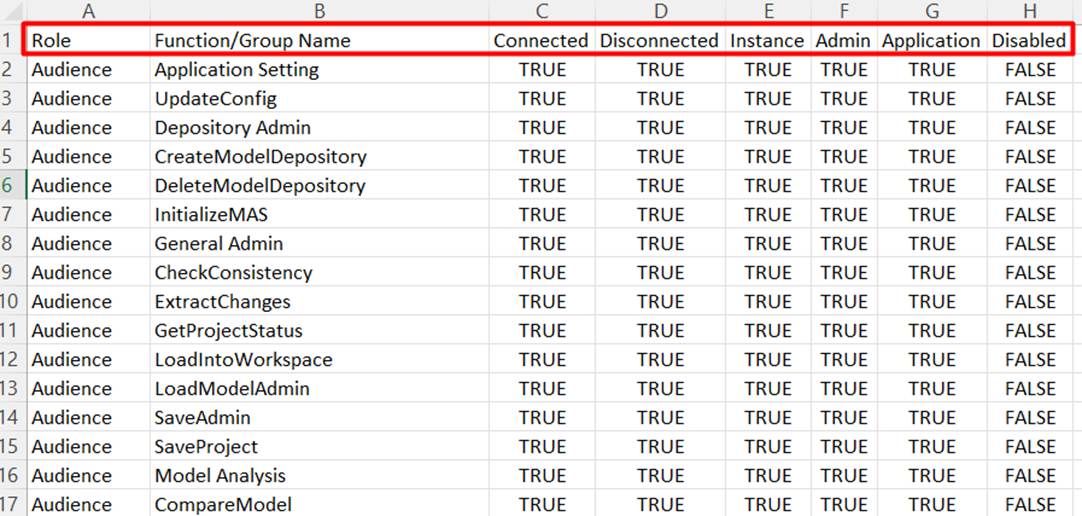
The Function Group name should match the Function Group name in function.csv file.
- Workspaceroles.csv

A few notes for any customizations on this file:
- Only the following rule attributes are supported:
- FUNCTION: Function name
- WORKSPACE_NAME: workspace name
- WORKSPACE_TYPE: workspace type, PUBLIC or PRIVATE
- ROLE: Role name
- Only the following rule operators are supported:
- ==: Equal
- !=: Not Equal
- IsMemberOf: Returns ‘true’ if the attribute value is part of the parameter string, otherwise ‘false’.
- IsNotMemberOf: Returns ‘true’ if the attribute value is not part of the parameter string, otherwise ‘false’
- Only the following modes are supported:
- 1: Overwrite mode. User’s roles will be replaced or overwritten with the workspace roles.
- 2: Upgrade mode. User’s roles will be upgraded with the workspace roles by union the user’s roles and workspace roles together.
- 3: Downgrade mode. User’s roles will be downgraded by removing the workspace roles from user’s roles.