Unrestricted Model Assembling
This is the most basic model assembling option. No model assembling business logics are applied. Users decide what models shall be assembled and in what sequence. The tool simply performs the mechanic data assembling process based on the established rules. For example, the instance specified with rdf:about will be assembled into the same instance identified with rdf:ID, etc. This option is provided to users when the Automated Model Assembling option is not applicable or fails to work properly for some reasons.
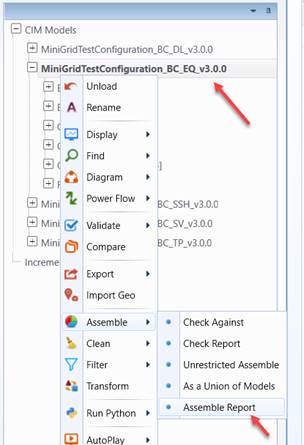
The unrestricted model assembling process can be invoked through the context menu associated with the model to be assembled. Users must select the base model name from a wizard. The outcome of this process is a assembling report listing all of the assembling activities with links to the related objects in the combined model. The Tool stores the history of the assembling activities for the base model. The assembling history can be displayed through the context menu of the base model. If there are any inconsistence detected during the assembling process, the Tool will store the inconsistence in the model assembled and users will be prompted to view the checking results in the model assembled (not the base model).
- Load all of the models into the Tool. If the related models are packaged as a compressed ZIP file, you can load the whole package. See Importing Zipped CIM/XML Files for detail.
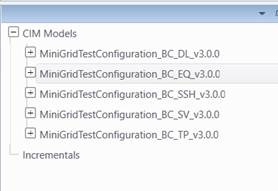
- Determine the base reference model. Base reference model is normally used as a staging model, which all of other models will be assembled into.
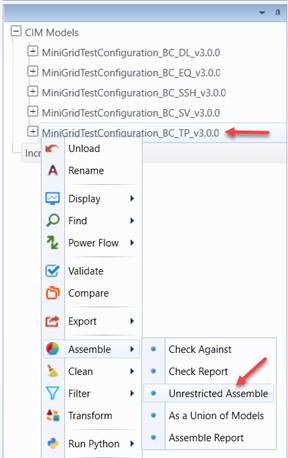
- Once the base model is determined, right-click the tree item associated with the model that you want to assemble into base model. Select Assemble→Unrestricted Assemble to initiate the assembling process.
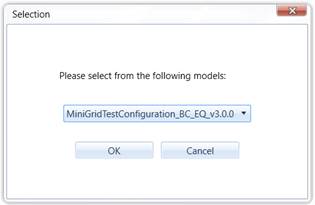
- A model selection wizard will popup, listing all of the available models in the dropdown list. Select the base model you want to assemble into from the dropdown list.
- The outcome of this process is a special type of Report Display, referred to as Assembling Report, listing all of the assembling activities with links to the related objects in the combined model. After the assembling process, the based model will be highlighted.
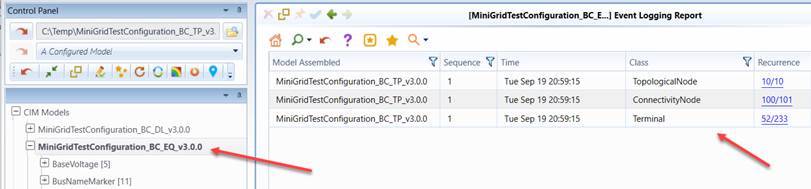
Note the Tool stores the history of the assembling activities for the base model. This assembling history report can be displayed by invoking the context menu associated with the base model.
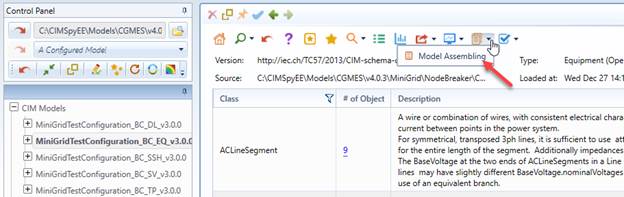
The Model Assembling report can also be called by clicking corresponding reporting dropdown command icon in the summary page of the base model, as illustrated below:
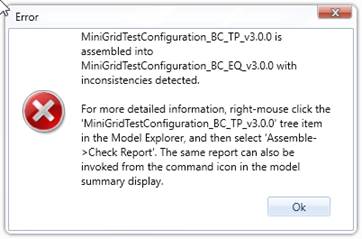
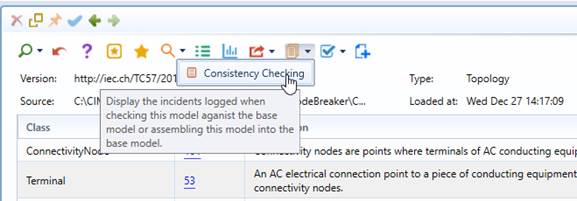
- If inconsistencies are detected, users will be presented a special type of Report Display, referred to as Consistency Checking report, listing all of the inconsistencies detected. This report will also be called up later from the context menu associated with tree item of this particular model.
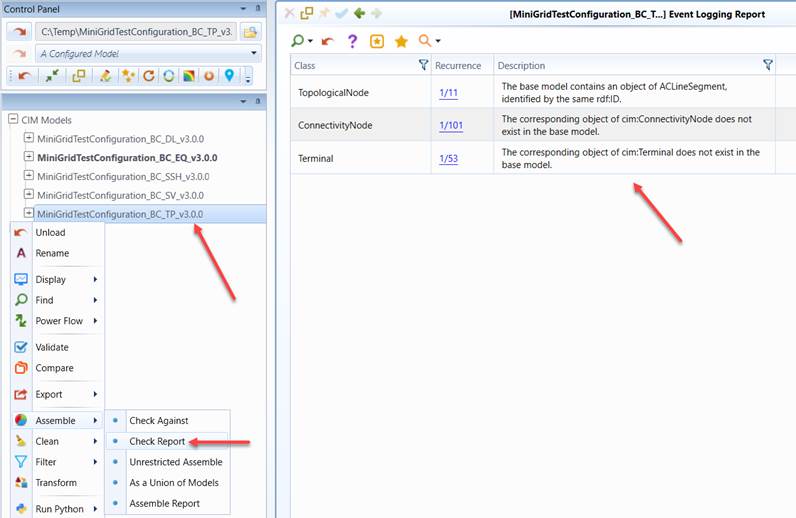
The model consistency checking report can also be called by clicking the corresponding reporting dropdown command icon in the summary page of the base model, as illustrated below:
- Click the hyperlinks to inspect the related instances in more detail.