Importing Model Changes
Typically, users import Model Changes to update a Version of Model to match changes made in a foreign system. Model Changes, in the form of CIM Incremental XML file, can be imported into the Tool and applied to any Draft Version. The CIM Incremental can be created from Model Changes between Versions, model comparison, or model editing.
A new Pending Change will be created in the Draft Version containing all the imported Model Changes. If there is already an existing Pending Change, the imported changes will be added to the Pending Change. Validation is recommended before submit the Pending Change to discover modeling errors introduced by applying the external Model Changes.
Load Models and Apply Incremental Changes
To apply the Model Changes to a Draft Version Model, the Draft Model has to be loaded first. Model Changes can be loaded from Model Admin Page.
- Load the target draft version model into workspace.
- Import the CIM Incremental Model file.
- With both Draft Model and Incremental Model loaded, users can apply the Incremental Model to the Draft Model.
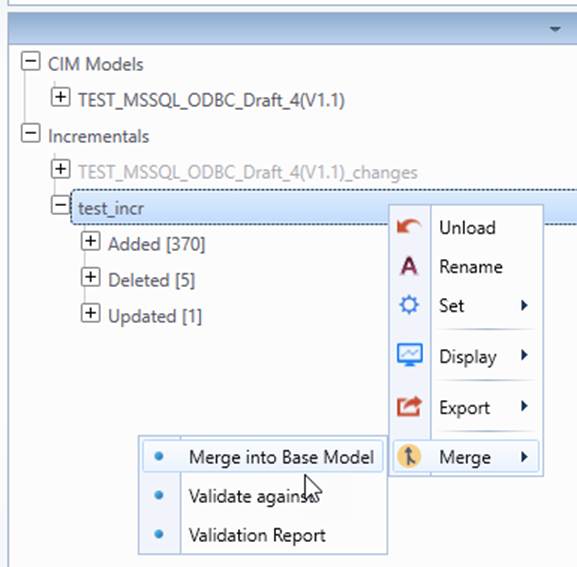
Once the model updating process is completed, a summary report will be displayed, listing all of the updated items. The tree item associated with the target base model will be highlighted in red.
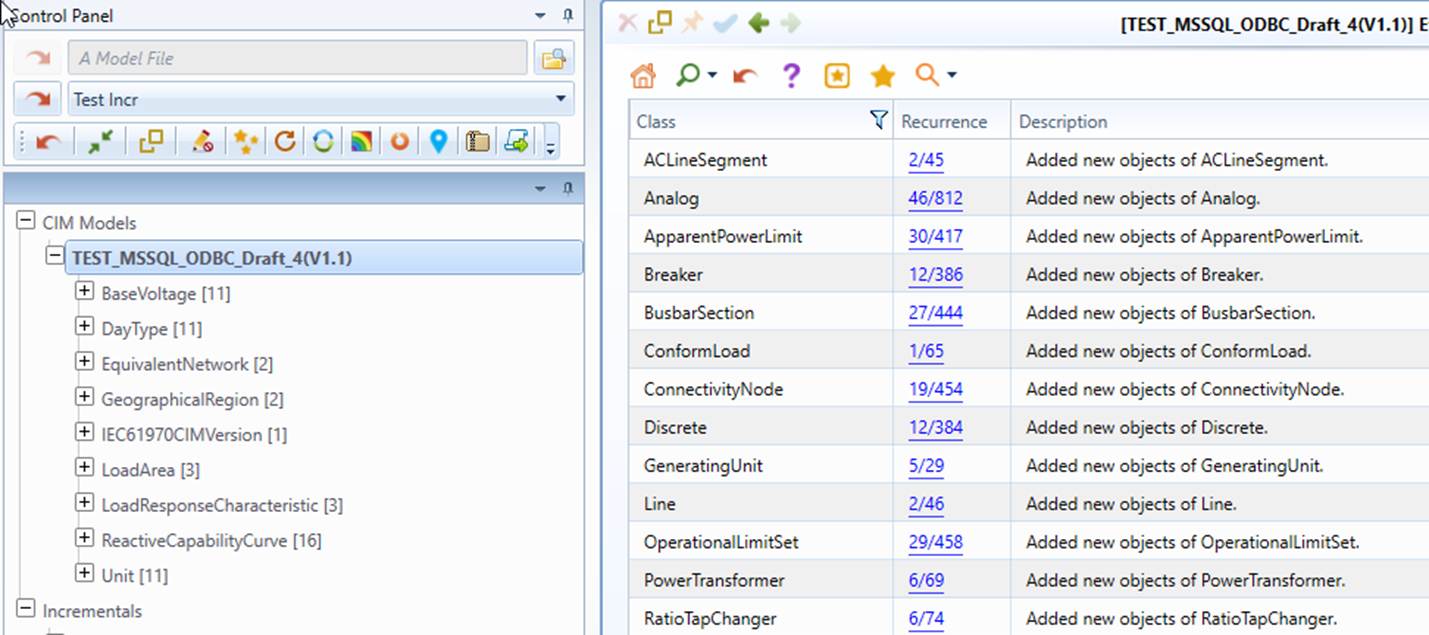
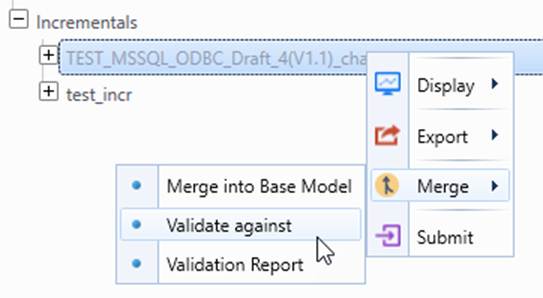
Tips: The inconsistency detection can also be conducted without actually applying the Difference Model the base model. This function can be invoked through the context menu Check against Base Model of the Incremental Model. It is highly recommended to perform this consistency checking prior to real model updating.
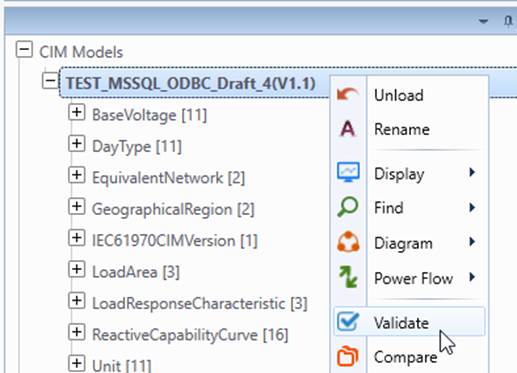
Validation
Users may run the normal validation at this point to find out any modeling errors.
Submit Pending Change
If the Incremental Model is applied successfully, a Pending Change will be logged automatically against the target Draft Version Model. User can now submit model changes.