Managing Plan
Plan management is the most important model administration task. The following Plan administration tasks are supported:
Adding/Deleting a Plan
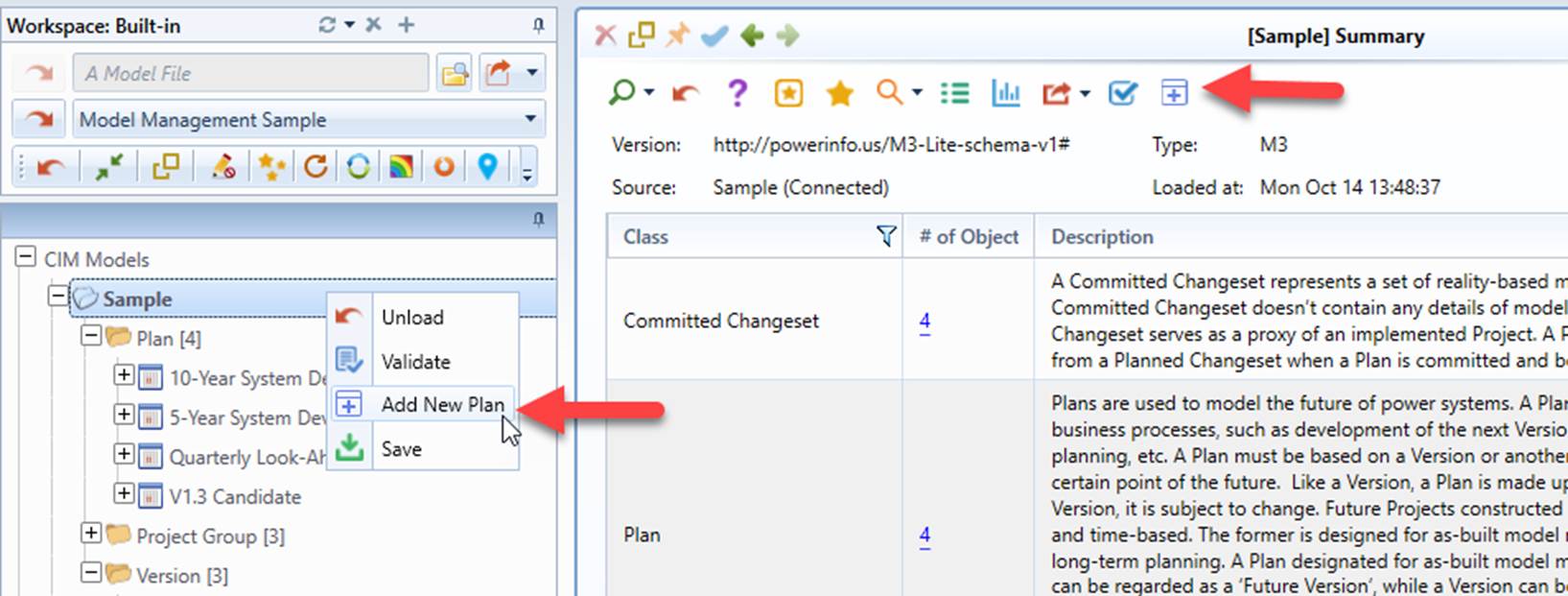
Users can add a new Plan, as illustrated below.
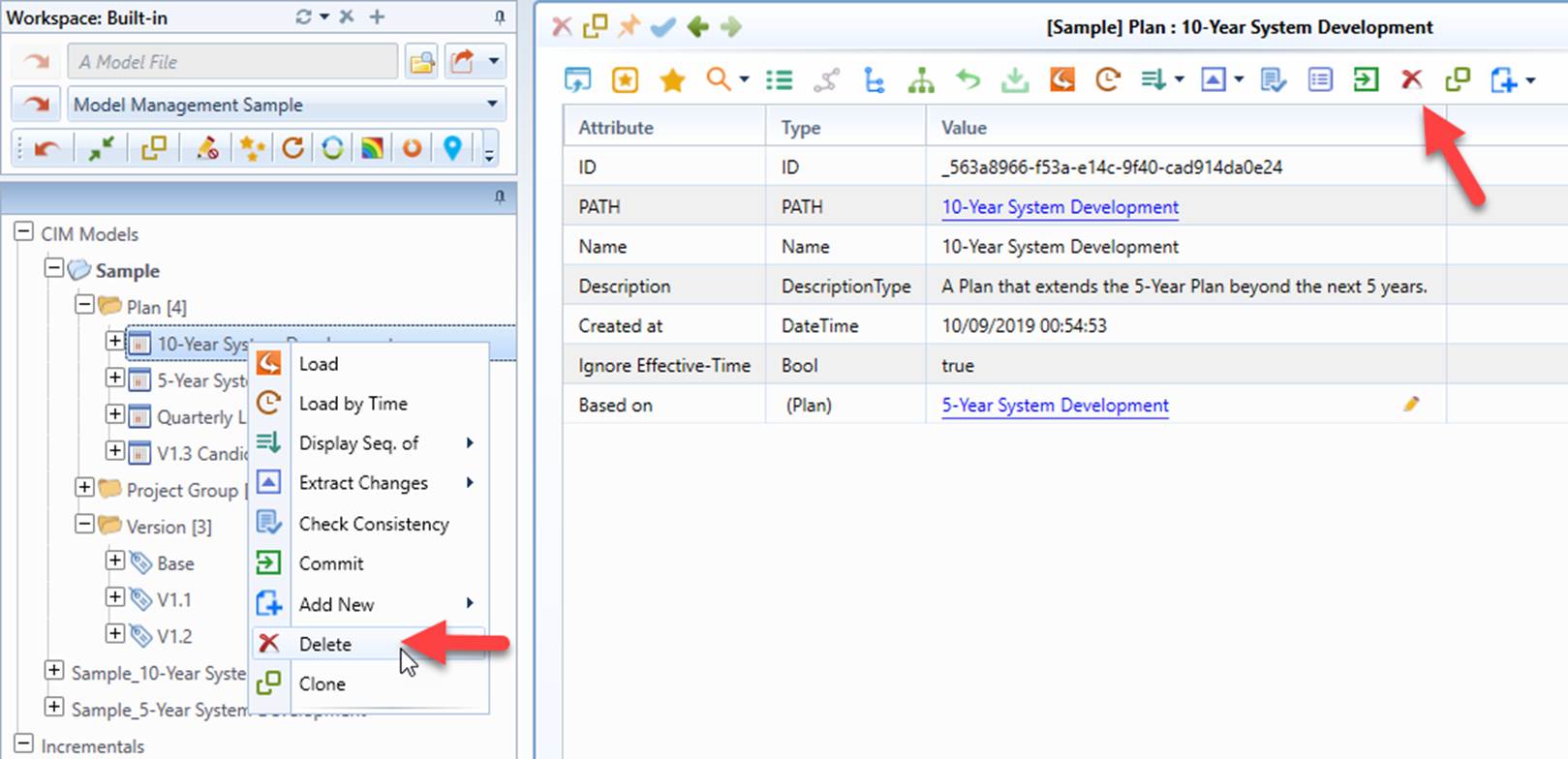
Any existing Plan can also be deleted. Once a Plan is deleted, all of its Planned Change Sets are deleted and an associated Project may be assigned to the ‘Unused’ Project Group if it is not referenced by other Plans/Versions.
Setting-up a Plan
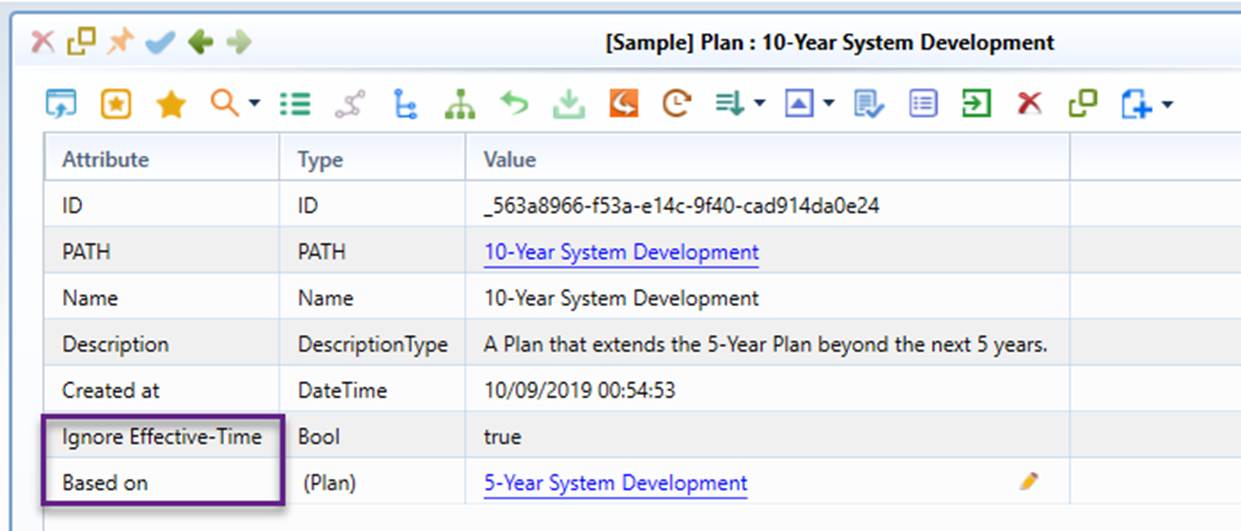
Once a new Plan is added, it must be properly set up. The property that must be set is the base Plan/Version that new Plan is based upon. The other property that must be set is the flag indicating whether it is a sequence-based Plan (Ignore Effect-Time is set as ‘true’) or a time-based Pan (Ignore Effect-Time is set as ‘false’).
Adding/Deleting a Planned Change Set
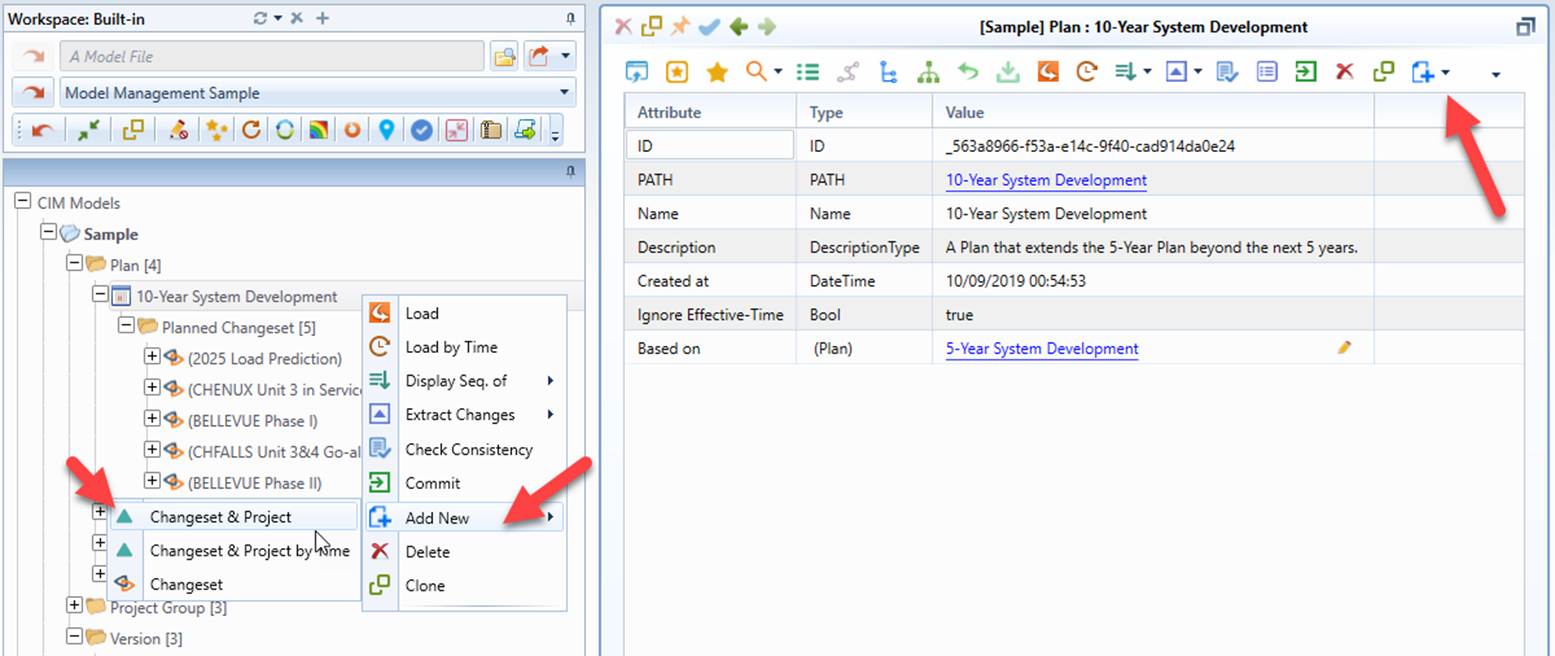
Planned Change Sets and represented Projects can be added to a Plan. User can add the following to a Plan:
- Changset & Project: a pair of new Planned Change Set and Project is added to the end of the Plan.
- Changset & Project by Time: a pair of new Planned Change Set and Project is added to a time-based Plan. Its sequence is determined by the specified effective-time.
- Changset & Project: Only a new Planned Change Set is added to the end of the Plan. User will assign an existing Project to the new Planned Change Set later.
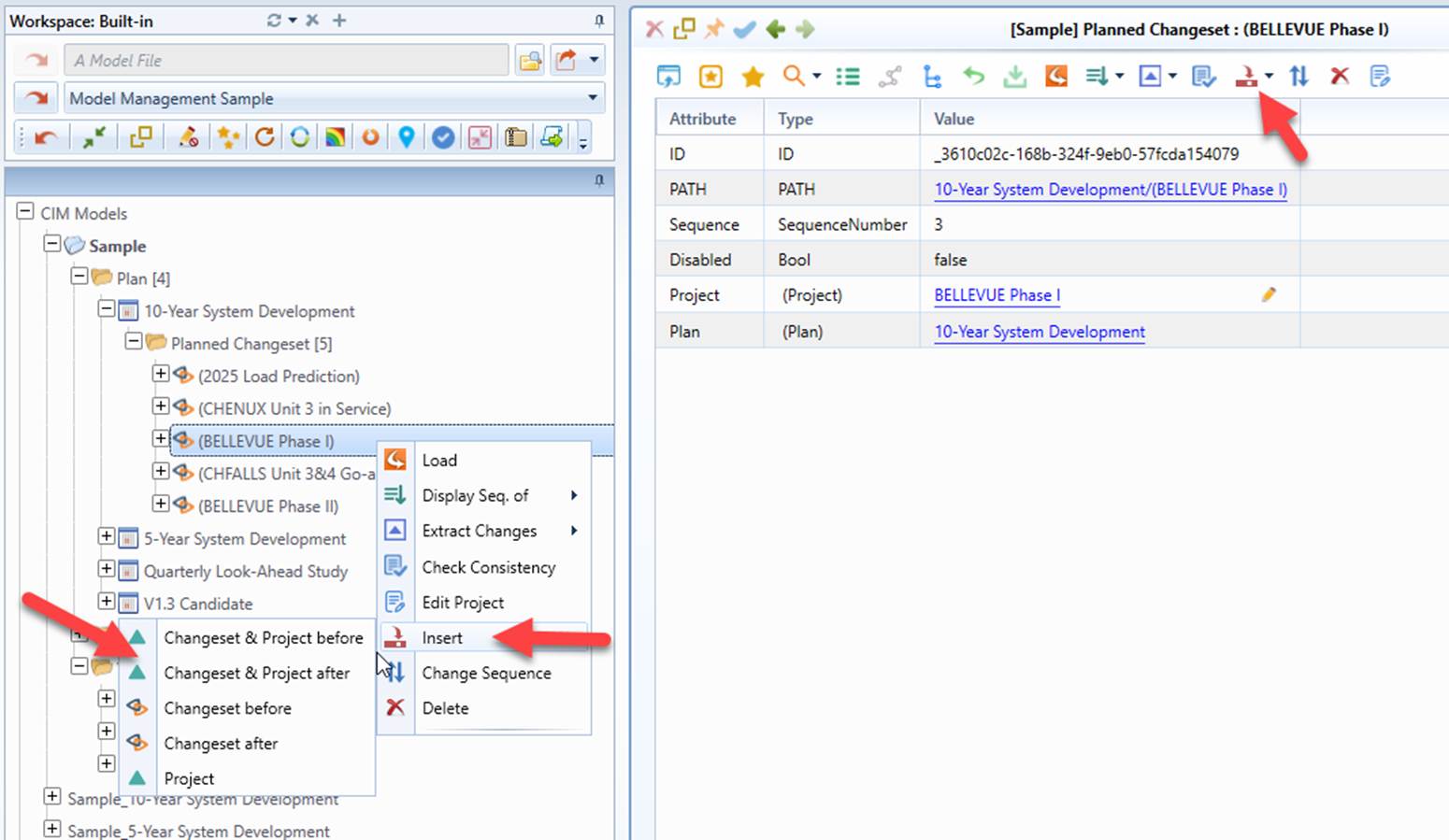
Planned Change Sets and represented Projects can be inserted into the specified sequence. This is normally accomplished through the reference Planned Change Set. Users can insert Planned Change Sets and represented Projects before or after the reference Planned Change Set. More specifically, users can insert the following:
- Changeset & Project before: Insert a pair of new Planned Change Set and Project before the current Planned Change Set.
- Changeset & Project after: Insert a pair of new Planned Change Set and Project after the current Planned Change Set.
- Changeset before: Insert a new Planned Change before the current Planned Change Set. Users will assign an existing Project later.
- Changeset after: Insert a new Planned Change after the current Planned Change Set. Users will assign an existing Project later.
- Project: Insert a new Project and associate it with the current Planned Change Set.
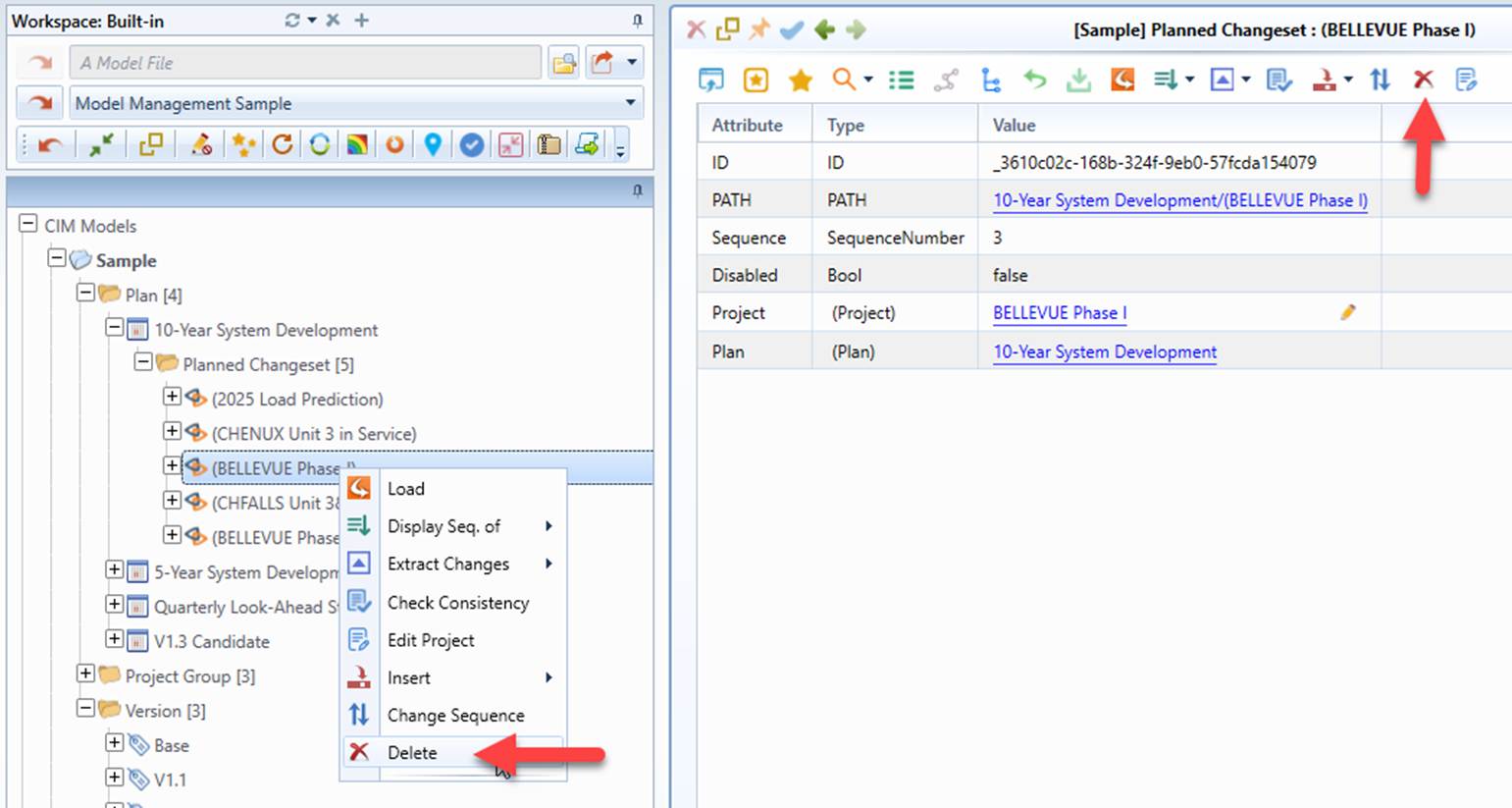
Existing Planned Change Sets can also be deleted. However, the associated Projects will remain. If no other Plans/Versions use the associated Projects, they will be assigned to ‘Unused’ Project Group.
Editing a Project
Once a new set of Planned Change Set/Project is added/inserted, it is ready to be edited.
Deleting a Project
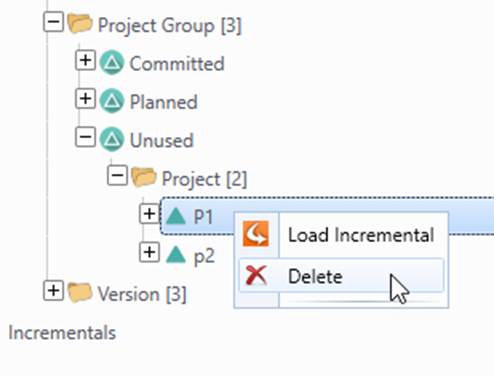
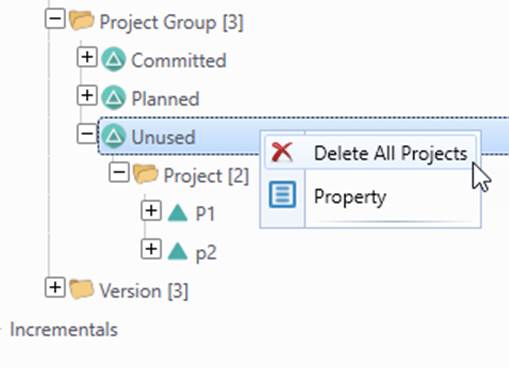
If a Project is not included (or referenced) by any Plans/Versions, i.e. assigned to ‘Unused’ Project Group, it can be deleted. An unused Project can be deleted individually or as a whole, as illustrated below.
Changing Sequence of Planned Change Sets
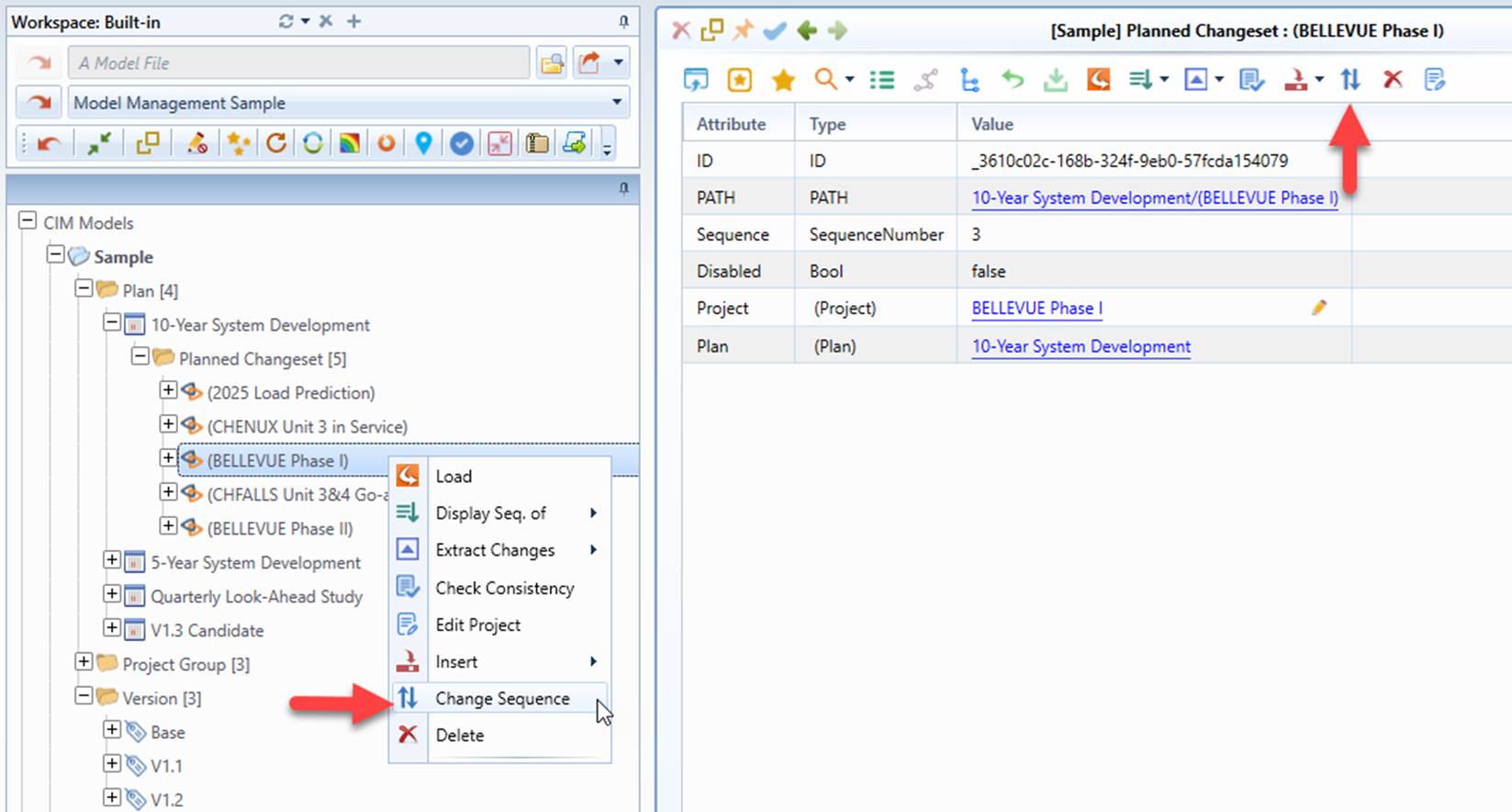
The sequence of Planned Change Sets matters. It implies dependency of assoicated Projects. If sequence of Planned Change Sets is incorrect, modeling conflicts may arise during model asselmbling. The sequence of Planned Change Sets in a Plan, however, can be changed, as illustrated below.
Committing a Plan
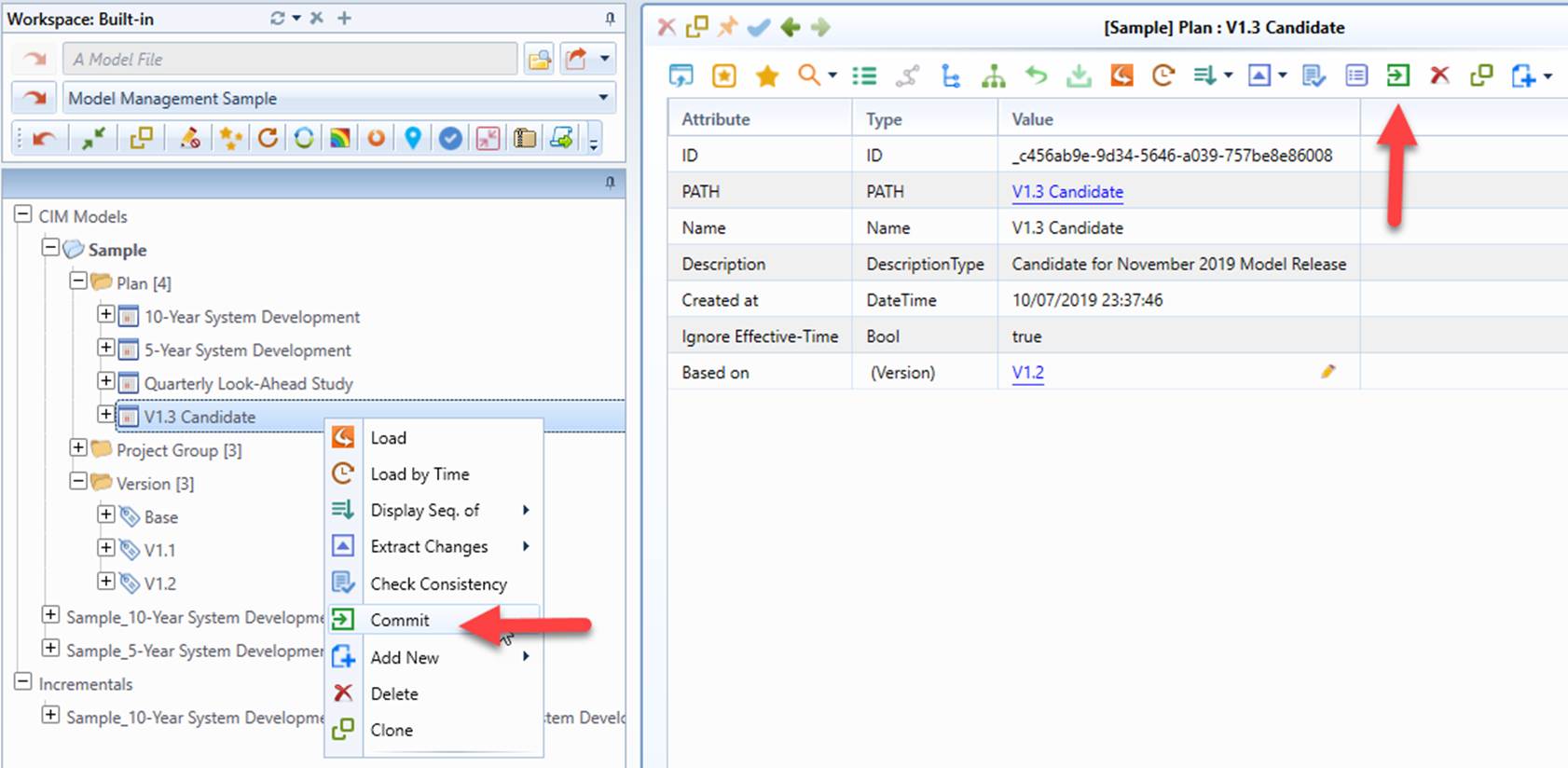
A Plan based on the most recent Version and designated for as-built model maintenance can also be converted to a Version. This is accomplished by committing a Plan. Once a Plan is committed,
- The Plan is converted to a new Version.
- All of the Planned Change Sets of the Plan are converted to Committed Change Sets of the new Version.
- All of the associated Projects of the Plan are assigned to the ‘Committed’ Project Group.