Building Custom Process
This type of scripting application is not associated with a particular type of Tool functionalities. It is an independent custom process scripted by users to perform specific model manipulation. It is typically designed to perform sophisticated model manipulations not explicitly supported by the Tool, such as, creating a model from various sources, performing network reduction, or merging external network models, etc. The purpose of this type of scripting support is to enable users to rapidly build some model-driven applications by taking full advantage of the underlying support of the Tool. While users have the full control of the custom process, these processes, however, must be invoked from the Tool UI. There is also a scripting support enabling users to build independent Python applications outside of the Tool. But the standalone scripting support is released under an evaluation license.
For a simplified and structured scripting capability, please refer to CSV-based scripting. This approach allows users to define model modifications in a tabular, spreadsheet-friendly format without writing program code. It is particularly suitable for bulk updates, large-scale patches, profile adjustments, and systematic data cleanup tasks where changes can be expressed as well-defined operations.
Running Scripted Custom Process
Custom process scripts are explicitly invoked from the UI client of the Tool. There are two types of custom processes:
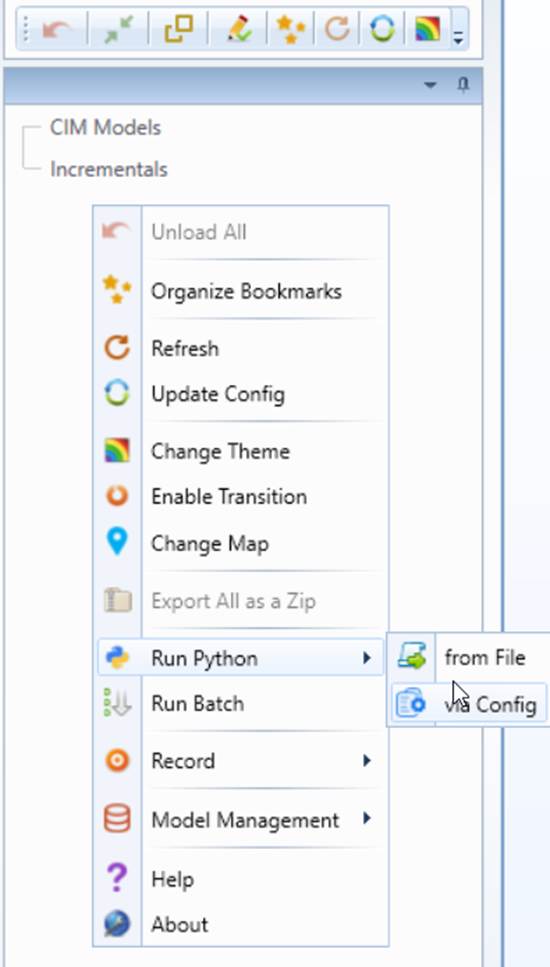
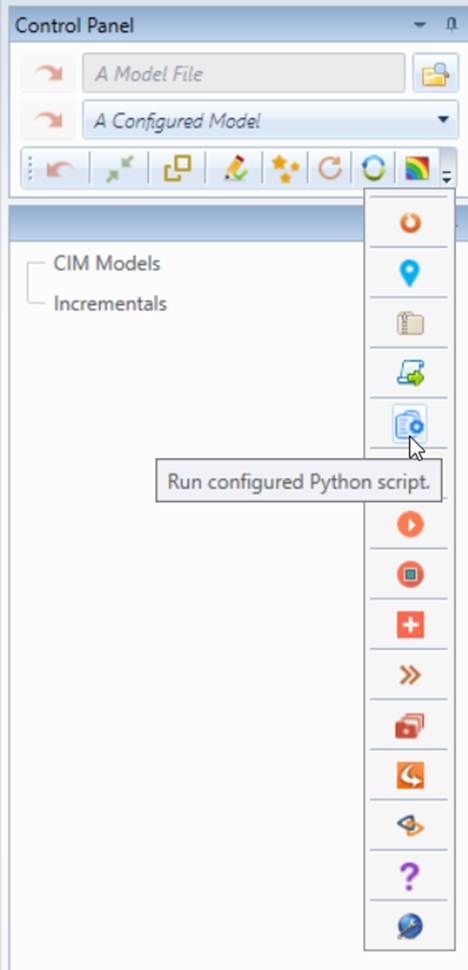
- Model-independent Custom Process: Custom processes of this type are not related to any models. They are invoked from the global context menu which can be prompted through right-mouse-clicking of any bank spot in the tree panel or from the corresponding command icons in the control panel.
- Model-specific Custom Process: Custom processes of this type are targeted for the specified model. They are invoked from the context menu associated with the model tree item.
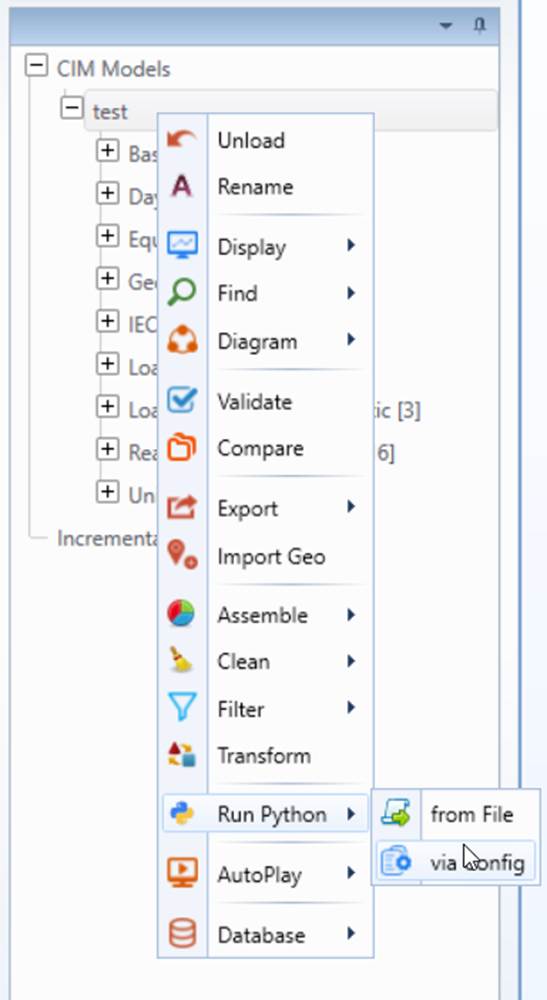
The two types of custom processes require different context objects as function parameters: Model-independent custom processes accepts CustomProcessContext object, while model-specific custom process takes the ModelCustomProcessContext object. However, these two different context objects are almost identical, except that ModelCustomProcessContext contain the extra context information about the model from which the custom process is initiated. The extra context information is provided by method, GetFullModel() as highlighted, which returns the reference of the model from which the custom process is initiated. See the APIs definition below.
Class
CustomProcessContext
Description
Class CustomProcessContext defines a context object used to exchange information between the C++ based server application and model-independent custom processes scripted in Python. A model-independent custom process is not associated with any models. It is typically invoked from the global context menu in the UI.
Function
Details
Description
GetParameters
Syntax
GetParameters()
The function returns a sequence of user-defined parameters.
Returns
StringVector
The returned string vector includes all of the user-defined function parameters in the exactly same sequence.
Parameters
none
AddMessage
Syntax
AddMessage(msg)
The function stores a new message, which will be prompted to users in the UI in the same sequence as it is stored.
Returns
none
Parameters
msg: string
String message to be presented to users
GetModelSpace
Syntax
GetModelSpace()
The function returns a reference to the ModelSpace object in the server.
Returns
ModelSpace
The ModelSpace object is a container object hosting all of the FullModel objects in the server.
Parameters
none
Class
ModelCustomProcessContext
Description
Class ModelCustomProcessContext defines a context object used to exchange information between the C++ based server application and model-specific custom processes scripted in Python. A model-specific custom process is related to a FullModel. It is typically invoked from the context menu associated with the related FullModel in the UI.
Function
Details
Description
GetParameters
Syntax
GetParameters()
The function returns a sequence of user-defined parameters.
Returns
StringVector
The returned string vector includes all of the user-defined function parameters in the exactly same sequence.
Parameters
none
AddMessage
Syntax
AddMessage(msg)
The function stores a new message, which will be prompted to users in the UI in the same sequence as it is stored.
Returns
none
Parameters
msg: string
String message to be presented to users
GetModelSpace
Syntax
GetModelSpace()
The function returns a reference to the ModelSpace object in the server.
Returns
ModelSpace
The ModelSpace object is a container object hosting all of the FullModel objects in the server application.
Parameters
none
GetFullModel
Syntax
GetFullModel()
The function returns a reference to the FullModel object, from which the custom process is invoked.
Returns
A reference to the related FullModel object in the server application
This function is used to retrieve the FullModel object from which the custom process is invoked.
Parameters
none
Either of the two custom processes can be invoked directly from the Python script file or through the configuration. The former is a shortcut of the latter. As described previously, calling of custom process requires two piece of information; module and function. Both can be pre-defined in the Tool custom configuration. The module name is always required. It is the name of the script file. The function name is optional. If not provided, the default function name defined in the configuration will be used. When running a Python script from a script file, two assumptions are made;
- The main scrip function is named using the default function name defined in the configuration.
- The function takes no user-defined parameters.
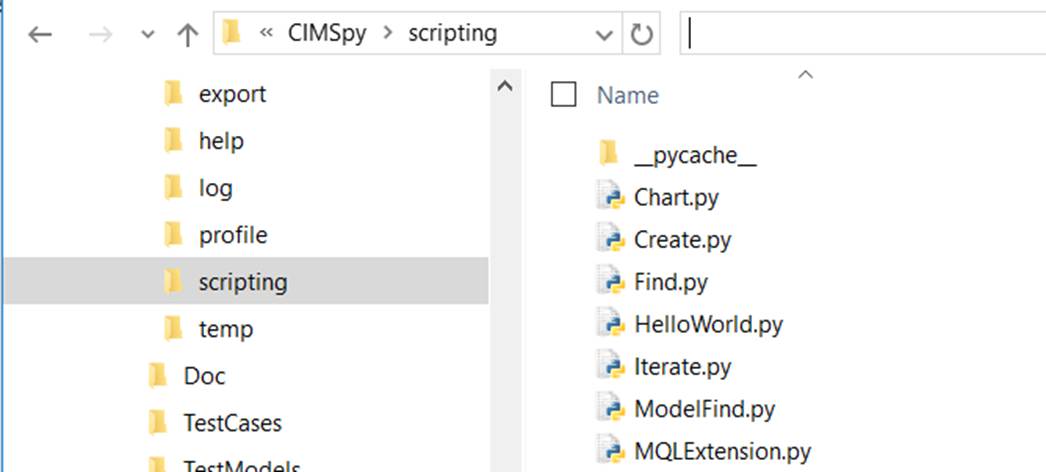
Once a script meets both of the above conditions, it can be invoked from a file directly. After selecting ‘Run Python→from File” from the context menu, users will be prompted to select a script file from the local director, as illustrated below
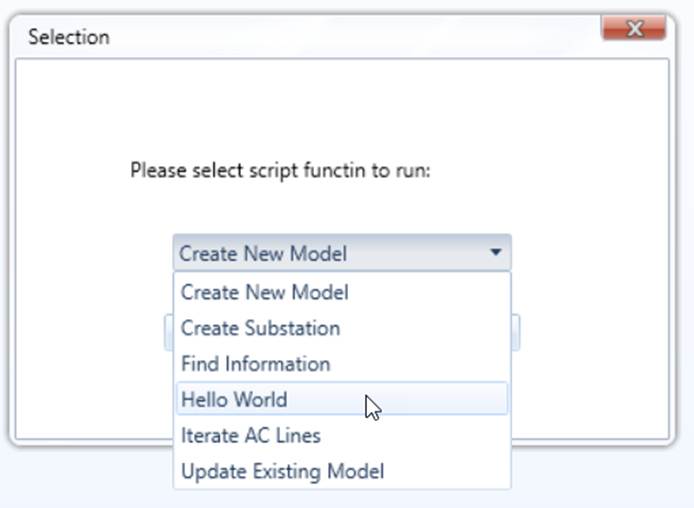
If one of the above assumptions doesn’t hold, users must define a script function configuration in order to run the custom processes. After selecting ‘Run Python→ via Config” from the context menu, users will be prompted to select a script file from the pre-defined script configuration list, as illustrated below
Defining Script Function Configurations
Script function configurations are defined to facilitate calling of custom processes. Each script function configuration explicitly or implicitly declares the following information needed to run a custom process:
- Name and location of the module: a Python script file where the custom process is scripted.
- Main script function name: the module can contain any number of script functions. One of them, however, must be the ‘mian’ function. It is the function directly called by the server.
- User-defined parameters: the main function may take any number of string parameters. These parameters are declared along with the main function in script function configuration.
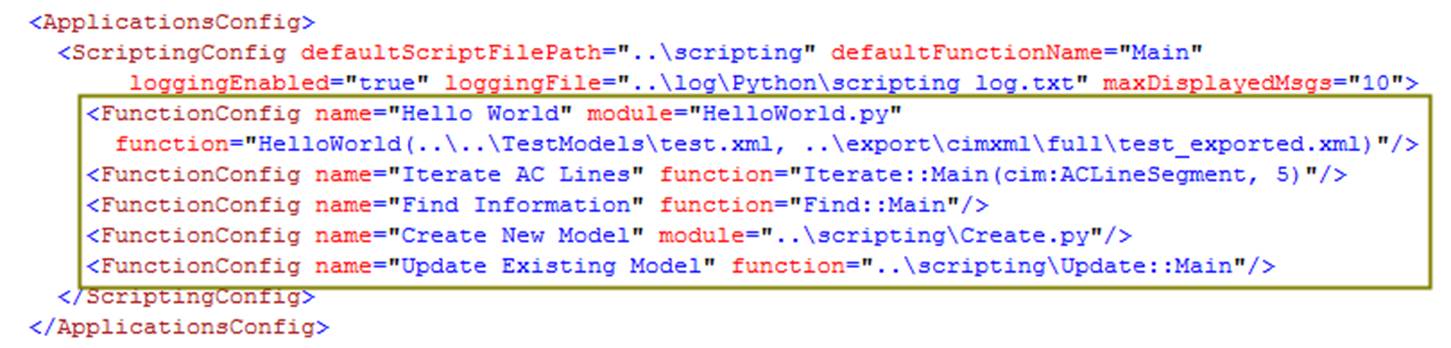
The script function configurations are typically defined under ApplicationsConfigs in the CustomConfig.xml. The following sample illustrates how script functions are defined the configuration. Note: various conventions are used in these sample configurations.
Where
- defaultScriptFilePath; default path of the folder where modules files are located. This parameter is applicable to all of the contained function configurations.
- defaultFunctionName: default name of the main function. This parameter is applicable to all of the contained function configurations.
- loggingEnabled: a flag indicating whether the encountered errors or script-created messages shall be logged. Optional and default to ‘false.
- loggingFile: full path of the file used to store the logged errors messages or script-created messages. Note: the errors/messages will be logged in appending mode until the server is shut down. Then a new logging session will started, overwriting the previous logged messages.
- maxDisplayedMsgs: maximum number of messages to be logged in the file (if enabled). Optional. The default value is 0, meaning unlimited.
- FunctionConfig:
oname: name of the function configuration . The name will be displayed in the dropdown list when users run a custom process via config. Names of the function configurations must be unique.
omodule: Name and location of the module - a Python script file where the custom process is scripted
ofunction: Main script function, including name and user-defined function parameters.
Note
it is accepted to specify module as part of the function. This format facilitates specification of the plug-in script function call in the meta-files. For more details, please refer to the conventions used in specifying calling of a script function.
Scripting of Custom Process
In this tutorial, we will use the following 4 examples to help users lean how to use the published APIs to script the custom process:
- Example 1: Creating a New Model: In this example, users will lean how to populate a model through scripting.
- Example 2: Iterating through a Model: In this example, users will learn how to iterate through a loaded model at different levels.
- Example 3: Finding Information of Interest: In this example, users will lean how to search for the information of interest by leveraging various querying support.
- Example 4: Updating Model Contents: In this example, users will learn how to manipulate the loaded model and modify its contents.