Model Editing Mode
++++++++++++
By default, the loaded model is read-only, meaning that users cannot make any model changes. In the read-only mode, only attributes that have values are displayed. None of the value fields are editable.
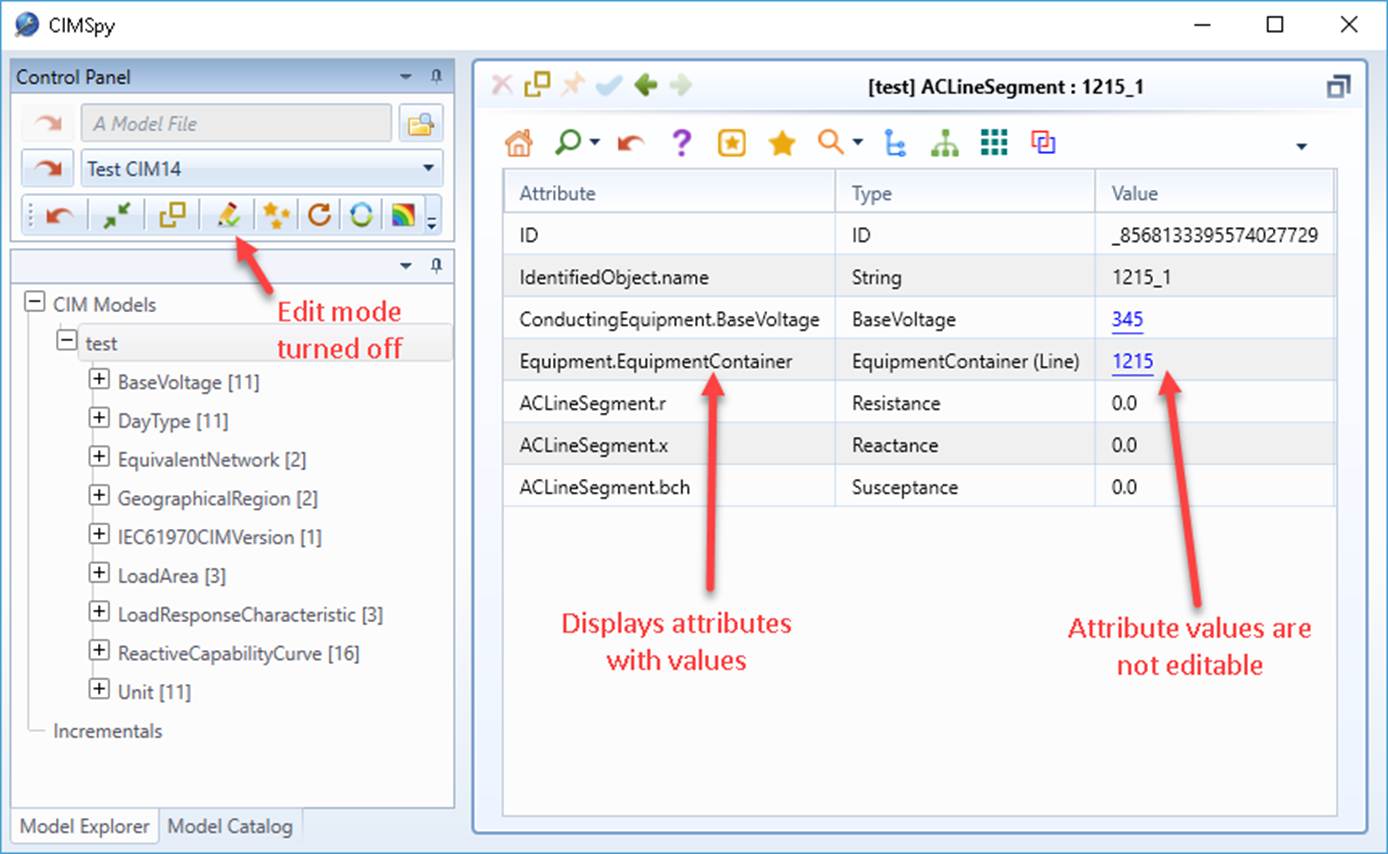
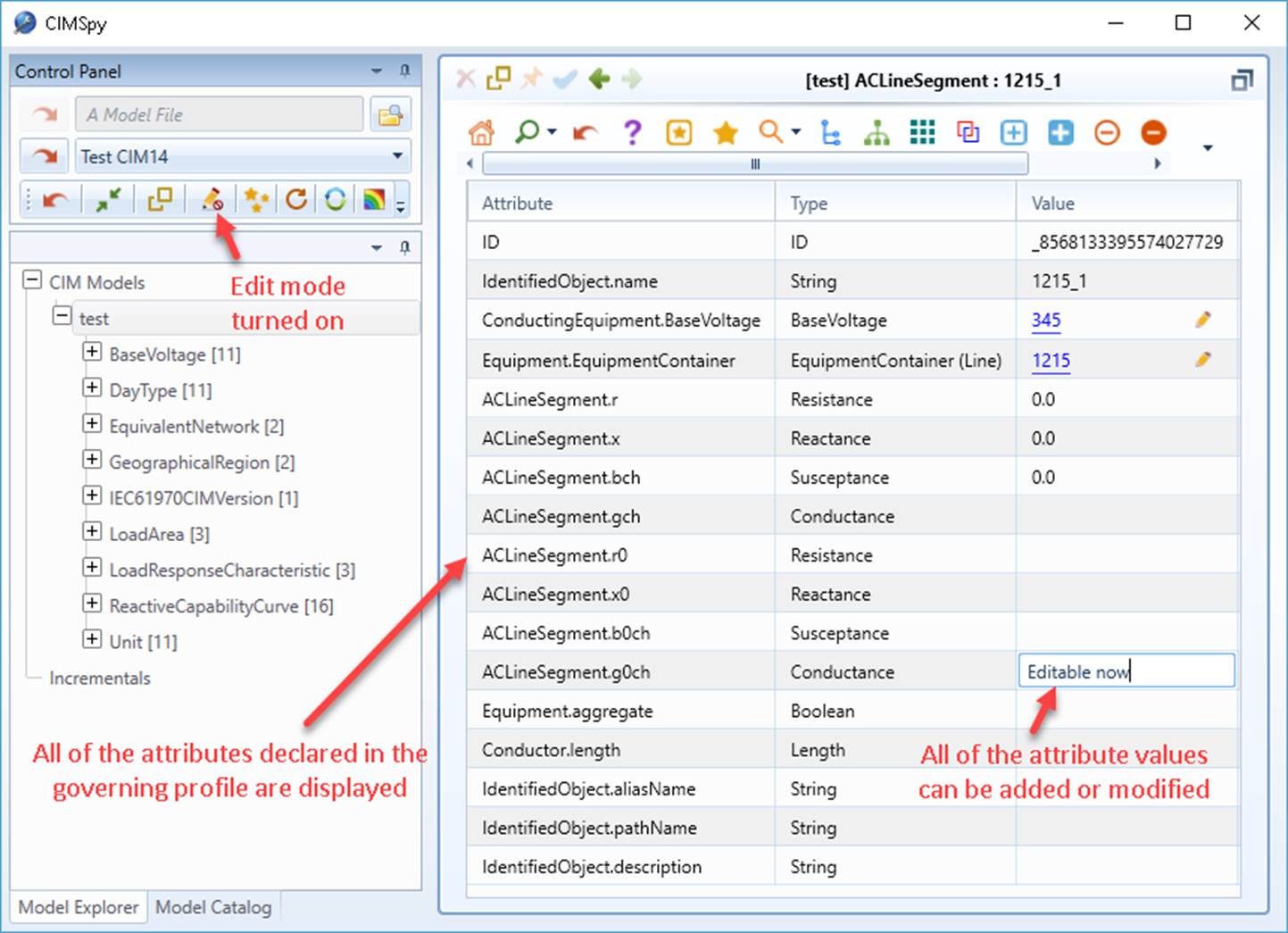
In order to make any model changes, users must turn on edit mode by clicking on the edit icon in the control panel. Once in the Edit Mode, the current active view will be updated. All of the attributes/associations declared in the governing profile will be displayed. Users will be able to make any model changes: adding a new object, deleting the selected objects, and changing the properties for the existing objects. The model changes that can be made are arbitrary.
If the model loaded from a pre-defined data source is declared as “read-only”, then the Edit Mode will not be applicable to this model. In other words, the read-only model is not editable even during the Edit Mode.
It is important to note that the model changes can only be made to objects that are specified in the governing profiles. If your model contains the CIM extensions, you must naturalize these extensions in order to make your extended model editable. Otherwise, the extended portion of the model will not be able to be changed even the Tool is in the edit mode. This is because the object editing function relies on the governing model profiles for guiding the model entry. Users, however, can still delete or copy the extended portion of the objects.