Python Environment Setup
Scripting support requires the supported version of Python to be installed on the machine where the Tool is installed. When users install the Tool, Python is not part of the installation. Users must explicitly install Python if scripting support is needed.
Installing Python
The Tool package comes with Python installation package. It can be found under the 3rdParty folder as shown below.
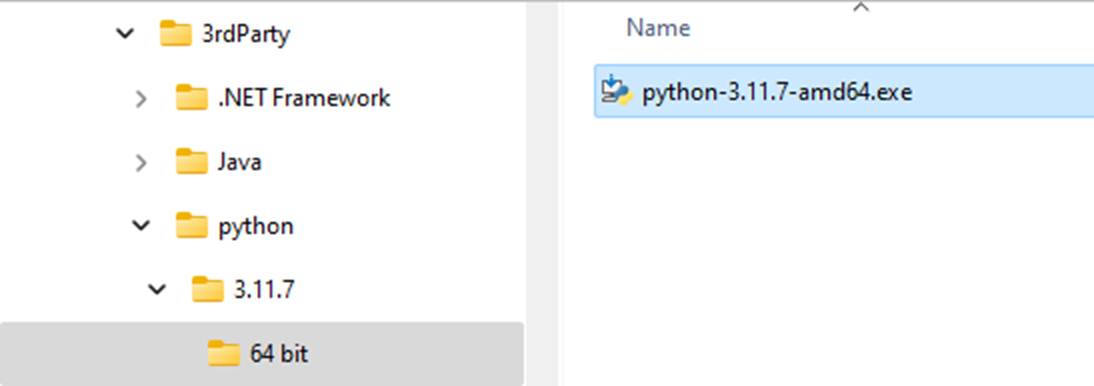
Installation of Python is quite straightforward: simply running the installation package by double-clicking file and following the instructions. However, it is very important to choose the right Python installation package.
Installation steps:
- Remove the previous version of Python if installed.
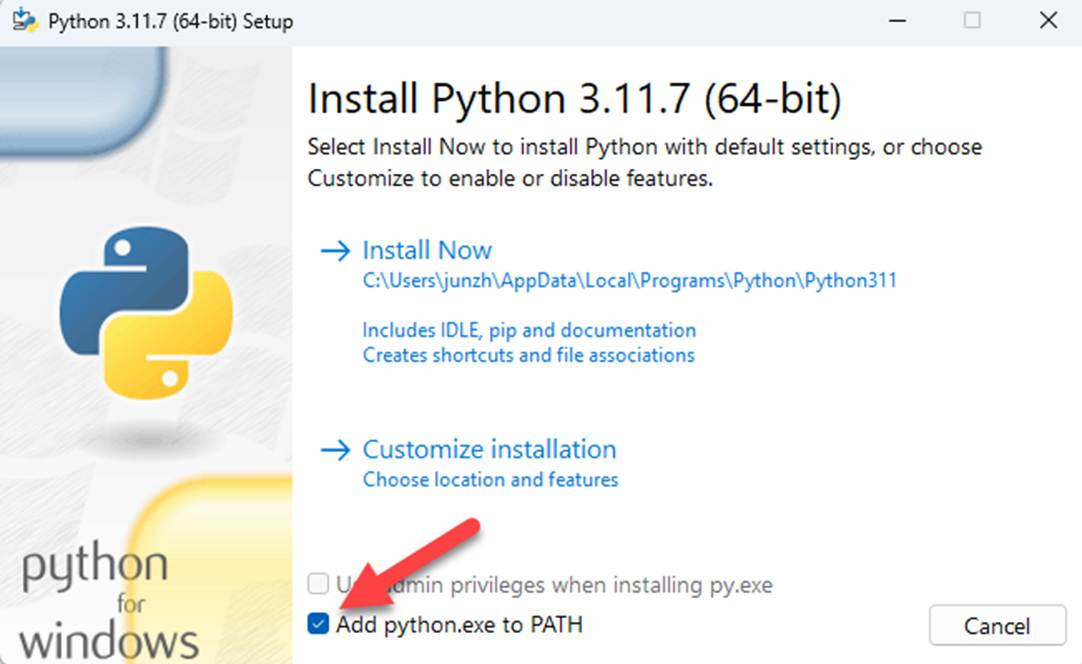
- Install the supported Python, making sure checkbox “Add python.exe to Path” is checked.
- Start a Command line console. Execute Python in the command line to verify that the proper version of Python is installed.

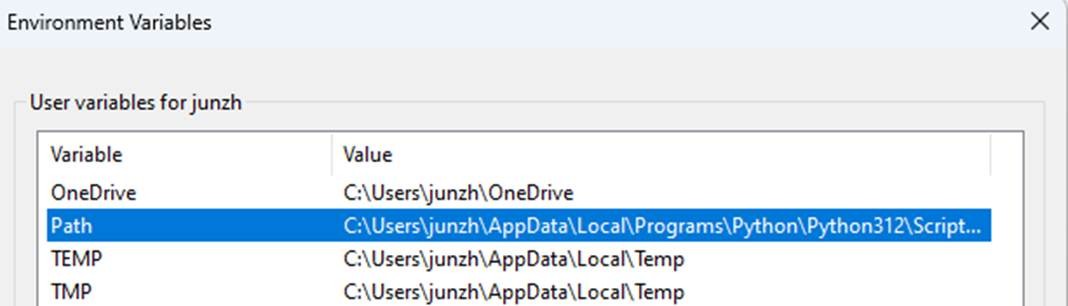
If Python is installed successfully, but the Python command is not recognized, you may close the current Command line session and stat a new one or reboot machine after installing Python to make the environment variables updated. Please also check the Python path is in the PATH environment variable.
Testing Installation
Once Python is installed, users should test the installation. If Python installation is successfully tested, run a Python script from the UI as shown below
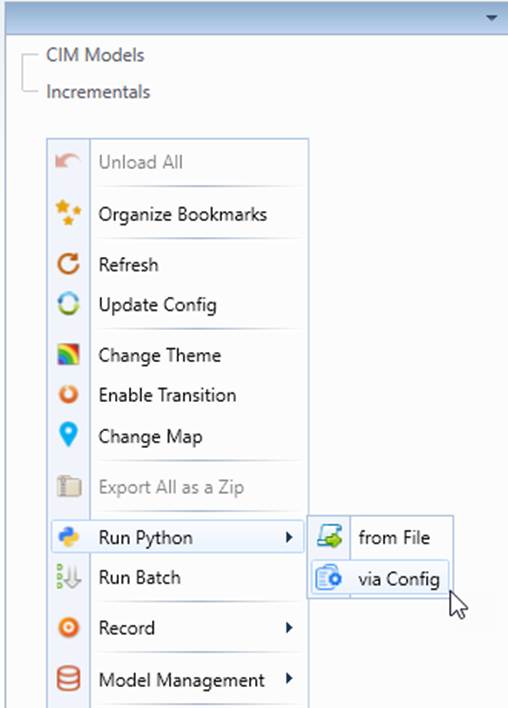
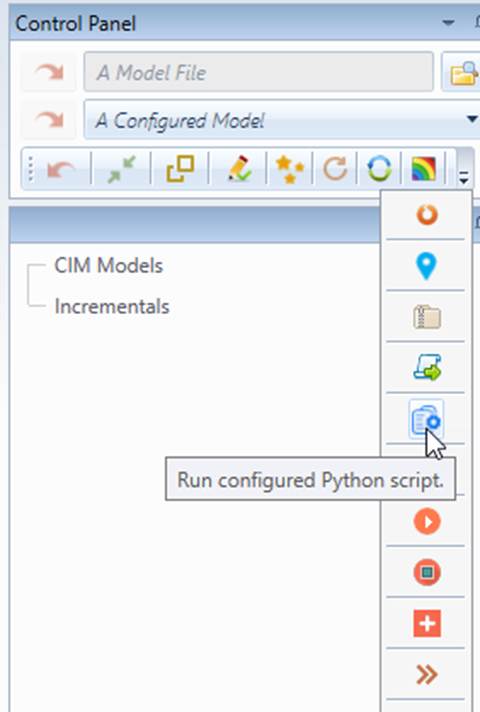
- Right-mouse-click the blank spot in the tree panel to invoke the Global Context Menu. Select ‘Run Python→ via Config’, or click the corresponding Command Icon form the toolbar in the Control Panel, as illustrated below.
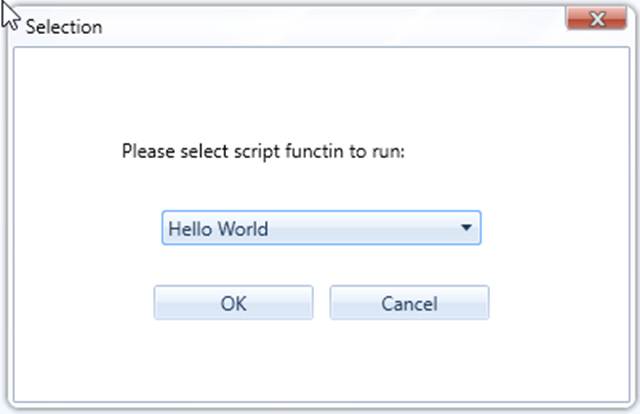
- Select Hello World from the dropdown list in the popup dialog.
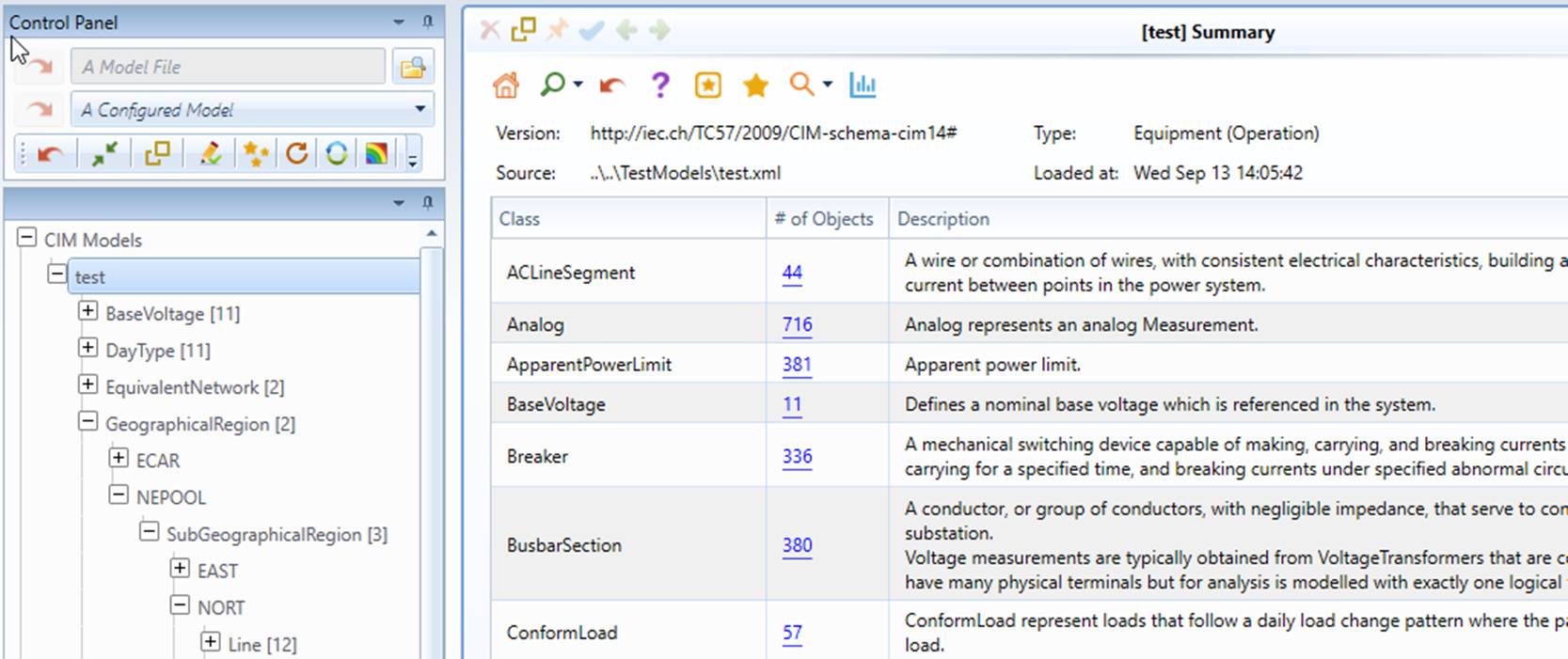
- If execution of the script is successful, user shall get the messages sent from the executed script as shown below,
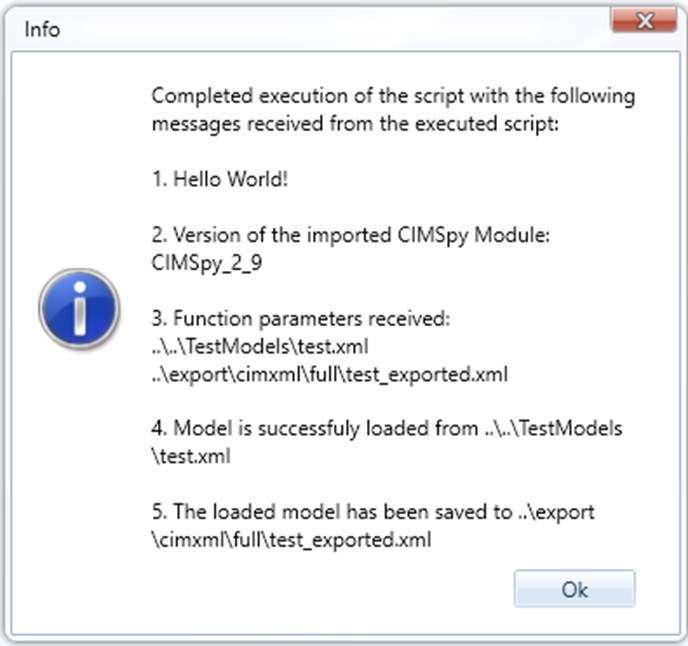
and a test model should be loaded into the Tool
Supporting Other Versions of Python
The Python language does not provide backward compatibility. Only one version of Python can be supported by the Tool. However, workarounds/patching solutions are available, depending on the versions of Python to be supported. The Options include:
- When upgrading/downgrading the supported Python x.y.z1 to a later/earlier patch version, i.e. Python x.y.z2, there should be no impact on the installed Tool. This is based on the previous experience.
- When upgrading/downgrading to a different minor/major Python version, the following workaround may work.
- Rename pythonXY.dll under folder bin, such as pythonXY_original.dll.
- Copy the corresponding python dll of the installed version of Python from the python folder (for example C:\Users\user1\AppData\Local\Programs\Python\PythonXZ) to the bin folder.
- Rename the copied pythonXZ.dll to pythonXY.dll.
- Test the patched solution.
- If option B) doesn’t work, contact us for a patching package.
Trouble Shooting
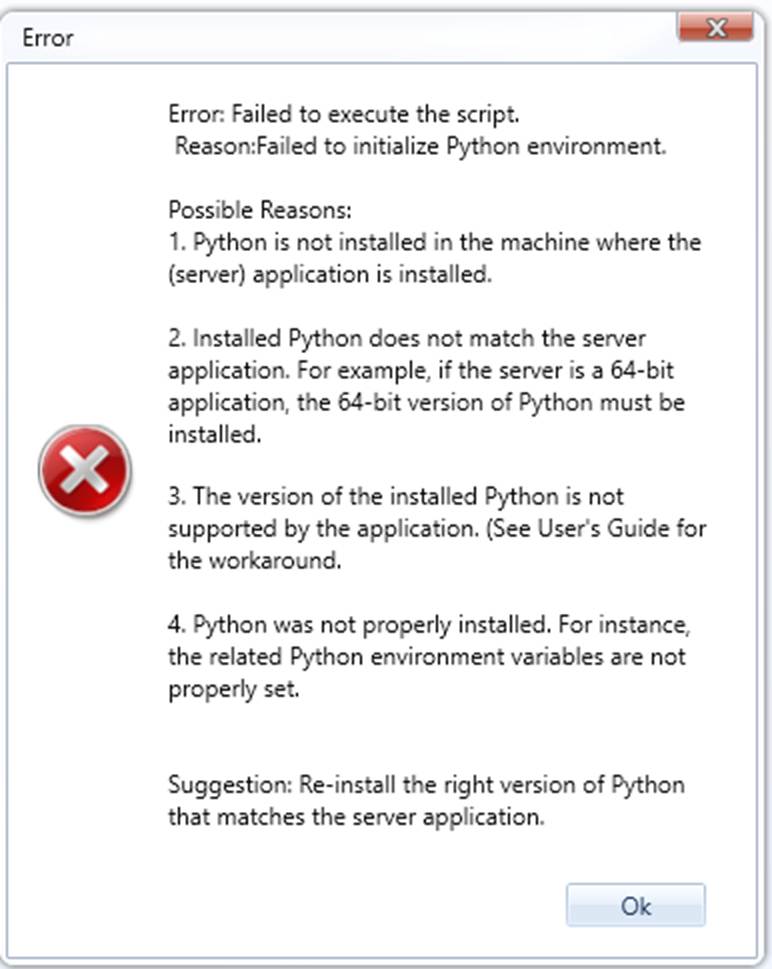
If you get the following message when running Python test script, it means your Python environment is not ready. The message lists possible reasons and the suggestion to resolve the issue.