Project Management
Model management is primarily about change management or Project management. A Project is a set of model changes corresponding to a reality-based and future transmission project, such as construction of a new substation, upgrade of a transmission line from 110 kV to 220 kV, etc. Projects are building blocks of a released model, which is assembled with a base model and a sequence of Projects.
Project Administration
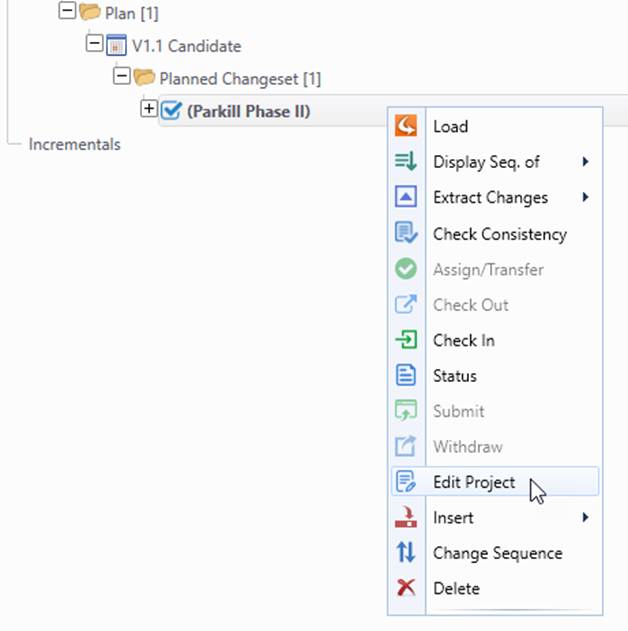
Project administration is performed via context menu associated with the Project, as illustrated and summarized below.
| Menu Item | Description |
| Load | Load a snapshot of the model assembled from the base model to the Project. It is a disconnected model. |
| Display Seq. of | Display the model evolution path from the base model to the Project. |
| Extract Changes | Extract individual or accumulated changes set of the Project as an incremental file. |
| Check Consistency | Run consistency checking to detect whether there are inconsistencies in the model evolution path from the base model to the current Project. |
| Assign/Transfer | Assign or transfer the ownership of the Project. |
| Check Out | Check out the Project for editing. |
| Check In | Check in the Project after editing. |
| Submit | Submit the Project after Project editing is completed. |
| Withdraw | Withdraw the submitted Project for revision. |
| Edit Project | Load a connected model assemble from the base model to the Project for model editing. |
| Insert | Insert a new Project before/after the Project |
| Change Sequence | Change the sequence of the Project in the context of a sequence-based Plan. |
| Delete | Exclude the Project from the Plan. |
Note:
- Project administration is always performed in the context of a Plan. Please check Plan Management for some of the Project administration tasks.
- Project administration tasks are enabled/disabled determined by many factors, including Project status, configuration, user roles, etc.
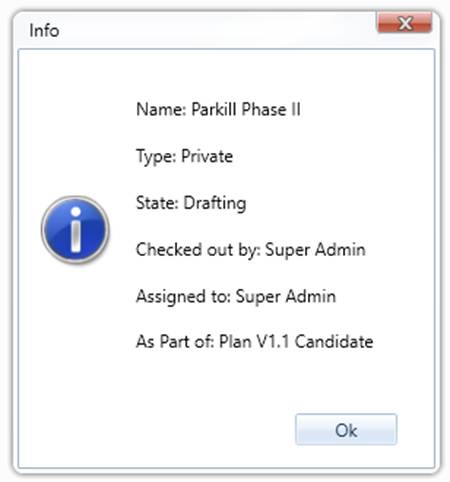
- While different colors and graphical symbols are used to indicate the status of a Project, such as state, owner, check-in/checkout, etc., the complete statue information of a Project can be discovered by invoking the Status menu item.
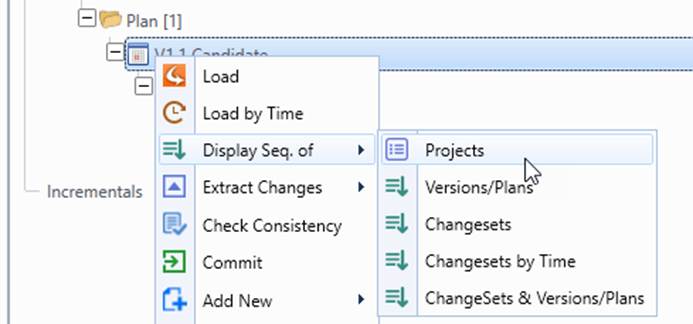
- Project status of a Plan/Version can also be found from context menu associated with a Plan/Version, as illustrated below.

Lifecycle of a Project
The lifecycle of a Project is varied, depending on how the Project construction process is configurated. The default Project lifecycle is illustrated and summarized below.
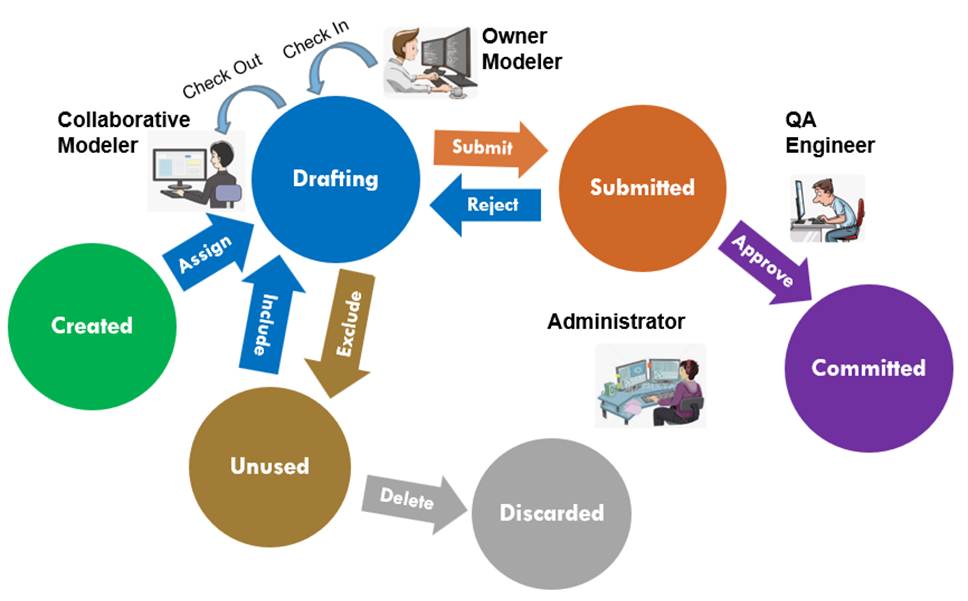
- Created: This is the starting point of a Project. Once created, it shall be assigned to a owner. For simplicity, the user who creates the Project becomes the owner of the Project. Thus, this stage doesn’t exist explicitly.
- Drafting: This is the stage when a Project is being constructed. A Project can be edited only during Drafting. Various mechanisms are provided to coordinate project construction.
- Submitted: After Submitted from Drafting, a Project is ready to be Committed, and can no longer be edited. A Submitted Project can also be withdrawn by its owner or rejected by the model administrator. In either case, the project will go back to Drafting for revision. A Submitted Project is in green color in navigation tree.
- Committed: A Plan can be Committed only when all of its Projects are Submitted or Committed. Once a Plan is successfully Committed or converted int a Version, all of its Submitted Projects are Committed. A Committed Project is normally frozen. However, if the parent Version is uncommitted, it could go back to Submitted. A Committed Project is in blue color in navigation tree.
- Unused: If a Project is excluded from a Plan, and not included in other Plans, its state becomes Unused. An Unused Project may be included in a Plan or simply deleted in the future. An Unused Project is in gray color in navigation tree.
- Discarded: Once an Unused Project is deleted, it is discarded. This stage doesn’t exist explicitly, since a deleted Project is permanently removed.
Coordination Options
Depending on how the Admin Service is configurated with 2 flags (i.e. EnforceProjectOwnership and CheckOutRequired), in the configuration of Admin Service, the following coordination options are supported for Project construction:
| Option | EnforceProjectOwnership | CheckOutRequired | Description |
| Ownership | true | false | In this option, a Project is assigned to a user (owner). The owner is responsible for Project construction. The owner may share the Project with other users during construction of the Project. But the Project can be Submitted only by its owner. Owner can also transfer the ownership to the other user who becomes the new owner of the Project. A Project can be owned by only one user. A Project is editable (highlighted in weight font in navigation tree) only by its owner and users with whom the Project is shared. |
| Check-out/Check-in | false | true | In this option, a user must check-out a Project in order to edit a Project. This will lock the Project, preventing it from being edited by other users. The locked Project must be checked in before it is checked out by other users. This option ensures a Project can be edited by only a user at a time. In other words, the Project is editable (highlighted in weight font in navigation tree) only by user who check out it successfully. Projects checked out are denoted using a check icon. Note: Flag EnableMultiCheckOut permits a Project to be checked out by more than one user. It is useful in some cases. |
| Full Coordination | true | true | This option enforces a "strict" coordination. It is a combination of Ownership and Check-out/Check-in. In this option, only owner can check-out a Project. Owner can also check-out the Project for other users by sharing the Project with them. The Project is editable (highlighted in weight font in navigation tree) only by users who check out it successfully. |
| Uncoordinated | false | false | None of the above coordination are applied. In this option, a Project can be edited by any users simultaneously. |
The default coordination is Full Coordination.
Project Construction Options
Two options are provided for Project construction:
- Connected: The Project is constructed in the context of a Plan. In this option, a Connected snapshot is loaded into the workspace to serve as reference. Any model changes made will be instantly saved into the model depository as part of the Project.
- Disconnected: This option allows a Project to be constructed outside the context of a Plan. It is either from other tools/systems or constructed from a disconnected model. However, the Project must be imported in the context of a Plan. A typical process is summarized as follow:
- Retrieve a model release and load it into workspace as a disconnected model;
- Make model changes and save it as incremental file;
- Create an empty Project in the context of a Plan;
- Create a connected model for the created Project;
- Merge the incremental into the connected model to import the model changes into the Project.
The Connected option is targeted for normal model maintenance and the process can be coordinated. The Disconnected is used for exceptional cases, such as external network model update. This kind of modeling task normally requires a lot of trial and error. Thus, it is a better option to construct this kind of special Projects in an isolated modeling environment. Another use case of the Disconnected Option is that it allows the Projects constructed in other tools/systems to be imported.
It is important to note that the two Options don’t conflict and they should be used together to address different use cases.
Configuration
Configuration for Project administration is defined in appsettings.json, an json file located in Admin service. The relevant configurations are summarized in the following table:
| Configuration | Default Value | Description |
| CheckOutRequired | true | if 'true', a Project must be checked out before it can be edited. |
| CheckOutProjectAfterCreated | true | if 'true', a Project will be automatically checked out by the one who creates it. |
| EnforceProjectOwnership | true | if 'true', ownership will be enforced for a Project and only owner of the Project can administrate it. |
| EnableMultiCheckOut | false | If 'true', a Project can be checked out by multiple users. |