Importing Project
Incremental model changes collected or exchanged can be imported into Model Depository as a Project.
Importing Project to a File-Based Model Depository
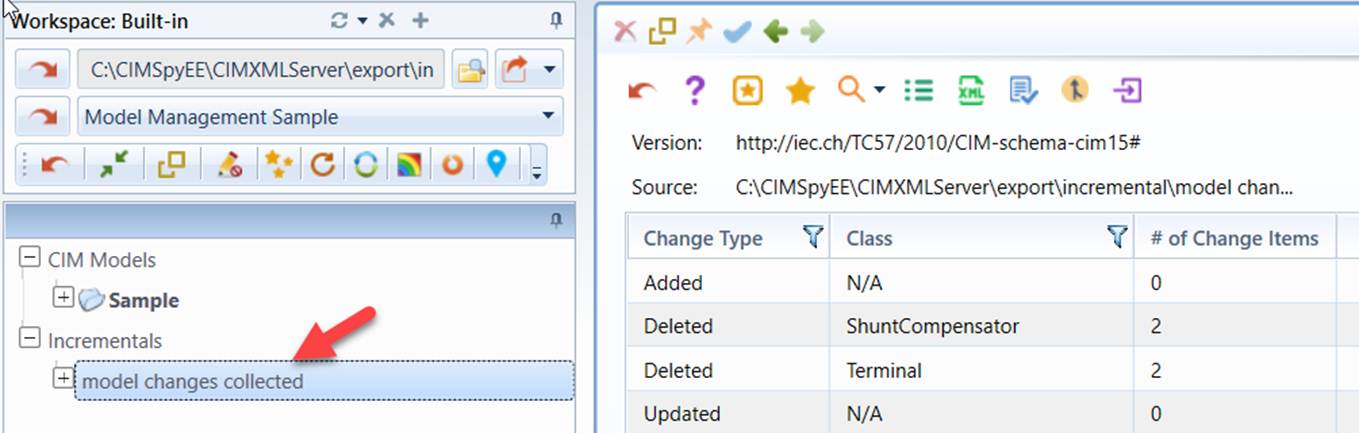
- Load the incremental model into the workspace.
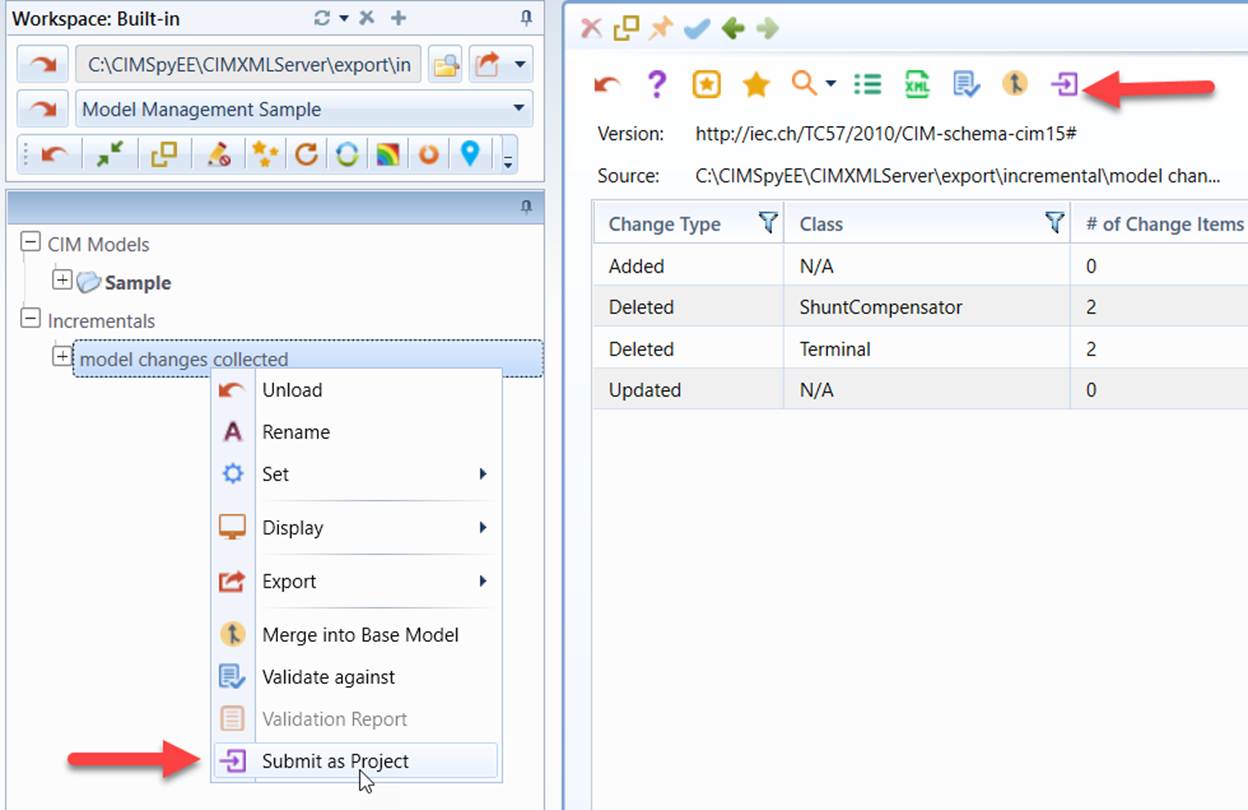
- Submit the loaded incremental model as Project.
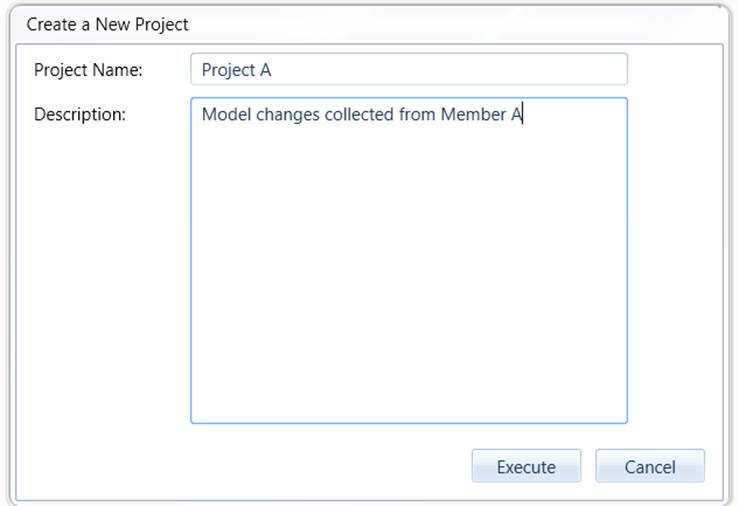
- Enter Project name and description.
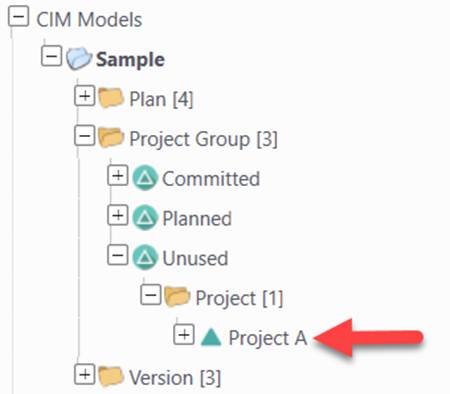
- The imported Project will be found under Unused Project Group and ready to be inserted into Plans.
Importing Project to a Database Model Depository
The above steps don’t apply to database Model Depositories. This is because incremental models don’t contain complete model schema information. For example updated sections of an incremental don’t contain class information. In order to import incremental model into database Model Depositories:
- Create a new PlannedChangeset/Project in a Plan.
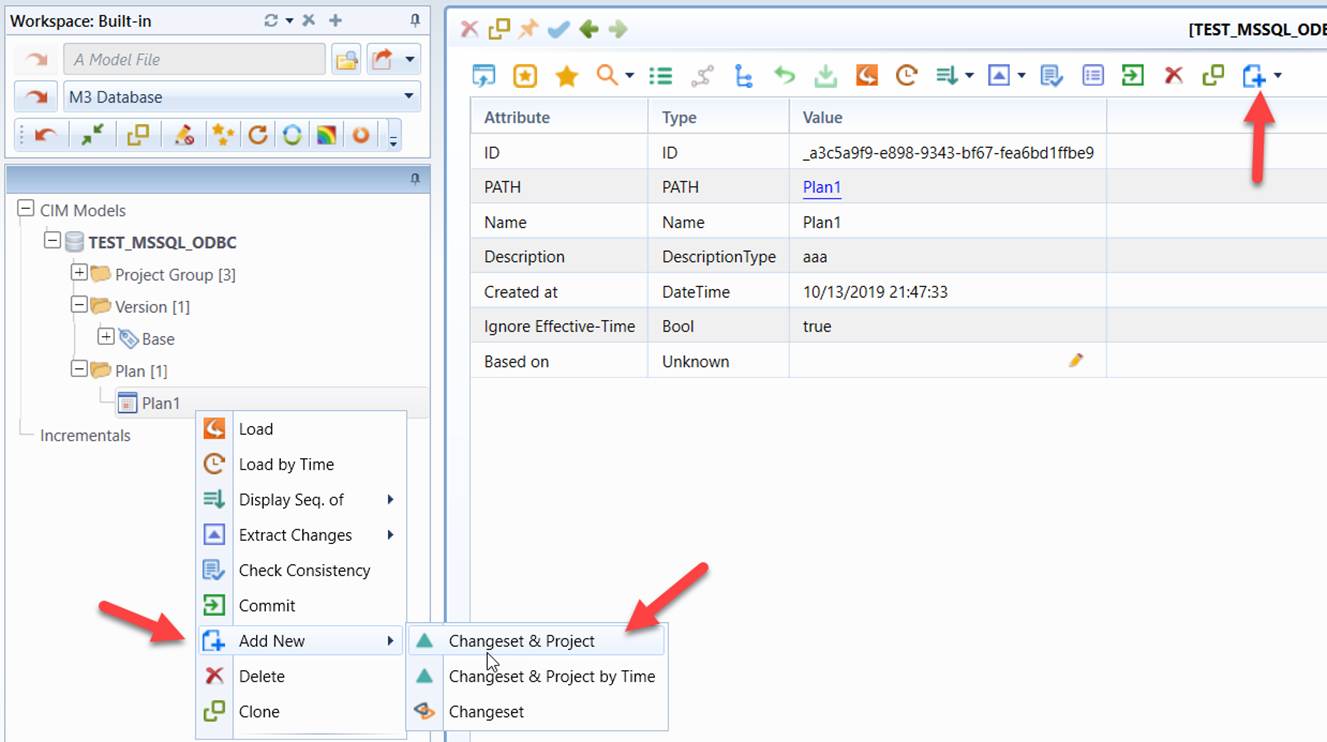
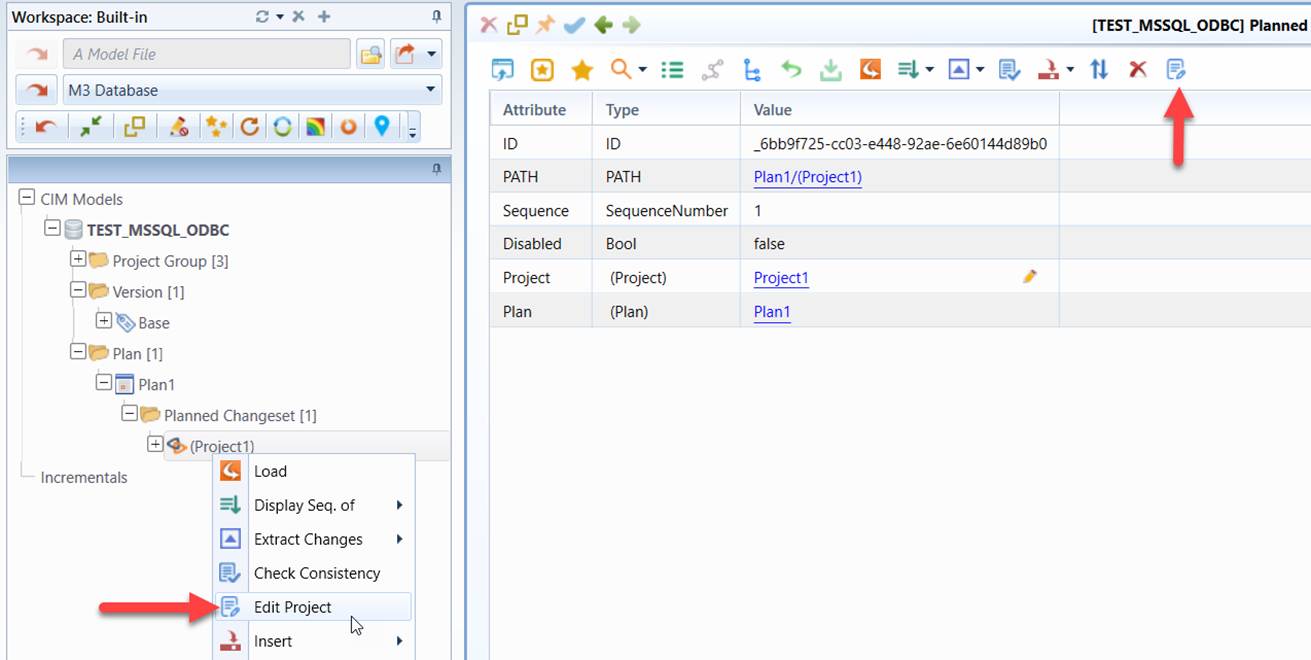
- Add the newly-added Project, and load the full model for Project editing.
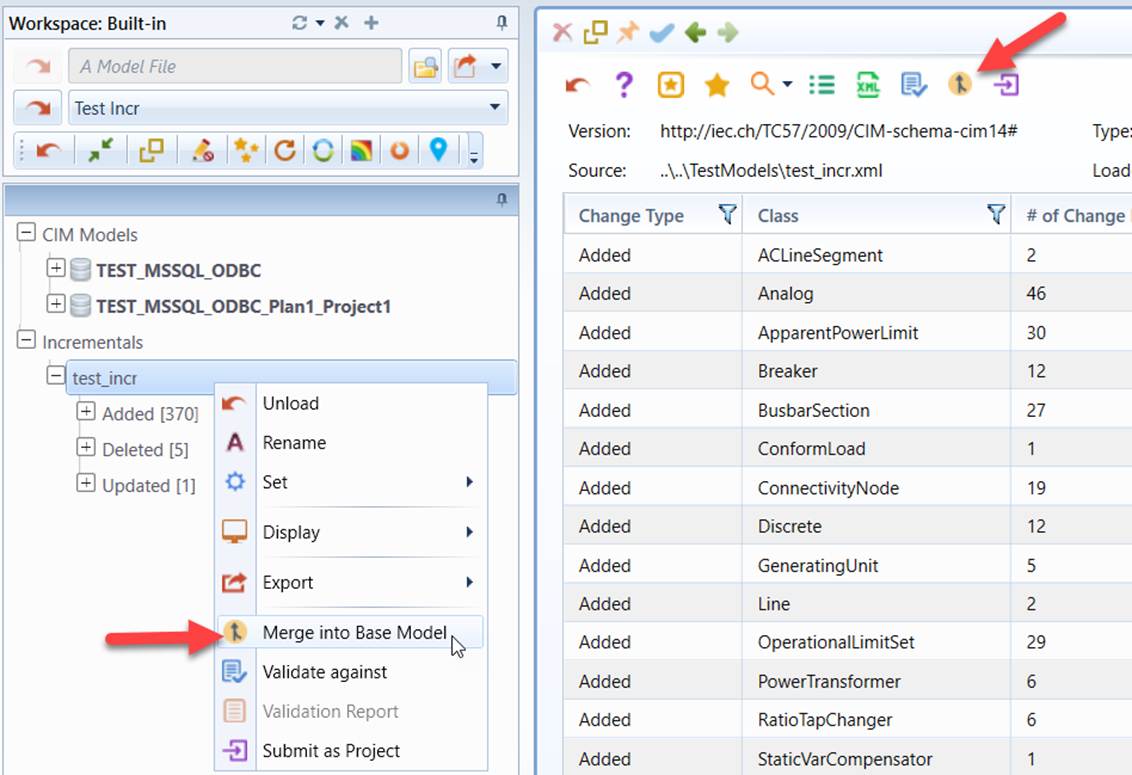
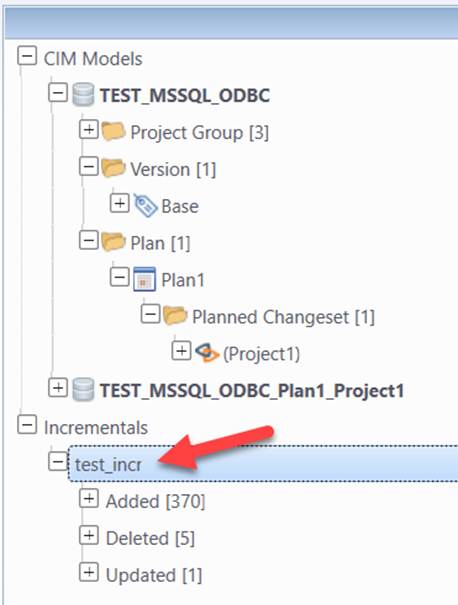
- Import the incremental model file into the workspace.
- Check the consistency between the incremental model and the connected full model used to for Project editing.
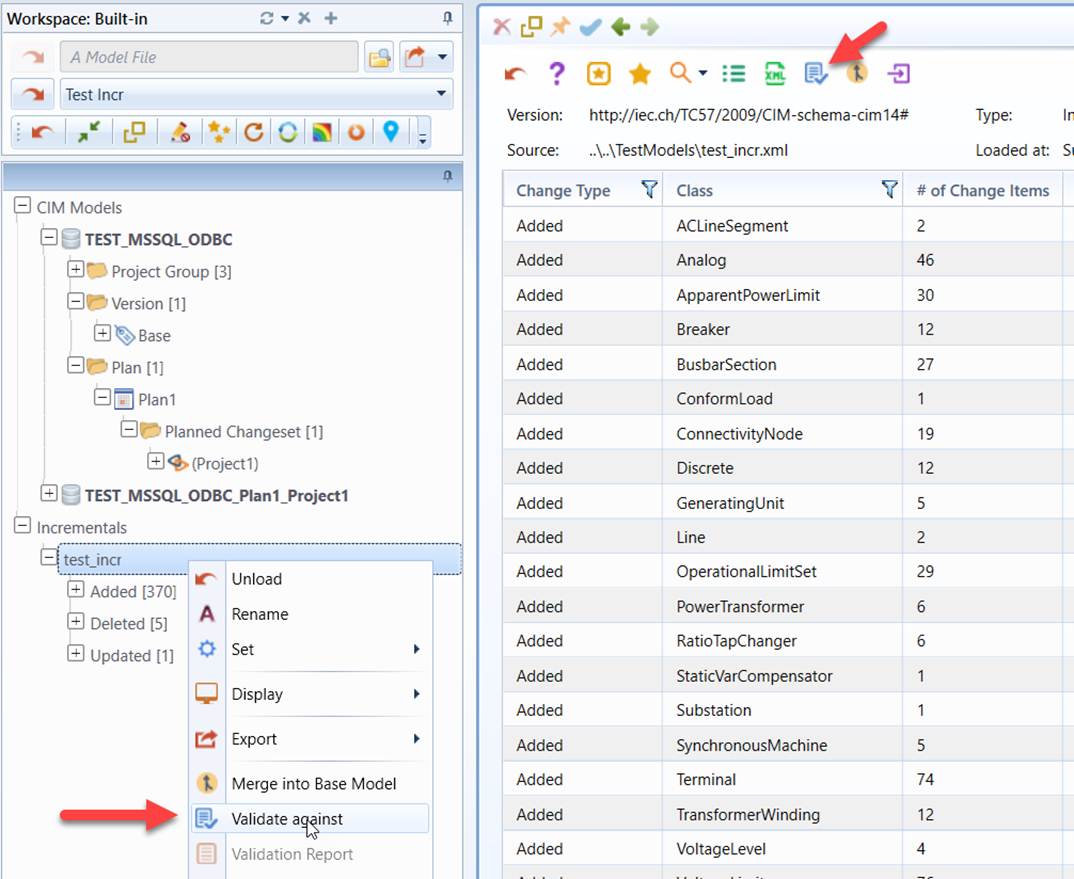
- If no modeling conflicts are detected, merge the incremental model into the connected full model used to for Project editing. The new Project now contains all of the model changes imported from the incremental model file.