Color Theme
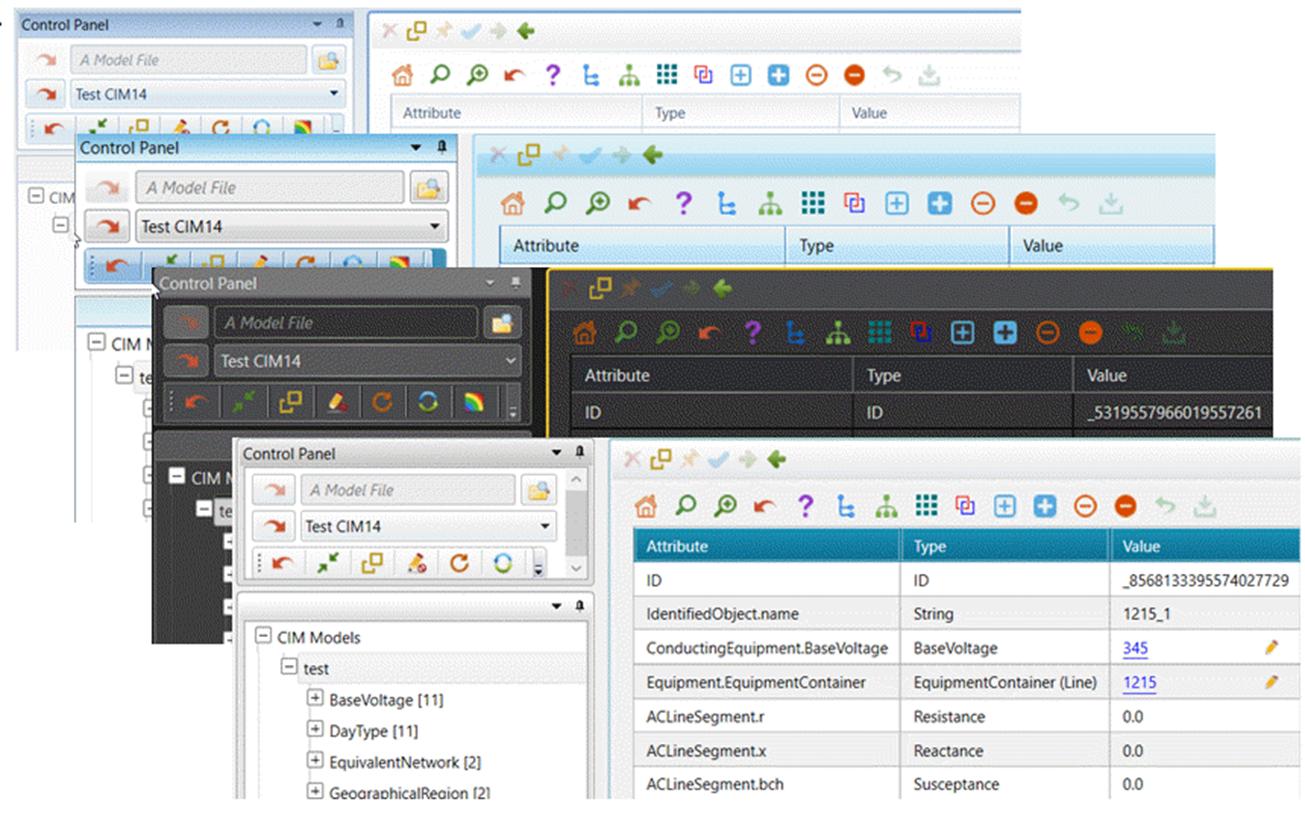
A color scheme is a range of coordinated colors applied to UI components. The Tool supports up to 8 color themes, as illustrated below.
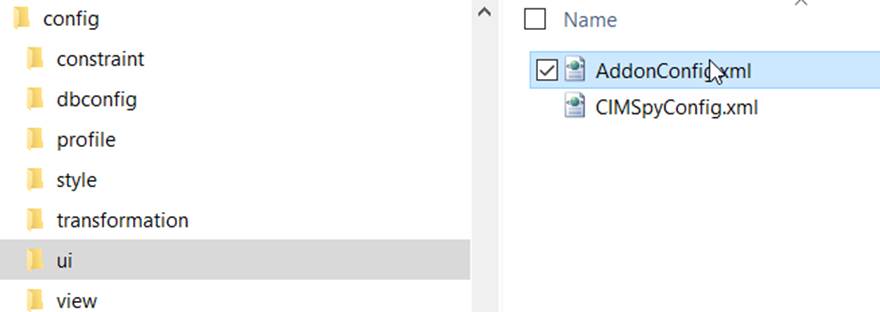
The default color theme is Windows 7. Users can change the default color theme to their favorite color theme by changing the configuration file under folder CIMSpy.Desktop\CIMSpy\config\ui, as illustrated below.
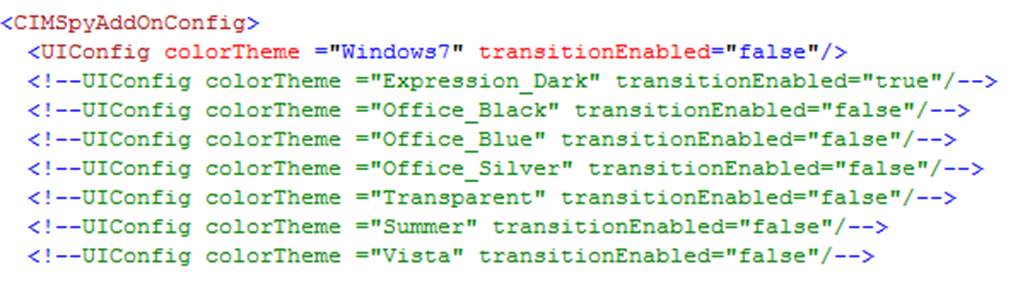
To enable the selected color theme, you must comment the rest of the color themes using “<!—“ and “-->”., and then restart the application. Users can also change the color theme at run time, as illustrated below.
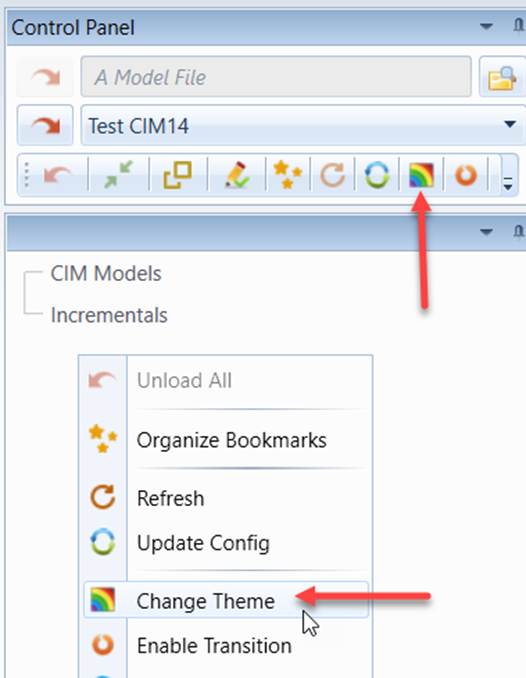
If users select to save the selected color theme, the new color scheme will be applied everytime when the Tool is started.
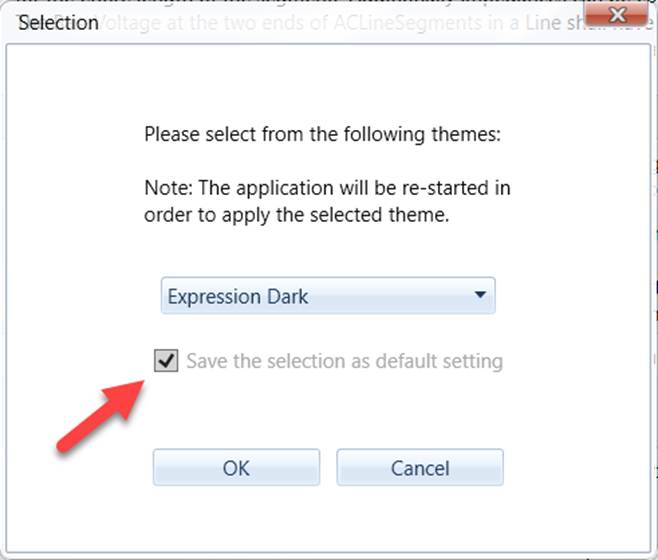
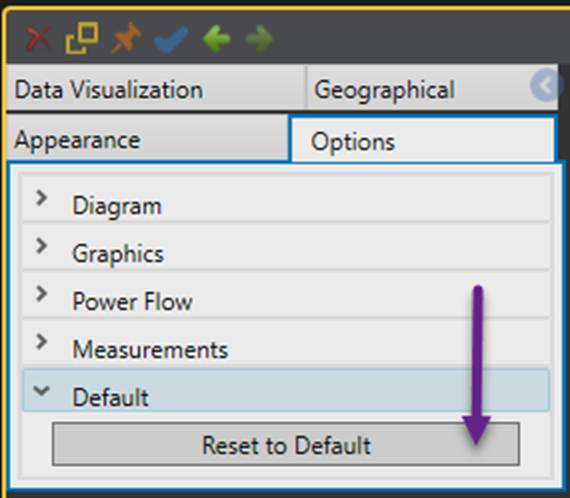
Once users choose to “Save the selection as default setting”, the new color theme will become persistent setting and is automatically applied when the application is started next time. In other words, the selected color theme will overwrite the color theme in the configuration file. To restore the color theme in the configuration file, simply reset UI settings.
Note:
- Diagram Display has its own color theme. This is because Diagram Display is a plug-in component from a different product called grid-IE. The color theme can be changed from the diagram display options, as illustrated below.
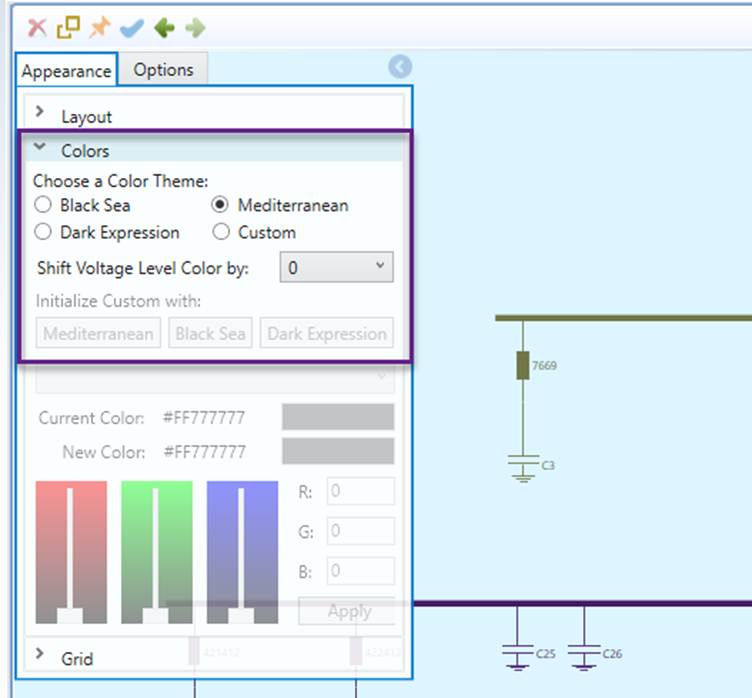
- When users change the Tool’s color theme, the diagram’s color theme will also update to match. The change type (persistent or temporary) will align accordingly. Users can always adjust the diagram’s color theme as needed.
- If users reset the diagram settings, the current persistent color theme will be used as a reference to initialize the diagram’s color theme to the corresponding one.